



Let’s be honest: scheduling on WordPress can be difficult.
Maybe you need a beautiful public calendar to promote your upcoming webinars and workshops. Or, you might need a rock-solid system for clients to book 1-on-1 appointments with you.
I was looking for a simple way to handle all my booking and scheduling needs – and that’s when I discovered Sugar Calendar.
Sugar Calendar is actually two separate plugins: Events and Bookings. You can install the one you need, or use both to create a complete scheduling and booking platform, all living inside your WordPress dashboard.
In this Sugar Calendar review, I’m testing both plugins thoroughly. I dove deep, setting up everything from a multi-day event calendar with speaker profiles to a paid booking form for my services.
Now, I’m sharing my complete experience. I’ll cover the setup, the features, the day-to-day management, and whether this is the seamless scheduling solution WordPress users have been waiting for. We have a lot to cover, so let’s dive into this Sugar Calendar review.
Two Plugins, Two Solutions: Events vs. Bookings
Before I get into the features, it’s really important to explain that the Sugar Calendar brand actually offers two separate plugins:
- Sugar Calendar Events: This plugin is focused purely on creating and displaying events on a calendar or list layout. It tells visitors when things are happening, like webinars, meetups, deadlines, or community events.
- Sugar Calendar Bookings: This plugin is specifically designed for scheduling appointments or booking time slots for services. It’s built for consultants, coaches, service providers, or anyone who needs clients to book a specific time with them.
While they share a similar name and are both simple to use, they’re separate products. This means you can choose the best WordPress plugin for the specific job you want to do.
In this review, I’ll look at each plugin separately and share my experience from testing their unique features.
If you’re particularly interested in one plugin over the other, then feel free to use the quick links below to go straight to that section:
Sugar Calendar Events Review: Is It the Right Calendar & Events Plugin for You?
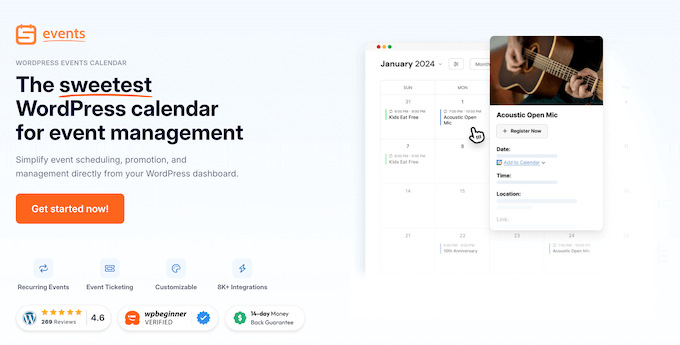
If you’re running any kind of events (like online webinars, community meetups, or in-person workshops) you’ll know how important it is to have a simple, reliable way to manage and show those events on your WordPress site. The wrong tool can quickly make event management very difficult.
This is where the Sugar Calendar Events plugin comes in.
The Sugar Calendar Events plugin is designed to do one job very well. It helps you create, organize, and show events on your WordPress blog or website. It provides the basic tools for adding event details, setting dates and times, and showing your schedule to visitors with clean, professional-looking calendars and lists.
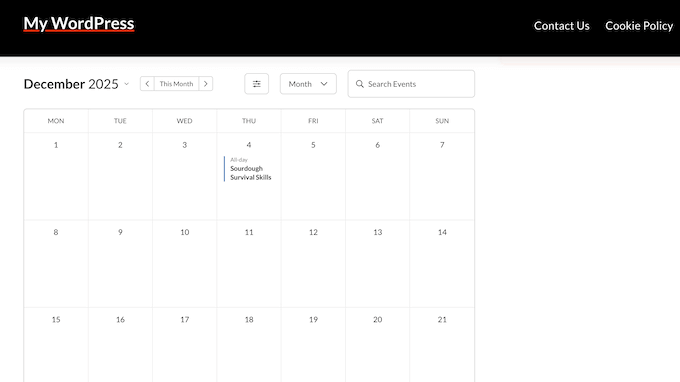
In the next sections, I’ll look closely at the specific features I tested. I’ll explore how Sugar Calendar handles everything from creating recurring events to managing venues and showing a helpful, informative calendar to the people who visit your site.
1. A Familiar Interface: Adding Your First Event
When I test a new plugin, I always start with the same question: is its most important feature easy to use?
For Sugar Calendar, that meant creating my first event. I went into the WordPress admin, clicked ‘Add New’, and immediately saw a screen that felt comfortably familiar.
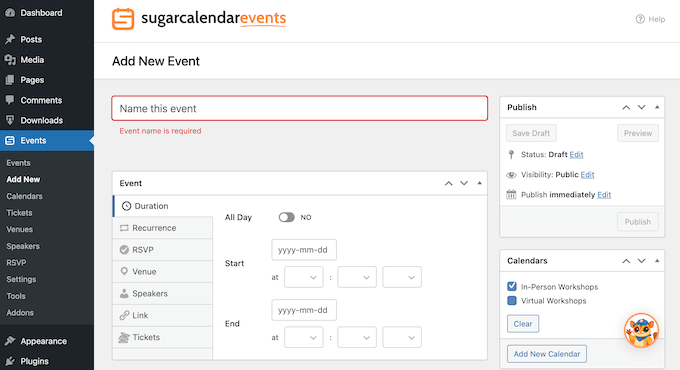
Sugar Calendar Events uses the standard WordPress editor interface, which is a huge plus. This means I didn’t need to learn a completely new layout.
All the essential fields were right there. I saw the Event Title, plus a main area for the details which uses the block editor. This means that adding text, images, or even videos was straightforward.
Sugar Calendar also has clear sections where I could set the Start/End Date and Time. The date and time pickers were easy to use, just as I’d expect.
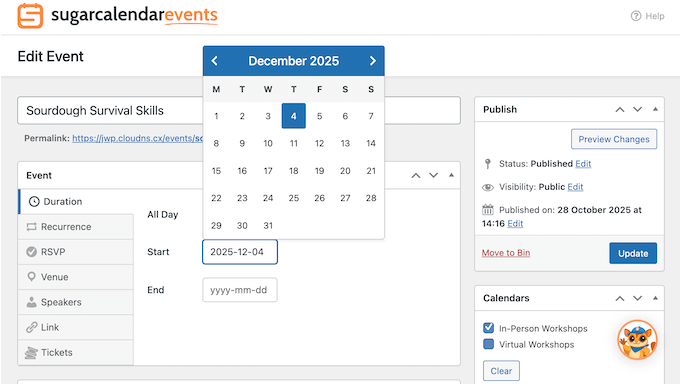
I added details for a local event, including uploading a featured image and typing in the venue information.
The whole process felt very efficient, and the focus was very clearly on getting the key information quickly. Sugar Calendar Events didn’t clutter the screen with lots of confusing settings I didn’t need for a simple event, which was really nice to see.
2. Making Events Public: The Events Calendar Block
Creating events in the admin area is only useful if visitors can actually see them on your site. That said, Sugar Calendar lets you display events using two different blocks.
I just searched for the ‘Events Calendar’ block, added it to the page, and a calendar appeared instantly.
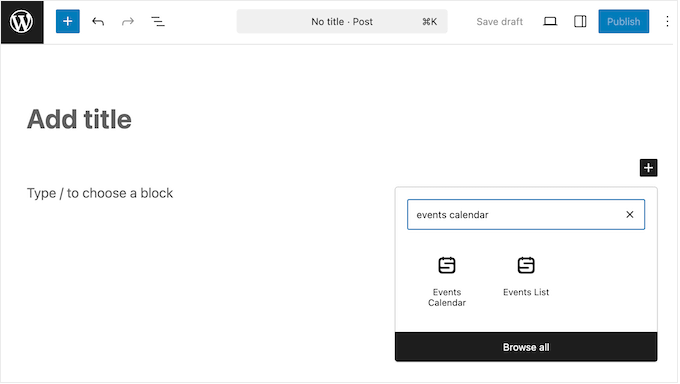
I was pleased to see that placing the calendar or event list wasn’t restricted. I could easily add it to pages, posts, or even widget-ready areas like a sidebar. The visual output looked clean and professional, and fit well with my WordPress theme.
If you create multiple calendars, then you can control which calendar appears on the page or post simply by clicking an option in a dropdown menu.
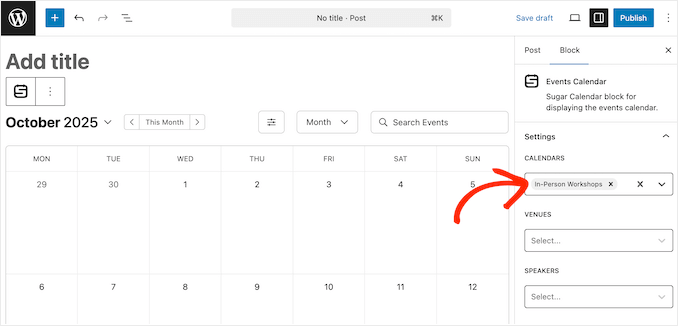
Alternatively, you can simply add the default calendar to your site. Visitors can then choose which calendar they want to see using a dropdown menu.
Sugar Calendar also lets visitors switch between monthly, weekly, and daily views.
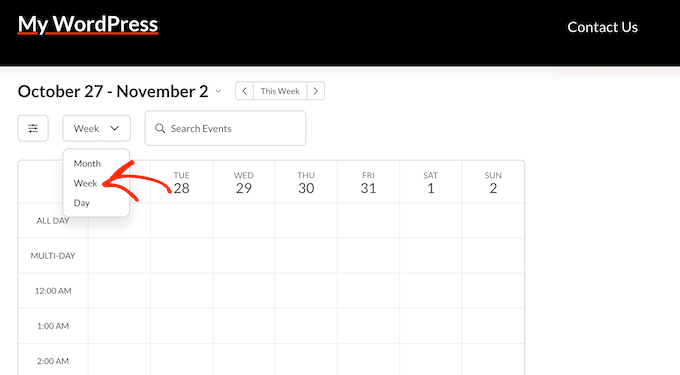
This interactivity is a great feature, since visitors can choose the level of detail they want. This might be a broad monthly overview or a specific day’s schedule. This makes it easier for visitors to find events that fit their plans.
3. Testing Display Options: List vs. Grid View
The full calendar view is great, but sometimes you just want to show a simple list or grid of upcoming events. For example, I might display a compact list on my homepage or in the WordPress sidebar.
Sugar Calendar has a special Events List block that does exactly this. It also offers different visual formats.
I tested the available display options in the block’s settings:
- List View: This showed my events in a clean, vertical list. It included important details like the event’s date, time, and title. I found this worked really well when I added the block to a smaller space, like a sidebar. It kept everything compact and easy to read.
- Grid View: This option arranged events in a grid with multiple columns. It often showed featured images more clearly. I felt this view looked nicer and was better for wider content areas, like showing key events on a homepage.
- Plain View: This is the most basic option without any styling. It’s probably meant as a starting point for heavy custom CSS styling or for fitting into complex layouts.
Having these different views right in the block is really helpful. It let me choose the presentation that best suited the specific spot and available space where I wanted to display my events.
4. A Seamless Mobile Experience
Lots of people visit websites using their mobile devices. Because of this, a calendar that’s hard to use on a small screen is a big problem.
That said, I made sure to test all the different calendar views on both my smartphone and tablet. This included the Month, Week, Day, List, and Grid views. I looked for common mobile problems like text being too small, parts of the calendar overlapping, or having to scroll sideways.
The experience was always excellent. The calendar layouts automatically changed for the smaller screens, and they stayed clear and easy to read.
Moving between months or weeks using touch felt natural and smooth. It was easy to tap on specific dates or events to see more details, as the tap areas were always large enough for mobile.
This smooth mobile experience means visitors can easily check event schedules and details on any device.
5. From Simple to Complex: Setting Up Recurring Schedules
Manually recreating the same event every week or month is exactly the kind of repetitive task that plugins should automate.
That’s why I specifically tested Sugar Calendar’s recurring events feature to see how easily it could handle common scheduling patterns. I had no problems creating an event that recurred daily, weekly, monthly, or yearly.
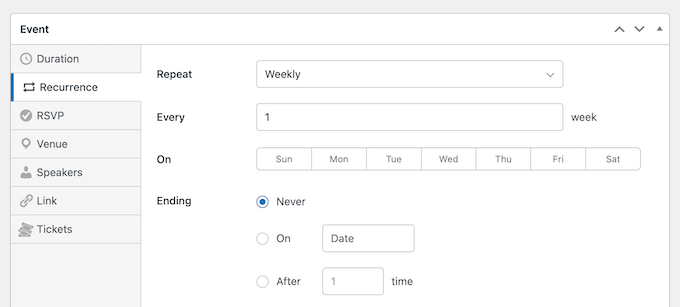
After that, I pushed Sugar Calendar Events further by testing a more complex rule. I tried creating a meeting that happened on every second Tuesday of the month.
Sugar Calendar handled this custom interval clearly, letting me define the pattern without any confusion.
After saving my event, Sugar Calendar automatically populated the calendar on the correct future dates. This feature is a clear time-saver. It’s perfect for regular classes, meetings, or recurring webinars.
6. Organizing Events with Multiple Calendars
As I added more events, I quickly saw the need to separate them by type.
Mixing workshops, social meetups, and webinars all on the same calendar could easily become confusing for visitors. Thankfully, Sugar Calendar Events lets you create as many separate calendars as you want.
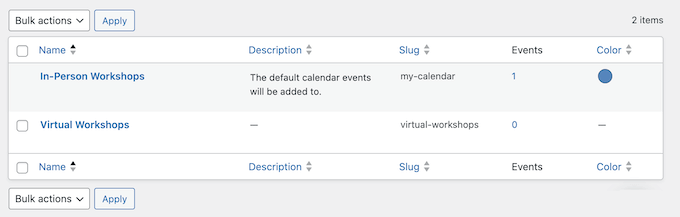
Then, I just assigned each event to the relevant calendar.
With that done, I could control exactly where each calendar appeared on my WordPress website, just by clicking an option in a dropdown menu.
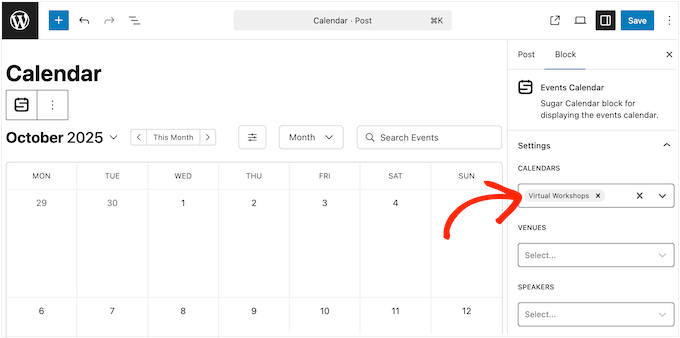
This separation helps visitors find the types of events they’re interested in without looking through irrelevant listings.
7. Streamlining Location Details: The Venue Management Feature
For any in-person event, clearly communicating the location is essential.
Manually typing out the address and adding maps for every event is time-consuming and can lead to errors. Thankfully, Sugar Calendar Event’s venue management feature simplifies this process.
It lets you save venue details as reusable entries inside the plugin’s settings. This includes the name, full address, and postcode.
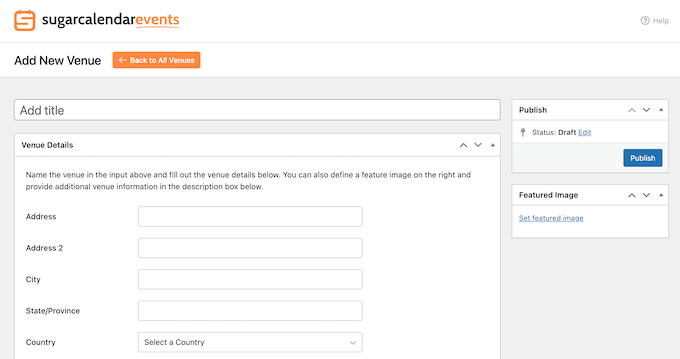
I added a couple of test venues, one for a local community centre and one for an office address.
After saving them, creating new in-person events became much more efficient.
When I created a new test event, I didn’t have to type the address again. I could just select the saved venue from a dropdown list. This instantly added all the venue’s details into the event.
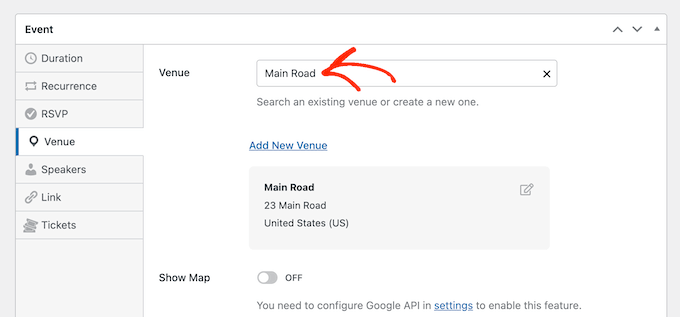
This feature is a big time saver, especially if you regularly host events at the same locations.
8. Reusable Profiles: Managing Your Event Speakers
For events like workshops, webinars, or conferences, showing the speakers involved is very important for attracting attendees and building trust.
Simply listing names in the description looks pretty boring, so I was happy to see that Sugar Calendar has a special speaker profile feature.
This lets you create individual profiles for each speaker, adding their name, uploading a photo, and writing a description about them. These profiles are managed separately, similar to how you manage users and authors in WordPress.
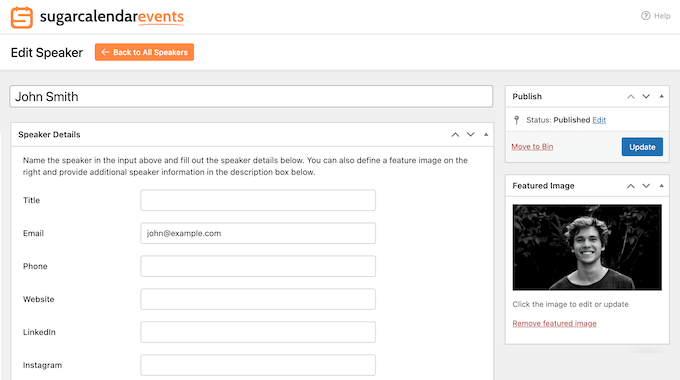
Once I’d created a couple of test speaker profiles, it was easy to link them to specific events.
With that done, Sugar Calendar added the speaker’s name and a link so people could visit that person’s profile. This immediately made my test workshop page look much more professional.
9. Solving the Time Zone Problem for Virtual Events
Time zones can be one of the most confusing parts of running a virtual event. If you get this wrong, then your users might miss the event and get frustrated.
By default, Sugar Calendar shows event times using the time zone you defined in the plugins’s settings. This behavior is perfect for in-person events where everyone is in the same location.
But for online events with people from all over the world, showing just one time zone isn’t a good idea.
That’s why I tried activating Sugar Calendar’s time zone conversion feature. This tries to automatically find the visitor’s local time zone and adjusts the times for them.
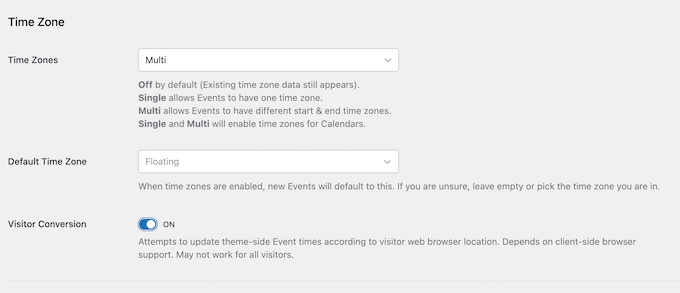
With that done, I tried setting my browser to different locations – and the times on my event page updated straight away. This automatic change makes things much clearer for online events.
10. Avoiding Manual Re-entry: The Event Import Process
One of the biggest challenges when switching calendar systems is moving your existing events.
Nobody wants to manually re-enter dozens or hundreds of past and future dates. I specifically tested Sugar Calendar’s event import tools to see how well it handled data from external sources.
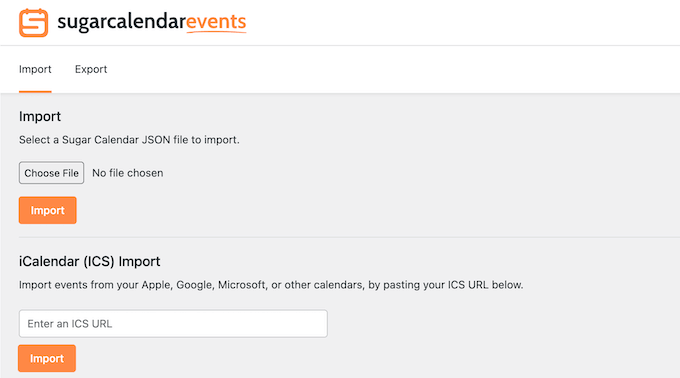
First, I tried importing from an external calendar like Google Calendar.
I exported a standard .ics file (a common calendar format) containing several test events and used Sugar Calendar’s built-in import tool. The process was straightforward.
I uploaded the file, and the events appeared correctly in the Sugar Calendar list, along with their dates, times, and basic descriptions.
These import tools make it much easier to start using Sugar Calendar. Not having to recreate everything manually is a massive time-saver.
Sugar Calendar Events: Pricing and Plans
If you want to try Sugar Calendar Events for yourself, then there are 4 paid plans that you can choose from.
All plans let you create unlimited events, calendars, and attendees. However, there are some key differences between each plan:
- Basic. For $49.50 per year, you can set up recurring events and import events from other calendars like Google, iCalendar, and Outlook. In my opinion, this is a solid starting point if you don’t need advanced speaker and venue management features.
- Plus. Priced at $99.50 annually, this plan lets you create reusable venues and speakers within the plugin’s settings. If you regularly host events at the same locations or feature the same speakers, then this plan will save you lots of time.
- Pro. For $199.50 per year, Pro lets you install Sugar Calendar Events on up to 3 sites. This makes it a cost-effective option if you have a small portfolio of websites (perhaps your main site plus a couple of related projects) that all need event management capabilities.
- Elite. Priced at $299.50 annually, Elite lets you use Sugar Calendar on up to 10 websites. This makes it ideal for WordPress agencies, developers, or businesses that manage a larger number of client sites. You also get access to special support, which means you receive faster help when needed.
Sugar Calendar Bookings: Is It the Right Appointment and Booking Plugin for You?
The Sugar Calendar Events plugin is great for displaying events. But sometimes you might need people to actually book specific time slots, or schedule appointments for services you offer.
This is a common need for consultants, coaches, service providers, or anyone offering one-on-one sessions.
Manually managing appointment times by email can quickly become difficult. This is the exact problem the Sugar Calendar Bookings plugin solves.
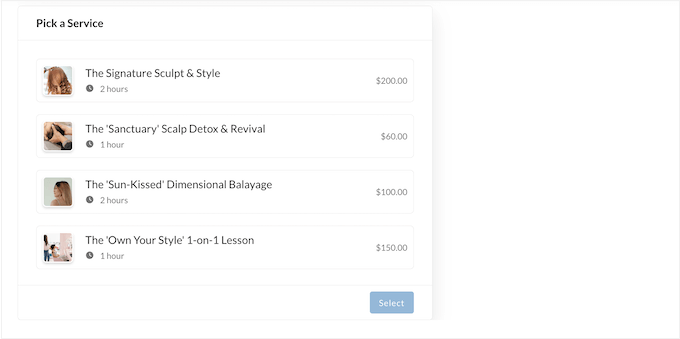
It lets you define specific services, set their duration and price, and then define your availability. Visitors can then browse available time slots directly on your site and book a session that works for them. They can even complete payment at the same time.
In the following sections, I’ll look at the specific features I tested within the Sugar Calendar Bookings plugin. This includes setting up services, managing payments, setting business hours, and handling cancellations.
1. Getting Started: Defining Your Bookable Services
Getting started with any new booking system can be daunting, but the first step is always defining what people can actually book.
I found the process very simple. For each service, I could clearly define key details including the name and description, duration, and pricing.
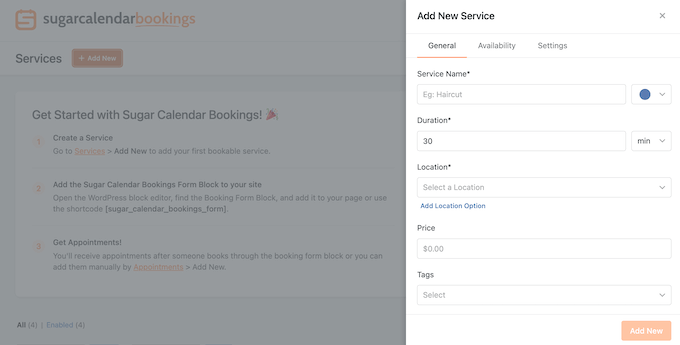
Sugar Calendar then clearly shows this information to clients during the booking process.
This helps you avoid emails like “How much does your 60-minute call cost again?” or “What exactly is included in the workshop?
2. Adding the Booking Form to Your Website
Once my services were set up, the next important step was adding the booking form to my site. After all, a booking system is useless if people can’t find and use it easily!
I tried all the different ways that Sugar Calendar Bookings lets you add these forms, and was pleasantly surprised.
No matter whether I was using the built-in block editor, a classic editor page with a shortcode, or the Elementor page builder, the process was always straightforward.
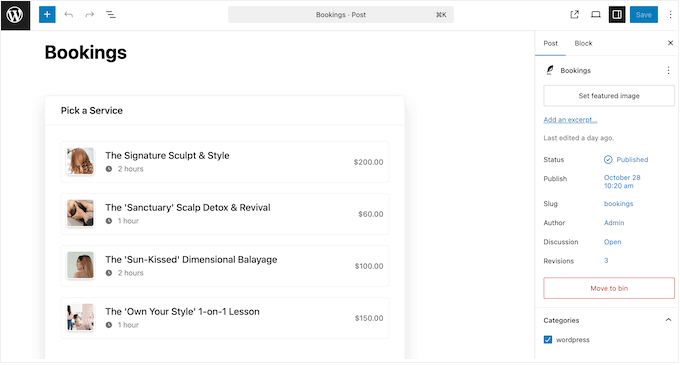
This flexibility means you can easily add booking capabilities anywhere on your site without needing a specific editor or technical approach.
However, what impressed me most was the consistency. The booking form looked and worked exactly the same no matter how I added it to my site.
3. Controlling the Layout: 2-Column vs. 3-Column Time Slots
How time slots are displayed can greatly affect the user’s experience. A messy or tight layout can make it difficult to find the right time.
Thankfully, Sugar Calendar lets you choose between a 2-column and a 3-column display for the list of available time slots. Plus, switching between these options is as simple as clicking an option in the WordPress editor.
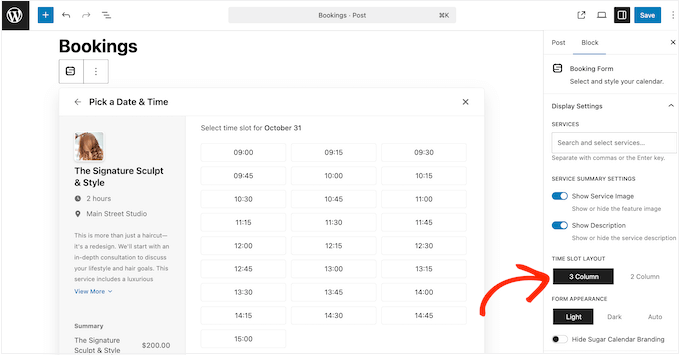
Throughout testing, I found that the 3-column layout worked well in a wide, main content area. It showed more time slots at once without too much scrolling.
However, when I placed the form in a narrower sidebar, the 2-column layout looked much cleaner and stopped the times from feeling squashed.
4. Testing the Front-End Booking Experience
A booking system’s back-end features are important, but the customer’s experience on the front-end calendar is crucial for getting lots of bookings.
I spent a lot of time using the Sugar Calendar Bookings form as a visitor to test how easy it was to use.
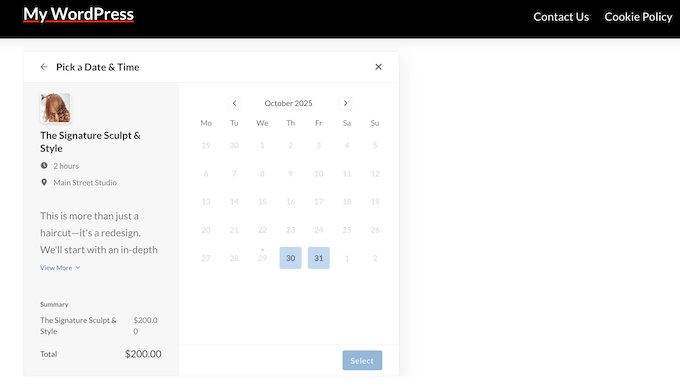
The calendar display was clean and straightforward, and it was easy to select my preferred date. I just had to click on the day in a standard calendar view.
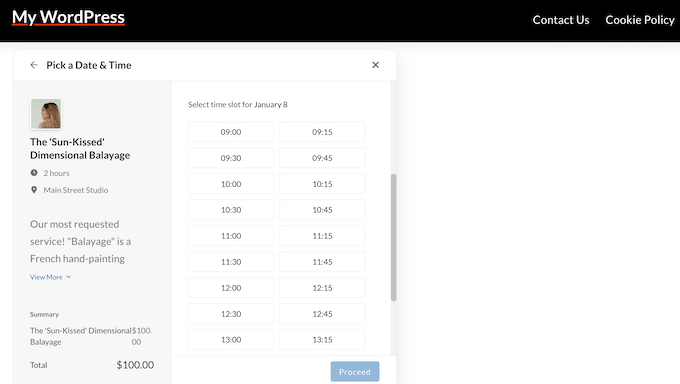
After selecting a date, the available time slots for that day appeared right away. Slots that were already booked or outside the set business hours were clearly marked as unavailable. This prevented any confusion.
5. Automating the Conversation: Confirmations, Changes, and Cancellations
A booking system is only useful if everyone involved knows what’s happening.
Sending confirmation and reminder emails manually is time-consuming and can lead to mistakes. Thankfully, Sugar Calendar Bookings can send and manage these important notifications automatically.
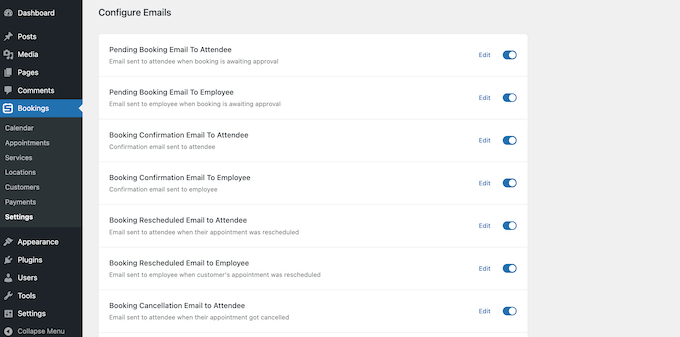
During my testing, I made several bookings, rescheduled some, and cancelled others to act like real situations. Each time, the system reliably sent out automated emails:
- To the customer: They received an email confirmation immediately after booking. Sugar Calendar also notified customers if their booking was changed or cancelled by an admin.
- To the admin: I received alerts every time someone made a new booking or changed an existing appointment. Sugar Calendar also notified me if a customer cancelled their booking.
This automated communication worked perfectly in my tests. It clearly keeps both the service provider and the client informed about the appointment status without any manual work. Instantly, this greatly reduces the chances of missed appointments or confusion.
6. Automating Payment Collection with Stripe
Sugar Calendar Bookings connects directly with Stripe so you can accept credit card payments online. Turning this on allowed clients to pay securely right after selecting their time slot. This made the payment collection process automatic.
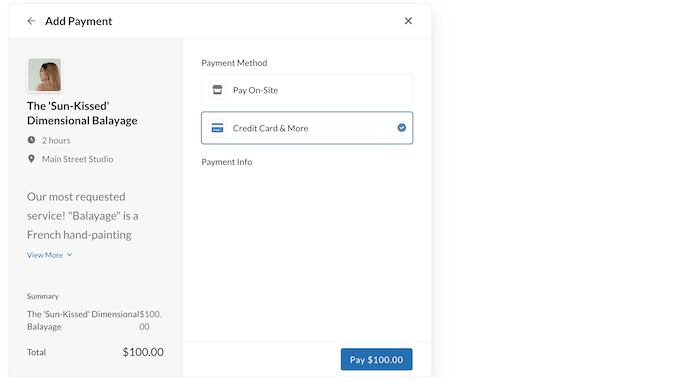
Along with Stripe, I liked the option to manually mark bookings as paid, as this lets you accept cash or another offline payment method.
This flexibility is important, as it ensures all bookings are accurately tracked within Sugar Calendar, no matter the payment method.
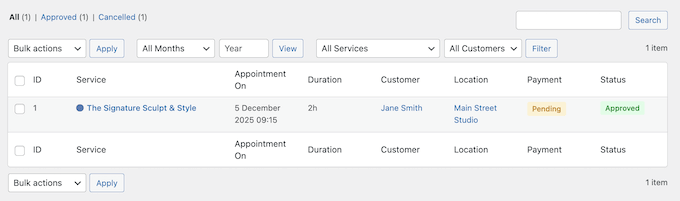
Sugar Calendar also clearly showed the payment status in the booking list. I could instantly see whether a booking was ‘Completed,’ ‘Pending,’ ‘Failed’ or ‘Refunded.’
This let me get a quick look at outstanding payments and total revenue earned for a specific period, directly from the WordPress dashboard.
7. Preventing Last-Minute Stress: Setting Notice Periods
A good booking system stops customers from making inconvenient appointments, and Sugar Calendar is no exception.
To start, it lets you set a minimum notice period, which is how close to the appointment time someone can book. This prevents the stress of unexpected, last-minute bookings and ensures you always have enough preparation time.
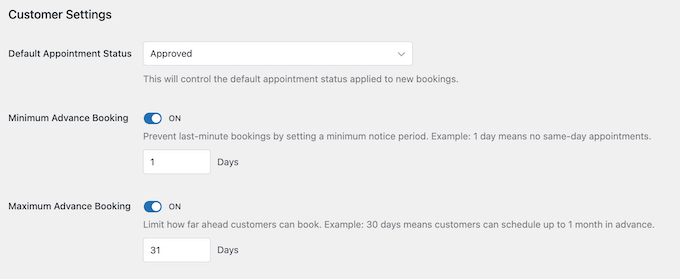
You can also set a maximum booking window to determine how far into the future customers can book. This prevents your calendar from filling up with distant appointments that customers might forget about, or no longer need.
During testing, I set a minimum notice of 24 hours and a maximum window of 60 days.
Sugar Calendar enforced these rules perfectly on the front-end calendar. When attempting to book, time slots within the next 24 hours were unavailable, along with dates beyond the 60-day limit.
8. Avoiding International Confusion: Adjusting Date/Time Displays
Getting the date and time format right might seem like a small detail, but it’s very important for clear communication, especially if you have international clients. We’ve all seen the confusion caused by US (MM/DD/YYYY) versus European (DD/MM/YYYY) date formats, or 12-hour versus 24-hour time.
I was pleased to find that Sugar Calendar Bookings makes it easy to adjust these displays. The settings were easy to locate, and I could quickly switch between common date and time formats to match standard UK preferences (DD/MM/YYYY, 24-hour clock).
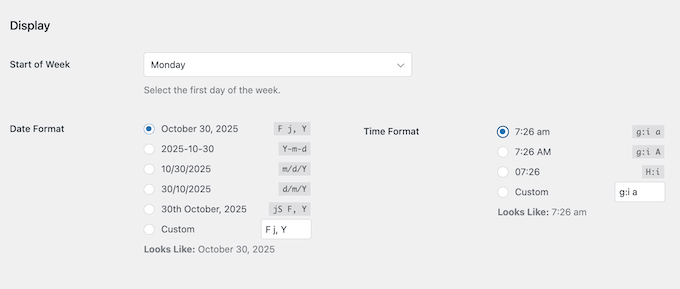
This ensures that clients see dates and times in a way that makes sense to them, which helps you avoid potential booking errors.
9. Preventing Out-of-Hours Requests
One of the biggest problems with a manual booking system is having to deal with appointment requests for times when you simply don’t work. For example, you might get emails asking for late evening calls or weekend slots.
Sugar Calendar solves this problem by letting you set your main business hours. Simply define your standard working days (Monday to Friday) and then set the specific times when you’re available for bookings (for example, 9:00 AM to 5:00 PM).
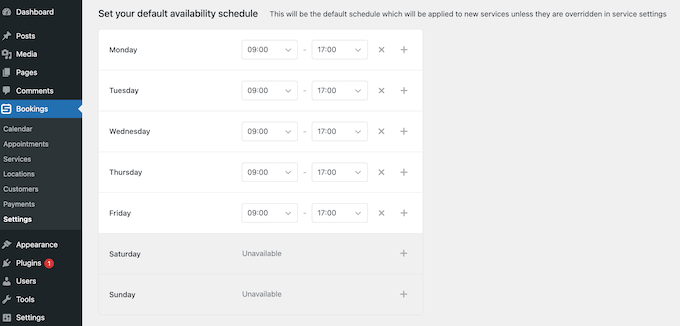
When clients visit your booking form they’ll only see available slots within your predefined hours and days. All options outside your working schedule will be greyed out and unselectable.
10. Managing Your Customer Records
Managing appointments is only part of the work. Keeping track of the people making those bookings is just as important.
If you don’t use a dedicated system, then your client information will almost certainly end up spread across countless emails, notes, and calendar entries.
Sugar Calendar Bookings brings all this information into one central, organized place within WordPress.
Every time someone books an appointment, the system automatically creates a customer record. Clicking on a customer’s name gave me a clear view of their contact details.
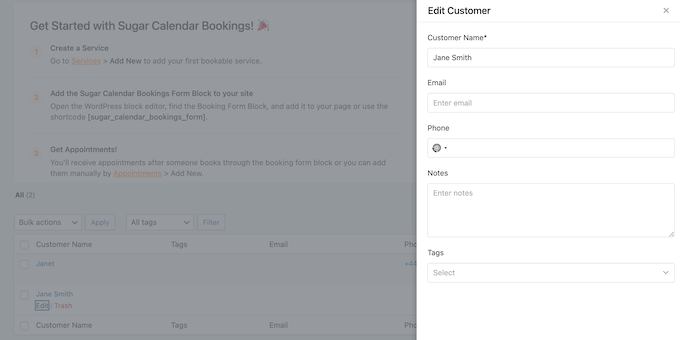
I also used the personal notes field to write down quick reminders about specific client needs or preferences discussed in previous sessions.
The tagging system was also very useful. I started tagging clients based on the specific service they booked or their industry. This simple categorization made it much easier later on if I wanted to do things like send a targeted email offer for a follow-up session.
11. Staying Organized: Filtering Your Bookings
As my number of test bookings grew, searching through the list manually became time-consuming and difficult. That’s why I was glad to see that Sugar Calendar Bookings offers a filtering system to keep everything organized.
Using this system, I could instantly narrow down appointments by date, service type, and customer.
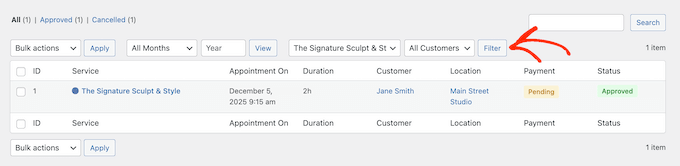
This is a big time-saver, especially during busy times. Finding specific bookings or checking payment statuses took moments instead of minutes.
12. Self-Service Cancellation Option
Handling cancellations used to mean emails or phone calls back and forth just to free up a time slot. That’s why I was happy to see that Sugar Calendar includes a self-service cancellation option.
I tried clicking this cancellation link as a ‘customer’, and found the process straightforward. Sugar Calendar also confirmed the cancellation straight away, helping to avoid any confusion.
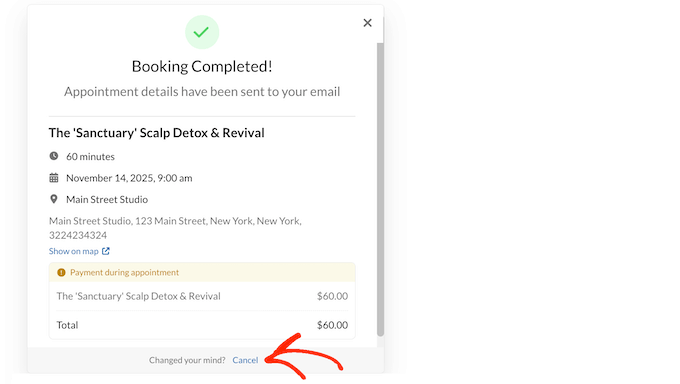
Importantly, the matching time slot became available on the public booking calendar straight away. Sugar Calendar also sent an automatic notification to my admin email, telling me about the cancellation.
This self-service approach means you don’t need to waste time making these adjustments manually, or sending follow-up emails. Sugar Calendar handles everything automatically.
Sugar Calendar Bookings: Pricing and Plans
If you want to get started with Sugar Calendar Bookings, then you will find their pricing structure very simple. You get access to all the features, no matter what plan you buy.
The only real difference, is the number of sites where you can use Bookings:
- Basic. For $49.50 per year, you can install Sugar Calendar Bookings on a single site. This is a great choice if you just need booking features on your main business website.
- Pro. Priced at $199.50 annually, you can use this plugin on up to 3 sites. This is a good fit if you manage a few different websites that need booking features.
- Elite. At $299.50, Elite lets you use Bookings on 10 sites. This is for users who are managing a larger group of sites.
Sugar Calendar Events & Bookings: My Final Thoughts
After thoroughly testing both Sugar Calendar Events and Sugar Calendar Bookings, I’m confident that they’re both excellent, focused tools for handling scheduling needs within WordPress. They stand out in a busy market by choosing simplicity and core features over too much complexity.
Sugar Calendar Events delivers exactly what it promises. It’s a simple, reliable way to create, manage, and display events on your website.
Meanwhile, Sugar Calendar Bookings is the perfect tool if you need to move beyond just displaying events and start scheduling specific time slots for services or appointments. If you’re a consultant, coach, or service provider, then this plugin turns your calendar into an interactive booking system.
In the end, both plugins successfully bring important scheduling tasks directly into the familiar WordPress environment.
I hope this Sugar Calendar review helped you decide whether it’s the right calendar and booking solution for you. You may also want to learn how to track website visitors to your WordPress site or see our expert pick of the best AI chatbots software.
If you liked this article, then please subscribe to our YouTube Channel for WordPress video tutorials. You can also find us on Twitter and Facebook.

Samuel
From my perspective as a WordPress developer, what stands out about Sugar Calendar is its versatility. Whether you’re planning one-off events, recurring meetings, or multi-day conferences, this plugin has got you covered. Plus, the ability to integrate with payment gateways like Stripe or WooCommerce for ticket sales is a huge plus.