


Moving your WordPress site to a new host can be a lot more stressful than you might expect. We’ve seen many website owners try to follow tutorials but end up breaking their live site and scrambling to fix it before losing leads or customers.
That’s why, in many cases, we recommend using a professional WordPress migration service or a dedicated plugin.
The good news? These tools and services are more affordable and reliable than ever.
To save you the hassle, we personally tested dozens of plugins and services, ranging from free DIY tools to premium concierge migrations, to see which ones actually deliver a smooth, safe experience.
For this roundup, we’ll share the 8 best solutions to move your site safely and quickly. Whether you run a blog or an online store, these options take care of the technical stuff so you can stay focused on growing your business. 📈
Top WordPress Migration Services: At a Glance 🔍
In a hurry? Here’s a quick look at my top picks for WordPress migration services so you can find the right one for your needs quickly:
| # | Migration Service | Best For | Starting Price |
|---|---|---|---|
| 🥇 | Duplicator | Overall DIY WordPress migration | Free / $69.30/year (Pro) |
| 🥈 | Codeable | Custom WordPress migrations | Est. $70-$120/hr |
| 🥉 | BlogVault | Migrating large WordPress websites | $49.50/year |
| 4 | All-in-One WP Migration | Basic WordPress migrations | Free (Extensions extra) |
| 5 | Seahawk Media | From non-WordPress platforms to WordPress | Custom Quote |
| 6 | WP Migrate | Developer & localhost migrations | Free / $49/year (Pro) |
| 7 | Import Shopify To WP | Shopify to WooCommerce (DIY) | Free |
| 8 | Medium to WordPress | Medium to WordPress (DIY) | Free |
How We Tested and Reviewed WordPress Migration Services
Moving a website is stressful. Picking the wrong tool can lead to lost sales, broken links, and hours of troubleshooting.
To find the best migration solutions, we focused on what really matters to WordPress site owners, from beginners to seasoned developers.
From running migrations on real sites, we’ve found that the best tools don’t just move files. They offer a safety net in case something goes wrong.
Here are the details on how we test and review in this roundup:
- Real-World Use: We perform actual migrations on test sites with different setups. This allowed us to see how these migration tools or plugins handled real-world challenges.
- Ease of Use: We evaluate the entire process from initial setup to the final check. We look for simple interfaces and clear instructions that benefit beginners.
- Reliability and Safety: A successful move means zero data loss and minimal downtime. We specifically test backup features and rollback options to ensure there’s a safety net.
- Migration Types: We look for solutions that could handle various scenarios. This includes changing hosts, moving from another platform to WordPress, and migrating large sites.
- Audience Feedback: We also considered feedback from thousands of our readers about their migration challenges. This helps us recommend solutions that solve real problems.
This hands-on approach ensures our recommendations cater to a wide range of needs and skill levels.
Why Trust WPBeginner
At WPBeginner, we’ve spent the last 16+ years helping millions of users navigate WordPress. We also ran a professional website migration service, helping site owners move everything from small personal blogs to large-scale business websites.
Our recommendations are based on what’s truly best for you. Plus, WPBeginner has built its reputation on honesty and transparency. If a tool has drawbacks, we’ll point them out.
The goal is simple: to help you confidently choose the right migration service so you can focus on growing your website – not dealing with technical headaches. You can learn more about our editorial process.
1. Duplicator – Best WordPress Plugin for Migration
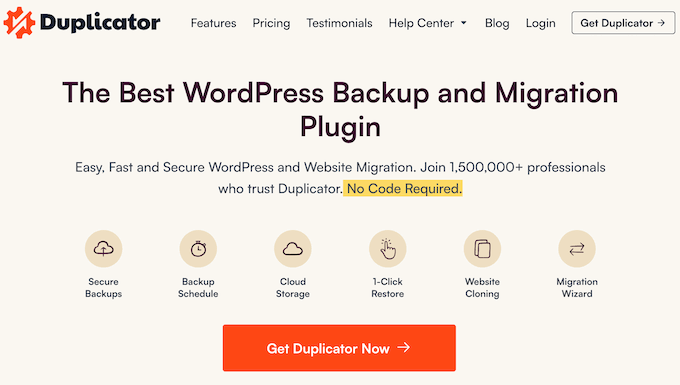
Duplicator is the most powerful migration plugin on the market, and it’s the one we use across our own portfolio of businesses. It packages your entire WordPress site into a single zip file for a simple and reliable migration.
For more information about the plugin, see our complete Duplicator review.
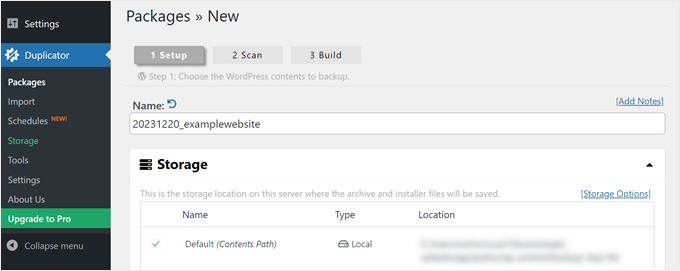
The free version, Duplicator Lite, is a great starting point for moving smaller websites. It walks you through creating a “package” and an installer file, which you then upload to your new server and run.
While it requires a few steps, like creating a new database, the wizard is very clear and easy to follow.
For larger or more complex projects, we strongly recommend Duplicator Pro.
This version adds powerful features like drag-and-drop installs (so you don’t need FTP), scheduled backups, and direct integrations with cloud storage like Google Drive and Dropbox.
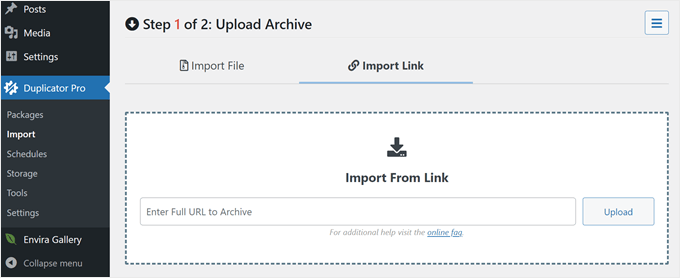
One standout feature is the ‘Import Link,’ which lets you import a site using only a URL. This saves you the step of manually downloading and re-uploading the package file from your computer.
If any error occurs, the Recovery Point feature lets you instantly restore your site to a previous, stable version.
ℹ️ For users who want a fully hands-off experience, Duplicator offers professional Migration Services. This is a standalone, “done-for-you” solution where their expert team handles the entire migration from start to finish for any WordPress site.
Pros of Duplicator:
- Great Value for All Tiers: Unlimited migrations and scheduled automatic backups are available in all plans.
- Reliable for All Site Sizes: We’ve used it to move large, high-traffic sites without issue. It’s a tool that you won’t outgrow.
- Handles Complex Setups: The Pro version fully supports migrating WordPress multisite networks, which many other plugins struggle with.
- Standalone Migration Service: In addition to its powerful plugin, Duplicator offers a professional, hands-off migration service.
- Universal Hosting Compatibility: It works seamlessly across nearly all WordPress hosting platforms, from shared to managed hosting.
- Cloud Storage Integrations: Works well with cloud storage providers like Dropbox, Google Drive, and Amazon S3.
- Great for Developers: Features like Installer Branding allow you to deliver a professional-looking migration package to your clients.
Cons of Duplicator:
- The Lite version requires you to manually create a database on your new host, which can be intimidating for absolute beginners.
- No support for migrations from other website builders.
- Each White Glove Migration covers one site, so you’ll need to purchase additional services for multiple sites.
Why we chose Duplicator: Duplicator tops our list because it offers the best of both worlds: the most powerful DIY plugin and a professional ‘done-for-you’ service.
This makes it the perfect solution whether you’re a hands-on user wanting full control or a business owner who needs an expert to handle everything.
Pricing: Duplicator Lite is 100% free, but has a site size limit and lacks pro features. Duplicator Pro starts at $69.30 per year, which includes all the powerful features and is a great value.
2. Codeable – Best for Custom WordPress Migration

Codeable is a platform where you can hire a pre-vetted developer to migrate your website. If you want an expert to handle the move but prefer working one-on-one instead of with an agency, this is the perfect place to go.
What makes Codeable stand out is its speed. You can submit your project needs for free, and they will typically match you with a qualified WordPress expert in under a day.
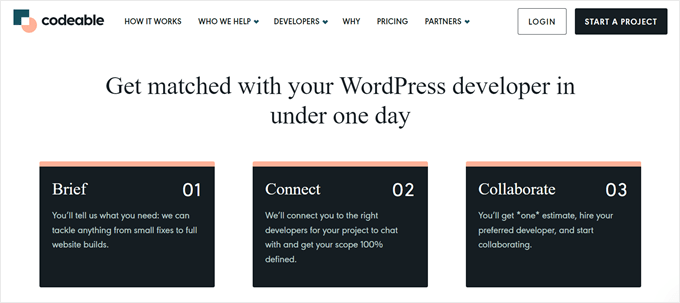
After a developer reviews your project, you’ll receive a single, fixed-price estimate. This ensures you know the full cost upfront before committing to the work.
You can then evaluate your matched expert based on their experience, past client work, and specialties to make sure they are the right fit for your migration.
Pros of Codeable:
- Fast Matching with Experts: You get connected with qualified, pre-vetted developers quickly. The average time it takes to match users with an expert is 3–5 hours.
- No Obligation to Hire: You can submit your project and get a custom estimate for free without any commitment to hire.
- Money-Back Guarantee: Your payment is held securely until you approve the work, ensuring you’re satisfied before the developer gets paid.
- Rigorous Vetting Process: Only a small fraction of developers who apply are accepted, so you know you’re working with top-tier talent.
Cons of Codeable:
- You have to pay a 17.5% fixed service fee on top of the project costs.
Why we chose Codeable: If you want to work directly with a single developer, Codeable is an outstanding service. The matching process is fast, and the platform only accepts top-tier experts.
This makes it the perfect choice for users who want an expert-led migration with direct, one-on-one collaboration.
Pricing: Codeable projects are priced by their expert developers, with a recommended hourly rate between $70 – $120. You will receive a single, fixed-price estimate for your specific project after submitting your requirements.
3. BlogVault – Best for Large and Multisite Website Migration
BlogVault is a premium backup and migration service built for reliability, especially with large or complex websites. If you’ve ever had a migration fail due to a server timeout, BlogVault is the solution, as it can handle sites up to 300 GB. Top brands like eBay and Intel trust it for this reason.
For a deeper look into the service, you can read our extensive BlogVault review.
One key advantage is that BlogVault processes migrations on its own dedicated servers. This prevents resource strain on your hosting, making the process faster and more reliable, especially for sites with lots of images or large databases.
You can simply log in to your BlogVault dashboard, choose a backup, and enter your new site details. In our tests, BlogVault handled the transfer in just a few clicks – no FTP or manual file uploads required.
If you’re looking for a free option, BlogVault also powers the free Migrate Guru plugin, which is great for basic migrations. Just note that Migrate Guru doesn’t support migrations from a localhost.
Pros of BlogVault:
- Handles Huge Websites: Its offsite processing prevents server timeouts, making it one of the most reliable options for migrating large sites (up to 300 GB).
- Integrated Staging: You can easily create a staging site to test the migration or other changes before pushing them live, which is important for business websites.
- Selective Migration: You can choose to move only certain files or database tables, giving you more control over the process.
- Automatic Search and Replace: Simplifies the process of updating links and content on your new site.
- 7-Day Free Trial: You can try out the full service without a credit card to see if it works for your site.
Cons of BlogVault:
- While the entry plan is reasonably priced, costs can add up for small businesses that need advanced features like real-time backups or multisite support.
- The user interface is not the most beginner-friendly.
Why we chose BlogVault: If your website is your business and you can’t afford any mistakes, BlogVault is a worthwhile investment. Its reliability makes it the perfect choice for owners of large websites, WooCommerce stores, or multisite networks who need a migration to work perfectly on the first try.
Pricing: BlogVault‘s plans start at $49.50 per year for one site. This includes their migration features as well as daily automated backups and security scans. You can try it out with their 7-day free trial.
4. All-in-One WP Migration – Basic WordPress Migration Plugin
If you’re looking for a no-frills, incredibly simple plugin, All-in-One WP Migration is an excellent choice. This free plugin has one job, and it does it well – it exports your site into a single file that you can then import into a new WordPress installation.
Its main advantage is simplicity. There are no complicated settings, just three basic features: Export, Import, and Backups. You simply export your site files, then import them to the new location.
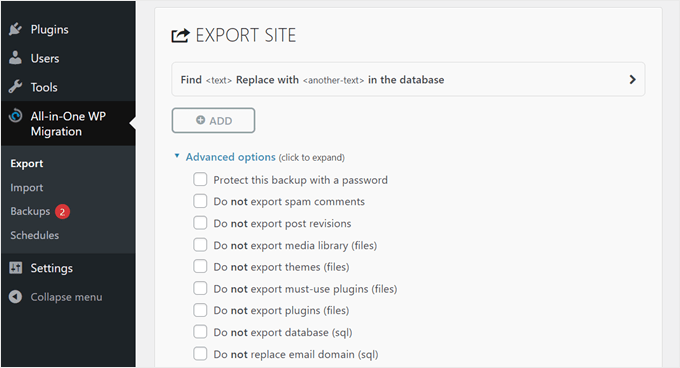
The plugin includes a search and replace feature to update URLs and file paths during the export. It also offers advanced options to exclude certain files like spam comments, post revisions, themes, and plugins.
Additionally, we appreciate that there are advanced options to protect the exported package with a password and/or exclude certain files from being exported. These files include spam comments, post revisions, themes, plugins, and so on.
You can see how this plugin compares to our top pick in our complete review of All in One WP Migration vs Duplicator.
Pros of All-in-One WP Migration:
- Extremely Easy to Use: The drag-and-drop import makes it one of the most beginner-friendly migration tools available.
- Broad Compatibility: It works well with a wide range of PHP versions and all versions of MySQL and MariaDB, making it a safe bet for various server setups.
- Pay-for-what-you-need Extensions: You can start free and then buy specific add-ons if you need them, rather than a full pro bundle.
- Comprehensive Features: Despite being free, it has advanced tools like selective migration and search and replace. It also supports 50+ languages.
Cons of All-in-One WP Migration:
- The free version is limited by your web host’s maximum upload file size. The premium extension bypasses this by importing the site in smaller chunks.
- Features like scheduled backups and email notifications require purchasing premium add-ons.
Why we chose All-in-One WP Migration: Sometimes you just need a simple tool for a simple job, and that’s what All-in-One WP Migration delivers. This makes it the perfect choice for beginners with smaller websites who want a straightforward, no-fuss migration experience.
Pricing: The core plugin is free. However, to remove the import size limit, you’ll need the Unlimited Extension, which costs $69 (one-time fee).
5. Seahawk Media – Best for Migrating from Website Builders
If you want to move your site from a platform like Wix, Squarespace, or Shopify to WordPress, then a DIY plugin won’t work. For these complex projects, Seahawk Media is the best solution.
After our extensive testing, we consider Seahawk Media one of the best WordPress support agencies with affordable pricing.
Migrating between website builders isn’t as simple as copying and pasting. Each platform has a unique setup, so content and styling don’t always transfer over cleanly. This makes it a difficult task.
During our test migration with Seahawk, we saw their expertise firsthand. The Seahawk team successfully moved an entire website to WordPress, ensuring all data was preserved without any downtime.
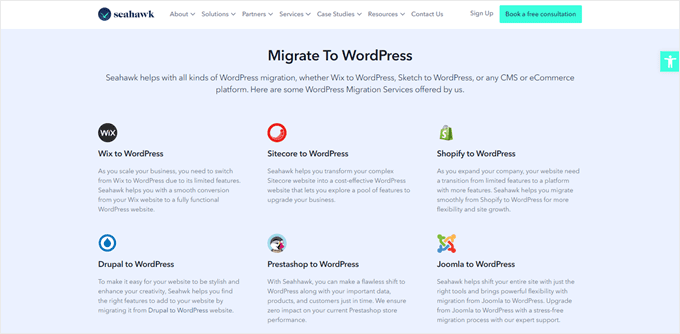
You just need to book a free consultation, and their team will create a game plan for a safe and smooth migration. Then, they will move your website, polish it to your needs, and provide support afterward.
In addition to Shopify, Seahawk Media can help you move sites from platforms like Squarespace, Drupal, PrestaShop, and more.
Pros of Seahawk Media:
- Expertise in Complex Migrations: They specialize in moving sites from other builders like Wix, Magento, and Hubspot CMS. They are also open to assisting you even if the original platform is not very popular.
- No-Risk Consultation: You can get a free, detailed project plan and quote, so you know the exact cost and timeline before committing.
- Zero Downtime: Their process makes sure your live site is not affected during the move, so your online business can still run.
- Post-Migration Support: They offer 24/7 support after the launch to fix any issues and ensure your new WordPress site runs perfectly.
- Popular, Reliable Choice: Over 1000+ companies trust their WordPress services, including top brands like DreamHost, GoDaddy, and Alibaba Cloud.
Cons of Seahawk Media:
- The pricing is based on the project size, so you will need to consult with their team first to get a quote.
- The service may not be suitable if you need an instant website migration.
Why we chose Seahawk Media: If you have a custom project and are not confident in doing your own migration, then Seahawk Media is an excellent migration service. They are the ideal choice for business owners moving from other platforms who want a completely hands-off, expert-managed transition.
Pricing: Seahawk Media provides a custom quote based on the complexity of your migration. You can get a free, no-obligation consultation to receive your personalized pricing.
6. WP Migrate – Best for Developers and Local Workflows
WP Migrate is a favorite tool among WordPress developers because it’s built to speed up development workflows. Its standout feature is “push and pull” migration, which lets you directly sync your database and files between two WordPress installs.
In a normal migration, you need to export your database, media files, themes, and plugins into a file and then import that into a new host. With WP Migrate, you can pull data from a site directly, just with a remote connection.
This is perfect for moving a database from a live site to a local environment for testing. Once your changes are ready, you can then push the updated database back to the live site.
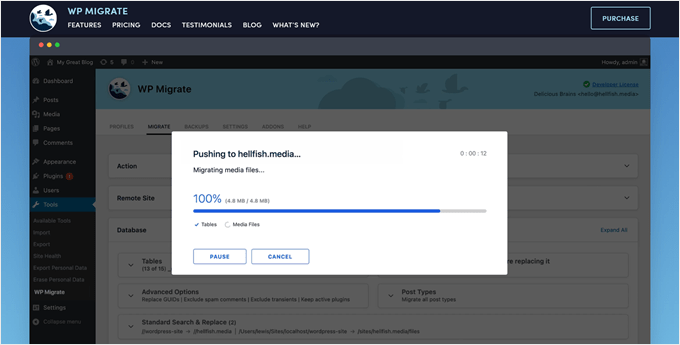
Our developer team also found WP-CLI support especially helpful for automating migrations in staging workflows. It lets you run migrations from the command line and make the migration process even more efficient.
Pros of WP Migrate:
- Fast Push/Pull Sync: Speeds up development by eliminating the need to manually download and upload SQL files and site assets.
- Prevents Data Corruption: Automatically detects and correctly handles serialized data, which is a common source of broken layouts after a migration.
- Developer-Friendly: Full integration with WP-CLI allows you to run migrations from the command line for even faster, scripted workflows.
- Automatic Backups: It automatically backs up your databases before you run a migration, so you can easily undo any changes if something goes wrong.
- Money-back guarantee: The premium versions come with a 60-day money-back guarantee.
Cons of WP Migrate:
- The free version only handles database migrations. Syncing media, theme, and plugin files requires a premium plan.
- The interface and concept are designed for users who are comfortable with terms like local development and staging sites.
Why we chose WP Migrate: For WordPress developers or agencies, WP Migrate is one of the fastest and most efficient migration services available. This makes it the perfect choice for technical users who regularly move sites between live, staging, and local environments and want to automate their workflow.
Pricing: There is a free version that handles database migrations only. To sync media files, themes, and plugins, you need WP Migrate Pro, which starts at $49 per year.
7. Import Shopify To WP – Best Free Tool for Shopify to WooCommerce Migration
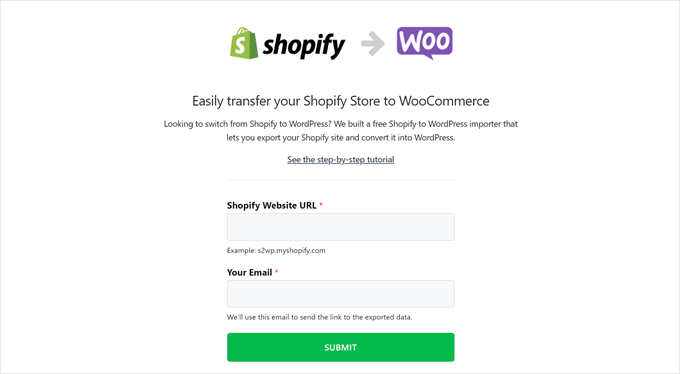
If you want to move your Shopify store to WooCommerce, then the Import Shopify To WP plugin is the best free tool for the job. It lets you migrate your most important store data to WooCommerce without any cost.
The process is straightforward. First, go to shopifytowp.com and enter your Shopify site URL and email address.
Next, you’ll want to install the AMTools Shop Exporter app in Shopify to export your products, product categories, customers, and orders into a data file.
After that, simply install the Import Shopify To WP plugin on your WordPress site and use it to import the file. From there, you just need to review your data to make sure everything transferred correctly.
If you want to see this plugin in action, you can read our article on how to properly move from Shopify to WooCommerce.
⚠️ Insider Tip: This plugin hasn’t been tested with the latest version of WordPress. That said, it worked well during our testing. If you’re unsure about using an outdated plugin, feel free to see our article on whether it’s safe to use outdated plugins.
Pros of Import Shopify To WP:
- Completely Free: This can save you hundreds of dollars compared to hiring a developer or using a premium migration service.
- Simple, Guided Process: It’s designed for non-technical users. You don’t need to mess with complex settings to get your core store data moved over.
- Moves Your Key Data: It transfers your products, customers, and orders, so you can pick up operations on WooCommerce where you left off.
- Migration with Peace of Mind: The plugin doesn’t delete any data from your Shopify store, so you can easily check if anything is missing.
Cons of Import Shopify To WP:
- The tool only transfers your store data (products, orders, etc.), not the design or layout. You will need to recreate your store’s look from scratch in WordPress.
Why we chose Import Shopify To WP: We built Shopify to WordPress to empower small business owners making the switch. This makes it the perfect choice for budget-conscious store owners who are willing to handle the redesign of their new store and want a simple, cost-effective way to migrate their core data.
Pricing: The Import Shopify To WP plugin and the Shopify to WP exporter tool are both completely free.
8. Medium to WordPress – Best Free Tool for Migrating from Medium
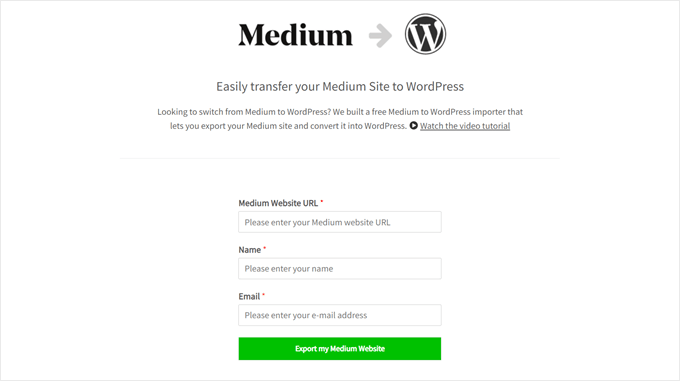
Many writers start on Medium but eventually want the freedom and monetization options of a self-hosted WordPress site. To help with this, we created the free Medium to WordPress migrator tool.
To use this service, you first need to download your Medium archive file. Then, go to mediumtowp.com, enter your details, and upload that file.
The tool automatically reformats the export file so that it’s compatible with the built-in WordPress importer tool, saving you a lot of manual work.
You can learn more about this tool in our guide on how to properly move from Medium to WordPress.
Pros of Medium to WordPress:
- Completely Free to Use: No hidden costs or upsells. It’s a community tool to help you switch platforms. You also don’t need to install a plugin to import the file in WordPress.
- Fixes the Import Problem: It solves the core issue of compatibility between Medium’s export and WordPress’s importer.
- Imports Your Images: The tool also attempts to import the images from your Medium posts into your WordPress media library, which is a huge time-saver.
- Handles Redirects for Custom Domains: If you used a custom domain with Medium, the tool helps you set up redirects to preserve your SEO and user traffic.
Cons of Medium to WordPress:
- If your blog used a medium.com subdomain (like medium.com/@yourname), then you won’t be able to create redirects. This is due to Medium’s restrictions, not a limitation of the migration tool.
- While it tries to import all images, some may not transfer successfully, so you might need to upload them manually.
Why we chose Medium to WordPress: We created this free, purpose-built tool to solve a common and frustrating problem for writers. Medium to WordPress makes it the perfect choice for bloggers who are ready to leave Medium for the power and flexibility of a self-hosted WordPress site.
Pricing: The Medium to WordPress migrator is 100% free to use.
Special Offer: Get a Free WordPress Migration From WPBeginner
Do you want to move your site from Blogger, Medium, or another website builder to WordPress but don’t want to do it yourself? Let our team of experts do it for you completely free.
All you need to do is:
- Go to our free WordPress blog setup page.
- Sign up for a new WordPress hosting service using one of our links.
- Submit your application form on the blog setup page.
Note that we can only move blogs that have fewer than 1,000 posts. If you have more than that, then the service will no longer be free.
Just go to our free WordPress blog setup page now and get your new site up and running with zero risk!
What Is the Best WordPress Migration Service?
Out of all the migration services we’ve tried, the best WordPress migration plugin is Duplicator.
The Lite version is easy to use for migrating simple websites. Meanwhile, the Pro version offers many advanced features for developers and business owners, like multisite support, custom branding, and cloud storage integration.
If you don’t want to handle the migration yourself, then Duplicator also provides an excellent WordPress migration service. Simply submit a short request form with your backup link, and the team handles the rest. Prices start at $149, with a custom quote sent within one business day.
Alternatively, we also recommend Codeable for migration services. You’ll get paired with a WordPress expert and you’ll get a single, fixed-price estimate based on your specific migration needs.
Bonus Tip: Choose a Hosting Provider With Migration Services
These days, many WordPress hosting companies offer a migration service to move your website to their servers. This provides a quick, hands-free alternative if you don’t want to use a plugin or pay for expert help.
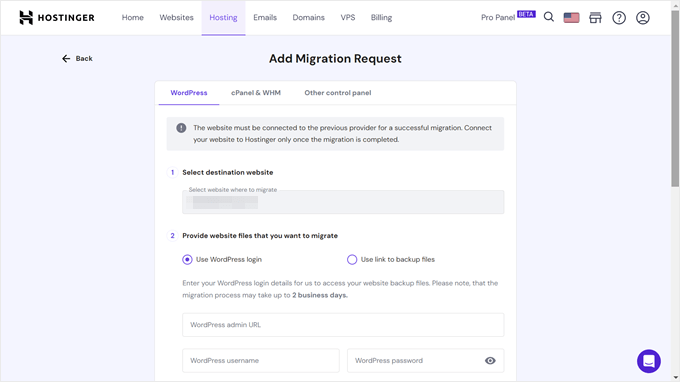
For example, if you sign up with Hostinger, you can request to have your website migrated to their hosting free of charge.
You simply submit a migration request form, and their team will handle the transfer. For WordPress sites, they can often complete the migration within a couple of hours.
Other popular web hosts that offer website migrations include:
- Bluehost (with the Bluehost Migrator plugin)
- SiteGround (with the SiteGround Migrator plugin)
- DreamHost (with the DreamHost Automated Migration plugin)
- GreenGeeks (free website migration service upon request)
- HostGator (free migration for VPS and dedicated hosting plans within 30 days of signup; beyond that, it will cost $149.99 for one site)
- GoDaddy (with the free automatic migration tool)
WordPress Migration Service FAQs
How much does WordPress migration cost?
The cost of WordPress migration ranges from free to hundreds of dollars. The price depends on the service or platform you use.
Using a free plugin like Duplicator Lite is completely free of charge. On the other hand, hiring experts from Codeable or using a premium service like BlogVault can cost tens to hundreds of dollars, depending on your project’s complexity.
How do I migrate my WordPress site for free?
You can migrate your WordPress site for free using a plugin like Duplicator Lite, All-in-One WP Migration, or WP Migrate Lite. (Just keep in mind that free versions often have file size or feature limitations.) These plugins don’t cost anything and are easy for beginners to use.
Which WordPress migration service offers the smoothest transition with minimal downtime?
How smooth the transition is and the potential for downtime depend on your site’s size and the migration method you choose. For the best chance at minimizing downtime and errors, hiring an expert from Codeable is your best option.
On the other hand, if you use a plugin with a file size limit and your site exceeds that size, then most likely, the migration process won’t be as smooth as you might hope.
Bonus Resources: Best WordPress Website Migration Guides
We hope this article helped you discover the best WordPress migration services. Next, you may also want to check out our guides on:
- How to Move WordPress to a New Host or Server (with No Downtime)
- How to Easily Move Your Blog from WordPress.com to WordPress.org
- How to Move Your Site From HubSpot to WordPress (Step by Step)
- How to Properly Move from Squarespace to WordPress
- How to Fix WordPress Redirecting to Old Domain After Migration
- Ultimate WordPress Migration Guide for Beginners (Step by Step)
If you liked this article, then please subscribe to our YouTube Channel for WordPress video tutorials. You can also find us on Twitter and Facebook.


Hajjalah
Thanks for the comprehensive list. I personally prefer using the All-in-One WP Migration plugin because of its ease of use and beginner friendly settings.
Although this offers a limited backup storage, It is still better for simple blog sites. I think a better migration plugin should mainly be determined basing on the size of the website and the hosting to import the new website installation. Great article, Thanks
Jiří Vaněk
I usually migrate WordPress manually using FTP and phpMyAdmin. However, out of the list of plugins I’ve always liked duplicator the most. It has a very intuitive and simple interface and I must say that it is really great to work with. So if I have the option and don’t have to use manual migration, then I always like to reach for the Duplicator plugin and I can only recommend them.