


After you spend hours writing the perfect blog post, the title is what determines whether your hard work gets noticed. A great headline is the key to standing out in search results and getting the clicks you deserve.
But trying to create a title that works for both readers and search engines can feel like guesswork. It’s a common challenge for every website owner, and it can be frustrating to not know if your title will perform well.
That’s why we rely on a headline analyzer tool right inside our WordPress editor. It gives us instant, data-driven feedback and has been a game-changer for improving our click-through rates without the stress.
In this guide, I’ll show you exactly how to use a headline analyzer in WordPress. We’ll walk through the steps to craft compelling, SEO-friendly titles that bring more visitors to your website.

What Is a Headline Analyzer Tool & Why Do You Need It?
Choosing the best titles for your blog posts and landing pages is extremely important for search engine optimization (SEO). Powerful titles can get people to click on your links in Google search results and visit your WordPress website.
Of course, the more people click on your titles, the more traffic you will get. But a higher click-through rate (CTR) can also improve your search engine rankings, getting you even more visitors.
It can be tricky for beginners to come up with a good headline that instantly captures people’s attention and gets them to click a link. This is where a headline analyzer tool can help.
A headline analyzer is a tool that helps you evaluate and improve your headlines. It provides data-driven insights and suggestions for creating titles that are engaging and click-worthy.
With that being said, let’s take a look at how you can use a headline analyzer tool to improve your SEO titles in WordPress. Here are the topics we will cover in this article:
Adding the Headline Analyzer Tool in WordPress
There are a few ways to add the Headline Analyzer tool in WordPress. When you install either the free All in One SEO or MonsterInsights plugin, it will be automatically added to WordPress.
You can also access the Headline Analyzer for free on the WPBeginner website. Read on to learn how.
Installing All in One SEO
The easiest way to analyze your headlines in WordPress is by using the All in One SEO (AIOSEO) plugin. It’s the best SEO plugin for WordPress on the market and is used by over 3 million websites.
AIOSEO helps you optimize your website for search engines without any technical knowledge or the need to hire an SEO expert. The plugin offers a headline analyzer inside your WordPress editor so that you can create powerful titles.
Note: This tutorial will use the AIOSEO Lite version since it includes the headline analyzer tool. There is also a Pro version that we use on the WPBeginner site because it offers powerful features like smart schema, XML sitemaps, and more.
The first thing you’ll need to do is install and activate the free version of AIOSEO on your website. If you need help, then you can follow our step-by-step guide on how to install a WordPress plugin.
Upon activation, the Headline Analyzer will be immediately added to WordPress.
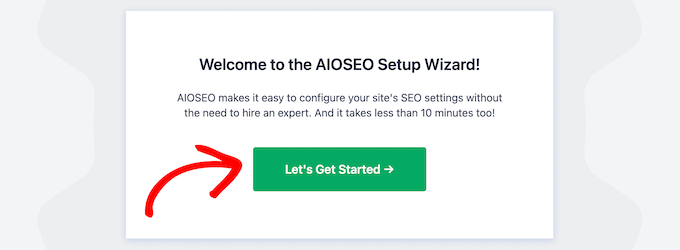
The plugin will automatically launch its setup wizard. You can go ahead and click the ‘Let’s Get Started’ button to set up the other features of the AIOSEO plugin on your website.
For more details, you can read our guide on how to set up All in One SEO for WordPress.
Installing MonsterInsights
The Headline Analyzer is also a feature of the MonsterInsights plugin. Like AIOSEO, once the plugin is installed, the Headline Analyzer will automatically become available in the post editor.
MonsterInsights is the most popular Google Analytics plugin for WordPress, used by over 3 million websites. It will help you discover the types of visitors you get on your website and what they do once they are there. This can help you make your content more relevant.
You can use the MonsterInsights free version to analyze your headlines, but there is also a MonsterInsights Pro version. It includes additional features like advanced analytics, A/B testing, user journeys, and more.
You can get started by installing and activating MonsterInsights free on your website. If you need help, then you can follow our step-by-step guide on how to install a WordPress plugin.

You can learn how to set up MonsterInsights’ other features by reading our guide on how to install Google Analytics in WordPress for beginners.
Finding the Headline Analyzer on the WPBeginner Website
If you prefer not to install a plugin, then you can access the Headline Analyzer for free on the WPBeginner website.
Simply navigate to our Headline Analyzer page. Once there, you can type in your headline and click the ‘Analyze’ button.
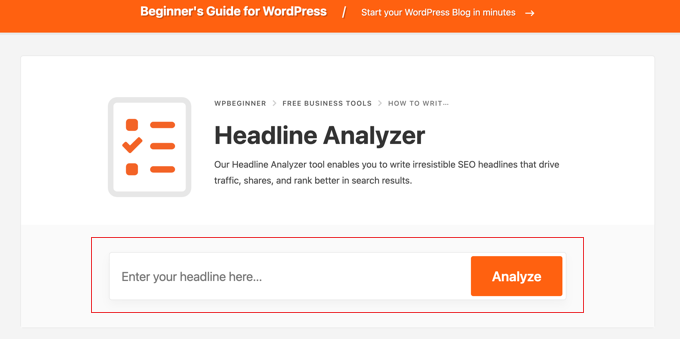
You can then use the tool to improve your heading right there on the page rather than in the WordPress editor.
In the image below, you can see an example with an overall score and an analysis of the different parts of the headline:
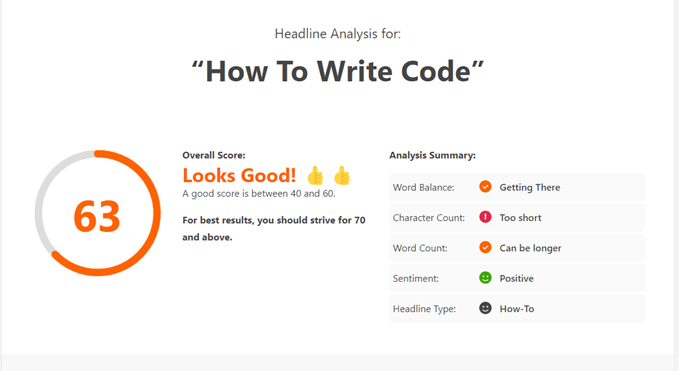
If you scroll down the page, you will also see some recommendations for how to improve your headline.
For example, the Headline Analyzer tool might recommend adding more uncommon or emotional words to your headline to get more clicks.
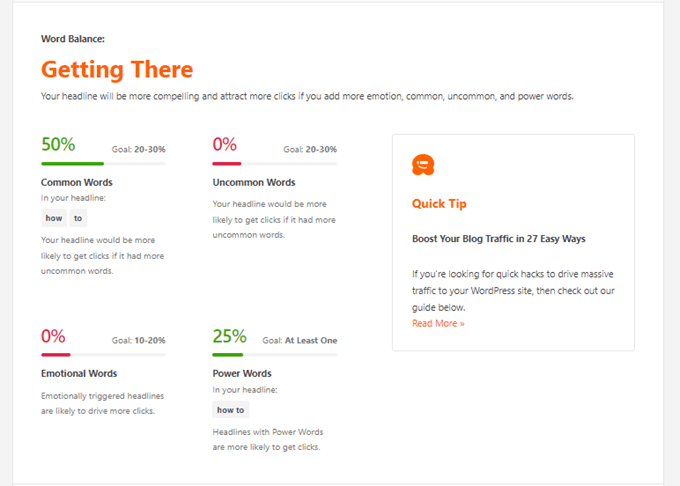
You can use these tips to try different headline options. Then, simply enter the new headline into the Headline Analyzer tool until you are happy with the results.
Finally, you just need to copy the headline and add it to your WordPress post.
Adding an SEO Title to Your Post
If you are using the All in One SEO or MonsterInsights plugin, then you will need to access the Headline Analyzer tool within the WordPress post editor.
Go ahead and edit or add a new post. Once you are in the WordPress editor, you can add your blog post title at the top.
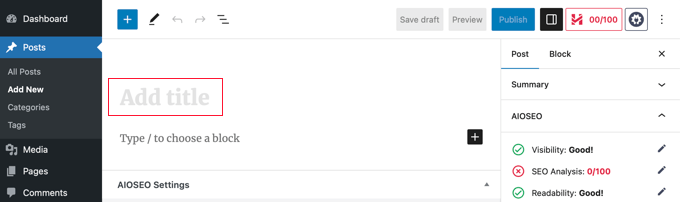
It’s important to remember that there are differences between the post title and the SEO title.
The first difference is that, behind the scenes, these titles use completely different HTML tags. Your post title is enclosed in <h1> tags, while the SEO tag uses <title> tags.
The second difference is where the titles appear. The post title will normally be displayed at the top of the page, depending on your WordPress theme. On the other hand, the SEO title doesn’t appear in the post at all.
Instead, the SEO title suggests to search engines like Google how you would like your title displayed in search results. It also displays in the browser’s title bar when viewing the post.
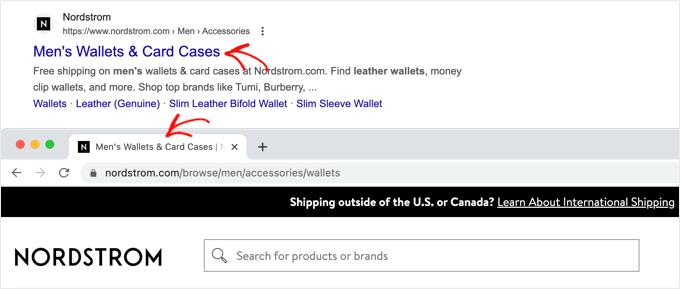
Why have two different titles? Imagine your blog post (H1) title is ‘Our 10 Favorite Ways to Bake a Cake.’ For SEO, you might want a more specific SEO title like ‘How to Bake a Perfect Cake: 10 Easy Recipes (2025 Guide).’
This lets you target search terms directly in Google while keeping a slightly different, catchy title for visitors already on your site.
By default, WordPress doesn’t let you enter an SEO title. But WordPress SEO plugins like AIOSEO allow you to easily add an SEO title to your articles.
If AIOSEO is installed on your website, then you can simply scroll down to the ‘AIOSEO Settings’ meta box in your WordPress editor and then enter a headline under ‘Post Title.’
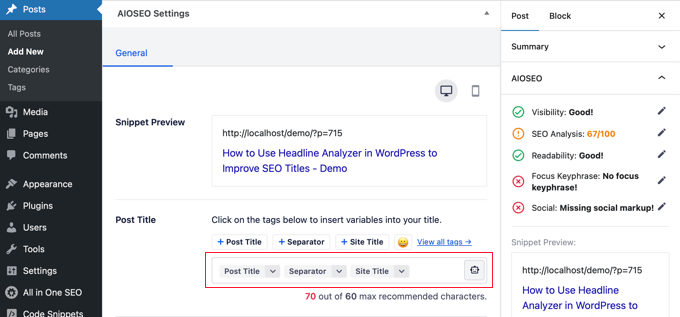
The plugin also offers smart tags, so you can automatically add information to your titles, like the post title, current year, author name, categories, site tagline, and more.
For more information, see our complete AIOSEO review.
Using Headline Analyzer to Improve Your SEO Title
After adding a headline for your article, you can analyze it using AIOSEO or MonsterInsights. All you have to do is click the green ‘SEO Headline Analyzer’ button in the top right.
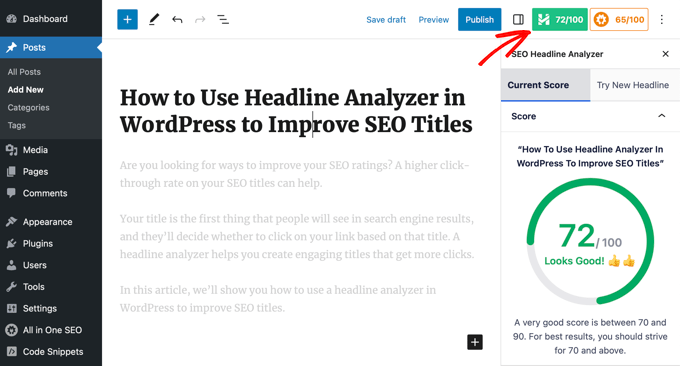
AIOSEO or MonsterInsights will show you a score ranging from 1 to 100 for your headline. A score of 70 or more shows that you have written a powerful headline.
If your score is below 70, then don’t worry. The headline analyzer will show suggestions for improving the score and making your title more engaging to get more clicks and traffic.
Now, you can scroll down and look at the word balance of your copy. The plugin will look for common, uncommon, emotional, and power words.
These are words that help trigger a psychological or emotional response from your target audience. When creating headlines, you can use these words to improve your headline score and boost their click-through rate (CTR).
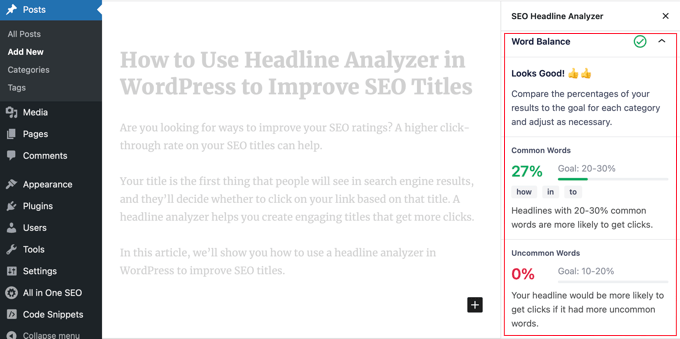
A good mix of these words makes your title feel both relatable (common words) and intriguing (emotional/power words), encouraging more people to click to find out what’s inside!
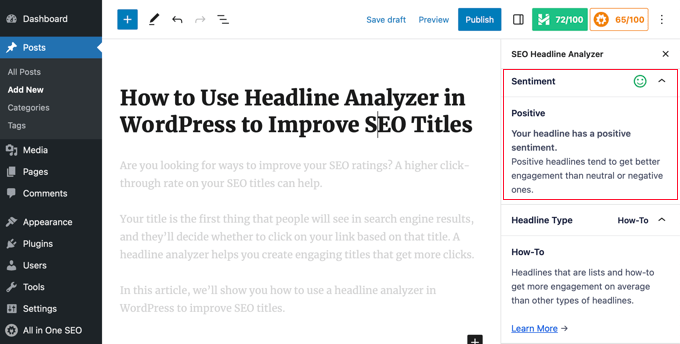
Next, you can check the sentiment of your headline. Titles with a positive feeling tend to get better engagement and more clicks than neutral or negative ones.
Besides that, the plugin will also show you the headline type. For example, you can see whether your headline type is a how-to post, list post, resource post, or more.
These types of titles tend to get more clicks than generic titles.
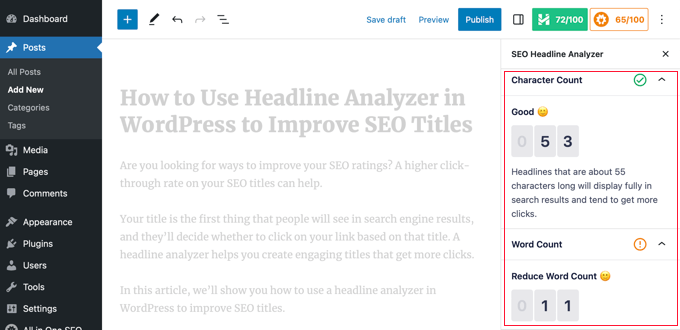
After that, you can scroll down and check the character count and word count for your title in the headline analyzer tool.
The headline analyzer will show you if your title is a good length. While a common guideline is to stay under 60 characters, what really matters to Google is the title’s pixel width. Some letters, like ‘W’, just take up more space than others, like ‘i’!
If your title is too long, it might get cut off in search results, which can make it unclear and lower your click-through rate.
If your titles are more than 55 characters, then search engines might cut off the text at the end. This can make the meaning of your title unclear and lower your click-through rate.
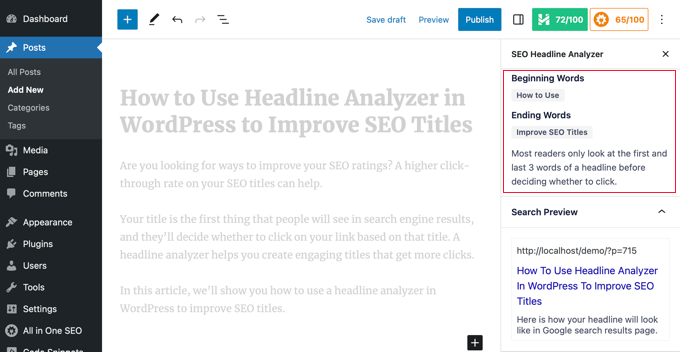
Next, you can analyze the 3 beginning and ending words of your headline. Most readers usually glance at the first 3 and last 3 words in a post title before deciding to click.
Using this information, you can place your target keyword and most important information in the beginning to capture the reader’s attention.
The Headline Analyzer also shows a preview of how your headline will appear in the search engine page results.
If your headline doesn’t get a good score, then you can easily try new headlines and analyze them before deciding on the best SEO title.
All you have to do is switch to the ‘Try New Headline’ tab in the tool, enter your new headline, and click the ‘Analyze Headline’ button.
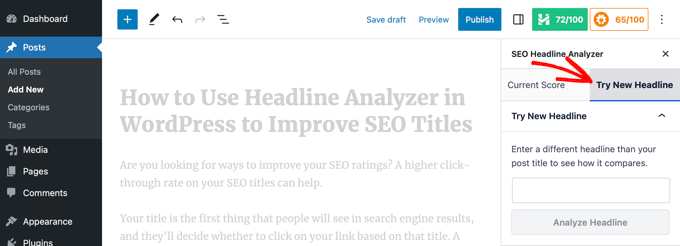
AIOSEO or MonsterInsights will show you a score of your new headline and compare it with the current SEO title.
You can try multiple headlines for your WordPress blog post and analyze their scores to see which one works the best.
Before you hit publish, check out our blog post optimization checklist to make sure the post is fully optimized to get the most traffic possible.
Remember, a headline analyzer is a fantastic tool to guide you, but over time, you’ll develop a natural instinct for what makes a great headline. Keep practicing, and you’ll be writing amazing, click-worthy titles in no time! 👍
Pro Tips: Search Console + Headline Analyzer
You can take these tips even further like the Pros do and combine the headline analyzer with insights from Google Search Console.
If you look at our ultimate Google Search Console guide to grow traffic, you will see there is a section about finding low-hanging keywords where you can easily rank.
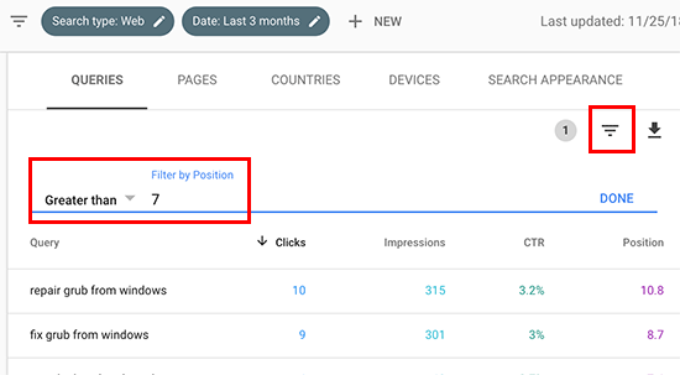
You can then try adding one of these low-hanging keywords to your SEO title and throughout your post. As your click-through rate increases, your SEO rankings will go up as well.
Video Tutorial
Frequently Asked Questions About Using a Headline Analyzer
We often get questions about how to best use headline analyzers to improve SEO titles. Below are the answers to some of the most common ones we receive.
1. What is a good score on a headline analyzer?
A score of 70 or higher is generally considered good. This indicates your headline has a strong balance of word types (common, emotional, power words) and is structured well to get clicks. While aiming high is great, any score above 70 is a solid target.
2. Are headline analyzer tools free?
Yes, many are. The headline analyzer is a free feature included in both the All in One SEO (AIOSEO) and MonsterInsights plugins. You can also use the tool for free directly on the WPBeginner website without installing anything.
3. Why is an SEO title different from a post title (H1)?
Your post title (H1) is for visitors already on your page. Your SEO title is what appears in Google search results. Keeping them separate allows you to craft a compelling title for your readers and a keyword-focused, click-friendly title for search engines, which can boost your rankings.
4. Can I use the headline analyzer for WordPress pages, too?
Yes. If you are using a plugin like AIOSEO, the headline analyzer is available on the editor screen for both WordPress posts and pages. This allows you to optimize the titles for all important content on your site, not just your blog articles.
Expert Guides on WordPress Titles & Headings
We hope this article helped you learn how to use a headline analyzer in WordPress to improve SEO titles. You may want to see some of our other guides on titles and headings in WordPress:
- SEO Title vs H1 Post Title in WordPress: What’s the Difference?
- How to Properly Use Heading Tags in WordPress (H1-H6 Explained)
- How to Write Powerful Headlines Using AI (Explained)
- How to Automatically Truncate Blog Post Titles in WordPress
- How to Create a Table of Contents in WordPress Posts and Pages
- Best Table of Contents Plugins for WordPress (Expert Pick)
- How to Write a Great Blog Post (Structure + Examples)
If you liked this article, then please subscribe to our YouTube Channel for WordPress video tutorials. You can also find us on Twitter and Facebook.




Moinuddin Waheed
I have always used h1 for the main heading and title and knew that this is the best thing for seo and never new that there exists a difference between seo title and post title.
if seo title is wrapped within the title tag, it is semantic and good for seo.
but h1 does represent that it is the most important title in the article.
Glad to know that we can use headline analyser inside the WordPress editor.
I will definitely try it for making good and seo friendly headlines.
Jiří Vaněk
It’s important to note that an H1 heading should appear only once on a page because, as you mentioned, it is a very important part of the text and has its own rules. For example, I never had this information and thus placed H1 headings multiple times in an article where there should have been H2 headings. Consequently, I had to go back and redo many texts when I learned this information here on WPBeginner. A heading analyzer is a great tool and can help write truly compelling texts (from an SEO perspective). I only regret that it doesn’t support multiple languages. Otherwise, I generally agree with everything you wrote.
Ralph
My best post with over 150k visitors per year is only 45/100 meanwhile posts with 5k visits per year are 85-90/100. It is interesting as all of them have very similar competition.
I have a system for headlines and most of them are just simple “how to do X in Y way”. Keyword reasearch suggests this is good but I will check more of them with that headline analyzer. There is always something that we can improve.
Jiří Vaněk
Thank you for the headline analyzer. I have a bilingual website, and I’ve gotten used to using your analyzer for English headlines every time. It’s just a pity that it’s not as effective for other languages, like Czech, for example. Nevertheless, for English, which is the second language on my website, it’s excellent.
WPBeginner Support
Glad the tool has been helpful and other languages may be a possibility in the future but we will see
Admin
Jiří Vaněk
I have one more question about headings. I have a blog on WordPress where the homepage lists new articles. A regular article has an H1 heading, but how do I handle the homepage, which doesn’t have an H1 heading? I can’t put it in the header because it would show up on the articles, resulting in two H1 headings in the article, which is not ideal. How do I address the lack of an H1 heading on the homepage with the list of articles? Alternatively, is it necessary when it’s just one page missing an H2, while everywhere else has it?
WPBeginner Support
Using an SEO plugin you can ignore needing an H1 on your homepage as they can add markup letting search engines know that it is your homepage and what the title should be. Having one page missing a heading shouldn’t be a major issue.
Jiří Vaněk
OK, thank you for your answer. I will try to solve this problem via AIO SEO plugin and we will see, if this option help me with this problem. Thanks.
Bernice Ebhohimen
Why is my headline analyzer not working
WPBeginner Support
If you mean the analyzer on our site, please reach out to our support team using our contact form below for us to take a look at the headline you are trying and assist!
https://www.wpbeginner.com/contact/
Admin
Marysue
This looks like an amazing thing to have in the toolbox for any website type. I was not fond of Monster due to the high volume of pitches on my dashboard daily, but I have been looking at AIOSEO, so thanks for the AWESOME walkthrough, I think you’ve made up my mind.
WPBeginner Support
Glad we could help bring attention to this helpful tool!
Admin
Aguns
Thanks you for these it was help full
WPBeginner Support
Glad our tool was able to help you!
Admin
Danial
This tool really amazing. Thank for this blog
WPBeginner Support
Glad you found the tool helpful!
Admin
Tanmay Roy
Articles from wpbegineer are always awesome. Thank you
WPBeginner Support
You’re welcome and thank you for the kind words
Admin
Aryan
Really helpful and a good checklist to ensure that every thing is covered in SEO.
WPBeginner Support
Glad you found it helpful!
Admin
Khushi
Such great information with a visual step-by-step guide, it’s easy to understand.
WPBeginner Support
Glad we could make it easy to understand
Admin
Ginia
What a fantastic tool! I am so excited about using this as I create blogs this week.
WPBeginner Support
Thank you, we hope you continue to find it useful!
Admin
Nitish Kumar
superb article. nice explanation and it would surely help in boosting seo scores…
WPBeginner Support
Thank you, we hope it helps many people improve their SEO
Admin
Dibyandu Pal
I have used the free version of this plugin, and that is awesome. after reading your article, i am ready to buy the full version.
WPBeginner Support
Glad to hear!
Admin
Md: Ashikur Rahman
I only write post title. Iam using aio seo. Most of time i get 80+ scores. Still should i use headline analyzer?
WPBeginner Support
It is a helpful tool we would recommend trying but it is not required if you have a system you prefer using that is working well for you.
Admin