


Seeing visitors click a link and vanish from your website can be incredibly frustrating. We dealt with this issue early on at WPBeginner before we changed how we handle outbound links.
To fix this, we made it a strict rule to open all external links in a new browser tab. This tweak keeps your page open in the background, giving readers an easy way to return to your content.
Doing this helps lower your bounce rate and keeps users engaged with your site longer. We will show you exactly how to open external links in a new window or tab using a few beginner-friendly methods.
Why Open External Links in a New Window or Tab?
External links are links to websites that you don’t own or control. Normally, if you add a link to an external website, then your visitors will simply leave your site by clicking on the link.
Some user experience experts argue that all links should open in the same browser tab to give visitors full control.
However, we believe that for content websites, opening external links in a new tab provides a better experience for your users. It keeps your website open, so visitors don’t lose their place and can easily come back after they’ve checked out the other resource.
For a better user experience, we recommend opening external links in a new window (in older browsers) or a new tab (in modern browsers). This way, the original web page is not lost, and users can resume browsing your website by switching back.
Another benefit of opening external links in a new tab is increased page views and user engagement on your site. Users who spend more time on your site are more likely to sign up for your email newsletter, follow you on social media, leave a comment, and buy your products.
That being said, let’s take a look at how to easily open external links in a new window or tab in WordPress. We will cover different methods so that you can choose the one that best suits you:
- Opening External Links in a New Tab Using the Block Editor
- Opening External Links in a New Tab Using the Classic Editor
- Opening External Links in a New Tab Using HTML Code
- Opening Navigational Menu Links in a New Tab
- Automatically Opening All External Links in New Tab Using a Plugin
- Automatically Opening All External Links in a New Tab Using Code
- Video Tutorial
- Frequently Asked Questions
- Additional Resources on Adding Links in WordPress
1. Opening External Links in a New Tab Using the Block Editor
The WordPress block editor has a built-in feature that lets you open external links in a new tab. In recent versions of WordPress, this option is visible when adding a link.
Simply edit the blog post or page where you want to add an external link. Next, select the text you want to link and then click on the ‘Link’ button. You can also press the shortcut key CTRL+K on Windows or Command+K on Mac.
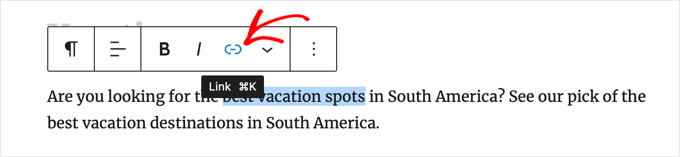
This will bring up the insert link popup. Simply enter the link and press ‘Enter’.
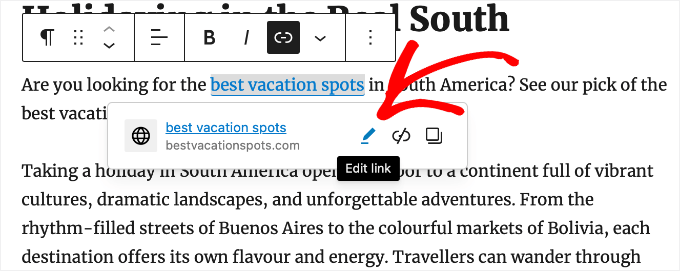
After that, you need to click the ‘Edit Link’ button to display the link options.
Now you can check the ‘Open in new tab’ option.
Make sure you click the ‘Save’ button to store the setting.
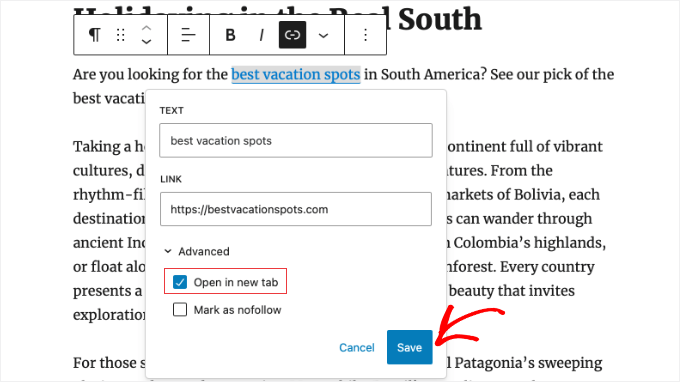
The link will now open in a new tab.
Tip: You can also add title and nofollow attributes to the insert link popup by installing the All in One SEO plugin.
2. Opening External Links in a New Tab Using the Classic Editor
If you are still using the classic editor, then we recommend you start using the new editor. It’s modern, faster, and includes many new features that you are missing out on.
However, if you still want to use the classic editor, then this is how you add a link that opens in a new tab.
First, you need to edit the post or page where you want to add the link. Next, select the text that you want to link, which is known as the anchor text. Then, you can click the ‘Insert/edit link’ button.
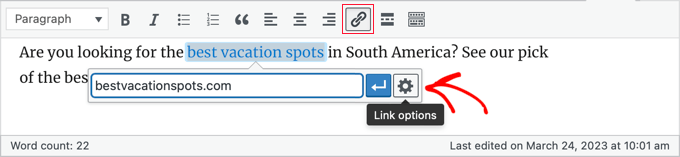
A popup will appear where you can add your external link.
After that, click on the gear icon next to it. This will bring up the advanced insert link popup.
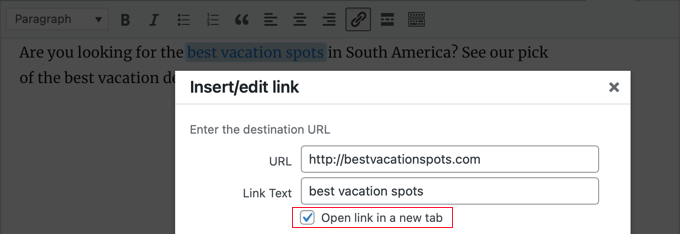
From here, you need to check the ‘Open link in a new tab’ option. After that, you should click the ‘Update’ button at the bottom to add your link.
3. Opening External Links in a New Tab Using HTML Code
Sometimes, you may need to write HTML to add a link in WordPress. For example, you will need to do this when using the HTML mode in the new block editor or adding a link in a WordPress theme template file.
You can add the link using HTML code like this:
<a href="https://example.com" target="_blank" rel="noopener noreferrer">Link Text</a>
The target="_blank" parameter tells browsers to open the link in a new tab. The rel="noopener noreferrer" part is an important security feature that prevents the new tab from accessing your original page.
This stops the new website from running malicious code or secretly redirecting your original page to a spam site.
While WordPress automatically adds this attribute to links created in the editor, it is best practice to manually include this code whenever you are writing your own HTML.
4. Opening Navigational Menu Links in a New Tab
On your WordPress website, you can add external links in your site’s navigational menu. How you do this depends on whether you are using a traditional theme or a block theme.
Opening Nav Menu Links in a New Tab for Classic Themes
To open your outbound menu links in a new tab, head over to Appearance » Menu from your WordPress admin area.
Next, click the ‘Screen Options’ button at the top right corner of your screen.
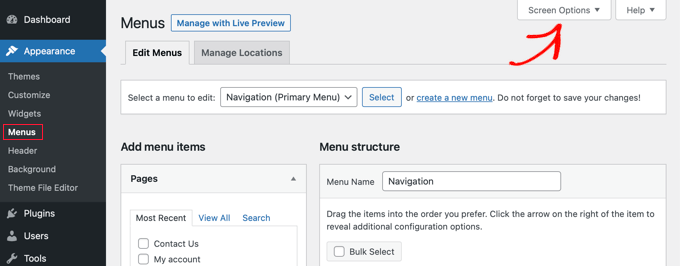
When you click the button, you’ll now see more options.
Go ahead and check the option for ‘Link Target’ under ‘Show advanced menu properties.’
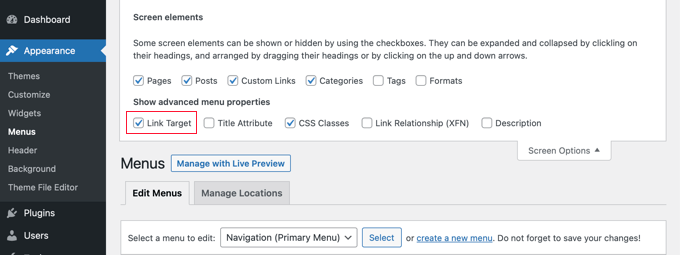
After that, you can add a Custom Link to your navigational menu by entering the URL, Link Text, and clicking the ‘Add to Menu’ button.
Your Custom Link will now appear in the Menu Structure column. You can now select the option for ‘Open link in a new tab’ to open your external link in a different tab.
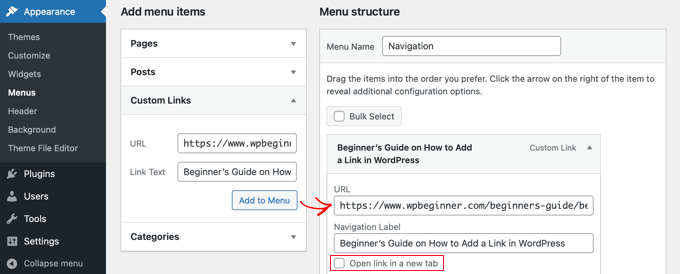
Once you are done, click the ‘Save Menu’ button at the bottom.
Opening Nav Menu Links in a New Tab for Block Themes
If you are using a block theme, then you will need to navigate to Appearance » Themes and use the Full Site Editor to open your outbound menu links in a new tab.
First, click anywhere on your header to select it, then click on your site’s navigation menu. To make sure you have the whole menu selected, we recommend using the List View.
In the List View, find the specific ‘Custom Link’ or ‘Page Link’ inside your Navigation block that you want to edit. Click on it to select it.
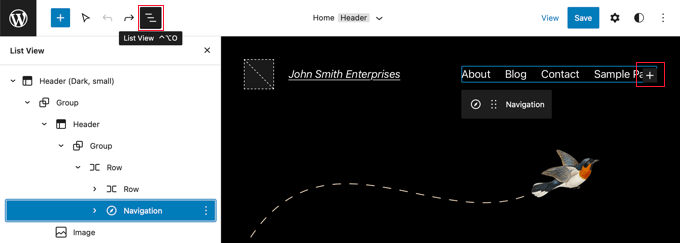
Tip: Selecting blocks in the Full Site Editor can be tricky, so many users find it easier to use List View. Simply click the icon at the top of the screen, then find and select the Navigation block. It may be nested inside other blocks, such as Header and Group.
With the link selected, look at the block toolbar or the settings sidebar on the right. You will see an option for ‘Open in new tab’. Simply toggle this switch to the On position.
Next, click the ‘Submit’ icon next to the URL to store your settings.
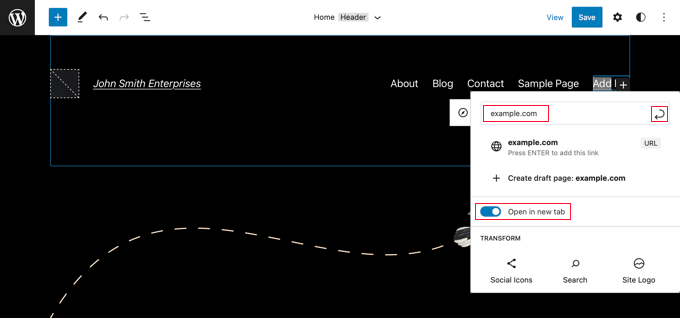
Once you’ve done that, click the ‘Save’ button at the top right of the screen. WordPress may ask you to confirm that you want to update your Navigation menu. Simply click ‘Save’ again to confirm.
5. Automatically Opening All External Links in New Tab Using a Plugin
It may sound like extra work to manually check the option for every external link that you add. However, over time, you will get used to it.
If you run a multi-author blog or often forget to make external links open in a new tab, then you can use a plugin for that.
First, you need to install and activate the Open External Links in a New Window plugin. For more details, see our step-by-step guide on how to install a WordPress plugin.
The plugin works out of the box, and it will automatically open external links in a new window.
It does not permanently change the external links in your database. Instead, it applies the change on the fly while your website loads. This ensures your original content remains untouched.
Note: Deactivating the plugin will stop external links from opening in a new window.
6. Automatically Opening All External Links in a New Tab Using Code
Choosing between a simple plugin and a code snippet can seem confusing, but it’s easy to decide. The plugin in the previous method is a great set-it-and-forget-it solution if this is the only feature you need.
However, for better website performance, we recommend using WPCode. It allows you to replace multiple single-use plugins with one lightweight solution, keeping your site fast and organized.
If you often forget to set links to open in a new tab, you can automate it using the free WPCode plugin. This is also a simple way to ensure guest contributors follow your site’s guidelines.
WPCode lets you safely add custom code in WordPress and includes a library of useful, pre-made snippets. This method lets you open all external links in a new tab with just a few clicks.
First, install and activate the free WPCode plugin. For detailed instructions, you can follow our tutorial on how to install a WordPress plugin.
Once activated, go to Code Snippets » Library from your WordPress admin dashboard.
From there, search for the ‘Open External Links in a New Tab’ snippet. When you find it, hover your mouse over it and click the ‘Use snippet’ button.
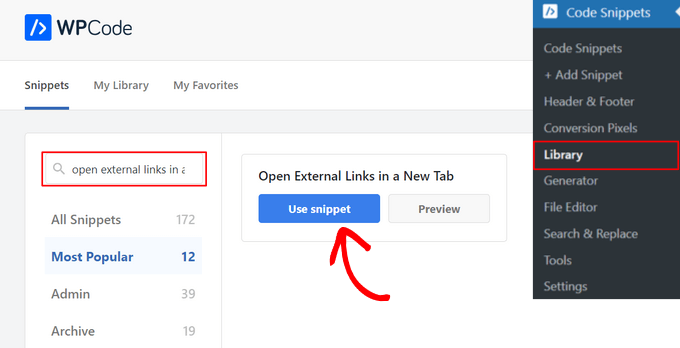
WPCode will automatically add the code for you and select the correct insertion method.
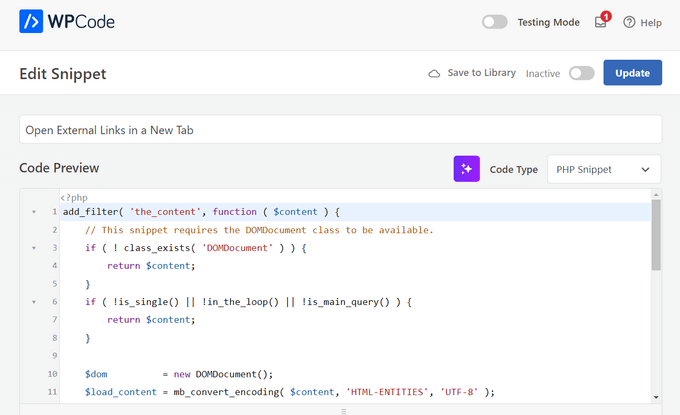
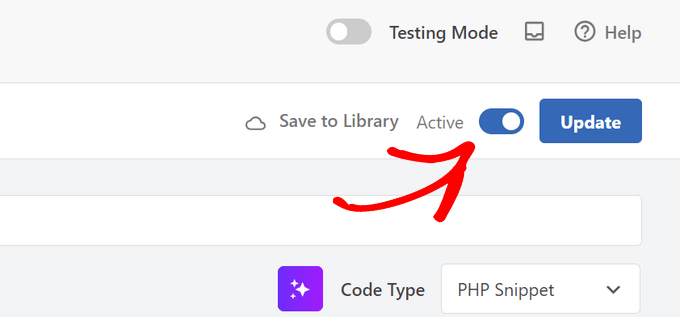
All you need to do is toggle the switch at the top from ‘Inactive’ to ‘Active’.
Finally, click the ‘Update’ button to save and activate the code snippet.
That’s it. Now all external links in your WordPress posts will automatically open in a new tab.
Video Tutorial
Frequently Asked Questions
Here are answers to some of the most common questions we hear from our readers regarding how to handle external links in WordPress.
1. Does opening external links in a new tab hurt my SEO scores?
No, opening external links in a new tab does not hurt your SEO. In fact, many experts believe it can help. When users stay on your tab while viewing a reference link in another, they remain on your site longer. This improves your “time on site” metrics, which is a positive signal for search engines.
2. Should I ever open internal links in a new tab?
Generally, you should avoid opening internal links (links to other pages on your own site) in a new tab. It disrupts the user’s flow and can make navigation confusing on mobile devices. However, there is one exception: if you are linking to a file like a PDF or an image, opening it in a new tab is often better for the user.
3. What is the difference between a new window and a new tab?
In the past, browsers would open a completely separate window on your desktop. Modern browsers now use tabs within a single window to keep things organized. Even if you see the term “New Window” in WordPress settings, it will almost always open as a new tab in modern web browsers like Chrome, Firefox, and Safari.
4. Is it safe to use target=”_blank” on my links?
Yes, it is safe. In the past, there was a security concern where the new page could access data from the original page. However, WordPress now automatically adds the rel="noopener" attribute to any link that opens in a new tab. This security feature ensures the new page cannot control or access your website.
Additional Resources on Adding Links in WordPress
We hope this article helped you learn how to easily open external links in a new window in WordPress. You may also want to see some other articles related to adding links in WordPress:
- Beginner’s Guide on How to Add a Link in WordPress
- Internal Linking for SEO: The Ultimate Guide of Best Practices
- How to “Easily” Add Anchor Links in WordPress (Step by Step)
- How to Change the Link Color in WordPress (Beginner’s Guide)
- How to Add Title and NoFollow to Insert Link Popup in WordPress
- How to Add Nofollow Links in WordPress (Simple Guide for Beginners)
- How to Track Outbound Links in WordPress
- How to Preload Links in WordPress for Faster Loading Speeds
- How to Find and Fix Broken Links in WordPress (Step by Step)
If you liked this article, then please subscribe to our YouTube Channel for WordPress video tutorials. You can also find us on Twitter and Facebook.




Dandelion
Thanks as always for your useful articles and tips.
We have switched to the block editor but we do not see the option to toggle on “open in new tab” at all when creating a link. Once we create a link, then we can come back and click on it, and now we have the choice to make it open in new tab. It is a pain to have to do it in 2 steps every single time. But we don’t want every link on the site to always be external, which is what the plugins seems to be doing. We just want to be able to make the choice at the time of creating the link.
Was this feature removed? Do you know why we don’t see the option when we create the link?
WPBeginner Support
Thank you for letting us know about this change. The change may have been made to make the process of adding a link in general more streamlined but that is always a matter of personal preference.
To simplify what you are wanting to do, we would recommend looking into WPCode to add a snippet to automatically have links default to open in a new tab to save you some time. We go over how to use the plugin in our article below:
https://www.wpbeginner.com/plugins/how-to-easily-add-custom-code-in-wordpress-without-breaking-your-site/
Admin
Mrteesurez
Thanks for the great recommendation! I agree with you on the claim to open external link in a new tab beacuse I’ve implemented this on my own site and noticed a positive impact. By having external links open in a new tab, users stayed longer on my site, leading to higher engagement and more conversions. It’s a simple adjustment that really pays off, especially in terms of page views and retaining user attention. I’ve seen an increase in newsletter sign-ups and product sales, reinforcing how important it is to keep users engaged with your content. This practice has definitely enhanced the overall user experience on my site.
Dennis Muthomi
In the HTML code provided in method 3, what causes the link to open in a new tab?
WPBeginner Support
The target=”_blank” is what causes the new tab
Admin
Dennis Muthomi
I appreciate you taking the time to provide the specific detail I was asking about.
Clear and direct answer, Thank you for that
Dayo Olobayo
Thanks for explaining this in detail but I however have another question. Is it advised to open internal links in new tabs? I ask because most users would most likely not come back to what they were reading before jumping to another article on my website because they clicked on an anchor text.
WPBeginner Support
For the time being we prefer to have internal links open in the same window while external links open in a new tab or window.
Admin
Ahmed Omar
good explanation about all the options
personally I am using plugin, as it is more easy and at the same time I check on the links
thank you
WPBeginner Support
You’re welcome, glad you found a method you prefer
Admin
Jiří Vaněk
Alternatively, I would also add that for SEO purposes, it’s good to have links on the website with the ‘nofollow’ attribute.
Jordi
Hi,
Unfortunately, after the latest Wordpress updates, the option “Open in a new Tab” is not available at the time of inserting the link. You must then edit the link to include that option. Is there a possibility to revert it? Thanks.
WPBeginner Support
You should still be able to add the open in new tab when first adding the link, we would recommend checking to ensure that you don’t have any plugins that may conflict with adding links.
Admin
Esteban
Hello, in gutenberg once the option is checked it does not work, it is independent of plugins, could it be the theme?
WPBeginner Support
If you’ve disabled all plugins you can try changing themes to see if the issue is from your theme. The other possibility would be if you have a browser addon that is preventing the link from opening in a new window or tab.
Admin
Jennifer Robin Gallery
I’ve tried both this version, and WP External Links, and neither will open my links in a new tab. I’ve tried to disconnect my wp no right click plugin, and that still didn’t work. Suggestion?
WPBeginner Support
If none of the methods in this article are allowing you to open the link in a new tab, we would recommend checking if you have any browser extensions that may be preventing the links from opening.
Admin
Jeroen van Rensen
Nice article! I love it!
WPBeginner Support
Thank you
Admin
Emily Harvey
I am using the new editor and despite your excellent article when I click on the ‘open link in new tab’ button I am not sure which symbol indicates whether the link is in a new tab or not. Is it grey or is it green?
Am I right that if you do nothing the link will not open in a new tab?
WPBeginner Support
It sounds like you may be using a plugin that is modifying the display, normally it would be when the box is filled for it to open in a new tab. If you preview the post you should be able to test which option is working for your site.
Admin
Ikenna John Udeobi
Thank you for sharing this tip, I would start following these methods from now on
WPBeginner Support
Glad our guide could be helpful
Admin
Terry G
Thank you Scott Swanson for your note. It wasn’t working for me, but when I disabled that plugin, it does. I guess I have to find another protection plugin to see if it’s only that plugin.
Johnbosco gomez
Greetings. please do you have the one with the feature if someone clicks external link it will take him to new page with click here to continue link? please can you suggest any plugin for this?
may
I downloaded this but the links still don’t open in a new window or tab.
Scott Swanson
Will not work with the WP Content Copy Protection & No Right Click plugin
Ben
How do you open external links (eg advertising) when the person on your blog plays any of the videos?
João Leitão
greetings! what I was looking for was a code to insert in functions.php that would do the trick without another plugin. so:
function wp_change_target($content){
return preg_replace_callback(‘/]+/’, ‘wp_target_callback’, $content);
}
function wp_target_callback($matches){
$link = $matches[0];
$mu_url = get_bloginfo(‘url’);
if (strpos($link, ‘target’) === false){
$link = preg_replace(“%(href=S(?!$mu_url))%i”, ‘target=”_blank” $1’, $link);
}elseif (preg_match(“%href=S(?!$mu_url)%i”, $link)){
$link = preg_replace(‘/target=S(?!_blank)S*/i’, ‘target=”_blank”‘, $link);
}
return $link;
}
add_filter(‘the_content’, ‘wp_change_target’);
Clare
Can anyone tell me how to open a MENU item in a new window? I don’t see an option in the Edit Menus page. I have an external link in a footer menu , that I’d like to open in a new window.
Mike Cavanaugh
I downloaded the plugin but all my links still open up in my wordpress page.
On my side bar ads, I want them to open up in a separate page and leave my page open?
Same for all the links in the “find a professional menu” I want people to go to their links/sites but keep my site open so they will have it in front of them.
Help please?
mike
demeyere
I think it is much easier to just handle this in the jQuery for the whole site… and never worry about it again. (Substitute your own domain name for mine, of course.)
// open all external links in a new window
$(“a[href^=’http’]”).not(“[href*=’demeyere.com’]”).attr(‘target’,’_blank’);
wpbeginner
@demeyere Again, the plugin above is not using target _blank to make sure that the site validates with XHTML strict. But yes, your code will do the job as well.FYI for others reading: Now anyone can simply make a plugin and call this snippet in the header. It wouldn’t make any difference in the load time between you manually putting in your header or calling it via a plugin into wp_head() hook.
easyP
Hi
In earlier versions of wordpress, you selected the text you wanted to link to and then hit the link icon on the dashboard.
This opened a field in which you added the link.
Worked fine.
In latest wordpress versions, when I select the text and hit the link icon and paste in the link, the link appears at the top of the post – not surrounding the selected text.
Am I doing something wrong?
Plugin looks good but I’m trying to cut down on the number that I use.
wpbeginner
@easyP It doesn’t work like that on our site. We are using 3.2.1. We select the text and hit the link icon, and it adds the link where it should. Are you using the Visual Editor or the HTML Editor?Also, any particular reason why you are trying to cut down on the number of plugins that you use?
easyP
@wpbeginner
Hi boys.
Number of plugins – trying to cut down because of page load time.
I love my theme, but it runs like a donkey.
I use the html editor when writing posts and I’m using wordpress 3.2.1 but when I select the text and hit the link icon – the link forgets the highlighted text and appears at the top of the post / page!
Any thoughts?
wpbeginner
@easyP If you try to this trick without a plugin, you will end up doing the same thing. The impact of this plugin on your load time is barely noticeable.
easyP
@wpbeginner
Worth knowing that – thanks boys.
AstroGremlin
I just installed this plug-in. Kind of a funny name, Open External Links in a New Window, but certainly a great idea. Thanks!