


A collapsible sidebar menu is a great way to provide easy access to important links and content while keeping your website’s design clean and organized.
This feature allows users to expand and collapse the menu, giving them control over their browsing experience.
We’ve noticed that many large websites, eCommerce stores, and sites with more complex layouts use it to make navigation easier.
In this article, we will show you how to easily create a collapsible sidebar menu in WordPress.
💡Quick Answer: How to Add a Collapsible Sidebar Menu in WordPress
The easiest way to add a collapsible sidebar menu is by using the Bellows Accordion Menu plugin.
It allows you to design a multi-level menu in your dashboard and add it to your sidebar using a simple shortcode.
What Is a Collapsible Sidebar Menu? (And When to Use One)
A collapsible sidebar menu (or expandable menu) is a navigation list that hides sub-items until a visitor clicks to reveal them. It organizes links in a ‘parent-child’ structure, keeping your site design clean.
We often recommend using collapsible menus for large websites or eCommerce stores. Here is why they are effective:
- Organize Complex Layouts: They help you sort hundreds of categories or pages without overwhelming the user.
- Save Screen Space: By hiding child items, you keep the sidebar short and tidy.
- Improve Mobile Experience: They prevent mobile users from having to scroll through endless lists of links.
For example, the Guardian news outlet uses a collapsible menu for its mobile site to manage its many news categories.

Now, let’s take a look at how you can easily create a collapsible sidebar menu on your WordPress site.
How to Create a Collapsible Sidebar Menu in WordPress
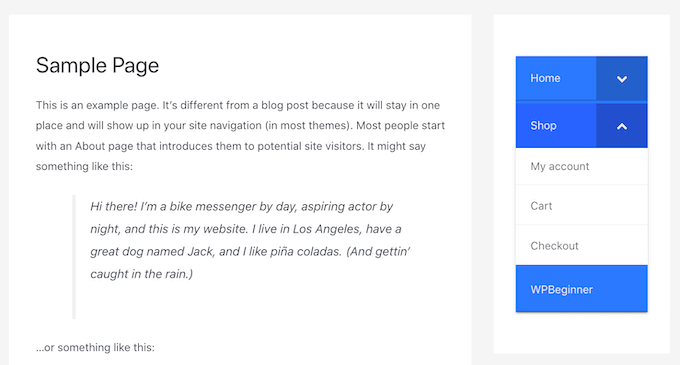
You can create a collapsible sidebar menu in WordPress using the Bellows Accordion Menu plugin.
It provides a handy shortcode that lets you place your collapsible menu on any page, post, or widget area, including your sidebar.
Note: This plugin is designed to be used with classic themes.
Step 1: Install and Activate the Bellows Accordion Plugin
First, you’ll need to install and activate the Bellows Accordion Menu plugin. If you need help, then please see our beginner’s guide on how to install a WordPress plugin.
Step 2: Create a New Menu
Upon activation, visit the Appearance » Menus page in your WordPress dashboard.
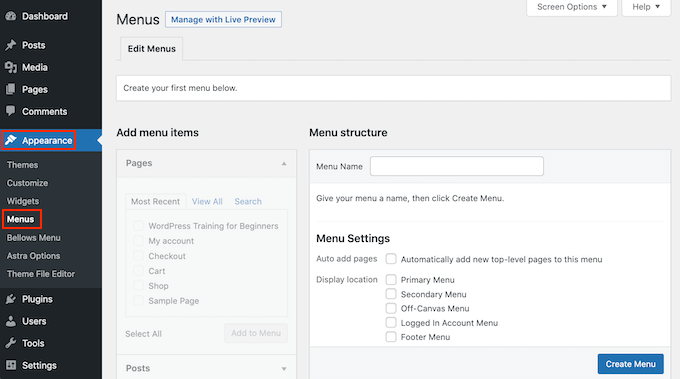
Type a name for your menu into the ‘Menu Name’ field. Then, click on the ‘Create Menu’ button.
Step 3: Add and Arrange Menu Items
Next, choose the pages you want to add from the left column and click ‘Add to Menu’.
If you want to see a list of all your website’s pages, then click on the ‘View All’ tab. For more details, please see our guide on how to add a navigation menu in WordPress.
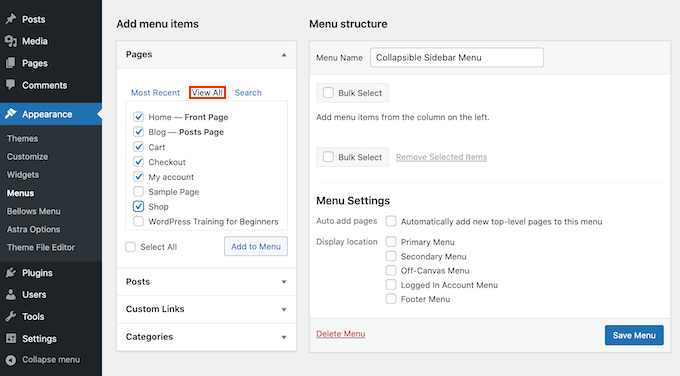
To create the collapsible effect, you need to arrange the items in a parent-child relationship. Simply drag a page item slightly to the right underneath a parent item.
Drag it to the right until you see the dashed outline shift inwards. This confirms the item is now a sub-item, which will be hidden until the parent is clicked.
Now, when a visitor clicks a parent item in your collapsible menu, it will expand to reveal all of the child content.
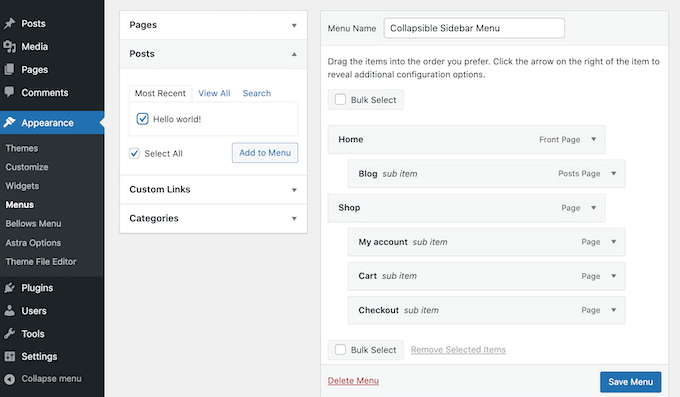
Don’t forget to click the ‘Save Menu’ button when you are finished.
Step 4: Get the Menu Shortcode
Now, we want to add this collapsible menu to the WordPress sidebar. To do this, we will use some shortcodes that Bellows Accordion creates automatically.
To get the shortcode, go to the Appearance » Bellows Menu page from the WordPress dashboard. If it isn’t already selected, then make sure you select the ‘Show All’ tab.
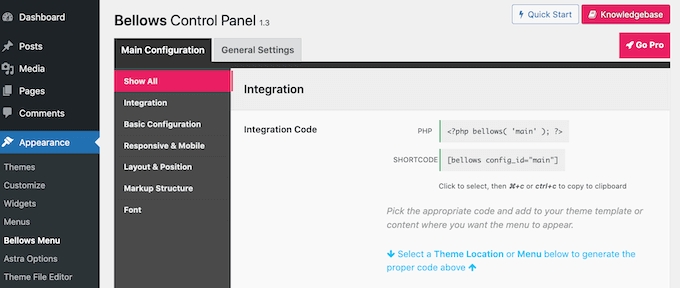
You can now click on the Shortcode box, which should highlight all of the code. Now, copy this code using either the Command + C or Ctrl + C keyboard shortcut.
Step 5: Add the Menu to Your Sidebar
Now we need to add the menu to your site layout. Head over to the Appearance » Widgets page from the WordPress admin area.
This will display all of the widget areas within your current theme. The options you see may vary, but most modern WordPress themes feature a sidebar.
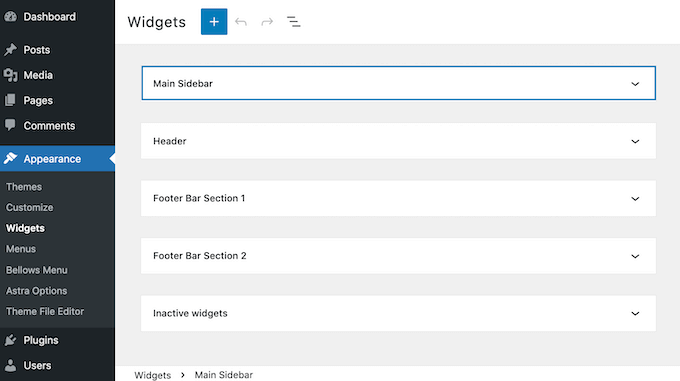
Find the sidebar widget area and click the ‘+’ icon to add a new block.
Search for ‘Shortcode’ and select the block.
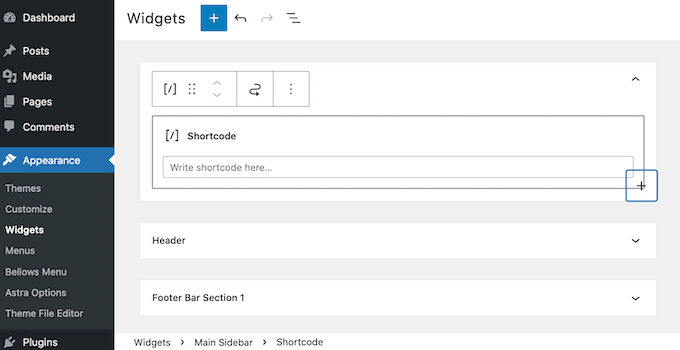
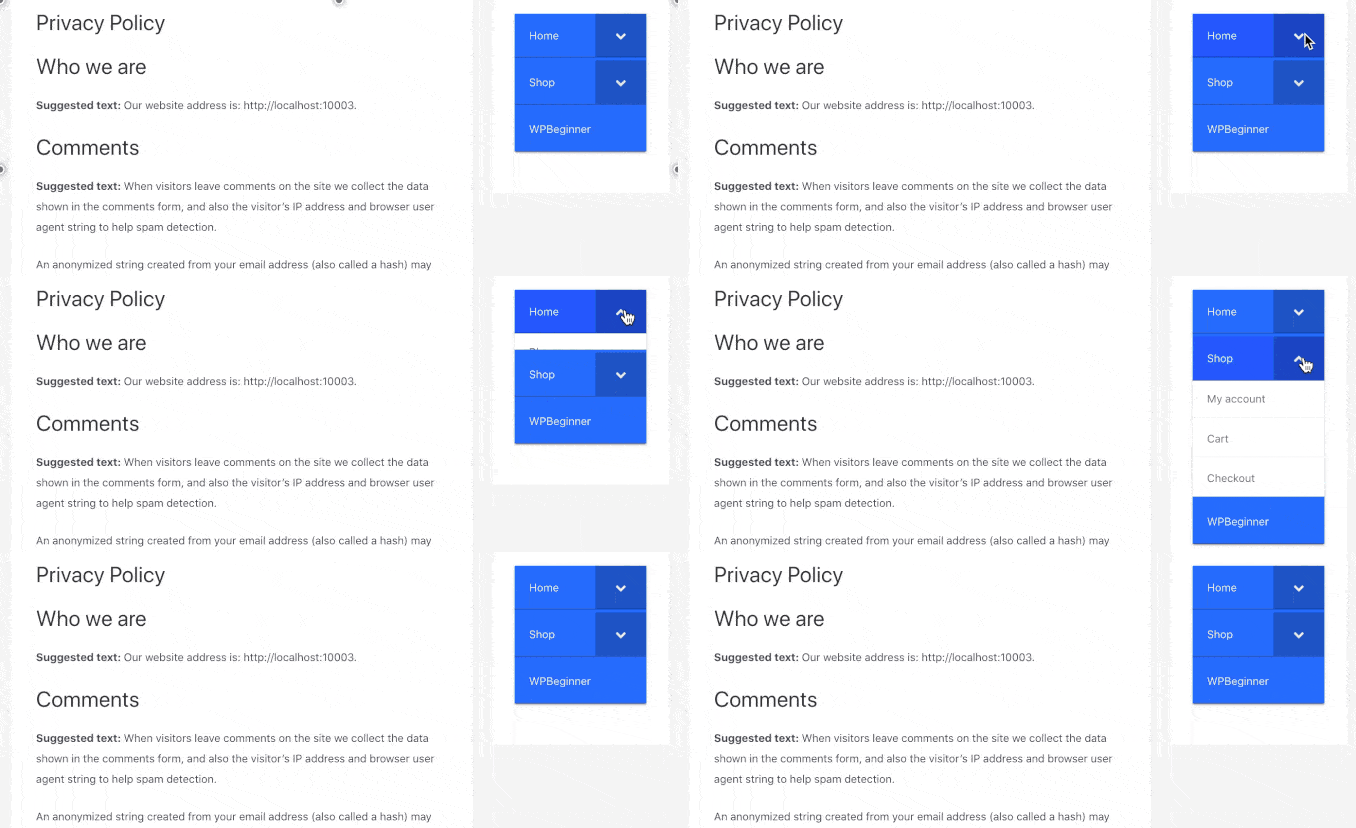
Paste your copied shortcode into the block and click ‘Update’. When you visit your site, you should see your new collapsible menu.
On mobile devices, this sidebar will typically appear at the bottom of the page, where the collapsible feature helps save valuable vertical scrolling space.
Step 6: Customize Your Collapsible Menu
The Bellows Accordion plugin also makes it super easy to customize this default menu. For example, you might change its color scheme to better reflect your site’s branding.
If you want to tweak the default menu, simply go to the Appearance » Bellows Menu page in your WordPress dashboard.
This menu has all the settings you need to customize your collapsible menu. There are a lot of settings to explore. However, you may want to start by going to Main Configuration » Basic Configuration.
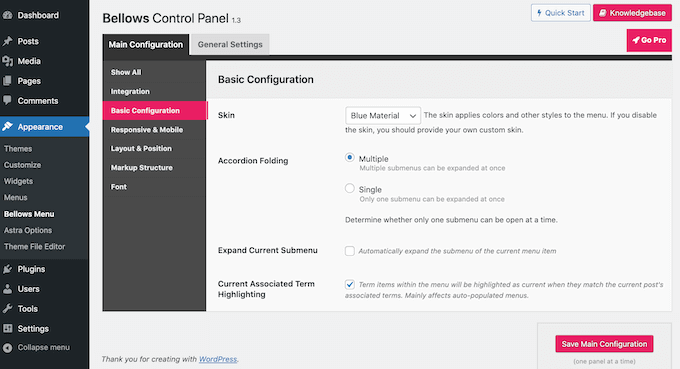
Here, you can switch between several different menu colors. You can also choose whether visitors can expand multiple submenus at once using the ‘Accordion Folding’ settings.
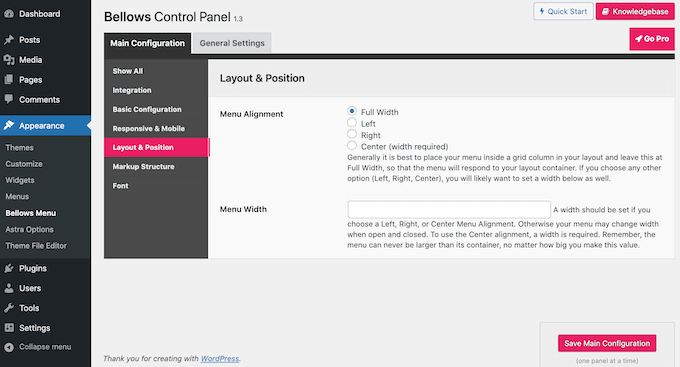
To change the menu’s alignment and width, click on the ‘Layout & Position’ tab.
If you’d prefer to preview your changes in real-time, then you can edit the collapsible sidebar menu in the WordPress Customizer.
To do this, head over to the Appearance » Customize page from the admin area and select the ‘Bellows’ tab from the left column.
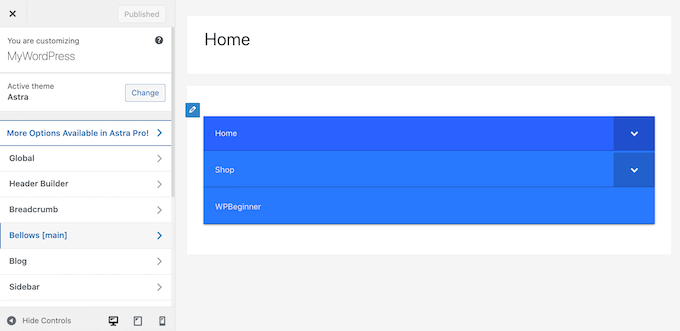
Here, you’ll find lots of different settings for your sidebar. These include changing its width, alignment, and the color of your collapsible sidebar menu.
Bonus: WordPress Sidebar Tricks to Get Maximum Results
Once you have created a collapsible sidebar menu, you can use some other tips to generate more leads with the help of your sidebar.
For example, you can make your sidebar widget sticky so that it is visible on the page even as the user scrolls down.
Other than that, you can add a contact form or email sign-up form in your sidebar to build your email list. To do this, you can use WPForms, which is the best contact form plugin on the market.
At WPBeginner, we use it to create contact forms and annual surveys, and we love it. To learn more, see our full WPForms review.
You will simply need to create a form and then add it to your sidebar using the WPForms block in the block menu.
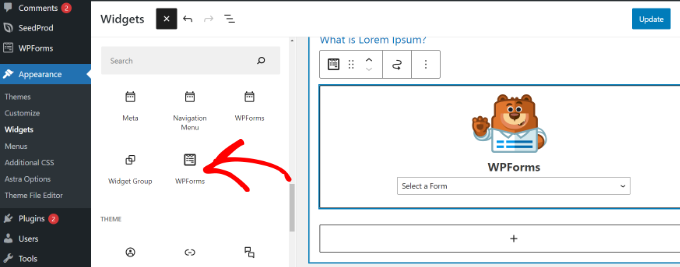
For more details, you can see our tutorial on how to create a contact form in WordPress.
Additionally, you can display your most popular posts in the sidebar, add images, show social media icons, and display social proof. This will encourage users to explore your site more and boost your conversions.
For more tips, you can see our list of the best WordPress sidebar tricks to get maximum results.
Video Tutorial
If you don’t prefer written instructions, then just watch our video tutorial.
Frequently Asked Questions About Collapsible Sidebar Menus in WordPress
Here are some questions that our readers have frequently asked before adding a collapsible sidebar menu on their websites:
How to collapse a menu in WordPress?
You can collapse a menu using a plugin like Bellows Accordion Menu. By default, WordPress menus do not have this feature on desktop screens. A plugin adds the necessary code to make items expand and hide when clicked.
How do I add a collapsible section in WordPress?
The easiest way is to use the default WordPress ‘Details’ block. This block lets you wrap content inside a clickable summary line. For more advanced styling inside your posts, you can use a dedicated accordion plugin.
How to create a dropdown menu in WordPress?
You can create a dropdown menu by visiting Appearance » Menus in your dashboard. Simply drag a menu item slightly to the right underneath a parent link. This indentation tells WordPress to display that item inside a dropdown list.
For more details, take a look at our tutorial on creating a dropdown menu in WordPress.
How to put elements side by side in WordPress?
You can put elements side by side using the Columns block. In the block editor, select ‘Columns’ and choose your preferred layout. Then, simply add your text or images into each column.
What is the accordion block plugin for WordPress?
An accordion block plugin allows you to add collapsible content sections to your posts. It helps organize long content by hiding text under headings. Users simply click the heading to read the information they need.
If you want to add accordions to your site, then take a look at our top picks for the best WordPress accordion plugins.
We hope this article helped you learn how to create a collapsible sidebar menu in WordPress. For more tips on editing your WordPress site design, you can also go through our guides on how to customize your WordPress header and the most useful WordPress widgets for your site.
If you liked this article, then please subscribe to our YouTube Channel for WordPress video tutorials. You can also find us on Twitter and Facebook.


Mrteesurez
Thanks for this guide, if I understand you correctly, that means the plugin will generate a shortcode that can be placed at anywhere in the site even inside a post ?
WPBeginner Comments
While you could try using the shortcode in other locations, even if it works it may or may not display in a useful way.
Jiří Vaněk
I tried it, and yes, your idea is correct. It really does work. However, it’s worth considering how you’ll use it in the end. Because in my case, I couldn’t find any other use for it besides in the sidebar. But maybe your website is different, and you’ll find a use for it. So, the answer to your question is yes, it works as you described.
Jiří Vaněk
For websites that have many categories, this is the perfect option to make the sidebar clear. I now have about 15 categories on the site and am thinking about something similar to the accordion as well. Thanks for the inspiration.
Tamie
Thank you for this. How can you adjust the spacing between the subcategories? I have a lot of categories and having what looks like a double line space in between make the menus very long.
WPBeginner Support
It would depend on your specific theme for the settings required. You would want to start by checking with the support for your specific theme. Otherwise, you could use Inspect Element to find what needs to be modified. We have a guide below that shows how to use Inspect Element to help with this:
https://www.wpbeginner.com/wp-tutorials/basics-of-inspect-element-with-your-wordpress-site/
Admin