


When we first started using WordPress, we were always bothered by the default author URLs. They looked clunky and unprofessional, which we knew wasn’t great for our branding or SEO.
After building hundreds of sites, we’ve learned that customizing these URLs is a small change with a big impact. It instantly makes a multi-author blog feel more polished and organized.
In this guide, we’ll show you the simple, code-free way to change the author URL slug and base. You’ll be able to create cleaner, more professional links in just a few steps.
What Is a URL Slug and URL Base?
WordPress offers an SEO-friendly URL structure known as pretty permalinks. To use this feature, you’ll need to make sure it’s enabled by going to Settings » Permalinks in your WordPress dashboard and selecting any option other than ‘Plain.’
Once enabled, pretty permalinks allow you to create clean, readable URLs for your posts, pages, and categories by editing their slugs. For example, instead of using URLs with numbers like ‘/?p=123’, you can have URLs that include the post name.
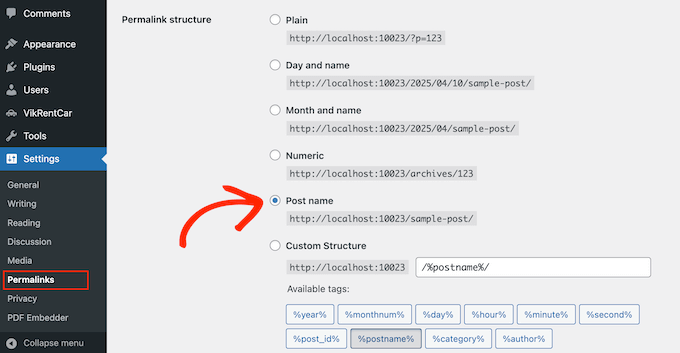
This feature also creates pretty links for author pages. However, there is no option for you to customize the author URL.
In WordPress terminology, a slug is the title of a publicly viewable page in WordPress formatted to be used in URLs. It looks like this:
https://example.com/author/syed-balkhi/
In the example above, syed-balkhi is the slug, and /author/ is the base.
While users can change the slug and base for posts, pages, categories, and tags, it’s not possible to change the author URL in WordPress by default.
If you’d prefer to use ‘contributor’ instead of ‘author’ or want to change a certain author’s slug, then you are in the right place.
Let’s take a look at how you can easily change the author URL slug and base in WordPress:
Changing the Author Slug in WordPress
The first thing you need to do is install and activate the Edit Author Slug plugin. For more details, see our step-by-step guide on how to install a WordPress plugin.
Upon activation, this plugin will add a group of options to each user profile page.
If you want to edit the slug of a user on your site, then you need to go to the Users » All Users page in the WordPress dashboard. Next, click on the ‘Edit’ link below a username.
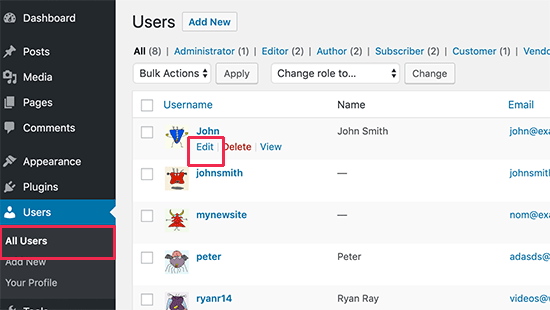
This will take you to the Edit User screen.
Simply scroll down to the ‘Edit Author Slug’ section, and you will see a number of choices that you can use as the author slug. You can even enter a custom slug.
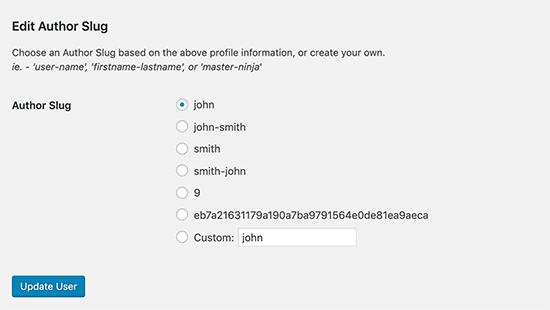
Once you have made the changes, click the ‘Update User’ button and preview your WordPress website.
Now, when you click on the author name in a post to view the author page, you will see that it is using the author slug you choose for them.
Changing the Author Base in WordPress
If you are building a site where you want to change the author base from /author/ to something else, then you can do that with this plugin as well.
Simply head over to the Settings » Edit Author Slug page. Here, you will see an option to change the author base and even choose different bases for different user roles.
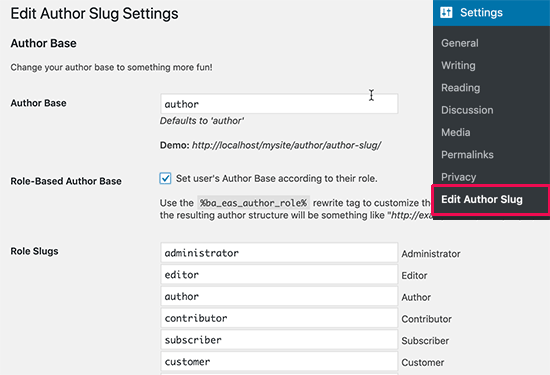
Once you are finished, just click on the ‘Save Changes’ button to store your settings. You can now preview your site and click on the author link to see the changes in action.
Setting Up Redirects for SEO Purposes
When you change author URLs on an established website, you need to handle the change carefully to protect your SEO. Search engines have already indexed your existing author pages, and other websites might be linking to your current author URLs.
Your internal links and sitemaps also reference these old URLs, so any changes could lead to visitors encountering 404 errors when they try to access your content.
This is why setting up proper redirects, as we’ll show you below, is essential. Redirects ensure that both search engines and visitors are automatically sent from the old URLs to the new ones, preserving your search rankings and user experience.
First, you need to install and activate the Redirection plugin. For more details, see our step-by-step guide on how to install a WordPress plugin.
Upon activation, head over to the Tools » Redirection page. You will be greeted by the plugin’s setup wizard. You can follow the on-screen instructions to continue set up or click on the ‘Manual Install’ link to skip it.
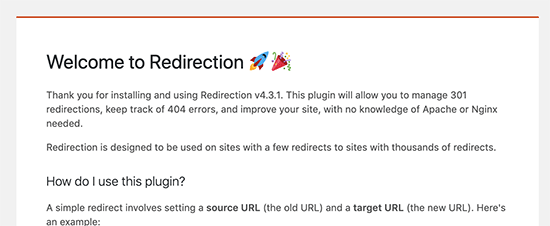
Next, you will reach the Redirection page. From here, scroll down to the ‘Add new redirection’ section.
You need to add the old author page URL as the source and the new author URL page as the target.
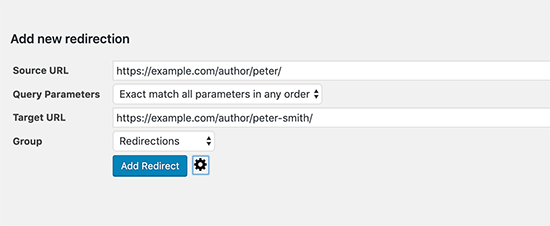
Don’t forget to click the ‘Add Redirect’ button to save your changes. The plugin will now automatically redirect visitors coming to the old author page to the new URL.
If you’ve changed the author base for your entire site (for example, from /author/ to /contributor/), then you’ll want to create a rule that forwards all those URLs at once. This saves you from having to redirect each author’s page one by one.
Let’s suppose you changed the author URL base to ‘contributor’. Here are the settings you would use to set up the new redirection:
- Source:
/author/(.*)$ - Target:
/contributor/$1
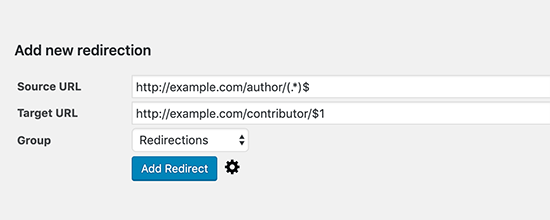
Next, click the gear icon next to the ‘Add Redirect’ button to show advanced options. Make sure to check the ‘Regex’ box to enable this type of redirect.
What Does This Code Mean?
Don’t worry, you don’t need to be a coding expert! Here’s a quick breakdown:
Together, they create a smart rule that redirects any author page to its new location.
Please note that this regex method is perfect if you are changing all authors to a single new base (like ‘contributor’). However, if you’ve set up different bases for different user roles, a single regex rule won’t work.
For complex situations like handling different bases for different user roles, we recommend using All in One SEO (AIOSEO) Pro. Its powerful Redirection Manager can handle these advanced redirects automatically, saving you from any headaches. 👍
It lets you easily set up full site redirects. Plus, you can enable automatic 404 error tracking to make sure you never have any broken links on your website.
To learn more about redirects, see our guide on how to set up redirects in WordPress.
Frequently Asked Questions About Changing Author URLs
Here are answers to some of the most common questions our readers ask about customizing author slugs and bases in WordPress.
1. Will changing the author URL hurt my SEO?
Changing your author URL won’t harm your SEO as long as you set up proper 301 redirects. Redirects guide search engines and visitors from the old URL to the new one, making sure you don’t lose traffic or search rankings.
2. What happens if I don’t set up redirects after changing author URLs?
If you don’t set up redirects, anyone trying to access the old author pages will see a 404 error page. This creates a poor user experience and can cause search engines to drop those pages from their index, negatively impacting your SEO.
3. Can I change the author slug without using a plugin?
By default, WordPress does not offer a built-in option to change the author slug or base. While it’s possible with custom code, it is complex and can break your site if not done correctly. Using a plugin is the safest and most reliable method for most users.
4. Does changing the author slug also change the user’s login username?
No, the author slug and the username are separate. The author slug is only used for the public-facing URL of the author’s archive page. The username is what the author uses to log in to the WordPress dashboard, and it remains unchanged.
Additional Resources on WordPress Permalinks URLs
We hope this article helped you change the author slug and base in WordPress. You may also want to see some other articles related to WordPress permalinks and URLs:
- What is a SEO Friendly URL Structure in WordPress
- How to Change the Category Base Prefix in WordPress
- How to Remove Numbers From WordPress URLs
- How to Remove v=XXXX String From WordPress URLs
- How to Remove the Date From WordPress URLs
- How to Create Custom Permalinks in WordPress (Ultimate Guide)
- How to Regenerate Your Permalinks in WordPress
If you liked this article, then please subscribe to our YouTube Channel for WordPress video tutorials. You can also find us on Twitter and Facebook.




Ritish Sharma
Thank you for the information. But can I delete the plugin after changing the author’s URL slug? Or, the changed URL will also be deleted with this?
WPBeginner Support
We would recommend checking out the plugin’s FAQ as they cover when you are able to remove the plugin or when you would be unable to.
Admin
estelle
Thank you so much for your time and effort in posting this. This worked
WPBeginner Support
You’re welcome, glad our guide was helpful
Admin
Frank the Man
Seems like this is outdated? I cannot find “Edit author slug” when I go to Edit user profile (I am logged in as Admin). Any new tips for this?
WPBeginner Support
You would want to ensure the plugin is installed and activated for the section to be visible.
Admin
Muhammad Waqas
Issue resolved after watching youtube vedio of wp beginner thanks..
WPBeginner Support
You’re welcome, glad our guide was helpful
Admin
Bathri Vijay
Thanks for your wonderful blog.
WPBeginner Support
You’re welcome, glad you like our site
Admin
Linas
Thank You! this is what I was looking for!
WPBeginner Support
Glad our content is what you were wanting
Admin
Amanda
Thank you so much! I had no idea this plugin existed. Now, I have both more professional-looking (and SEO-friendly) author slugs and my usernames are fully private, so I don’t have to worry about would-be hackers. It was the one thing my security plugin didn’t seem to deal with, so I’m very pleased.
I can also confirm that this plugin works with the latest version of WordPress, even though it technically hasn’t been tested for it (last update was a year ago). I guess when a plugin works, it works.
Bishwambhar Sen
Thanks for this post! My author slug was something like myname_somerandomcharcter and since it was my username i couldn’t even change it and all my posts had this author slug. SEO analysis would reveal this slug as SEO unfriendly URL. Now I have changed it using this plugin! Thanks again!
Tony
Great article, I have a problem though.
I set a custom structure in the permalink settings to article/%postname%/. However it also affects my author pages and now I’m left with article/author/%author%.
Please can you help?
Phil
Hi there
Thanks for this article. Is it possible to do the following:
[URLs are examples]
I have a site xyz.com. Under the URL xyz.com/site1/site2 i have the posts from wordpress. If i open now the Post the url is like xyz.com/{postname} but i’d like to have xyz.com/site1/site2/{postname}
Can you help me?
BR
Phil
Marven
You are only able to create a URL which consists of the PRIMARY category and the post name.
Head over to Settings->Permalinks and choose “custom structure”. In the your can click on the buttons below the input field or paste the following:
/%category%/%postname%/
Vikash
In WordPress 4.8.1 ? i am unable to find it. help me
Matt
Quick question about old URLs and search engines. Since I’ve been using this site for about 11 years, I know the old author URLs are in the search engines and possibly other places as well.
Shouldn’t we add a redirect to .htaccess so all old links are redirected to the new author URL?
Thank you for your advice.
-Matt
WPBeginner Support
Hi Matt,
Yes, if your author pages are indexed by search engines, then you will need to setup redirects. See our guide on how to create redirects in WordPress for detailed instructions.
Admin
Matt
Thanks for your quick reply!
To better assist other users, this is what I came up with. Please correct any .htaccess coding issues as you see fit.
# Redirect Old author URL to new one 3/14/17 (Matt)
RedirectMatch 301 /old-user/ http://www.example.com/author/new-user/
Chad
Thanks, great post.
Ashu
yes helpful
Dinesh
Thank you very much. I love this solution.
madhavi jha
You add this in your theme function.php
global $wp_rewrite;
$wp_rewrite->author_base = “member”; // or whatever
$wp_rewrite->flush_rules();
Ann
OMG, a lifesaver! A hacker used my exact (and weird) username. I finally figured out that it was being displayed in author/username (even though Woo Canvas asks me how I want to display my name), and this is the only post (I’ve been searching hours) to offer a simple solution for a non-programmer. I love you, WPBeginner….
ferdicon
Must Plugin be used to change User Slug, too many plugin can really cause your wordpress site to become slow in loading