


You might finish a website redesign only to find your old featured images look terrible with the new layout. Updating them one by one is a slow and frustrating process that takes away from growing your business.
At WPBeginner, we have managed thousands of posts and understand the need for a consistent visual style. We found a way to automate this process so you don’t have to do it manually.
In this guide, we will show you how to bulk edit featured images in WordPress to save you hours of work.
Here is a quick look at what we will cover in this guide.
- Why You Might Need to Bulk Edit Featured Images in WordPress
- How to Bulk Edit Featured Images in WordPress
- How to Set Multiple Images Randomly as Featured Images
- How to Bulk Remove Featured Images in WordPress
- Bonus: Do Basic Image Editing in WordPress
- Frequently Asked Questions (FAQs)
- Additional Resources on WordPress Image Management
Why You Might Need to Bulk Edit Featured Images in WordPress
Featured images, also known as post thumbnails, are an important part of many websites.
Almost all modern WordPress themes come with built-in support for featured images and display them across different areas of your WordPress website, including your blog archives.
As an important part of your WordPress blog, you’ll want to make sure your featured images look good and represent your brand.
Because of this, you may eventually need to bulk edit your featured images in WordPress. For example, you might install a new WordPress theme and decide to design new featured images that better complement your new theme.
You can change the featured image for an individual page or post in the standard WordPress editor. However, changing the featured image for lots of different pages and posts can be frustrating and time-consuming.
Let’s see how you can bulk edit featured images in WordPress.
How to Bulk Edit Featured Images in WordPress
The easiest way to bulk edit featured images in WordPress is by using the Quick Featured Images plugin.
This plugin makes it easy to change every single featured image across your website. It also has detailed filters to change the featured images for specific categories, tags, post types, and more.
Important: This plugin does NOT allow you to undo your bulk edits. Once you change the images, you cannot automatically switch them back.
For this reason, it is crucial to back up your WordPress website before you start. If you don’t already have a backup solution, then there are several great WordPress backup plugins that allow you to automatically back up your website.
Remember, restoring a backup will revert your entire site (including posts, pages, and settings) to the exact moment the backup was created. It’s the ultimate undo button! 👍
After creating a backup, you’ll need to install and activate the Quick Featured Images plugin. If you need help, then please see our guide on how to install a WordPress plugin.
Upon activation, go to Featured Images » Overview in the left-hand menu. On this screen, click on the following link: ‘Bulk set, replace, and remove featured images for existing posts.’
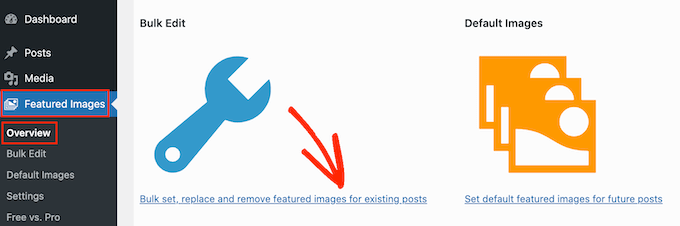
This screen allows you to bulk edit your featured images in a few different ways.
Your first option is the ‘Set the selected image as a new featured image’ radio button.
This setting finds all posts and pages without a featured image. You can then choose a new featured image and apply it to all of these pages and posts.
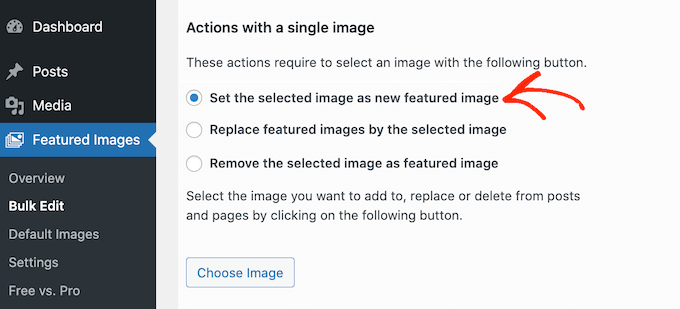
Another option is ‘Replace featured images by the selected image.’ This allows you to replace any existing featured images with a new image.
Next up is ‘Remove the selected image as featured image.’ This lets you choose a specific image, and then remove that featured image wherever it appears on your website. This is perfect for removing an outdated featured image, such as an image that features your site’s old logo.
After selecting one of these radio buttons, click on the Choose Image button.
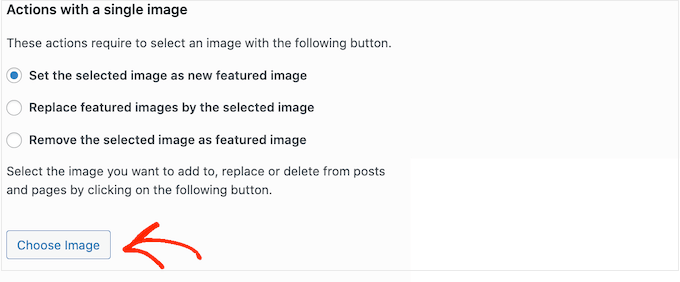
You can now choose the image that you want to use in the bulk edit. You can either select an image from your WordPress media library or upload a new file.
Once you’ve done that, scroll to the bottom of the screen and click on the ‘Next’ button.
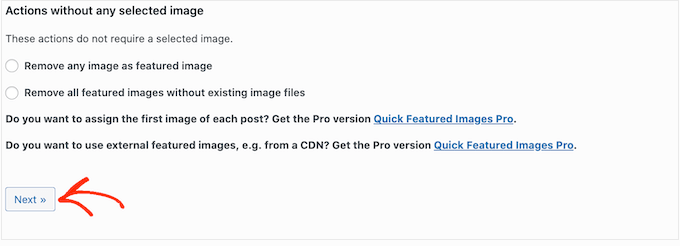
On this screen, you’ll be able to configure how WordPress performs the bulk edit.
The options you see may vary depending on whether you’re adding, changing, or removing a featured image. For example, if you choose the ‘Set the selected image as new featured image’ radio button, then you can select whether to override all existing featured images or ignore them.
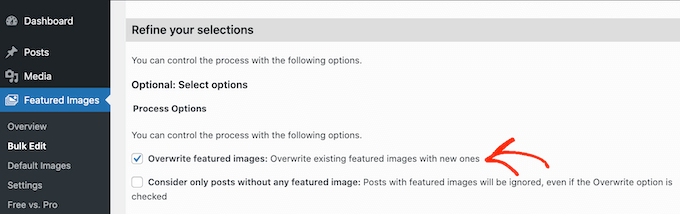
To select which posts your bulk changes will apply to, scroll to the ‘Add a filter’ section.
By default, Quick Featured Images will apply its bulk edit to all pages and posts across all of your site’s categories and tags.
If you don’t want to bulk edit every page and post, then you can create filters. These filters let you bulk edit featured images that meet specific criteria.
For example, imagine you just rebranded your ‘Business Tips’ category with a new visual style. You could use the ‘Category Filter’ to select only the posts in ‘Business Tips.’
This allows you to replace the featured images for that specific category without affecting the posts in other categories like ‘Marketing’ or ‘News.’ 😉
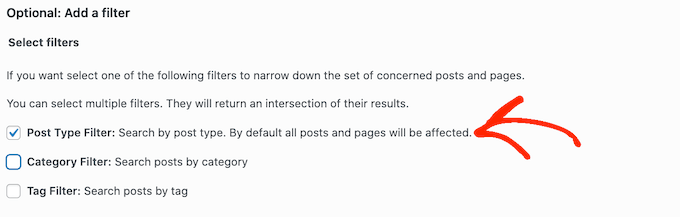
You can check more than one box. For example, you might check the ‘Post Type Filter’ and ‘Tag Filter’ boxes if you want to bulk edit posts that have a specific tag.
After checking one or more boxes, go ahead and click on the ‘Next’ button.
You will now see some settings that you can use to create your filter. For example, if you check the ‘Post Type Filter’ box, then you can choose between the ‘Posts’ or ‘Pages’ boxes.

If you check either the ‘Category Filter’ or ‘Tag Filter’ box, then you’ll have access to a dropdown menu.
You can open this dropdown and then choose the category or tag where you want to make the bulk edit.
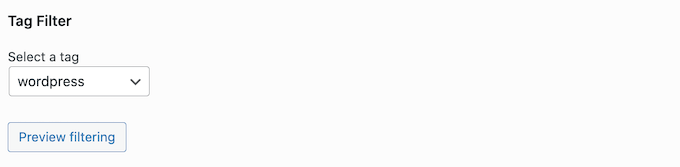
When you’re happy with how your filter is set up, scroll to the bottom of the screen.
You can then go ahead and click on the ‘Preview filtering’ button.
The Quick Featured Images plugin will now show a preview of all the pages and posts that will be affected by the bulk edit.
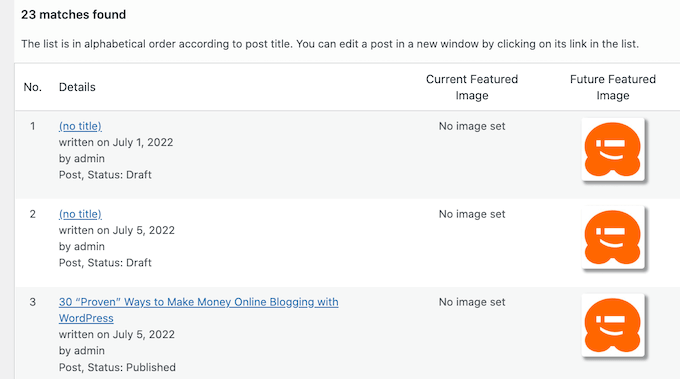
If you’re happy with the preview, then you can go ahead and click on the ‘Apply’ button.
Quick Featured Images will now bulk edit all of the relevant featured images across your WordPress website.
How to Set Multiple Images Randomly as Featured Images
When you bulk edit featured images in WordPress, you can sometimes end up using the same featured image for lots of different posts. These duplicate images can make your website look boring and repetitive.
With that in mind, you may want to set your featured images from a pre-selected group of images. You can use the Quick Featured Images plugin to select a pool of different images from your WordPress media library.
The plugin will then randomly assign one image from your selected pool to each post.
Tip: This method works best if you use abstract design patterns or generic landscape photos. If you use specific photos, you might end up with a picture of food on a technology post!
In this way, you can bulk edit your images without creating lots of duplicate featured images.
To set your featured images at random, go to Featured Images » Overview and again click on ‘Bulk set, replace and remove featured images for existing posts’.
Once you’re here, click on ‘Set multiple images randomly as featured images.’
You can then click on the ‘Choose Images’ button to open the WordPress media library.
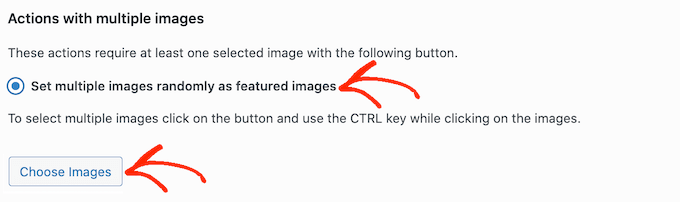
In the WordPress media library that opens, you can now select all the images you want to use. To select multiple images quickly, click your first image, hold down the Shift key on your keyboard, and then click your last image. This will select all the images in between.
Once you’ve done that, click on the ‘Choose Images’ button. Then, scroll to the bottom of the screen and click on ‘Next.’
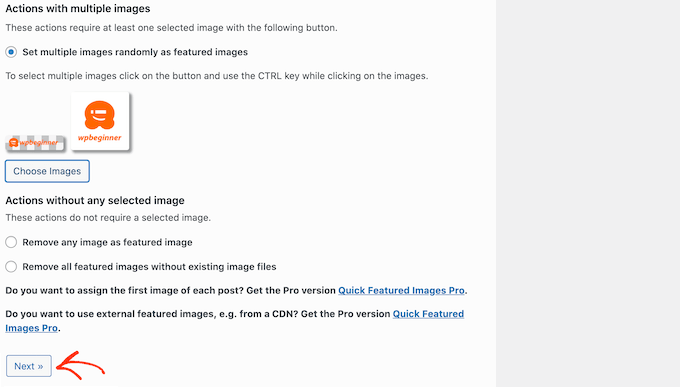
By default, Quick Featured Images will apply these images to all your WordPress pages and posts at random.
Do you just want to use these images for certain content types, categories, or tags? Then, you can create a filter by following the same process described above.
After adding a filter, Quick Featured Images will show a preview of all the pages and posts that it plans to update. You can check the thumbnail to see which image the plugin has randomly assigned to each page or post.
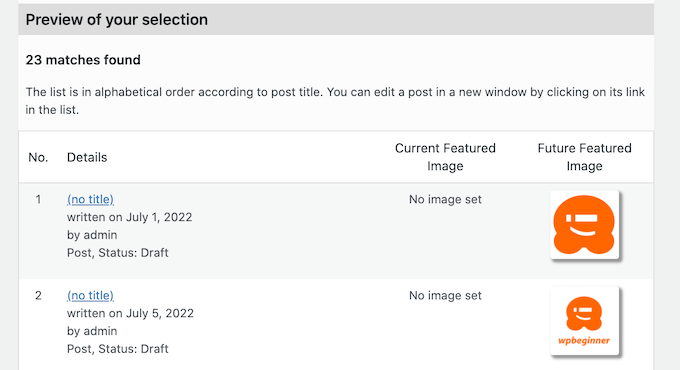
If you’re happy with the preview, go ahead and click on ‘Apply.’ Quick Featured Images will now add new images to your pages and posts.
How to Bulk Remove Featured Images in WordPress
Sometimes, you may prefer not to use featured images on your website. For example, you might be trying to speed up your WordPress performance, or you may be using a theme that simply doesn’t look good with featured images.
You can use Quick Featured Images to easily remove the featured image association from your pages and posts. Note that this does not delete the image file from your Media Library, so you can still use the images elsewhere.
You can also use filters to remove featured images from pages, posts, or content with a particular tag or category.
To bulk remove featured images in WordPress, select the radio button option labeled ‘Remove all featured images.’ You can then go ahead and click on ‘Next.’
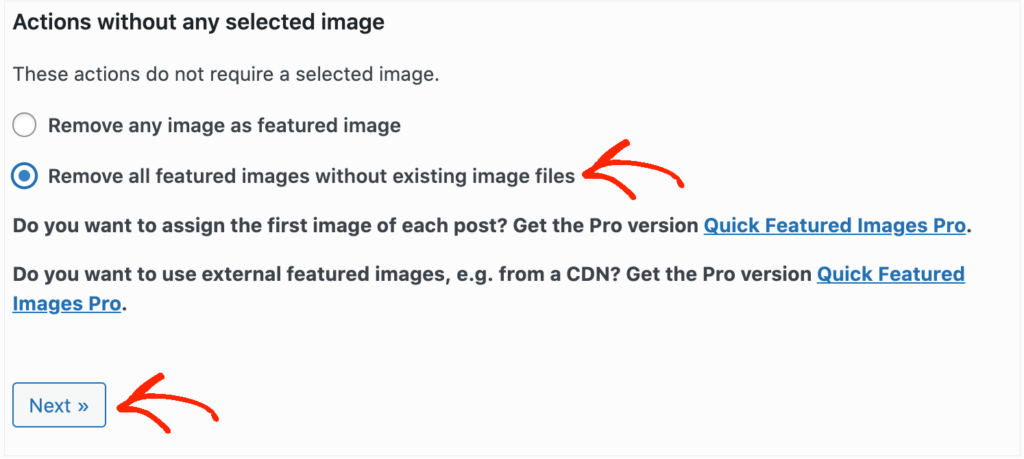
Now, you can apply filters by following the instructions above.
Once you’ve created one or more filters, go ahead and click on the ‘Next’ button.
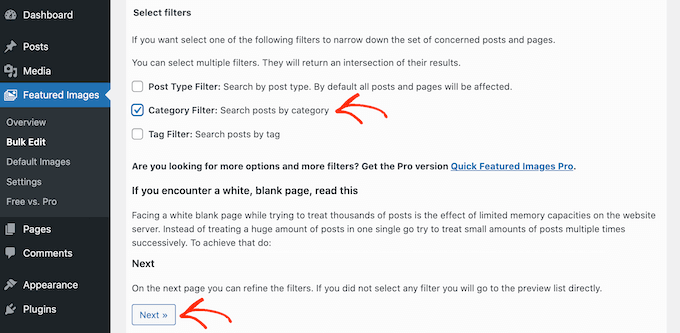
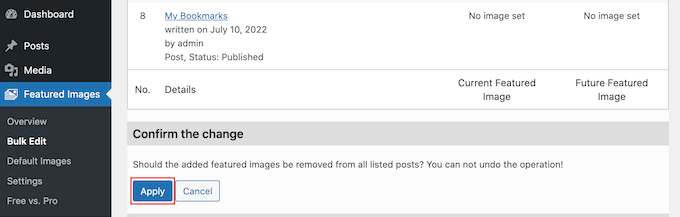
As always, the plugin will show a preview of all the pages and posts that it will change as part of this bulk edit. Since you’re deleting the featured image, it will show ‘No image set’ in the ‘Future Featured Image’ column rather than a thumbnail preview.
If you’re happy to go ahead and remove the featured image for these pages and posts, then just click on the ‘Apply’ button.
Bonus: Do Basic Image Editing in WordPress
Once you have bulk-edited featured images on your website, you can also use some default WordPress settings to edit other images in the media library.
To do this, head to Media » Library from your WordPress dashboard. Then, click on the image you want to modify to open the ‘Attachment Details’ window.
Next, simply click the ‘Edit Image’ button located directly below the image preview.
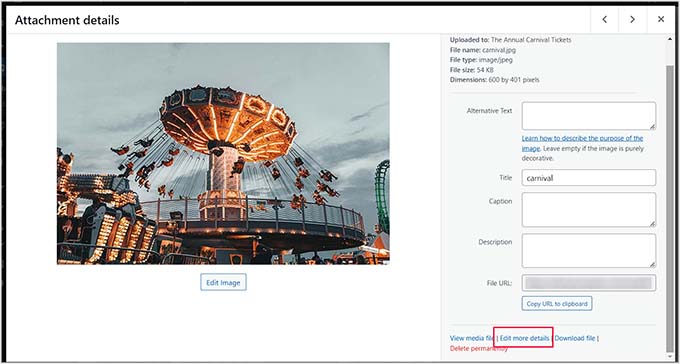
This will open the built-in WordPress image editor.
After that, you can crop, scale, or rotate the image according to your liking. Once you are done, just click the ‘Save Edits’ and ‘Update’ buttons to store your settings.
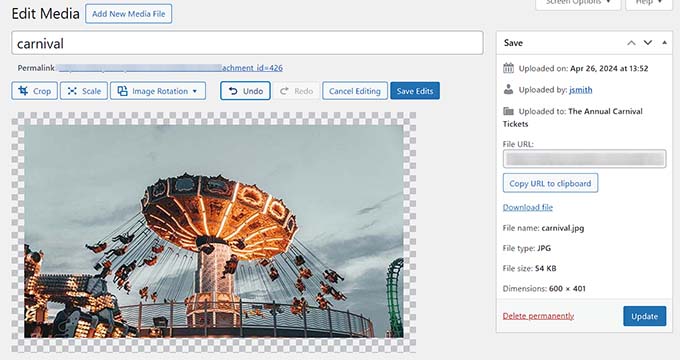
For more information, see our tutorial on how to do basic image editing in WordPress.
Frequently Asked Questions (FAQs)
Here are some of the most common questions we get about bulk editing featured images in WordPress.
Can I undo bulk edits made with the Quick Featured Images plugin?
No, the plugin does not have an undo feature. This is why we strongly recommend creating a full backup of your website before you start making changes, so you can restore it if needed.
Is it possible to bulk edit featured images without a plugin in WordPress?
WordPress does not have a built-in feature for this task. While it’s technically possible with custom code, using a dedicated plugin is the safest and easiest method for most people.
What is the best way to create a website backup before making bulk changes?
The most reliable method is to use a WordPress backup plugin. We use Duplicator on some of our own projects because it allows us to create a complete backup that can be easily restored if something goes wrong.
Will changing my featured images affect my site’s SEO?
Changing the images themselves won’t negatively impact your SEO. However, if you apply one image to many posts, be careful with the Alt Text. You don’t want 100 different posts to have the exact same Alt Text description, as this can look spammy to search engines.
Additional Resources on WordPress Image Management
Now that you know how to bulk edit featured images, you may want to check out these other guides for managing images on your WordPress site:
- How to Do Basic Image Editing in WordPress
- How to Optimize Images for Web Performance
- A Beginner’s Guide to Image SEO
- How to Use AI to Generate Images in WordPress
- How to Create an Image Gallery in WordPress
- Best File Upload Plugins for WordPress
We hope this article helped you learn how to bulk edit featured images in WordPress. You may also want to see our guide on how to use AI to generate images in WordPress and our top picks for the best WordPress file upload plugins.
If you liked this article, then please subscribe to our YouTube Channel for WordPress video tutorials. You can also find us on Twitter and Facebook.





Mrteesurez
Thank for this post.
it saves time and make things easier.
Does the plugin allow to assign featured image to each post or one for all ??
Also, instead of doing backup of the whole site, can I just export the media library or/with posts and import it back if anything goes wrong ??
WPBeginner Support
The plugin is for bulk editing and not single post editing at the moment. We would still recommend creating a backup to be safe as an export does not export everything about your site.
Admin
Philippe
Great article,
Saved me lots of time!!!
Really appreciate it.
Thank you very much & Stay safe
WPBeginner Support
Thank you, glad you found our guide helpful
Admin
Chinecherem Somto
i imported my post from blogspot, about 600 posts and the posts don”t show featured image on home, category and archive pages, please how can i make the first image on the posts featured image without editing the hole post
WPBeginner Support
To automatically set the featured image you could try the plugin in our article here: https://www.wpbeginner.com/plugins/how-to-add-post-attachments-as-featured-image-in-wordpress/
Admin
Kyle
Is it possible to have a rule that pulls the featured image from the featured image of another page that is linked to in the post? I’m trying to generate a blog archive based on pages on another of my sites. If I can do it in bulk it would save me a fortune in time.
Shoaib
I was using a theme in which it was necessary to set featured image separately. Now i changed the theme and there are two same images on the top of every post. one is featured image second is first image of the post. Is there any way to remove these featured images from the posts? An early reply will be highly appreciated. Thanks
Steve Miller
You need to install a plugin called Remove Featured Image….
It sounds like you would not want to remove featured image but this plugin removes just that extra image….the one you don’t want. I use it and it works great.
Divya
Is there a way to remove featured image from my product page. I want to set a custom image inplace of featured one. Even if i remove it shows standard icon as a place holder along with the image i want.
James
That’s a great tool. I could have used that a few months ago when I was have to edit my images in bulk.
Renzo Chim
I’ve been researching this topic for months now because I really want to know the real essence of the featured image. Specially how to bulk edit, now I know. Tons of thanks!