


During our many years of working with WordPress websites, we’ve learned that small formatting details can greatly improve how professional your content looks.
Two formatting options that often make a difference are underlining key text and justifying paragraphs for a clean, polished appearance.
WordPress keeps the editor simple by default, but sometimes you need these extra tools to get the look you want.
In this guide, we’ll show you simple ways to add underline and justify buttons to your WordPress editor.

💡Quick Answer: How to Add Underline and Justify in WordPress
If you are in a hurry, here are the three methods we cover in this guide:
- Keyboard Shortcuts: Use
Ctrl+Uto underline text. UseShift+Alt+Jto justify (Classic Editor only). - Block Editor: Install the EditorsKit plugin to add these options to the block toolbar.
- Classic Editor: Install the Advanced Editor Tools plugin to drag and drop these buttons into your visual editor.
Why Add Underline and Justify Text Buttons in WordPress?
Many users want to add underline and justify buttons to restore the familiar formatting options that were removed in WordPress 4.7.
Before you bring them back, keep in mind that underlined text can look like links. Your users may become frustrated when what they think is a link doesn’t work. Also, justified text can make your content harder to read, especially on small screens.
With that being said, let’s take a look at how to add underline and justify text buttons in WordPress if you still need them.
Method 1: Underlining and Justifying Text Using Keyboard Shortcuts
You don’t need a plugin or toolbar icons to underline or justify text in WordPress. Instead, you can simply use a keyboard shortcut.
To underline text, just select the text you want to underline in WordPress and press Ctrl+U on Windows or Command+U on Mac. That’s it. This keyboard shortcut will work with both the block and classic editor.
There’s another keyboard shortcut for justifying text. Simply select the text and press Shift+Alt+J in Windows or Command+Option+J on Mac and your text will be justified.
However, the keyboard combination for justifying text will only work with the classic editor.
The block editor removed native support for justified text to improve readability standards. If you use the block editor, then you will need to use the plugin method below.
Method 2: Adding Underline and Justify Text Buttons to the Block Editor
If you want to add underlining and justify text buttons in the block editor, then this method is for you.
First, you need to install and activate the Gutenberg Block Editor Toolkit – EditorsKit plugin. For more details, see our step-by-step guide on how to install a WordPress plugin.
Note: Keep in mind that the plugin hasn’t been tested with the latest version of WordPress. However, when we used it, it seemed to be working fine. See our guide on the use of outdated plugins.
Upon activation, the plugin will automatically make underline, justify, and other formatting features available when using the WordPress block editor.
These additional icons can’t be added directly to the block editor’s toolbar. However, you will find the extra options when clicking the down arrow icon on the toolbar.
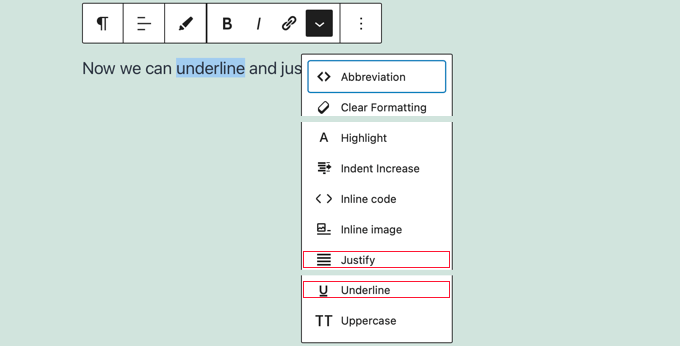
To underline text, you should first select it using your mouse. Then click the ‘Displays more block tools’ down arrow and click on ‘Underline’ from the dropdown menu.
To justify a paragraph, first, make sure that your cursor is in that paragraph. Then click the ‘Displays more block tools’ down arrow and select ‘Justify’ from the dropdown menu.
Method 3: Adding Underline and Justify Text Buttons to the Classic Editor
If you are using the classic editor, then this method is for you.
Here, you must install and activate the Advanced Editor Tools plugin. For more details, see our step-by-step guide on how to install a WordPress plugin.
Upon activation, navigate to the Settings » Advanced Editor Tools page from your WordPress admin sidebar. Next, you can click the ‘Classic Editor (TinyMCE)’ tab at the top of the page.
You will notice a preview of the WordPress classic editor. Below the preview, it will show you all the unused buttons.
Now you must drag and drop the underline and justify text buttons from the ‘Unused Buttons’ box to the post editor.
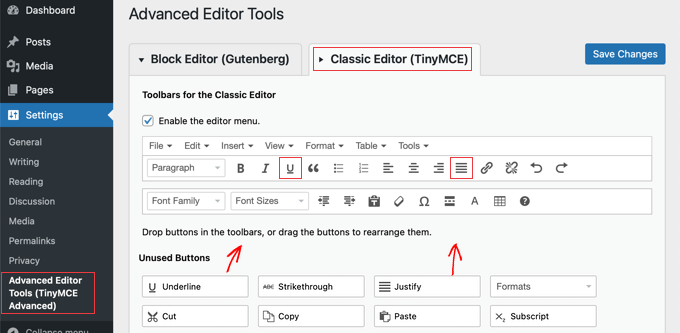
When you have finished, make sure you click the ‘Save Changes’ button at the top of the screen to store the new settings.
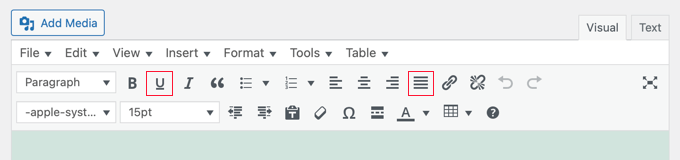
Now when you are creating or editing a WordPress blog post or page, the new formatting buttons will be available on the classic editor’s toolbar.
Bonus: Highlight Text in WordPress
Unlike the hidden buttons for underline and justify, the text highlight option is available directly in the toolbar. It is an easy way to emphasize important points in your content.
To highlight text, you must open the block editor and select the text that you want to highlight using your mouse.
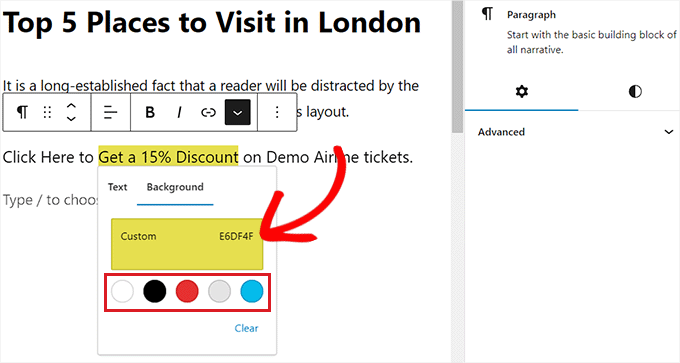
Then, click the ‘More’ icon in the block toolbar to open a dropdown menu from where you can select the ‘Highlight’ option.
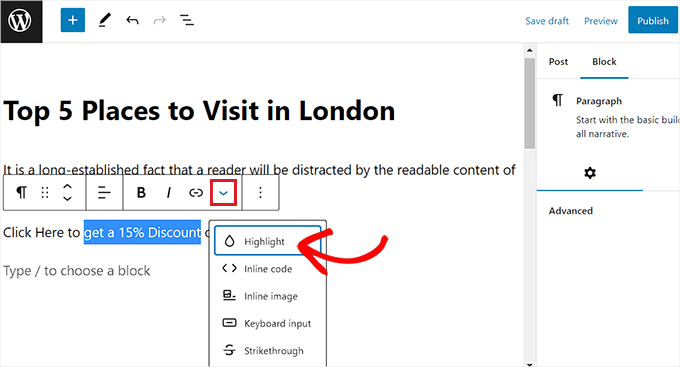
Doing that will open a color picker on the screen where you have to switch to the ‘Background’ tab. You can then select a color to highlight text by clicking the ‘Custom’ option to launch an ‘Eyedropper’ tool.
Next, click the ‘Update’ or ‘Publish’ button to store your settings. Now, visit your website to view the highlighted text in action. For more information, see our tutorial on how to highlight text in WordPress.
We hope this tutorial helped you learn how to add underline and justify text buttons in WordPress. You may also want to see our beginner’s guide on how to hide blocks from specific users in the WordPress editor or check out our list of common Gutenberg questions answered.
If you liked this article, then please subscribe to our YouTube Channel for WordPress video tutorials. You can also find us on Twitter and Facebook.



kzain
I was wondering where the underline and justify buttons went in the new editor. The keyboard shortcuts are a great tip, especially for underlining. Thanks for sharing this alternative approach!
Dennis Muthomi
In the BONUS section about highlighting text, you show how to choose a custom color from the color picker. I was wondering – is there any way to save that custom color I picked to show up by default in the future?
It would be useful to have my custom brand colors available there alongside the 5 default colors.
WPBeginner Support
Not at the moment but if we find a method we would recommend we will be sure to share!
Admin
Jiří Vaněk
Does text alignment using ‘justify’ have any impact on a website’s content ranking, for instance by Google? Or is it just that it might create unnatural gaps in the text for some people? I’m wondering if using ‘justify’ could affect content evaluation in any way. Personally, I don’t use justify, but sometimes website owners request it.
WPBeginner Support
Using Justify should not affect your site’s rankings and it is used by some sites to prevent an unnatural look depending on the theme that the site uses.
Admin
Jiří Vaněk
Thank you for the response and for the reassurance. Personally, I never understood why this alignment option disappeared from many builders, and then I became hesitant to use it, fearing that it might lead to negative feedback because it was considered improper. Thanks for confirming that this is not the case.
The Venetian Box
GREAT POST!!!! You helped me SO much, thank you!!!
WPBeginner Support
You’re welcome, glad you like our content
Admin
Achraf NAJIH
It worked. Thanks.
Crina Caba
You answered my question… Thank you.
Darrin
How to add justify without plugin ?
any idea ?
thanks
mourad
Thank you so much for the help
Reinette
Thank you so much! TinyMCE is a super little plugin and I love what it’s done for my text editor.
Again, thank you!
Robert Lindquist
Thank you very much!!
Ajay
Thank You So much
Darren
Thanks for this! It has been driving me crazy!
Gibran Dimasagung
Thanks bro
Sally Eilers
….signalling the demise of WordPress.
James
This doesn’t work on my blog. When I click plugins I go to ‘Jetpack by Wordpress.com’ and there is nothing there similar to what you are talking about!!!!
Aayush Bhaskar
You must be going to Site Dashboard instead of going to Network Admin Area. Click on the Home Icon and Select Network Admin>plugins. There will be Add new, Network Activate etc options available.
chandrashekhar
Thank man ! it was of great help
Sampath S
Alternately, you can just use keyboard shortcuts:
Justify alignment – Alt +Shift +J
Underline – Ctrl+U
David
Thank you. This is a simple solution. I don’t need more plugins on my site.
Leslie
Thank you so much for this simple solution! No need to mess with plugins!!!
Dipo Putra
Question is, Why they remove it?
HARISH NEGI
Thank You very much. Solved my Problem.
Joey Bangun
Thanks so much!
from Indonesia
Praboda Madushan
Thank you very much!
Sharyn Wise
You are an amazing WONDERFUL stupendously great FANTASTIC person!
I have just discovered these had gone missing!
THANK YOU!
David
A very handy and helpful little tip… Thank you!
Sarah
Don’t really need a plugin for that. In Mac Ctrl+Alt+J and text justified,
But why wordpress decided to remove the icon from the menu ?
nadia
Thank you so much! I added the Re-add Text Underline and Justify plugin and it worked perfectly.
WPBeginner Support
Hi nadia,
Glad you found it helpful Don’t forget to follow us on Facebook for more WordPress tips and tutorials.
Admin
A
For me, this helped:
Select the text you wish to justify (ctrl+A)
Press Shift+Alt+J
And wordpress then justifies the text!
Amrit Singh
You’re the real mvp. thanks for the trick
Aldo Retana
This was more useful, thanks!
Richmond
Yes!, You are the real MVP. Awesome
Thomas
Why did they remove the option to justify or underline text anyway? Was it causing issues somewhere along the line?
Harpreet Kumar
Realy an awesome article
louis
Good! It’s interesting. Under certain conditions, this may be useful!
On the other hand, I think the underlining should be avoided in all web documents except for creating hyperlinks. This can sometimes cause confusion given the hyperlinks. As for the justification function of the text, this very often gives unexpected results.
It is not for nothing that these two options have been eliminated. Use with parsimony in VERY rare conditions.
Sorry about my poor english.