


One-click Google login lets visitors sign up or log in to your site using an account they already have. Instead of creating yet another username and password, they can access your content or online store with a single click.
We’ve found that users appreciate this kind of simplicity. Offering Google login not only makes the process faster and easier, but it can also improve the user experience, boost conversions, and reduce cart abandonment.
In this step-by-step guide, we’ll show you how to add one-click Google login to your WordPress site so you can streamline the entire user journey. 🚀
💡 Quick Answer: How to Add One-Click Login With Google in WordPress
Here’s how to add one-click login with Google in WordPress, step by step:
- Install Nextend Social Login plugin.
- Create a Google app in Console.
- Configure OAuth consent and credentials.
- Copy Client ID and Secret.
- Paste keys into plugin settings.
- Enable login and publish app.
Why Add One-Click Google Login in WordPress?
One-click Google login lets users sign in to your WordPress site instantly using their Google account. This means they don’t have to remember or type their username and password every time.
This feature can make logging in faster and easier for both you and your users. Here are a few situations where it can be especially helpful:
- Teams using Google Workspace: Team members can log in with their work Google accounts instead of creating separate WordPress credentials.
- Multi-Author websites: Writers and editors can quickly access the dashboard without managing extra passwords.
- Membership sites: Members can sign in faster, which improves the overall user experience.
- Online course websites: Students can easily log in and access their learning materials without friction.
If you run a simple personal blog with very few users, then you may not need this feature. But for websites where people log in regularly, Google one-click login can make the process much more convenient.
Now, let’s look at how to easily add one-click Google login to your WordPress website.
How to Add One-Click Google Login in WordPress
First, you’ll need to install and activate the Nextend Social Login and Register plugin. For more details, please see our beginner’s guide on how to install a WordPress plugin.
Tip💡: To add one-click Google Login, your site needs to have secure SSL encryption. To learn how to set up a secure connection, see our beginner’s guide on how to switch from HTTP to HTTPS in WordPress.
For this tutorial, we will use the free plugin that supports Google, Twitter, and Facebook login. There is also a paid version of Nextend Social Login that adds social login for lots of different sites, including PayPal, Slack, and TikTok.
Upon activation, you need to go to Settings » Nextend Social Login in the WordPress admin area. On this screen, you see the different social login options that are available.
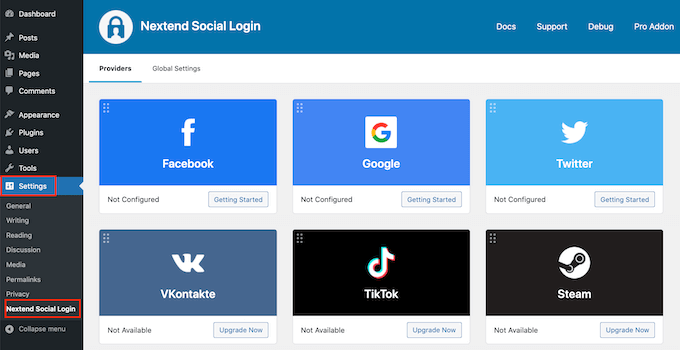
To add a Google login to your WordPress website, you need to click the ‘Getting Started’ button under the Google logo.
Here, you will see that your first step will be to create a Google app.
Creating a Google app sounds technical, but don’t worry. You don’t need to know any code, and we will walk you through all the steps.
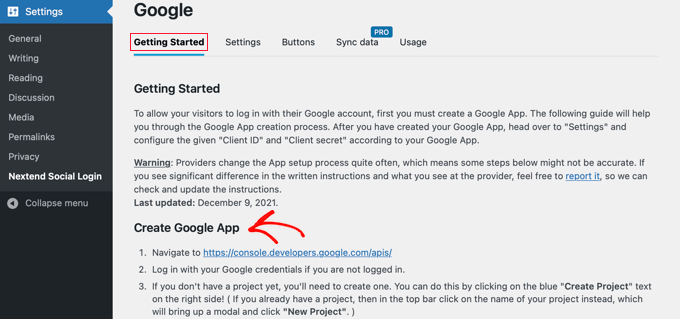
Creating a Google App
To create this app, you’ll need to switch between your WordPress dashboard and the Google Cloud Console. It’s a good idea to leave your WordPress dashboard open in the current tab and open a new browser tab.
Next, you need to click on ‘Select a project’ from the top menu. It will open a popup where you must click the ‘New Project’ button to continue.
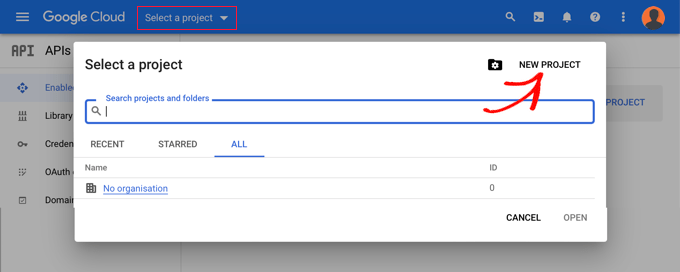
This will open the New Project page. You will need to add a project name and select the location. The project name can be anything you like, such as ‘Google Login.’
If you logged in using a Google Workspace account, then the location will be filled in with the name of your organization automatically. If not, then you should leave it as ‘No organization.’
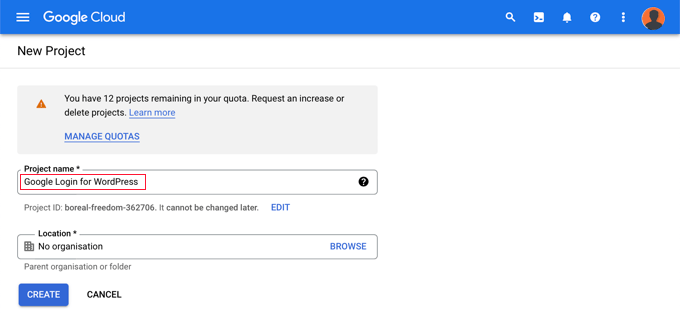
Next, click the ‘Create’ button to continue.
You’ll now be redirected to the ‘APIs & Services’ dashboard. On this page, you need to click on ‘OAuth consent screen’ in the left menu.
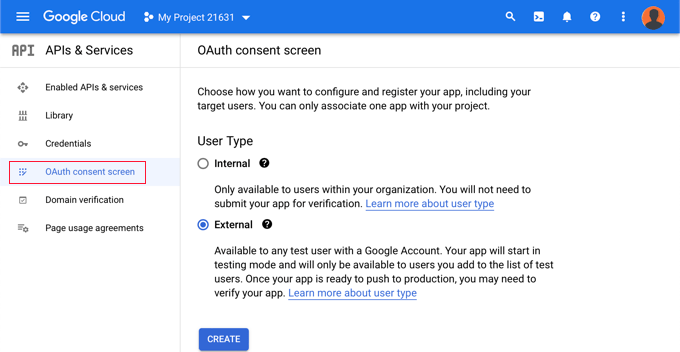
Here, you need to choose the type of user you are allowing to log in.
Select ‘Internal’ if only users with your organization’s Google account will be logging in. Alternatively, you should choose ‘External’ if your users have email addresses outside of your organization.
For example, anyone with an @gmail.com account versus an @yourcompanyemail.com address.
When you are ready to continue, click the ‘Create’ button. Now, you can start to add information about your app.
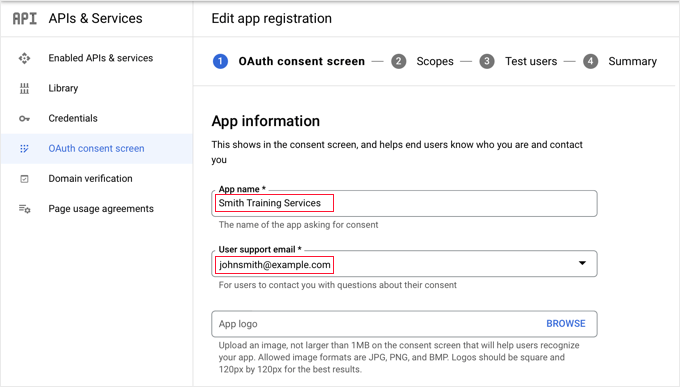
First, you should enter your business name in the app name field. This will be shown to the user when logging in, such as, ‘Smith Training Services wants access to your Google account.’
You also need to add the email address you logged into Google with. This email will be displayed on the consent screen and will allow your users to ask questions about the Google login screen.
Tip: We recommend that you do not upload a logo for your app. If you do, then your app will need to go through a verification process with the Google Trust and Safety Team. This process is lengthy and can take 4-6 weeks.
Once you’ve done that, scroll down to the ‘App domain’ section. Here, you need to add links to your website’s home page, privacy policy page, and terms of service page.
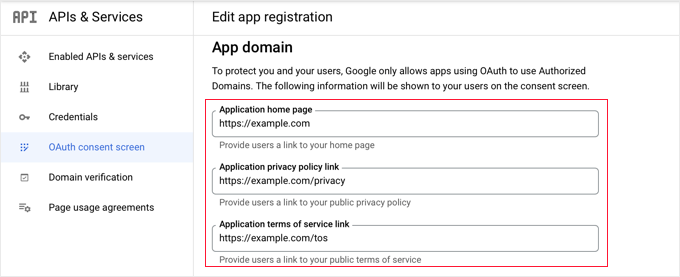
Then, you need to click the ‘Add Domain’ button to add your website’s domain name, such as ‘example.com.’
If you want to add one-click Google login to more than one website, then you can click the ‘+ Add Domain’ button to add another domain.
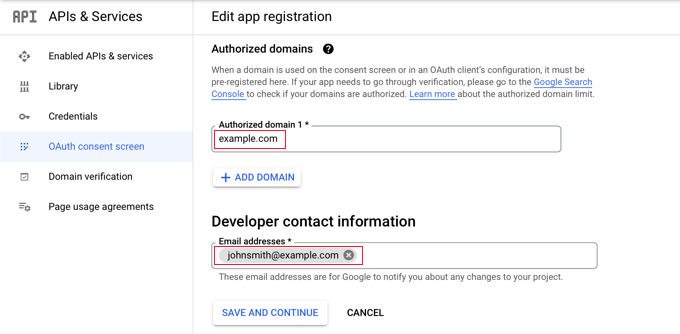
Finally, you need to add one or more email addresses so that Google can notify you about any changes to your project.
When you are finished, make sure you click the ‘Save and Continue’ button.
Next, you will come to the Scopes and Test Users pages. For both of these pages, simply scroll to the bottom and click the ‘Save and Continue’ button.
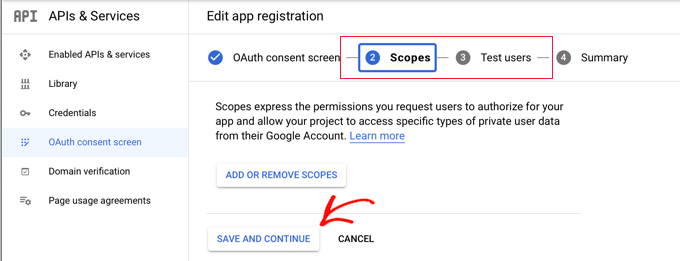
The final page for this step will show you a summary of your OAuth consent screen settings.
The next job is to create the keys your login plugin will need to connect with Google Cloud.
You should click ‘Credentials’ from the left menu and then click the ‘+ Create Credentials’ button at the top of the screen. You need to select the ‘OAuth client ID’ option.
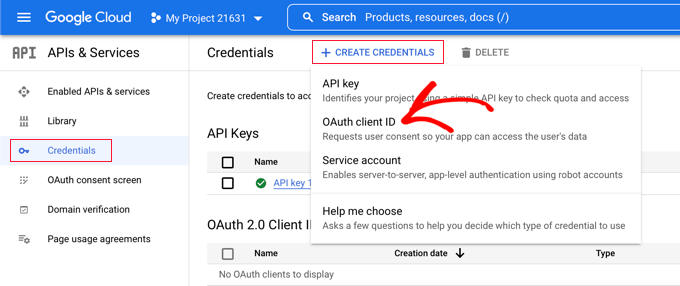
This will take you to the ‘Create OAuth client ID’ page.
You should select ‘Web application’ from the ‘Application type’ dropdown.
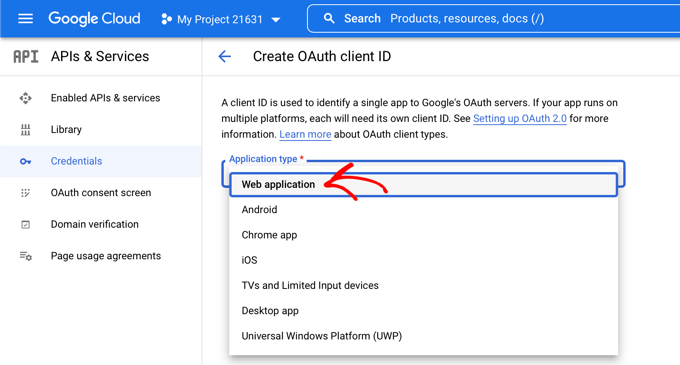
Some settings will be added to the page. You need to scroll down to the ‘Authorized redirect URIs’ section and click the ‘+ Add URI’ button.
Now, you need to enter the following URL into the field.
It’s very important that this URL starts with ‘https://’ because Google requires a secure connection for this feature to work correctly.
https://example.com/wp-login.php?loginSocial=google
Just be sure to replace ‘example.com’ with your own website’s domain name.
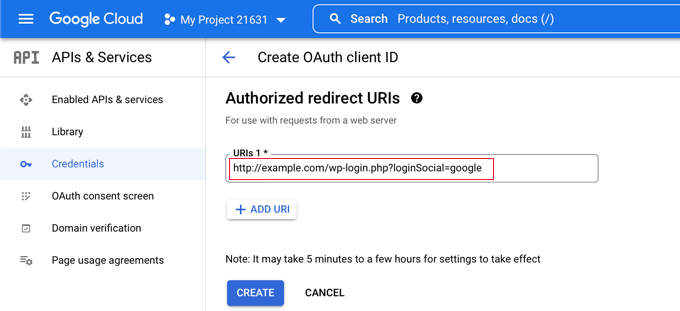
Once you’ve done that, you should click the ‘Create’ button to store the settings. It may take from 5 minutes to a few hours for the settings to take effect.
Your OAuth client has now been created!
You will see a popup containing ‘Your Client ID’ and Your Client Secret.’ You will need to paste these keys into the plugin’s settings page back in your WordPress admin area.
You can just click the ‘copy’ icon to the right to copy the keys one at a time.
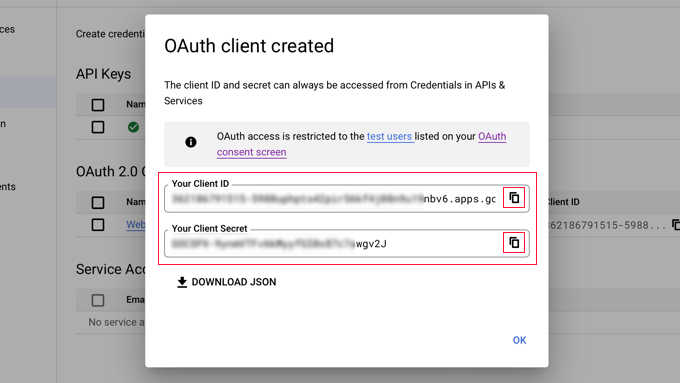
Adding Your Google Keys to Your Plugin
Now, simply switch back to your website’s browser tab and click on the ‘Settings’ tab under Settings » Nextend Social Login. Here, you will see fields for the Client ID and Client Secret.
You need to copy your keys from the Google Cloud Console and paste them into these fields.
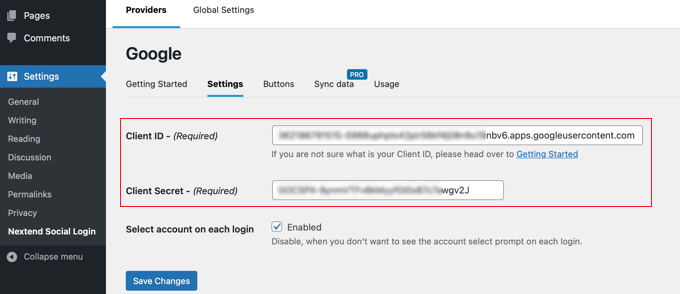
Once you’ve done that, make sure you click the ‘Save Changes’ button to store your settings.
Now, you’ll need to test that the settings are working correctly. This is important because you don’t want real users to encounter errors when trying to log in to your website.
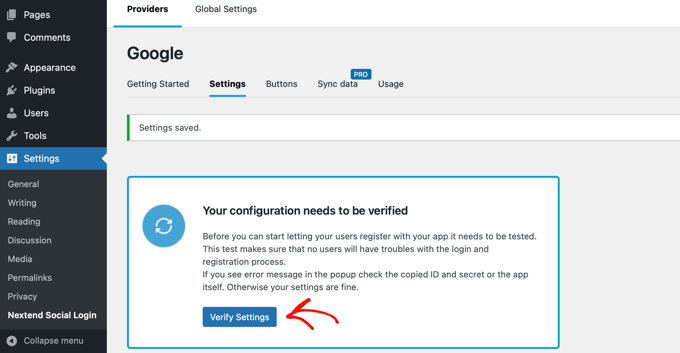
Simply click the ‘Verify Settings’ button, and the plugin will make sure that the Google app you created is working correctly.
If you followed the steps correctly, then you should see a notification that says ‘Works Fine – Disabled.’
This message might seem confusing, but it’s actually good news. ‘Works Fine’ confirms that your settings are correct and the connection to Google is successful.
‘Disabled’ simply means the login button isn’t active on your website yet.
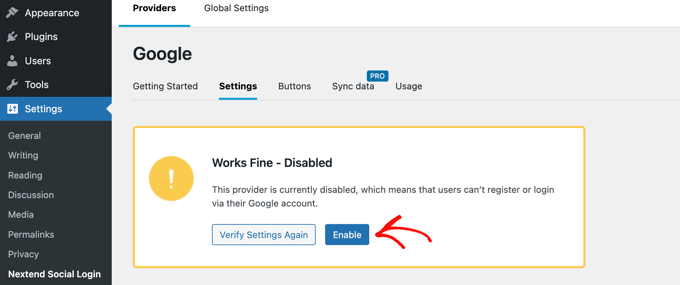
You can now click the ‘Enable’ button to make the Google login live for your users.
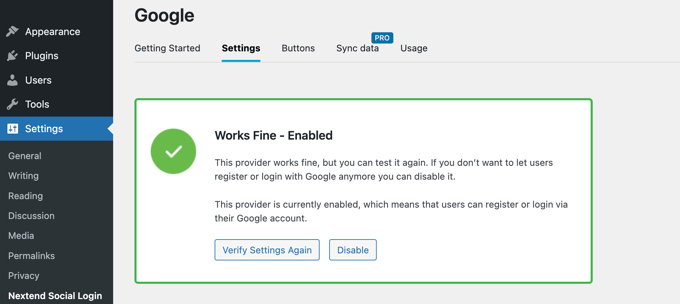
Once you do that, a message will appear, confirming that Google login is now enabled.
Selecting Your Button Style and Labels
Nextend’s default button style and label are pretty standard and will work for most websites. However, you can customize them by clicking on the ‘Buttons’ tab at the top of the screen.
You will now see all the different styles available for the social login button. To use a different style, simply click to select its radio button.
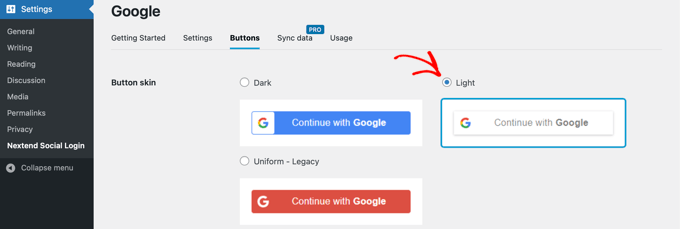
Once you’ve done that, you can also change the button text by editing the text in the ‘Login label’ field.
If you like, you can apply some basic formatting to the login label using HTML. For example, you can make text bold using <b> and </b> tags.
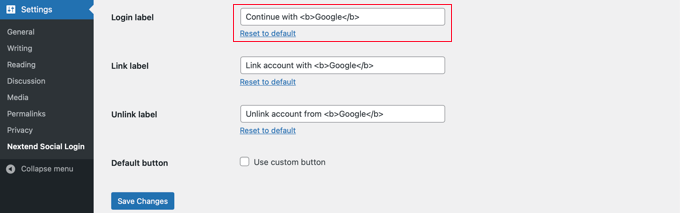
You can also edit the ‘Link label’ and ‘Unlink label’ fields that allow users to link and unlink your website with their Google accounts.
If you want to place the login button in other areas of your site, like in a sidebar widget or on a specific page, you can easily do this by using the plugin’s shortcodes.
Make sure you click the ‘Save Changes’ button to store your settings.
Taking Your Google App Out of Testing Mode
Now, there is one last thing you need to do back on the Google Cloud browser tab. You should still see the popup with your client ID and client secret. You can dismiss the popup by clicking ‘OK’ at the bottom of the popup.
Next, you need to click ‘OAuth consent screen’ from the left menu.
You can see that your Google app is in ‘Testing’ mode. This allows you to test your app with a limited number of users. Now that you have received a ‘Works Fine’ notification when verifying the settings with the plugin, you can move it to ‘In Production’ mode.
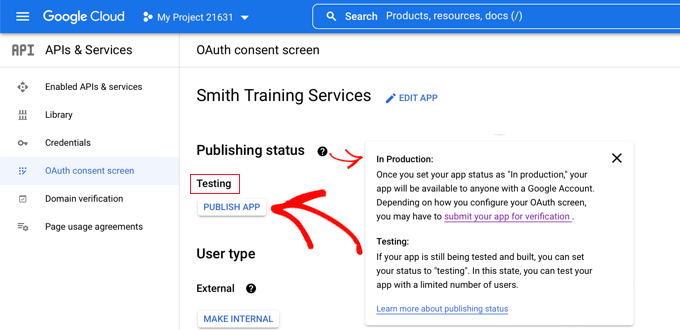
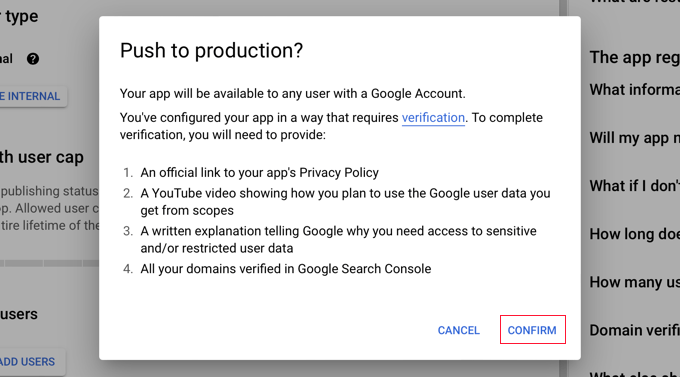
You do this by clicking the ‘Publish App’ button. Next, you will see a popup with the title ‘Push to production?’
Simply click ‘Confirm’ to allow everyone to use a one-step Google login on your site.
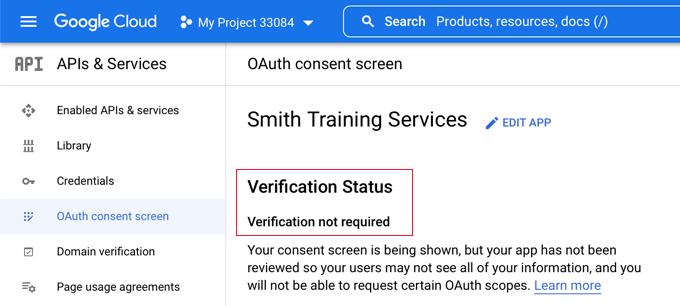
If you followed this tutorial carefully, then for most basic setups, the Verification Status should now be ‘Verification not required.’
Your app will now work with all Google users.
Now, when users are logging in to your website, they will have the option to log in with Google.
However, if they prefer, they can still log in using their standard WordPress username and password.
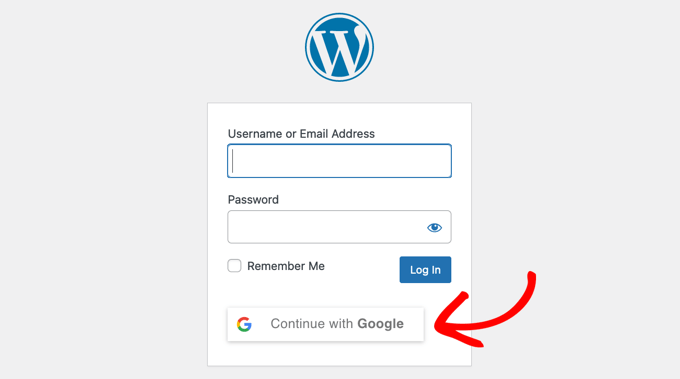
Here’s how the Google login works for your visitors.
New visitors can use the button to instantly register for an account on your site. For existing users, they can use the button to log in, as long as their account email address is the same as their Google email address.
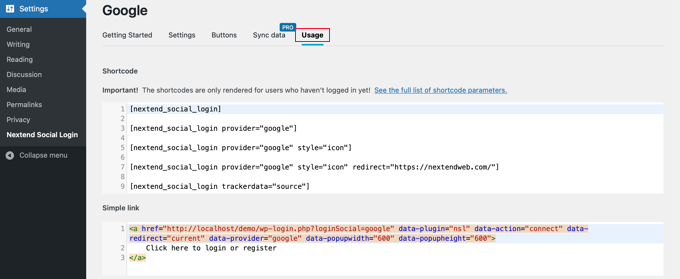
If you wish to add the Google login button anywhere else on your website, then you can do so using a shortcode. You can learn more by clicking on Nextend’s ‘Usage’ tab.
Frequently Asked Questions About Google Login
Here is a list of some questions that our readers frequently ask about adding Google login to their website.
Is adding Google login to my WordPress site secure?
Yes, it’s very secure. The process uses Google’s standard OAuth 2.0 protocol. This means your website never handles or stores the user’s Google password, ensuring their credentials remain safe.
Your site only receives a secure token from Google to verify the user’s identity.
Can I add login options for other social media platforms?
Absolutely. The free Nextend Social Login plugin also supports Facebook and Twitter. If you upgrade to their paid version, you can add many other platforms like LinkedIn, PayPal, Slack, and TikTok.
What if a visitor doesn’t have a Google account?
The standard WordPress login form remains fully functional. Adding a Google login button provides an additional, convenient option, but doesn’t remove the default username and password fields.
Will this feature slow down my website?
No, it shouldn’t. The Nextend Social Login plugin is lightweight and optimized for performance. The authentication process happens on Google’s fast servers, so it won’t have a noticeable impact on your site’s speed.
Does Google login work with WooCommerce or membership sites?
Yes, it works great with popular eCommerce and membership plugins. Simplifying the checkout and registration process can help reduce cart abandonment for WooCommerce stores and increase signups on sites using plugins like MemberPress.
Additional Resources for Customizing Your Login Page
We hope this article helped you learn how to add one-click login with Google in WordPress.
You may also want to see other guides on how to customize the login experience on your website:
- How to Add Login with Facebook in WordPress
- How To Add Social Login to WordPress (The Easy Way)
- Best WordPress Login Page Plugins (Secure & Customizable)
- How to Add Passwordless Login in WordPress with Magic Links
- How to Add Login with Phone Number via OTP in WordPress
- How to Create a Custom WordPress Login Page (Ultimate Guide)
- Why and How You Should Limit Login Attempts in WordPress
- How to Add a Custom Login URL in WordPress (Step by Step)
- How to Add CAPTCHA in WordPress Login and Registration Form
- How to Require Login to View a Page in WordPress
- Beginner’s Guide to Adding Two-Factor Authentication in WordPress (Free Method)
- How to Restrict User Login to One Device in WordPress
If you liked this article, then please subscribe to our YouTube Channel for WordPress video tutorials. You can also find us on Twitter and Facebook.


Pon
Do I have to pay google for this service?
WPBeginner Support
Unless Google makes a change, it is currently free.
Admin
Dennis Muthomi
I manage multiple WordPress sites and I can attest to the importance of streamlining the login process for users. The detailed instructions for creating a Google app and configuring the Nextend Social Login plugin are particularly helpful.
One aspect I’d like to emphasize is the potential impact on conversion rates. In my experience, offering social login options can significantly reduce cart abandonment rates for e-commerce sites. For those using WooCommerce, integrating this Google login feature could save time.
Jiří Vaněk
I’ve tried many times to add Google and Facebook login to my website, but it always failed at some point (usually with OAuth). I still don’t know what I was doing wrong. However, this is the first article that successfully enabled Google login on my test site. I definitely wouldn’t have managed it on my own because it’s quite complex, so thank you for your work. This guide really works.
John Sullivan
What if I’ve enabled a custom login page for my users, will this feature still show up?
WPBeginner Support
It would depend on how you have it set up for the method but the plugin has ways to work with custom login pages.
Admin
gaurav
is this service free or we have to pay for it ?? like doe it require any credit card to add login with google to our website ???
WPBeginner Support
Unless Google changes their requirements, it is currently free to do this.
Admin
Delshad Hanefa
Fantastic step-by-step guidelines. It helped me connected my website
WPBeginner Support
Glad our guide was helpful!
Admin
Mehmood
Do this Plugin supports woocommerce?
WPBeginner Support
You would want to reach out to the plugin’s support and they would be able to let you know how it interacts with WooCommerce at the moment.
Admin
Kristy
Can you implement this to a individual page? For example, I have a free trial sign-up page that I want users to fill out their info, could I use this to auto sign-up w/ google?
WPBeginner Support
Sadly, for a question like that, you would need to reach out to the plugin’s support for excluding pages from being affected by the plugin.
Admin
rk
i get this message. user name has been marked as spam
i tried many accounts same issue
any suggestuins
WPBeginner Support
If it is your site then you likely are using a plugin that is adding that message and you would need to go through your plugins to find the root cause. If on a different site then you would need to reach out to that site’s support and let them know about the message
Admin
Shadab
Assalamualaykum,
How about if using Google/Gmail with company domain…?
WPBeginner Support
You would follow the same steps
Admin