


Building WordPress sites taught us that search engines love specificity.
The more precise information you can provide about the products you’re discussing, the better your chances of ranking well and attracting the right visitors to your site.
That’s where GTIN, ISBN, and MPN schema markup comes in handy. These product identifiers give search engines the details they need to understand and categorize your content properly.
When you add this structured data correctly, it can boost your visibility in search results and help your content stand out with rich snippets.
In this tutorial, we’ll share the easiest methods to add GTIN, ISBN, and MPN schema to your WordPress sites.
💡Quick Answer: Adding Product Schema in WordPress
If you are in a hurry, here is a quick overview of the methods we will cover in this guide:
- Method 1: Adding Schema to a WordPress Post or Page. This is best if you don’t use a shopping cart plugin. It is ideal for reviewers or blogs selling a single item.
- Method 2: Adding Schema to WooCommerce Products. This is the best method if you already run an online store using WooCommerce.
Why Add GTIN, ISBN, & MPN Schema in WooCommerce and WordPress?
GTIN, ISBN, and MPN schema properties are specific types of markup code. You can add them to your WordPress website to provide accurate product information to search engines.
Here is a quick breakdown of the differences between these identifiers:
- GTIN (Global Trade Item Number): This is used to identify trade items such as products or services.
- ISBN (International Standard Book Number): This is used exclusively for tracking books, eBooks, and audiobooks.
- MPN (Manufacturer Part Number): This tracks specific parts and is common in industries like automotive, machinery, and hardware.
This markup can improve your content visibility and the SEO of your website. When people search for a specific ISBN, GTIN, or MPN, your products may show up in the search results.
For example, if you run an online store that sells books, then you can add the ISBN schema to increase your website visibility.

Using schema markup in WooCommerce or WordPress is a great way to get more clicks from organic search results. This often leads to more sales.
That being said, let’s see how to easily add GTIN, ISBN, and MPN schema in WordPress and WooCommerce. You can use the quick links below to jump to the method you want to use:
Method 1: Add Product Schema to a WordPress Post or Page
If you are looking to add GTIN, ISBN, or MPN schema to a post or page in your WordPress website, then this method is for you.
It is perfect if you are reviewing or selling a single product on a standard blog post and don’t use an eCommerce plugin like WooCommerce.
You can easily add this schema using All in One SEO (AIOSEO), which is the best WordPress SEO plugin on the market and is used by over 3 million websites.
The plugin also allows you to add different types of schema to your website, including FAQs, recipes, articles, and product schema.
We use this plugin at WPBeginner to improve our site rankings. We also often use the FAQ schema to help our articles rank higher. To learn more, see our AIOSEO review.
First, you need to install and activate the AIOSEO plugin. For detailed instructions, you may want to see our beginner’s guide on how to install a WordPress plugin.
Note: AIOSEO also has a free version. However, you will need the plugins’ Pro plan to unlock the schema markup feature.
Upon activation, the plugin launches the setup wizard on your screen, which walks you through the setup process.
If you need any help with it, then you may want to see our step-by-step guide on how to set up All in One SEO in WordPress.
Now, you can add separate schema markup for all your products. To do this, go to the page or post where you want to add the ISBN, GTIN, or MPN schema from the WordPress admin sidebar.
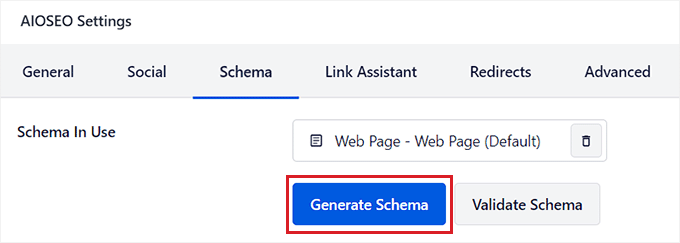
Once you are there, scroll down to the ‘AIOSEO Settings’ section in the block editor and switch to the ‘Schema’ tab.
Next, you need to click on the ‘Generate Schema’ button.
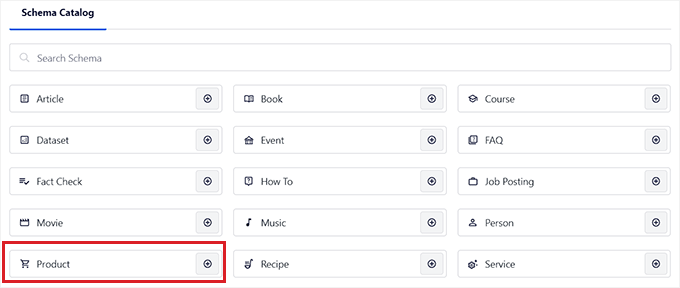
This will launch the ‘Schema Catalog’ popup on your screen, where you can select the schema template you want to add.
Go ahead and click the ‘+’ button next to the ‘Product’ option.
This will open up a modal where you can add the details for your single product and tell search engines like Google all of its information.
You can start by providing your product’s name, description, brand, SKU, and image.
Once you have done that, scroll down to the product Identifiers section, where you can insert the GTIN, ISBN, or MPN.
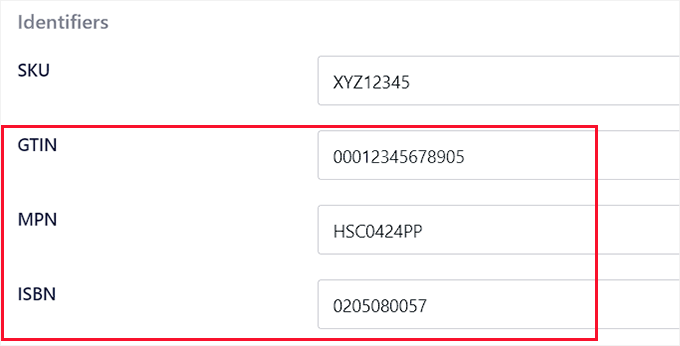
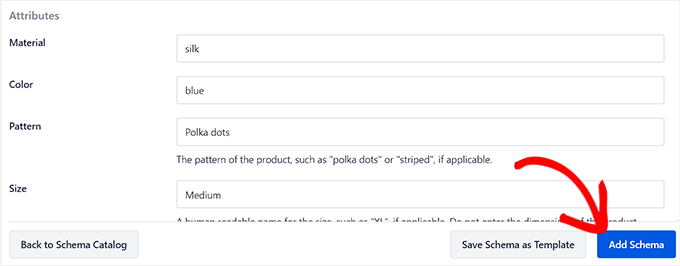
After that, you can further scroll down to add the price, attributes, reviews, and shipping destination for the product in the schema markup.
Once you are done, click the ‘Add Schema’ button to save your schema markup. You can then repeat the process for the other products on the page.
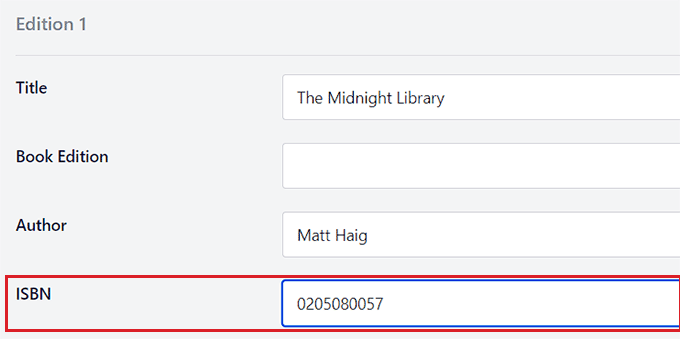
If you sell books online, then you can also select the ‘Book’ schema from the ‘Schema Catalog’ popup. This will open up a new modal where you can add product data like title, author, description, and image of the book.
After that, scroll down to the ‘Editions’ section and add the ISBN for the book. Finally, click the ‘Add Schema’ button to generate the schema.
Once you have added the GTIN, MPN, or ISBN schema for all the products, don’t forget to click the ‘Update’ or ‘Publish’ button at the top to save your changes.
You won’t see a visual difference on the front end of your website, but search engine bots will now have the ISBN, GTIN, or MPN details.
We recommend verifying your changes using the Google Rich Results Test tool mentioned in the next section.
Method 2: Add Product Schema Directly to WooCommerce Products
If you want to add GTIN, ISBN, or MPN schema markup in your WooCommerce store, then this method is for you.
You can easily add these identifiers using the All in One SEO (AIOSEO) plugin.
First, you need to install and activate the AIOSEO plugin. For detailed instructions, you may want to see our step-by-step guide on how to install a WordPress plugin.
Note: AIOSEO has a free version, but you need the Pro version to unlock the schema markup feature.
Upon activation, the plugin will launch a setup wizard on your screen. If you need any help, then you may want to see our tutorial on how to set up All in One SEO in WordPress.
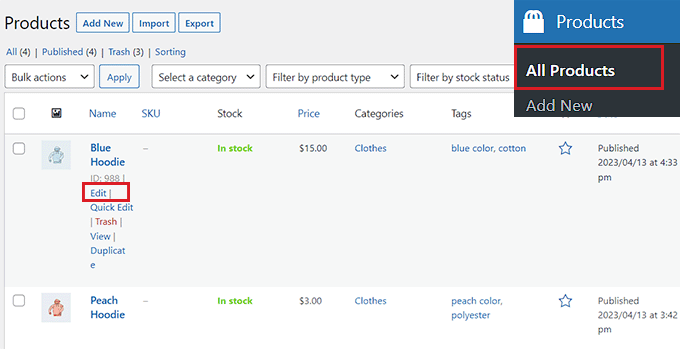
Next, head over to the Products » All Products page from the WordPress admin sidebar.
From here, just click the ‘Edit’ link under the product where you want to add the GTIN, ISBN, or MPN schema.
This will open up the ‘Edit Product’ page, where you must scroll down to the ‘AIOSEO Settings’ meta box.
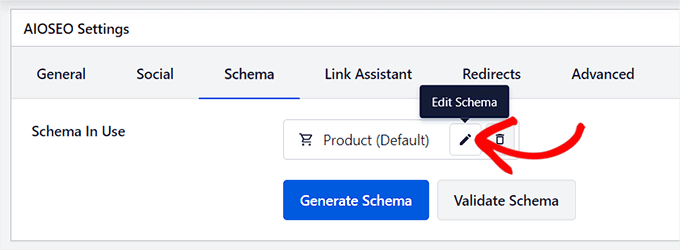
From here, switch to the ‘Schema’ tab, where you will see the ‘Product’ schema is already in use by default. Now, simply click the ‘Edit’ button next to the schema.
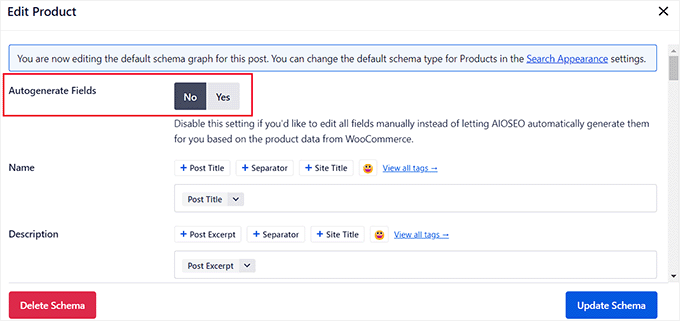
This will open up an ‘Edit Product’ popup on the screen, where you will see that the ‘Autogenerate Field’ toggle has been switched to ‘Yes’.
This is turned on by default because AIOSEO cleverly pulls information you’ve already entered in your WooCommerce product details (like the name, description, and price) to fill in the schema for you, saving you time.
However, if you would like to fill these fields manually, then you can simply switch the ‘Autogenerate Fields’ toggle to ‘No’.
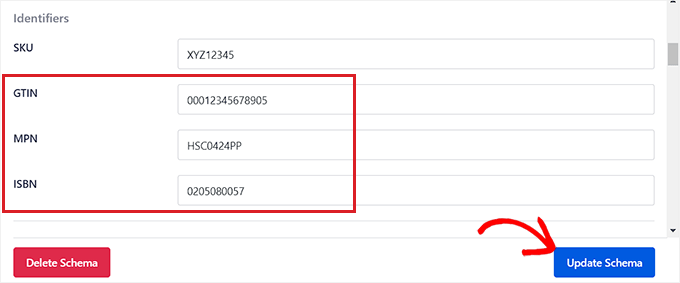
After that, scroll down to the ‘Identifiers’ section and add the GTIN, ISBN, or MPN for your product. You can also add other attributes, shipping destinations, and product reviews in the schema markup.
After you have made your changes, don’t forget to click the ‘Update Schema’ button.
If your online store only sells books, then you can click on the ‘Generate Schema’ button in the Schema tab and then select the ‘Book’ schema template from the catalog.
This will open the Schema Generator on the screen, where you can add the title, image, and description for the book you are selling.
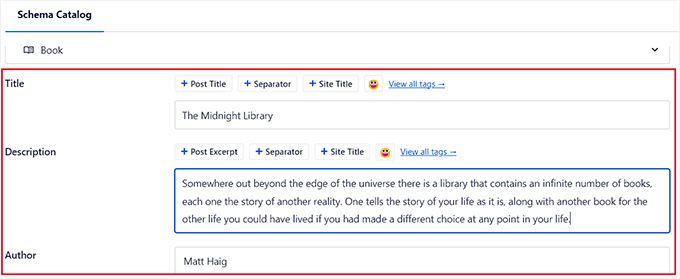
After that, scroll down to the ‘Editions’ section and add the ISBN for your book.
After entering the details, click the ‘Add Schema’ button to generate your schema markup for books.
Finally, click the ‘Update’ button at the top to store your changes.
You have now successfully added a schema markup for your products, including the GTIN, ISBN, or MPN details.
After completing this setup, it’s a good idea to test your schema to ensure Google sees it correctly by using Google’s Rich Results Test tool.

Just enter your product page URL to see how well your schema is integrated and whether it’s eligible for rich search features.
With these steps, your products are ready to gain better visibility and attract more informed shoppers!
Bonus: Add Your Products to Google Shopping
Apart from adding the GTIN, ISBN, or MPN schema for your goods, another way to make your site noticeable for search engines is to add your products to Google Shopping.
Google Shopping is a virtual marketplace where users can search, view, and compare products from different vendors. By adding your products to this market, you can bring more traffic to your eCommerce store and generate more revenue.
To add your products here, you must first create an account in the Google Merchant Center.
Once that’s set up, you should link it to your Google Ads account.
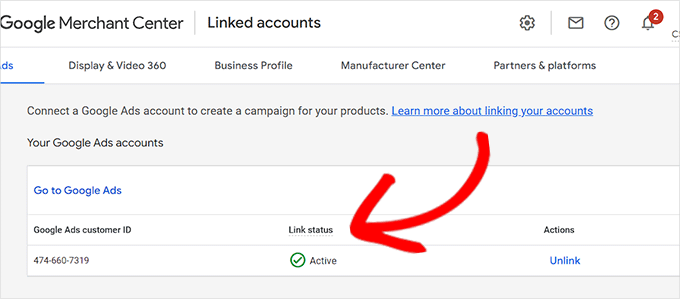
Next, you have to install and activate the AdTribes plugin. For details, see our tutorial on how to install a WordPress plugin.
Here, you’ll need to create a product feed, which is a file containing all your product details (including GTIN, MPN, and ISBN), formatted for Google.
After that, simply upload this file to your Merchant Center account.
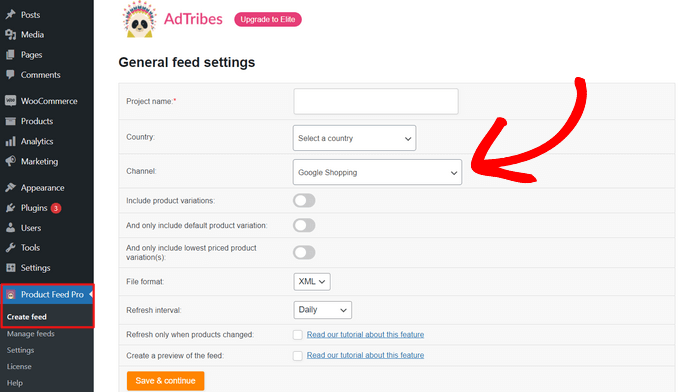
Once you do that, customers browsing on Google Shopping will be able to view your products as well.
For detailed instructions, see our tutorial on how to automatically add WordPress products in Google Shopping.
Frequently Asked Questions about Product Schema
Here are some questions that our readers have frequently asked about adding schema in WordPress:
How do I add a schema to a WordPress website?
The easiest way to add schema is by using a plugin like All in One SEO (AIOSEO). It automatically generates the necessary code for your pages without you needing to hire a developer.
What is GTIN, UPC, EAN, or ISBN in WooCommerce?
These are all unique identifiers used to track trade items. GTIN is the global standard, while UPC, EAN, and ISBN are specific formats used in different regions or industries like publishing.
How to add FAQ schema in WordPress?
You can add FAQ schema easily using the AIOSEO plugin. Simply select the FAQ schema from the schema catalog in the WordPress editor and fill in your questions and answers.
For more details, see our tutorial on adding an FAQ schema in WordPress.
Is ISBN the same as GTIN?
An ISBN is a specific type of GTIN used exclusively for books. While they are similar, GTIN is the broad category for all products, whereas ISBN is a subset just for books.
Is SKU the same as GTIN?
No, a SKU (Stock Keeping Unit) is for internal inventory tracking within your specific business. A GTIN is a universal number used to identify products across the entire global market.
Is schema necessary for SEO?
Schema is not strictly mandatory, but it is highly recommended. It helps search engines understand your content context and helps you get rich snippets in search results.
Is ASIN the same as GTIN?
No, an ASIN is an identification number unique to the Amazon platform. A GTIN is a globally recognized standard used by all retailers and search engines.
We hope this article helped you learn how to easily add the GTIN, ISBN, and MPN schema in WooCommerce and WordPress. You may also want to see our tutorial on how to add your WordPress site to Google Search Console and our expert picks for the best WordPress schema markup plugins.
If you liked this article, then please subscribe to our YouTube Channel for WordPress video tutorials. You can also find us on Twitter and Facebook.



kzain
This is a great SEO tip for product-based websites! Adding schema markup for product identifiers like GTIN and ISBN feels like a way to give search engines more context about my products
Dennis Muthomi
As a WooCommerce store manager, I found your explanation of these terms and their SEO benefits particularly helpful. I appreciate how you broke down the process of adding these schemas using the AIOSEO plugin – it seems straightforward and manageable.
The bonus tip about Google Shopping is a great addition too.
But sadly Google Shopping is not available in my country, hopefully one day it will be availabele
THANKGOD JONATHAN
Thanks for the clear explanation of GTIN, ISBN, and MPN schema! I wasn’t familiar with these terms before, but I can see how adding them to my WooCommerce site could be beneficial for SEO. I’m going to try out the All in One SEO plugin to add this schema to my product pages. I’m hoping that it will help me improve my ranking in search results.
Ralph
I would love to make my books on amazon kdp more visible thanks to my website but does that ISBN really helps? There is no harm in doing that and I will definitely do that, but personally I don’t know a single person that use it. Everybody just google the name of the book. Does this increase visibilty and can help promote a book in a saturated niche?
WPBeginner Support
ISBN mainly helps if there are books with similar titles and some tools use ISBN to help keep track of books.
Admin