


Watching visitors leave your WordPress site because they couldn’t find what they were looking for, even when the content is right there, is incredibly frustrating. If you’re new to WordPress, it’s easy to assume that’s just how search works.
Here’s the thing: WordPress’s default search is pretty basic. It can miss results if someone makes a small typo or uses a slightly different word.
That’s where fuzzy search comes in.
It helps visitors find what they need even when their search terms aren’t a perfect match. For example, if someone searches for “WordPress tutoriel” instead of “WordPress tutorial,” fuzzy search is smart enough to show the correct results.
In this guide, you’ll learn how to add fuzzy search to your WordPress site to make your search results more helpful. The best part? It makes things easier for your visitors and can keep them on your site longer. 🙌

What Is Fuzzy Search for WordPress?
Fuzzy search looks for partial matches for a search term, and if no exact matches are available, then it shows users the closest results. This way, users can find the right content on your website even if they make typos in their search queries.
By default, all WordPress websites come with a basic search feature that only shows results for exact matches.
For instance, if a user misspells a term, no results will be shown, not even partial matches. This creates a bad search experience for users and often causes them to leave your site. You can see this in the image below.

This is where SearchWP can help. It is the best WordPress search plugin on the market that automatically replaces the default search with a much better search feature.
ℹ️ Note: See our extensive SearchWP review to learn all about it.
Unlike the default WordPress search, SearchWP can use fuzzy search and look for matches in titles, excerpts, post or page content, products, custom fields, categories, tags, PDFs, and more.
For instance, if a user searches for ‘vintage furniture’ on your WordPress blog but misspells a word, then they will still be able to find your posts on this topic.
Here’s what that same misspelled search looks like when using the SearchWP plugin:

💡 Before We Start: We only recommend adding fuzzy search if you really consider it necessary. Partial matches can reduce the effectiveness of the search form and display unwanted results, which can lead to user frustration.
That being said, we’ll share the step-by-step for how to easily add fuzzy search to your WordPress website. Here’s a quick overview of all the things we’ll cover in this guide:
Let’s get started.
How to Add Fuzzy Search for WordPress
To get started, you’ll first need to sign up for a SearchWP account.
Simply visit the SearchWP website, click the ‘Get SearchWP Now’ button, choose the plan that fits your needs, and complete the checkout process.

ℹ️ Note: SearchWP is a paid plugin. There is a free version called SearchWP Live Ajax Search, but it only adds instant search drop-downs. To get the typo-fixing “Fuzzy Search” features we cover in this guide, you will need the premium version.
After signing up, you can log in to your SearchWP account. On your account dashboard, you can find your plugin’s ZIP file and license key.
Next, install the plugin on your WordPress site. In your WordPress admin area, go to Plugins » Add New Plugin.

On the next screen, click the ‘Upload Plugin’ button at the top to open the file uploader.
Then, click ‘Choose File,’ select the SearchWP ZIP file from your computer, and then click ‘Install Now.’

Once the installation finishes, click ‘Activate.’ For more details, please see our step-by-step guide on how to install a WordPress plugin.
Upon activation, visit the SearchWP » Settings page from the admin sidebar to enter your license key into the respective field. You can find this information in your account on the SearchWP website.

Once verified, you’ll need to enable the fuzzy search feature.
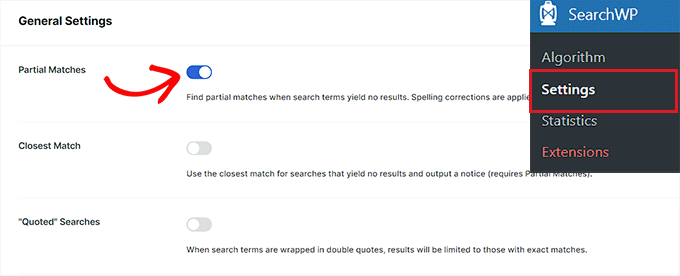
On SearchWP’s Settings page, scroll down to the ‘General Settings’ section.
Then, simply toggle the switch next to the ‘Partial Matches’ option.
💡 Pro Tip: Fuzzy search is a powerful tool, but it’s a good idea to monitor your results after enabling it. Sometimes, showing too many partial matches can clutter the search results, so you want to make sure it is helpful for your specific visitors.
Doing so will enable the WordPress fuzzy search feature for your WordPress site, and your settings will be saved automatically.
With that done, you should review the other SearchWP settings. The plugin has many powerful options that allow you to customize your blog’s search.
You can see them by going to SearchWP » Algorithm from the WordPress admin sidebar.
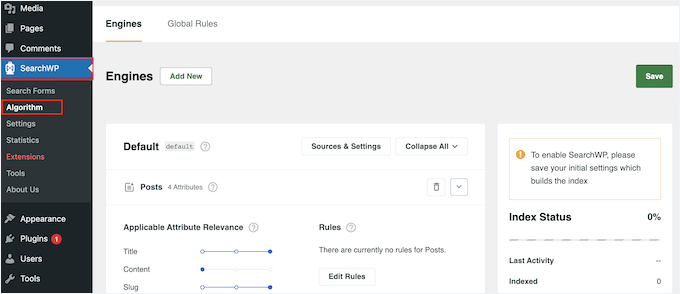
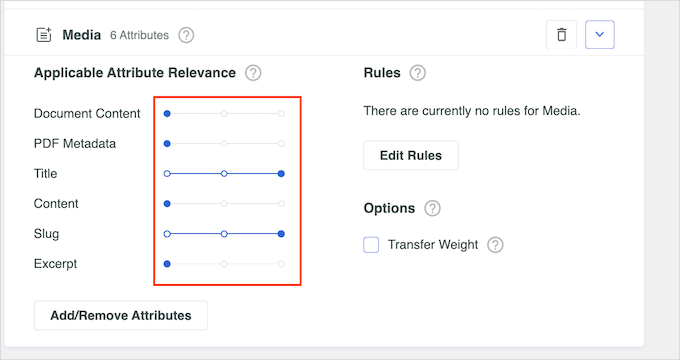
From here, you can assign weight to different search results.
This tells SearchWP to consider some attributes as more important when displaying its search results.
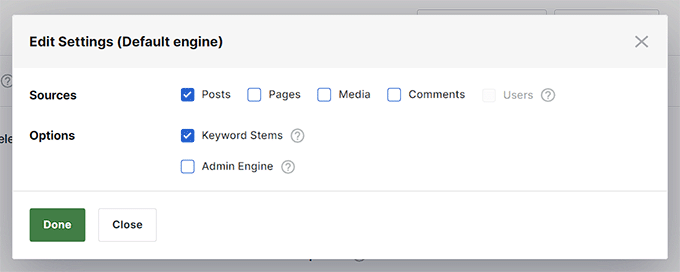
You can also click on the ‘Sources & Settings’ button to select additional search areas.
For instance, you can enable search for comments, products, custom post types, and more instead of simply posts and pages.
To learn more about these search settings, you can see our complete guide on how to improve WordPress search with SearchWP.
Adding a Search Form to Your Website
SearchWP automatically replaces the default WordPress search. This means that if you have already added the WordPress Search block or widget to your website, then it will start using the SearchWP custom algorithm for results.
However, if you have not added a search form to your website yet, then you can do so by simply inserting the Search block or widget into any post, page, or sidebar area.
Head over to the Appearance » Widgets page from the WordPress dashboard.
Here, click the add block ‘+’ button to find the Search block and add it to your sidebar. Then, don’t forget to click on the ‘Update’ button to store your settings.
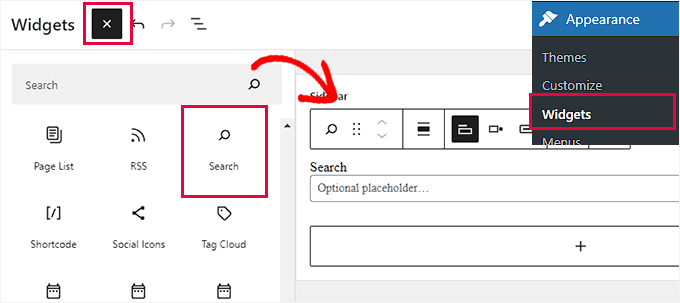
However, if you are using a block theme, then it may not have a widget-ready area. In that case, you won’t see the Widgets screen under the Appearance menu.
Instead, you can use the full site editor to add the search block to your website. Simply go to Appearance » Editor to launch the editor.
In the editor, click the ‘+’ button and add the Search block to where you want to display the search form on your website.
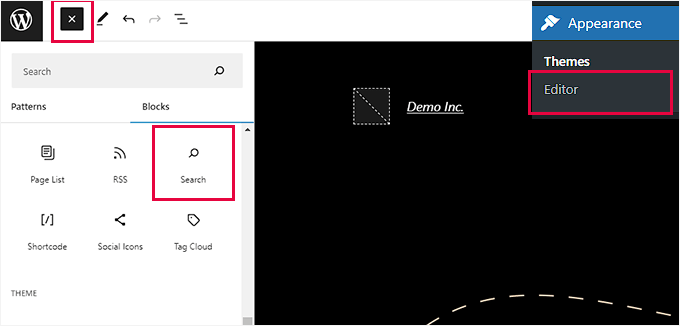
Don’t forget to click on the ‘Update’ button to save your settings.
You can now visit your website and try out the new, more powerful custom search feature.
For example, the image below shows how the fuzzy search feature returns multiple relevant results from a misspelled query on the search results page.

Bonus Tip: Search by Category to Improve User Experience
By adding fuzzy search, you make it easier for users to find relevant content, making your website more user-friendly and helpful for visitors.
Another way to make your WordPress site easier to navigate is by allowing users to search by category.
Categories allow you to organize the content on your website in a more structured way. If you have a lot of blog posts on your site, then allowing users to search by category makes it easier for them to search within specific topic areas, such as travel.

If you have an online store, then adding a category search for products also makes it easier for customers to find the items they are interested in buying. In turn, this can help increase sales.
You can easily improve user experience by creating a custom search form using the SearchWP plugin. This allows you to add an interactive dropdown where users can filter results using the different categories on your site.

For more details, please see our tutorial on how to search by category in WordPress.
FAQ: Add Fuzzy Search to Your WordPress Site
Here are some quick answers to common questions you might still have.
What is the difference between fuzzy search and normal search?
Normal search looks for exact matches. If someone misspells a word or uses a slightly different version of it, the result might not show up. Fuzzy search is more flexible. It looks for close matches, so visitors can still find what they want even if their spelling isn’t perfect.
How does fuzzy lookup work?
Fuzzy lookup compares the search term with your content and checks how similar they are, instead of requiring an exact match. So if someone types “tutoriel” and your post says “tutorial,” fuzzy search sees that they’re very close and shows the result anyway.
Is AI just fuzzy logic?
No – they’re different things. Fuzzy logic is a method for handling approximate or inexact matches. AI is a much broader field that includes learning, prediction, and decision-making. Fuzzy search can use fuzzy logic, but it doesn’t automatically mean it’s using AI.
What is the best algorithm for fuzzy search?
There’s no single “best” one. Most fuzzy search tools use similarity-based methods (like edit distance) to compare words and find close matches. Good plugins (like SearchWP) handle this for you, so you don’t need to worry about the technical details.
Bonus Resources: More Tips to Improve WordPress Search
We hope this article helped you learn how to easily add fuzzy search to your WordPress website. You may also want to see our articles on:
- How to Add Multilingual Search in WordPress
- How to Add Ajax Taxonomies Filter in WordPress Search
- How to Make Blog Post Comments Searchable in WordPress
- How to Make Custom Fields Searchable in WordPress
- How to See Search Analytics in WordPress
If you liked this article, then please subscribe to our YouTube Channel for WordPress video tutorials. You can also find us on Twitter and Facebook.





Dennis Muthomi
Thank you for this informative article. I especially liked the part about how SearchWP can find partial matches. As a website owner I’ve seen visitors misspell search terms by checking my site’s search logs to see what common misspellings are. Fuzzy search has been on my to-do list and this guide is a great step by step.
I’ll use the common misspellings from the logs and fine tune the fuzzy search settings for even better results.
Thanks for this WPBeginner!
Jiří Vaněk
This looks like a great option to make your search better. I can think of an alternative. Is there a plugin that would allow me to write alternatives to the article title? So not only an alternative with a typo, but also perhaps a headline but in a slightly different form, which the reader could search for on the website, but would not necessarily get results.
WPBeginner Support
At the moment we do not have a plugin or tool we would recommend for that.
Admin
Ralph
Very interesting solution, however price is too much. I understand no free trial and paying for plugins, it’s some people job. If this plugin could be 1 time only payment and not every year it would be nice.
Not a good use for personal blog due to price, but for bigger business it may be tool, that will change leads into conversions.
WPBeginner Support
Thanks for sharing your feedback
Admin
Dibyandu Pal
isn’t there any free solution for this??
WPBeginner Support
If we find one we would recommend we will be sure to update our article
Admin