


Setting up payments on a WordPress site can get frustrating fast. We’ve been there – scrolling through plugin lists, second-guessing which one to install, and worrying about whether the checkout would actually be safe for our visitors.
PayPal is one of the easiest ways to start accepting payments online, and it’s a platform most customers already trust. Even though we also use Stripe on our websites, PayPal remains a great option for one-time purchases, recurring services, and quick donations.
In this guide, we’ll walk you through exactly how we add a PayPal payment form to WordPress, step by step, so you can start accepting payments without the guesswork.
💡 Quick Answer: How to Add a PayPal Payment Form in WordPress
You can easily add a PayPal payment form to your WordPress site using a form builder like WPForms. First, install WPForms Pro and activate its PayPal Standard addon.
Then, create your form, connect it to your PayPal account, and add it to any page.
Why Accept PayPal Payments in WordPress?
You should accept PayPal payments in WordPress because it’s trusted by millions of people, it’s secure, and it’s very easy to set up — even if you don’t have a full online store.
PayPal handles the entire payment process for you. This means you don’t have to manage credit card details, set up a separate merchant account, or worry about PCI compliance.
PayPal takes care of the security side, which makes things much simpler. Here’s why many website owners choose PayPal:
- Customers already know and trust it.
- It handles payment security for you.
- You don’t need a separate credit card processor.
- You can easily set up recurring payments.
- Issuing refunds is simple.
- You can accept payments without building a full eCommerce store.
If you’re selling one product or offering services like consulting, adding a simple payment form is often all you need.
Now, let’s look at how you can easily add a PayPal payment form in WordPress.
How to Add a PayPal Payment Form in WordPress
There are many WordPress PayPal plugins and payment gateways available on the market that let you add a payment button or order form to your site.
This includes dedicated solutions for eCommerce like WooCommerce with its PayPal integration, or specialized plugins for donations such as Charitable.
However, when it comes to the flexibility of building the order form and adding customizations without code, we believe WPForms is the best option.
It’s the best drag-and-drop form builder plugin for WordPress, used by over 6 million websites. WPForms lets you create a simple billing or order form without the need for a full-fledged WooCommerce store or shopping cart plugin.
In fact, we have used the plugin several times to create our contact form and annual surveys and have found it super easy to use. To learn more, see our detailed WPForms review.
We recommend using it because WPForms supports multiple payment gateways, allowing you to accept PayPal and credit card payments through various integrations like Stripe, Square, and Authorize.net.
So, let’s first install and activate the WPForms plugin. For more details, you can see our step-by-step guide on how to install a WordPress plugin.
Note: WPForms Lite is completely free. However, you’ll need the pro plan of the plugin to unlock the PayPal add-on and Order Form template.
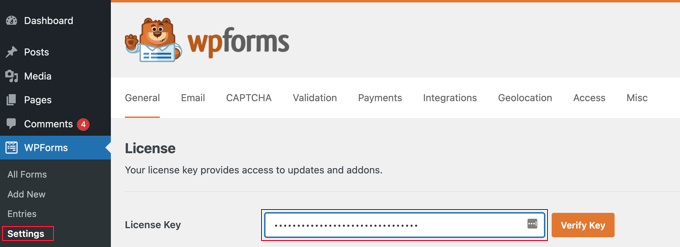
Upon activation, you’ll want to head over to the WPForms » Settings page from the WordPress admin sidebar to enter your license key. You can find this information in your WPForms account area.
After entering the key, make sure you click the ‘Verify Key’ button to activate your WPForms’ premium license.
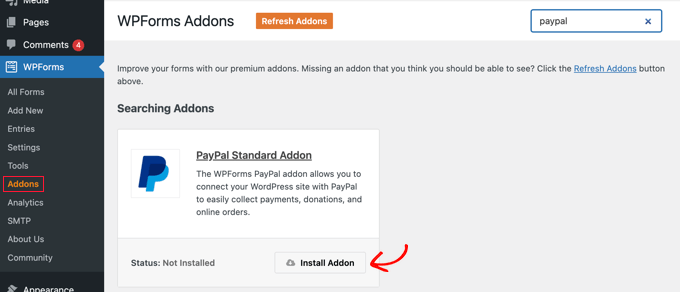
Next, let’s go to the WPForms » Addons page from the WordPress dashboard. Here, you’ll install the PayPal Standard add-on.
Simply find it in the list, and then click the ‘Install Addon’ button under it. The add-on will then be automatically installed and activated for you.
Once you’ve done that, it’s time to create your payment form.
Creating a PayPal Payment Form in WordPress
To start creating a payment form, visit the WPForms » Add New page in your WordPress admin area to launch the form builder.
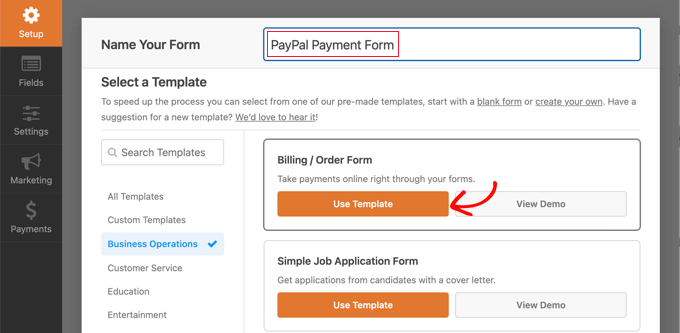
On the ‘Setup’ screen, the first thing you’ll need to do is name your form.
Then, you can scroll down the page to find the ‘Billing / Order Form’ template and hover over it. Go ahead and click the ‘Use Template’ button when it appears.
WPForms will now automatically load your form template in the drag-and-drop builder.
From here, adding, removing, or changing the fields on your form is easy. For example, the template comes with a ‘Multiple Items’ field. You can customize this field to let visitors select the product or service they wish to pay for.
If you click on this field in the live preview, you can configure its label and the name and price of each item.
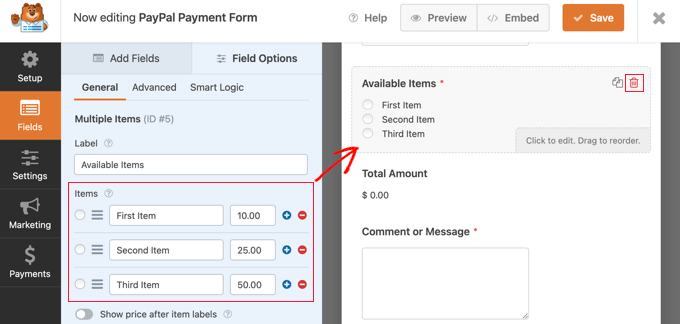
If you only offer a single item, then you can delete the ‘Multiple Items’ field by clicking the trash icon in the top right corner of the field.
Then, from the left panel, you can drag the ‘Single Item’ field onto your form instead.
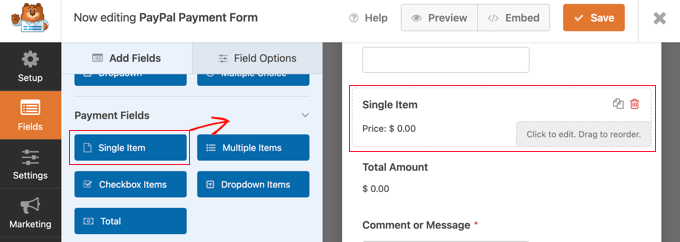
Now, you can click on this field to further customize it in the left column.
Feel free to change the field’s label, description, and price according to your offering. The preview of your form on the right will be updated automatically.
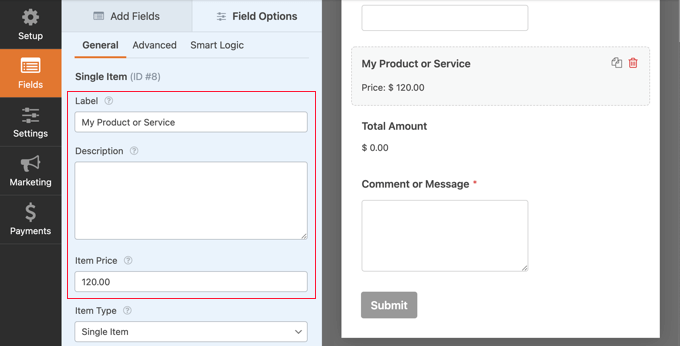
If you offer only a single item, the ‘Total’ field is optional. However, we recommend keeping it so that your customers can see and confirm the final price before paying.
For more detailed instructions, you may want to see our tutorial on how to create an online order form in WordPress.
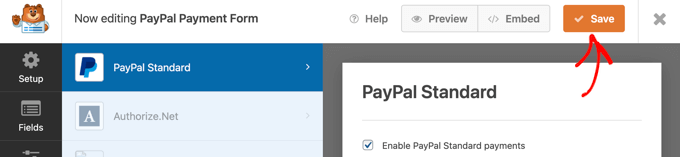
Next, you need to switch to the Payments » PayPal Standard tab to set up PayPal.
From here, simply check the ‘Enable PayPal Standard payments’ box.
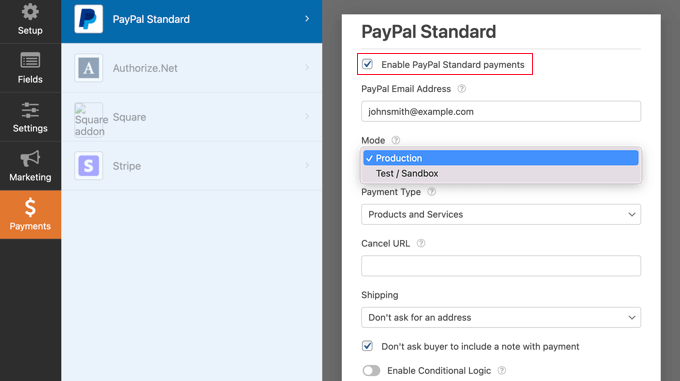
If you don’t already have one, you will need to create a PayPal account. Then, you can enter your PayPal email address into the WPForms settings.
After that, you must fill in the other PayPal settings. If you wish to test your payment form, then you should select the ‘Test / Sandbox’ mode. This allows you to make dummy PayPal payments to make sure that the form is working correctly.
Don’t forget to change the Mode option back to ‘Production’ when you have finished testing.
Most websites will need the ‘Products and Services’ payment type. The other option is ‘Donations’, and you can learn more about it in our guide on how to add a PayPal donate button.
You can also add a URL to redirect users who don’t complete the payment and decide whether a shipping address and note are required.
Finally, you can use the ‘Enable Conditional Logic’ option to let users choose between different payment options. For more details, see our guide on how to allow users to choose a payment method on WordPress forms.
Once you’re done, go ahead and click the ‘Save’ button to store your settings.
Your online PayPal payment form is now ready, and you can add it to any WordPress post or page on your website.
Adding Your PayPal Payment Form to Your Website
WPForm makes it super easy to add forms anywhere on your website.
First, open up the WordPress post or page where you want to add the form from the admin dashboard. Then, click the ‘Add Block’ (+) button at the top left corner of the screen to open the block menu.
From here, locate and add the WPForms block to the block editor.
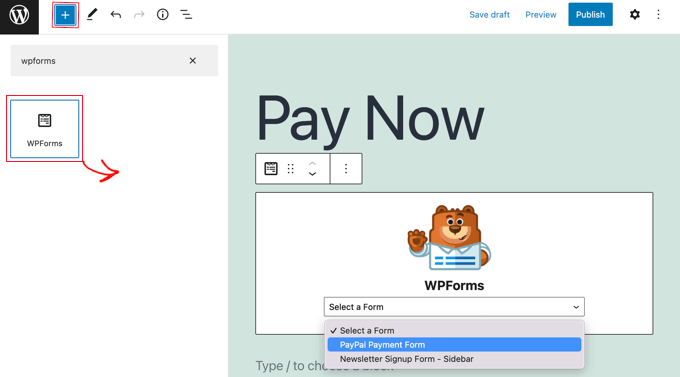
After that, you’ll want to select your order form from the dropdown menu in the WPForms block.
Once you’re finished, you can save or publish your page and click on the preview button to see your form in action.
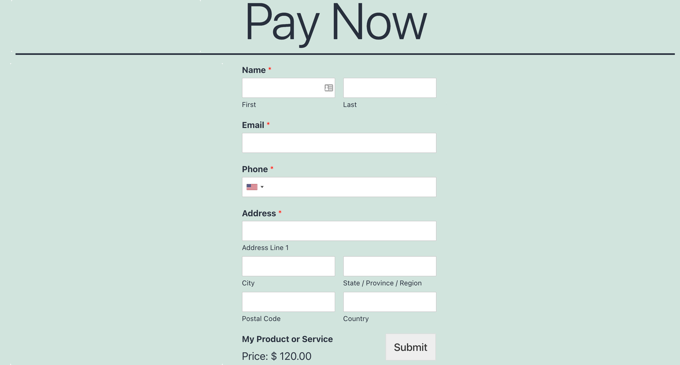
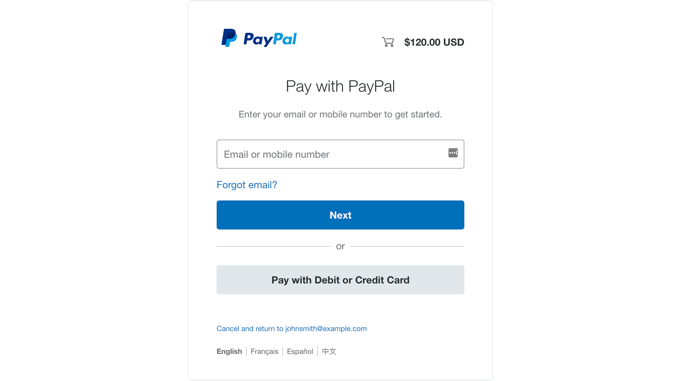
After your user clicks the ‘Submit’ button, they will be securely redirected to the PayPal website to complete their payment.
Congratulations, you’ve now created a PayPal payment form in WordPress.
If you want, you can also connect your payment forms with email marketing services, Google Sheets, and other apps to further streamline your workflow using WPForms native integrations.
Bonus: Let Customers Pay Directly On Your Site with PayPal Commerce
If you have an online store, it is a better idea to connect your WordPress site to PayPal Commerce. PayPal Commerce offers simplified global payments and seller and buyer protection.
This method allows customers to pay with a credit card directly on your website, without being redirected to PayPal.
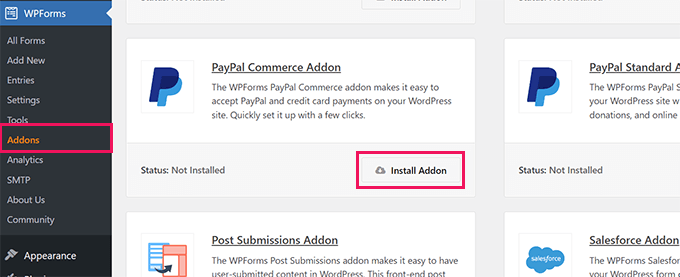
To connect PayPal Commerce with WPForms, you must visit the WPForms » Addons page and install and activate the ‘PayPal Commerce Addon.’
Upon activation, you’ll want to head to the WPForms » Settings page and switch to the ‘Payments’ tab.
Next, click the ‘Connect with PayPal Commerce’ button.
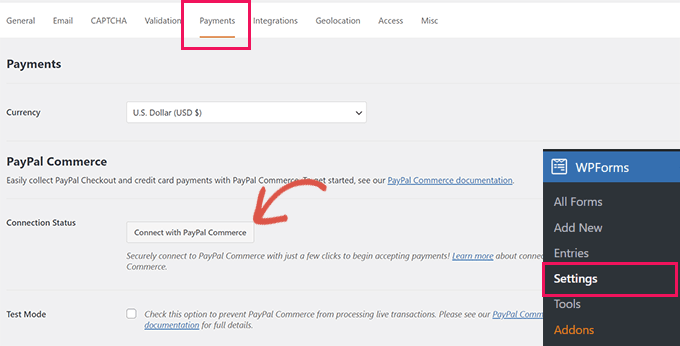
Once you do that, a prompt will open on the screen, asking you to connect your WordPress site with PayPal.
Go ahead and connect the service to your website. After that, you can create a form and simply add the ‘PayPal Commerce’ field from the left column.
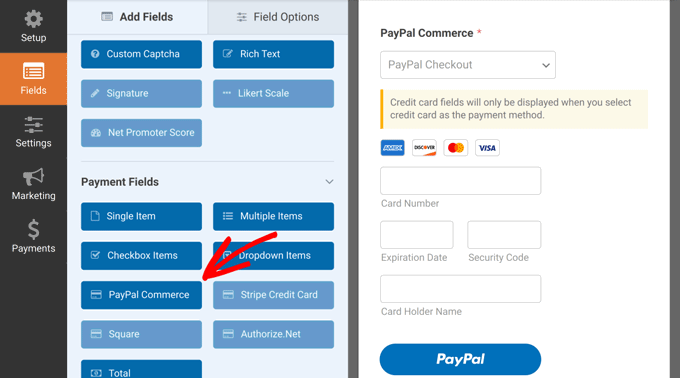
This way, the single PayPal Commerce field allows you to accept payments directly via PayPal accounts or by credit card.
For more detailed instructions, please see our tutorial on how to connect WordPress to PayPal Commerce.
Video Tutorial
If you don’t prefer written instructions, just watch our video tutorial.
Frequently Asked Questions About PayPal Payments
Here are some questions that are frequently asked by our readers about adding a PayPal payment form in WordPress:
Can I let users enter a custom amount before paying?
Yes, you can! If you’re collecting donations or offering flexible pricing, most form builders (like WPForms and Charitable) allow you to add a custom amount field.
You can pass that value to PayPal so the user pays exactly what they entered.
Is it safe to accept payments through a PayPal form?
Yes, it’s very safe. PayPal handles the payment processing on its secure platform, so your website doesn’t store any sensitive credit card data.
Just make sure your site uses HTTPS for an added layer of security.
Do I need a PayPal business account?
You can use either a personal or business PayPal account to receive payments, but a business account is recommended for branding and a smoother checkout process.
It also helps if you’re selling products or accepting payments frequently.
Can I send email confirmations after someone pays using PayPal?
Yes! Most WordPress form plugins, including WPForms, allow you to set up automatic email notifications.
You can send confirmation emails to both yourself and the buyer after a successful PayPal transaction.
Can I accept international payments with a PayPal form?
Yes, PayPal supports multiple currencies and countries. When setting up your form, you can choose the currency you want to accept.
Just make sure your PayPal account is set up to handle international transactions.
We hope this tutorial helped you learn how to add a PayPal payment form in WordPress. You may also want to see our guide on how to accept payments with Stripe in WordPress or our expert picks of the PayPal alternatives for freelancers to collect payments in WordPress.
If you liked this article, then please subscribe to our YouTube Channel for WordPress video tutorials. You can also find us on Twitter and Facebook.


Have a question or suggestion? Please leave a comment to start the discussion.