


Trying to find your .htaccess file can be one of the most common frustrations when you start working on your WordPress site. You’re likely looking for it to fix a common error, but it seems to have vanished.
If this sounds familiar, then you’re in the right place.
The two most common reasons you can’t find your .htaccess file are that 1) it’s a hidden file and your file manager isn’t set to show hidden files, or 2) it hasn’t been generated by WordPress yet.
We’ve helped thousands of users solve this exact problem. And in this guide, we’ll show you exactly how to find your .htaccess file by making it visible, and how to create a new one if it’s missing.
What Is the .htaccess File?
The .htaccess file is a server configuration file used by websites running on the Apache web server. It tells your server how to handle certain things on your website.
Its tasks include managing your site’s permalink structure, redirecting users, password-protecting the admin area, and more.
The file is found in the root folder of your WordPress installation, alongside folders like /wp-content/ and /wp-admin/.
How to Find or Create Your .htaccess File
Here’s a quick overview of all the topics we’ll cover in this post.
You can use the quick links below to jump to different sections:
Method 1: Making Hidden Files Visible
The dot at the beginning of the .htaccess file name tells the server that it is a hidden file. By default, most FTP clients and web-based file managers do not show hidden files. This means that you need to change a setting to make them visible.
Here at WPBeginner, our developers often use FTP clients like FileZilla for server access. This is a reliable tool that gives you direct control over your website’s files.
How to Show Hidden Files in FileZilla
- Connect to your WordPress hosting server with FileZilla.
- Click on ‘Server’ in the top menu bar.
- Select ‘Force showing hidden files’ from the dropdown menu.
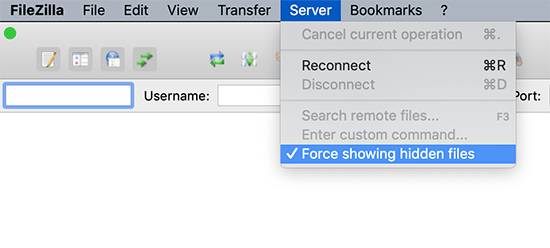
Once you enable this option, you will be able to see the .htaccess file in the root directory of your WordPress website.
How to Show Hidden Files in cPanel / Bluehost
If you’re using the File Manager app in cPanel, you can find a similar setting.
First, log in to your hosting account. If you use a host like Bluehost, navigate to the ‘Websites’ tab, and click ‘Settings’ for your site.
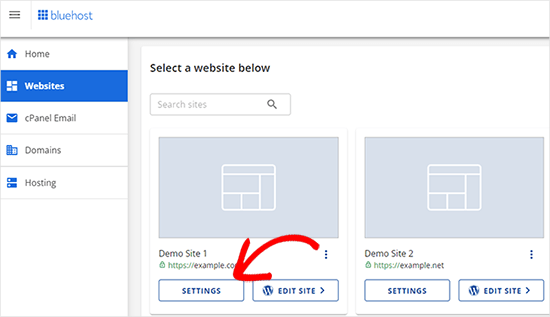
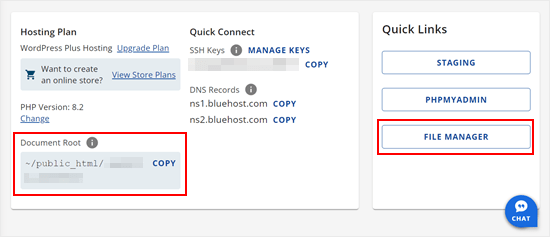
Next, you need to find and click on the ‘File Manager’ icon.
File Manager is a cPanel app that allows you to browse files stored on your hosting server without using an FTP client.
Once the File Manager opens, click the ‘Settings’ button in the top-right corner.
A popup will appear. You need to check the box next to ‘Show Hidden Files (dotfiles)’.
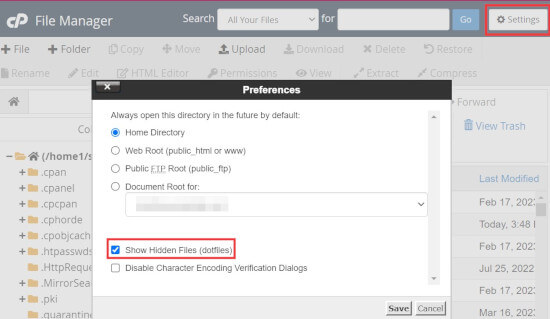
Click on the ‘Save’ button to store your changes.
You should now be able to view and edit the .htaccess file in the File Manager app.
Method 2: Generating a New .htaccess File
The second reason for a missing .htaccess file is that your site hasn’t generated one yet. WordPress creates this file automatically to handle your permalinks, but sometimes it needs a little push.
Using the Permalinks Settings
First, log in to your WordPress dashboard and navigate to Settings » Permalinks.
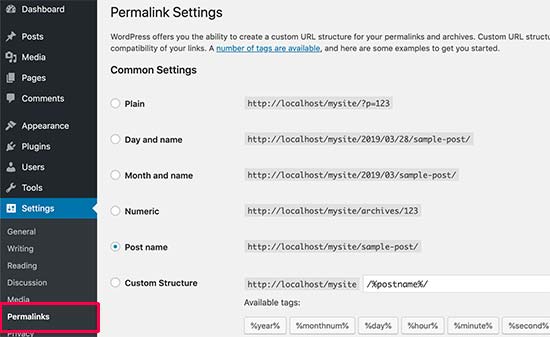
Don’t make any changes. Simply scroll to the bottom and click the ‘Save Changes’ button.
WordPress will now try to generate the .htaccess file for you. If it fails due to a file permissions issue, it will show you a message saying the ‘.htaccess file is not writeable’.
Manually Creating the .htaccess File
If WordPress cannot create the file automatically, then you will need to do it manually.
Simply open a plain text editor like Notepad on your computer.
Copy and paste the standard WordPress rules below into the text file:
# BEGIN WordPress
<IfModule mod_rewrite.c>
RewriteEngine On
RewriteBase /
RewriteRule ^index\.php$ - [L]
RewriteCond %{REQUEST_FILENAME} !-f
RewriteCond %{REQUEST_FILENAME} !-d
RewriteRule . /index.php [L]
</IfModule>
# END WordPress
Note: If your WordPress site is installed in a subdirectory (like yourdomain.com/blog/), then you must change the RewriteBase / line to RewriteBase /blog/.
Now, save the file on your desktop as .htaccess. Make sure your text editor doesn’t add a .txt extension to the file name when you save it.
Next, connect to your website using an FTP client and upload the .htaccess file to your site’s root directory (usually /public_html)
If you get an error while uploading, you may need to change the file permission for your root directory to 755.
What to Do If You Still Can’t Create or Edit .htaccess
In our experience managing hundreds of WordPress sites, we’ve occasionally seen server configurations or even security plugins that prevent you from modifying the .htaccess file. This is usually done as a security measure.
If you’ve tried the troubleshooting tips above and still can’t get it to work, the best course of action is to contact your WordPress hosting provider’s support team. They have access to server logs and can quickly identify and fix the issue.
For more tips, see our guide on how to ask for WordPress support and get it.
Frequently Asked Questions About the .htaccess File
Here are some of the most common questions we get asked about the .htaccess file.
What is the default code for a WordPress .htaccess file?
The standard, default code for a basic WordPress installation is provided above. However, many security and caching plugins will add their own rules to this file to improve your website’s performance and security.
Is it safe to delete the .htaccess file?
Yes, it is generally safe to delete the .htaccess file as a troubleshooting step. WordPress can regenerate a new, default file if you go to Settings » Permalinks and click ‘Save Changes’. Deleting it will disable any custom rules from your plugins, but it can help solve errors like the internal server error.
Can a plugin create or modify the .htaccess file?
Yes, many plugins modify the .htaccess file. Caching plugins like WP Rocket add rules to manage browser caching, while security plugins like All in One SEO might add rules to block malicious bots or enforce security headers.
Additional Resources for Troubleshooting WordPress
- How to Fix the WordPress .htaccess File (Beginner’s Guide)
- How to Fix WordPress Website Not Updating Right Away
- How to Fix Featured Image Not Showing in WordPress
- How to Fix WordPress Keeps Logging Out Problem (Beginner’s Guide)
- How to Recover and Restore Deleted Pages in WordPress
- Why Can’t I Add or Install Plugins in WordPress?
- How to Fix Missing Admin Bar Issue in WordPress
- What to Do When You Are Locked Out of WordPress Admin (wp-admin)
- Most Common WordPress Errors and How to Fix Them
We hope this article has helped you find the .htaccess file on your WordPress site. You may also want to see our WordPress troubleshooting guide to fix common errors and our list of the best WordPress plugins to grow your website.
If you liked this article, then please subscribe to our YouTube Channel for WordPress video tutorials. You can also find us on Twitter and Facebook.




Jiří Vaněk
Thank you for the advice. It helped me not only solve the issue with the htaccess file, which I encountered for the first time (on other servers I saw the file without any issues), but it also helped me solve the problem with the .user.ini file, where I needed to place directives for PHP limits. I didn’t know these files are hidden by default.