


Trying to find your .htaccess file can be one of the most common frustrations when you start working on your WordPress site. You’re likely looking for it to fix a common error, but it seems to have vanished.
If this sounds familiar, then you’re in the right place.
The two most common reasons you can’t find your .htaccess file are that 1) it’s a hidden file and your file manager isn’t set to show hidden files, or 2) it hasn’t been generated by WordPress yet.
We’ve helped thousands of users solve this exact problem. And in this guide, we’ll show you exactly how to find your .htaccess file by making it visible, and how to create a new one if it’s missing.
What Is the .htaccess File?
The .htaccess file is a server configuration file used by websites running on the Apache web server. It tells your server how to handle certain things on your website.
Its tasks include managing your site’s permalink structure, redirecting users, password-protecting the admin area, and more.
The file is found in the root folder of your WordPress installation, alongside folders like /wp-content/ and /wp-admin/.
How to Find or Create Your .htaccess File
Here’s a quick overview of all the topics we’ll cover in this post.
You can use the quick links below to jump to different sections:
Method 1: Making Hidden Files Visible
The dot at the beginning of the .htaccess file name tells the server that it is a hidden file. By default, most FTP clients and web-based file managers do not show hidden files. This means that you need to change a setting to make them visible.
Here at WPBeginner, our developers often use FTP clients like FileZilla for server access. This is a reliable tool that gives you direct control over your website’s files.
How to Show Hidden Files in FileZilla
- Connect to your WordPress hosting server with FileZilla.
- Click on ‘Server’ in the top menu bar.
- Select ‘Force showing hidden files’ from the dropdown menu.
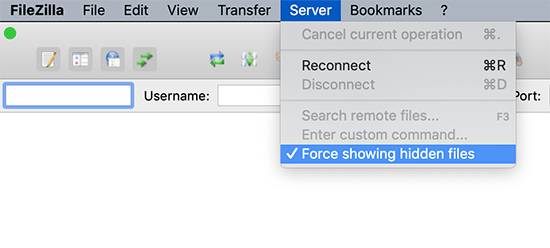
Once you enable this option, you will be able to see the .htaccess file in the root directory of your WordPress website.
How to Show Hidden Files in cPanel / Bluehost
If you’re using the File Manager app in cPanel, you can find a similar setting.
First, log in to your hosting account. If you use a host like Bluehost, navigate to the ‘Websites’ tab, and click ‘Settings’ for your site.
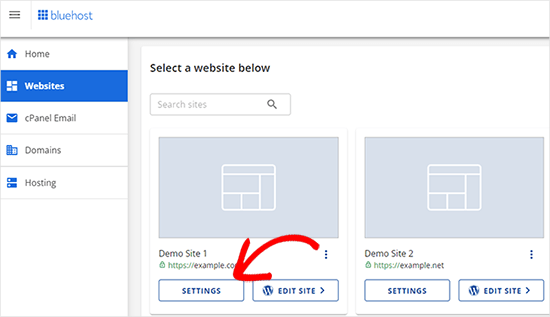
Next, you need to find and click on the ‘File Manager’ icon.
File Manager is a cPanel app that allows you to browse files stored on your hosting server without using an FTP client.
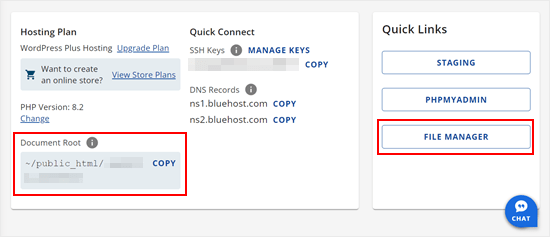
Once the File Manager opens, click the ‘Settings’ button in the top-right corner.
A popup will appear. You need to check the box next to ‘Show Hidden Files (dotfiles)’.
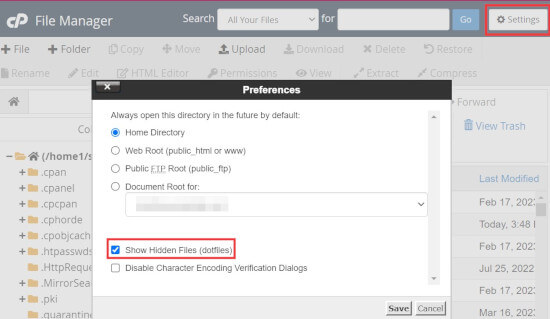
Click on the ‘Save’ button to store your changes.
You should now be able to view and edit the .htaccess file in the File Manager app.
Method 2: Generating a New .htaccess File
The second reason for a missing .htaccess file is that your site hasn’t generated one yet. WordPress creates this file automatically to handle your permalinks, but sometimes it needs a little push.
Using the Permalinks Settings
First, log in to your WordPress dashboard and navigate to Settings » Permalinks.
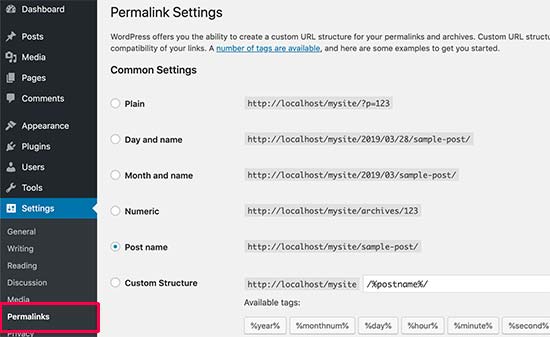
Don’t make any changes. Simply scroll to the bottom and click the ‘Save Changes’ button.
WordPress will now try to generate the .htaccess file for you. If it fails due to a file permissions issue, it will show you a message saying the ‘.htaccess file is not writeable’.
Manually Creating the .htaccess File
If WordPress cannot create the file automatically, then you will need to do it manually.
Simply open a plain text editor like Notepad on your computer.
Copy and paste the standard WordPress rules below into the text file:
# BEGIN WordPress
<IfModule mod_rewrite.c>
RewriteEngine On
RewriteBase /
RewriteRule ^index\.php$ - [L]
RewriteCond %{REQUEST_FILENAME} !-f
RewriteCond %{REQUEST_FILENAME} !-d
RewriteRule . /index.php [L]
</IfModule>
# END WordPress
Note: If your WordPress site is installed in a subdirectory (like yourdomain.com/blog/), then you must change the RewriteBase / line to RewriteBase /blog/.
Now, save the file on your desktop as .htaccess. Make sure your text editor doesn’t add a .txt extension to the file name when you save it.
Next, connect to your website using an FTP client and upload the .htaccess file to your site’s root directory (usually /public_html)
If you get an error while uploading, you may need to change the file permission for your root directory to 755.
What to Do If You Still Can’t Create or Edit .htaccess
In our experience managing hundreds of WordPress sites, we’ve occasionally seen server configurations or even security plugins that prevent you from modifying the .htaccess file. This is usually done as a security measure.
If you’ve tried the troubleshooting tips above and still can’t get it to work, the best course of action is to contact your WordPress hosting provider’s support team. They have access to server logs and can quickly identify and fix the issue.
For more tips, see our guide on how to ask for WordPress support and get it.
Frequently Asked Questions About the .htaccess File
Here are some of the most common questions we get asked about the .htaccess file.
What is the default code for a WordPress .htaccess file?
The standard, default code for a basic WordPress installation is provided above. However, many security and caching plugins will add their own rules to this file to improve your website’s performance and security.
Is it safe to delete the .htaccess file?
Yes, it is generally safe to delete the .htaccess file as a troubleshooting step. WordPress can regenerate a new, default file if you go to Settings » Permalinks and click ‘Save Changes’. Deleting it will disable any custom rules from your plugins, but it can help solve errors like the internal server error.
Can a plugin create or modify the .htaccess file?
Yes, many plugins modify the .htaccess file. Caching plugins like WP Rocket add rules to manage browser caching, while security plugins like All in One SEO might add rules to block malicious bots or enforce security headers.
Additional Resources for Troubleshooting WordPress
- How to Fix the WordPress .htaccess File (Beginner’s Guide)
- How to Fix WordPress Website Not Updating Right Away
- How to Fix Featured Image Not Showing in WordPress
- How to Fix WordPress Keeps Logging Out Problem (Beginner’s Guide)
- How to Recover and Restore Deleted Pages in WordPress
- Why Can’t I Add or Install Plugins in WordPress?
- How to Fix Missing Admin Bar Issue in WordPress
- What to Do When You Are Locked Out of WordPress Admin (wp-admin)
- Most Common WordPress Errors and How to Fix Them
We hope this article has helped you find the .htaccess file on your WordPress site. You may also want to see our WordPress troubleshooting guide to fix common errors and our list of the best WordPress plugins to grow your website.
If you liked this article, then please subscribe to our YouTube Channel for WordPress video tutorials. You can also find us on Twitter and Facebook.


Mrteesurez
I used this guide to solved the issue of mistakenly deleted my htaccess file from Cpanel file manager.
Thanks for the guide.
Note: I have even cleared the trash files already, so couldn’t not restored the file but to create another on and this guide is useful.
MarownIOM
Thank you very much. Re-creating the .htaccess file from the Permalinks section worked.
WPBeginner Support
Glad our guide was able to assist!
Admin
Shahbaz
Thank you very much. This article is very helpful.
WPBeginner Support
Glad our guide was helpful
Admin
Raafat
Thank you. You saved my life.
WPBeginner Support
You’re welcome, glad our guide was helpful
Admin
Syed Mehmood
In my Cpanel there are so many .htaccess files so can i delete them or not?
WPBeginner Support
If you have multiple with the same name for some reason, you may want to check with your hosting provider’s support in case it was set up for something specific to your hosting provider.
Admin
Jessica
This worked perfectly, thank you!
WPBeginner Support
You’re welcome
Admin
Amber
I still can’t find the .htaccess file. I’m using a free WP site (so plugins aren’t available), and there’s no “permalinks” section in the admin for me to manually create the file. What should I do?
Thanks!
WPBeginner Support
WordPress.com does not give access to your htaccess file. If you wanted that you would need to use WordPress.org and we have our comparison guide on the two below:
https://www.wpbeginner.com/beginners-guide/self-hosted-wordpress-org-vs-free-wordpress-com-infograph/
Admin
Thomas Jones
After a php version update my site went down. The hosting company are no help at all. I read your blog and updated my permalinks file and all works fine now. Many thanks, Tom : )
WPBeginner Support
Glad our recommendation was able to help
Admin
Thor Erik Just Olsen
Thank you! Saved my day
WPBeginner Support
Glad our guide could help
Admin
Urdesigno
Thank you this artical is very help full
WPBeginner Support
You’re welcome, glad our guide was helpful
Admin
Rafael
Great! It was just hidden, in WinSCP
WPBeginner Support
Glad our recommendation could help
Admin
pankaj
Quite a Helpful article, thankyou. one question though do we really need .htaccess file as being an administrator?
WPBeginner Support
Yes, your site should have an .htaccess file. It handles some things on your site and gives you more tools you can use.
Admin
Tammy
This was so helpful, thank you!
WPBeginner Support
You’re welcome, glad our guide was helpful
Admin
Dev
Thanks so much! This solve my issues, i was about to get crazy, thanks!
WPBeginner Support
You’re welcome, glad our guide could help
Admin
Michael
Saved my day! Thanks
WPBeginner Support
You’re welcome, glad our article could help
Admin
Arnold Alphonce
Thanks that was really helpful. I did not save changes for the first time and also the permission as you said. Once i did that i worked fine thanks again
WPBeginner Support
You’re welcome, glad we could be helpful
Admin
Arif Billah
Thanks for the help, this blog helps me a lot, i had been working to resolve this for 3 days.
in my case file name was not written, i have identified it with file type.
100% beginner also not an IT guy.
once again Thanks a lot
WPBeginner Support
Glad our article could help yo fix the issue
Admin
Luke Cavanagh
Also you may not be able to the find .htaccess file on the site server, since NGNIX is being used.
WPBeginner Support
You are correct, that is another possibility but not always a common one
Admin
gurdeep
hi. I tried to see if the file was hidden. This didn’t start showing .htaccess. I then went to permalinks and saved changes (even tried updating some settings and updating again) a few times. I didn’t get any text from WP. It just accepted the changes. I still can’t see the htaccess file.
Not sure why this is happening. Can you please help.
WPBeginner Support
You may want to check your hosting provider to see if they see the htaccess on their end.
Admin
sany
hey there,
I followed the instructions step by step, however I still cannot find the .htaccess -.-
when I create one on my mac with text pad (or should I use word doc?) and try to paste it via ftp (filezilla) in the ” / ” folder but it still does’nt work.
The links on my wordpress shows “404 Not Found nginx”
please help!!
WPBeginner Support
You may want to ensure you don’t have a file extension on the end of your .htaccess file as that is one of the more common reasons it does not work.
Admin
mohit verma
Go in WordPress and then click on settings and then select permalinks and then select plain and then save changes
abhishek
hey . i need your help regarding my cpanel . it shows only text and when i click on any tool it gets logged out. i have tried many ways to repair my cpanel but can’t resolved it . i m using cloudflare though.
WPBeginner Support
Hi Abhishek,
Please contact your hosting provider. They will be able to fix this issue for you.
Admin
Don Herman
This probably worked once, but no longer. No message appears on the Permalinks page when you save it. Show Hidden Files in FileZilla doesn’t reveal the .htaccess file. Pretty much useless from the get-go.
WPBeginner Support
Hi Don,
It still works. .htaccess file is hidden by default. If you cannot see it in your FTP client, then please try a different FTP program.
Admin
Ted Fisher
Very weird! Please help. I did find my .htaccess file and copied and pasted the code into it. Now all pages are secure except the home page. Any help would be appreciated.
thanks,
Ted
gretchen
Petra
I have the same problem.
Carolina
I have the same problem. No .htaccess using CuteFTP (yes, I enabled filters) and the file manager in Plesk. Does this mean there isn’t one??? Please answer!!!
WPBeginner Support
Hi Carolina,
If your web hosting server is using a different software like Windows or Nginx then you may not be able ot find .htaccess file.
Anj
It helps a lot .. Thanks .. i can access again my website .
Neil
The htaccess rewrite worked! Thanks ever so much for your help. Brain is fried after a complete loss of dashboard today. I had to create a .htaccess file and upload it through ftp.
Thanks again
Kathy
OMG thank you. I added this to my .htaccess file
php_value upload_max_filesize 64M
php_value post_max_size 64M
php_value max_execution_time 300
php_value max_input_time 300
FTP wouldn’t let me overwrite .htaccess so I uploaded it as .htaccess-new then deleted .htaccess and renamed .htaccess-new to .htaccess
Yay!
Annie
Hello,
I am unable to select any of the code in the box to recreate my .htaccess file. It appears to be an image file only…
Thanks.
Emilio
Thank you! You saved my day, I started to get worried I will not fix this. I appreciate it, honestly.
Tony
Can you please tell me how to keep WP back end log in longer time when i am on back end for uploading? because due to SSL, it automatically logs out of the account in some minutes and ask me to log in again. this is troublesome, thank you
Nadir
I have the same problem! did you find a solution?
please help.
thanks
Kay Collier
The permalinks solution didn’t work for me either.
In cPanel I have a page that will allow me to edit 403 (forbidden) but when I click on the code to edit I’m absolutely lost which is very annoying as I’m sure it must be easy to do, if only I knew how!
Can anyone explain please?
Sincerely
Kay
Axel
Hi!
I am new to wordpress and have set up my wordpress site this weekend. To ensure it is safe, I followed the htaccess/htpasswd settings today and all worked fine.
After some hours, I could not access my wordpress site anymore but get the error message
[Tue Nov 01 20:31:36 2016] [authn_file:error] [pid 26428] [client xxx.xxx.xx.xxx] [host xxx.xxx.de] AH01620: Could not open password file: /XXX.htpasswd
How can I overcome this issue?
thanks for any help!
Axel
WPBeginner Support
Please contact your hosting provider. They will be able to assist you better. Meanwhile, you can try steps mentioned in our WordPress troubleshooting guide.
Admin
juan luis
You have a wonderful page. My only objection is that font sizes are too samall. I print everything I read
dt.k
Why don’t you just zoom your browser window in to make the text larger?
Jazib
i don’t want to use ftp client method. Tell me how to edit htaccess file via cpanel
lmahdi
thanks
it’s salve me
Fahad Saleem
Thanks it really helped.
Keep sharing more wisdom.!
Habib
Really interesting and informative post. I like all posts of wpbeginner.com. nice website.
Caspar
Hey.. I played around with WP rocket and cleared my .htaccess – Now i am missing elements and sections of my webpage. I have tired to disable minifying. But still nothing happens.
Really i have no idea of what made these sections disappear . Any one have an idea of what i should try?
Olatuga Moses
Is there any way or some how I can make my audio wp content downloading be available to all mobile device,like if I just upload audio to W-P it is only some specific device that would be able to download it with streaming online.like I need help on how to make my audio link download on all mobile device.
Suzy
Having tried the above I still can’t see my htacess file and I do not get the message saying not rewritable under permalinks. Can anybody help, I’ve been getting the 500 Internal Server Error for two days now and am desperate to update to the latest version of Wordpress. My site is slow and shows the message frequently. Any help would be gratefully appreciated.
aditya
WP Maximum Execution Time Exceeded.
give it a try.
its working now i get relief.
thanks for your help.
i really appreciate your work.
thanks thanks thanks!!!
Tan
Thank you! You wake me up from the death!
jackel
Solved: Yesterday I started my second wp site, all went well until I noticed that all permalink options didn`t work except the default one, every time I changed to another permalink structure, I received the famous 404 error. I cross referanced with my first wp site, and noticed that the web.config file was not in the root. Obviously I copied and pasted the web.config file from my first site to my new site, refreshed and now all permalinks work fine.
Talib
dear can we use .htaccess Plugin by aubrey poortwood, is it bettter or not
Miello
thanks for this! Just ran into this and this helped me solve my issue.
McGhori
Thanks you so much Balkhi, Your information is brilliant Boss. Thanks again.
Dave Naylor
It’s worth pointing out that your .htaccess file might be missing because you don’t need one. For instance the Nginx web server doesn’t use .htaccess files for security and performance reasons.
Pierre Gazzola
Hope you do not intended to leave permission at 755 for the file or anyone would be able to hack your site via that file no ?
WPBeginner Support
755 is safe, 777 will make your files writable by anyone.
Admin
Howard Lee Harkness
I had occasion to look around for some redirection plugins for WP, and I noticed that some implement “hit counters.” I suspect all of them have to put something in the .htaccess file. I would love to see an article that goes into more depth on redirection, link cloaking, and hit counters.
Kasa
Isnt it easier co create .htacces right in cPanel (if you dont have it) rather than saving in notepad and uploading via ftp?
I think that way is more easier and faster.
WPBeginner Support
Kasa yes this should work too, however many users don’t have access to cPanel. Some webhosts use their own hosting control panels.
Admin