


Disappearing from Google search results is a terrifying experience for any website owner. We have seen this happen to many businesses, and the sudden drop in traffic can be panic-inducing.
The good news is that de-indexing is rarely permanent. In our experience, it usually stems from a specific technical error or security breach that you can repair.
We have helped countless users identify the root cause and restore their search rankings. You just need a clear plan to diagnose the issue and request a review from Google.
Here is how to find out why your WordPress site got de-indexed and the steps to fix it.
Why Does Google Remove a Website From Its Index?
Think of Google’s Search Index as the world’s largest digital library.
Every day, Google’s crawlers visit billions of web pages, analyze their content, and decide whether they’re worth including in this massive collection. When someone searches on Google, the results come directly from this index.
When your site gets de-indexed, it’s essentially been removed from this library.
This means your pages won’t appear in any Google search results, cutting off what could be your largest source of organic traffic. In our experience working with thousands of WordPress sites, this can happen overnight and devastate a business.
Based on our years of helping site owners recover from de-indexing, here are the most common reasons Google removes websites from its index:
- Copyright infringement, trademark violations, or DMCA takedown requests
- Thin content, scraped articles, or automatically generated pages
- Keyword stuffing, hidden text, or cloaking content
- Multiple pages with identical content or copying from other sites
- Buying links, participating in link schemes, or suspicious linking activity
- Misleading redirects, fake reviews, or showing different content to users vs. search engines
- Excluding important pages from your XML sitemap or using noindex incorrectly
- Malware infections, hacked content, or links to malicious sites
- Breaking Google’s Search Essentials or quality guidelines
Google takes these actions to protect both search quality and user safety. We’ve seen cases where even well-intentioned site owners accidentally trigger de-indexing through seemingly innocent changes or outdated SEO practices.
The key to recovery is conducting a thorough audit of your site’s content, technical setup, and compliance with Google Search Essentials. If you find content that violates Google’s policies, you’ll need to remove or fix it before requesting reconsideration.
It’s worth noting that not all Google penalties result in complete de-indexing. Some violations lead to ranking penalties where your site drops in search results but remains indexed.
We cover how to recover from these situations in our detailed guide on recovering from Google search penalties.
Now let’s dive into the specific scenarios that commonly cause WordPress sites to get de-indexed and walk through the exact steps to diagnose and fix each issue:
- Check Search Engine Visibility Settings in WordPress
- Check Your Site with Google Search Console
- Check Your Site for Malicious Code
- 4. Submit a Reconsideration Request (For Penalties Only)
- Frequently Asked Questions About Google De-Indexing
- Additional Resources on the Google Index
1. Check Search Engine Visibility Settings in WordPress
WordPress comes with an option to hide your site from search engines. The purpose of this setting is to allow site owners to work on their websites without getting search traffic.
It is possible that you or some other user with administrator access on your website may have accidentally enabled this option.
Simply log in to the admin area of your WordPress website and go to Settings » Reading page. Scroll down to the bottom of the page, and there, you will find the ‘Search engine visibility’ option.
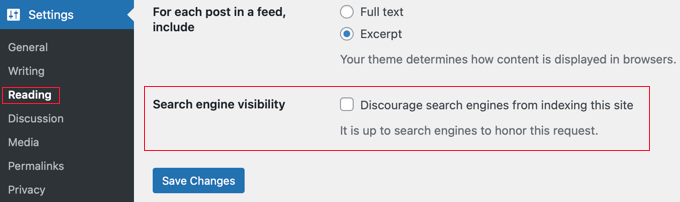
Make sure that the box next to the ‘Search engine visibility’ option is unchecked. If it is checked, then you need to uncheck it and click on the ‘Save Changes’ button to store your settings.
Tip: If you use a caching plugin, make sure to clear your WordPress cache after saving this setting so Google sees the change immediately.
2. Check Your Site With Google Search Console
Google allows website owners to see how Google sees their websites with Search Console. If you haven’t already added your WordPress site to Google Search Console, then you can do it now.
After logging in to your Google Search Console account, you need to scroll down to the ‘Security & Manual Actions’ section. Once there, you should click on the ‘Manual actions’ menu item.
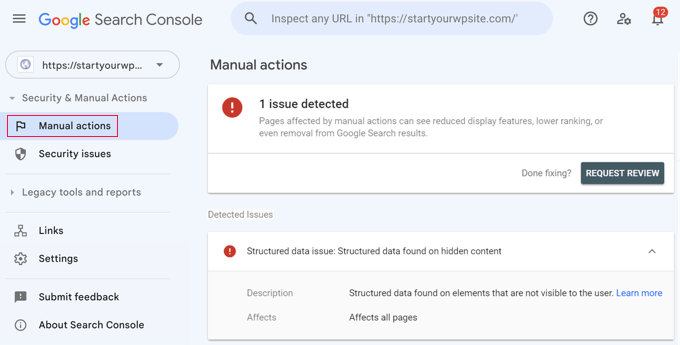
You may see one or more issues listed. If this section is empty and says ‘No issues detected,’ you should also check the Indexing » Pages report in the left-hand menu. This will tell you if your site is being de-indexed due to technical errors like server failures (5xx errors) or redirect issues.
These issues can include spam, unnatural links, sneaky redirects, hidden text, keyword stuffing, content with little or no added value, policy violations, and more.
You will need to carefully fix each issue and then click the ‘Request Review’ button. We’ll talk more about requesting a review in the last section of this guide.
Next, you should click on the ‘Security issues’ menu item to check for further problems.
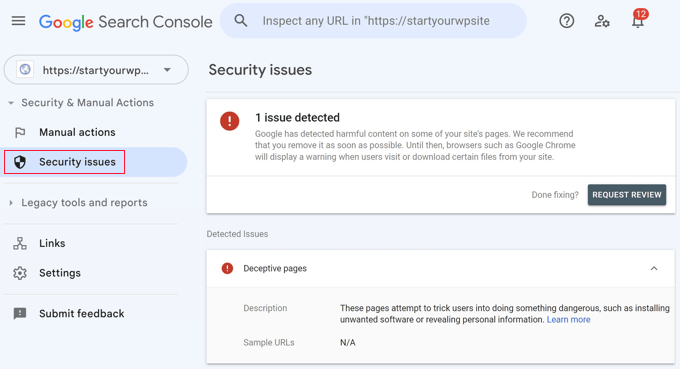
Like the ‘Manual actions’ section, if there are any security issues, then they will be listed and explained. The most common WordPress security issue is a website affected by malware and trojans. We show you how to check for these in the next section.
Once you fix the issues, you can click the ‘Request Review’ button. More on that below.
3. Check Your Site for Malicious Code
One of the most common reasons that a site gets de-indexed is malware distribution. If a WordPress site gets hacked, then the hackers may install a script that can install malicious software on users’ browsers.
People visiting your website will see a safe browsing warning in browsers like Google Chrome.
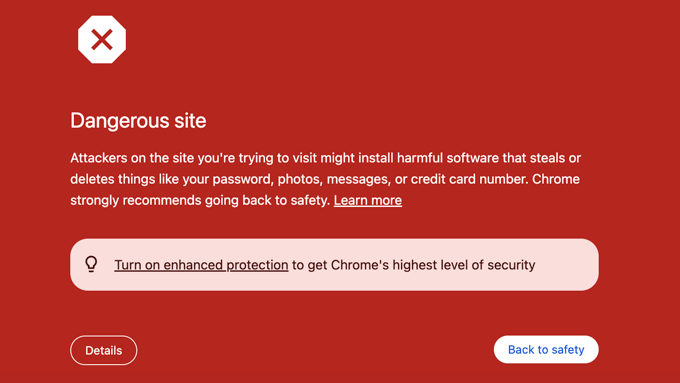
Cleaning a hacked WordPress site has multiple steps, such as locating the infected files, cleaning them, or replacing them.
That’s why we recommend using a security plugin or tool to stop hackers from breaking into your site. At WPBeginner, we use Cloudflare, but you can also check out our list of the best WordPress security plugins.
For those of you who want to do it on your own, you can take a look at our beginner’s guide to fixing a hacked WordPress site.
4. Submit a Reconsideration Request (For Penalties Only)
If you found a manual action or a security issue in Step 2 or 3, you will need to ask Google to reconsider your website for inclusion in their index.
Note: If your issue was simply the ‘Search engine visibility’ setting from Step 1, you do not need to request a review. Your site will reappear automatically the next time Google crawls it.
First, make sure that your website follows Google’s webmaster quality guidelines and that you have thoroughly checked your content.
Once you are certain that your website is clean and safe, you can click the ‘Request Review’ button located specifically within the ‘Security & Manual Actions’ section of Google Search Console.
Here are a few things you should include when submitting the reconsideration request:
- It will help if you explain in detail that you understand the best practices described in Google Search Essentials. You can demonstrate this by sharing links to answers you found in Google forums, YouTube videos, and other documentation.
- Next, you should also demonstrate that you’ve done everything that you can to fix the issues you found listed in Google Search Console. You can provide evidence, such as a list of the links or malware you removed, including screenshots.
- Finally, you should reassure Google that you won’t make the same mistakes again and that your site’s content is there to genuinely help users, not just to gain an SEO advantage. Let them know that you understand and will follow their guidelines.
After you submit the consideration request, you will need to wait for Google to review it. This may take days or even months, depending on the severity of the issues you were penalized for,
You can learn more in our ultimate guide to Google Search Console.
Frequently Asked Questions About Google De-Indexing
We receive many questions from readers who are worried about their search rankings. Here are the answers to the most common questions about fixing a de-indexed WordPress site.
1. How long does it take for Google to re-index my site?
In our experience, it can take anywhere from a few days to several weeks.
If the issue was a simple settings error (like Step 1), Google may find your site again within days. If you had to submit a reconsideration request for a manual penalty, the process often takes longer.
2. What is the difference between being de-indexed and a penalty?
When you are de-indexed, your website disappears completely from search results. A penalty usually results in a significant drop in rankings, but your pages still exist in the index. De-indexing is a more severe action taken by Google.
3. How can I confirm if my site is actually de-indexed?
You can quickly check this by performing a simple search on Google. Type site:yourdomain.com into the search bar. If Google returns zero results, your site is not in the index.
4. Can a plugin cause my site to get de-indexed?
Yes, this can happen in two ways. A poorly coded plugin might introduce a security vulnerability that leads to a hack. Alternatively, a plugin might accidentally modify your robots.txt file or site headers to block search crawlers.
5. Will changing my WordPress theme fix the problem?
Switching themes will rarely fix a de-indexing issue unless the theme itself contained malicious code. You usually need to clean the site’s database and files or fix your configuration settings regardless of the theme you use.
Additional Resources on the Google Index
We hope this article helped you learn why your WordPress site got de-indexed from Google and how you can fix it. You may also want to see some other guides related to the Google index:
- How Do I Get My WordPress Site Listed on Google? (Beginner’s Guide)
- How to Submit Your Website to Search Engines (Beginner’s Guide)
- How to Ask Google to Recrawl URLs of Your WordPress Site
- How to Hide a WordPress Page From Google
- How to Stop Search Engines from Crawling a WordPress Site
- Tips for Using Google Search Console to Grow Website Traffic
- How Long Does Website SEO Take to Show Results? (Real Data)
If you liked this article, then please subscribe to our YouTube Channel for WordPress video tutorials. You can also find us on Twitter and Facebook.





Jiří Vaněk
Thank you for the valuable information, which makes finding the cause of website deindexing much easier, as one can go step by step and verify whether this particular issue is the one causing the deindexing. Over the past two years, when I’ve dealt with this problem on other websites, it has almost always been an issue with malware. And it has always been unintentional. Since WordPress is a very widely used system, it also frequently becomes a target for attacks. Many website owners who have approached me ended up having issues either with a hacked website or phishing on a URL they didn’t even know was functioning on their site. Therefore, the key is that website owners, in addition to focusing on content, must place a really great emphasis on security, because besides risking malware affecting your users, you also risk being deindexed by Google, and no website owner wants to deal with such a problem.
Mrteesurez
I completely agree with your insights. I’ve had my fair share of deindexing issues, and like you, I’ve found that security vulnerabilities are often the culprit. A few years ago, I had a site that was hacked, and it took ages to clean up the mess and get it reindexed by Google. Since then, I’ve made security a top priority, using plugins and regular scans to prevent such headaches. Your advice reinforces the importance of keeping our sites safe to avoid these issues.
Moinuddin Waheed
I think the main reason for deindexing a website from Google search visibility would be the violation of Google terms and conditions.
non compliance of Google policies and not adhering to the content policy is never going to help in online businesses.
Thanks for giving the resolution steps wpbeginner.
Mrteesurez
I agree with you, some bloggers mostly begginers didn’t comply with Google policies, majority didn’t respect or follow the terms and conditions laid down by Google, so I think this is the grassroot of the problem that could easily make a website got deindexed from Google. Your observation is right.
Muhammad Hammad
How the XML sitemap will impact the indexing issue? I changed the URL structure of my WP site and I submitted a new XML sitemap, but still, my new URLs are not indexed.
WPBeginner Support
After submitting your sitemap you would need to give Google time to recrawl your content before your site is indexed.
Admin
Mrteesurez
Thanks for this information.
I have this issue that I have not gotten it solved.
I will try check the “manual & security” tabs to know.
But maybe I will need to reach out to Google.
Ria
My wordpress website got de-indexed by Bing. Bing doesn’t tell about the particular issue. I contacted to the Bing support team, Bing guy told me to follow Bing webmaster guidelines, now I don’t know from where I start, I have checked content, backlinks all these things. Any idea?
Niel sagaert
Mark, what’s that site you are talking about?
Joel Emmett
You left out the most obvious reason websites get de-indexed from Google: SEO.
Other than offering frequent quality content on a website, any clear attempt at SEO can get you banned from Google. They’ve repeated that over and over and over and over for more than a decade. Try to trick Google, and they can ban you.
For example, I did a site for an orthodontist who later hired a “SEO specialist” who stuffed 3 keywords per page. The site was banned within the month; I suggested the distraught doctor delete the site and start over, with another designer.
I suppose that your site has so much about SEO tactics that you chose to overlook that fact? Instead, why not focus on what Google is looking for — quality content and high usability — which will not only keep sites from being de-indexed, but help the sites’ visitors as well.
WPBeginner Support
Thanks for adding this.
Admin
John Kanelis
I once was approved for ads, but got “deactivated” because I violated the “terms of agreement.” I apologized to Google for the misunderstanding. I got reapproved. I’m still awaiting ads to be placed on my site. What do I have to do to make that a reality?
Mark Dalton
I had the red sign, stay away from this website treatment from Google just because of one of my links to an external site. That site, a normal one, got blacklisted somehow.
Google was useless at telling me what the problem was from the webmaster dashboard. Eventually I found a site Google has for the public to check websites on, and this gave better details.
Nico
Hi Mark, Could you tell me the website you mentioned in your comment!