


We’ve found that writing great content is much easier when you have a clean, focused workspace. When there are too many buttons and sidebars on the screen, it is easy to get distracted and lose your train of thought.
The Distraction-Free Fullscreen Editor in WordPress is a powerful feature designed to solve this problem. It hides the dashboard and gives you a minimalist canvas so you can focus entirely on your words.
At WPBeginner, our team uses these focus modes every day to stay productive and improve the quality of our articles. It makes a huge difference in how quickly we can get things done.
In this article, we will show you how to use the distraction-free fullscreen editor in WordPress to improve your writing workflow.
Quick Summary: How to Use the Distraction Free Editor
To use the distraction-free fullscreen editor in WordPress, you can use the built-in features available in both the Block Editor and Classic Editor.
- In the WordPress Block Editor: Open a post, click the ‘Options’ (three dots) icon in the top right corner, and select ‘Distraction-free’ from the dropdown menu.
- In the WordPress Classic Editor: Open a post and click the ‘Distraction-free writing mode’ button located in the post menu bar.
Why Use the Distraction-Free Fullscreen Editor in WordPress?
Using the distraction-free fullscreen editor helps you focus by removing sidebars, toolbars, and notifications that clutter your screen. It creates a simple workspace where you can concentrate entirely on your writing without being interrupted by the WordPress dashboard.
It provides a clean, dedicated space for writing, making the content creation process more enjoyable.
Here are some of the benefits of using a distraction-free mode:
- Improved Focus: Hides unnecessary elements like buttons, toolbars, sidebars, and block panels, allowing you to concentrate solely on your writing.
- Increased Productivity: By minimizing distractions, you can write more efficiently and produce higher-quality content without interruption.
- Clutter-Free Interface: Transforms your editing screen into a minimalist canvas, reducing visual noise.
- Built-in Feature: No need for additional WordPress plugin because this functionality is available in both the Block and Classic editors by default.
- More Enjoyable Writing: Creates a relaxed and dedicated environment, making the creative process less stressful and more engaging.
Now, let’s see how to use the focus modes in WordPress. We will cover methods for both the block and classic editor and you can use the quick links below to jump to the method you want to use:
How to Use Distraction-Free, Fullscreen, and Spotlight Modes in the WordPress Block Editor
If you use the WordPress block editor, you can easily access its focus modes.
Step 1: Open the WordPress Block Editor
Simply open a new or existing post in the editor to get started.
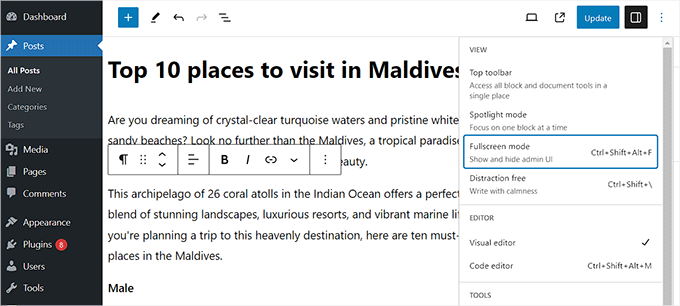
Once you are there, you’ll notice the editor opens in ‘Fullscreen mode’ by default. This view conveniently hides the WordPress admin sidebar, giving you more space.
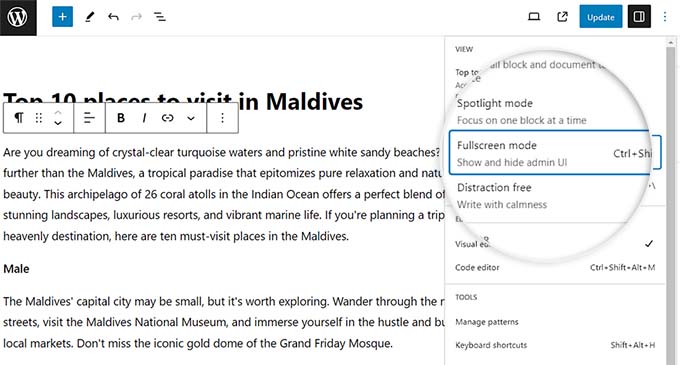
If you uncheck this option, then the WordPress admin sidebar will be shown on the left side.
However, we recommend leaving this setting enabled for a larger writing space.
Step 2: Enable Distraction-Free Mode
Expert Tip: You can quickly toggle Distraction-free mode on or off by pressing Ctrl + Shift + Alt + F on Windows or Cmd + Shift + Alt + F on a Mac.
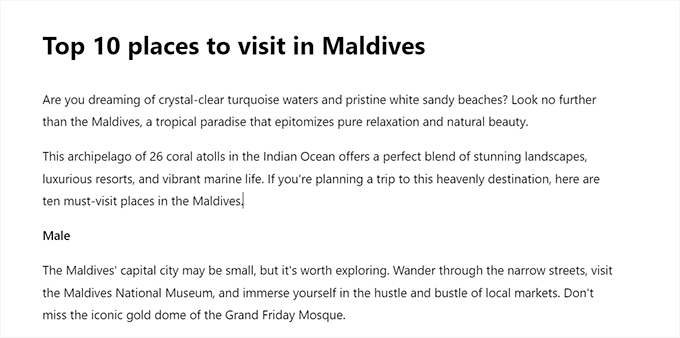
Within this default Fullscreen mode, you can further improve your focus by enabling ‘Distraction-free’ and ‘Spotlight’ views. Simply click the three dots icon on the top right corner of the screen.
This will open a dropdown menu where you can check the ‘Distraction-free’ option.
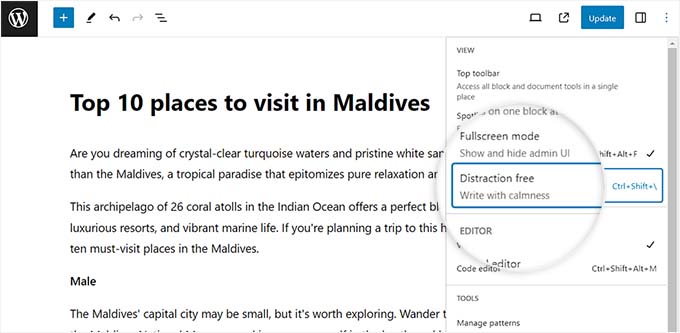
Once you do that, the ‘Settings’ sidebar on the right and other interface elements will disappear.
You will now have a completely clean canvas to start writing your post.
Step 3: Exit Distraction-Free Mode
When you are done writing and want to exit the distraction-free mode, you can also do that by simply hovering your mouse at the top.
This will display the menu at the top of the block editor, where you can click on the three-dot icon to open the dropdown menu. Then, deselect the ‘Distraction-free’ option.
Step 4: Activate Spotlight Mode
Now that you have learned how to enable the fullscreen and distraction-free modes in the WordPress block editor, it’s time to activate Spotlight mode.
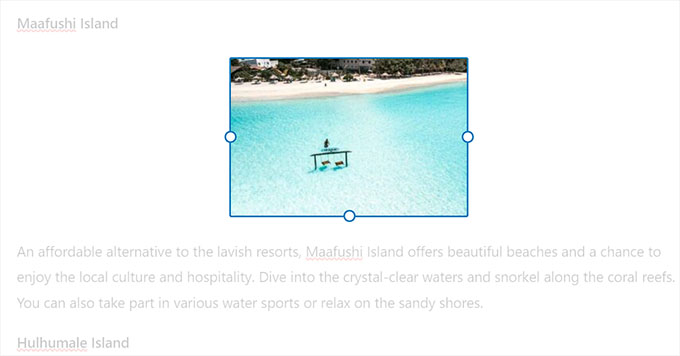
This mode only highlights the current block that you are working on and dims all other blocks, allowing you to easily focus on one block at a time.
To activate Spotlight mode, simply click the ‘Options’ (three dots) icon at the top right corner of the screen and select the ‘Spotlight mode’ option.
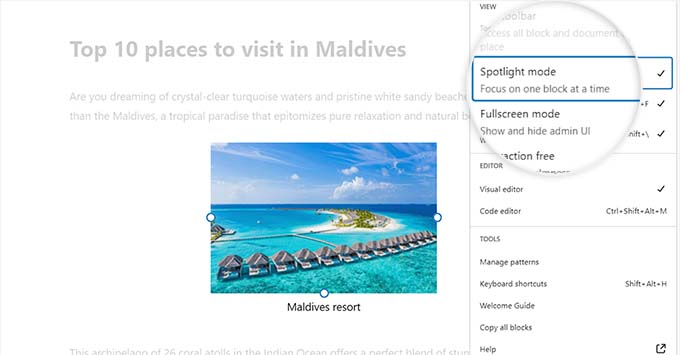
Once you do that, the post editor will only highlight the block that you are currently working on, while the rest will fade in the background.
For example, if you are writing a blog post and currently adding some screenshots or images, then only the Image block will be highlighted on the screen, while the Paragraph blocks will fade out.
You can now write your blog post without distractions in the WordPress block editor.
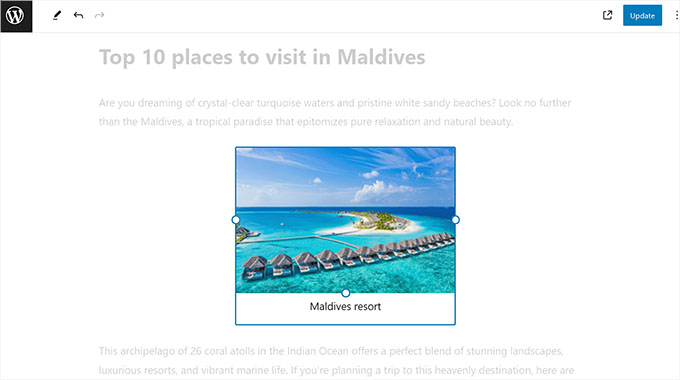
The top toolbar is now hidden by default.
To bring it back, just move your mouse toward the top of the editor, and it will reappear, allowing you to add new blocks, undo changes, and show an outline of your article.
Step 5: Save Your Changes
Once you are done, don’t forget to click the ‘Publish’ or ‘Update’ button to store your settings.
WordPress will automatically save these view preferences to your browser’s local storage.
This means the editor will remember your choices for your next session on the same computer and browser.
🌟 Expert Tip: These view settings are specific to your user profile and browser. They will not change how the editor looks for other authors on your website.
How to Use the Distraction-Free Writing Mode in the WordPress Classic Editor
If you are still using the old WordPress classic editor, then you can use this method to activate the distraction-free, fullscreen editor.
To do this, just open a new or existing post of your liking in the classic editor.
Then, click on the ‘Distraction-free writing mode’ button in your post menu bar.
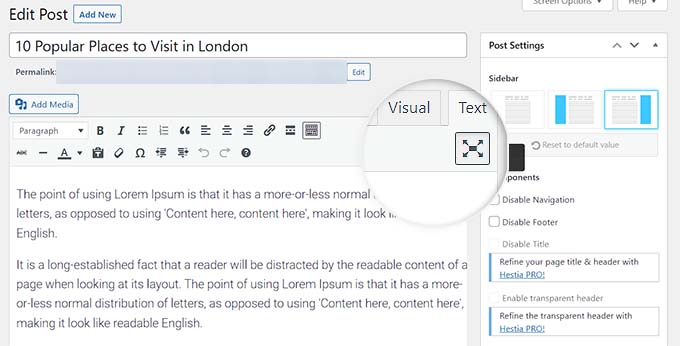
WordPress will now convert the screen into a clutter-free, fullscreen editor.
The fullscreen editor has a minimalist layout. It has a menu bar on top of the screen with text formatting options and even lets you easily switch between the visual and text editors.
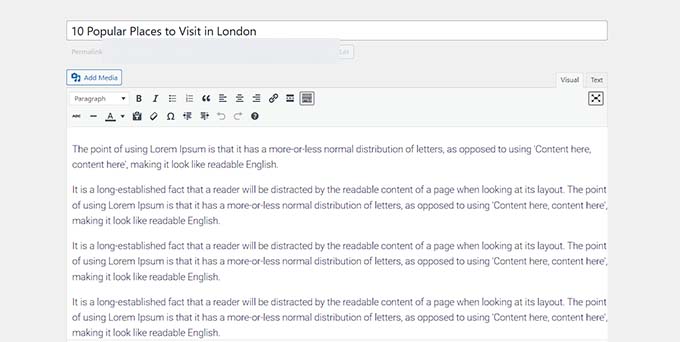
You’ll notice the Publish button and other settings like categories and tags are hidden. This is an intentional design choice to keep your focus entirely on the content.
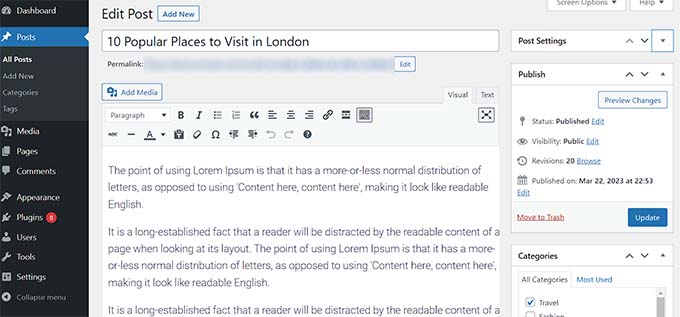
Once you are finished writing, you can exit this mode to access the publishing controls. Simply move your mouse to the left or right side of the screen, and the standard WordPress admin interface and dashboard will reappear.
Now, simply click the ‘Update’ or ‘Publish’ button to save your post content.
Bonus Tips for the WordPress Block Editor
Other than enabling the distraction-free mode, you can use some other features in the block editor to improve your productivity.
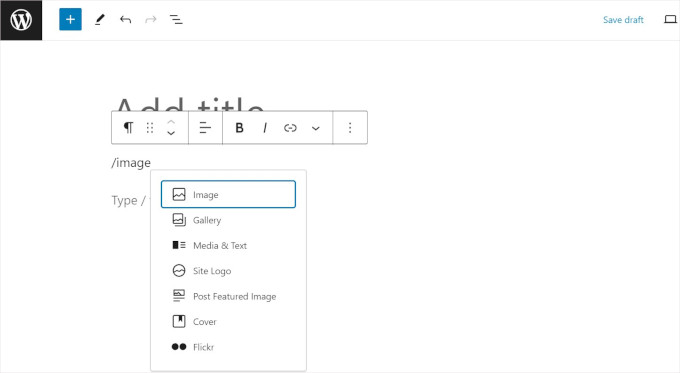
You can use keyboard shortcuts to create content more quickly. For example, simply type / into the content editor, followed by the name of the block you want to use.
The block editor will then show you blocks that you can insert straight into your content by clicking on them.
You can also use the synced patterns (formerly reusable blocks) feature to save any content block and reuse it in other posts and pages on your WordPress site.
This can save you lots of time and effort.
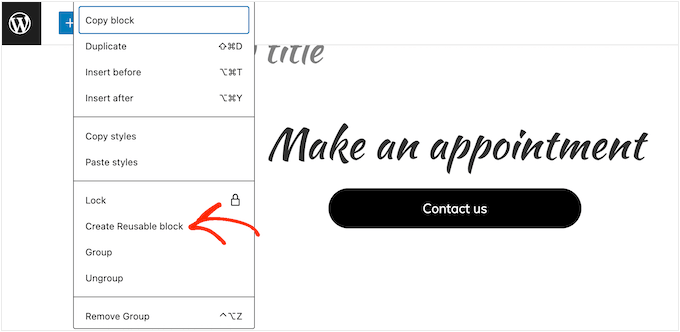
To become a complete pro at using the post editor, see our step-by-step guide on how to use the WordPress block editor.
Frequently Asked Questions About the Distraction-Free Editor
Here are the answers to some common questions we get about using the WordPress distraction-free writing modes.
What is the difference between Fullscreen, Distraction-Free, and Spotlight mode?
Think of them as layers of focus. Fullscreen mode is the default and hides the main WordPress admin menu. Distraction-free mode goes further by hiding the top and side editor panels.
On the other hand, spotlight mode adds another layer by dimming all blocks except the one you’re currently writing in.
Will using these modes change how my published post looks?
No, not at all. These are editor-only viewing modes designed to help you focus.
They have no effect on the layout, design, or content of your final published post that visitors see on your website.
Do I need to install a plugin to use this?
No plugin is needed. The fullscreen, distraction-free, and spotlight modes are all built-in features of the WordPress core block editor. The classic editor also has its own built-in version.
How do I exit distraction-free mode to see all the settings again?
Simply move your mouse cursor to the top of the screen, and the top toolbar will reappear.
From there, you can click the three-dot menu icon and uncheck ‘Distraction-free’ to restore all the panels and sidebars permanently.
We hope this article helped you learn how to use the distraction-free fullscreen editor in WordPress. You may also want to see our beginner’s guide on how to properly use the More block in WordPress and our expert picks for the best Gutenberg blocks plugins for WordPress.
If you liked this article, then please subscribe to our YouTube Channel for WordPress video tutorials. You can also find us on Twitter and Facebook.


Jiří Vaněk
It’s a great method. I learned to write only in an ordinary Windows text editor. Nothing distracts me there at all. Then I just copy it into WordPress, edit the captions and add the media. It’s a great way to stay away from distractions. This is very close to it, and I strongly believe that this can really increase the productivity and focus of writing.
Ralph
This is great solution for productivity. No distractions of any sort, just pure creation. I used to write in word and then copy paste it to wordpress but with this feeling of blank paper i think i will write straight in wordpress.
Ahmed Omar
This is a good option
It is my first time to notice this option in classic editor.
I have question about, how to control the distance between the lines in the paragraph, also classic editor has limited sizes for writing how to have more sizes.
Thank you
WPBeginner Support
For line spacing with the classic editor, we would recommend taking a look at the CSS method from our article below:
https://www.wpbeginner.com/beginners-guide/how-to-add-single-double-line-spacing-in-wordpress/
Admin
Manish Yadav
Is there any way to keep it enabled by default using custom code?
WPBeginner Support
We do not have a recommended custom code for what you’re wanting at the moment.
Admin
Aveherer Finereferg
I don’t know why but the full-screen option makes the text invisible when I am writing it. It is actually very distracting and I can’t turn it off universally for all of my posts
WPBeginner Support
If it is removing the post content then you may want to try disabling your plugins and swapping themes to see if there is a conflict due to one of those.
Admin
Palla Sridhar
I was fooled by article title thinking its about the old style Wordpress editor. But lucky charm, it helped me to get to know the features of the new Block editor. Thank you very much.
WPBeginner Support
You’re welcome
Admin