


Recently, one of our users asked us how they can upload large images in WordPress. While this used to be a common issue years ago, most modern WordPress hosting providers now offer generous upload limits (often 64MB to 512MB) that accommodate most image sizes.
In fact, if you’re hitting upload limits today, it’s worth considering whether you actually need such large files. Most high-quality web images are well under 5MB, and proper optimization can reduce them further without losing visible quality.
However, if you do need to upload exceptionally large files (like high-resolution photography or design files), we’ll show you how to adjust these limits. Just keep in mind that very large images can slow down your website and affect user experience.
💡 Quick Answer: How to Upload Large Images in WordPress
Most modern WordPress sites already allow large images. If you hit a limit, you can increase it using a plugin like WPCode. However, optimizing your images first is usually best for website speed.
Understanding WordPress Image Upload Limits
Most WordPress hosting plans today allow files between 64MB and 512MB, so hitting the upload limit is uncommon.
If you see an error like “filename.jpg exceeds the maximum upload size for this site”, it’s often caused by hosting restrictions, PHP memory limits, or server settings, not WordPress itself.
For context, typical optimized images are much smaller than most limits.
- Blog post images: 1–2 MB – balance visuals with page speed.
- Product photos: 2–3 MB – high detail for e-commerce, optimized for fast loading.
- Header images/banners: 2–4 MB – optimize above-the-fold content.
- Portfolio images: 3–5 MB – showcase detail without slowing your site.
- High-res originals (RAW, TIFF, PSD): 5–50 MB+ – usually convert before uploading.
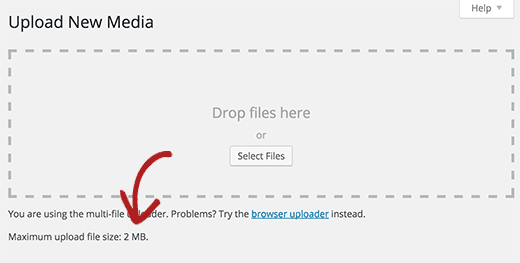
To check your current upload limit, go to Media » Add New in your WordPress dashboard.
If you run into issues, this guide will show you how to fix upload limits so you can easily add large files to WordPress.
🚨 Wait! Before moving on to the rest of the tutorial, we strongly recommend using an image optimization tool first to reduce your file sizes without losing quality. This will help your website load faster and rank better in search engines.
See our guide on how to optimize images for web performance for step-by-step instructions.
How to Increase Maximum Image Upload Size in WordPress
If you want to upload large images and media files in WordPress, then here is how you will fix the image upload size issue in WordPress.
This method requires you to add code in WordPress. If you haven’t done that before, don’t worry, because we’ll use a free code snippet plugin called WPCode to do this safely.
To get started, you need to install and activate the free WPCode plugin. For instructions, see this tutorial on how to install a WordPress plugin.
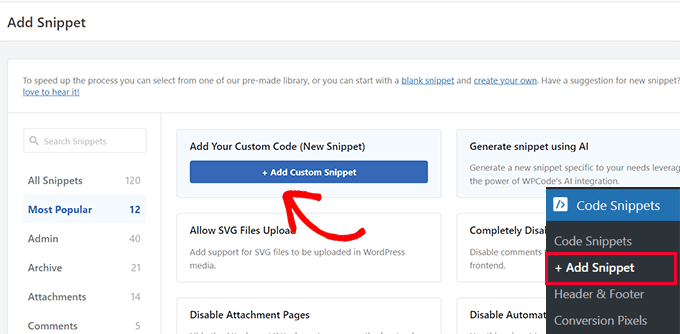
Once the plugin is activated, go to the Code Snippets » + Add Snippet page from your WordPress dashboard.
From there, click the ‘+ Add Custom Snippet’ button under the ‘Add Your Custom Code (New Snippet)’ option.
Next, add a title for your code and paste the following snippet into the ‘Code Preview’ box.
Keep in mind that for upload_max_size and post_max_size, this method may not always work reliably as these settings are often read before WordPress plugins fully load.
@ini_set( 'upload_max_size' , '256M' );
@ini_set( 'post_max_size', '256M');
@ini_set( 'max_execution_time', '300' );
Make sure to replace ‘256M’ with your desired maximum file size. For large uploads, also ensure that the post_max_size is equal to or greater than upload_max_size.
Don’t forget to select ‘PHP Snippet’ as the code type from the dropdown menu on the right side of the screen.
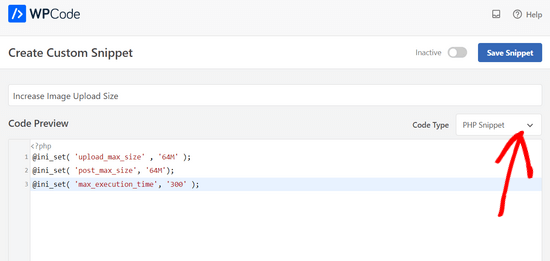
Finally, simply switch the toggle from ‘Inactive’ to ‘Active.’
Then click the ‘Save Snippet’ button.
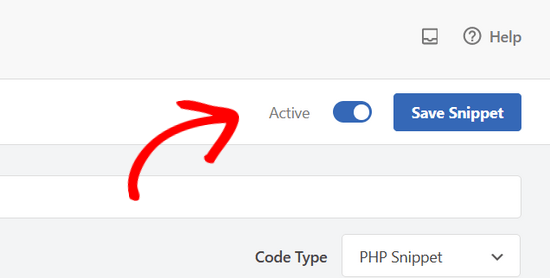
This code attempts to increase the upload maximum file size, post maximum size, and maximum execution time limits for your WordPress site.
However, for upload_max_size and post_max_size, this method may not always work reliably because hosting server configurations often override script-level ini_set calls, or these settings are read before WordPress plugins execute.
If this snippet doesn’t solve your issue, you may need to increase your WordPress memory limit or contact your hosting provider to adjust these PHP settings for you.
You can also refer to our comprehensive guide on how to increase maximum file upload size in WordPress for more advanced methods.
Do You Really Need to Upload Large Image Files in WordPress?
Let’s put image sizes in perspective. As we mentioned, most truly optimized web images should be well under 1MB, even for high-quality photography.
Even if you’re a professional photographer wanting to showcase your work, remember that web visitors don’t need the same resolution as print media.
A properly optimized image (ideally under 1MB) can look just as stunning on screen as a 15MB one while loading much faster.
Large image files affect your website in several ways:
- Slower page load times
- Higher hosting storage usage
- Reduced search engine rankings
- Poor user experience on mobile devices
Here’s what we recommend Instead:
- Optimize your images before uploading as we recommended.
- Use a gallery plugin like Envira Gallery for photography websites. It automatically handles image optimization and creates responsive galleries that load quickly on all devices.
- Consider using a CDN (Content Delivery Network) like Envira CDN if you have a large image library. CDNs serve your images from servers worldwide, improving load times and user experience. For more recommendations, see our picks of the best WordPress CDN services.
Frequently Asked Questions About Uploading Large Images in WordPress
Here are some questions that our readers have frequently asked about uploading large images in WordPress:
How do I upload a 100 MB file in WordPress?
You can upload a 100 MB file by increasing your WordPress upload limit through your hosting settings, php.ini, or using a plugin like WPCode. Most hosts allow 64–512 MB by default, so you may just need to adjust your configuration.
What is the maximum image size in WordPress?
The maximum image size in WordPress depends on your hosting settings. Most providers allow uploads from 64 MB to 512 MB, which is more than enough for standard web images and portfolios.
What is a good image size for WordPress?
A good image size for WordPress balances quality and speed:
- Blog posts: 1–2 MB
- Product images: 2–3 MB
- Header images: 2–4 MB
- Photography portfolios: 3–5 MB
Is JPEG or PNG better for WordPress?
JPEG is usually better for WordPress photos because it keeps file sizes smaller, while PNG is ideal for graphics or images needing transparency. Choosing the right format helps your site load faster.
For more information, you can see our guide on WebP vs. PNG vs. JPEG: The Best Image Format for WordPress.
That’s all, we hope this guide helped you learn how to upload large images in WordPress. You may also want to see our guide on effective WordPress design elements and our picks of the best drag-and-drop WordPress page builders.
If you liked this article, then please subscribe to our YouTube Channel for WordPress video tutorials. You can also find us on Twitter and Facebook.





Moinuddin Waheed
I have encountered this problem and never realised that this is because of the default size of 2MB.
Thanks for letting us know about how to add and increase the file size using the code snippets.
I have been using wpcode for inserting any type of code snippets and it is the best approach to add codes without breaking your site.
edizzz
How do I put a button to download the image of the post like the wallpapers sites?
Tyler Simonds
Re-sizing images prior to upload is a pain–a whole ‘nother step that WordPress should do automatically.
Brittney
Hello,
I tried using this code the 1st code into the functions folder, and now my website no longer works. I am getting “Parse error: syntax error, unexpected ‘@’ in ___” even after I have deleted the code and tried to update it back to normal. Any suggestions?
Wali shah afridi
i upload the above code but still the large image file does not upload in my block , kindly tell my that what i do know ??
Chase
I would like to clarify that making changes to functions.php files has no effect and that editing my .htaccess file causes an internal server error no matter how perfect I try to make the code. Should I be uploading large video files using another method? The main reason I want to upload the video is to share with a small group of people. I can’t upload it with YouTube, and therefore can embed into Wordpress via YouTube because they claim a copyright on my music and the audio is automatically hushed. I need that specific audio track with my video, so YouTube is not an option. So I guess if I can’t solve this problem I need to either find a video hosting service that does not flag copyrighted material or try to host it myself, both of which are a bit off topic for this message board. I am assuming in am out of luck at this point.
Chase
Nothing works to upload large files on my GoDaddy Wordpress multi-site account running the new version of php. I certainly can’t add directly though my Wordpress media browser, so I upload the recommended way via FTP first. The problem is I can’t get the files from my ftp folder to the Wordpress media browser. Very little relevant information is posted about the topic online. The recommended “Add from server” plugin does not work. The backup version does not work. The developer does not know. I have all my settings at the right levels in the cPanel configuration settings. I verified with GoDaddy three times. GoDaddy said I can’t do anything more on the hosting end and that it should work. Since the actual php.ini file is not accessible in GoDaddy, creating a new php5.ini or regular php.ini is recommended for GoDaddy servers, but this does not work for me. I can’t edit my actual php.ini file as the video shows. My files size a 150MB mp4 video file and can’t get it much smaller. I adjusted all of the WordPress settings for uploading large files and video files. This did not work. Does anybody know what to do? In the meantime, I am trying to find an another plugin that actually works.
WPBeginner Support
You can simply paste the link of the uploaded file into your WordPress post editor and it will embed it for you. For example if you uploaded the file /wp-content/uploads/my-video.mp4 then you can just add http://example.com/wp-content/uploads/my-video.mp4 in a blog post (replace example.com with your own domain name) and WordPress will embed it for you. Give it a try let us know how it goes.
Admin
Lutaaya paddy
thank you for this article it has worked for me . the code which is put in the .htaccess
Penelope
The reason I would like my max upload size increased is because I have a button that opens a URL link of my catalog for customers to download. This link is from my media folder in wordpress.
If I use a link in a button, does this slow down my website? Do you have a recommendation on how to go about allowing viewers to view a pdf catalog without slowing down a website?
Ankit Agarwal
Though for photographers, using a template ( or theme ) that does not allows large image sizes is not understandable. And for rest of us using a plugin seems logical since we will never want to upload a 10 MB+ ( even that’s too high) for the fear of reducing speed. Other wise can there be another reason of uploading high res images?
gary odom
You call this WP for beginners but when you proceed to talk about things like php file and ftp client you assume a beginner knows of what you speak. I am sure there many that do, but do real beginners really know what you are talking about? Of course, you are entitled to do what you wish, but it certainly does not cater to true beginners that are still finding they way around the WP program. Many of us had our hosting service install WordPress for us so we are not acquainted with much of what you speak. i am anxious to learn but first I must understand the basics.
WPBeginner Support
Thanks for the feedback. We do miss things occasionally, but you can always ask us to clarify in the comments. We will be happy to offer further explanation.
PHP is the programming language in which WordPress is written. FTP client is a software that allows you to connect to your web server to edit and upload files on your shared hosting server. Take a look at our guide on how to use FTP to upload files to WordPress for beginners.
Admin
Rybird
Very well written informative article.