


Imagine opening your inbox and seeing an urgent email from “WordPress Security Team.” It warns you about a serious vulnerability and urges you to act fast.
You panic. Losing your website could mean losing customers, revenue, or years of hard work. But here’s the catch—this email isn’t real. It’s a scam designed to trick you into clicking a dangerous link.
Unfortunately, fake security emails are becoming more common. I’ve analyzed dozens of phishing headers and helped users recover sites where submission delivery rates were compromised by these scams.
In this guide, I’ll show you how to tell if a WordPress security email is real or fake. You’ll learn the red flags to watch for and what to do if you receive a suspicious email.
Quick Summary
A legitimate WordPress security email will always come from a @wordpress.org domain, never include attachments, and never ask for your password. If you receive a suspicious email, do not click any links. Instead, verify the claim by checking the official WordPress.org news site or your hosting provider’s dashboard.
How These Fake WordPress Security Emails Work
Scammers are getting smarter. They know website owners worry about security, so they create emails that look official.
WordPress is the most popular website builder, and it is also very secure. Malicious hackers have a hard time finding vulnerabilities in WordPress code, so they resort to phishing instead.
Phishing is a scam technique where attackers impersonate trusted sources to steal your sensitive information. These emails might claim to be from the WordPress Security Team, your hosting provider, or a well-known security company.
The message usually includes:
- A warning about a vulnerability on your site.
- A reference to a security flaw with a name like “CVE-2025-45124.”
- An urgent request to take action by clicking a link or downloading a security patch.
But here’s the trick: the link doesn’t go to WordPress.org. Instead, it leads to a phishing site that looks real but is designed to steal your login credentials. Some emails also ask you to install a plugin that contains malware.
Once the scammers gain access to your site, they can add backdoors, redirect visitors to harmful sites, or even lock you out completely. That’s why it’s important to recognize these fake emails before it’s too late.
How to Spot a Fake WordPress Security Email
Spotting a fake WordPress security email isn’t always easy. Some scammers use logos, professional formatting, and technical terms to make their messages look legitimate.
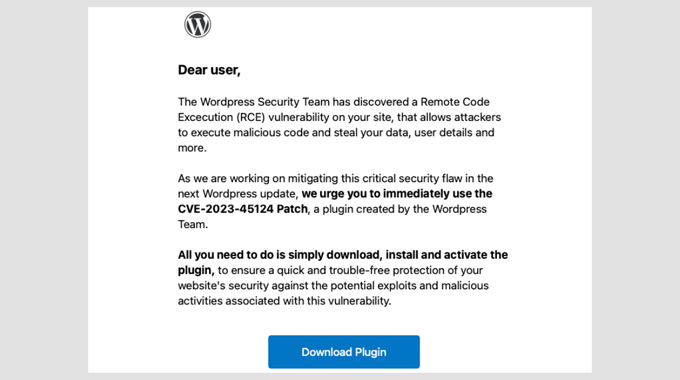
However, there are certain easily identifiable red flags that give these scams away. Here are the most common ones:
- Suspicious Email Address: Check the sender’s domain carefully. Official WordPress emails come from
@wordpress.org(the primary domain) or occasionally@wordpress.net. Any other domain is a fake. - Urgent Language: Phrases like “Act now!” or “Immediate action required!” are designed to create panic and rush you into clicking without thinking.
- Poor Grammar and Formatting: Many scam emails have typos, awkward phrasing, or inconsistent branding. Compare it with past emails from WordPress for clarity and tone.
- Links That Don’t Match the Destination: Hover over any link in the email (do not click!) to see where it actually leads. If it doesn’t point to
wordpress.org, don’t click it. - Unexpected Attachments: WordPress never sends attachments in security emails. If there’s a file attached, it’s a scam.
- Requests for Passwords: WordPress will never ask for your password or login credentials via email. Any email requesting this information is fake.
I’ve seen all of these tricks in action. One user I worked with clicked a link from a fake email and unknowingly gave away their login details.
Their site was compromised within hours, redirecting visitors to a phishing page. Stories like this remind us how important it is to stay cautious and verify every detail.
Once you start recognizing these red flags, you’ll feel more confident handling suspicious emails. Remember, taking a few seconds to verify can save you from days or even weeks of cleaning up your site.
Think a WordPress Security Email is Real? Here’s How to Know for Sure
Sometimes, even the most cautious website owners hesitate when they see a well-crafted security email. Scammers are getting better at making their messages look real.
However, there’s always a way to verify authenticity before taking action. Here’s how I approach it whenever I receive a security-related email:
1. Check the Official WordPress Sources
WordPress publishes security notices on WordPress.org. If an email claims there’s a critical vulnerability, check the official site first.
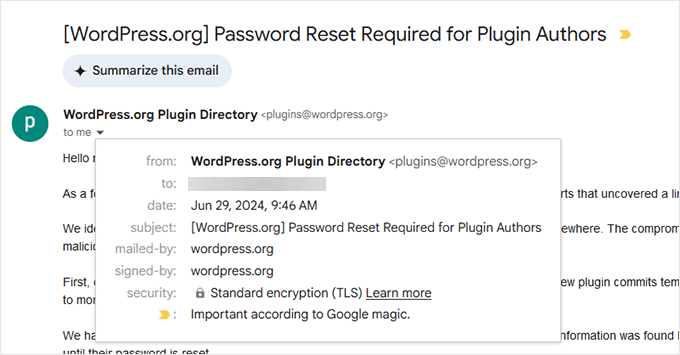
2. Check Email Sender and Signed Information
Official WordPress emails will always be sent from the WordPress.org domain name. In some cases, they may also come from WordPress.net.
3. Compare with Past WordPress Emails
If you’ve received real security emails from WordPress before, check for differences in tone, structure, and branding. Fake emails often have awkward phrasing, inconsistent fonts, or incorrect spacing.
4. Look for a Matching Security Notice from Your Hosting Provider
Reputable WordPress hosting companies post verified security updates on their websites, including:
- Bluehost
- SiteGround
- Hostinger
If your hosting provider hasn’t mentioned the issue, the email may be fake.
5. Hover Over Links Before Clicking
Before clicking any link, hover over it to see where it leads. If it doesn’t point to wordpress.org or your host’s official site, don’t trust it.
Hackers often use deceptive domain names that look like a wordpress.org domain but aren’t. For instance, a domain called security-wordpress[.]org is not an official WordPress domain name, but some users may not catch that in time.
6. Use a WordPress Security Plugin
Plugins like Wordfence and Sucuri track vulnerabilities and send real security alerts. If your plugin doesn’t mention the vulnerability, it’s likely a scam.
One time, a user sent us a security email that looked convincing. It mentioned a plugin vulnerability, included a CVE number, and even had the WordPress logo.
When we checked WordPress.org, there was no mention of it. A quick look at the email header showed it came from a suspicious domain, confirming it was a phishing attempt.
These quick verification steps can help you avoid falling for scams. If you’re ever in doubt, wait and verify. Real security alerts won’t disappear in a few hours.
What to Do If You Receive a Fake Security Email
So, you’ve spotted a fake security email. Now what?
The worst thing you can do is panic and click on anything inside the email. Instead, take these steps to protect your website and report the scam.
🫸 Do Not Click Any Links
Even if the email looks legitimate, never click on links or download attachments. If you have already clicked, change your WordPress password immediately.
🕵️ Check Your Website for Suspicious Activity
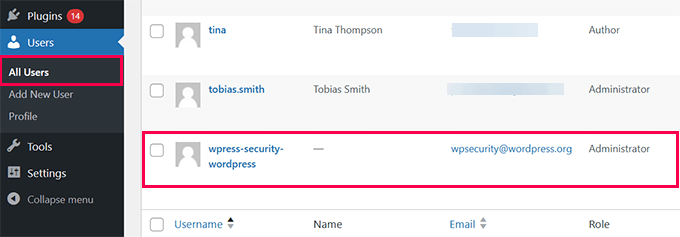
Log in to your WordPress dashboard and look for any unfamiliar admin users, recently installed plugins, or settings changes.
📨 Report the Email to Your Hosting Provider
Most web hosting companies have dedicated security teams that handle phishing scams. Contact your host’s support team and provide details about the suspicious email.
🚩 Mark It as Spam
Flagging the email as spam in your inbox helps email providers filter similar messages in the future. Spam filters at big email companies like Gmail and Outlook are incredibly smart and get data from several other spam filtering companies.
When you mark an email as spam, you teach their algorithms to identify similar emails in the future and block them.
🔍 Run a Security Scan
Use a WordPress security plugin like Wordfence or Sucuri to scan for malware, just to be safe. For information on how to do this, see our guide on how to scan your WordPress site for potentially malicious code.
One website owner we worked with ignored a fake security email but later found that their WordPress login page had been attacked.
Fortunately, they had Cloudflare set up on their website. Even the free plan includes basic rate limiting and bot protection, which helped block malicious login attempts.
What Happens If You Fall for the Scam?
Even if you’ve followed all the prevention tips above, mistakes can still happen. Clicked on a link in a fake email? Installed a suspicious plugin? Don’t worry—you’re not alone.
We’ve seen site owners panic after realizing they’ve been tricked, but acting quickly can minimize the damage. Here’s what you need to do right away:
1. Change Your Passwords: If you entered your WordPress login details, change your password immediately.
You should also update the following passwords to prevent unauthorized access:
- Hosting account
- FTP account
- Database password
2. Revoke Unknown Admin Users: Log in to your WordPress dashboard and check Users » All Users. If you see an unfamiliar administrator account, delete it.
3. Scan Your Website for Malware: Use a security scanner plugin like Wordfence or Sucuri to check for malicious files, backdoors, or unauthorized changes.
4. Restore a Backup: Ideally, you should have your own backups from a WordPress backup plugin like Duplicator. We recommend Duplicator because it is secure, reliable, and makes it very easy to restore your website when something bad happens.
To learn more, see our full Duplicator review.
If you don’t have a backup, try reaching out to your hosting provider. Most good WordPress hosting companies keep backups and can help you restore your website from a clean backup.
5. Check Your Website’s File Manager
Access your hosting control panel or FTP and look for recently modified files. If you find unfamiliar PHP scripts, they could be part of a backdoor.
Hackers often use deceptive names like wp-system.php, admin-logs.php, or config-checker.php to blend in with core WordPress files. Some may use random strings like abc123.php or create hidden directories in /wp-content/uploads/.
6. Update WordPress and All Plugins
If an attacker has exploited a vulnerability, updating your site ensures they can’t use the same method again. Outdated themes, plugins, or WordPress core files may contain security flaws that hackers exploit.
Go to Dashboard » Updates and install the latest versions. See our guide on how to safely update WordPress for more details.
We once helped a small business owner whose site had been compromised after they installed a fake security patch. The hacker injected malicious scripts that redirected visitors to a phishing site.
Luckily, they had a recent backup. Restoring it along with resetting passwords saved their website.
If your site has been hacked, you can follow our step-by-step guide to clean up your WordPress website: How to Fix a Hacked WordPress Site (Beginner’s Guide).
How to Protect Your Website From Future Scams
Preventing fake security emails is just as important as spotting them. While scammers will always try new tricks, taking a few precautions can keep your site safe.
- Enable Two-Factor Authentication (2FA): Adding 2FA to your WordPress login prevents unauthorized access, even if your password gets stolen.
- Use WordPress Firewall & Security Plugins: Use a WordPress firewall like Cloudflare and then strengthen it with a security plugin like Wordfence or Sucuri.
- Update WordPress, Plugins, and Themes: Keeping everything updated prevents hackers from exploiting known vulnerabilities.
- Verify Emails Before Acting: Always check WordPress.org and your hosting provider’s website before acting on security emails.
- Educate Your Team: If multiple team members work on your site, train them to recognize phishing emails and report anything suspicious.
By following these steps, you’ll make it much harder for scammers to trick you and keep your WordPress site secure.
Frequently Asked Questions About WordPress Security Emails
Here are some common questions we get about WordPress security emails and phishing scams.
Does WordPress send security emails?
Yes, WordPress does send legitimate security emails. These include auto-update notifications, password reset confirmations, and alerts about critical vulnerabilities. However, these emails always come from @wordpress.org and never ask you to download patches or click suspicious links.
What email address does WordPress use?
Official WordPress emails come from the @wordpress.org domain. You may occasionally see emails from @wordpress.net, but this is less common. Any other domain claiming to be WordPress is fake.
How do I report a fake WordPress security email?
You can report phishing emails by marking them as spam in your email client. This helps email providers block similar messages. You can also report the scam to your hosting provider’s security team, which often has a dedicated process for investigating phishing attempts targeting their customers.
Can a fake email install malware automatically?
Simply opening an email usually cannot install malware on your computer or website. However, Clicking links or downloading attachments can cause damage. That’s why you should never click links or download files from suspicious emails.
Stay One Step Ahead and Keep Your Website Safe
Fake WordPress security emails may sound scary, but now you know how to spot them before they cause any damage. Remember, scammers rely on fear and urgency, but you can outsmart them by staying calm 😎.
Next time you see a suspicious email, take a deep breath, slow down, and check the details. You’re in control.
By verifying emails, keeping your WordPress site updated, and using the right security tools, you can make your website a much harder target for scammers.
Want to take your website security to the next level? We have compiled a complete WordPress security guide with step-by-step tips. You may also like to see our expert pick of the best WordPress security scanners for detecting malware and hacks.
If you liked this article, then please subscribe to our YouTube Channel for WordPress video tutorials. You can also find us on Twitter and Facebook.




Have a question or suggestion? Please leave a comment to start the discussion.