


Each product in your WooCommerce store has a unique identity number assigned to it. Knowing how to find these product IDs can help you apply specific settings, manage inventory, configure custom plugins, or troubleshoot issues.
We’ve helped create a lot of eCommerce stores, and there have been times when we needed to use product IDs for better store management. So, we understand how important this information can be for store owners.
In this beginner’s guide, we will show you how to quickly find a product ID in WooCommerce.

💡 Quick Answer: How to Find Product ID in WooCommerce
You can find a WooCommerce product ID by going to Products » All Products and hovering over the product title. Alternatively, click ‘Edit’ on a product and check its ID in the browser’s URL bar.
For variations, edit the main product and see each variation’s ID under the ‘Variations’ tab.
What Is Product ID in WooCommerce?
A Product ID in WooCommerce is a unique number automatically assigned to each product in your store.
WooCommerce uses this ID to fetch the correct product details, process orders, and manage database relationships efficiently.
While it works behind the scenes, you might need a product ID for tasks like:
- Displaying a specific product on a page
- Using a plugin that requires a product ID for upsells, related products, or custom layouts
Knowing the product ID makes it easier to manage your store and integrate with plugins. Having said that, let’s look at how you can quickly locate a WooCommerce product’s ID:
How to Locate a Product ID in WooCommerce
WooCommerce makes it very easy to find a product ID.
Simply go to the Products » All Products page. You will see a list of the most recent products added to your WooCommerce store.
Move the mouse over a product title, and a line of commands will appear below it. This line also includes the product ID displayed as ‘ID:’ followed by the ID number.
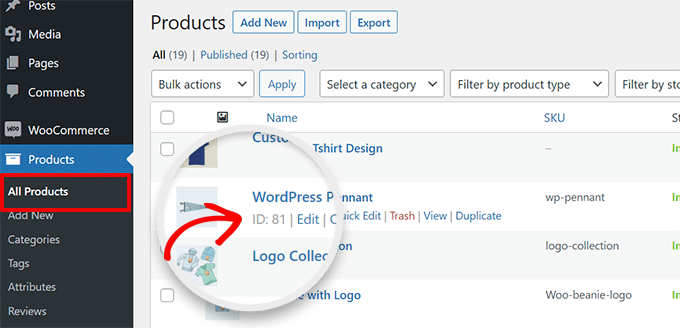
For instance, a product might have an ID like 81.
If your store has only a handful of products, you can scroll down the products page to locate a product and see its ID.
You can also use the search bar at the top right corner of the products table to quickly find a product by name.
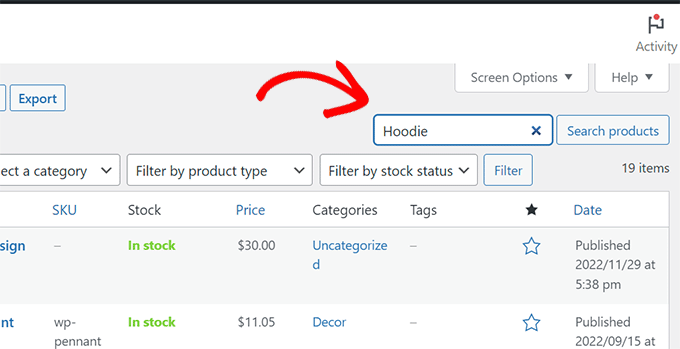
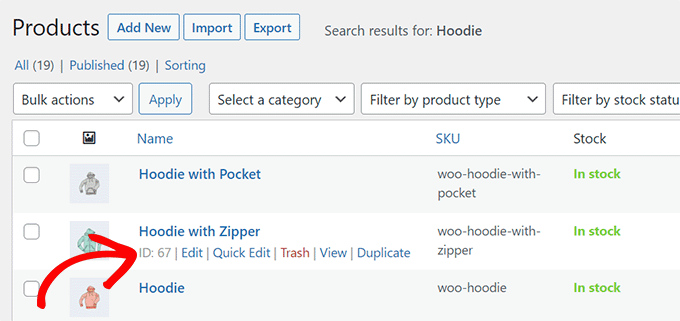
Once the list is narrowed down, move your mouse over the product title.
You will now be able to see its ID.
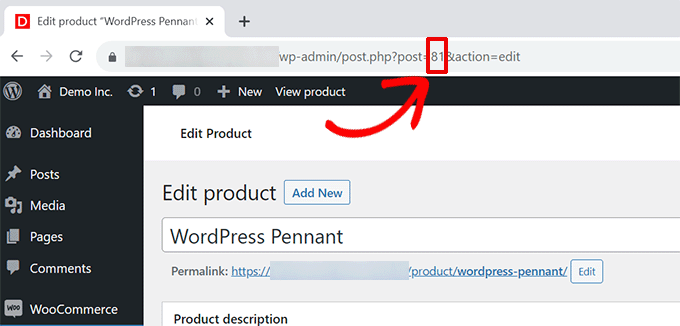
You can also find a product ID by clicking on the ‘Edit’ link.
This will open the ‘Edit Product’ page. Now, if you look at your browser’s address bar, you’ll find the product ID in the URL.
Finding Product ID For a Variation Product in WooCommerce
If the product you are looking for does not have variations, you can use the above methods to find its product ID.
However, if the product you are looking for has variations, each variation is assigned its unique product ID.
For instance, if you sell a T-shirt in three colors, like red, blue, and green, then you will add different colors as a product variation.
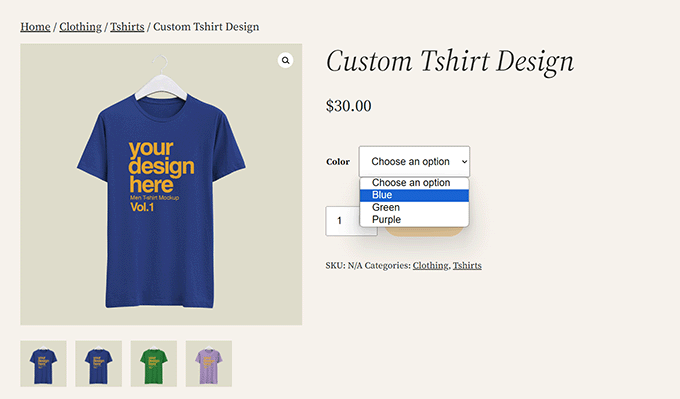
If you only need a product ID for a specific variation, here is how you will find it.
Simply locate the product by visiting the Products » All Products page. After that, click on the ‘Edit Product’ link below the product title.
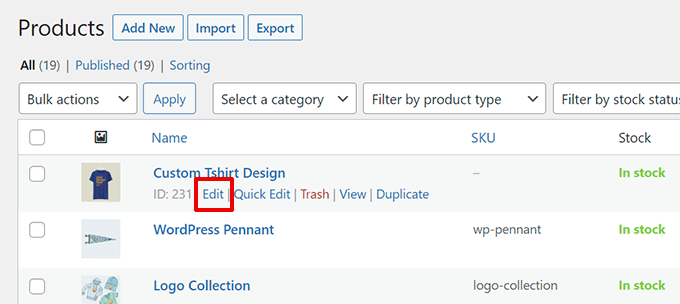
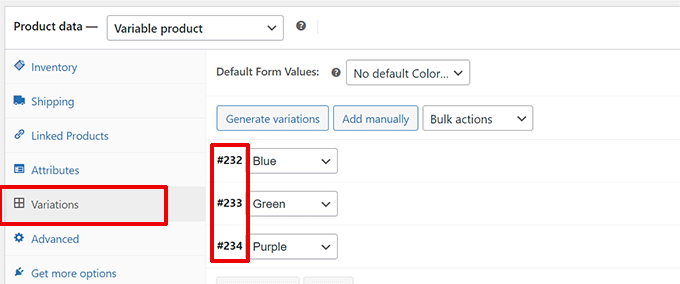
On the product edit screen, scroll down to the ‘Product Data’ section.
From here, click ‘Variations,’ and it will show you all product variations with their IDs.
What is The Difference Between Product SKU and ID?
While both product IDs and SKUs (Stock Keeping Units) are unique identifiers, they serve very different functions. Understanding the distinction is key to effective store management.
Here’s a quick breakdown of the main differences:
| Attribute | Product ID | Product SKU |
|---|---|---|
| ⚙️Generation | Automatically created by WooCommerce for every product. | Manually entered by you, the store owner. |
| 🎯Purpose | An internal identifier used by the database to fetch product data. | An external identifier used to track inventory, manage stock levels, and for barcodes. |
| 🧩Format | Always a number (e.g., 81, 152). | Can be any combination of letters and numbers (e.g., TSHIRT-RED-SM). |
| ✅Requirement | Mandatory. Every single product in your store has a unique ID. | Optional, but highly recommended for all products. It’s essential if you track inventory for physical products, but also useful for organizing digital products. |
While you might not track inventory for digital downloads or services in the same way as physical products, using SKUs for all your products is a good practice for organization and reporting.
However, every product will always have a unique, system-generated ID.
Now that you understand the key differences, let’s look at some other common questions people have about managing products in WooCommerce.
Frequently Asked Questions About WooCommerce Product Identifiers
Having helped thousands of users set up their WooCommerce stores, we often hear similar questions about product identifiers. Here are the answers to the most common ones.
Can I change a product ID in WooCommerce?
No, you cannot directly change a product ID. WooCommerce and WordPress automatically assign this permanent number when a product is first created, and it serves as a fixed reference in your site’s database.
If you were to change it, it would break the connections between the product and any associated orders or metadata.
The only way to get a new ID is to delete the product and create a new one, but this is not recommended as all historical data will be lost.
Is the product ID the same for all product variations?
No, each product variation gets its own unique ID. The main “parent” product has its own ID, but each specific variation (like ‘Small’ or ‘Blue’) is also assigned a separate ID.
This allows you to manage inventory, pricing, and other settings for each specific variation independently.
Do I need to use product IDs for my store to work?
You don’t need to know or use the product IDs for your store to function day-to-day, as WooCommerce handles them automatically in the background. However, you will need to find and use these IDs when working with certain plugins, shortcodes, or custom code that require you to target a specific product.
Additional Resources and Next Steps
We hope this article helped you learn how to find product IDs in WooCommerce.
You might find these other guides helpful for managing your online store:
- How to Edit WooCommerce Pages (No Coding Required)
- How to Show Frequently Bought Together Products in WooCommerce
- WooCommerce SEO Made Easy – A Step-by-Step Guide to Ranking #1 in Google
- How to Add Product Badges in WooCommerce (Quick and Easy)
- How to Create Faster Checkout in WooCommerce (Expert Tips)
- Ecommerce Security Tips: How to Secure Your WordPress Store
If you liked this article, then please subscribe to our YouTube Channel for WordPress video tutorials. You can also find us on Twitter and Facebook.





Oyatogun Oluwaseun Samuel
This is incredibly helpful and a must read for anyone new to wooCommerce and want to streamline their store management, of particular useful tip from this article is using the Products>>All Product’s page and hovering over a product title to quickly see its ID. This save time and it is straightforward, especially if one has large inventory. Thank you for this very nice guide!
Jiří Vaněk
I was used to finding the ID of anything in WordPress by looking in the URL, which can sometimes be complicated. The method of having the ID directly in the product list is great, and since WooCommerce is quite new to me and I’m still learning it, this is a useful tip for when I need to find IDs. Being accustomed to WordPress, I would have looked for it in the URL again, which is possible but unnecessarily complicated and time-consuming.
Ralph
This is nice and fast guide with all important info and no fluff.
I have a question. Can we set custom IDs?
Lets say I want t-shirts to be 1-100 and hoodies 101-200 even if i have only 20 t-shirts and 5 hoodies? Just for my own organization sake.
WPBeginner Support
Not at the moment with WooCommerce.
Admin
Oyatogun Oluwaseun Samuel
for the benefit of those who may want to ask the same question because I notice it has been long you asked this question about setting custom IDs in WooCommerce, and might have gotten around it.
Unfortunately, WooCommerce does not natively support custom product IDs. The product IDs are automatically generated by WordPress and are unique to each product.
However, you can use SKU (Stock Keeping Unit) numbers to achieve a similar organizational structure. SKUs can be customized to fit your needs, such as assigning t-shirts SKUs from 1-100 and hoodies from 101-200. This way, you can maintain your desired organization without altering the default product ID system
A Owadud Bhuiyan
When I was a beginner, I didn’t know the post = 81 was the product ID.
This article is really helpful for the beginner.
WPBeginner Support
Glad our article was helpful
Admin