


After optimizing thousands of WordPress websites over the past 16 years, we’ve learned that URL structure can significantly impact both SEO and user experience
At WPBeginner, we get the question about SEO-friendly URL structures a lot. Many users want to make sure their URLs are optimized for search engines, but they are not sure which permalink (permanent link) structure is best for their needs.
In this article, we will explain what the most SEO-friendly URL structure is and how you can change your permalinks in WordPress.

What are SEO-Friendly URLs?
In search engine optimization (SEO), SEO-friendly URLs contain keywords that give an overview of the web page’s content. They’re descriptive and easy to read for both humans and search engine bots.
Here’s an example of an SEO-friendly URL for a blog post about how to install WordPress:
https://www.example.com/how-to-install-wordpress
And here is what a non-SEO-friendly URL looks like:
http://www.example.com/?p=10467
So, what makes the two different? Here’s an explanation:
- The SEO-friendly URL includes the article’s target keyword or the search query that the content is trying to rank for.
- It uses hyphens to separate words and not any other special characters, like underscores.
- It uses HTTPS instead of HTTP, showing that the website is using an SSL certificate to protect user data.
- The URL’s slug that identifies the web page comes right after the root domain name, without any additional words or numbers in between (like
https://www.example.com/category/2023/how-to-install-wordpress).
While web page URL structures are not a major ranking factor, it is an important technical SEO aspect to optimize for.
This is because they help search engines understand what the pages are about. Plus, they help improve your user experience. With a readable URL, users can get an idea of what they’ll find on the page or post.
What Is the Best Permalink Structure for WordPress SEO?
In WordPress, links are called permalinks (short for permanent links). You’ll see the term permalink structure and URL structure being used interchangeably.
By default, WordPress now uses the post name permalink structure in the URL, like https://www.example.com/how-to-install-wordpress. This is already the most SEO-friendly URL structure.
Even though WordPress already uses an SEO-friendly structure, many people still ask us what the best structure is.
They are wondering if they should change their old non-SEO-friendly URL structure even though they’ve run their website for a while. In the past, WordPress did use the post name permalink format, but this was changed in WordPress 4.2.
Or, maybe they have lots of content, and they want to know if the post name structure is right for them.
To help you out, we will begin by addressing the first question.
Should You Change Your Old URL Structure to a New One?
If your site has been running for more than 6 months, then please don’t change your permalink structure. In fact, you don’t have to use the post name structure we just showed you.
One exception to this rule is if your current URL structure is plain permalinks. We strongly recommend updating it to post name or other readable formats for better SEO.
If you have an established site and choose to change the permalink structure, then you should be aware of the potential issues, such as:
- Losing your existing search engine rankings.
- Making your internal links and backlinks broken.
- Losing all of your social media share counts.
That’s why we recommend hiring a professional to set up proper redirects. This way, users will get automatically sent to the new web page URL after you’ve changed the permalink structure.
How to Set up an SEO-Friendly Permalink Structure
Now, if you have a new WordPress website and want to set up an SEO-friendly URL structure, this is how you do it.
The first thing you need to do is go to Settings » Permalinks from your WordPress admin area. This will take you to a page that looks like this:
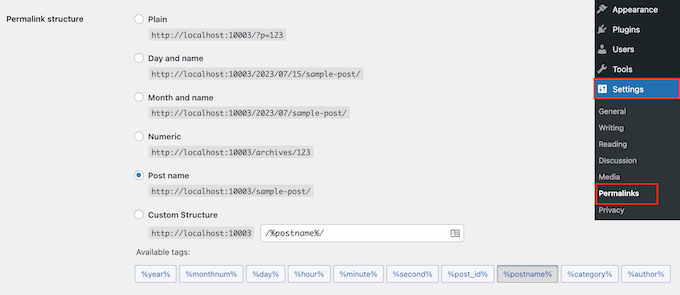
As you can see, there are several permalink structures to choose from, so let’s go through each one.
- Plain (https://www.wpbeginner.com/?p=123) – This used to be the default WordPress URL structure and is not an SEO-friendly option.
- Day and name (https://www.wpbeginner.com/2016/01/22/sample-post/) – This option is slightly SEO-friendly as it has the post name in it. However, with dates, the URL becomes too lengthy. More importantly, your content may look outdated after some time.
- Month and name (https://www.wpbeginner.com/2016/01/sample-post/) – Like the previous option, this format also runs the risk of being dated. But if you are a news publication, then having dates is fine as they can show when the article was released.
- Numeric (https://www.wpbeginner.com/archives/123) – This is similar to plain except that it includes the archives page and post ID. We also do not recommend this option.
- Post name (https://www.wpbeginner.com/sample-post/) – This option is the most SEO-friendly because it’s descriptive and short. This makes it perfect for business sites publishing evergreen content that always ranks on search engine results pages (SERPs).
- Custom Structure – With this, you can choose your own URL structure using the available tags. We recommend this option if you are running a larger publication but find that the post name isn’t user-friendly enough.
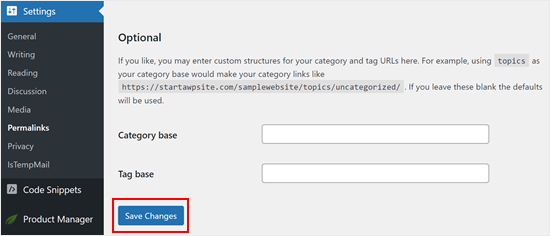
Once you have chosen a permalink structure, scroll down and click ‘Save Changes.’
WordPress will then automatically update your site’s .htaccess file, and your site will immediately start using the new URL structure.
How to Create a Custom URL Structure in WordPress
At WPBeginner, We use a custom permalink structure that adds a category name along with the post name in the URL.
Because our site is large and contains thousands of articles, it suits us very well. You will see larger publications and eCommerce stores with tons of product categories following a similar URL structure.
To use a custom URL structure, you will need to add special tags in the custom structure box. For example, we use:
/%category%/%postname%/
Notice how each tag is wrapped between percent signs. Also, notice the trailing slashes / before, after, and between the tags.
This format works best for us because it describes the content and shows what category it belongs to without being too long.
That said, there are also plenty of other combinations you can create using tags. Here is a list of tags that you can use to create your own custom URL structure:
- %year% – The year of the post in four digits, like 2016.
- %monthnum% – Month number of the year, like 05.
- %day% – Day of the month, like 28.
- %hour% – Hour of the day, like 15 (for 3 pm).
- %minute% – Minute of the hour, like 43.
- %second% – Second of the minute, like 33.
- %postname% – A sanitized version of the title of the post. For example, if your post title is “This Is A Great Post!” It would become this-is-a-great-post in the URL.
- %post_id% – The unique ID # of the post.
- %category% – A sanitized version of the category name. For example, if the category name is “WordPress Tutorials,” it would become “wordpress-tutorials” in the URL. Nested sub-categories appear as nested directories in the URI.
- %author% – A sanitized version of the author name.
Once you have set up your custom permalink structure, don’t forget to click on the ‘Save Changes’ button like before.
Bonus Tip: Improve Your WordPress SEO With All in One SEO
Now that you have set up an SEO-friendly URL structure, you are probably looking for more tips to improve your website’s SEO rankings.
We recommend using the All in One SEO (AIOSEO) plugin. It’s the best WordPress SEO plugin used by over 3 million websites, and this is the tool that we use on WPBeginner.
It comes with all the powerful SEO features you will need like sitemaps, schema generator, redirection manager, link assistant, on-page SEO analysis, and more to help you boost your SEO rankings.
For more details, see our guide on how to properly set up AIOSEO and our full AIOSEO review.
Aside from that, you may also find the following guides helpful:
- Ultimate WordPress SEO guide for beginners
- WordPress SEO checklist for beginners
- How to perform an SEO audit in WordPress
- How to add the ultimate SEO dashboard in WordPress
- Beginner’s guide to generative engine optimization for WordPress
We hope this article helped you create SEO-friendly URLs for your WordPress site. You may also want to see our guide on categories vs tags: SEO best practices for sorting your content and WordPress site settings that are critical for SEO success.
If you liked this article, then please subscribe to our YouTube Channel for WordPress video tutorials. You can also find us on Twitter and Facebook.


Jiří Vaněk
I’ve always used the structure domain/post, but my blog has dates in the URLs because I didn’t notice it at the beginning of my blogging journey. I’ve been thinking for a long time about changing the permalinks and removing the dates. However, I already have 1,300 articles on my site. So I’m glad you mentioned in the article that we shouldn’t do this, as it’s not a good idea and doesn’t make much sense. It reassured me a bit, and I’ll leave the permalink structure as it is now. After all, the fear of losing rankings is quite significant for me.
Miqbal
i want to ask, how you setting the structure for this website? i want like that, example like domain. com/blog/title-article/? thanks
WPBeginner Support
The structure we are using on the site at the moment is /category/postname
Admin
Mrteesurez
This is enlightening. For technical SEO side, it’s better to change an urgly url structure to a readable one. User should be able to identify or for tell of what the link will be all about as he see readable url structure.
I heard it’s good for news blog and website to use days or month in url as it boost ranking, is this true.
Jiří Vaněk
I personally stopped using URLs with dates in them, and I’ll explain why. You write an article on a certain date and then regularly update it, say every 4 months, to include new information. However, the URL doesn’t change. I found that such articles had much lower viewership because, even though they were updated, people didn’t click on them since they saw the date in the URL and chose another article in the SERP, thinking it would be more current. That’s why I no longer use dates in URLs, as they can be misleading and result in a loss of new visitors.
Iriogbe peter
Keynotes from this post and what Google recommended
Google suggests keeping your website addresses simple and easy to understand. When creating a URL:
Using hyphens or dashes (-) is preferred over underscores or other symbols. For instance, go for “my-page” instead of “my_page.”
It’s a good idea to keep things straightforward. Don’t add unnecessary details or extra information to your URLs. Focus on using keywords that accurately describe your content.
If you can, try not to include dates in your URLs unless it’s really important for what your content is about.
Moinuddin Waheed
Earlier I used to have the default options for Permalink structure that was with the WordPress installation.
I have them switched to use the posts slug for Permalink structure as it looks good and seo friendly as well.
Having said this having both category and then posts is very good as it helps categories the posts.
I will do this custom permalink structure for my posts.
Thanks for this helpful guide.
Reza
Hi,
Thank you for your short and informative article. just a quick question?
Our website has been running for more than a year. I checked the permalink and it is set to Day and Name.
what do you think if I change it to Post name?
Thanks
WPBeginner Support
If you decide to change your permalinks then we would recommend taking a look at our guide on creating redirects below to prevent any issues.
https://www.wpbeginner.com/beginners-guide/beginners-guide-to-creating-redirects-in-wordpress/
Admin
Nicola
This is simply the best article I’ve ever read on the topic!!!
WPBeginner Support
Glad you found our article helpful!
Admin
Julia
Hi, thanks for the article, it’s really complete and helpful. Could you please provide examples of plain links?
WPBeginner Support
For plain links, we cover that in the permalinks setting section or you can take a look under Settings, Permalinks to see what plain permalinks would look like for your domain
Admin
Etinosa
I’ve had my blog for almost a year and the permalinks I use is the month, day then post title one. I would like to change it to just the post title.
How do I go about this? I don’t want to end up with broken links.
Do you think I should change it or I should just leave it as it is?
WPBeginner Support
It would be a difficult process to change your permalinks after a year, there are tools on the Yoast site for what to add to your htaccess for redirects or you can keep your permalinks as they are.
Admin
Ute Rehill
Thanks for this. I find all your articles very helpful!
Dwayne S
I have seen where when a post is created it removes words like in, for, at etc. Yoast warns about leaving these words (stop words I believe they are referred to as) in the url. However I notice all your blog posts utilize these stop words. Can you explain why you don’t remove stop words from your urls?
WPBeginner Support
Hi Dwayne,
We believe that this way URLs are more readable and understandable by both human users and search engines.
Admin
Ravi Kumar
Yes, I agreed on this too.
Teresa Solomita
Hey, thanks for this article! My site was launched this week by a developer and now I am learning WP! I changed my permalink setting to post name – they had it as Day and Name!
Gideon
Thanks for the information, I will have to change my permalink since my site is just 3 months old.
SANJEEV KUMAR
Sir,
I used custom structure with post name. The main is comes when i change the post permalink the the post permalink is updated in desktop and working fine but in mobile the permalink not updated and gives 404 error.I used news paper please helped me in this matter.
AKulkarni
Thanks for this nice write-up.
I have one question and if you could advise, that would be grateful.
I have a WordPress website (not launched yet, testing phase). Registered users can submit post and comments. I am using ‘Post name’ as permalink structure. Issue arises when user changes the post title, the permalink also changes which from SEO point of view will have broken links in search if already indexed. I understand i can switch to ‘Plain’ permalink (Post Id) structure. But I want to utilize URL keywords from SEO point if view.
Is there any to achieve this by using custom permalink structure or only way is to use Plain permalink structure.
Smith R.
1) From Permalink settings in WordPress, I had added “.” (dot) in Category base so now my category URLs are like: example.com/smith instead of example.com/category/smith
Although, you try to enter example.com/category/smith, it will redirect to example.com/smith
2) Now, I have created some pages with the same name as a category, URLs for both are same. Is it bad for SEO?
for example:
parent Category is: example.com/smith
sub-category is: example.com/smith/rr
parent page is: example.com/smith
child page is: example.com/smith/rr
I don’t know what’s going on in backend and how it can affect SEO?
Thanks in Advance.
Trish
Hi there,
help please
can someone tell me how using the permalink custom structure tag %slug% works?
How, if at all, is it different to using the structure tag %postname%
thank you, Trish
Alex Zamora
Hi there: For about two years I had my blog hosted on a wp.com page. One week ago I finally decided to transfer it to a .org domain. That said, do you consider I should change the structure on my permalinks to a more SEO friendly one? I mean, you recomend no to do it if the site was older than 6 months, but I’m not sure if that applies for my recently transfered site. Thanks, guys. Cheers.
Gurjit singh
Please advice is this SEO Friendly
/%category%/%postname%.html/
Gurjit Singh
Thanks you so much.
Elizabeth
How do I make it so the structure would be /blog/category/post-name?
I can’t figure out how to get /blog/ before the category.
Thank you!!
Amit Biswas
Hello,
How to include the sub category base in the URL, I mean
Website,com/category/subcategory/post
Please help me out. Please make a video tut.
Thanks a lot
Amit Biswas
WPBeginner Support
Hi Amit,
Please take a look at our tutorial on how to change the category base prefix in WordPress.
Admin
Naomi Trevino
I’m a new blogger and I’ve always changed my URL. Am I not suppose to and just let it be the default? I have a new WP version so it picks up something just I thought I had to change it every time instead of leaving it how it was.
WPBeginner Support
Hello Naomi,
Yes, you are not supposed to change it once you are happy with a URL structure.
Admin
Louise Hake
Awesome post.
Swapan Kumar Manna
Hello,
Very good information and nicely touched down every single aspect. I own a News Site hosted on Wordpress and using /%category%/%postname%/ in the URL structure. And I want to migrate it to Day and name (/2016/01/22/sample-post/) since I read some articles that states it will increase server up-time speed. I’ve more than 250 posts on the website and older than one year is it a good idea to change the Permalink parameter?
Bala murali
Hello how to include the sub category base in the url, I mean
blog/category/subcategory/post
please help me to find the solution for this
juli
Hi! This is great, thank you! How can I change my post structure on only the posts going forward? I don’t want to change any of the posts in the past, as I’ve been blogging for 5+ years now and I don’t want to loose any of that SEO. Currently I have the post date listed first, but I want to change that to just be the post name as the perma link for both my blog posts and my gallery.
Thank you!
Smriti
I have been using wordpres for over 6 months now and every time I tried changing my permalink structure from plain to /%category%/%postname%/ I get a 404 error. I hit the “Save Changes” but to not use. can you please tell me what i should do? Thank You!
WPBeginner Support
Try to backup and delete your .htaccess file. Then visit the permalinks page and click on save changes. Refresh your FTP client to confirm that WordPress has generated a new .htaccess file. This should resolve your issue.
Admin
Nancy
I am getting ready to move my site from wordpress.com to wordpress.org. I have about 200 posts on my wordpress.com site. I would like to change my permalink structure on my wordpress.org site to post name. I plan to use wordpress.com’s $13 a year site redirect. Will I have problems with broken links?
WPBeginner Support
From WordPress.com support:
Admin
Berk Onal
I have changed permalink of my product page.
Now i have an error message of “Duplicate meta descriptions” showing the old permalink and new permalink as duplicate.
How to solve this problem.
Andy
What is considered best practice (SEO wise) for internal linking? IE. Using Woocommerce I have links in my product descriptions to options that we offer. I can use the /descriptive-link/ or the /?p=321. Intuition tells me the first is better for SEO but the programing part of my brain says the latter is “safer”
WPBeginner Support
Descriptive links or pretty permalinks are more SEO friendly and safer as well.
Admin
Jackson
This is a great article and its easily explained in layman’s terms. I have one issue that I cannot find a solution to and others may have encountered the same issue. The problem with my blog is that trashed pages. If I have a trashed page, how would I reinstate it without having to change the custom structure to the plain structure? I’ve basically ruined a blog with over one hundred and fifty pages grhhhhhhhhhhh! Any help would be appreciated please
WPBeginner Support
Simply go to Pages and then click on trash. Take your mouse over to the page you want to restore and click on the restore link. If you want the page to not have the URL that it previously had then you can copy its contents and paste them into a new page. Publish the new page and delete the old page.
Admin
Nisha
Great article. I am in a fix now. I have a running site which is around 10 yrs old. Unfortunately my post urls have date in it.
But it’s better late than never.
If I opt now to have my permalink in new post structure, as you said, the older posts will also get changed.
What is the best solution to do it. I can’t afford to hire somebody to do it manually. I can try my hands though.
Is there any plugin or tool which will make my job easy?
I am expecting a response from the readers as well, who have tried it first hand.
Umer
I am running following site. but its traffic is not consistant. i am sending you my site link. Please suggest me how i can gain more and consistent traffic and also tell me about my mistakes. Pleasae.
WPBeginner Support
See these tips to drive traffic to your new WordPress site.
Admin
Merry Clerk
This is very nice post thanks for sharing this blog about permalinks.
Shah Jahan
Hello,
I am using the redirect tool by yoast to redirect my old permalink structure to the new one, it works fine, but the wordpress admin panel not working, giving me the 404 error.
Also the child category posts are also not working. Please guide.
My old permalink structure was /%category%/%postname%.php
And the new one is /%postname%/
Thanks,
Gail Palubiak
Thank you for your article, it was very timely. I love WP-beginner!
However, it still seems a bit over my head. I wish you included more examples. I’m in the process of putting the finishing touches on my website (pure DIY). I haven’t even started blogging on the site so I have been more concerned with how to get . Although I have no idea why %postname% worked but it did so I’m thrilled (%postname% just doesn’t seem to correctly call out the page I want). Anyway, I still don’t have a clue what is meant by “categories”. I appreciate the link you shared, however, it’s still written beyond my pay grade. It says in the article, “WordPress comes with the ability to sort your content into categories, tags, and taxonomies.” It never explains WHY this is useful. Would you mind sharing a bit more on categories from a user point of view please?
Avdesh
Hi, I recently moved my blog from BlogSpot sub-domain to my custom domain on WordPress. After reading through the stuff available online, I chose the ‘Month and Name’ permalink in the WordPress as its being mentioned that this is most similar to what BlogSpot uses and if one is transferring from BlogSpot to WordPress, then one should chose this permalink only in order to loose existing traffic and Google Page Ranking. Now, after reading your article above, it seems that the best permalink would be “Postname’ permalink. Can you please guide me whether I should change my permalink to ‘Postname’ or should I keep it to ‘Month and Name’ permalink?
Toublanc
Hi, this is a very good post about permalinks, thank you.
I have a question about it, is it possible to use regex to dynamicaly rewrite category name in the URL?
Jean-Pierre
Hello! I use custom /%category%/%postname%/ . The categories are English and Farsi (using Arabic characters). The permalink in sitemap for farsi turns to:
/farsi/sms-%d8%a7%d8%b3-%d8%a7%d9%85-%d8%a7%d8%b3/
This is not helpful for SEO. Can you help please? thanks.
assem foad
same problem here with arabic , how to solve and can it affect seo or not?
Chuks Guide
Great post. I was using custom pemalinks structure just like u mentioned earlier on my site but when i changed to post name permalink i lost my previous links i shared on social media pages which resulted to error 404.
You just made me understood why.
mohamed salad omar
how to change post categorie number want only one categories dispalyed in website feated
Jamshaid Ali
Useful Content for the beginners. I also got some new tips from here. Thanks for sharing.
Gerardo
Hi, i have a question about the permalink structure:
Before to use wp.org i had used wp.com with date+name of post (by default).
Now on wp.org i try to use only the name, but the social link not working, so to fix i have setting post id+name to have a post name and a little numbers before.
Do you think it a good idea? Because all permalink working fine, just only name not working, so i think used id+name could be a good idea
Thanks
Richa Kamal
Hello! I had a question regarding custom tags. What if I have to use same or similar title, e.g. for outfit post? Is it a good idea to add a numeric value to the URLs as well. I am skeptical about using %post_id% as it will be sequential then and can make some other posts seem out-of-date. How about adding a random number to the URL like tumblr posts. How can we configure it to be part of URL just like categories?
Dan Awontis
Nicely written. I was absolutely able to understand and follow everything, and to lear, which is the most important thing.