


Social media is the main way people discover new content today.
That’s why at WPBeginner, we add social share buttons at the top of every post to make it easy for our visitors to share our content on their social media feeds. We have found that this effectively increases our reach, drives new traffic, and improves user engagement.
Beyond just sharing, we have seen how displaying social share counts can boost user trust and encourage clicks. When you highlight the popularity of your content, it shows proof that others value your website or products.
In this article, we will show you how to easily add social share buttons and display share counts on your WordPress website.

Why Add Social Share Buttons in WordPress?
Social networking is one of the most popular online activities today. That’s why social media marketing is now a crucial part of every small business’s growth strategy.
If you want to reach more potential customers, then social media platforms are highly effective channels to communicate with new people.
The problem is that when you share your content on your social media profiles, it only reaches a limited number of your pre-existing followers.
However, by adding social share buttons directly to your site, you can encourage visitors to share your content in their social feeds. This allows your content to be seen by their friends and followers, who can then like, comment, and re-share it.
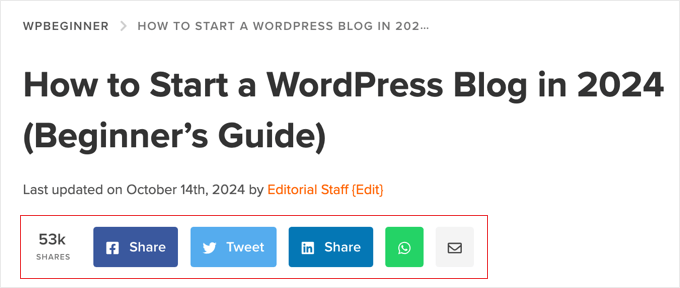
In this way, social share buttons can help drive more traffic to your site, improve your social credibility, generate more leads, and boost engagement.
Having said that, let’s see how to easily add social share buttons in WordPress. You can use the quick links below to jump to different parts of our tutorial:
Related Post: You may also want to check out our beginner’s guide to automatically sharing WordPress posts on social media.
Method 1: Using Novashare to Add Social Share Buttons (Recommended)
Novashare is one of the best social media plugins for WordPress, offering an easy way to add social share buttons to your posts. You can add buttons for popular platforms like Facebook, Pinterest, X (Twitter), and LinkedIn to improve your content’s reach across various social platforms.
You can display the share count for each post and choose a button style that looks best on your site. The plugin is also optimized for WordPress speed and performance, so you won’t have to worry about it slowing down your site.
Plus, Novashare lets you create Click to Tweet boxes so your visitors can quickly share quotes from your articles. It also offers a Follow block that you can use to promote your social profiles.
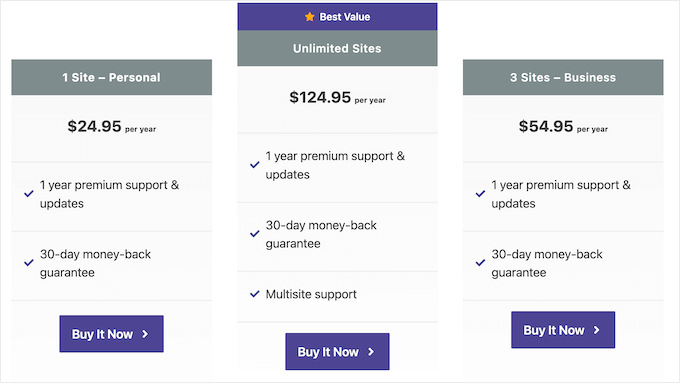
To get started, visit the Novashare website and choose a plan. After that, you need to install and activate the plugin. If you need help, then see our guide on how to install a WordPress plugin.
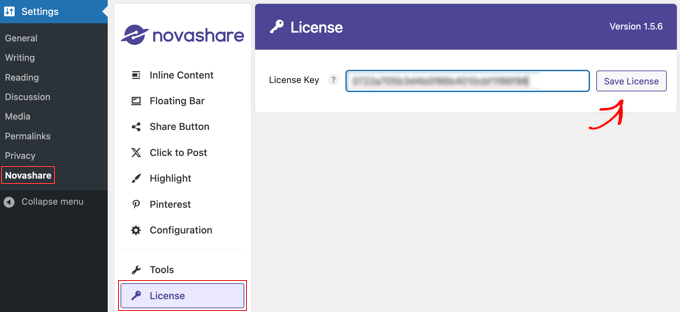
Once you’ve activated the plugin, you’ll need to navigate to the Settings » Novashare page in your WordPress dashboard to activate your license.
Make sure you are on the ‘License’ tab, and then paste in the license key you were given when you purchased the plugin. Next, make sure you click the ‘Save License’ button.
Enabling Social Share Inline Buttons
After activating your license, go ahead and click the ‘Inline Content’ tab to enable inline content. This will allow you to add social share buttons to your posts and pages. Alternatively, you can add the social buttons to a floating bar, which we cover in the next section.
Simply toggle the ‘Enable Inline Content’ button to the ‘On’ position, and then select the buttons you want to add.
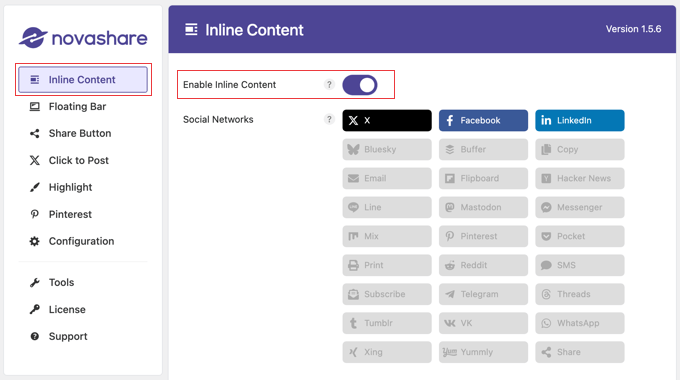
Novashare comes with a library of 26 buttons, including popular networks like X (Twitter), Facebook, LinkedIn, and more. It also offers action buttons for Email, Print, and Copy.
Next, you can configure where the buttons will appear on your posts and pages.
Just scroll down a little to the ‘Display’ section. Here, you can click checkboxes to have social buttons appear on your posts, pages, and media attachment pages. If you have an online store, then you will also have a checkbox for products.
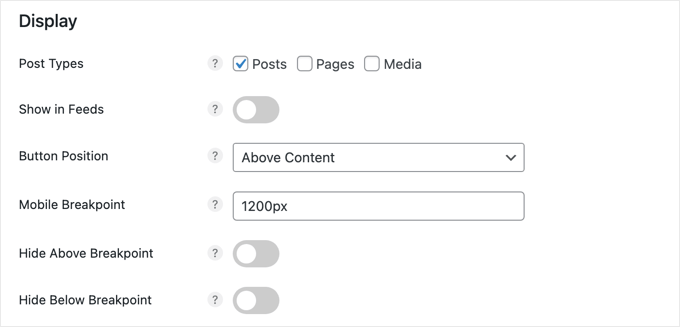
You can also choose the button placement from the ‘Button Position’ dropdown. There are options to display the social share buttons above your content, below your content, or both. You can also choose to place the buttons on each page manually using this shortcode:
[novashare_inline_content]
The mobile breakpoint allows the social buttons to be displayed on smaller mobile devices by splitting the buttons into two or more rows after they reach a certain width. The default is 1200 pixels, but for better compatibility with smaller devices, you may want to reduce it to 768 pixels.
In the next section, you can design the appearance of your buttons. Novashare lets you choose from dozens of style and shape combinations, like these:
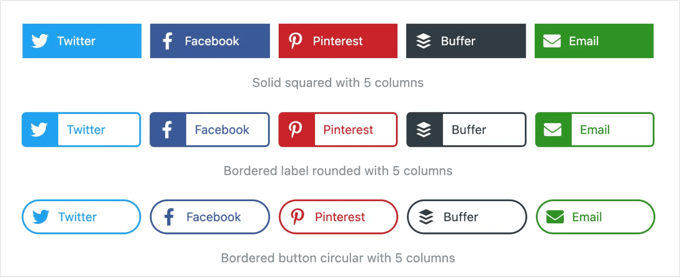
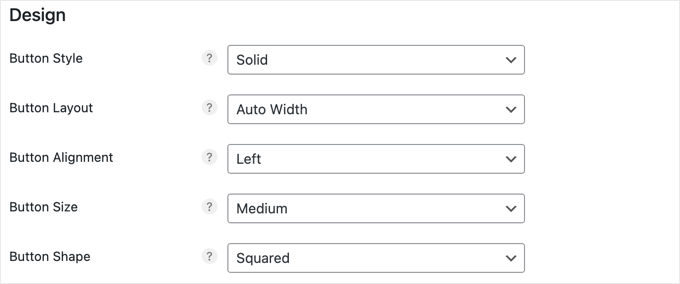
When you scroll down to the design section, you will find drop-down menus for your button attributes, such as style, layout, alignment, size, and shape.
Simply choose the different attributes that best suit your website.
Next, you will find options for changing the color of your buttons. Simply leave these buttons blank to display them in the default colors you saw when choosing your buttons.
Any color changes you make in this section will affect all buttons. There are options for the button color, hover color, the color of the icon at the right of the button, and more.
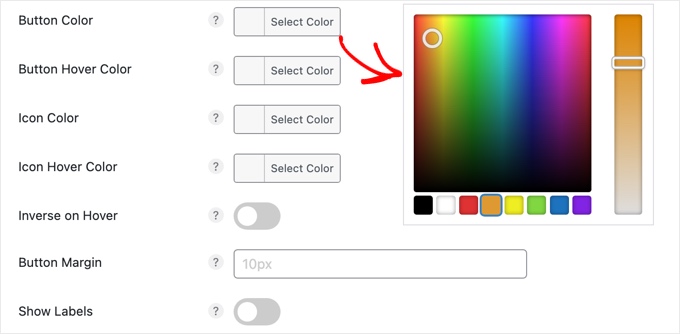
When you click on any of these options, a color picker will appear where you can select the color you would like to use.
The ‘Show Labels’ option at the bottom of this section allows you to choose whether or not the name of each social network is displayed next to the platform’s icon.
Tip: For tips on choosing colors for your website, see our guide on how to choose a perfect color scheme for your WordPress site.
Besides providing social share buttons, it is also a good idea to display how many times the current post has been shared across all social channels.
Displaying share counts on blog posts enhances credibility by showcasing the popularity of your content, which can encourage more users to engage and share. It provides social proof that demonstrates that your content is valued by others, boosting trust with your users.
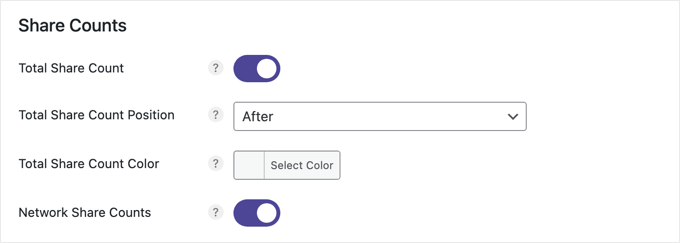
This setting is enabled by default. You can choose to display the share count for the current post either before or after the social share buttons and also customize the color.
Here is an example of shared counts with a white background being displayed after the social share buttons.

If you like, you can also add a call to action to the button bar, such as ‘Share with your friends!’ This may encourage more visitors to share your content.
While we don’t do this on our own website, you can add a call to action by simply typing your message in the ‘Text’ field. You can also customize the font size and color.
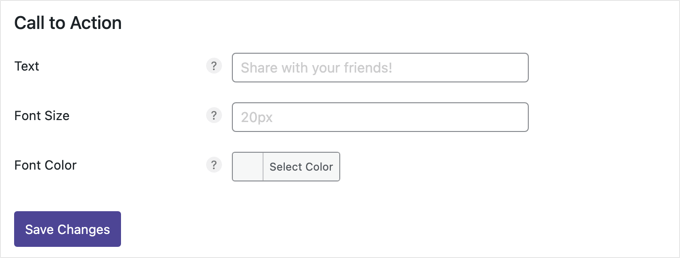
Once you have finished customizing your social share buttons, click ‘Save Changes’ at the bottom of the page, and they will be added to your site.
This is how it looks on our demo site:
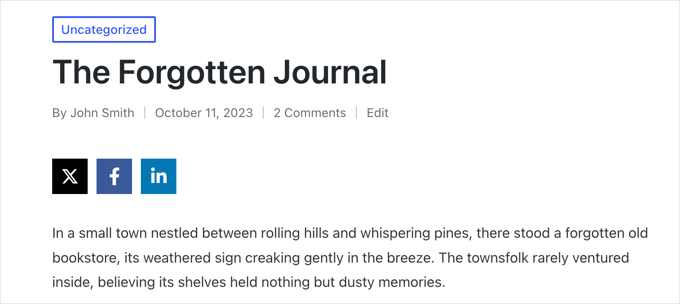
Enabling Social Share Floating Bar
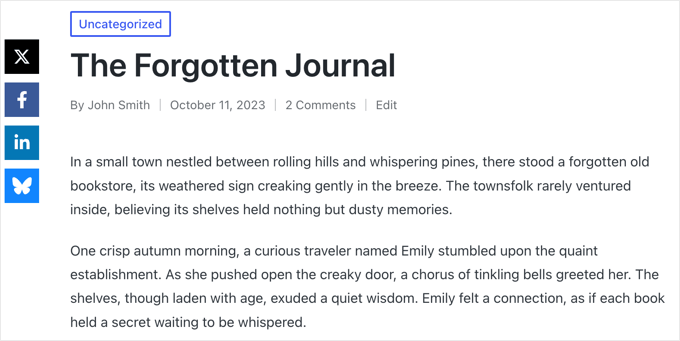
Instead of adding social share buttons to your posts and pages, you can add them to a bar that floats at one of the edges of your website or sticks to the bottom of the screen on mobile.
By default, this will appear on the left-hand side of the screen or at the bottom on narrow screens. It won’t move even when you scroll through your content.
To enable a floating bar on your website, you need to navigate to Settings » Novashare and click on the ‘Floating Bar’ tab on the left.
You can then enable the floating bar option and choose the social share buttons you want to add.
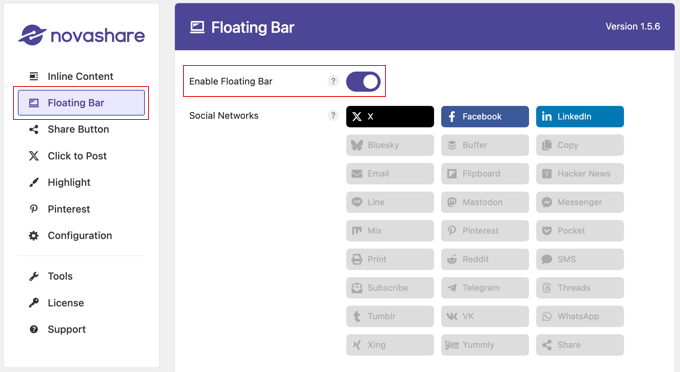
After that, you can customize the placement of the bar.
Like the Inline Content option, you can click checkboxes to display the social share buttons on posts, pages, media archives, and also products if you have an online store.
You will also need to enable the ‘Show on Posts Page’ option to display the buttons on your posts. If you want, you can also turn on the ‘Show on Archives’ setting to display the floating bar on your blog post archive page.
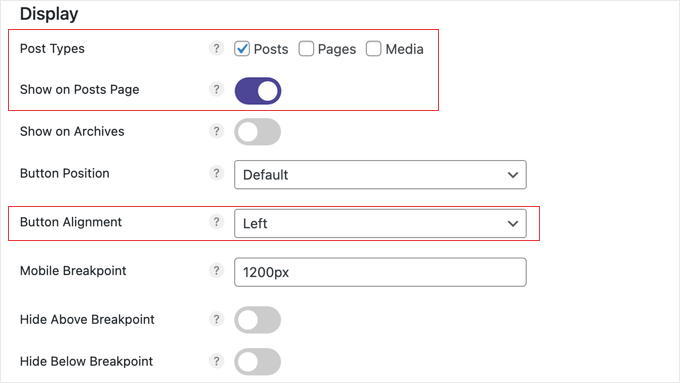
Now you can use the ‘Button Alignment’ drop-down to choose whether to show the bar along the right or left side of your page on wide screens. On narrow screens, it will be shown at the bottom.
You can control how far the floating bar appears from the edges of the screen using the ‘Top Offset’ and ‘Edge Offset’ options.

The ‘Show on scroll’ option lets you hide your social icons until the user has scrolled a set distance down the page.
For this tutorial, we will use the default settings, which work well for most websites.
The Design and Share Counts sections work the same way as they do for the Inline Content settings above. However, there is an extra section on this page for mobile devices.
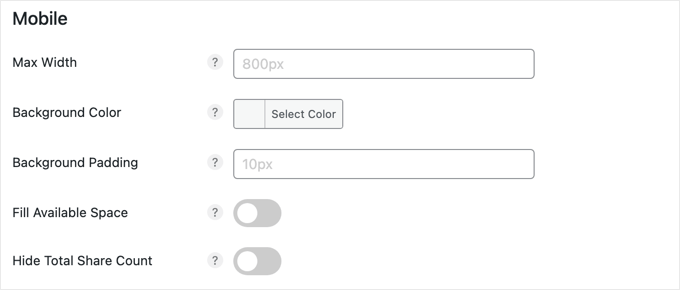
The default settings in the ‘Mobile’ section will work for most websites. The bar will be fixed to the bottom of the screen but hidden on screens less than 800 pixels wide.
However, you can easily change that maximum width, as well as the background color and padding of the buttons. There are also actions to make the bar fill the available screen space and to save space by hiding the total share count.
When you have finished setting up your social share buttons, make sure you scroll to the bottom of the screen and click the ‘Save Changes’ button to display the floating bar on your website.
This is how it looks on our demo site:
Configuring the Share Button
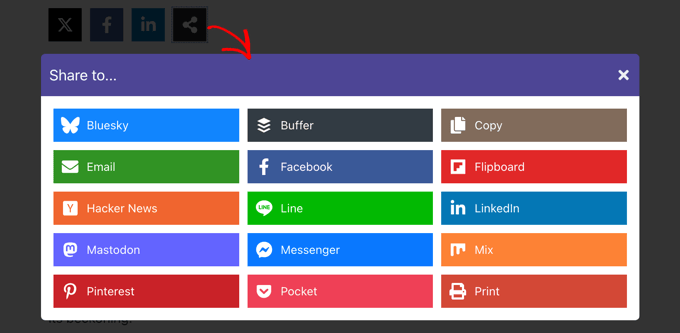
One way you can save space on your button bar is by using the Share button. This lets you add major social networks as individual buttons, and users can share to additional platforms by clicking the Share button.
First, make sure you add the ‘Share’ button to either your ‘Inline Content’ or ‘Floating Bar.’
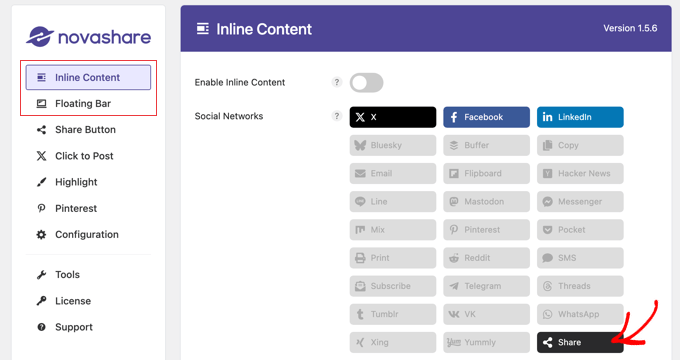
Next, you can configure the settings for the Share button by navigating to Settings » Novashare and then clicking on the ‘Share Button’ tab.
This will let you select any additional social networks you want to display when a user clicks the Share button. You can also add a call to action and choose a design for those additional buttons.
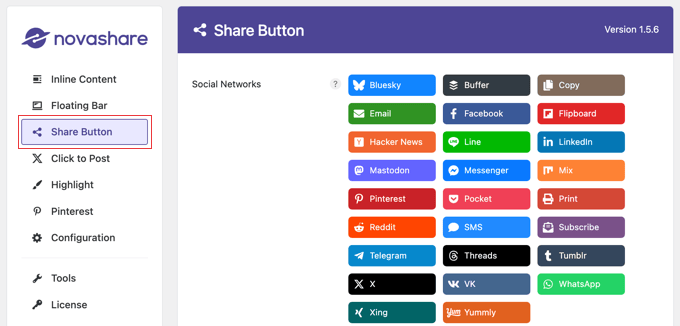
Don’t forget to click the ‘Save Changes’ button at the bottom of the page to store your settings.
This is how it looks on our demo website after clicking the ‘Share’ button.
Adding a Pinterest Button to Images
Novashare can also add a Pinterest ‘Pin’ button to every image on your website. By default, this button will be displayed when you hover your mouse over an image. However, you can configure the plugin to display the buttons at all times.
First, navigate to Settings » Novashare and then click on the ‘Pinterest’ tab. Once there, you can toggle the ‘Enable Image Pins’ to the on position and select the ‘Post Types’ where you want to display the button.
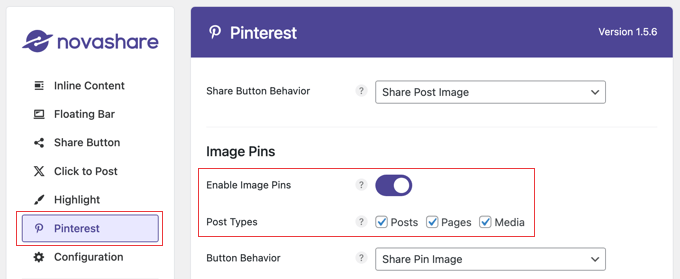
You can also customize the button position, shape, and color, though the default settings will work well for most websites (see the screenshot below).
If you want the Pinterest button to be displayed even when you are not hovering over an image, make sure you toggle the ‘Always Show’ option on.
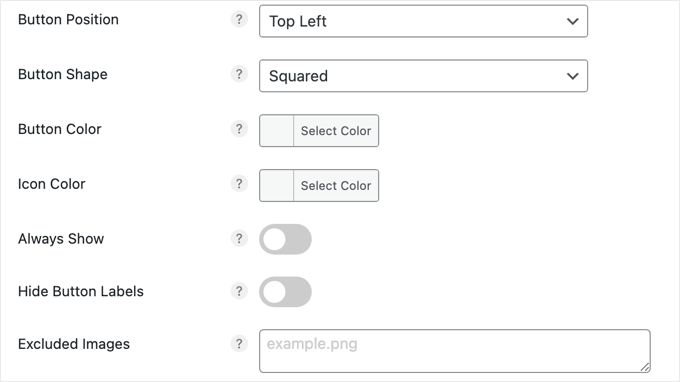
Finally, if there are some images that you don’t want to share, simply type the file names in the ‘Excluded Images’ field and a Pinterest button won’t be displayed for those images.
Once you click the ‘Save Changes’ button to store your settings and start displaying the Pin button on images.
This is what it looks like on our demo website when hovering the mouse over an image.

Method 2: Using Social Snap to Add Social Share Buttons (Free)
If you’re looking for a free way to add social share buttons to your site, then the Social Snap plugin is a good alternative to a premium tool.
First, you’ll need to install and activate the Social Snap plugin. For detailed instructions, you can see our beginner’s guide on how to install a WordPress plugin.
Upon activation, visit the Social Snap » Settings page from the WordPress admin sidebar. Then, expand the ‘Social Sharing’ tab in the left column.
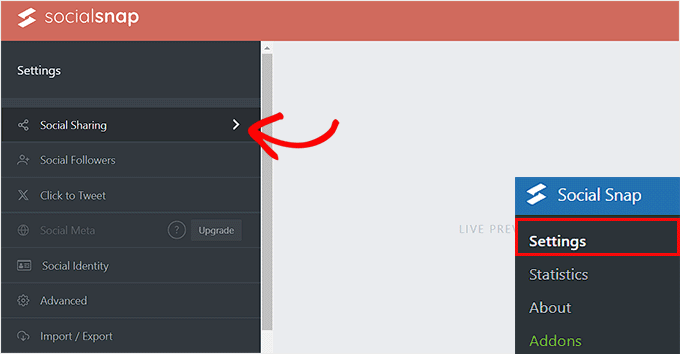
This will open new settings in the sidebar, where you’ll need to select the ‘Manage Networks’ tab.
Next, click the ‘+ Add Networks’ button to add a social media network of your choice from the prompt. You can add platforms like Facebook, X (Twitter), LinkedIn, and email.
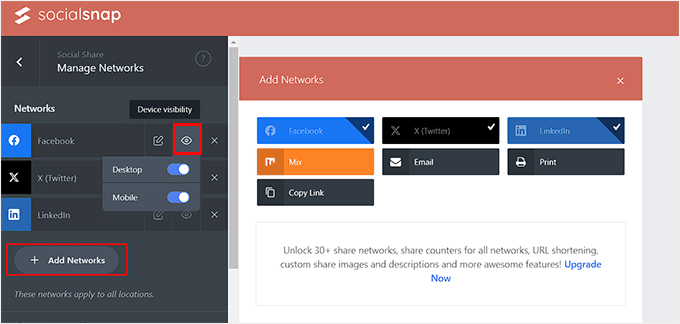
You can also configure the button visibility for different devices by hovering your mouse over the eye icon and toggling the mobile switch to ‘On.’ Doing this will show the social share buttons to users who are visiting your site on mobile devices.
After that, exit the ‘Manage Networks’ tab.
This will take you to the general settings page, where you can select if you want to add a floating bar or inline buttons for social share icons.
Adding Social Share Inline Buttons
Social share inline buttons are displayed at the top or bottom of your posts and pages.
To add them to your site, just click on the ‘Inline Buttons’ tab to expand it.
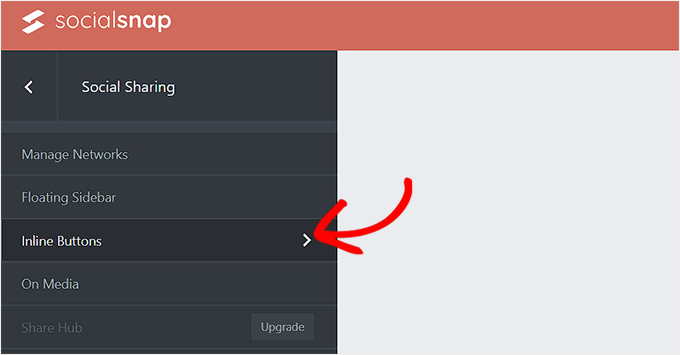
This will open new settings in the left column with a preview for the social share buttons on the right side of the screen.
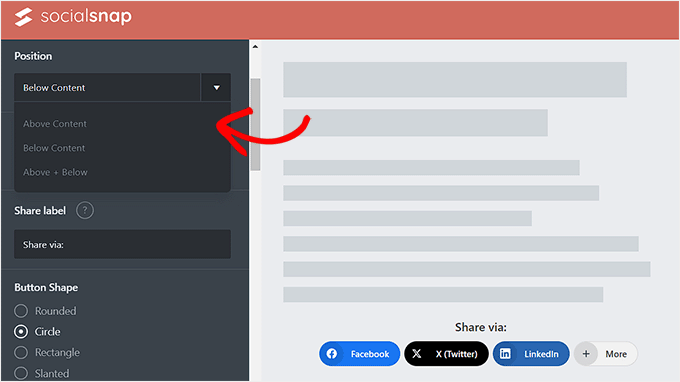
From here, you can configure the buttons’ position. You can choose the ‘Below Content’ option to display buttons at the bottom of the content and the ‘Above Content’ option to showcase buttons at the top of the page.
You can also customize your button’s alignment and the share label, shape, and size from here.
Next, scroll down to the ‘Button Labels’ section, where you can decide if you want to display the social media platform’s name, share counts, or both.
After that, scroll down to the ‘Display On’ section. Here, you can check the ‘Posts’ box if you only want to display the social share buttons on your posts. You can also check the ‘Pages’ button to show social share buttons on your About Us, Contact Us, or Archives pages.
Additionally, you can check the ‘Home’ option if you only want to display the social share buttons on your home page.
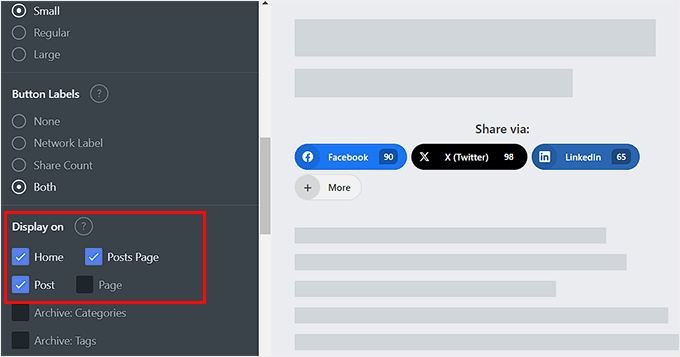
Once you are done, don’t forget to click the ‘Save Changes’ button at the bottom to store your settings.
You can now visit your WordPress website to view the social share buttons in action.

Adding Social Share Floating Bar
If you decide to add a floating bar, then your social share buttons will be displayed on the side of your WordPress posts or pages.
To do this, simply open the ‘Floating Sidebar’ tab.
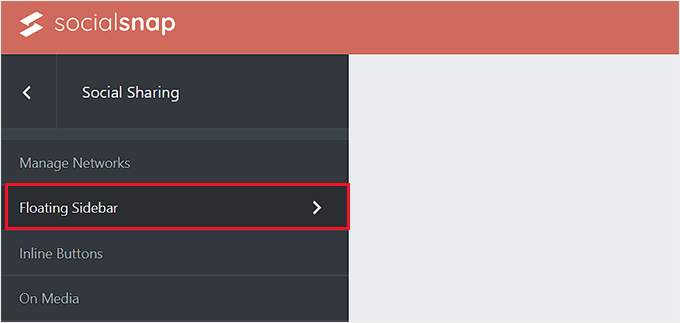
This will open some new settings in the left column, from where you can configure the position, size, and shape of your floating bar icons.
Once you do that, scroll down to the ‘Display On’ section and select the pages where you want to display the social share buttons.
For example, if you want to display the social share floating bar only on your blog posts, then you can select the ‘Post’ option.
Similarly, if you want to display the floating bar on your website’s home page as well, then you can choose the ‘Home’ option.
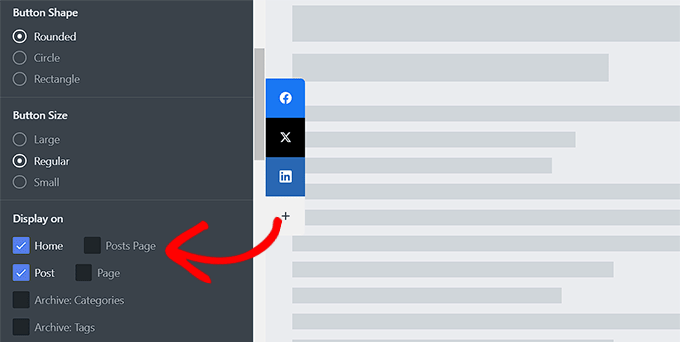
Finally, click the ‘Save Changes’ button to store your settings.
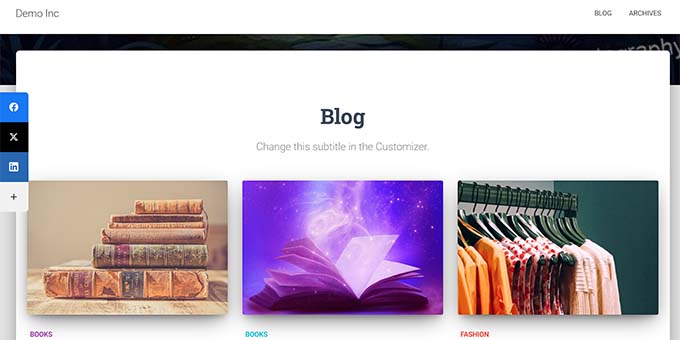
You can now visit your WordPress blog to view the social share floating bar in action.
Adding Social Share Buttons to Images
If you have a photography website, then you can even add social share buttons to your images with the help of the Social Snap plugin.
This will allow users to share your images on their social feeds and help bring more traffic to your site.
First, you will have to visit the Social Snap » Settings page from the WordPress dashboard and click on the ‘On Media’ tab to open it.
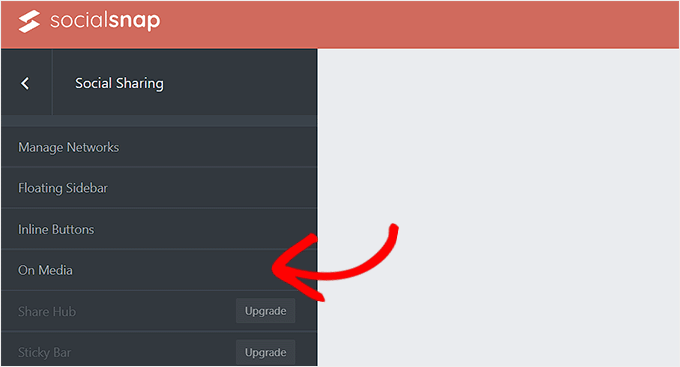
Once you are there, choose your button type. You can add all your social share buttons at the top of the images or add a Pinterest button.
After that, you can also select the button’s size, shape, visibility, and position.
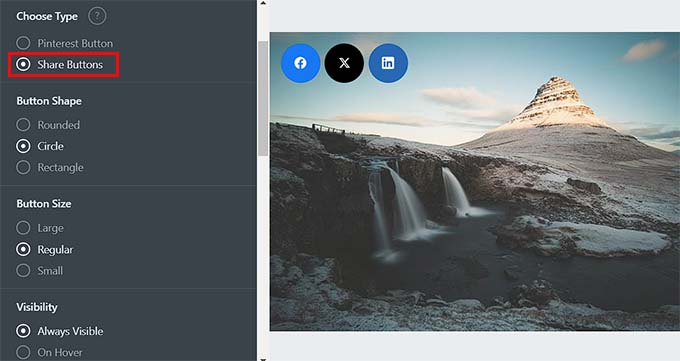
Then, you can add the minimum height and width for an image. This means that the share buttons will not be displayed in an image on your website that is under the minimum height and width limit.
Next, you must scroll down to the ‘Display On’ section and check the options for the pages or posts where you want to display social share buttons on your images.
You can then also toggle the ‘Hide on Mobile’ switch to ‘On’ if you don’t want to display share buttons for images on mobile devices.
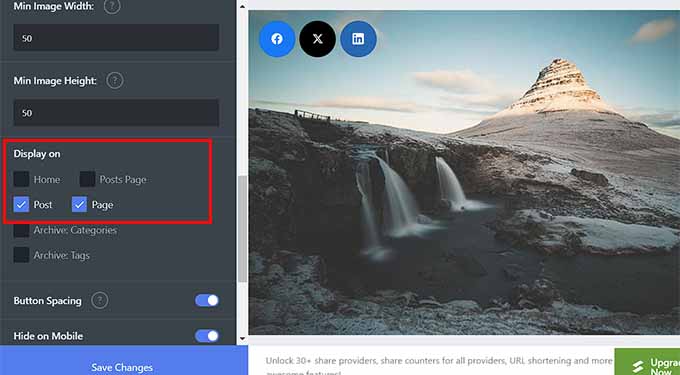
Finally, click the ‘Save Changes’ button to store your settings.
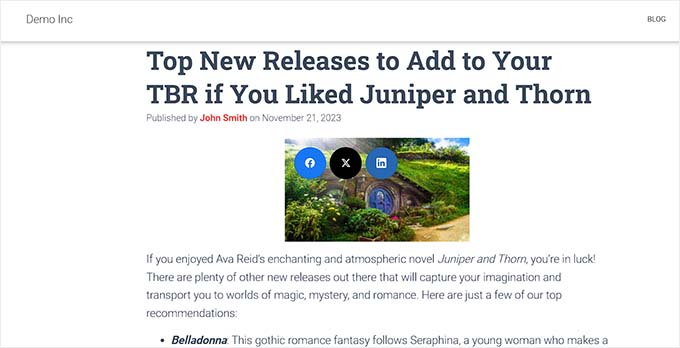
Now, simply visit your WordPress site to view the social share buttons in images.
Displaying Social Share Counts
If you also want to display the share counts next to the social share buttons, then visit the Social Snap » Settings page and expand the ‘Manage Networks’ tab from the left column.
After that, scroll down to the ‘Facebook Share Count Provider’ section, where you can select any of the two sources.
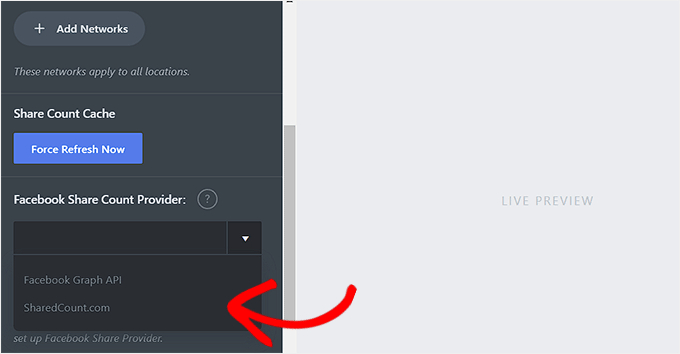
However, we recommend selecting the ‘SharedCount.com’ option. Then, the counts will be retrieved from the SharedCount service API. It allows the plugin to fetch all counts with only 2 API calls, which is best for WordPress performance.
If you choose the ‘Facebook Graph API’ option, then share counts are retrieved from the Facebook API, which can slow down your site.
You can easily get the SharedCount API by signing up for a free account on the SharedCount.com website.
To do this, you will have to provide an email address and password and then click the ‘Create Account’ button.
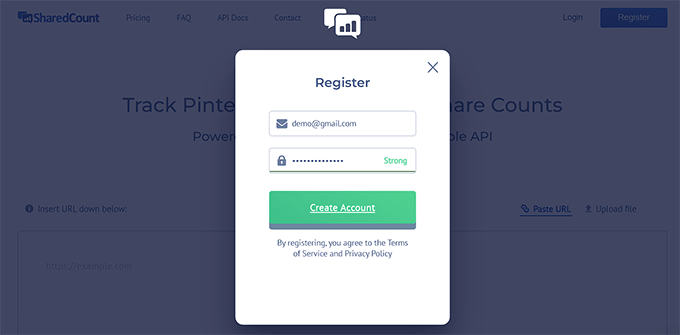
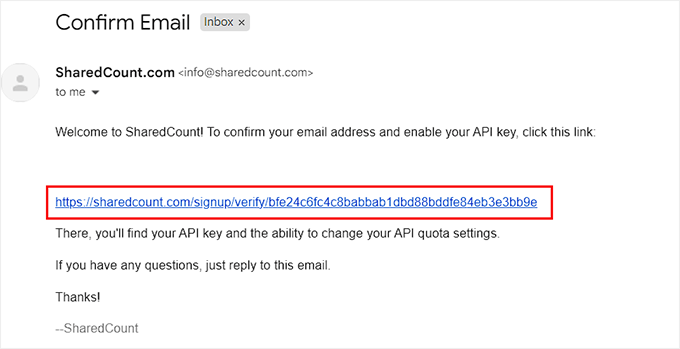
The website will now send a confirmation link to your email address.
Go ahead and click on the link to verify your account.
Now, you must log in to your SharedCount account again and visit the ‘Settings’ page from the dropdown menu in the top right corner of the screen.
This will take you to a new page where you will see your SharedCount API key.
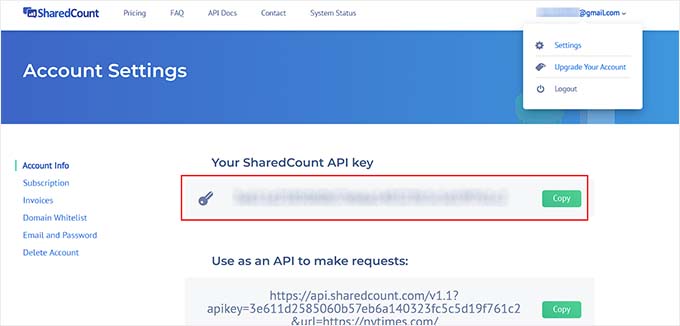
You need to copy this key and go back to your plugin’s settings page on your WordPress site.
Now, go ahead and paste the API key in the ‘SharedCount API Key’ field.
After that, click the ‘Save Changes’ button to store your settings.
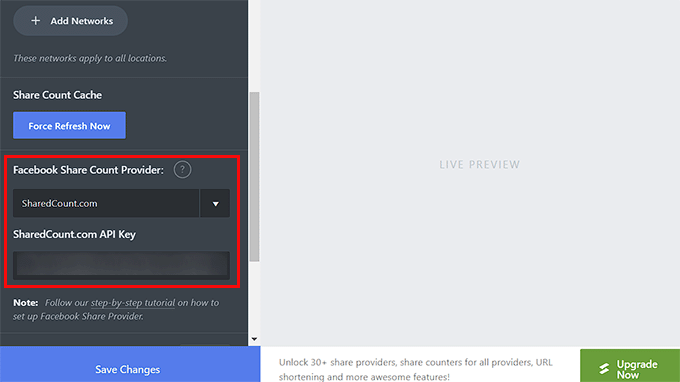
You can then enter this API key again for your X (Twitter) share count. After that, click the ‘Save Changes’ button to store your settings.
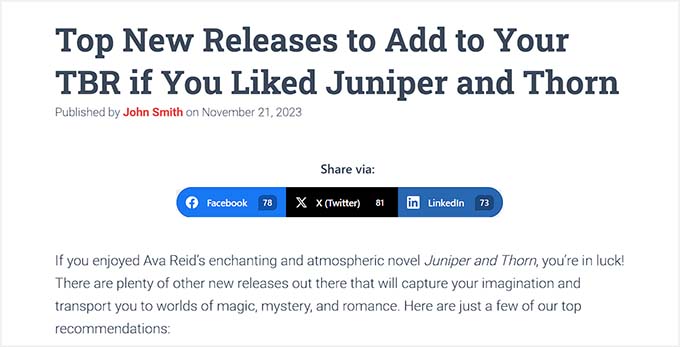
You can now visit your website to see the social share buttons with the share count for each blog post.
Method 3: Using SeedProd to Add Social Share Buttons on Custom Landing Pages
If you want to build custom landing pages for your website with social share buttons, then you can easily do that using SeedProd.
In our opinion, it is the best WordPress page builder on the market. It comes with a drag-and-drop builder, 300+ premade templates, and advanced blocks to create amazing landing pages with social share buttons.
First, you need to install and activate the SeedProd plugin. For detailed instructions, see our step-by-step guide on how to install a WordPress plugin.
Note: SeedProd also has a free plan that you can use for this tutorial. However, upgrading to the paid plan will unlock more features.
Upon activation, visit the SeedProd » Landing Pages section from the WordPress dashboard and click the ‘Add New Landing Page’ button.
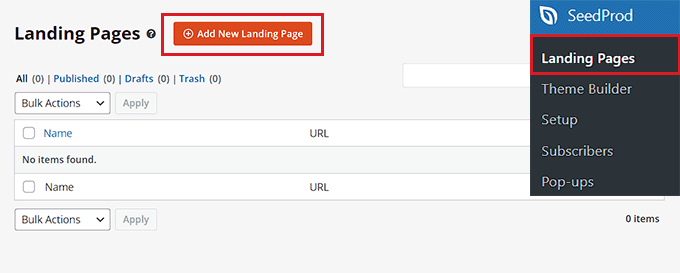
This will take you to the ‘Choose a New Page Template’ screen, where you will see numerous premade templates to choose from.
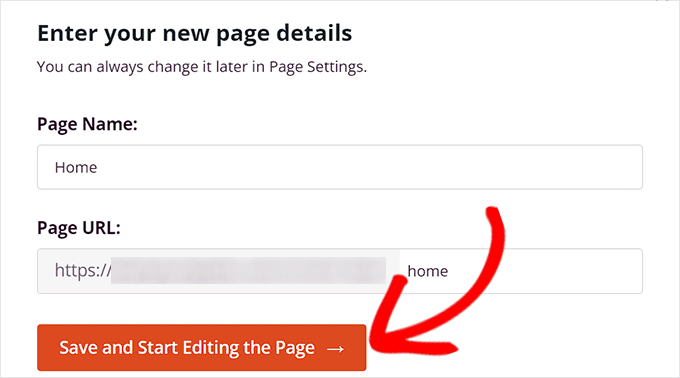
Once you make your choice, you will be asked to enter a name for the landing page that you are about to create.
Upon entering this information, just click the ‘Save and Start Editing the Page’ button to continue.
This will launch SeedProd’s drag-and-drop builder, where you will see a list of blocks in the left column with a page preview on the right.
You can now drag and drop different blocks to build your page. For more details, see our tutorial on how to create a landing page in WordPress.
After that, simply find and add the ‘Social Sharing’ block from the left column to your preferred place on the page.
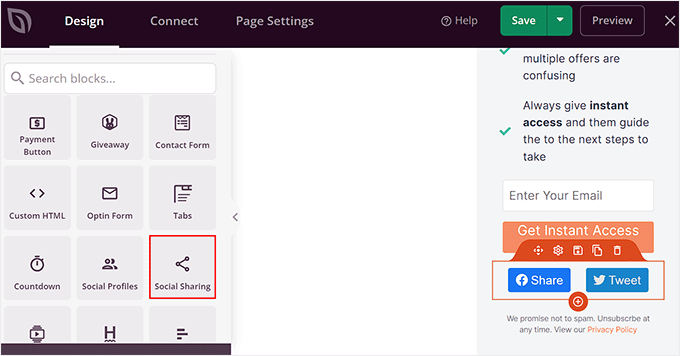
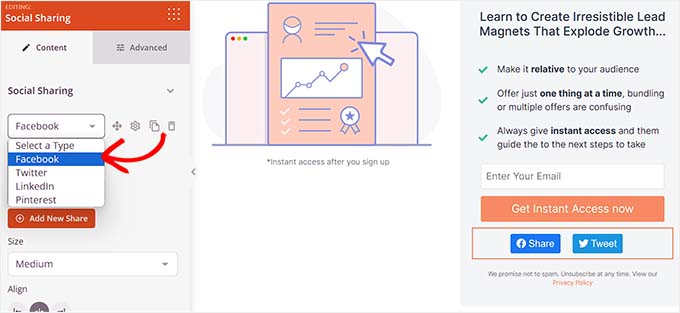
Next, you need to click on the block again to open its settings in the sidebar. From here, you can choose the social media platform with the button you want to add from the dropdown menu.
You can also add a new social share button by clicking the ‘+ Add New Share’ button in the column.
After that, you can also configure the button’s size and alignment.
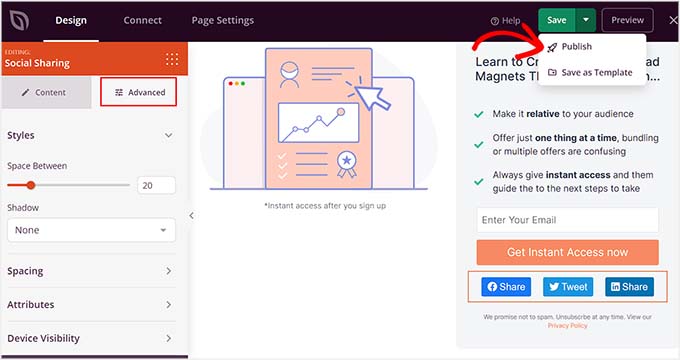
You can even switch to the ‘Advanced’ tab at the top to change the spacing, pick the device visibility, add custom CSS, and use animation effects.
Once you are done, simply click the ‘Save’ and then ‘Publish’ buttons at the top to store your settings.
Now, just visit the custom landing page to see the social share buttons in action.
This is what the page looked like on our demo website.

Method 4: Using Sassy Social Share to Add a WhatsApp Share Button (Bonus)
Apart from social media platforms, you can also add a WhatsApp share button on your WordPress site. WhatsApp is an instant messaging app that allows people all over the world to contact each other.
By adding a WhatsApp share button, you will enable users to share your site content with their contacts, including friends, family, and colleagues. This can boost user engagement, enhance content visibility, and help you expand your brand reach.
You can easily add a WhatsApp share button in WordPress with the Sassy Social Share plugin.
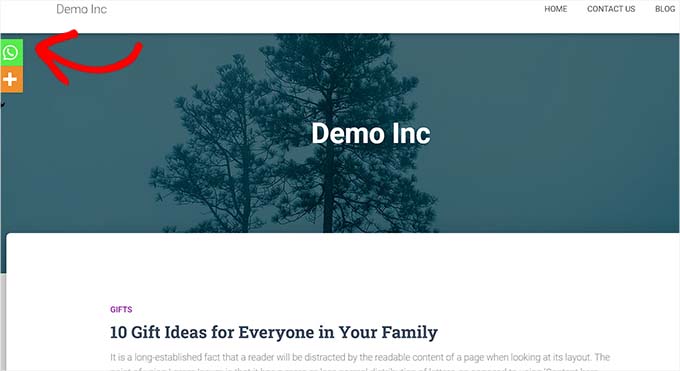
For more information, just see our tutorial on how to add a WhatsApp chatbox and share buttons in WordPress.
We hope this article helped you learn how to add social share buttons in WordPress. You may also want to learn how to add social media icons to WordPress menus and check out our top picks for the best WordPress social media plugins to grow your following.
If you liked this article, then please subscribe to our YouTube Channel for WordPress video tutorials. You can also find us on Twitter and Facebook.


Jiří Vaněk
I see the integration of social media and websites as crucial. Social media buttons on my site have been a priority from the start because there’s nothing better than having your users share your content completely for free. First, it acts as advertising for you, indicating that the content is valuable when someone shares it. Second, it generates free backlinks and attracts additional users from their social groups to visit your site and check out your content. Sharing buttons are, in my opinion, a must-have for any blogger, as they increase their reach without any cost. Thank you for the practical advice in the article. I already have sharing buttons on my blog, but now I see that they could work better and more practically, and that I could also improve the connection between my website and social media. Great!
kzain
Adding social share buttons to my WordPress site has been on my to-do list forever, and this guide made it a breeze. I appreciate how you’ve covered both the manual and plugin methods, so I can choose what works best for me. Your tip on optimizing button placement for maximum visibility is particularly valuable. Now, my content can reach a wider audience and drive more engagement. You guys are the best – always making WordPress easier and more accessible!
Hajjalah
I had always struggled with inserting social share buttons into my blog posts using the default WordPress editor blocks because I needed to repeat it for every post I publish. Sadly its layout in mobile was also very unpleasant.
But after using the Social Snap plugin, It became extremely simple to apply social share buttons any where. It is really amazing to put social share buttons to all posts in any position at once without editing all of them. Indeed, thanks for this article.
Moinuddin Waheed
Having socail share buttons on website pages and posts is of utmost importance.
It gives a way to reach more audience and it also gives a reason to share and save
the useful article for future reference.
I share the wpbeginner articles on my whatsapp personal contact and see later many times.
Most of the socail share plugins doesn’t have option for whatsapp button.
Thanks for mentioning sassy social share plugin, I will try to use it to include whatsapp butto as well.
Very helpful article.
WPBeginner Support
Glad we could share a helpful plugin
Admin
Saransh Agrawal
really helpful for me
WPBeginner Support
Glad to hear it was helpful
Admin
Pagula Majorda
Hi
Your writeup is good no doubt.
I want to ask about the icons placed in the Top Bar, do you simply put the url, if so, what purpose does it serve? On a marketplace demos, I found the icons urls automatically changed to reflect the article I was reading. How does one do that? Any ideas will not only help your readers (I am one of them too), but it will increase the coverage of this article.
Please keep up the good work
WPBeginner Support
Using the Shared Count plugin would not require you to add a link to the social media platform, it would generate the post with a link to the post to share for the user and they would have the option to change the content before posting.
Admin
Sarwat
Shared Count plugin is good but doesn’t have whatsapp.
WPBeginner Support
Thanks for sharing that for those looking for a whatsapp button
Admin
Cathy
do you know of a plugin that I could use my own custom icons for social sharing?
WPBeginner Support
We do not have a recommended plugin for that at the moment but we will be sure to share if we have a recommended one
Admin
Robert B
Well.. this plugin have not been updated since more than 2 years.
Do you have an alternativ?
WPBeginner Support
We do not have an alternative we would specifically recommend at the moment but we are still using the plugin on our site. For the not updated/tested warning we would recommend taking a look at our article below:
https://www.wpbeginner.com/opinion/should-you-install-plugins-not-tested-with-your-wordpress-version/
Admin
Lynn Phillipi
All these explanations were very helpful. Thanks so much.
WPBeginner Support
Glad our guide was helpful
Admin
Allan Green
New to the website builder club, and recently came across the wpbeginner group on facebook. Looking forward to learning lots of new things to build and improve my site.
WPBeginner Support
We hope our content continues to be helpful
Admin
Izhar Ahmad Danish
Wpbeginner is actually a WP-Pro
I have been following your content for last two years, I have learned so many things from basic to pro. It also helped me in every minor errors, issues, even selection of Theme, hostings and Plugins.
Kudos to Syed Balkhi and team
WPBeginner Support
Glad our guides and content have been helpful
Admin
Sourabh
Hey thanks for the guide.
WPBeginner Support
Glad you found our guide helpful
Admin
Diane Hambrick
Thank you for a great deal of valuable information! Sharing on social media is so important for our websites.
WPBeginner Support
You’re welcome, glad our guide was helpful
Admin
Khalid
Nice info and explanation, loved the floating icons, I will try them out.
WPBeginner Support
Glad you liked our guide and recommendations
Admin
Christie
So helpful! Thank you for adding the visuals!!
WPBeginner Support
You’re welcome, glad our guide and visuals were helpful
Admin
Suzanne
Thanks for your awesome tutorial solving step 1 in my issue with social media share butotns. Having successfully installed on a specific blogpost (icons are visible) the specific blogpost is not shared on fB, only a generic text and image about my site… what is missing?
WPBeginner Support
For how your site is displayed on social media, you would want to take a look at our article below:
https://www.wpbeginner.com/wp-themes/how-to-add-facebook-open-graph-meta-data-in-wordpress-themes/
Admin
karima
Great article as usual! Thanks
WPBeginner Support
Thank you and you’re welcome
Admin
Syeda maham Fahim
Great , Thank you
WPBeginner Support
You’re welcome
Admin
Hemant Bisht
Nicely Explained!
WPBeginner Support
Thank you
Admin
Sojol Rana
If you don’t mind, can you told me that what social share plugin you use in this site?
WPBeginner Support
At the moment we’re using the shared counts plugin from this tutorial with custom styling
Admin
Ikechukwu
Nice article but I have a little problem in displaying the share bottoms to my blog category post.
The bottoms only show in pages instead of post how do I fix that
Thank you.
WPBeginner Support
You would want to reach out to the support for your theme and they should be able to help with the footer display.
Admin
Daniela
Hi well written article thanks.. I was wondering is there a possibility to insert and have the same effect without a plugin I mean with php and jv using Facebook sharing.. Thanks for your reply.
WPBeginner Support
We do not have a beginner-friendly method to add share buttons with JS and PHP
Admin
Benjamin
Hi,
What plugin are you using for your social shares?
The share counts plugin doesn’t have an option to make it look like yours.
Thanks
WPBeginner Support
We added custom styling for the shared counts to look like they do on our site
Admin
Benjamin
Oh, I see
Is there anywhere I can find this styling to make it look the same on my website? I really like the look!
Thanks
WPBeginner Support
Not at the moment but we will look into the possibility of including it in an article
Martin Koss
Which social sharing plugin do you use yourselves on your blog (and this post).
Thanks.
WPBeginner Support
At the moment we are using the shared counts plugin from the article
Admin
Valli
As per this, am bit confused, whether you are suggesting to add both plugin “Shared count & Sassy social share” or any one is sufficient.
curiously awaiting for your reply.
WPBeginner Support
Either one is sufficient, they just have different design options depending on what you’re wanting to do.
Admin
Viktor
Thanks for the description! I needed a few part of and I got the exact information!
WPBeginner Support
Glad our guide was helpful
Admin
Lorelei
Very helpful article and easy to follow! Thanks!
WPBeginner Support
You’re welcome, glad you liked our article
Admin
Aman
It was a fantastic blog post,
Is there any step by step procedure for beginner in WP, like sequence of blog post or e-book
WPBeginner Support
If you’re trying to create a post series, you could take a look at the plugin we recommend in the article here: https://www.wpbeginner.com/plugins/how-to-effeciently-manage-post-series-in-wordpress/
Admin
Kane Martin
I am regular visitor of wpbeginner. Thanks for doing great job again. Information is well organized and easy to understand, will help me. Can you suggest me some plugins which can display Flickr album on website?
WPBeginner Support
Thank you, while we don’t have a recommendation at the moment, we will certainly keep an eye out
Admin
Xavier Jinan
Should i use them when my theme already have share buttons ? Because a blog on Hostnoc suggested that adding the buttons can slowdown your website. So why should i use it ?
WPBeginner Support
If your theme already has social icons then you don’t need to use a plugin if you don’t want. For understanding how plugins affect speed, you would want to take a look at: https://www.wpbeginner.com/wp-tutorials/how-wordpress-plugins-affect-your-sites-load-time/
Admin
Chukwuezugo
What about AddToAny social share plugin? That’s what I use and I love it. You can tweak it to give you either the standard share icons or the floating icons.
WPBeginner Support
That is one of the recommended options in a different article found here: https://www.wpbeginner.com/plugins/best-social-media-plugins-for-wordpress/
Admin
Micki
I rely heavily on information found on WP beginner. The site has been invaluable to me in starting my blog.
One question on this post: The plug in, Shared Counts, is untested with my version of WordPress. Since I update each time an update is available, I am assuming that it is untested with the most updated version of WordPress.
I use the Classic Editor plug in, if that makes a difference.
Is it still safe to use this plug in? It sounds like it is exactly what I am looking for but I am hesitant to install it.
Any direction would be greatly appreciated.
Thanks so much for the on-going help found on the site.
WPBeginner Support
For plugins not tested with your version, you would want to take a look at: https://www.wpbeginner.com/opinion/should-you-install-plugins-not-tested-with-your-wordpress-version/
Admin