


Are your WordPress contact forms working properly?
If you’re like most website owners, you probably assume they are. But emails can be blocked, sent to spam, or never even leave your server.
The truth is that many web hosts just aren’t reliable when it comes to email delivery. That’s why we recommend using a dedicated SMTP service, such as Gmail’s SMTP server, instead of relying on your host.
We’ve used Gmail’s SMTP server ourselves and found it to be both reliable and easy to set up. It’s great if you want hassle-free email sending.
In this step-by-step guide, we’ll show you exactly how to configure Gmail SMTP for your WordPress site. This way, you’ll have complete confidence that every contact form submission, password reset, and site notification reaches its destination. 📨
✅ TL;DR: To send WordPress emails using Gmail, install the WP Mail SMTP plugin, select Google/Gmail as your mailer, and use the one-click setup to authenticate your Google Workspace or free Gmail account.
Why and When You Need Gmail SMTP Server for WordPress Emails
Your WordPress site sends emails for things like new user signups, password resets, updates, and contact form notifications. The problem? Those emails don’t always make it to users’ inboxes.
By default, WordPress uses the PHP mail function, which many WordPress hosting companies block or limit.
Even when the emails do go out, email service providers like Gmail or Outlook may flag them as spam because they don’t come from a verified mail server.
Even worse, the default WordPress emails might fail this check and not even make it to the spam folder.
The fix is to use SMTP (Simple Mail Transfer Protocol), which is the industry standard for sending emails securely and reliably. Unlike the PHP mail function, SMTP uses proper authentication, which increases email deliverability.
Gmail provides an SMTP service that you can use to send out emails from your WordPress site. Their servers are the best option if you just want to send WordPress notification emails to yourself and a few users on your site.
However, in case you want to send newsletter emails or have an online store, you’ll want a mass emailing service like Constant Contact or Brevo (formerly Sendinblue).
Free vs. Paid Gmail SMTP Service for WordPress
You can use your free Gmail account to send out WordPress emails. However, for better deliverability, we recommend using the paid Google Workspace.
With Google Workspace, you get your own professional, branded email address, such as name@yoursite.com.
Google Workspace requires you to add MX records to your domain name. This means that your emails will appear to be coming from your domain name, which helps boost authenticity and ensure better deliverability.
💡 Insider Tip: Don’t miss another lead from your contact form! WPForms is the best contact form plugin for WordPress. You can use it to create or AI-generate contact forms, payment forms, and surveys in just a few minutes, all without writing any code.
When you combine it with a reliable SMTP service, you can make sure every form notification lands in your inbox, so you never miss a potential customer.
With that said, let’s see how you can send an email in WordPress using the Gmail SMTP server.
Here’s a quick overview of all the methods we’ll cover in this guide:
- How to Send WordPress Emails Using Gmail SMTP Server
- Method 1: Setting Up Gmail to Send WordPress Emails Using One-Click Install
- Method 2: Setting Up Gmail to Send WordPress Emails Using the OAuth Protocol
- Method 3: Setting Up Gmail SMTP as SMTP Sender (Advanced)
- Bonus Steps for Your Gmail SMTP Setup
- FAQs: Send Emails in WordPress Using the Gmail SMTP Server
- Video Tutorial on Setting Up Gmail SMTP in WordPress
- Keep Learning About Using Forms in WordPress
How to Send WordPress Emails Using Gmail SMTP Server
If you decide to use Google Workspace, then you first need to set up your domain to work with Google Apps. We have a step-by-step tutorial on how to set up a professional email address with Google Workspace.
The rest of the instructions are the same whether you are using a paid or free Gmail account.
WP Mail SMTP is the best WordPress SMTP plugin on the market. It allows you to easily use any SMTP server to send WordPress emails with higher deliverability.
We use WP Mail SMTP ourselves on our site, and we’ve seen how it helps make sure all of our emails reach users’ inboxes – not the spam folder. See our full WP Mail SMTP review for more details.
So, let’s install and activate the WP Mail SMTP plugin. For more details, see our step-by-step guide on how to install a WordPress plugin.
💡 Note: While there is a free WP Mail SMTP version, we suggest getting at least the Pro plan for WP Mail SMTP.
It offers the seamless One-Click Setup for Google Workspace/Gmail, plus access to premium mailers like Amazon SES, Mailgun, Office 365 / Outlook.com, SendGrid, and more.
You also get additional features like email logs, the ability to fine-tune or control which notifications your WordPress site sends. Plus, an expert will help you with a white glove setup.
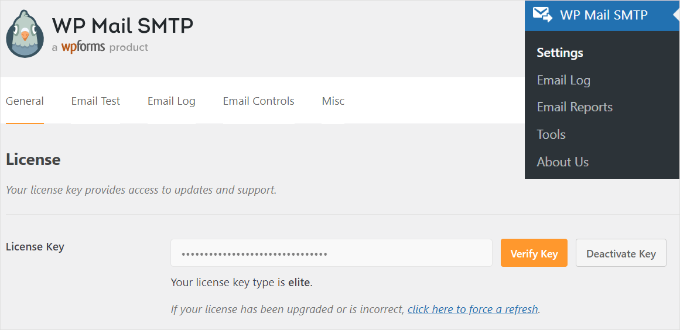
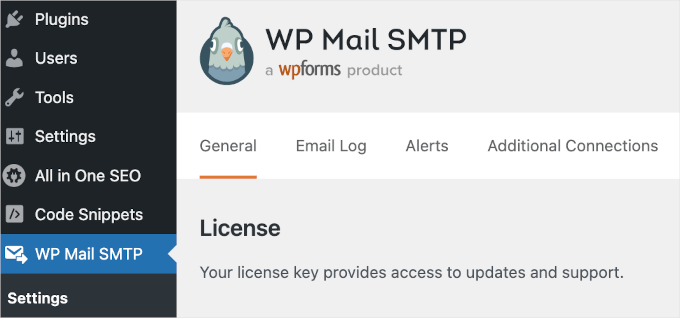
Upon activation, you need to visit the Settings » WP Mail SMTP section to configure the plugin settings.
Then, simply enter your license key and click the ‘Verify Key’ button. You can find the key in your WP Mail SMTP account area.
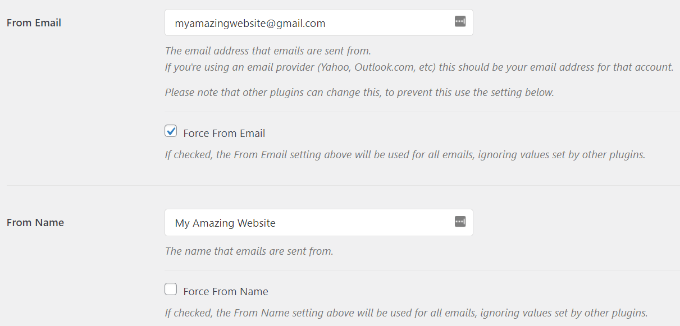
Under the ‘General’ settings tab, you need to make sure that you use your Gmail email address in the ‘From Email’ field.
Next, you need to provide the sender’s name.
WP Mail SMTP plugin offers 3 ways to connect your WordPress site to the Gmail servers:
- The first method uses a one-click install, which is the easiest and most beginner-friendly, but is only available for Pro version of the plugin or higher.
- The second method uses OAuth Authentication. This method is secure and doesn’t require a premium plugin.
- The third method is to manually configure the Gmail SMTP settings. In general, we don’t recommend this method as it’s less secure. It involves using a saved password instead of Google’s modern OAuth system, which can be a security risk if not handled carefully.
Now, let’s set up WordPress to use Gmail SMTP for sending emails.
Method 1: Setting Up Gmail to Send WordPress Emails Using One-Click Install
This method is the quickest and easiest for everyone, meaning it can help you save time and confusion.
After installing and activating the WP Mail SMTP plugin, let’s navigate to WP Mail SMTP » Settings and make sure you’re in the ‘General’ tab.
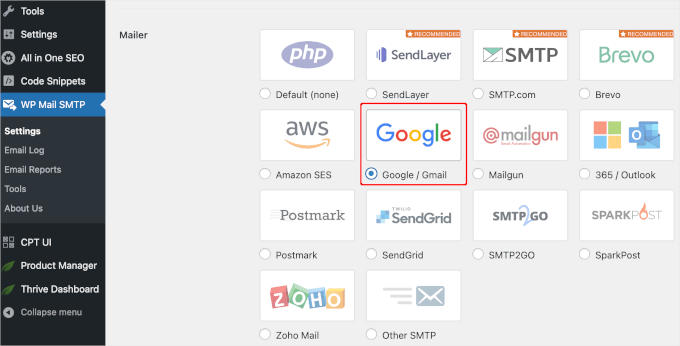
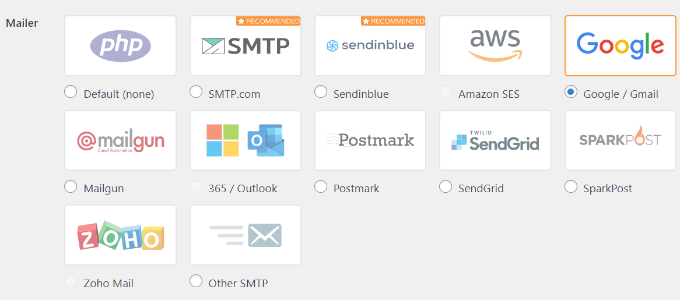
Then, you’ll need to choose ‘Google / Gmail’ under the ‘Mailer’ section.
This will let you use the ‘One-Click Setup’ option.
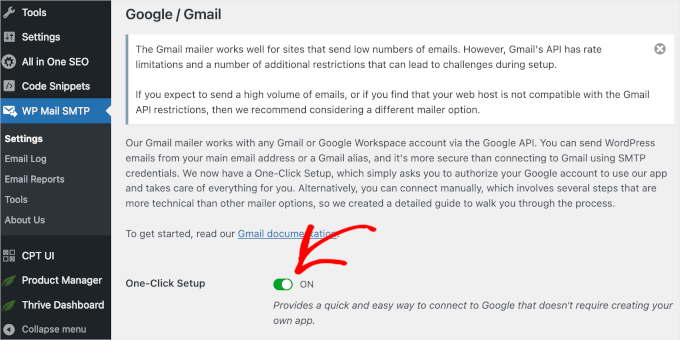
With that done, the next step is to authorize your Google account.
You’ll see a ‘Google / Gmail’ section below ‘Mailer’ on your screen. Go ahead and click the switch to turn on the one-click install feature.
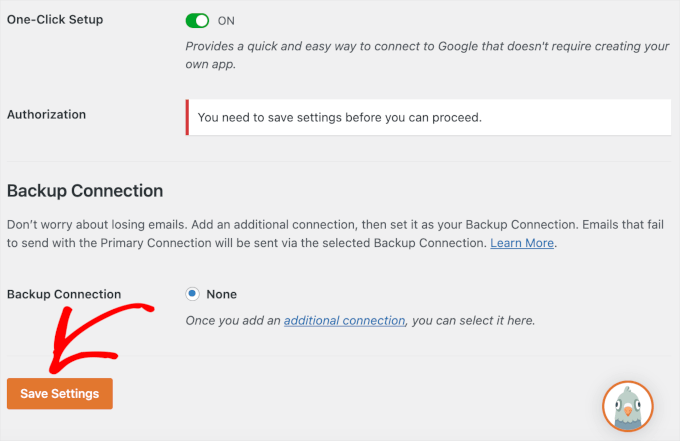
Then, you might see a notification that says you need to save the changes first to continue the authorization process.
So, let’s click the ‘Save Settings’ button.
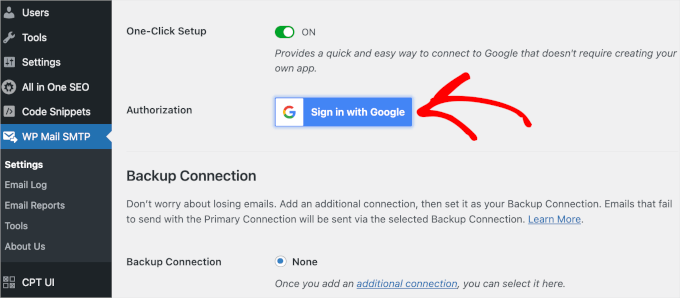
After that, you can sign in to your Google Account.
Simply click the ‘Sign in to Google’ button and choose an account.
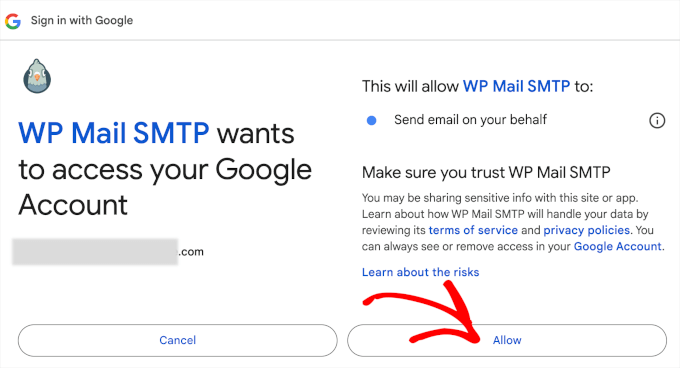
Then, Google will ask your permission for WP Mail SMTP to send emails on your behalf.
You can click ‘Allow’ to continue.
After clicking the button, you’ll be redirected back to the WP Mail SMTP’s ‘General’ tab in your WordPress admin area.
From here, you’ll want to scroll down to the ‘Authorization’ section to see that the Gmail account you set up is successfully connected.
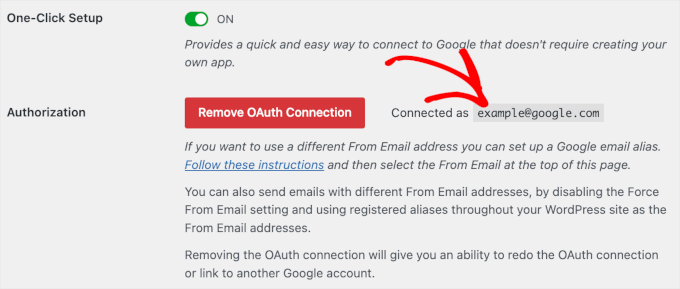
That’s it! You’ve successfully connected your Gmail account to WP Mail SMTP using the One-Click Setup method.
Method 2: Setting Up Gmail to Send WordPress Emails Using the OAuth Protocol
This method is a great option if you’re using a free version of the WP Mail SMTP plugin. It’s secure, and once you set it up, you’ll never have to do it again.
You need to start by selecting ‘Google/ Gmail’ as your mailer.
Next, you will see three fields you need to fill in when you scroll down.
Just fill out the ‘Client ID,’ ‘Client Secret,’ and ‘Authorized Redirect URI‘ fields when you’re there.
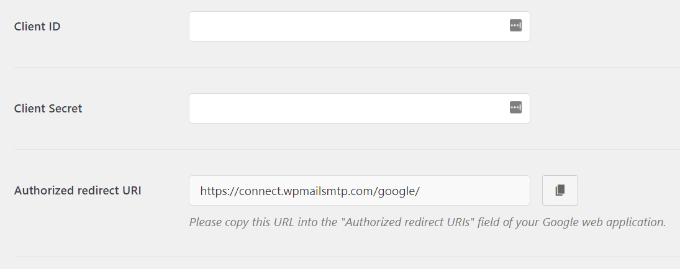
Let’s set up these fields.
✋ Heads up: This next part involves several steps inside the Google Cloud Console, which might sound complex.
But don’t worry – just follow our guide and the screenshots carefully, and you’ll get your API keys in no time, as you will only ever need to complete this specific API setup process once.
Creating an App and Generating API Keys for Gmail
To start, simply visit the Google Cloud Console website and then click on ‘My First Project’ (or the name of your current project) at the top.
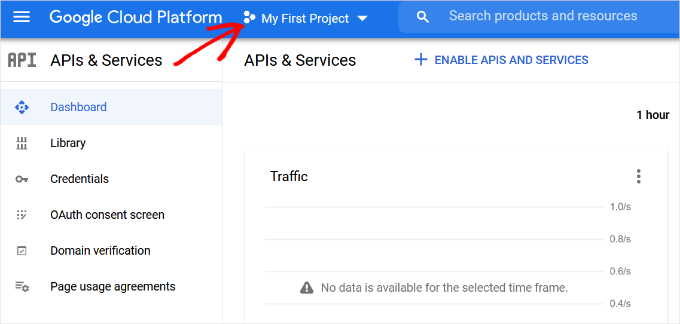
Do note that Google frequently updates its developer dashboard. The screens you see might look slightly different than our screenshots, but the core steps of creating an app and generating credentials will remain exactly the same.
A small popup window will open.
Go ahead and click on the ‘New Project’ option.
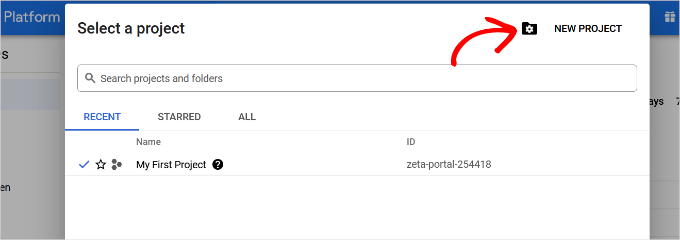
On the next screen, you’ll be asked to provide a name for your project.
We recommend giving it a memorable name so that you can easily recognize it in the future.
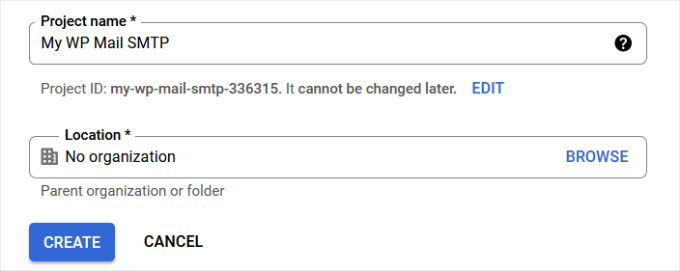
After that, let’s click the ‘Create’ button to continue.
The developer console will now create your project and take you to its dashboard.
Google offers developers access to many of its APIs and services. You need to enable the APIs that you will need for this project.
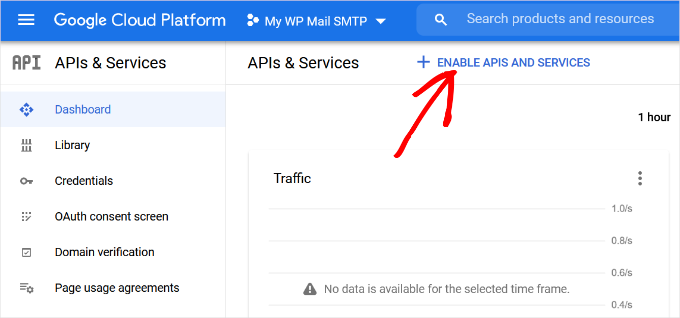
Simply click the ‘Enable APIs and Services’ button to continue.
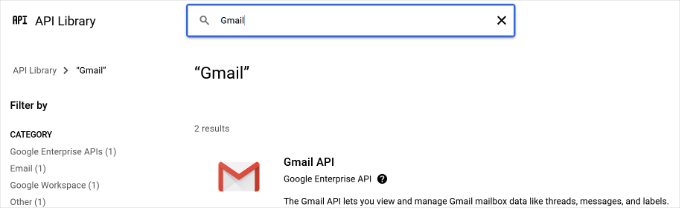
This will bring you to the APIs library page.
From here, you can type Gmail in the search box to quickly find the Gmail API and click to select it.
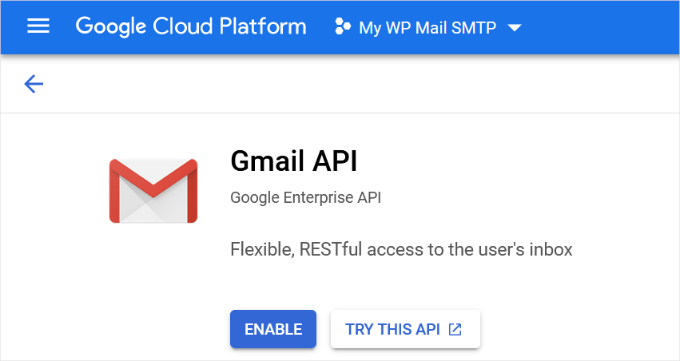
You will now see an overview of the API and what it can do.
Simply click on the ‘Enable’ button to continue.
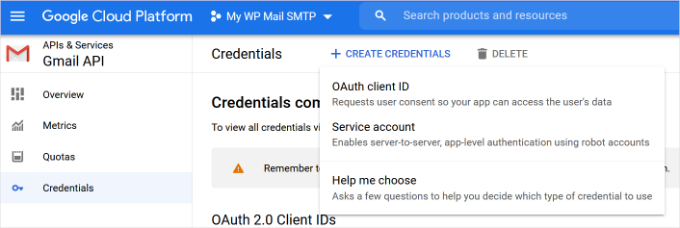
Now that your API is enabled, the next step is to create credentials that you can use in your WP Mail SMTP plugin settings.
You’ll want to click the ‘+ Create Credentials’ button to continue and select the ‘Help me choose’ option from the dropdown menu.
On the next screen, it’ll ask you which API you want to use.
Go ahead and select ‘Gmail API’ from the dropdown menu for ‘Which API are you using?’
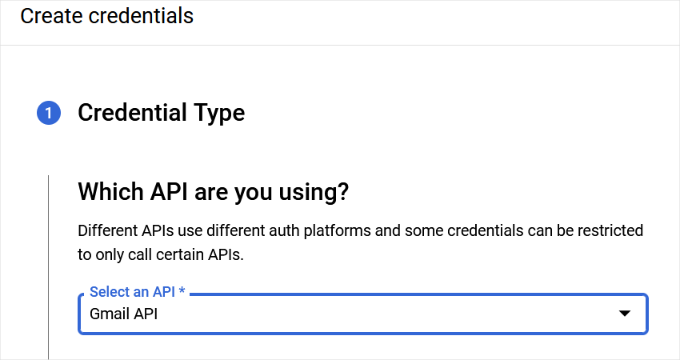
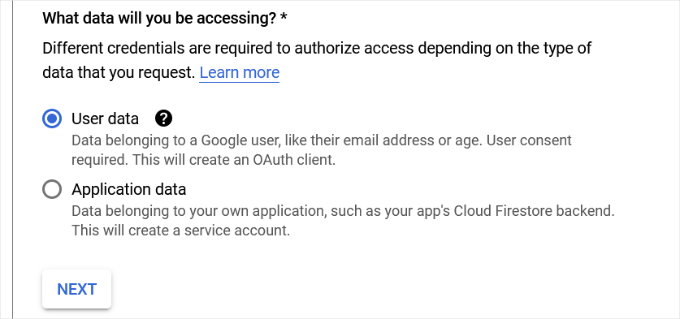
After that, you’ll choose ‘User data’ for the ‘What data you will be accessing?’ field.
With that done, go ahead and click the ‘Next’ button.
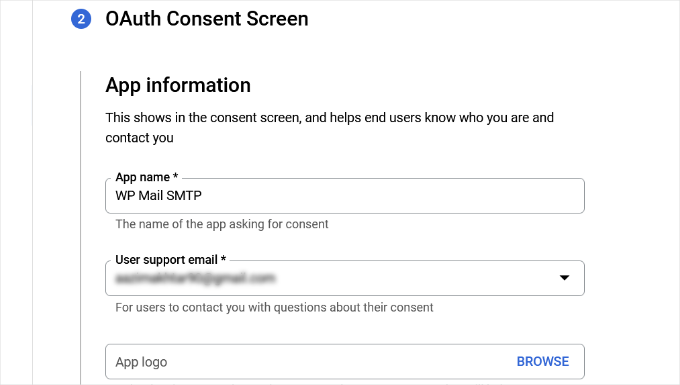
Now, you’ll need to enter your app’s information.
You can start by giving a name for your app, selecting the email address you provided, and adding an app logo if you want.
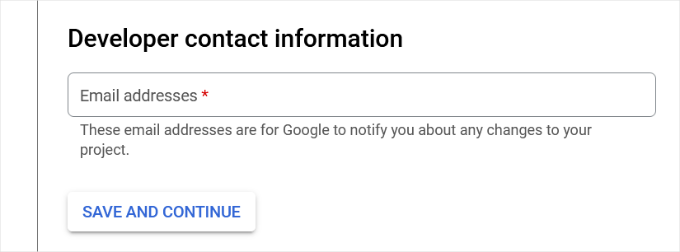
From there, you’ll need to scroll down and enter a developer’s contact information.
Once you’ve entered the email address, simply click the ‘Save and Continue’ button.
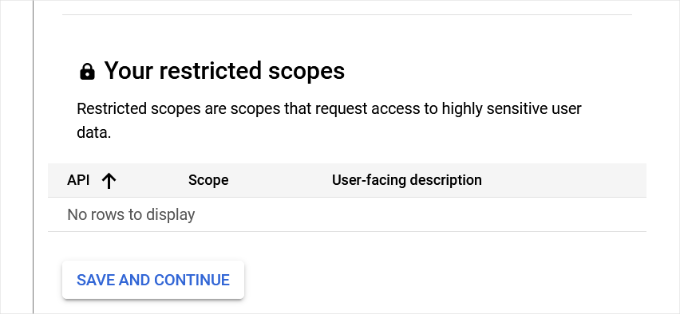
On the next screen, you can configure the ‘Scopes’ for Gmail API. This is an optional step, and you can skip this for now because the WP Mail SMTP plugin automatically handles the basic sending permissions for you.
Simply scroll down to the bottom of the page and click the ‘Save and Continue’ button.
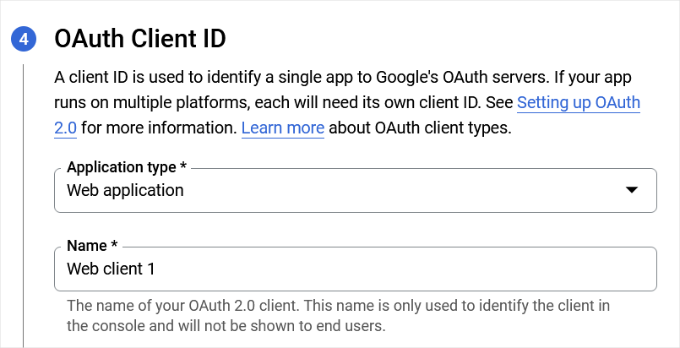
Next, go ahead and enter details for the ‘OAuth Client ID’ section.
You can start by choosing ‘Web Application’ as the ‘Application type’ from the dropdown menu and then enter a name.
When you scroll down, you’ll see options for ‘Authorized JavaScript’ origins. You can skip this and head over to ‘Authorized redirect URIs.’
Go ahead and click the ‘+ Add URL’ button.
In the ‘URIs’ field, simply enter https://connect.wpmailsmtp.com/google/. This is a secure redirect URL provided by the WP Mail SMTP plugin to help safely complete the connection to your Google account.
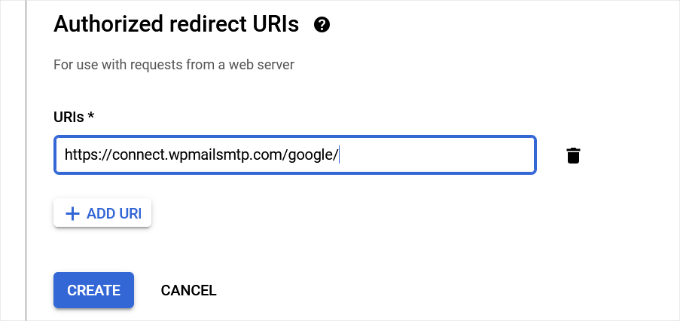
Once you’ve entered the URL, simply click the ‘Create’ button.
Next, you’ll see your credentials under the ‘Your Credentials’ area.
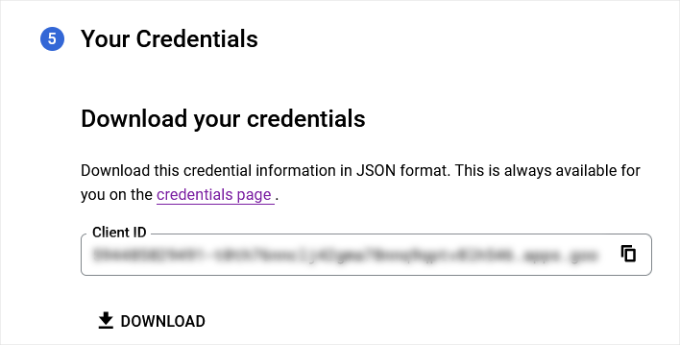
Go ahead and click the ‘Done’ button at the bottom to move on.
You will now be taken to your project’s credentials page.
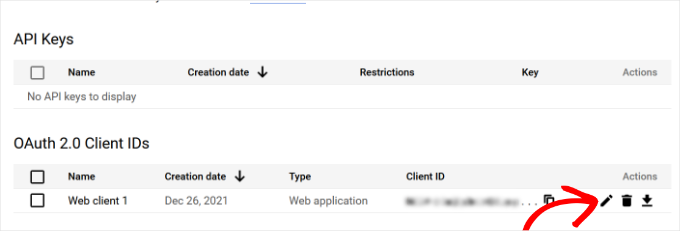
On this page, you can see your recently created credentials listed here. You need to click on the edit icon next to your credentials to continue.
Adding Your Gmail ID and Secret Key to WP Mail SMTP Settings
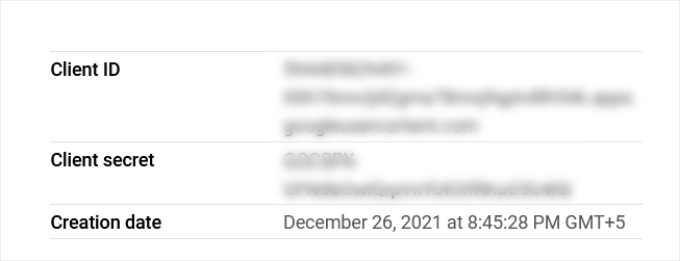
This will direct you to the edit credentials page, where you can view your client secret and client ID.
You can go ahead and copy these keys.
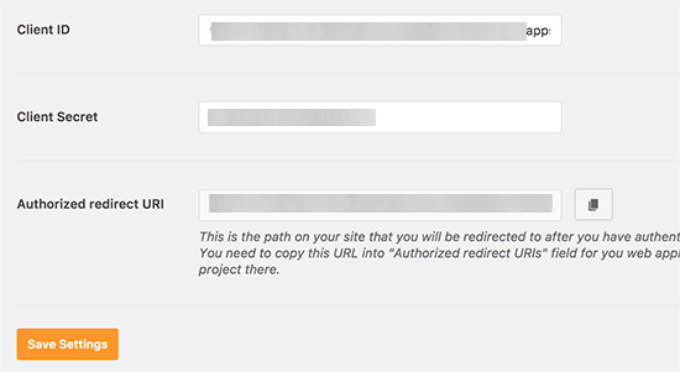
After that, simply paste the keys into the WP Mail SMTP » Settings page in your WordPress admin area.
And don’t forget to click on the ‘Save Settings’ button to complete the setup.
The plugin will now store your settings and reload the page.
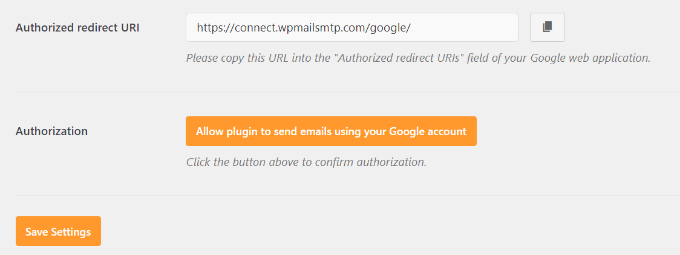
After that, you need to scroll down to the bottom of the settings page and click on the ‘Allow plugin to send emails using your Google account’ button.
This will take you to your Google account.
Then, you will be asked to give the website permission to send emails on your behalf.
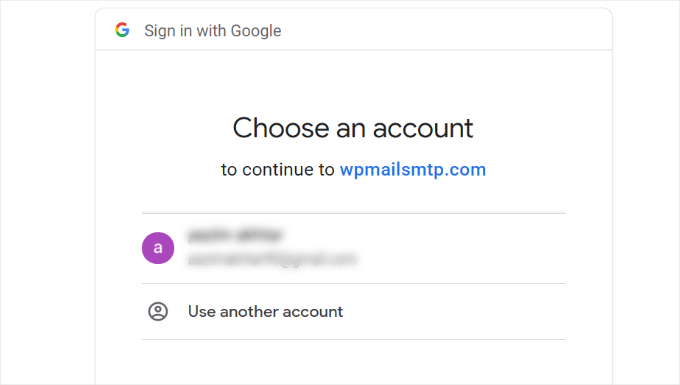
Simply select your Gmail account and give permission to link your Google API project.
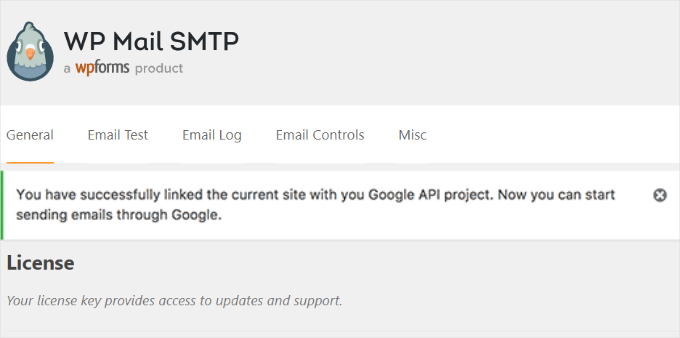
After that, you will be redirected back to your website, where you will see a success message.
Method 3: Setting Up Gmail SMTP as SMTP Sender (Advanced)
This method allows you to manually connect to Gmail’s SMTP servers to send your WordPress emails.
✋ Heads Up: This method requires you to generate a special ‘App Password’ from your Google account, which can be less secure than the OAuth method. We recommend it only if you are unable to use the other methods.
First, you’ll want to head over to Settings » WP Mail SMTP from your WordPress admin dashboard to configure the plugin settings.
From here, you can start by providing the Gmail address you want to use in the ‘From Email’ field and your name in the ‘From Name’ field.
Next, let’s select ‘Other SMTP’ as your mailer.
Also, you’ll want to check the box next to the return path.
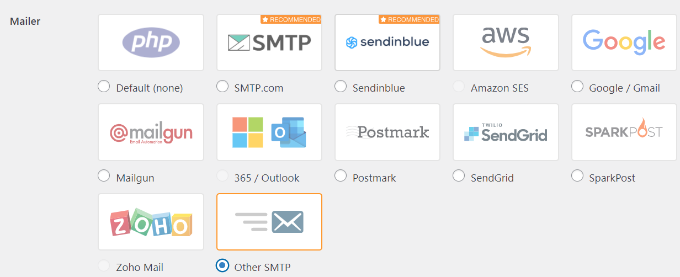
After that, you can scroll down to the ‘Other SMTP’ section.
This is where you’ll configure more settings to connect to Gmail’s SMTP servers.
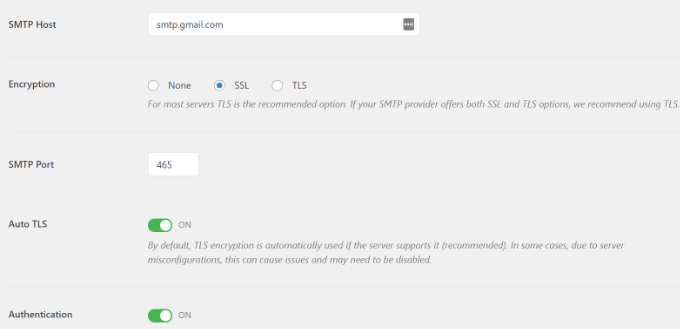
Here is the exact configuration you need to add to the plugin settings:
- SMTP Host: smtp.gmail.com
- Encryption: Use SSL encryption
- SMTP Port: 465 (this should automatically appear when you select SSL encryption)
- Auto TLS: Turn off TLS
- Authentication: Turn on authentication
- SMTP Username: Your complete Gmail address, e.g. john.smith@yourdomain.com or john.smith@gmail.com
- SMTP Password: Your Google App Password. This is not your regular Gmail password. For security reasons, Google requires you to generate a unique ‘App Password’ for your website. You must also have 2-Factor Authentication enabled on your Google account to create one. You can follow Google’s guide on how to create one.
Once you are done, go ahead and click the ‘Save Changes’ button to store your settings.
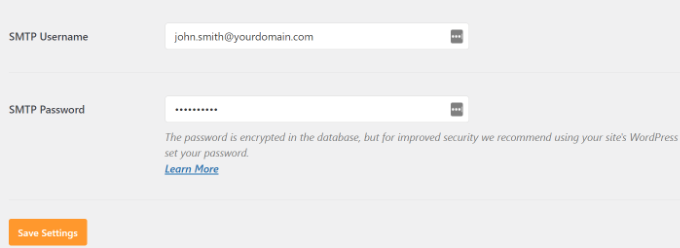
That’s all. You have successfully set up WP Mail SMTP to use Gmail SMTP servers.
Bonus Steps for Your Gmail SMTP Setup
Now that your Gmail SMTP is working, let’s go a step further. With a quick test and a few extra tweaks, you can make sure everything runs smoothly.
Testing Your WP Mail SMTP Settings
WP Mail SMTP plugin allows you to test your email settings so you can make sure that everything is working properly.
You need to navigate to WP Mail SMTP » Tools in your WordPress dashboard, and click on the ‘Email Test’ tab.
After that, simply provide an email address you can access in the ‘Send To’ field and then click the ‘Send Email’ button.
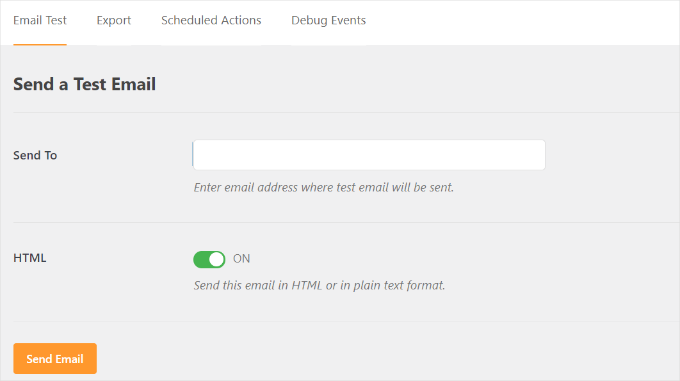
You should then see a success message.
To make sure, you can check your inbox to see a message with the subject line ‘WP Mail SMTP: Test Email to…’.
Troubleshooting Gmail SMTP Not Working Issues
We have seen users encounter a few issues when using Gmail SMTP with certain shared hosting configurations.
You can take the following steps to fix the Gmail SMTP issue:
First, you’ll need to log in to your cPanel account. If you are on managed hosting without cPanel, you may need to ask your host’s support team to change your MX routing to ‘Remote’. From here, you’ll want to find the ‘+ Create’ button on the email accounts page.
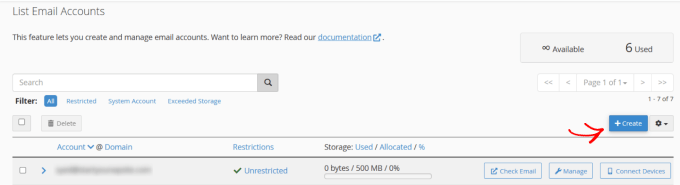
Simply create an email account that matches your Google Apps email address.
By creating the email account, you’re essentially making your hosting server aware of an email address that should be sending emails.
This step is a workaround to convince the server that you’re sending emails through it, even though you plan to use Gmail’s SMTP server.
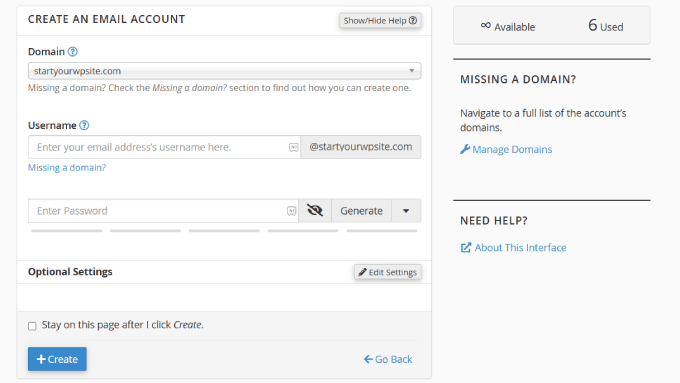
This might seem strange, but this workaround essentially tells your web host’s email system to stop trying to deliver emails locally and let Google’s servers handle outgoing mail. It’s a common fix for shared hosting environments where local email settings can interfere with external SMTP services.
From your cPanel account, let’s go to the MX Records (the DNS settings that direct your domain’s email traffic) and change the MX routing from automatic to remote. Do note that this might be a little tricky to find since each host now has a custom cPanel interface.
Then, you’ll need to look for a small link next to MX that says ‘Email Routing: Remote Mail Exchanger.’
After that, you can log back into your WordPress site and send a test email. For more details, you can follow our guide on how to change MX records for your WordPress site based on your hosting service.
FAQs: Send Emails in WordPress Using the Gmail SMTP Server
Still have questions about using Gmail SMTP in WordPress? Here are some quick answers to help you get started.
Is using the Gmail SMTP server for WordPress emails free?
Yes. You can connect a free Gmail account to send emails from your WordPress site. But for business sites, it’s better to use Google Workspace. That way, you get a professional email address like you@yourdomain.com and improve your email deliverability.
This helps your messages land in the user’s inbox instead of their spam folder.
Are there sending limits with Gmail’s SMTP server?
A free Gmail account lets you send up to 500 emails on a rolling 24-hour basis. Google sets this limit to prevent spam and protect its network. This is usually more than enough for WordPress notifications like password resets or form confirmations.
If you need to send more, you can upgrade to a Google Workspace account (up to 2,000 emails per day). Or, you can use a dedicated email service like Constant Contact or Brevo for even higher limits.
Is it secure to connect my Gmail account to WordPress?
Yes. If you use the OAuth method with the WP Mail SMTP plugin, your Gmail password is never saved on your site. Instead, Google provides secure tokens to handle the connection.
This is much safer than older methods that required saving your password directly in your settings. Plus, it’s the modern standard for keeping your account secure.
Can I use Gmail SMTP for my email newsletters?
No, Gmail SMTP is for sending transactional emails, like notifications or confirmations. It’s not designed for bulk newsletters. For newsletters or marketing emails, opt for a dedicated email marketing service, such as Constant Contact or Brevo.
Video Tutorial on Setting Up Gmail SMTP in WordPress
🎥 Watch our step-by-step video tutorial below to quickly set up Gmail SMTP in WordPress and ensure your emails are delivered reliably.
Just hit play and follow along!
Keep Learning About Using Forms in WordPress
We hope this article helped you learn how to send emails in WordPress using the Gmail SMTP server. Next, you may also want to see our other helpful guides on:
- How to Use SMTP Server to Send WordPress Emails
- How to Add Email Subscriptions to Your WordPress Blog
- How to Fix WordPress Not Sending Email Issue
- Troubleshooting Tips for When Your WordPress Form Does Not Work
- Email Verification Tools to Clean Email Lists
If you liked this article, then please subscribe to our YouTube Channel for WordPress video tutorials. You can also find us on Twitter and Facebook.


Matt
Can the From email address be the same as the email address that the form submissions are sent to? For example, I have a lead gen form on my site that I want sent to a Google Workspace email. Will this work if the From email address and the email address used for the OAuth is also? Or would I need to use a different email address for the From and OAuth?
WPBeginner Support
Unless something has changed very recently, you can use the same email address for both.
Admin
Dennis Muthomi
The OAuth section was super helpful. I implemented this before and can vouch for the security. One other thing to note if you’re using a free Gmail account is to monitor your email sending limits daily. This is a great resource for anyone looking to boost WordPress email deliverability.
Jiří Vaněk
Amazing guide. Thanks. Setting up Gmail SMTP always gives me a headache because it takes so long. It’s incomparable to the traditional SMTP setup for a private domain email, where you enter the SMTP server, login, password, and port, and it’s done. Thanks a lot.
WPBeginner Support
You’re welcome, glad our guide was helpful
Admin
Mallory Moore
After completing all the steps it re-directed me to my Wordpress site but it went to a page that said not found to there was no success msg so I can’t test as it still says unauthorized.
WPBeginner Support
For that specific error message, you would want to take a look at our article below:
https://www.wpbeginner.com/wp-tutorials/how-to-fix-the-401-error-in-wordpress-solutions/
Admin
Vaskar
I want to send newsletters/mail to my website subscribers. I want to send mail to my website subscribers from my gsuite business mail address. Can you suggest to me that what I have to do now?
WPBeginner Support
For creating a newsletter, we would recommend taking a look at our article below:
https://www.wpbeginner.com/beginners-guide/how-to-create-an-email-newsletter/
Admin
AJ
This was a tremendous help! Thank you so much!
WPBeginner Support
Glad you found our content helpful
Admin
Lennon
Can we use a forwarding email address to set this up or do we have to have a Gmail account?
WPBeginner Support
For other methods, you would want to take a look at our other article below:
https://www.wpbeginner.com/plugins/how-to-set-up-wp-mail-smtp-with-any-host-ultimate-guide/
Admin
Peter
Hi
When setting up Oauth consent screen, Internal and External options are present. Only external option is available to Gmail users. Is this the correct one to choose?
Thanks!
WPBeginner Support
It sounds like that would be correct, for questions about the plugin we would recommend reaching out to the plugin’s support for assistance
Admin
Gordon Barker
No where can I find where to set the email “to field” please could you explain how to set this field?
WPBeginner Support
You would want to check with the settings for your form plugin for setting the to location
Admin
Jairo Paredes
Excellent!!!!
Thanks a lot….
WPBeginner Support
You’re welcome
Admin
Ruxandra
Awesome! Thanks!
WPBeginner Support
You’re welcome
Admin
Vivek
Hi,
My emails are automatically deleting, i’ve not set any filters or any other things. What might be the issue?
WPBeginner Support
You would want to reach out to who you are using for your emails to ensure there isn’t an issue on thier end.
Admin
Vijay
OAuth Consent Screen is mandatory during this process.
Anyway, your explanation is best.
Thanks.
WPBeginner Support
Glad our guide could be helpful
Admin
Dalton
I followed the steps to set up the email and it works, but how do I send emails to my email list now?
WPBeginner Support
If you’re attempting to create a newsletter then we would recommend going through our guide here:
https://www.wpbeginner.com/beginners-guide/how-to-create-an-email-newsletter/
Admin
Dusan
With this I get the 2000 limit in a 24 hour period as it uses only 1 email address. Is there a way to use this as the smtp relay that allows 10,000 emails to send per 24 hour period. Or any way to add in multiple emails to send from?
WPBeginner Support
We do not have a recommended method to remove that limitation. For sending that many emails we would recommend looking at email marketing services such as the ones from our article here: https://www.wpbeginner.com/showcase/best-email-marketing-services/
Admin
Nauval
Is it still usefull in 2020?
WPBeginner Support
Yes
Admin
Dan Martin
I just used this for my site and it worked. Seriously this was a life saver. I had spent several hours troubleshooting and the video solved the whole problem in like 5 minutes. Thanks.
WPBeginner Support
Glad our guide could help
Admin
Luigi
How can I send emails configured with WP MAIL SMTP (I use gmail) customized with the site’s domain? I need to differentiate emails depending on the type of email my site sends.
WPBeginner Support
It would depend on what plugin/tools you are using to send the emails as WP Mail SMTP is for changing how WordPress sends the emails not for users sending emails.
Admin
Austin Blair
Just wanted to say THANK YOU! I was totally struggling to get my contact form to send emails correctly until I came across your post. I used the first method and it worked like a charm. However there was a step (probably recently introduced) where I had to set up a consent form? Took me to a different screen not featured in the video, but was relatively straight forward. Thanks again!
WPBeginner Support
Thank you for letting us know and glad our article could help
Admin
Bobby Zopfan
First method (configuring inside GCloud) seemed too long to me.
So adapted the 2nd method (don’t agree with you that 2nd method is more difficult). 2nd method has just 3-4 steps.
But it didn’t work. SMTP couldn’t authenticate me. Although my ID/pW is fully correct.
WPBeginner Support
If you reach out to the plugin’s support with your specifics they should be able to help you find the problem
Admin
Daniel
Thanks again for the awesome tutorial, the forms work fine now! I have a question: I’d like to change the From Name in the plugin settings, but it’s impossible. I’ve tried to reintstall the plugin, all my settings were still saved tho. Is there any way I could change the From Name of the email now?
WPBeginner Support
You would want to reach out to the plugin’s support for how to set that up but for the moment, if you set it to the default method it should allow you to change those settings.
Admin
Afam
Hello there,
I’m really tired with this issue of CF7 not able to send mails to gmail from my site. It seems everyone has this issue.
I followed your instructions to the letter and got to the point I’m supposed to allow plugin to send emails using my google account, an error appears telling me of a URI mismatch. What’s that? I copied and pasted the uri as you said. What did I do wrong. Please help me, have not been sleeping because of this.
Thanks.
WPBeginner Support
Hi Afam,
You may not have saved the redirect URI when creating the app, follow the steps again and make sure that you copy the exact URL from plugin’s settings page to enter in your app.
Admin
Sarah
Hello,
I have followed the instructions you provided, than you! I got all the way to the “allow plugin to send emails….” for gmail and when i click on that button it gives me the message that the app hasn’t been verified.
I have tried multiple fixes but it is still isn’t working.
I am using bluehost and WP mail stmp.
Any suggestions?
Thank you
Jorge Zamudio
your really save my day man !! hope you are doing well. Thank you
Raphael
Don’t work for me. I’m using Google Cloud and Cloudflare and when i try to send a test email give me a error:
“Could not authenticate your SMTP account.”
WPBeginner Support
Hi Raphael,
Check your mailer settings, SMTP information, username and password.
Admin
Mohd Tariq Khan
My client use g suite for email, I have created WordPress page website with contact form 7 plugin. I have analyzed contact form was not sending email from website to Gmail.
Therefore, I have used ‘WP Mail SMTP’ plugin and create gmail API, Now email is working.
But I am facing one issue, when submit contact us form email receive in gmail but all email recived from title is ‘me’.
Therefore, every time show like I have to send email to myself.
I want in email ‘Sender name’ appear at from.
Please help me.
WPBeginner Support
Hi Mohd Tariq Khan,
This could happen if you are sending and receiving email on the same address.
For example, if you are using john.smith@example.com in WP Mail SMTP and sending contact form messages to john.smith@example.com then Gmail would show sender name as ‘me’.
Hope this helped.
Admin
jood
i think the key is create a same name account in bluehost within email , so as to trick host , the problem is the email will be taken as spam .
raja
hi.. i have tried to send mail using wp-mail-smtp on wordpress BY gmail as per tutorial..
when i try to OAUTH 2 in gmail on wordpress,, it shows error.
—————————
Not Acceptable!
An appropriate representation of the requested resource could not be found on this server. This error was generated by Mod_Security.
—————————–
i have contacted hosting hostgator support.. Mod_security settings cant be whitelisted, as it may will leave the website vulnerable.
please advise how to send mails
Angela Andrieux
Thank you for the thorough instructions! This site has saved me so many times. I really appreciate the great content!
Sushant
Great Article, this worked for me, thanks a ton guys!
mostafa
thanks a lot for this tutorial . i have this problem for an week and the issue has solved with this tutorial.
Leonardo Assennato
Hello,
I setup an email address to send the emails and it worked.
But I need to change the email account.
I already tried the Method 2, but it doesn’t work on my server.
I already unnistalled and re-install the plugin but all the data are stored.
Can anybody help me?
Linda
Thanks so much. This was a huge help!
Pankaj Chauhan
Thank you so much! This was so helpful for me.
Imrana
thankyou for this amazing tutorial
Ahmad fatah
is this tutor works with free gmail account?
thanks for great tutorial you make..
i search anything about wp and your site in top of google..just wow
Kevin
I just went through this and got the following message after trying to send a test email:
Connection: opening to smtp.gmail.com:587, timeout=300, options=array ()
Connection: Failed to connect to server. Error number 2. “Error notice: stream_socket_client(): unable to connect to smtp.gmail.com:587 (Network is unreachable)
SMTP ERROR: Failed to connect to server: Network is unreachable (101)
SMTP connect() failed.
Pawan Negi
Hi please help me when i click on grant permission button it show me that error.
400. That’s an error.
Error: invalid_scope
You don’t have permission to access some scopes. Your project is trying to access scopes that need to go through the verification process. {invalid = [https://mail.google.com/]} If you need to use one of these scopes, submit a verification request.
Learn more
Request Details
client_id=940707600009-5f3lstctsc081s72c27h4hhmf5212a7p.apps.googleusercontent.com
That’s all we know.
Amanda
I got . . .
Fatal error: Cannot redeclare class phpmailerException in /home/content/04/11965204/html/sofp/wp-includes/class-phpmailer.php on line 4040
I can’t seem to get this fixed no matter what solve I try. There doesn’t appear to be a contact form in our future
Google Search didn’t help with this error code. I can’t imagine that I’m the first one to get it . . .
Laura Hart
I loved how helpful this was, unfortunately I still can’t make the “grant access” button appear! Any idea why that would happen? Googling isn’t working.
Thank you!
David
Hi, I used this tutorial last year to install and configure the Gmail SMTP plugin. Until very recently, the Gmail SMTP plugin in conjunction with my website’s contact form worked perfectly. But I tested my website’s contact form today, and I got the following fatal-error message:
Fatal error: Uncaught exception ‘Google_Auth_Exception’ with message ‘Error refreshing the OAuth2 token, message: ‘{ “error” : “invalid_grant” }”
I don’t have a clue what that means. I get the same fatal-error message when I use the plugin to send a test message at Gmail SMTP plugin>Settings>Test email.
I haven’t changed any of the plugin settings since I first installed it a year ago, and I haven’t done anything new with my Google Console account either. I’m using the most recent version of the Gmail SMTP plugin, and also the newest version of Wordpress.
Any ideas or suggestions?
Thanks!
WPBeginner Support
Hey David,
It seems like your Oauth2 token has expired. Try following the tutorial again from the beginning to set it up again.
Admin
Ehsan
Thank U very much – one of my problem was this “my emails goes to spam folder”
with this service(Method 1) Now It’s great – of course after 14 days you must pay for that but still it’s prefect
I have question;
Can I send 100 Emails like newsletter for my customer is it OK for Google!?
I afraid my Emails after it goes to spam folder again
Sharon
I did everything as described, but the contact form on my website still does not work.
Adondriel
Hey, add a thing at the end for the troubleshooting thing: “Check with your website host and verify that they do not block outgoing requests by default.” I know 1. GoDaddy does this, and won’t let you unblock. and 2. Namecheap also blocks by default but you just gotta contact support, give em your info and ask em to unblock port 587 and boom, it’ll all work again.
Lucas
You save my life!
Tks!
adam
i keep getting a Error: redirect_uri_mismatch when i press ‘grant permission’. It’s driving me nuts as I can’t work out what is wrong? Everything seems to match.
Adam
Grzegorz
Same here. i get redirect_uri_mismatch
Macky
This video has been a fantastic help.
I’m a complete Wordpress beginner.The step-by step instructions are very easy to follow. Now my emails are working perfectly!! Plus I also learnt how to insert headers & footers with ease.
Thanks once again!!
WPBeginner Support
Hi Macky,
We are glad you found the video helpful. You may also want to subscribe to our YouTube Channel for WordPress video tutorials.
Admin
Fabio
Your tutorial saved my site! Thank you very much mate!
Maggie Z
A follow-up question – because of the login conflict issue, I was also considering using WP Mail SMTP. However, many users on the support forum for that plugin express concern that the password for the email account is visible on the admin page in plain text.
I have a firewall set up that prevents non-admins from getting in to the back end, so is there any real security concern regarding the password showing in plain text? Any advice much appreciated!!!
Maggie Z
After troubleshooting quite a bit, I finally relented and went with WP Mail SMTP, which requires the “allow less secure apps” solution – a tech support person at G Suite told me that it was safe, and it seems like the only way to go for my particular setup. Appears to be working now. Thanks for the incredibly clear instructions!!! I am now a firm fan of this site.
Maggie Zellner
The video is fantastic, and the plugin installed perfectly. Unfortunately I didn’t realize until after I went through the whole process (because I didn’t read the documentation on the plugin carefully), the Gmail SMTP plugin eliminates the need for users to log in, and therefore it interfered with the login process that we have instituted for paid members on our website (which we manage through a plugin called PaidMembershipsPro).
Is there any way to disable that aspect of this plugin, so I can send all email via our Gmail account, but can still have users log in and out?