


Facebook is the largest social network in the world. That’s why many WordPress blogs use Facebook comments on their websites to increase visibility on social media platforms and reach a wider audience.
Adding Facebook comments to your WordPress site is a great way to make your discussions more interactive. By using Facebook comments, you can even make it easier for visitors to comment without managing multiple accounts.
At WPBeginner, we regularly use social media platforms to promote our articles, services, and products and have seen positive results. More people visit our site and explore our offerings. This is why we highly recommend integrating social media features on your sites to grow your business.
In this article, we will show you how to easily install and set up Facebook comments in WordPress, step by step.
Pros and Cons of Using Facebook Comments in WordPress
Before we get started with the tutorial, let’s cover the pros and cons of using Facebook comments compared to the default WordPress comments.
One of the most obvious benefits of using Facebook comments is that it may increase your website’s visibility on Facebook.
When someone leaves a comment on your WordPress website, they can check the ‘Also post on Facebook’ option to share their comment with their Facebook friends. This has a huge potential for additional traffic to your website.
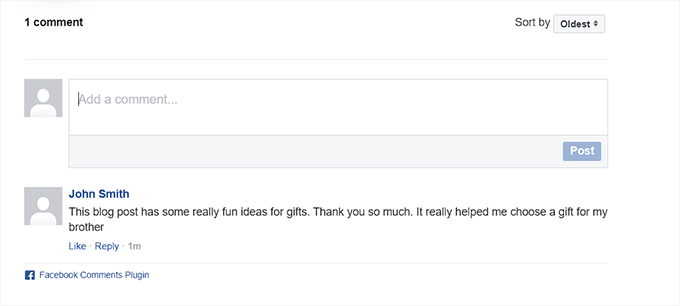
Another advantage of using Facebook comments is that it removes anonymity. So, users are less likely to leave spam comments because they’re tied to their Facebook profiles.
However, this can also act as a major downside.
Some users may feel uncomfortable leaving a comment using their Facebook profiles because they like being anonymous.
Another disadvantage of using Facebook comments is that they are not stored or synced to WordPress. By contrast, third-party commenting systems like Disqus do sync with WordPress.
Additionally, if you have older posts with default WordPress comments, then those comments may appear before or after the Facebook comments.
This is why we recommend removing the WordPress comment system entirely if you want to use the Facebook comment system on your WordPress blog. Otherwise, spammers and bots can use WordPress comments to spam your website.
Now that you know the pros and cons, let’s take a look at how to install and set up Facebook comments in WordPress:
Method 1: Set Up Facebook Comments in WordPress Using a Plugin (Free)
First, you need to install and activate the Lazy Social Comments plugin. For more instructions, see our beginner’s guide on how to install a WordPress plugin.
Note: Keep in mind that this plugin hasn’t been tested with the latest version of WordPress. However, when we used it on our demo website for evaluation, it seemed to be working fine. For more details, see our guide on outdated WordPress plugins.
Upon activation, visit the Settings » Lazy FB Comments page from the WordPress admin sidebar.
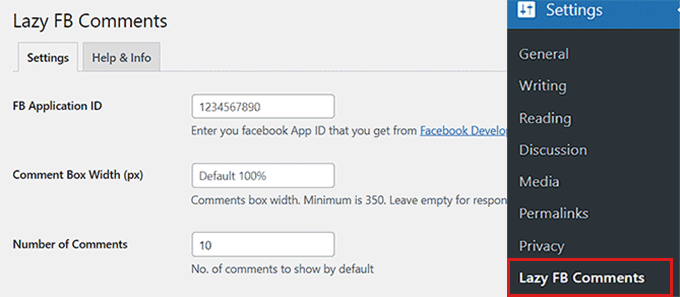
To use Facebook comments on your website, you must create a Facebook app and add the application ID to the plugin’s settings page.
If you already have a Facebook app, then you can use its ID.
However, if you haven’t created an app yet, then you will first have to visit the Meta for Developers page and make a developer’s account.
Note: Before creating a developer’s account, don’t forget to log in to your Facebook account.
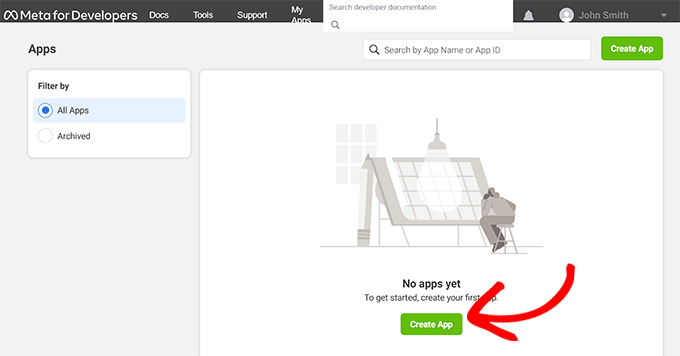
Once you have registered as a Meta developer, just click on the ‘My Apps’ link in the top right corner of the screen.

This will take you to the Developers’ dashboard.
From here, just click the ‘Create App’ button to start the process.
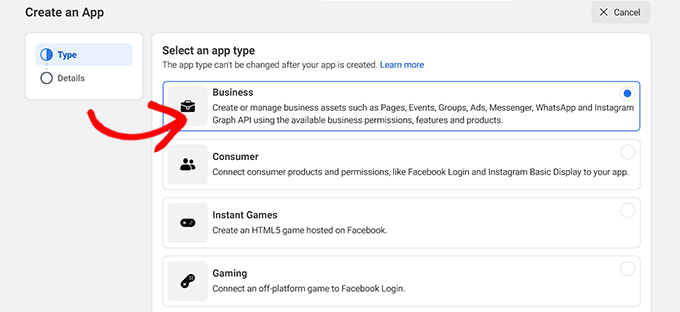
This will take you to the ‘App Creation’ page, where you should choose the ‘Business’ option as the app type.
Then, click the ‘Next’ button at the bottom to continue.
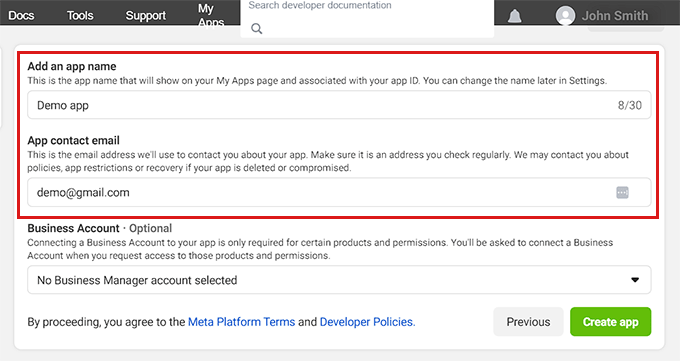
After that, you must provide an app name and an email address that can be used to contact you.
Make sure to use a business email address that you regularly check so that you can get updates about your Facebook App.
After filling in the details, click the ‘Create app’ button.
Facebook will now create a new app for you and redirect you to the app dashboard.
Here, you can see your APP ID displayed in the top left corner of the screen.
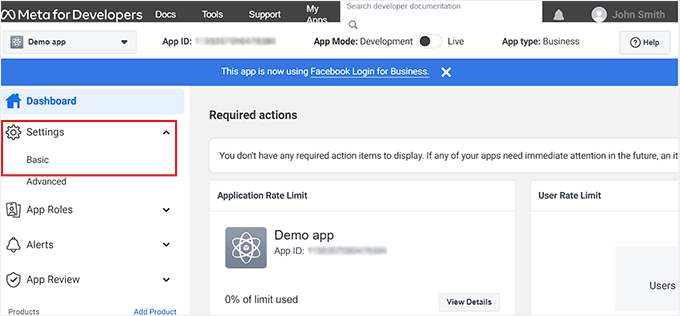
Now, you need to tell Facebook how you’d use the App. For this, head to the Settings » Basic link from the left column.
Next, click on the ‘+ Add platform’ button at the bottom of the page.
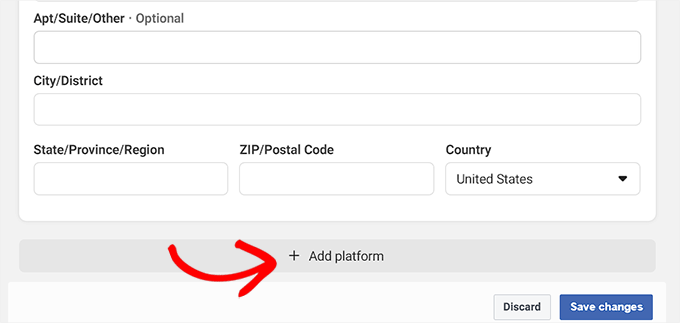
This will open up a new popup window.
From here, you have to choose the ‘Website’ option as your platform and then click on the ‘Next’ button to continue.
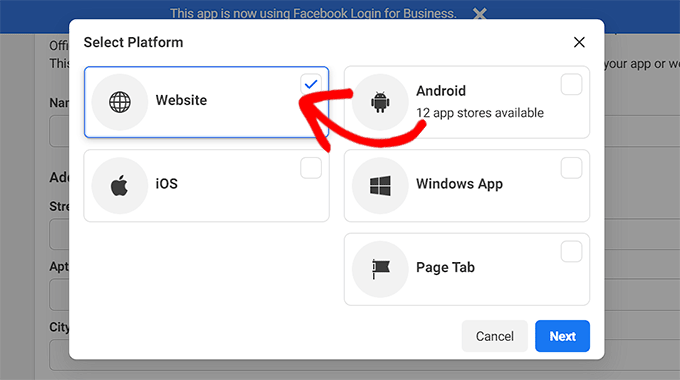
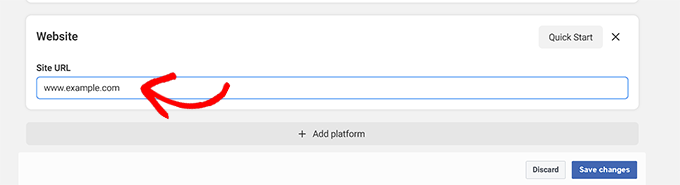
This will add a new ‘Website’ section to your app’s settings page.
Here, simply copy and paste your WordPress website’s URL. After that, click on the ‘Save changes’ button.
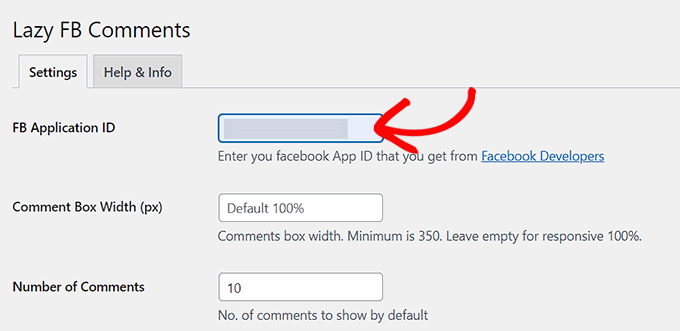
Next, you must copy the APP ID from the top and then paste it into the ‘FB Application ID’ box on the plugin settings page in your WordPress dashboard.
Once you are done, scroll down and click the ‘Save All Changes’ button to store your settings.
Now, a new “Moderate Comments” tab will appear next to the plugin name at the top. We will explain how to moderate Facebook comments in the next section.
This plugin also comes with a comprehensive set of options. You can go through the settings to see if there is something that you would like to change.
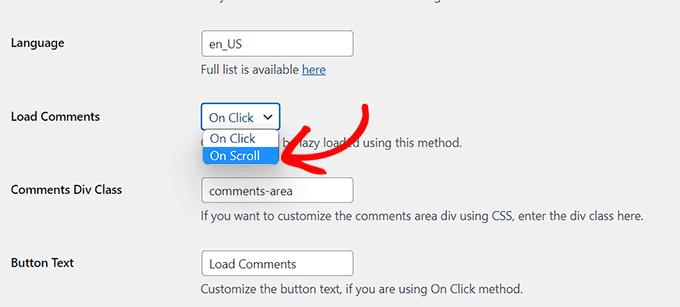
For instance, you can change the Load Comments option to ‘On Scroll.’ This setting will load the Facebook comment system only when someone reaches the end of the article. This can help improve page load speed.
Other than that, the default settings should work for most websites.
Now, you can visit any post on your WordPress site to see the Facebook comment system in action.
Moderating Facebook Comments on Your Website
As the admin of the Facebook app, you will get notifications for new comments when you log in to your Facebook account.
You will also find a link to moderate comments on the plugin’s settings page in your WordPress dashboard.
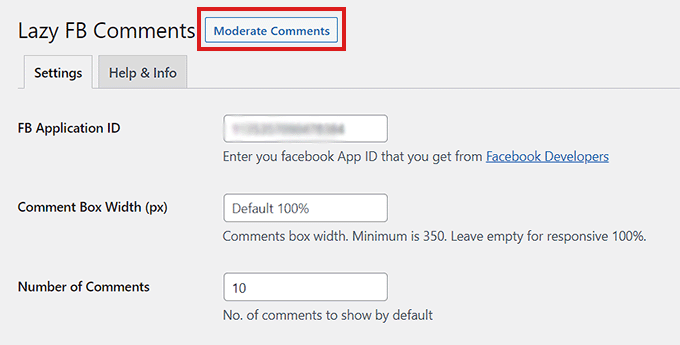
Once you click on the link, you will be directed to the ‘Comment Moderation Tool’ page.
From here, click on the ‘Settings’ link to set the comment moderation rules for Facebook.
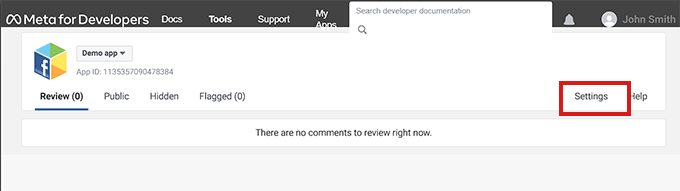
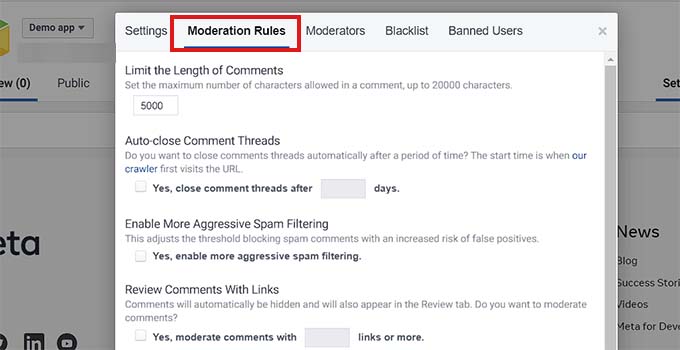
This will open a popup where you must click on the “Moderation Rules” tab.
You can decide the maximum character limit that will be allowed in a comment. You can also set the number of days after which the comments will be automatically closed on your posts.
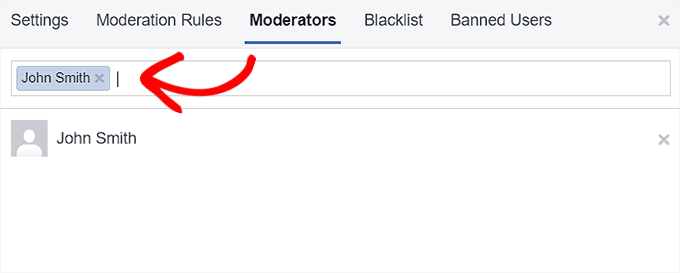
Facebook also allows you to add new comment moderators.
Simply click on the ‘Moderators’ tab and then add a person by typing their name into the textbox and clicking on their profile.
Once you are done, click on the ‘Save’ button to apply your settings.
If you’d also like to see a video of the instructions we’ve gone over so far, check out our YouTube tutorial:
How to Display Facebook Comment Count on WordPress
One of the downsides of using the Lazy Social Comments plugin is that it overtakes the WordPress comment count function. By doing so, it outputs a Facebook-branded version of the comment count.
If your theme displays a comment count, then this would not look good.
If you still want to display the Facebook comment count, then you can do this with the help of a code snippet.
However, keep in mind that making the smallest error while editing your theme files can break your website.
We recommend using WPCode to add code to your website. It is the best code snippet plugin on the market that allows you to add custom code safely.
First, you need to install and activate the WPCode plugin. For more details, see our beginner’s guide on how to install a WordPress plugin.
Note: You can use the free WPCode plugin for this tutorial. However, to unlock more features like a cloud library of code snippets, conditional logic, and more, you’ll need the premium plan of the plugin.
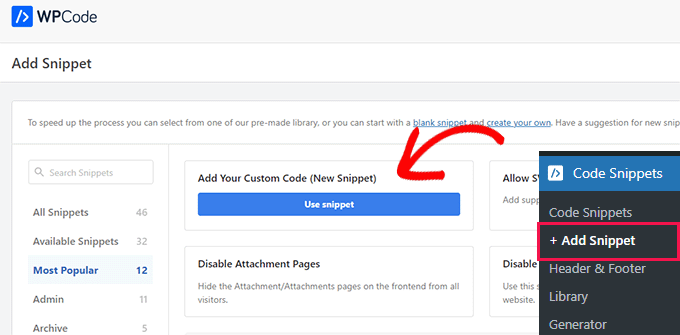
Once the plugin has been activated, visit the Code Snippets » + Add Snippet page from the admin sidebar.
From here, click on the ‘Use Snippet’ button under the ‘Add Your Custom Code (New Snippet)’ option.
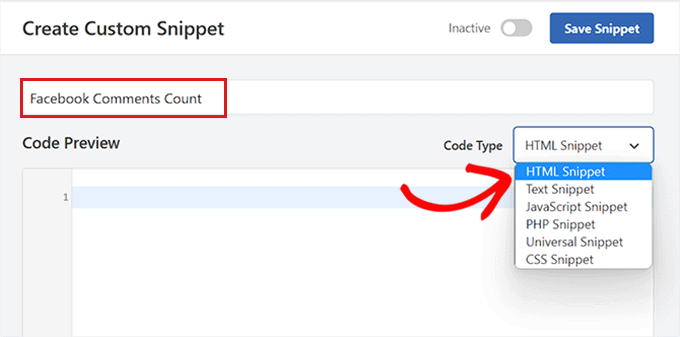
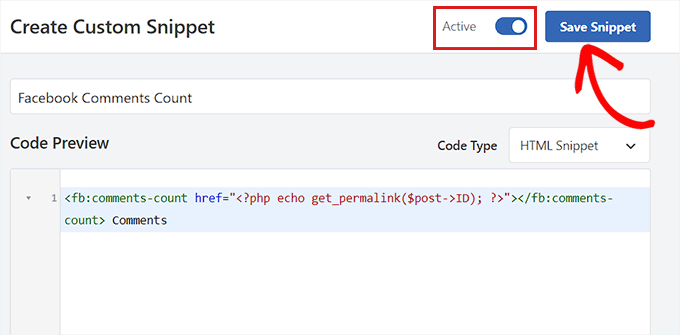
Once you’re on the ‘Create Custom Snippet’ page, start by typing a name for your code snippet.
Next, choose ‘HTML Snippet’ as the ‘Code Type’ from the dropdown menu on the right side of the screen.
After that, copy and paste the following code into the ‘Code Preview’ box:
<fb:comments-count href="<?php echo get_permalink($post->ID); ?>"></fb:comments-count> Comments
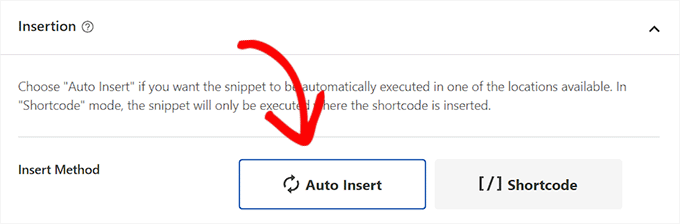
Next, you need to scroll down to the ‘Insertion’ section.
From here, choose ‘Auto Insert’ as the insertion method so that the code will be automatically executed on your website.
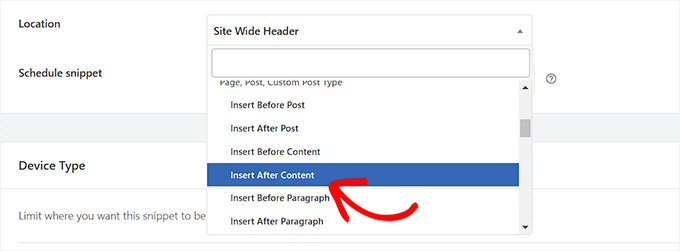
After that, you must choose a location for your code snippet.
Simply select ‘Insert After Content’ as the location from the dropdown menu.
Now, go back to the top of the page and toggle the ‘Inactive’ switch to ‘Active.’
Finally, click on the ‘Save Snippet’ button to store your settings.
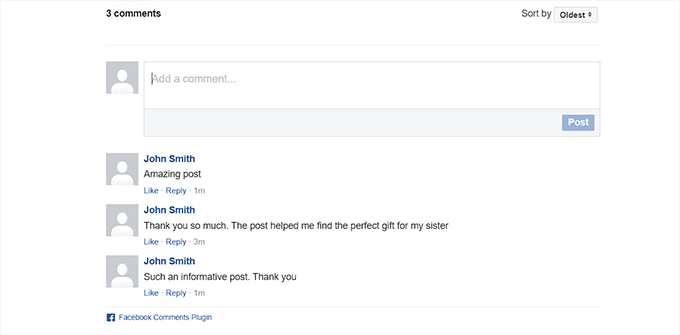
Your Facebook comment count will now be displayed on every post.
Method 2: Set up Facebook Comments Using SeedProd (Easy)
If you’re looking for an easier way to set up Facebook comments, then this method is for you.
We’ll be using the SeedProd plugin, which is the best WordPress page builder plugin on the market. It allows you to create themes and landing pages from scratch without using any code.
First, you need to install and activate the SeedProd plugin. For more instructions, please see our step-by-step guide on how to install a WordPress plugin.
Note: SeedProd also offers a free version that you can try. However, we’ll be using the premium version of the plugin for this tutorial.
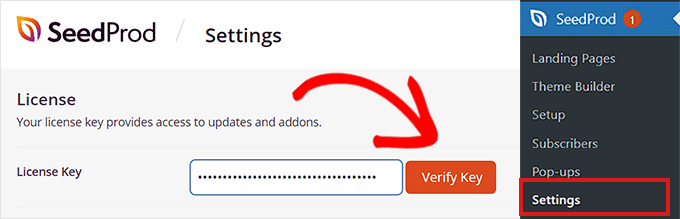
Upon activation, visit the SeedProd » Settings page from the admin sidebar to enter the license key.
You can find this information in your account on the SeedProd website.
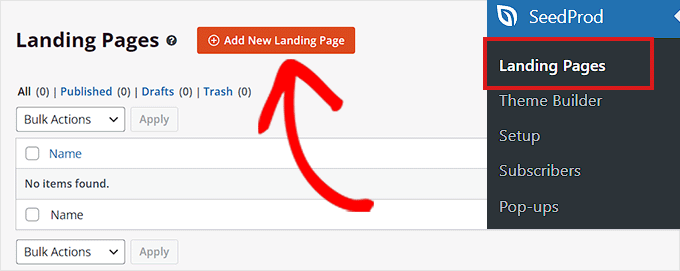
Next, head over to the SeedProd » Landing Pages section from the WordPress admin sidebar and click on the ‘Add New Landing Page’ button.
For this tutorial, we’ll be adding Facebook comments to a landing page. If you want, you can also customize a whole new theme for your website using SeedProd.
You will now be taken to the ‘Choose a New Template’ screen. Here, you can pick one of the many pre-made templates offered by SeedProd or create your own template.
Once you have done that, you will be asked to enter a page name and choose a URL. Upon doing that, click the ‘Save and Start Editing the Page’ button to continue.
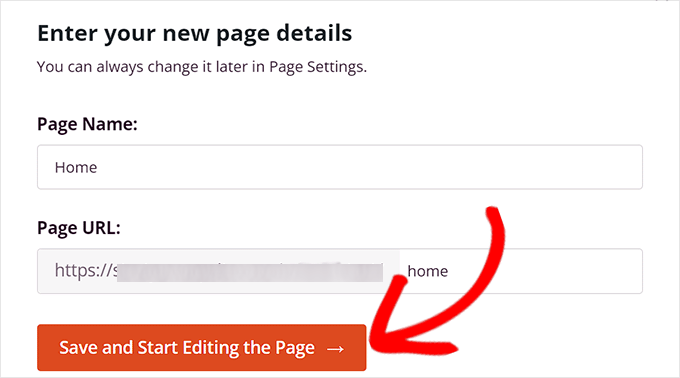
This will launch the SeedProd drag-and-drop page builder, where you can start editing the page. For more details, please see our guide on how to create a landing page in WordPress.
From here, you need to search for the ‘Facebook Comments’ block in the search bar.
Upon locating it, you can drag and drop the ‘Facebook Comments’ block to any place on the page that you like.
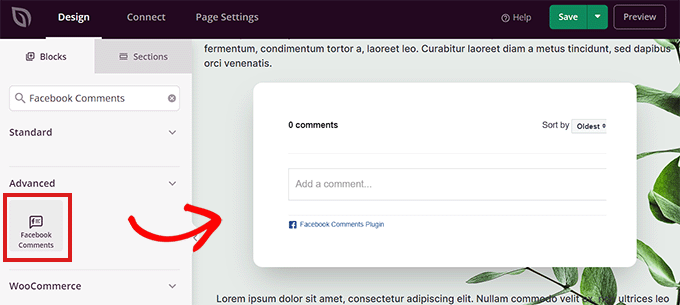
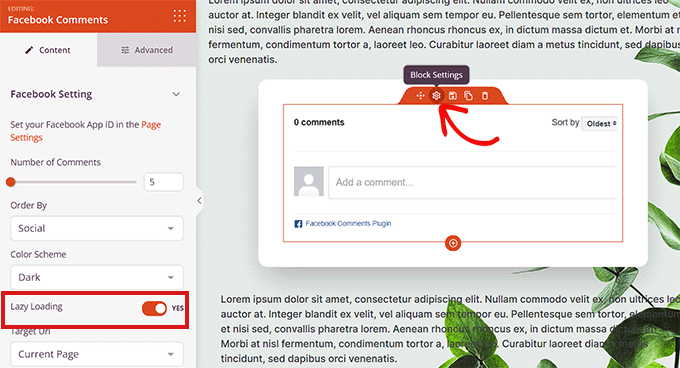
Next, double-click on the ‘Facebook Comments’ block on the screen to open its settings in the left column.
From here, you can decide the number of Facebook comments to display, choose an order, color scheme, target URL, URL format, and more.
You can also lazy load the comments by switching the ‘Lazy Loading’ toggle to ‘Yes.’
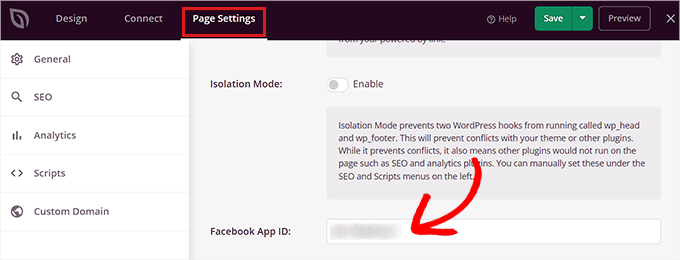
Next, you have to click on the ‘Page Settings’ link in the top left corner of the screen.
Then, scroll down to the ‘Facebook App ID’ option and enter your Facebook App ID.
Once you’re done, simply click on the ‘Save’ button at the top.
The Facebook comments will now be displayed on your WordPress website.
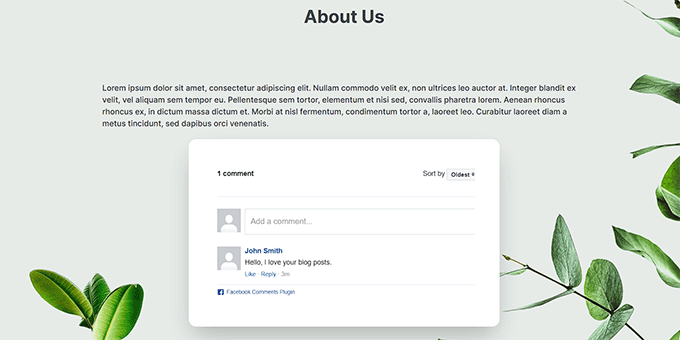
Bonus: Add Facebook Like Reactions to WordPress Posts
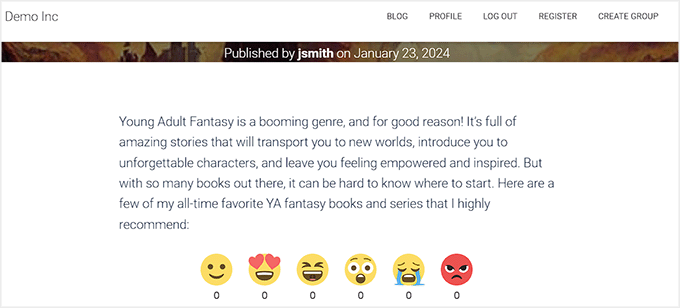
Apart from adding Facebook comments, you may also want to add Facebook-like reaction options to the posts on your WordPress blog. These reactions are a set of emojis that visitors can use to express their opinions about a blog post.
This makes your blog more interesting and can boost engagement.
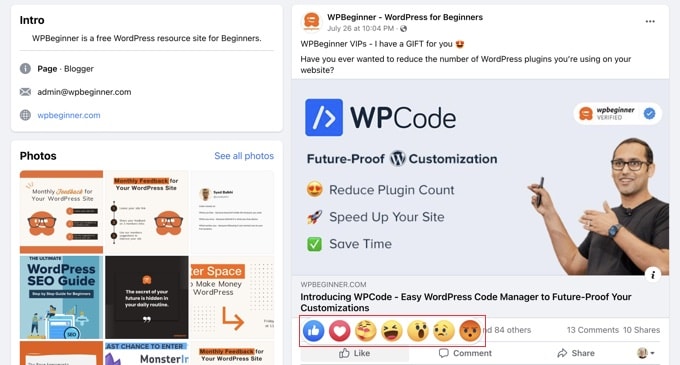
To add these reactions, you need to install and activate the ShareThis Reaction Buttons
plugin. For details, you can see our beginner’s guide on how to install a WordPress plugin.
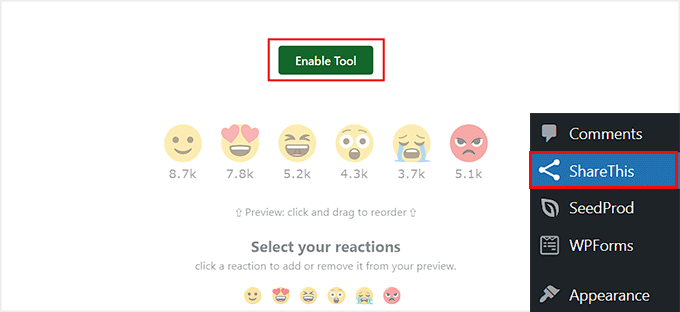
Upon activation, visit the ‘ShareThis’ page from the WordPress dashboard and click the ‘Enable Tool’ button. After that, select the emojis that you want to add as reactions.
Then, scroll down to choose the alignment for your emojis. Next, you can toggle different switches to choose your reaction placements as ‘Bottom of post body,’ ‘Bottom of page body,’ and more.
Once you are done, just click the ‘Update’ button to store your settings.
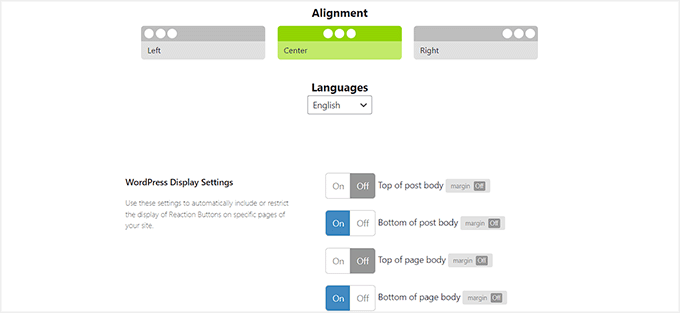
Users can now add Facebook-like reactions and post Facebook comments on your articles upon finishing reading them.
For more details, see our tutorial on how to add Facebook-like reactions to your WordPress posts.
We hope this article helped you install and set up Facebook comments on your WordPress site. You may also want to check out our guide on how to show recent comments in WordPress sidebar and our top picks for the best comment plugins to grow your website.
If you liked this article, then please subscribe to our YouTube Channel for WordPress video tutorials. You can also find us on Twitter and Facebook.




NATHAN
And can the WP Comment section be customized to look like that of Facebook if one needs to redesign it?
WPBeginner Support
It would require some work but you could certainly style your comment section to look similar to Facebook’s
Admin
David
Hi,
I set it up according to this article. Comments work, but I can’t see the comments in moderation. Every column including “public” is empty. How can I delete published comments for example?
Thank you
David
WPBeginner Support
You would want to go into the plugin’s settings for the link to your comment moderation.
Admin
Samantha Collier
Thank you for these instructions. I’ve tried to install Facebook comments for a long time and this is the first time it’s worked.
WPBeginner Support
Glad our guide was able to help
Admin
Lisa Marie
Thanks so much for this! Your site is incredibly helpful! I appreciate what you all do sooooooooo much!!!!!
WPBeginner Support
You’re welcome, glad our articles have been helpful
Admin
Boris
Awesome, Thanks!
WPBeginner Support
You’re welcome
Admin
Daniel
Thanks. The plugin is very useful indeed.
It seems that the Plugin has changed its name to “Lazy Social Comments”, and is being supported by other people.
WPBeginner Support
Thank you for letting us know, we’ll be sure to look at updating this
Admin
malika
thanks for sharing useful information !
WPBeginner Support
You’re welcome
Admin
Joseph Parker
As per my personal experience, Facebook Comment is one of the best ways to increase your visitors to comment on a post or interact with existing comments.
WPBeginner Support
Thanks for sharing your personal experience
Admin
Ricky
Post comment error handle on same page ?
WPBeginner Support
If the plugin is having an error, if you reach out to the plugin’s support they should be able to assist
Admin
priyank
really helpful. I tried the mentioned plugin and it totally worth it
WPBeginner Support
Glad our guide was helpful
Admin
Muhammad Arslan
That plugin has been closed on author’s request. Please update the post.
WPBeginner Support
Thank you for letting us know, we will certainly take a look into updating the article.
Admin
Mohammad
The Facebook plugin mentioned has been disabled by its author. Please update.
WPBeginner Support
Thank you for letting us know, we will certainly take a look into alternatives for Facebook Comments
Admin
Jakobe
this plugin has been discontinued, what do you reccomend?
Editorial Staff
Just updated the article
Admin
Prashanth
Was able to add the facebook comments plugin successfully. But, the default wordpress comments section is also showing below. How do I remove it?
Prashanth
Which plugin do you use for social sharing, that is below the posts (has the share counter too)
WPBeginner Support
Hi Prashanth,
We use a custom plugin for that. Please see our list of best social media plugins for WordPress for alternatives.
Admin
Rajendra Zore
You may want to update this article as the plugin author of Facebook Comments has stopped supporting it & prompting to switch to the Spot.IM Comments plugin instead.
Raj
Dear Wpbeginner. Nice article. Installed FB comments. everything working fine. Is there any waty to enable “Also post on Facebook” selecxt box?
Hosana
You need to review this article! The plugin you’re referring to is no longer being updated and is days away from breaking (when the older FB API will be deactivated). The developer started up spot.im which I guess he’ll have his hands full with.
Also I don’t really see any other good plugins for this, they all have a small install base, unsolved issues to which they aren’t responding, no proven compatability with latest wp version, …
WPBeginner Support
Hi Hosana,
Thanks for the suggestion we will look into it. You can also try to reach out to plugin developers for support.
Admin
zhul
but how to change text color?
i used dark themes and i can’t see any comment
Elizabeth
Is there a way to turn off the comments on certain posts?
sam
how to mirror the facebook comment on facebook page with facebook comment on wordpress blogpost and vice versa?
Jenn
Thanks, this article was very helpful! I followed your instructions, and everything appears to be working on my site.
Chankey Pathak
This plugin does not work anymore.
Uchiha
Im having trouble using this into my wordpress site. Please help me
Nilesh
Hey, great article and very useful. Can you link the comments to a Facebook post or page?
Patrice
The facebook comments plug in is working on my site however I still see the wordpress comments. How do I remove the wordpress comments?
David chriss
Hi Patrice,
You Can Disable Default WordPress Comment By Using This Plugin Disable Comments
Details:- Requires: 4.0 or higher
Compatible up to: 4.6.1
Last Updated: 2 months ago
Active Installs: 900,000+
If you have another Question Feel Free To Reply To This Email
Or You Can Read This WP Beginner Article https://www.wpbeginner.com/plugins/how-to-turn-off-or-disable-comments-in-wordpress-pages/
I Hope I Help Some One Today
Best Regards,
David Chriss
Charne Cronje
Hi David, Hope you are well, Has this plug in for facebook comments been updated for the new wordpress 4.7.2? And perhaps you might also know of a pinterest plugin that doesnt just show the pictures but also the description below, which works with the latest version of Wordpress.
Thank you
Charne
xx
Sara
Hi. I want to know if it’s possible to make the comments on my fanpage’s articles appear directly on my website’s articles and vice versa. Thanks!
Zaharadeen Elfakkawy
Anytime someone tried to comment they get ‘message failed’ error. Pls what’s the solution for thia
David chriss
Hi,
Even me I Have That Common problem Please WP Beginner Help Us Or Any One can Help Us Please.
Please Help Us
Amit Jain
Dear Team, What is the name of social share plugin you are using as i wish to install the same. It looks quite simple and sober. Regards, Amit Jain
sohib sanam
thanks for share the update about facebok comment
Stelaras
Do you know how i can change the position that the plugin is placed?
Ahmad Farisi
Thx … but how to set notification to our facebook account if there is a new comment ?
Mahdi
Hi Everyone, I was looking for a plugin who’s importing my facebook old comment from my facebook fanpage to my wordpress.
I tried this one but it’s not working, can anyone tell me how it works ?
I used another methode by commenting the embed comment and looks not really fine
Justin Enjo
Hi WPBeginner – Quick question about Facebook Comments… How does it effect your SEO? Is it better to keep default Wordpress comments or maybe Jetpack comments so that the comment content stays attached to your blog rather than fb? thanks.
WPBeginner Support
Default WordPress comments are more SEO friendly in our opinion.
Admin
Pram
I can’t find the plugin?
Aman
This plugin is installed on my site and I have also activated coments mirroring for my page but still comment mirroring is not happening?
Do you know the way around to do this?
anish
i have a site
Daniela
Hello very well explained!! But I have a problem! The comments should show also on my fan page write? …..
……I did everything and I get my comments on my wordpress but not SHOWING on my facebook page why?? Help !!!!!! Thanks a lot. Daniela
Vikagutt
I can’t get the plugin to work in Internet explorer. I can see from other threads on the net that others have the same experience. Some say that header.php should be modified, but I can’t figure out where in the file.
What to do?
Tabetha
I set up this plugin with a test app. Right before I was due to launch the website, I had to switch over to the new app that was set up for the business the website was built for. When I changed the app ID to the new app, all of the comments kept going to the old app I set up for testing purposes. Even after I deleted the old app, deleted and reinstalled the plugin and verified that the correct app ID was being used in the api call.
Now, I have no way to moderate the comments because that old app is deleted and all the new comments are going to that old app even though the app ID I have in the plugin settings is for the new app ID.
Any ideas?
Steve
..that facebook plugin is not updated since 11 months. Moreover, the plugin is made by some developer, and not Facebook. It does not feel very safe to use that plugin. Do you have any alternatives?
WPBeginner Support
Sometimes plugin authors don’t feel the need to update a plugin because there is nothing changed or broken.
Admin
Rizwan
Hi.. When i hyperlink another post from my wordpress blog to new post. All hyper links get shown below with ping back option. I don’t want them to show. Any advice?
mahendra
great post !!! i have been searching for how to install facebook comments to my site. now i am going to use it on my site
thank you alot .
Paolo Euvrard
ok, that’s all fine, I’ll switch to that from now on.
In order to disable the Wordpress comments:
Settings >> Discussion >> uncheck “Allow people to post comments on new articles”
This applies to new posts that you will publish from now on.
To disallow comments from already publish posts:
Posts >> select them all and “Edit” under bulk actions and hit apply >> choose “do not allow” next to comments and hit update posts.
Autarka
hey guys,
regarding to your plugin issues…
you need ipv6 addresses… without switching from ipv4 to ipv6 it isn´t working…
kindly, autarka
Mithilesh
Not getting where to upload the plugin.
nacontact
Hey, nice article, but I have some questions.
This blog here:
When you comment his facebook publication, it’s automatically commenting his blog, keeping the theme of the blog. When he comments his blog, it’s automatically commenting the facebook thread.
Any idea on how to do that?
Cheers,
Ramon
Hello,
I would like exactly the same! Can’t find how to. Did you find the answer to this and would you want to enlighten me? What I’ve been Googling so far is things like:
“auto publish to facebook grab retrieve comments”
Thank you so much!
Greetings
Sara
I have the same problem. Did you find a solution?
Cynthia Spencer
I’m hoping it will help out with the user interaction on my site!
vimala
But that just seemed to take me in a circle, and i never got what I needed.
Kenneth Adair
There is NO Create App ID button here:
“Simply visit the Facebook Apps page and click on the create new app button. You will need to provide a name for your app and click on the Create App ID button.”
WPBeginner Support
Follow the on screen instructions to create a new app.
Admin
Mark
I just set it up and It’s pulling in 1200+ comments, but I’ve only just created my FB page and I have not comments on it yet. The stuff is from all over the place. How do I get it to just show my FB page’s comments
Rob
I have exactly the same problem and will remove these coments now as it looks so fake. Anyone can see it is not genuine. What a disappointment! There are no instructions either about this, as far as I can see.
Esref
Fake content is a big problem