


That generic ‘mystery person’ avatar in your WordPress comments section isn’t doing your site any favors. Having built hundreds of WordPress sites, we know how a personalized comment section can make your site more engaging and professional.
Whether you want to use your brand logo, a custom design, or just something more appealing than the default grey silhouette, changing your default gravatar is a simple way to enhance your site’s appearance. The best part? You don’t need to be a tech expert to make this change.
In this guide, we’ll show you several ways to replace the default gravatar in WordPress
What Is a Default Gravatar and Why Change it?
Gravatar stands for Globally Recognized Avatar. It’s a web service that allows people to create a profile and associate avatar images with their email address.
All WordPress sites have built-in support for gravatars and will automatically show the user’s avatar when they write posts on a multi-author WordPress blog or leave comments.
If a user doesn’t have a gravatar, then WordPress will show a default gravatar instead. For most WordPress websites, this is a grey mystery person.
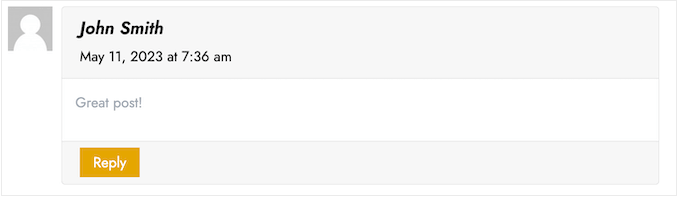
You can change this default gravatar to any other picture of your choosing. For example, you might use an image that represents your company, such as your website logo. This can help reinforce your branding.
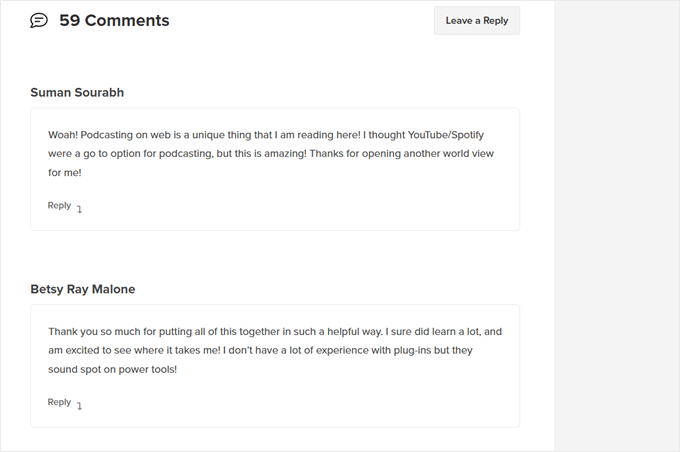
In our case, we decided to disable gravatars completely since we found it creates an unnecessary extra step for users who want to leave comments.
Having said that, let’s see how you can change the default gravatar image in WordPress. Simply use the quick links to jump straight to the method you want to use:
Method 1: Change Default WordPress Gravatar (Quick and Easy)
WordPress comes with a few different default gravatars that you can use. Using the defaults is the quickest way to change the mystery person gravatar, although these images won’t be unique to your WordPress website or brand.
To look at the different default gravatars, you need to go to Settings » Discussion from the WordPress admin area.
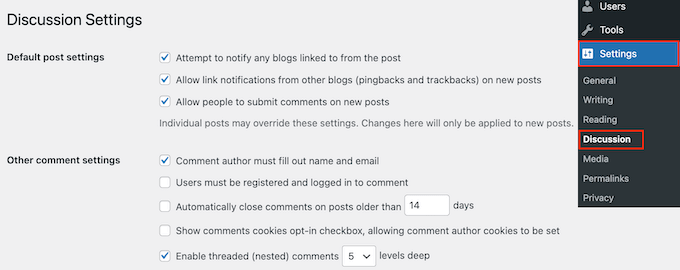
Under ‘Default Avatar,’ you will see all the different user avatar images that WordPress can use when there’s no gravatar linked to the person’s email address.
Out of the box, WordPress uses the mystery person as its default, but you can use any other image in this section.
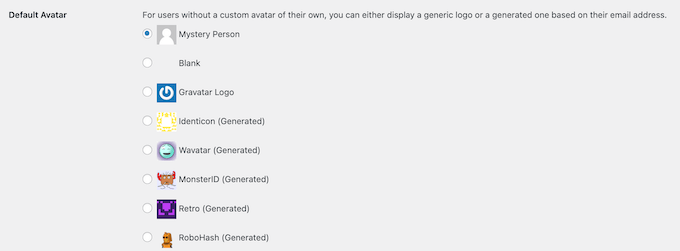
Simply click on the radio button next to the image you want to use on your WordPress blog.
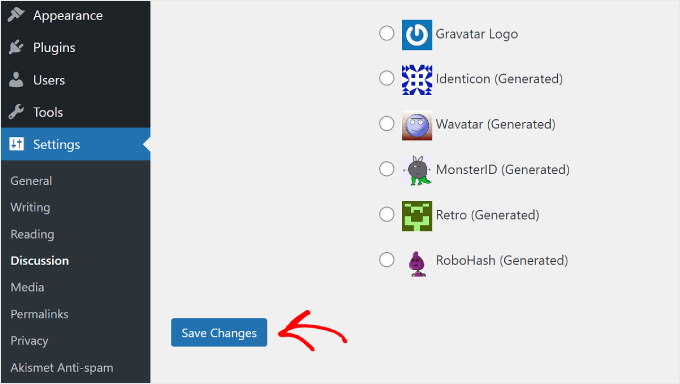
Then, scroll to the bottom of the screen and click on ‘Save Changes.’
Method 2: Use Thrive Comments to Upload a Custom Gravatar (Plugin Method)
If you don’t like the default WordPress profile pictures, then you can upload a custom gravatar instead. This is the best way to personalize your comment section to your brand.
For this method, we will use Thrive Comments. It’s a comment plugin that’s designed to encourage users to comment on your blog posts and boost your website engagement.
Besides a custom gravatar feature, Thrive Comments comes with tools to make your comment section more fun and exciting. For instance, you can enable likes and dislikes just like on a social media site.

You can get Thrive Comments as an individual plugin or purchase the complete Thrive Themes Suite. This includes all Thrive products, like Thrive Ovations, which can turn your comments into testimonials.
After that, you can download a plugin zip package to install on your WordPress site. Read our complete guide on how to install a WordPress plugin for more information.
With the plugin installed and activated, you can go to Thrive Dashboard » Thrive Comments from the WordPress admin area. Then, open the ‘Customize Style’ tab.
Inside this tab, make sure the ‘Display avatars’ setting is turned on. Once done, just click ‘Choose Image.’
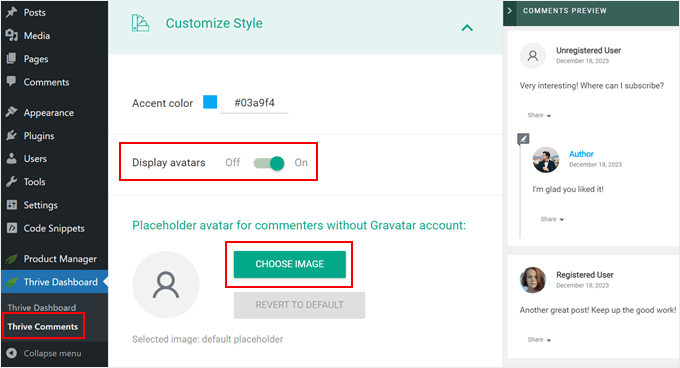
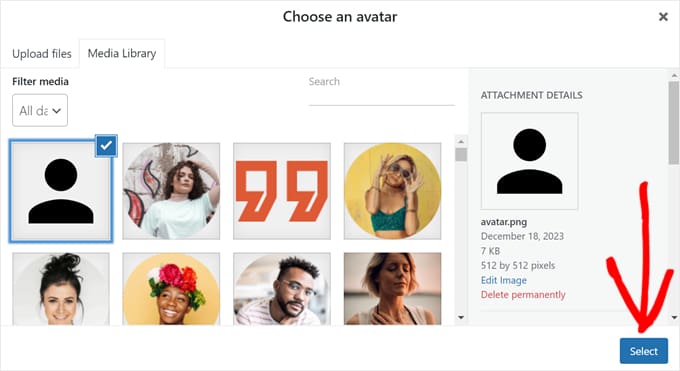
At this point, you can either choose an existing picture from the WordPress media library or upload your own to use as the Gravatar default image.
You can use a stock photo, make your own custom logo, or even create a new gravatar image using web design software such as Canva. This image should be a square, like 250×250 pixels.
Once you have chosen an image, click ‘Select.’
And you’re done!
You should now see your new default gravatar profile picture in the preview and on your live comment section.
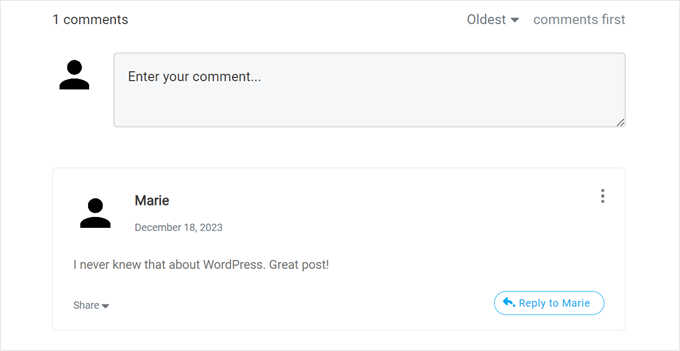
The cool thing about Thrive Comments is you can easily lazy load gravatars with it.
What that means is WordPress won’t display a commenter’s gravatar until the website visitor scrolls down to that specific comment.
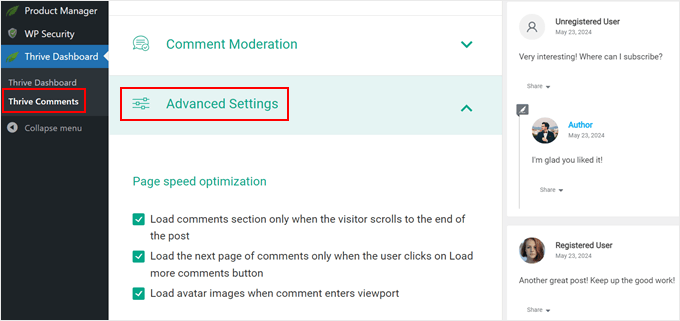
If you want to enable this feature, simply go to Thrive Dashboard » Thrive Comments and open the ‘Advanced Settings’ tab. Then, tick off the box that says ‘Load avatar images when comment enters viewport.’
You can also tick off the other lazy loading features, too.
For more tips and tricks on using Thrive Comments, check out these guides:
- How to Feature or Bury Comments in WordPress
- How to Redirect Your User’s Attention with Comment Redirect
- How to Remove Website URL Field From WordPress Comment Form
Method 3: Insert a Code Snippet to Use a Custom Gravatar (Code Method)
Besides using Thrive Comments, you can also upload a custom gravatar using code. You may prefer this method if you simply want to add a new image to the gravatar list on the WordPress Discussion page.
Like in the second method, you need to have an image that you want to use as a gravatar.
After that, you can upload the image to your WordPress site by going to Media » Add New. Here, you can either choose an image from the WordPress media library or upload a new file from your computer.
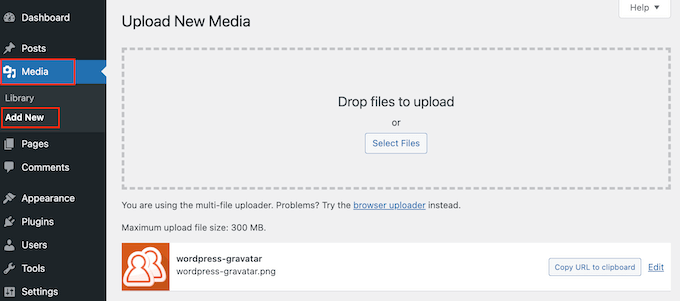
Now that you’ve chosen an image, go ahead and click on the ‘Edit’ link next to it.
WordPress will now open the file for editing. On this screen, scroll to the ‘File URL’ section.
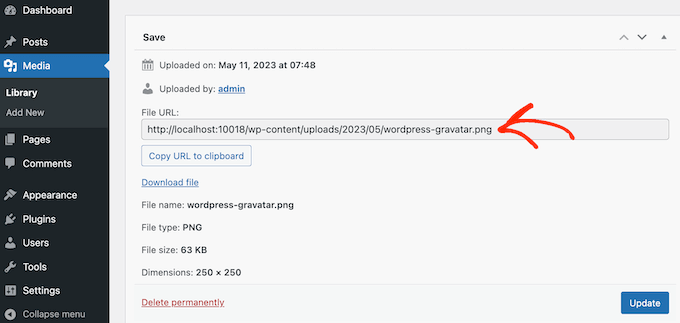
Make a note of this URL, as you will need it in the next step.
At this stage, you need to add some code to your WordPress site. Often, tutorials will ask you to add custom snippets to your theme’s functions.php file.
However, we don’t recommend this because even a small mistake in your code can cause common WordPress errors or completely break your website.
That’s why we recommend using WPCode. It is the easiest and safest way to add custom code in WordPress without having to edit any core WordPress files.
The first thing you need to do is install and activate the free WPCode plugin. For more details, see our step-by-step guide on how to install a WordPress plugin.
Upon activation, go to Code Snippets » Add Snippet in your WordPress dashboard.
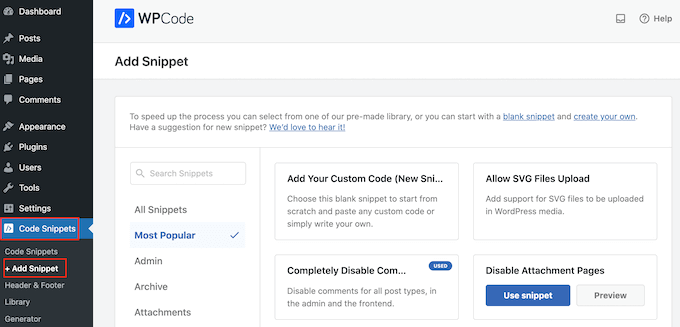
Here, you will see all the different snippets you can add to your WordPress website. These include snippets that allow you to completely disable comments in WordPress, upload SVG files to your site, and more.
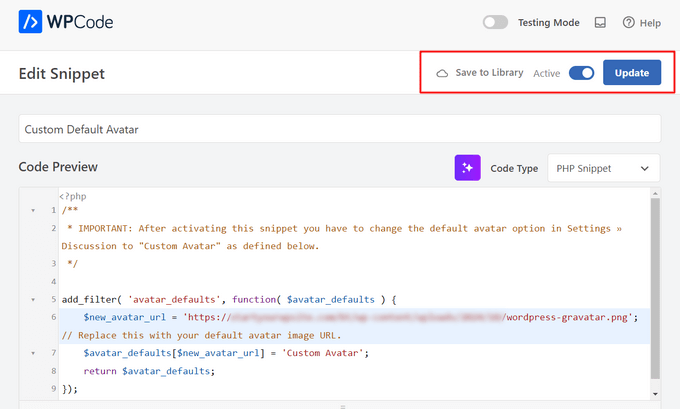
There’s even one for using a custom image for the default avatar. Simply search for the ‘Custom Default Avatar’ snippet in the library.
Once you find it, hover your mouse over it and then click the ‘Use snippet’ button.
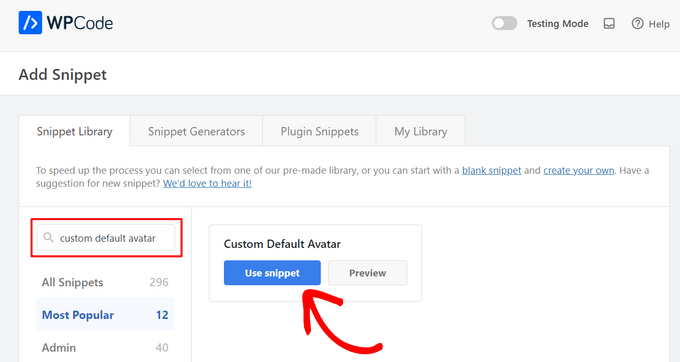
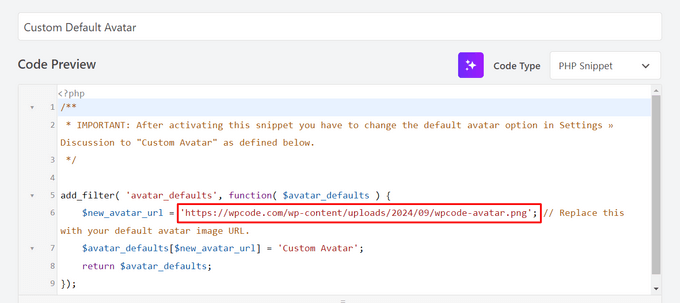
After that, WPCode will automatically add the correct code for you.
Don’t forget to replace the URL with a link to the image you want to use as the default WordPress gravatar.
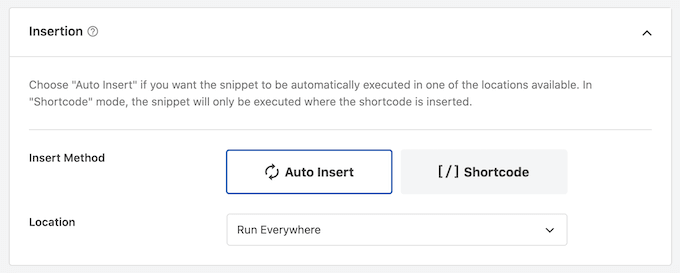
Below the code box, you will see some insertion options. If it isn’t already selected, then choose the ‘Auto Insert’ method so that the snippet will be automatically inserted and executed across your entire site.
After that, open the ‘Location’ dropdown and click on ‘Run Everywhere.’
Once you have done that, you need to scroll to the top of the screen and click on the ‘Inactive’ toggle so that it changes to ‘Active’ instead.
Finally, go ahead and click on ‘Update’ to make the gravatar snippet live.
To start using this gravatar, go to the Settings » Discussion page.
In the ‘Default Avatar’ section, select the new ‘Custom Avatar’ option.
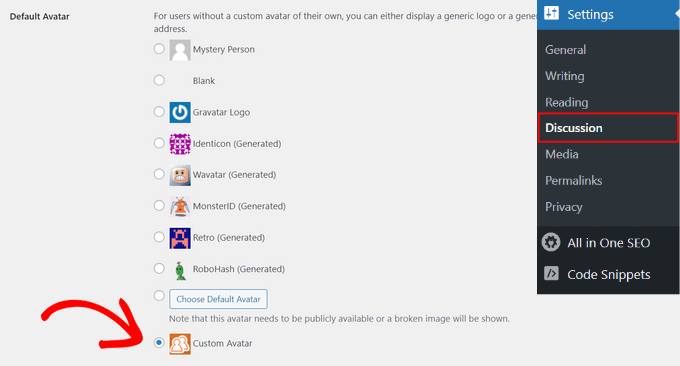
After that, make sure you click on ‘Save Changes’ to store your settings.
Now, if you visit your website, you’ll see the new default gravatar image live.
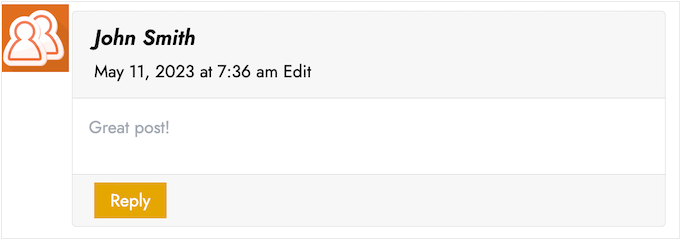
That’s it! To learn more about gravatars in WordPress, check out these guides:
- How to Display Gravatar from User Email in WordPress
- How to Disable Gravatars in WordPress (Step by Step)
- How to Change the Gravatar Image Size in WordPress
We hope this article has helped you learn how to change the default gravatar on WordPress. You may also want to see our guide on how to moderate comments in WordPress and our list of the best WordPress comment plugins.
If you liked this article, then please subscribe to our YouTube Channel for WordPress video tutorials. You can also find us on Twitter and Facebook.




Kzain
this is so helpful i never thought of changing a comment Gravatar but I guess it needs to match your brand and blog
Dennis Muthomi
The good thing I love about Thrive Comments is that uses a branded image as a placeholder icon for commenters without Gravatars.
Best comment plugin ever made!
Teri
You did it again! You helped me. Thank you so much!
WPBeginner Support
You’re welcome! Glad our guide was helpful!
Admin
Francis
Hi guys,
Wonderful tutorial, you saved me from a big headache! Keep up the great work!!!
Best regards,
Francis
WPBeginner Support
Glad to hear our guide was helpful!
Admin
Segun Solomon
Thanks for this guide. It helps.
WPBeginner Support
Glad it was helpful!
Admin
WoodyP
Hi, thank you for your article!
is there a way to assign one image per role?
WPBeginner Support
We do not have a recommended method at the moment but if that changes we will be sure to share.
Admin
Patti
Been working for 2 days trying to get rid of the Chef Hat in my theme.
This worked! Thanks
WPBeginner Support
Glad our guide could help
Admin
Aardha
This worked like a charm. Thanks!! Is there a way to have multiple default gravatar which can be assigned randomly to users ?
WPBeginner Support
You would need a plugin for a feature like that, if we find a plugin we would recommend we will certainly share.
Admin
David
This is not working. Wordpress does not allow to use local images. Please review your tutorial and update it accordingly.
WPBeginner Support
The method should still be working, if you are on WordPress.com then that would be your issue as our guides are for WordPress.org. You can see the differences in our guide below:
https://www.wpbeginner.com/beginners-guide/self-hosted-wordpress-org-vs-free-wordpress-com-infograph/
Admin
Murat Dinç
Hi,
Can I add an icon instead of Adding an image?
WPBeginner Support
You would want to check on Gravatar’s site for any current restrictions.
Admin
Renz
Thank you for this tutorial. was able to follow but my default picture wont show up
WPBeginner Support
If our method was not able to assist, you would likely want to reach out to your theme’s support to ensure there isn’t a theme-specific setting preventing the change.
Admin
Karen
Okay, I found an easier solution for everyone that works well: just install the “WP User Avatar” plugin. Works like a charm and you don’t have to do anything with coding!
WPBeginner Support
Thanks for sharing your recommendation
Admin
Mari Alonso
This is great, thanks! I followed this by installing the plugin to add the code and then adding my 250×250 picture. It worked great, but now if anyone comments on my site, my picture, not theirs, shows up next to their name. My picture shows up everywhere and no one else’s. Any idea why?
Thank you.
WPBeginner Support
That would be due to you setting the default gravatar for all users on your site. If you wanted to set a gravatar only for yourself you would want to use our guide here: https://www.wpbeginner.com/beginners-guide/what-is-gravatar-and-why-you-should-start-using-it-right-away/
Admin
Thank you so much
I followed the Gravatar instructions on your link and now anywhere I comment I see my unique Gravatar. Nevertheless, I see it everywhere except on my own site even thought the same email address is associated with it. Any ideas?
Thanks, tons again.
Mari
WPBeginner Support
If you have any caching on your site make sure it is cleared as the most common reason for something like that.
Divine
This page was really helpful. I managed to change the custom image. Thanks
WPBeginner Support
Glad our recommendation could help
Admin
Lilly
Thank you for this post!! I use All in one SEO and could never get it to work. Your post provided a good map and work around. However I am still getting 12 error msgs? are they possible related?
WPBeginner Support
It would depend on the specific errors. If you reach out to the plugin’s support they should be able to assist.
Admin
Andreia Esteves
Thank you for this post! But, what if I just want to change my personal avatar without using gravatar?
WPBeginner Support
For just an author on your site, you would want to take a look at our article here: https://www.wpbeginner.com/plugins/how-to-add-an-authors-photo-in-wordpress/
Admin
Giga
I want an option where the user can upload an image as per their requirements. What should I do for that ?
WPBeginner Support
It would depend on your specific requirements, for a starting point you would want to take a look at: https://www.wpbeginner.com/plugins/how-to-allow-users-to-upload-images-with-comments-in-wordpress/
Admin
Tommy Roche
Thank you for this.
WPBeginner Support
You’re welcome
Admin
Mahdi
ty – its worked for me – but now default avatar loded from other site – how i can define that this image loaded from my host?
WPBeginner Support
You’re likely using the Jetpack plugin and using their option to load images from their server. You can go into Jetpack’s settings to disable this function.
Admin
MAHDI
i don’t have Jetpack plugin – how i can do it? without install new plugin?
WPBeginner Support
If you mean you want your gravatar image to be loaded from your site when it is added to other sites, that is not an option at the moment.
Daniel
Perfect solution, thank you!
WPBeginner Support
You’re welcome
Admin
Divya S
That was so informative!
Brian
Hey so I have sort of a peculiar yet distinct task that I need help with. My client has a blog on Wordpress but then they post their blog to Twitter, next to the article is a gray blank avatar. She had requested that I find a way to put some sort of image in place of this but I am not sure how to go about doing this. I know she uses a Gravatar for the comment section but this instance is a bit different. Any advice on what I can do?
Ryô
Hello, the code works well, but I made some changes to my newly added avatar picture and I still see the first version when I refresh the page.
Looking at the url of the picture it automatically added “http://i2.wp.com/” at the beginning (I don’t have jetpack or any cache plugins).
I guess I can just change the name of my picture and update the code, but is it a way to get ride of wp cache?
Satyam Patle
Wow Thank you sir its helping me for Change custom Avtar
Ana
I have no problem changing the image on my gravatar but I cannot seem to change the words. Even though I select edit and rewrite them, the change doesn’t appear on my wordpress site. What am I doing wrong?
anna
Thanks for the nice explanation, Now I’m clear about setting up my gravatar in Wordpress site.
rashmi
this is very useful
Pat
Thank you, thank you, thank you! I’ve looked everywhere on how to change the default avatar and you were the only ones who simple explained it and displayed how! Sometimes finding the answer in the haystack of information can be just mind blowing. You rock!
manoj rai
how set when user comment your post show him/her original profile. please help me. thanks
Joy
Hello, I’ve tried this in my child’s theme function and it just will not work. The image in the discussion settings and on the front-end appear broken. When I right click to view the path it displays:
It affixes the i1.wp.com before the link. Even when I tried to connect directly to the child theme stylesheet directory and pickup from the folder, ‘images/chicken_avatar.png’, it still affixed the i1.wp.com
Any ideas how to fix this? Thank you.
WPBeginner Support
Hey Joy,
We tested it again with a child theme and it worked as expected. We are not sure what may be causing the issue. You can follow the instructions again. Make sure you add the full image URL in the code.
Admin
Joy
Hmm, not sure what I was doing wrong. I just gave it another go and it works. Thank you!
Andrew
Joy: Mine Via Another WordPress Script, is Going to (i0.wp.com/MySite…). Very Strange. :–)
Andrew
It Still Shows i0.wp.com/MySite Whwn Going to the Image Location, but I Changed the URL Code to (‘/custom-gravatar/mh-profile-photo-default.png’), Instead of ‘example.com/wp-content/uploads/2017/09/mh-profile-photo-default.png’). In Settings > Discussion It Shows My Admin Photo as the Default User Gravatar, but On User Profiles, It Views Properly! :–)
Mayaprakash Pant
Hello.
The code worked perfectly fine for me. But this arises another problem:
Same gravatar appears when everyone else including visitor comments on my blog.
How to solve this?
Gabrielle
Hi, i added and sucesfully saved input(type = url) for each user profile, on ly localhost installation.
I’m trying to change original code from WP Codex wesbsite:
From:
add_filter( ‘avatar_defaults’, ‘new_default_avatar’ );
function new_default_avatar ( $avatar_defaults ) {
//Set the URL where the image file for your avatar is located
$new_avatar_url = get_bloginfo( ‘template_directory’ ) . ‘/images/new_default_avatar.png’;
//Set the text that will appear to the right of your avatar in Settings>>Discussion
$avatar_defaults[$new_avatar_url] = ‘Your New Default Avatar’;
return $avatar_defaults;
}
To something that will replace default avatar url foreach user with value from custom input field(if its not empty), any help?
I know there are plugins that allows subsciribers to upload gravatar images, but i don’t want to allow them doing that, i want to give them a chance to put url to their own images
Manish B
I am not able to show avatars next to comments. I am using Hitchcock Wordpress Theme.
Claire Benneth
THANK YOU!
Actually I’ve been looking for this solution for my blog for 3 months!
Thanks again!
Claire xo
Jen Hardy
I have the Gravatar set up in Wordpress, but when the e-mail goes out to my followers for my blog, the mystery man is there. Looks really bad at the top of my e-mail. Any suggestions?
Thanks!
Syed Hamza
Here are two folders of images in Cpanel.
1. /public_html/wp-includes/images
2. /public_html/wp-content/themes/divi/images
In which folder where I upload the image.
Manoj
I can’t see my avatar even after setting in comment box but i see it about me.
Manish B
I am facing the same issue.
Michael
I’m looking for a plugin, or SIMPLE code solution that will allow me to create a number of ‘default’ gravatar/avatar images that are color coded based on the member’s gender/orientation. Obvious ones like blue for male, pink for female, but I’ll likely add lavender for transgender and possibly others. Basically, the decision about the ‘default’ avatar that appears for the member (until they upload an image) would at least let people browsing the site know if the person they see posting (or online) is male / female / transgender / etc.. Any ideas?
Me
Is there code to force the default avatar to be blank? I have it set to blank in the WP settings, but it’s still showing up as mystery man. Is there code to either delete mystery man entirely so it’s not even an option. Or to make sure it’s blank and not mystery man? Thanks!
WPBeginner Support
See our guide how to disable gravatars in WordPress.
Admin
Me
Thanks! I tried that already. When I do that, the avatars also disappear from the author box (I’m using Starbox). I’m at a loss. I’ve even checked my WP tables, and it shows the default avatar is set to blank. I can’t figure out how to get rid of mystery man…
Michael
How would one go about rotating a set of images in that Gravatar thumbnail spot? Meaning: if I had 5 different images, to have them randomly appear for users without Gravatars, so there was a variation of the 5?
Angelica Costa
If anyone is facing issues with child themes, just use:
$myavatar = get_stylesheet_directory_uri().’/img/favicon.png’;
It works.
Mark
This was a life saver!
Julia
Great, thanks!
Gina Smith
Thanks for the information!
Keely
Wow – found this post 2 years after my first post and got it working this time
Thanks WP Beginner
Caroline
Thanks!
chris007
okay i get the whole idea but how you put your personal pciture of you into the gravatar that what i’m trying to figure out..
Thomas
Goto Gravatar website and sign in with WordPress. Then you can upload your avatar and tie it to one or more of your emails.
Alex
Thank you!
Karan Rawat
It works. Thanks Bookmarked your blog!
Chuks Emmanuel
Thank you Syed Balkhi. it really worked for me. just keep the good work going.
Adrian O'Farrell
Hi, just checking what happens next
Simen Eggen
Thank you so much it’s working