


Need to give someone quick access to your site without sharing permanent login credentials?
After testing various temporary access solutions, we’ve discovered that creating password-free temporary logins isn’t just possible – it’s actually quite simple with the right approach.
This hands-on experience has helped us identify the most reliable ways to generate temporary logins without compromising site security.
In this guide, we’ll show you exactly how to create temporary, password-free login links for WordPress.

When Should You Use a Temporary Login?
You should use a temporary login anytime you need to give someone short-term access to your WordPress admin area. It is the safest way to let someone work on your site without sharing your own password.
Common situations include:
- Letting a freelance developer fix a bug.
- Giving a plugin’s support team access to investigate an issue.
- Allowing a guest author to write a post without creating a permanent account.
Creating a normal user account for someone and trying to remember to delete it later is risky.
If you forget, that old account becomes a security weakness. Temporary logins are better because they automatically expire, keeping your site safe.
Having said that, let’s see how to easily create a temporary login in WordPress that doesn’t require a password.
Adding Temporary Login Accounts in WordPress
The first thing you need to do is install and activate the Temporary Login Without Password plugin. For more details, see our step-by-step guide on how to install a WordPress plugin.
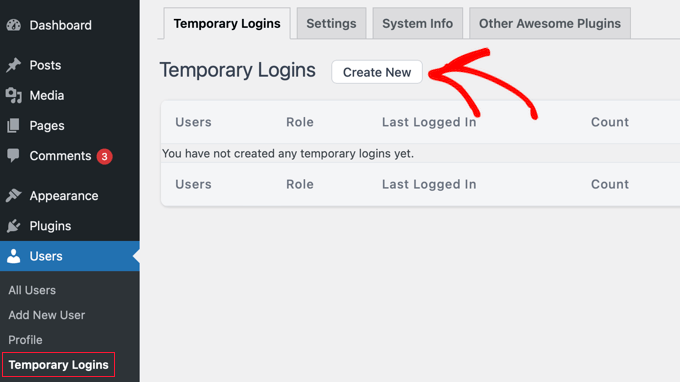
Upon activation, you need to visit the Users » Temporary Logins page and click the ‘Create New’ button to add a new temporary login account.
This will show a form where you can enter information for the new temporary login.
First, you need to provide an email address for the user and then their first and last name.
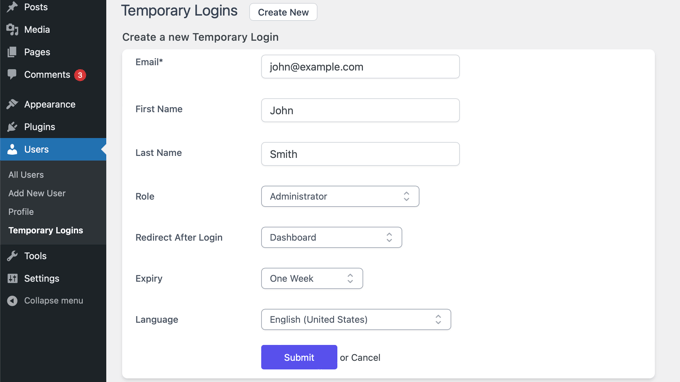
Next, you need to select a user role. It’s important to choose this carefully based on what the person needs to do.
This is called the ‘principle of least privilege,’ meaning you should only give users the permissions they absolutely need. For example, if someone is just writing a blog post, they only need the ‘Editor’ role, not the full ‘Administrator’ role.
If you are unsure about which user role to assign, then take a look at our beginner’s guide to WordPress user roles and permissions.
You will also need to choose the expiry duration for this temporary account. This is the period after which the account will automatically expire, such as ‘one week’.
Lastly, you can also select the language for the new user. This language will be used when the user accesses the WordPress dashboard.
Once you click the ‘Submit’ button, the plugin will create the temporary login.
You will then see a success message with a special URL that you can share with the user.
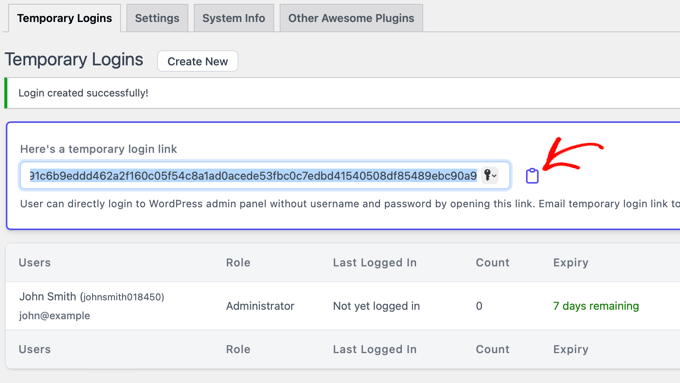
Now, you can click the clipboard button to copy the URL and share it with anyone you want to have access.
The temporary account will automatically expire after the time period you selected.
Managing Temporary Logins
The plugin also makes it easy for you to manage temporary logins. Simply visit Users » Temporary Logins to see the list of temporary logins you have added to your site.
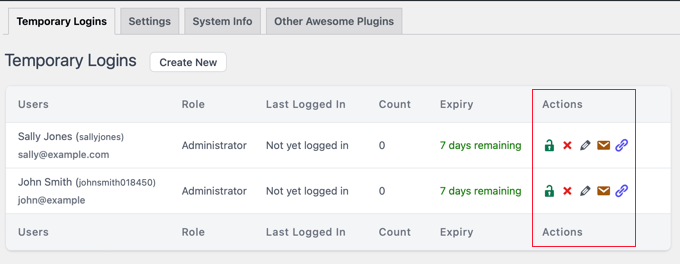
For each account, you will be able to see the user’s name and email address. You will also be able to see the role assigned to them, their last login date, and the time remaining until the account expires.
In the ‘Actions’ column, you can expire a login before its expiry, delete an account, edit the user, and email or copy the temporary login URL.
Don’t worry, any content created by the temporary user is completely safe.
When an account expires or is deleted, the plugin automatically reassigns their posts and pages to your main administrator account.
Video Tutorial
If you would prefer a video walkthrough, you can watch our complete video tutorial below.
Frequently Asked Questions About Temporary Logins
Here are some questions that our readers have frequently asked about using temporary logins on their websites:
Can a temporary user change their password or email?
No. The login link is unique and doesn’t use a password, so there is nothing for the user to change. They also cannot alter the email address assigned to them. This ensures the temporary account remains secure and under your control.
Can I extend the time for an existing temporary login?
Yes. You can easily extend the access duration. Just go to the Users » Temporary Logins page, find the user, and click the ‘Edit’ link. From there, you can set a new expiry date and save your changes.
What does the user see when their temporary login expires?
Once the login link expires, it will simply stop working. If the user tries to access the URL, they will be redirected to the standard WordPress login page and will be unable to get into the admin area.
Expert Guides for WordPress Login
We hope this article helped you learn how to create a temporary login for WordPress with no passwords. You may also want to see some other guides on secure WordPress login:
- How to Add Passwordless Login in WordPress with Magic Links
- How to Add One-Click Login With Google in WordPress
- How to Add Login with Phone Number via OTP in WordPress
- How to Create a Custom WordPress Login Page (Ultimate Guide)
- How to Create a WordPress Login Popup Modal (Step by Step)
- How to Add CAPTCHA in WordPress Login and Registration Form
- How to Add Security Questions to the WordPress Login Screen
- How to Add a Custom Login URL in WordPress (Step by Step)
- Beginner’s Guide: How to Find Your WordPress Login URL
- How to Bypass WordPress Login (7 Expert Tips)
If you liked this article, then please subscribe to our YouTube Channel for WordPress video tutorials. You can also find us on Twitter and Facebook.



Joe guarino
When creating a new temporary login with this plugin would we use our email or the email of the person we are setting the login for?
WPBeginner Support
You would set it up for the email of the person you are setting up the login for.
Admin
Dennis Muthomi
I would like to say that it’s important to monitor temporary access for any suspicious activity.
Like using a security plugin with real-time monitoring to track what pages and content the temporary users are accessing and file changes.
Ok, yes, most may be trustworthy, it’s wise to be proactive and watch for any RED FLAGS.
RoseMary
Thank you for such an easy to follow article! I need temp admin access for a tech person–this is perfect.
Brenda Nicholas
Hi, I set up a temporary login account for help with my wordpress site. I want to now delete the user account but there is not option to delete it – just the option to “view” and “edit”. I have searched and searched but cannot find out how to delete that account. Can you help please?
WPBeginner Support
If created using the plugin, ensure you’re checking under Users>Temporary Logins on an admin user for your site.
Admin
iKomrad
Actually, i need the same for wordpress.org. When I am on computer that isn’t mine but want to leave a comment on a wordpress.org integrated comment section, it detects my email address has an account of forces me to the wordpress login screen,
But I make really complex password that I store in a password safe which I cannot use when on a work or other computer that isn’t mine. Any ideas on how to have an easy to remember, read only wordpress.org login?
Tan
thanks for developing this useful plugin.
Raul Neumann
Hello.
Thank you very much, instructions were useful, you people are great help, I’m grateful.
Malay Ladu
Hello Jason,
We have noted down your request. It will be incorporated in future release.
Just want to update you that now you can also create a temporary login with custom expiry date.
Hope that helps.
If you like this plugin, please consider giving us 5 star ratings on WordPress.
Thanks!
:Malay
Jason Rhodes
Need to be able to extend and existing temporary login. Can you please add this feature.
At the moment the only way is to delete and reset up with new date.
Malay Ladu
Hi Jason.
It’s already implemented into latest version of Temporary Login Without Password plugin.
You can update the plugin from WordPress installation or download the latest version.
Hope that helps!
Nirav Mehta
Thanks for the detailed guide about the plugin. We developed it because we wanted to create a safe way for our clients to give us access to their WordPress admin for trouble shooting.
Hope many others find it useful!
sarah
This seems great.
Do you know a plugin for multi user registration for buddypress?
Thanks!