


I remember staring at my first WordPress blog, wondering if my articles were actually helping anyone. It felt like I was writing without knowing if anyone was actually listening or finding value in my work.
A simple star rating system gave my readers an easy way to tell me what they thought. This instant feedback helped me improve my content and added social proof that new visitors trusted immediately.
In this guide, I will share two easy ways to add a post rating system to your WordPress site so you can stop guessing about your impact.
Why Add a Post Rating System in WordPress?
Adding a post rating system in WordPress brings a ton of value for both you and your readers. Here’s what it can help you achieve:
- Get Helpful Feedback: It’s an easy way for readers to engage. A quick star rating tells you which articles are resonating the most, so you know exactly what content your visitors find helpful.
- Show Social Proof: When new visitors see that others have given your posts high ratings, it acts as a powerful signal that your content is trustworthy and valuable. This builds trust with new visitors. Plus, the right plugin can add the code needed to display these ratings as stars in Google search results, making your content stand out.
- Make Your Content Better: The feedback you get can help you decide what to write next. You can create more of what your audience enjoys and make older articles even better.
- Get Readers More Involved: Giving readers a simple way to share their opinion makes them feel more connected and heard, fostering a stronger community around your blog.
As you can see, this simple feature provides the insights you need to create better content and build a more engaged community.
Which Post Rating Method Should You Choose?
I’m going to cover two different methods in this article, each suited for a different goal.
Here’s a quick breakdown to help you decide which one is right for you.
- Method 1: YASR Plugin – Choose this method if you want to publicly display an average star rating on your posts for all visitors to see. It’s a great free option that also adds the necessary schema markup to help you get star ratings in Google search results.
- Method 2: UserFeedback Post Ratings Addon – Choose this method if you want to collect detailed internal data to improve your content. Unlike a simple star count, this tool gives you a dashboard of insights to guide your strategy, while keeping the specific ratings private (unless you choose to share them).
You can use these quick links to jump to the section of the article you are interested in:
Method 1: Display Public Star Ratings with YASR
⭐ Best for: Bloggers who want a simple, free, and public way to show off their post ratings and potentially earn star ratings in Google.
If you want a straightforward, free way to display public star ratings, I suggest the YASR (Yet Another Stars Rating) plugin because it’s very reliable and easy to use.
One of its biggest advantages is that it automatically adds schema markup to your posts. This is code that talks to search engines, telling Google to display those eye-catching yellow stars next to your link in the search results.
This code makes you eligible to get those eye-catching star ratings in Google search results.
Step 1: Install and Configure YASR
First, you need to install and activate the YASR plugin. If you’ve never done this before, don’t worry, we have a step-by-step guide on how to install a WordPress plugin.
Once it’s activated, navigate to Yet Another Stars Rating » Settings from your WordPress admin sidebar. This is where you’ll customize the look and feel of your rating system.
In the ‘General’ tab, you’ll see several options. You can pick the star size, adjust the alignment, and decide whether ratings should automatically appear on posts and pages.
To have the rating system appear on all your articles automatically, which is what I recommend for most users, make sure the ‘Use Auto Insert?’ setting is toggled to ‘Yes.’
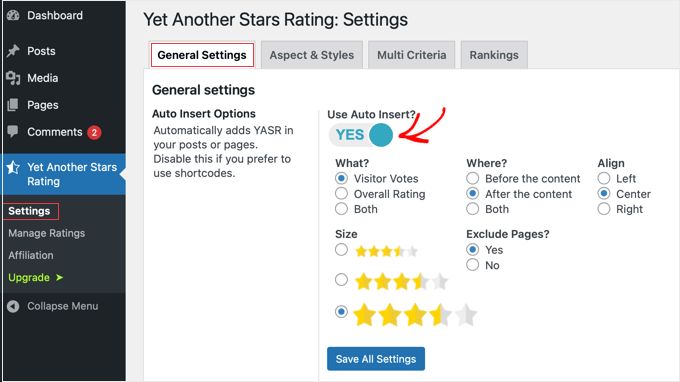
On this page, you can also customize the text that appears with the rating and choose to exclude ratings from certain pages if you wish.
A quick pro tip: if you use a caching plugin on your site, scroll down to the advanced settings.
I strongly recommend enabling the ‘Load results with AJAX’ toggle. This makes sure that when a visitor casts a vote, the rating updates instantly for them.
Without this setting, caching plugins might show visitors an old version of the page, making it look like their vote didn’t count.
This ensures that when a visitor casts their vote, the new average rating is displayed correctly without being affected by a cached page.

When you’re finished, remember to click the ‘Save All Settings’ button.
Step 2: Check Your Post Ratings in Action
With auto-insert enabled, you can now visit any of your blog posts on the front end of your site. You should see the star rating system displayed, ready for visitors to use. They simply need to click on a star to cast their vote.
YASR automatically calculates the average rating from all votes and displays it for future visitors. It’s a simple but effective way to showcase the value of your content.
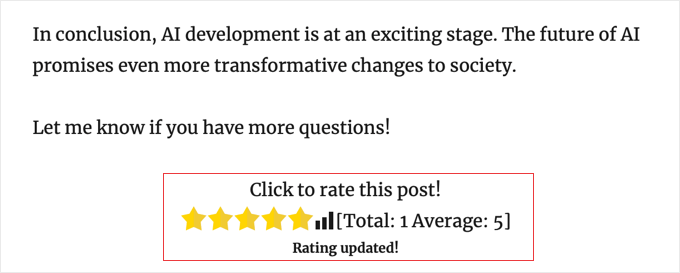
And that’s it! You’ve successfully added a public post rating system to your WordPress site.
Method 2: Collect Private Post Ratings with UserFeedback
⭐ Best for: Business owners and serious content creators who want to collect detailed, private feedback to guide their content strategy, with the option to go public later.
If your main goal is to gather private feedback to improve your content strategy, then I highly recommend using the UserFeedback plugin.
It’s the best feedback and survey plugin for WordPress, made by the same team behind MonsterInsights and WPForms.
You will need a UserFeedback Pro license to access the powerful Post Ratings addon.
The great thing about UserFeedback is that it grows with you. While you can start with just post ratings, it’s a full survey tool that you can later use to create detailed surveys, add client feedback forms, and even run post-purchase surveys on eCommerce sites.
You can see all the ways we use it in our complete UserFeedback review.
Step 1: Install UserFeedback and the Post Ratings Addon
First, you’ll need to install the UserFeedback plugin and activate it with your Pro license key.
When you first install the plugin, a helpful setup wizard will guide you through the initial configuration.
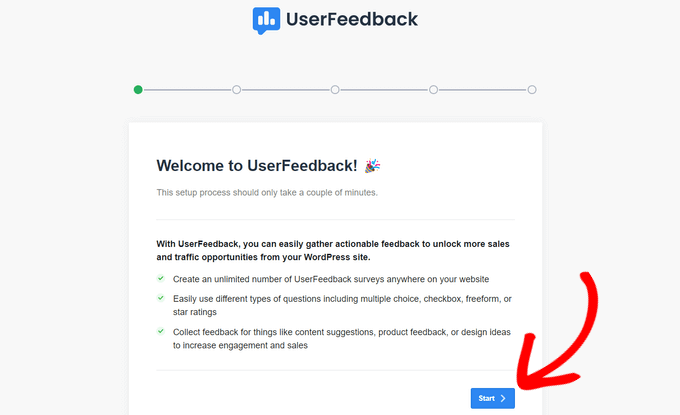
Once you’ve walked through all the steps in the setup wizard, go to UserFeedback » Settings and enter your license key.
You can find this in your purchase confirmation email or the account area of the UserFeedback website.
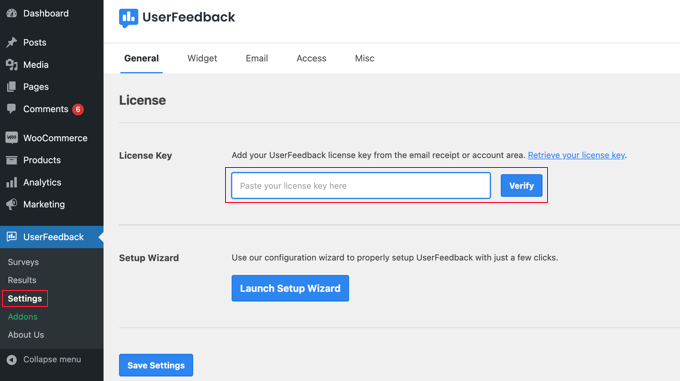
With your license active, navigate to UserFeedback » Addons from your dashboard.
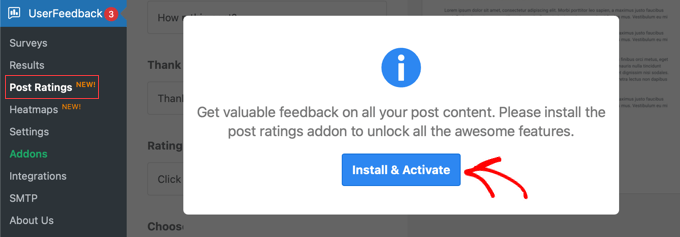
Locate the ‘Post Ratings’ addon in the list and simply click the ‘Install Addon’ button. The plugin will automatically install and activate the feature for you.
Here, you’ll be prompted to install the Post Ratings addon. Simply click the ‘Install & Activate’ button. This addon is what unlocks the specific rating functionality you need.
Step 2: Configure Your Post Ratings Widget
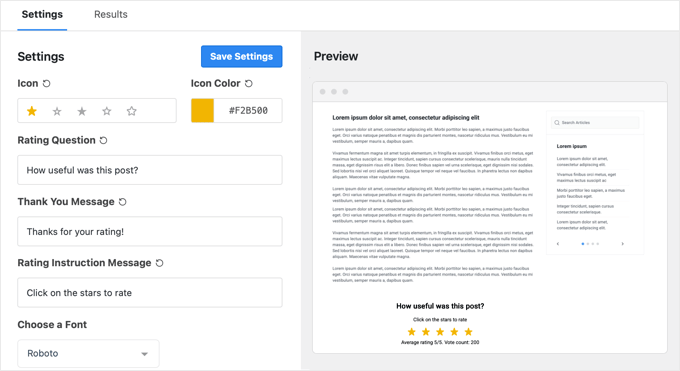
After activating the addon, the UserFeedback » Post Ratings page will reload with all the configuration settings. This is where you can customize how the rating widget will look and behave.
I find the live preview on the right side of the screen incredibly helpful. As you change settings like the star color, the question text, or the ‘Thank You’ message, you can see exactly how it will look to your visitors.
Since your goal here is to collect ratings privately, make sure to set the ‘Show Vote Count,’ ‘Show Rating,’ and ‘Use Review Schema’ options to ‘No.’
This ensures the results are only visible to you in the dashboard. If you change your mind later, you can always come back to these settings and make the ratings public by selecting ‘Yes’ instead.
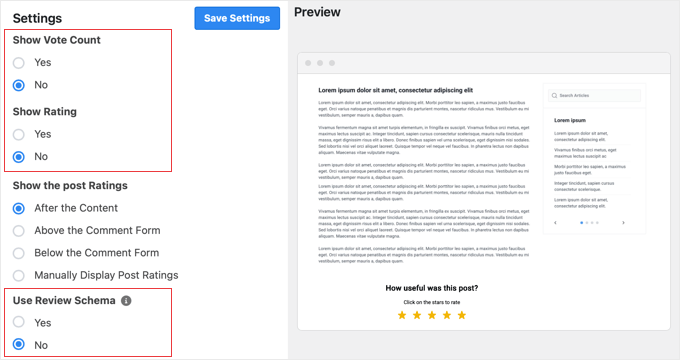
You can then choose where to automatically display the widget. Common choices are ‘After Content’ or ‘Above Comment Form’.
If you prefer to place the ratings manually, you can select ‘None’ for the location. The plugin will then provide a specific shortcode that you can copy and paste inside any post or page where you want the rating stars to appear.
You can refer to our beginner’s guide on how to add a shortcode in WordPress for detailed instructions.
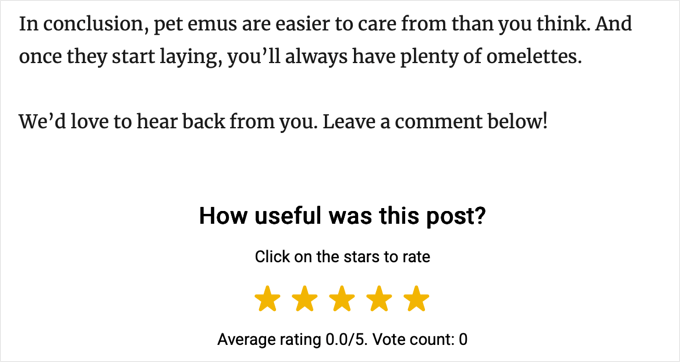
Here’s how the widget looks on our demo site when placed after the content:
Step 3: Analyze Your Feedback
Once your visitors start rating your content, you can see all that valuable data in one place.
Just go back to UserFeedback » Post Ratings and click on the ‘Results’ tab.
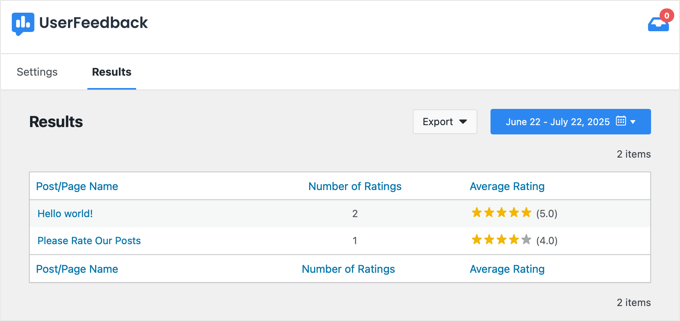
This dashboard shows you which articles are performing best, allowing you to make data-driven decisions about your future content.
Frequently Asked Questions About Post Ratings in WordPress
Over the years, I’ve gotten a lot of questions about adding rating systems. Here are my answers to some of the most common ones.
How do I get star ratings in Google search results for my WordPress posts?
To get star ratings in search results, you need a plugin that adds ‘AggregateRating’ schema markup to your page. This is special code that search engines read.
Both YASR and UserFeedback (with the ‘Use Review Schema’ option enabled) can do this automatically for you. The All in One SEO (AIOSEO) plugin also has a powerful Schema Generator that lets you add review schema to any page.
Keep in mind that while this markup makes you eligible for star ratings, there is no guarantee they will show up. Google makes the final decision based on your site’s authority and data quality, and it may take some time for them to appear.
Will a post rating system slow down my website?
A well-coded plugin like YASR or UserFeedback is built for performance and should not have any noticeable impact on your site’s speed. For more tips on this topic, check out our guide on which WordPress plugins are slowing down your site.
What is the difference between post ratings and post reactions?
Post ratings allow visitors to judge the quality of your content (usually 1-5 stars). Post reactions let visitors express their emotion (like a ‘Thumbs Up’, ‘Heart’, or ‘Sad Face’).
If you’re interested in the emotional feedback style, I have a guide on how to engage readers with post reactions.
Why isn’t my post’s average rating updating immediately after I vote?
This is usually caused by caching. Think of caching like your website taking a ‘snapshot’ of a page to make it load faster for visitors. Sometimes, you’re seeing an old snapshot.
To fix this, you just need to clear your website’s cache, which tells WordPress to take a new snapshot. If you’re not sure how, see our guide on how to properly clear your WordPress cache.
Keep the User Engagement Going: More Helpful Resources
Now that you know how to add post ratings, you can explore other powerful ways to engage your audience and gather feedback.
Here are some related guides to check out next:
- Best Social Proof Plugins for WordPress to Get More Sales
- How to Add WordPress Reaction Buttons to Boost Engagement
- How to Make a Survey in WordPress to Get Good Feedback
- How to See What Users Do in WordPress with Google Analytics
- Good Ways to Get More Comments on Your Blog Posts
I hope this article helped you add a post rating system to your WordPress site. If you have any questions, please leave a comment below. I’ll do my best to help you.
If you liked this article, then please subscribe to our YouTube Channel for WordPress video tutorials. You can also find us on Twitter and Facebook.



Kyle
Hi I am very new to WP and can’t seem to figure out how to add the code to the LOOP in archives.php, page.php, index.php, single.php, loop.php etc. Can you please provide a little guidance?
Thank you
WPBeginner Support
If you reach out to your specific theme’s support they should be able to assist with locating the loop in your theme.
Admin
Ivan
Hi, is there a option to rate with a ‘half star’ ?, i saw there is a picture showing ‘half star’ , thanks
WPBeginner Support
You can create custom icons if you want but the half stars are normally for the average for the rating
Admin
Rohit jha
Awesome! Your Every blog are very Very useful for us…
WPBeginner Support
Glad you found our guide useful
Admin
Shoaib Saleem
Hi,
How to get top rated posts in WordPress? I am using custom code to rate post with comments. The rating value is storing in comment meta table.I need help to get 5 top rated posts.
Thanks
WPBeginner Support
You would want to take a look at the plugin’s FAQ for the answer to this question
Admin
Radu Giurgiu
Hello!
It is a good general information about this rating plugin, with is good.
But… what happen if the user what to re-star (rating) the post?
Seems the plugin not allowing tho let the user change his opinion about a specific post. Wich is very important.
There is a solution for that?
WPBeginner Support
For that, you would want to reach out to the plugin’s support to see if that could be a feature to add
Admin
Radu Giurgiu
Yes of course.
Ok. Thanks!
Riyaz Shaikh
Thank you for sharing this article. Was of great help, I was struglling with this since months, but and today could install Rating plug in on webpage.
Thanks to you
WPBeginner Support
Hi Riyaz,
Glad you found it helpful.
Admin
Faruk
I cant change the visuality, i mean stars
Umang
We have recently implemented the rating plugin on our company’s blog posts and it is work like a charm.
Google Rich Snippets setting is also a great option but I think it should be enabled by default.
Thanks for sharing such a useful plugin.
Carlos
How can I make the stars show up in the SERPS?
Dmitry
what is PHP function or shortcode to show ratings of a post ID?
Gobind Singh
I’m trying to run that plugin in local server. The stars have shown up in my post but I’m not able to do rating. How can I solve this problem? Please help me..
Gail Palubiak
It sounds interesting but I found your explanation inadequate.
“Depending on how your theme is setup, you will need to add the following codes within the LOOP in the following files (archives.php, page.php, index.php, single.php, loop.php etc) – You may not have all of these files in your theme depending on the structure.”
Most information please.
surya JD
hey thanks but as I know this plugin won’t work with any cache plugin.
But on your blog you are using this plugin with w3 total cache . right ?
what tricks you used to work this plugin with cache plugins…
vinod
it is a great wordpress plugin
Boby Kurniawan
The stars is show up, but the stars cannot be clicked . Sorry for bad english
surya JD
May be you are using any cache plugin on your site. this plugin won’t work with cache plugin.
Mathias
Could you guys please help me??? I don’t get that plugin to sort posts by rating on my homepage… I’m a total beginner in coding… where exactly do I have to put which lines of code to sort my posts by rating??? Please help me!
WPBeginner Support
You need to add the code in your theme’s template files inside the WordPress Loop.
Admin
GTMan
Actually which code do we need to add in loop?
tdu
is it possible to have multiple ratings in a single post for different categories?
something like this?
http://cl.ly/image/0Y1o1c0x0W1P
Editorial Staff
Try GD Star Rating – http://wordpress.org/plugins/gd-star-rating/
Admin
Doro
No longer available. Any alternative?
Valter Cardoso
I was wondering the same thing. I am trying to make a voting system that the most posted categories will be arranged on top of the post. Can someone help me how to do this, please? Here’s the site I am building with this concept
Anwar
I don’t see it on your site anymore
Editorial Staff
We are using a variation of this plugin to allow author rating (but no more user ratings).
Admin
Mike Antkowiak
Hey there great tutorial. I am using this plugin and I want to apply it to custom post types. Is there a way to add custom post types to the widget display?
Thanks for you time.
surya JD
yes If you created post template for custom post type aka CPT you can add
in post loop.
if you already don’t have custom template for CPT you can create in your theme folder or in child theme of main theme.
salem
Hi
Is their way to make plug-in files load from the theme
I the my Site using Firebug Ysalow and find the loading.gif take long time to loading .
Editorial Staff
You should be able to turn off the CSS file that is being loaded from this plugin and merge that in your theme’s CSS file. For more instructions read here:
https://www.wpbeginner.com/wp-tutorials/how-wordpress-plugins-affect-your-sites-load-time/
Admin
salem
Thanks a lot it’s really help
R Thorp
Thankyou! Solid advice, easy to folow guidance! However it would have been better if you included a little bit about adding the codes into the loop files, as i had to refer to other websites to find this.
Cheers
blue
my jquery wont work because of this plugin..
Editorial Staff
Quite the opposite of a problem to have. jQuery doesn’t rely on this plugin. This plugin relies on jQuery.
Admin
Shady M Rasmy
i know its on old post and i don’t think i will get a reply on it

but i will ask any way
is there a way to collect the costume filed data for each user to show it in a page
for logged in user
example what i mean
if i voted this post up
and other posts
can i show those posts later from page my likes for example ?
sorry bad English
Editorial Staff
Don’t think that it’s possible with this particular plugin.
Admin
محمد جبران
Thanks for the great instruction. Though the latter link gives 404
Editorial Staff
Fixed it
Admin
wpbeginner
There must be some issue with how the plugin is entering the code. You can always disable the normal integration, and paste the code directly in your template.
Anna747
I added the codes to the files listed but the ratings were showing up at the bottom of my page below the footer instead of below the post? I only want them below the post, not on my pages/homepage…and right below the post.
arbitrarylifestyle
You’d want to find out the specific place you want the ratings to show up. For example, mine show up just beside the title so I put my code next to the title as so:
Yeah!!!
Shad
Awhile back I was conceptualizing a site for short-story authors. The member would submit a story(post) and the other members would critique the story (as comments).
What I was looking for then, and what is similar to this post, is a way for the original author to select comments as helpful (as in an thumbs up with note that said “Author found this comment helpful”). Has anyone seen anything such as that? Where the actual comments are rated?
Auz
I am currently using GD Star Rating for our rating system. It has been very flexible, but probably a little more advanced than wp-postratings. It does have the ability to allow comment ratings. For an example check out our site (www.bendbeerblog.com)
I eventually want to connect the ratings with the untappd.com API. I am hoping I can hook into the system, but if not I may have to write a custom solution.
Keith Davis
Plugin looks great but I’m trying to cut down the number of plugins that I use.
It’s all too easy to just keep adding plugins.
Thanks for another great tut.
Connor Crosby
Awesome! I wonder if they use this or something similar for the tuts+ network.
Editorial Staff
They are using something similar. WordPress.org showcase is using this plugin
Admin