


AI is changing how people find information on the web. Tools like ChatGPT, Claude, and Google Gemini don’t just search the web. They ‘read’ it to learn about your content.
But how do you make sure these AI bots understand your site correctly?
The answer is a new standard called llms.txt. Think of it as a ‘Read Me’ file specifically for AI robots. It tells them exactly what your site is about and where to find your best content, without them having to guess.
In this article, I will show you how to easily create an llms.txt and llms-full.txt file in WordPress to control how AI indexes your site.
What Are llms.txt and llms-full.txt?
Before we get started, it is important to understand that there are actually two types of files you can create to help AI tools like ChatGPT or Claude:
- llms.txt (the ‘What’s New’ Feed): This file is designed to show AI bots your most important or most recent content. It is lightweight and quick for bots to scan.
- llms-full.txt (the ‘Complete Library’): This is a much larger file that contains a machine-readable version of all your website’s content. It is useful if you want an AI to have a deep understanding of your entire blog or product catalog.
Ideally, you want to have both. This allows AI bots to quickly check for updates using the short file, while using the full file for deep learning when necessary.
llms.txt vs. robots.txt vs. Sitemaps
Since both files end in .txt and live in your site’s main folder, it is easy to confuse llms.txt with robots.txt.
However, they do completely different jobs:
- robots.txt is like a security guard. It tells bots where they are not allowed to go. Its main job is to block access to keep your site safe.
- llms.txt is like a tour guide. It tells AI bots exactly where to go and explains what your content is about. It invites them in.
In SEO plugins like All in One SEO, you will find the llms.txt settings under the ‘Sitemaps’ menu. This is because llms.txt functions almost exactly like an XML sitemap.
While an XML sitemap helps search engines like Google rank your pages, an llms.txt file helps AI tools like ChatGPT understand and summarize your content.
Now that you understand the difference, let’s look at how to properly set up llms.txt for your WordPress site:
Method 1: Create llms.txt Using All in One SEO (Recommended)
The easiest way to generate these files is by using All in One SEO (AIOSEO). It is the best SEO plugin for WordPress and handles the technical formatting for you.
Note: The standard llms.txt generator is available in the free version of AIOSEO. However, if you want to generate the complete library file (llms-full.txt) or use the automated Markdown conversion, you will need All in One SEO Pro.
First, you need to install and activate the All in One SEO plugin. For more details, see our ultimate guide on how to set up All in One SEO for WordPress correctly.
Upon activation, go to All in One SEO » Sitemaps from your WordPress dashboard. Next, click on the ‘LLMs.txt’ tab.
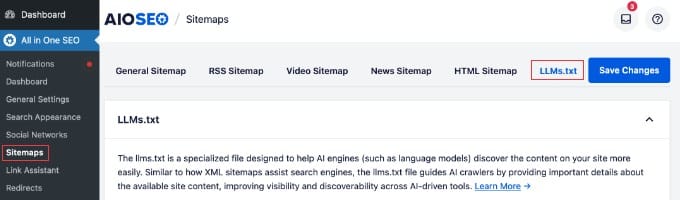
Step 1: Enable the Basic llms.txt File (Free)
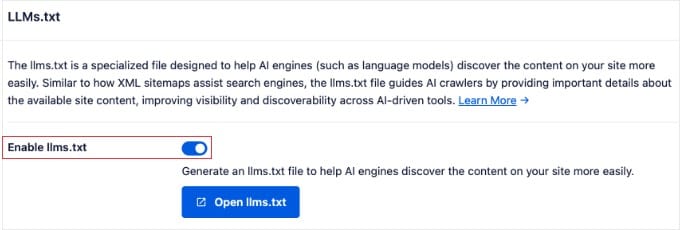
Here, you will see a toggle switch to ‘Enable llms.txt’. This is typically turned on by default.
This setting creates the ‘What’s New’ feed for your site, allowing AI bots to quickly see your most recent content. This file is included in the free version.
Step 2: Enable Advanced AI Features (Pro Only)
If you are using the Pro version, you will see two additional powerful options:
- Enable llms-full.txt: This generates the complete ‘Library’ file containing all your public content.
- Convert Posts to Markdown: This option strips out heavy HTML and provides a clean, text-only version of your content to AI bots.
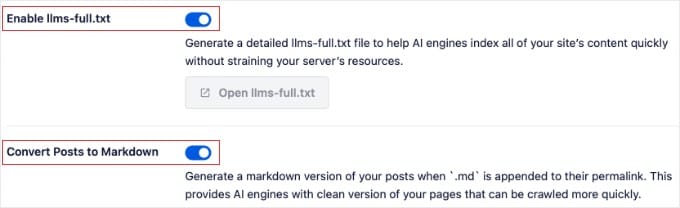
I recommend enabling both of these if you have the Pro version.
The Markdown conversion is particularly important because it strips away complex code. This means that AI bots can read much faster without straining your server resources.
Step 3: Fine-Tune Your Content
By default, AIOSEO automatically includes all of your content. However, you might want to hide certain parts of your site from AI, such as your privacy policy or contact page.
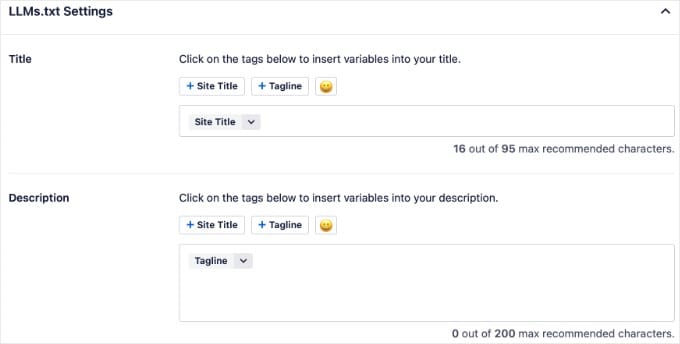
In the ‘LLMs.txt Settings’ section at the bottom of the page, you can first customize the Title and Description. This text appears at the top of your file and introduces your site to AI bots.
Below that, you can control the number of URLs included per post type. You can also uncheck specific Post Types or Taxonomies if you don’t want them included in the AI feed.
Finally, use the ‘Exclude Posts / Pages’ field to hide specific content. Simply start typing the name of a page (like ‘Checkout’), and select it to remove it from the AI file.
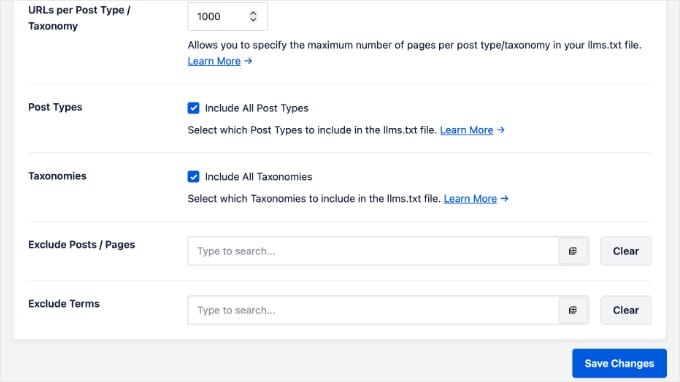
Once you are done, click the ‘Save Changes’ button at the bottom of the page to store your llms.txt settings.
You can now click the ‘Open llms.txt’ or ‘Open llms-full.txt’ buttons (see the screenshots in Step 1 and Step 2 above) to see your new files in action.
They will look like simple text documents listing your content, which is exactly what the robots want.
Pro Tip: If you see a “404 Not Found” error when you click the buttons, don’t panic. You likely just need to clear your WordPress cache so the new files can be seen.
Method 2: Create an llms.txt File Manually
If you prefer not to use a plugin, then you can create an llms.txt file manually. But before you begin, you should know that this method requires significant ongoing maintenance.
The standard recommends having two files: llms.txt (for navigation) and llms-full.txt (for detailed content). With this manual method, neither file updates automatically.
Every time you publish a new blog post, you must manually edit both text files and re-upload them to your server. If you post frequently, this can become a lot of work.
If you are okay with that, here is how to create the files manually.
Important Note: If All in One SEO is installed on your site, then you must go to All in One SEO » Sitemaps » LLMs.txt and switch the toggles to ‘Inactive’ before uploading your own files. Otherwise, there will be conflicts.
First, you need to open a plain text editor on your computer (like Notepad on Windows or TextEdit on Mac).
Now you need to add your website information using the standard format. Simply copy and paste the following template into the file:
# My Website Name
> A short description of what your website is about.

# Full Content
> https://example.com/llms-full.txt

## Sections

- [Blog](https://example.com/blog)
- [About Us](https://example.com/about)

## Top Articles

- [Article Title 1](https://example.com/article-1)
- [Article Title 2](https://example.com/article-2)
Important: You must replace all the placeholder text, including ‘My Website Name’, the description, article titles, and the example.com links, with your own actual content.
Once you’ve finished, make sure you save the file with the exact name llms.txt.
Now, connect to your website using an FTP client or your hosting File Manager. You need to upload the file to the root directory of your website.
This is the main folder that usually contains your wp-admin, wp-content, and wp-config.php files.
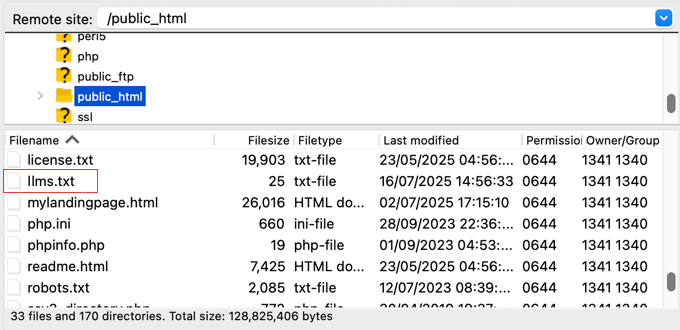
Finally, test the file by going to yourwebsite.com/llms.txt in your browser. You should see the list of links you just created.
Frequently Asked Questions About llms.txt
Since llms.txt is a new standard for the web, I receive many questions from readers about how it affects their site and rankings. Here are the answers to the most common questions.
1. Is an llms.txt file strictly required for a WordPress site?
No, having an llms.txt file is not required. Your WordPress website will continue to function perfectly without it, and search engines will still crawl your site.
However, adding this file is highly recommended for Generative Engine Optimization (GEO). It gives you a competitive advantage by making it easier for AI tools like ChatGPT, Claude, and Google Gemini to find and cite your content in their answers.
2. Does llms.txt replace an XML Sitemap?
No, an llms.txt file does not replace a traditional XML sitemap. An XML sitemap is specifically designed for search engines like Google and Bing to index your pages for search results.
In contrast, an llms.txt file is designed for Large Language Models (LLMs) to understand your content for AI-generated summaries. For the best results, a WordPress site should have both.
3. Can llms.txt expose my private or password-protected content?
Generally, no. If you use a plugin like All in One SEO (AIOSEO) to generate your file, it automatically respects your WordPress privacy settings and will not include password-protected or private posts in the list.
However, if you create the file manually, you must be careful not to accidentally paste links to private pages, since AI bots can read anything you explicitly list in the text file.
4. Will adding this file guarantee that AI tools use my content?
Adding an llms.txt file does not guarantee that your content will appear in ChatGPT or Google AI Overviews, just as an XML Sitemap does not guarantee a #1 ranking on Google.
However, providing this file improves your chances. By offering a clean, text-only version of your site via llms.txt and llms-full.txt, you remove technical barriers and make your content much more attractive to AI crawlers.
Additional Resources for Managing Your Content’s Future
I hope this guide helped you learn how to create an llms.txt file to control how AI bots see your site.
You may also want to see our other guides on optimizing your WordPress site for the future of search:
- Beginner’s Guide to Generative Engine Optimization (GEO)
- How to Optimize Your WordPress Robots.txt for SEO
- Ultimate WordPress SEO Guide for Beginners (Step by Step)
- The Ultimate WordPress Security Guide (Step by Step)
If you liked this article, then please subscribe to our YouTube Channel for WordPress video tutorials. You can also find us on Twitter and Facebook.


Efrain Alvarez
In this article: “what-is-llms-txt-how-to-add-llms-txt-in-wordpress” i notice an error, in Step 3. Upload the File to Your Website, the image shown lmms.txt and must be llms.txt right? which is the right one? can you correct the error?
WPBeginner Support
Correct, thank you for spotting the typo. We will fix the screenshot as soon as we are able
Admin