


Working on a WordPress site that isn’t ready to launch yet? You probably don’t want unfinished pages showing up in search results before you’re ready.
In this guide, we will show you how to control search engine crawling and indexing in WordPress. We’ll also explain which method to use to hide an entire site, a single page, or a specific folder.
Important: Crawling is Not the Same as Indexing
Many beginners stop search engines from crawling their site when what they actually want is to stop indexing. It’s important to understand the difference between them.
Crawling is when search engine bots visit your site to discover content. Indexing is when they add that content to their searchable database.
Think of it like a librarian reading a new book (crawling) and then adding it to the library’s catalog (indexing).
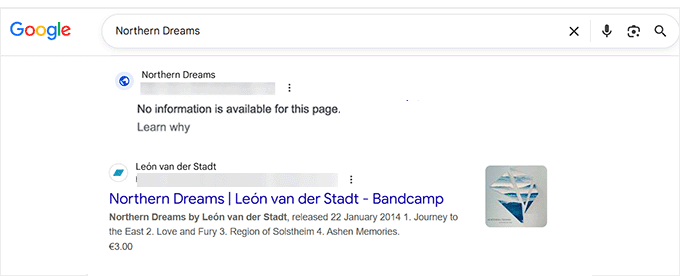
This matters because blocking crawling does not always prevent indexing. If Google discovers a blocked URL through links from other websites, it can still index the URL. Since Google cannot crawl the page, it may show “No information is available for this page” in search results.
Want to know whether to disable crawling or indexing on your site? Here’s a quick guide:
| Use case | What to do | Right tool |
|---|---|---|
| Hide a whole site that isn’t launched yet | Block all access | WordPress Reading setting + password protection |
| Remove one page or post from Google | Keep it crawlable and stop indexing | Add anoindex tag |
| Steer bots away from a folder | Stop crawling that folder | robots.txt Disallow |
Click on the links below to jump to the method of your choice:
- Method 1: Use the WordPress Setting to Discourage Indexing
- Method 2: Stop a Single Page or Post From Being Indexed
- Method 3: Manually Edit Your robots.txt File
- Method 4: Use X-Robots-Tag to Prevent Indexing
- Method 5: Password-Protect the Whole Site With cPanel
- FAQs on Stopping Search Engines From Crawling a WordPress Site
Method 1: Use the WordPress Setting to Discourage Indexing
WordPress has a built-in setting that asks search engines not to index your site. Go to Settings » Reading and check ‘Discourage search engines from indexing this site.’
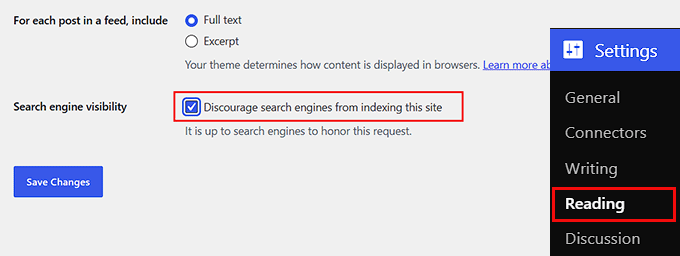
When you enable it, WordPress adds a noindex,nofollow robots meta tag to your pages:
<meta name="robots" content="noindex,nofollow">
The noindex directive asks search engines not to include your pages in search results, while nofollow asks them not to follow links on those pages.
WordPress also warns that it is up to search engines to honor this request. In other words, this setting asks search engines not to index your site, but it does not stop them from accessing it.
If you want to make it impossible for search engines to index or crawl your website, then you will need to password-protect your WordPress site.
Method 2: Stop a Single Page or Post From Being Indexed
If you want your site to remain in search results but want to keep one page or post out of Google, add a noindex directive to that page.
Most free WordPress SEO plugins can do this. We use the free version of All in One SEO on WPBeginner, so we’ll show you how it works with it. First, install, activate, and set up the plugin on your website.
Then, edit the post or page you want to remove from search results. Scroll down to AIOSEO Settings and switch to the ‘Advanced’ tab. Turn off ‘Use Default Settings’ and select ‘No Index.’
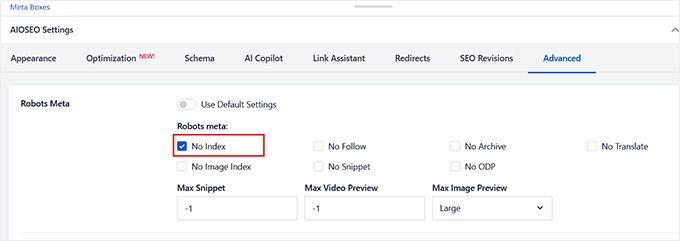
Click ‘Update’ or ‘Publish’ to save your changes. AIOSEO will now add the noindex directive to the page, telling search engines not to include it in their indexes.
Method 3: Manually Edit Your robots.txt File
Use robots.txt when you want to tell crawlers not to crawl a specific part of your WordPress site, rather than blocking the entire site. For example, you can stop bots from crawling a /private/ folder while allowing them to crawl the rest of your site.
WordPress normally generates your robots.txt file automatically. You can view it by visiting yourdomain.com/robots.txt.
Most free WordPress SEO plugins, including All in One SEO, let you edit robots.txt right from your WordPress dashboard. Alternatively you can create or edit an robots.txt file in your site’s root directory using your hosting file manager or FTP. For detailed instructions, see our guide on how to optimize your WordPress robots.txt for SEO.
Once you have the file open, copy the code below to your robots.txt file.
User-agent: *
Disallow: /private/
Make sure to replace /private/ with the URL path that you want search engines to stop crawling.
Method 4: Use X-Robots-Tag to Prevent Indexing
If you need to keep a file such as a PDF out of search results, you can use the X-Robots-Tag HTTP header. Unlike a robots meta tag, it works with files that don’t have an HTML page where you can add noindex.
For Apache servers, add the following code to your .htaccess file:
<FilesMatch ".pdf$">
  <IfModule mod_headers.c>
    Header set X-Robots-Tag "noindex"
  </IfModule>
</FilesMatch>
If you use AIOSEO, you can also edit your .htaccess file from All in One SEO » Tools » .htaccess Editor.
Warning: Editing the .htaccess file can break your website if done incorrectly. Please ensure you backup your WordPress site or make a copy of your .htaccess file before making any changes.
Method 5: Password-Protect the Whole Site With cPanel
If your site is still under construction and you want to keep search engines from accessing it, you’ll need to enable password protection on your entire site. It blocks visitors and crawlers from accessing the site until you remove the password.
If your hosting provider offers cPanel, log in to your account and open ‘Directory Privacy’ under ‘Files.’
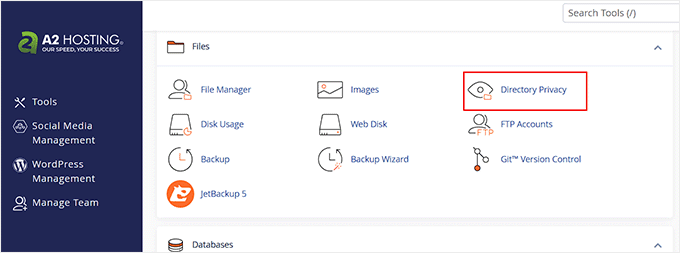
Find the directory where WordPress is installed. This is often public_html. If you have multiple sites, open public_html and select the folder for the site you want to protect.
Click ‘Edit’ next to the directory. On the new screen, check ‘Password protect this directory’, enter a name for the protected directory, and click ‘Save.’
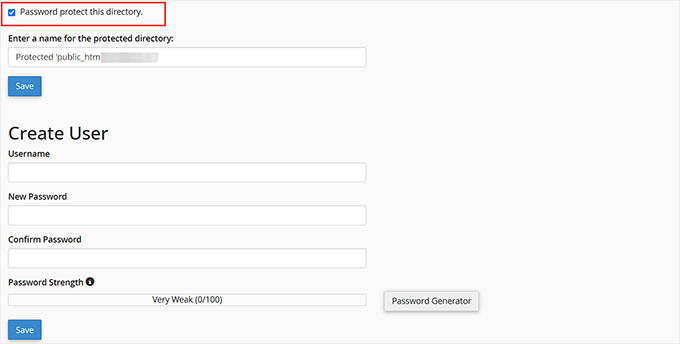
Then use the ‘Create User’ section to enter a username and password. Your site will now require those login details before anyone can access it, including search engine crawlers.
Keep in mind that server-level password protection blocks all access to the site. External services such as payment gateways or cron jobs may not work until you remove the protection.
FAQs on Stopping Search Engines From Crawling a WordPress Site
1. Will password-protecting my site hurt my SEO when I’m ready to launch?
No. Password-protecting your site while it’s under construction will not hurt your SEO. Once you remove the password, search engines can crawl and index your pages normally.
2. How do I turn off SEO in WordPress?
WordPress does not have a setting to “turn off SEO.” If you want to keep your site out of search results, enable ‘Discourage search engines from indexing this site’ under Settings » Reading.
3. How do I hide my WordPress site from search engines while testing?
Password-protect the site through your hosting control panel if your host provides that option. For example, cPanel users can use Directory Privacy to require a username and password before anyone can access the site.
4. What’s the difference between noindex and nofollow?
noindex tells search engines not to include a page in search results. nofollow tells them not to follow links on that page. They control different things and can be used together when needed.
We hope this article helped you stop search engines from crawling or indexing your WordPress site. You may want to see our WordPress SEO checklist for when you’re ready to launch your website.
If you liked this article, then please subscribe to our YouTube Channel for WordPress video tutorials. You can also find us on Twitter and Facebook.




Oyatogun Oluwaseun Samuel
Wow!, Thank you wpBeginner, I have never thought about turning on password protection on public_html folder. Thanks for providing this perspective. thank you so much!
Jiří Vaněk
I have read that often these procedures, as well as robots.txt, are only recommended behavior for a robot. How to avoid being searched for real. Is it possible, for example, to block the ranges of Google and Bing, for example, with the help of an .htaccess file?
WPBeginner Support
You would use method 3 or 4 for completely blocking access to your site.
Admin
Jiří Vaněk
I understand that, but I assume that then the website will not be public and only those who know the login and password will be able to access it? My idea was just to try to find the ip ranges of the bots and block them at the htacess file level eg. Does that make sense or is it nonsense?
WPBeginner Support
There is no guarantee that the bots would not find the site at a later date with a different IP. If you want to be certain that your site is not crawled you would want it to be a private site, otherwise the best option is to use the robots.txt to request the site not be crawled.
Jiří Vaněk
I understand, and thank you for the response. I thought I could resolve it by blocking the range, but you’re right that the bot could come from a different IP or a new range. I’ll try to rely on the robots.txt file and hope everything will be fine.
mohadese esmaeeli
Is the prevalent belief correct that having a large number of indexed pages within a site has no effect on indexing the rest of the pages?
WPBeginner Support
Just because you have pages that are indexed on your site does not mean you can’t have other pages hidden from crawlers to prevent indexing.
Admin
Moinuddin Waheed
I have been several times in the thinking while in the settings tab of the wordpress dashboard that why would any one would want to discourage Google to show the page or post from visibility. Today infact after reading this post , I came to know about the reasons why would anyone discourage search engine indexing.
it is very simple to do infact. we need to check the box in settings tab reading section where it asks to discourage search engines for visibility.
Thanks for clearing my long held doubt.
WPBeginner Support
Glad we should share why someone would use the checkbox
Admin
Charlotte
This is was just what I was looking for. After I moved my dev site to the client’s live site, I didn’t want any traffic coming back to the old one. Thank you!
WPBeginner Support
Glad our guide was helpful
Admin
Ryan
I deleted my site permanently from wordpress and when I google my name, the old wordpress site still appears, despite the fact that it’s gone. Can someone from the support team help me to delete it? I don’t want my clients getting confused with my actual, live site.
WPBeginner Support
For your old site in the results on Google if you crawl the site as google it can help update Google’s cache. For more ways to completely remove the site you would want to take a look at our post here: https://www.wpbeginner.com/wp-tutorials/how-to-permanently-delete-a-wordpress-site-from-internet/
Admin
Divyanshu
if we disable indexing the wordpress site to prevent it from hackers, then will it affect google indexing or not, and if then how to allow google to index my pages
Andy
Doesn’t seem to work. Followed the directions with confidence. My subdomain is still publicly viewable.
WPBeginner Support
Hi Andy,
If you have password protected your subdomain directory, then please review its settings again in cPanel. If everything looks alright, then you may want to contact your WordPress hosting provider.
Admin
Jay
Yeah, whats written under “Discourage search engines from indexing site” is very true. Google doesnt seems to honor this
chinju
Hi, I have a doubt that if website have 1 million subpages, search engine block all subpage when we add
User-agent: *
Disallow: /
in robots file?
Shekhar Sardar
Yes. Adding Disallow:/ in robot.txt will tell all search engine bots, do not crawl this site or web page.
anand
i want memebership pages member profile page to be not indes by any search engines how to do ????
Kenneth
I tried this but it messed up my .htccess for my Wordpress install.
So proceed with caution.
Joojo
Hello,
I’m currently having a Wordpress.com Blog (Free Plan) & desire to sell my Digital Stuff online without setting-up a website and relying wholly on the Blog, at first (have been short of funds). Thus, going through with this thought I have made changes to my Blog, under this after making the payment, the customer is redirected to my blog page haivng a link to download the digital content. So, I just want the payment gateway to be able to redirect the traffic to the Download page on my blog and not have it searchable via search engines, etc. & neither be it listed under the Wordpress.com Posts list/Pages, etc. because if the download page is searchable by the Search Engines & listed under my Blog’s post, I wouldn’t earn anything because then the customer would directly download the content without making the payment.
Regards,
Joojo.
Jennifer
I’m learning WP now and designing my site. For now, I don’t want the site crawled, so I’ve checked the Search Engine Visibility Box and I’ve add the password protection. However, in a few months, I’ll want the site to go live and I’ll want visitors to my site. If I uncheck the Search Engine Visibility box and take off the password protection, will the robots nofollow header automatically be updated? Or will I have to manually update this in the header section?
WPBeginner Support
Yes, it will be. However, to be extra sure you need to submit your site’s xml sitemap using Google webmaster tools. This will allow you to see if any crawl errors are found on your site.
Admin
Ryan
Is it possible to block only specific pages on your site, rather than blocking the entire site?
Chad
Wordpress offers a Password Protect Option on any of your pages and posts. Simply change “visibility” in your page or post edit to “password protected”.
WPBeginner Staff
Please take a look at this thread.
Patrick
How can I get Google and bing to crawl my site while stopping SeMalt from crawling my site. SeMalt sends traffic to my site making it look like I have more hits, however thesclicks leave my site straight away and by so doing so increase the bounce rate to my wordpress site.
Any help on this matter would be great.
Patrick
Pawan Reddy
Thanks for this tip. I didn’t know this was possible