


Nested blocks are one of the most powerful features in the WordPress block editor — and mastering them can take your designs to the next level.
They let you group and organize multiple elements like paragraphs, images, and buttons into a single layout. Once you understand how to use them, you can create more flexible, professional-looking pages without relying on extra plugins or custom code.
At WPBeginner, we’ve been using nested blocks since they first launched, and they’ve completely changed how we approach page design. They make complex layouts easier to manage and help turn basic content into polished, user-friendly sections.
In this guide, we’ll walk you through how to select and use nested blocks in WordPress, step by step — so you can start building cleaner, more effective layouts with confidence.
💡Key Takeaway: What are Nested Blocks?
Nested blocks are simply blocks placed inside a container block, such as a Group or Column. They allow you to build complex page layouts, organize content into sections, and apply styling to multiple elements at once without using custom code.
What Are WordPress Nested Blocks?
The WordPress Gutenberg nested block feature allows you to insert (or ‘nest’) one or more blocks within another block.
Nested blocks help you create more complex layouts on your WordPress website by adding multiple blocks inside each other. This allows for more flexibility when designing and formatting content for pages and posts.
For instance, you can nest multiple Image blocks within a Group block to display a set of photos from a particular event or a series of artworks created using a particular technique.
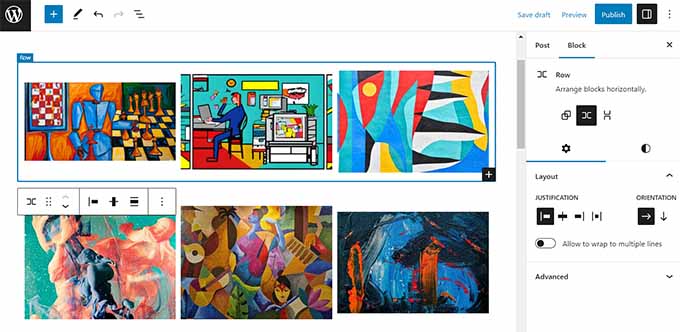
Additionally, the nested block feature allows you to edit individual blocks separately. This allows you to customize each block according to your needs without affecting the other blocks.
This, in turn, results in better content organization, makes content more attractive, and streamlines the creative process.
That being said, let’s see how you can easily select and use WordPress Gutenberg nested blocks.
How to Use the WordPress Nested Blocks
You can easily nest multiple blocks together using the Group or Columns block in the Gutenberg block editor.
First, you need to open up an existing or new post in the block editor from the WordPress admin sidebar.
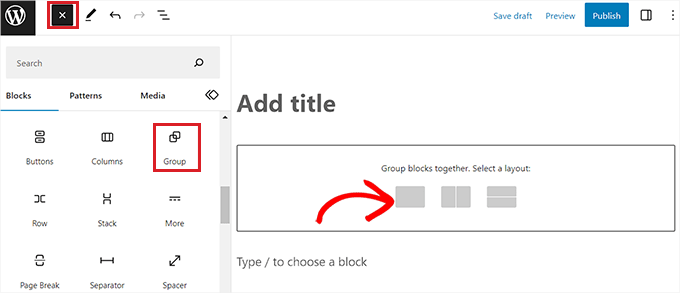
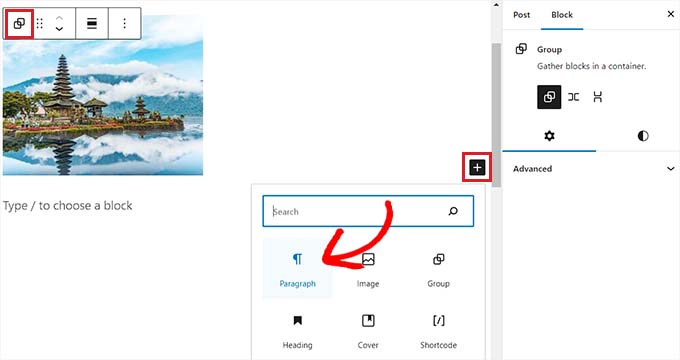
From here, simply click on the add block ‘+’ button in the top left corner of the screen and find the Group block. Upon clicking it and adding it to the page, you must select a layout for the blocks that you will nest together.
For this tutorial, we will be selecting the ‘Group’ layout.
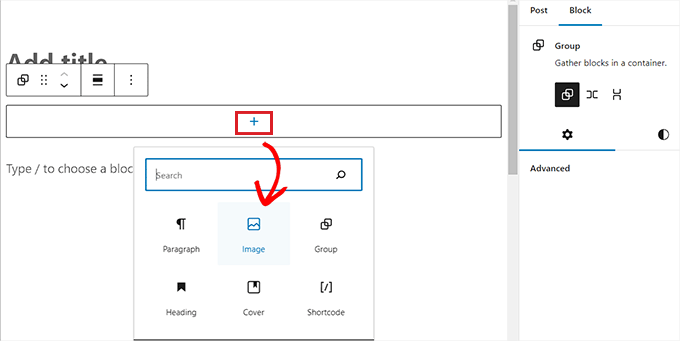
Next, simply click on the ‘+’ button on the screen to start adding content within the parent block.
For the sake of this tutorial, we will be adding an Image block.
Upon adding the block, just click the ‘Group’ button in the block toolbar at the top to select the parent block.
Next, you need to click the ‘+’ button to open up the block menu again, from where you can choose other blocks to add.
How to Configure WordPress Nested Block Settings
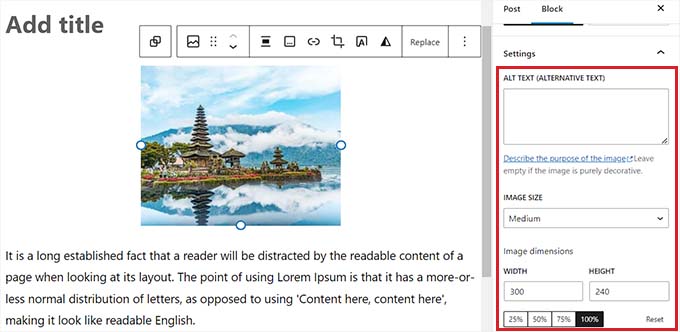
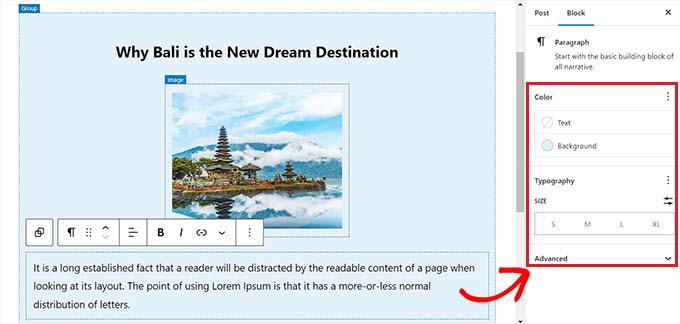
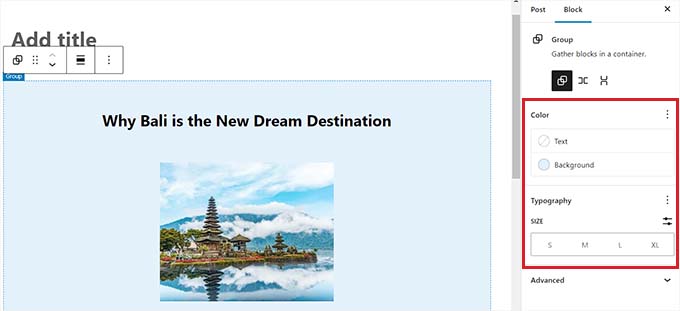
Once you have nested multiple blocks, you can configure their individual settings by clicking on each block. From there, the block settings will appear in the right column on the screen
From here, you can adjust the background color, text color, and size of the individual blocks without affecting the other blocks that are nested within it.
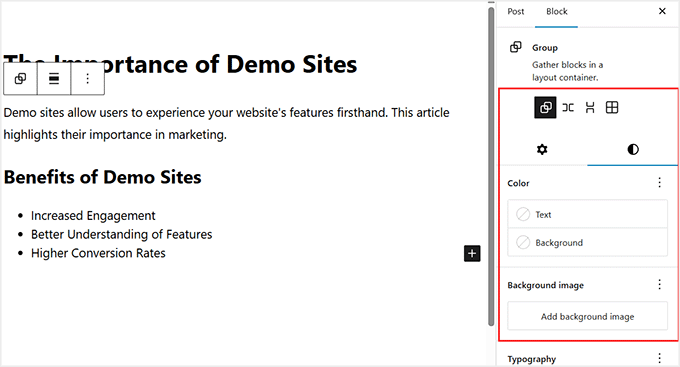
To configure the settings of the container itself, you need to select the parent block. You can do this by clicking the ‘Select Parent’ icon in the block toolbar. It often looks like two stacked squares.
Alternatively, you can use the breadcrumbs bar at the very bottom of the editor to click the parent name, such as ‘Group’ or ‘Columns’.
This will open up the parent block settings in the right column. You can now configure the layout, background color, and typography for the entire section.
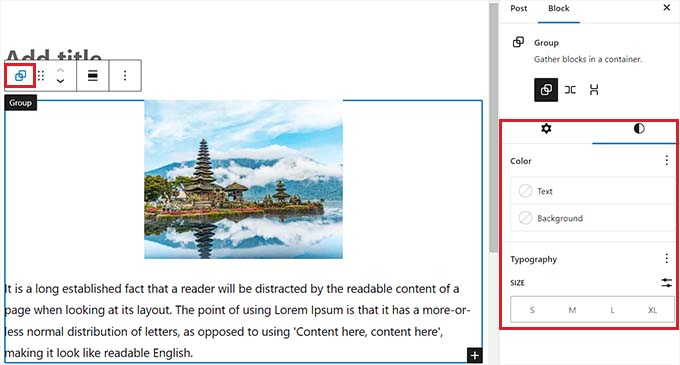
Keep in mind that these settings will affect all the blocks nested within the parent block, unless you have applied specific styles to an individual inner block.
How to Group Existing Blocks
You can also turn existing content into nested blocks. This is often faster than creating a Group block first and trying to fill it later.
Simply select the blocks you want to combine. You can do this by clicking and dragging your mouse, or by holding the Shift key and clicking multiple blocks.
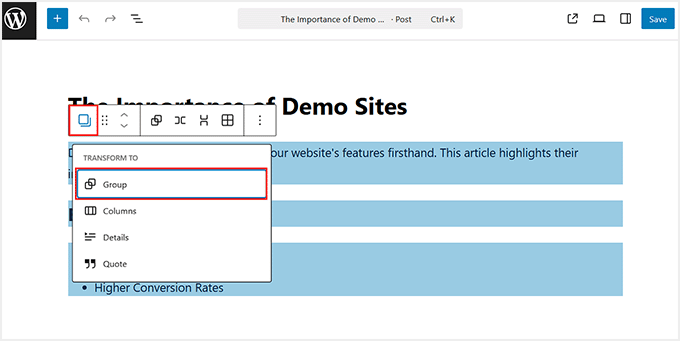
Once selected, click the Group icon in the block toolbar.
WordPress will automatically wrap your selected content inside a Group block. Now you can edit the layout and background just like any other nested section.
After you are satisfied, don’t forget to click the ‘Publish’ or ‘Update’ button to save your changes.
This is how the nested blocks looked on our demo website.

Bonus: Use the Wayfinder Plugin to Easily Select Nested Blocks
Sometimes, it can be difficult to select an individual block and configure it when there are multiple blocks nested together.
Luckily, the Wayfinder plugin makes it super easy to select nested blocks from a parent block and even tells you the type and class of the blocks.
First, you will need to install and activate the Wayfinder plugin. For more instructions, see our beginner’s guide on how to install a WordPress plugin.
Upon activation, head over to the Settings » Wayfinder page from the WordPress admin sidebar.
Once you are there, all the settings will already be activated. You simply need to uncheck the box next to the settings that you don’t want to use.
For example, if you want Wayfinder to display block types for all the blocks in the editor, then keep the box checked next to the ‘Display block type’ option.
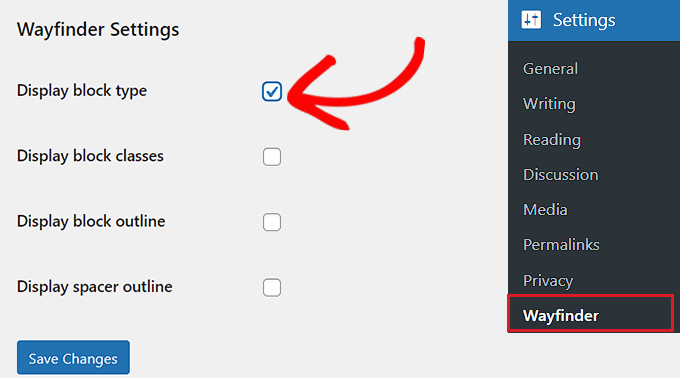
However, if you don’t want the plugin to display block classes, simply uncheck the box next to that option.
After configuring the settings, don’t forget to click the ‘Save Changes’ button.
Next, you need to open up an existing or new post in the WordPress block editor from the dashboard.
Once you are there, hovering your mouse over any inner block will show an outline with its name. You will also be able to see the outline and name of any nested blocks within the parent block.
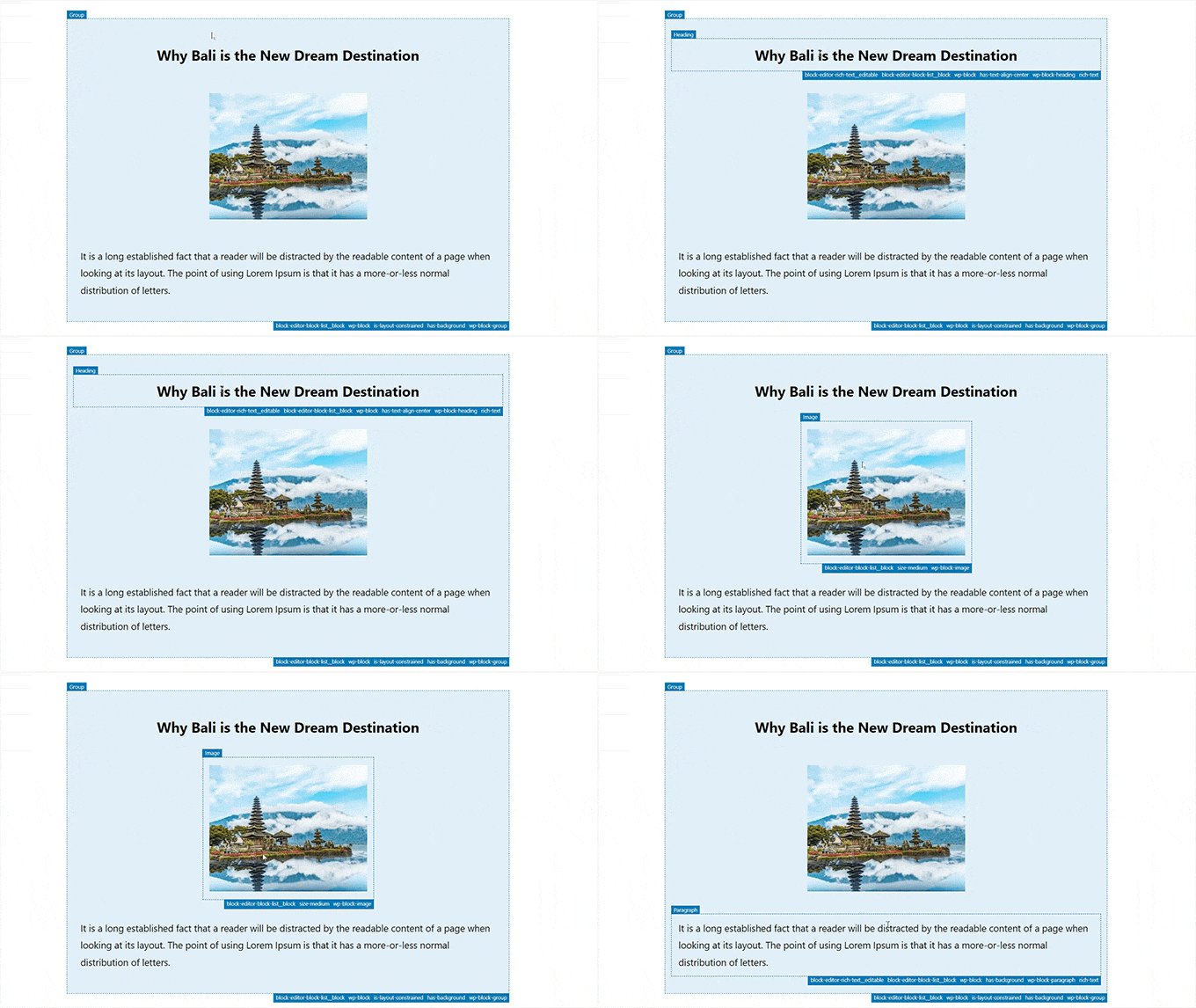
This will help you identify all the different blocks that are nested within a Group or Column block.
From here, you can easily select an individual block from the parent block to configure its settings.
You can also select all the nested blocks at once by clicking on the ‘Columns’ or ‘Group’ heading. This will open the parent block settings in the right column.
After configuring the block settings, simply click the ‘Update’ or ‘Publish’ button to save your changes.
Frequently Asked Questions About Nested Blocks
Here are some questions that our readers have frequently asked about using nested blocks:
How do you select multiple blocks in WordPress?
To select multiple blocks, click on the first block, hold down the Shift key, and then click on the last block you want to select. Alternatively, you can click and drag your mouse cursor across the blocks to highlight them all at once.
How to combine blocks in WordPress?
You can combine blocks by selecting the specific items you want to merge and clicking the Group icon (stacked squares) in the block toolbar. This wraps them into a single container, allowing you to move or style them as one unit.
How to group blocks together?
You can group blocks together by highlighting them and selecting Group from the toolbar options. This creates a parent container that keeps the blocks organized and allows you to apply a background color or border to the entire section.
What is a parent block in WordPress?
A parent block is a container, such as a Group or Column block, that holds other blocks inside it. The blocks inside are called “nested” or “child” blocks, and they typically inherit the layout and style settings of the parent block.
What is a spacer block in WordPress?
A Spacer block is a layout tool used to add adjustable empty space between other blocks. It allows you to control the vertical distance and breathing room between sections without needing to write custom code.
What are dynamic blocks in WordPress?
Dynamic blocks are blocks that generate content automatically rather than saving static HTML. Examples include the Latest Posts or Calendar blocks, which update immediately whenever you publish new content or change site settings.
What is a separator block in WordPress?
A Separator block creates a visual break between content sections, usually displaying as a horizontal line. It helps divide long articles into distinct chapters or topics to improve the reading experience.
We hope this article helped you learn how to select and use WordPress nested blocks. You may also want to see our step-by-step tutorial on how to change block height and width in WordPress and our beginner’s guide on how to use WordPress block patterns.
If you liked this article, then please subscribe to our YouTube Channel for WordPress video tutorials. You can also find us on Twitter and Facebook.





Christopher Molitor
Great article and THANKS for mentioning Wayfinder!
p.s. Released version 1.1.7 to add support to latest version of WP.
WPBeginner Support
Glad you liked the article and glad we could share Wayfinder
Admin
kzain
Nested blocks seem like a game-changer for creating unique layouts on my WordPress site! The drag-and-drop functionality sounds super user-friendly. I love that you can customize each nested block individually. This opens up so many possibilities for creating engaging website content. Thanks for this helpful guide!
Ralph
I’m using nest blocks for image on left and text on the right and I want it to stay that way not only on desktop but also on mobile but it just doesn’t It places text under the image. Is this normal in case of mobile or am I doing something wrong?
WPBeginner Support
It would depend on the theme but it is very common to happen on mobile to ensure the text remains readable on mobile.
Admin
Jiří Vaněk
Thanks to these articles, I’m slowly getting acquainted with Gutenberg. I’m used to very simple solutions from Elementor, and here everything seems a bit complicated or rather unfamiliar to me. However, sometimes I come across people who want help with a website exclusively using Gutenberg and nothing else. So, I appreciate these guides where I can get my hands on, try out, and learn things that might be completely ordinary for someone using Gutenberg.