


Scrolling through a cluttered WordPress block menu to find a simple heading or image is a waste of time, especially when you never use half of the available options.
Several of our writers have disabled unnecessary blocks in their Gutenberg editor to keep the interface clean and straightforward.
After our team made this change, they reported a significant boost in both productivity and focus while writing.
In this article, we will show you step-by-step instructions on how to remove a block in WordPress.
💡 Quick Answer: How to Remove a Block in WordPress
You can remove a block in WordPress by deleting it from a specific post/page, hiding it from the editor menu, or permanently disabling it site-wide using code.
- Delete from a post/page: Select the block in the editor, click the three-dot icon in its toolbar, and choose ‘Delete’.
- Hide from the editor menu: Access ‘Preferences’ from the top-right three-dot icon, go to the ‘Blocks’ tab, and uncheck the desired blocks to hide them.
- Permanently remove core blocks site-wide: Use the WPCode plugin to add a PHP snippet that defines an allowlist of permitted core blocks. It removes all others from the editor.
- Permanently remove a plugin block site-wide: Use the WPCode plugin to add a PHP snippet with the
unregister_block_type()function, specifying the exact name of the plugin block to disable it.
Why Remove, Hide, or Delete a Block in WordPress?
You should remove or hide blocks to clean up your workspace and stop distractions. This helps you find the tools you actually need so you can finish your content faster.
It makes it easier to find and manage the blocks you frequently use.
- Declutter Your Workspace: Remove irrelevant core or plugin blocks (e.g., a “Verse” block for a food blog) that you never use, resulting in a cleaner, more intuitive editing interface.
- Boost Focus & Productivity: A streamlined block menu reduces distractions, helps you quickly locate necessary blocks, and ultimately speeds up your content creation workflow.
- Flexible Block Management: Choose between temporarily hiding blocks from the menu (retaining functionality) or completely removing them site-wide, tailoring your editor to your specific needs.
- Effortless Content Correction: Easily delete individual blocks within a post to correct content mistakes without affecting the block’s availability for future use.
Now, let’s see how to easily remove blocks in WordPress.
We have added four methods in this tutorial, and you can use the links below to jump to the method of your choice:
Method 1: Delete a Block in the WordPress Editor
If you want to delete blocks in your content, then this method is for you. Keep in mind that these blocks won’t be removed from the block menu but will be deleted from the WordPress blog posts that they were a part of.
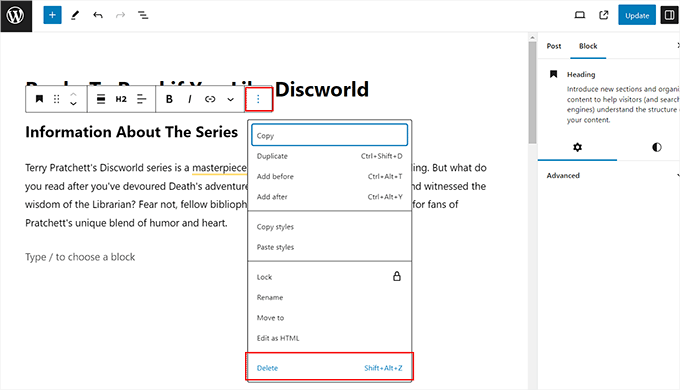
First, you need to select the block that you plan to delete by simply clicking on it.
After that, click the three-dot icon in the block toolbar to open a prompt. From here, select the ‘Delete’ option to delete the block from your blog post.
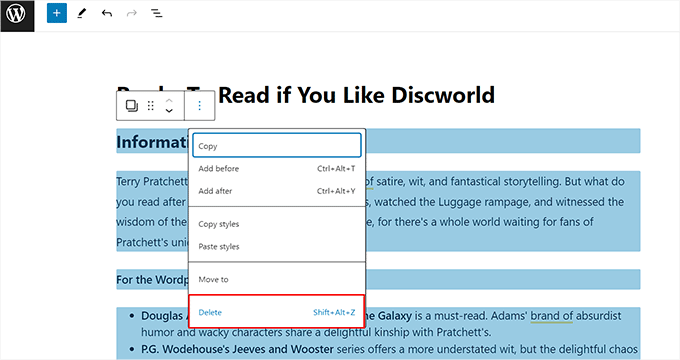
On the other hand, you can also delete multiple blocks in the content. First, you must select all the blocks you want to delete by dragging your mouse through them.
After that, click the three-dot icon in the block toolbar and click the ‘Delete’ option in the prompt.
If you are looking for a shortcut, then you can easily delete a selected block in the content editor by pressing the Backspace or Delete key on your keyboard.
Another advanced shortcut is to use Shift + Alt + Z for Windows and Linux, or ⌃ + ⌥ + Z for macOS.
Method 2: Hide a Block in WordPress
If you don’t want to completely remove a block, then use this method.
You can use the WordPress editor’s block preferences to hide the block from the menu and easily bring it back whenever you need it.
To do this, you must open the block editor and click the three-dot icon at the top right corner of the screen. This will open the dropdown menu from where you must select the ‘Preferences’ option.
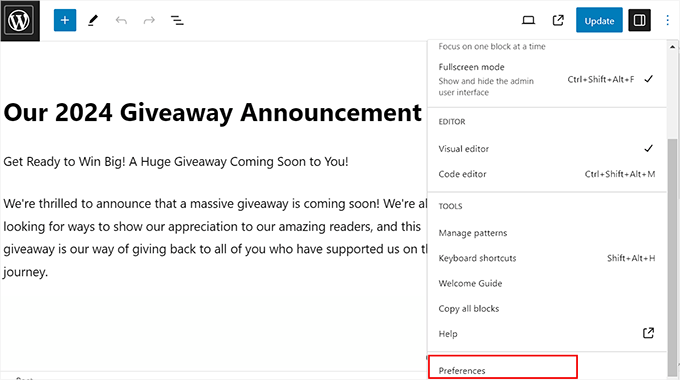
This will open a popup on the screen. Here, switch to the ‘Blocks’ tab and uncheck the boxes next to the blocks you want to hide in the post editor.
You can also disable plugin blocks from here, such as blocks for WPForms, the best drag and drop form builder for WordPress, or Soliloquy, the best WordPress slider plugin.
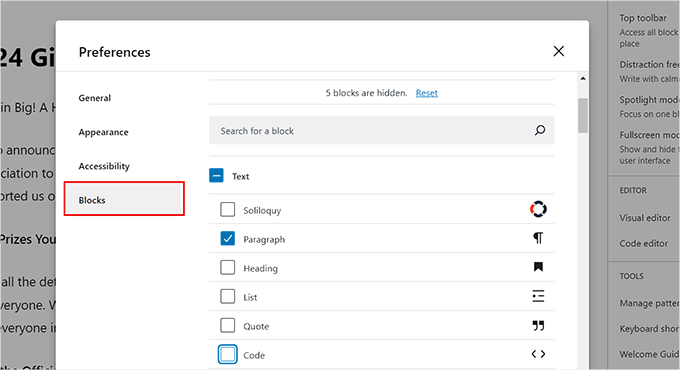
Once you are done, just click the ‘X’ icon to exit the prompt. You have now successfully hidden the blocks in WordPress.
To view the results, click the ‘+’ button at the top left corner to open the block menu. Here, you will notice that the blocks you chose are not visible anymore.
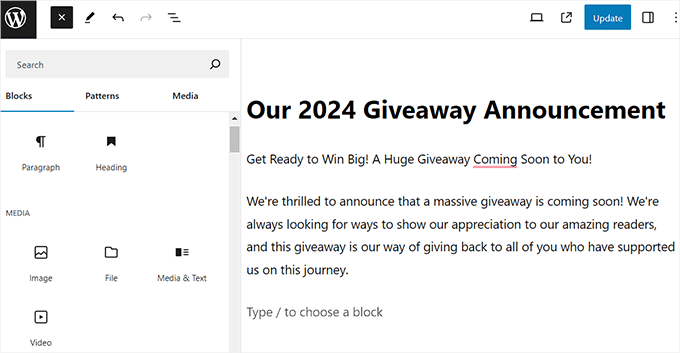
When you want to bring back those blocks, just click the three-dot icon again and select the preferences option.
Once the popup opens up, switch to the ‘Blocks’ tab. To make all plugin blocks visible again, click the ‘Reset’ link.
For core blocks, you will need to manually recheck the boxes next to each block you want to unhide.
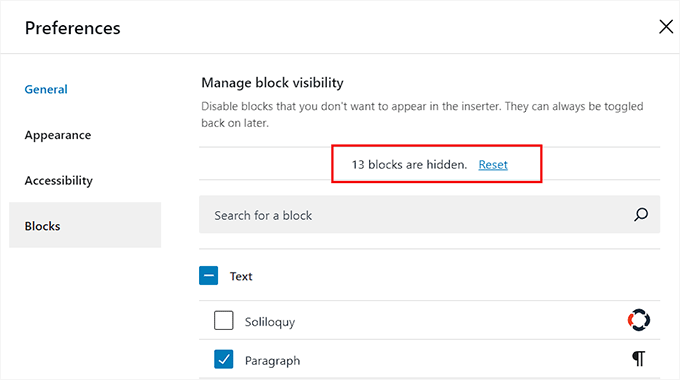
If you want to unhide only specific core blocks, then you can do so by manually rechecking their individual boxes in the ‘Blocks’ tab.
For plugin blocks, clicking ‘Reset’ will unhide all of them. There isn’t an option to unhide individual plugin blocks without resetting all of them simultaneously.
If this seems like a problem to you, then you can use the next method.
Method 3: Remove Core Blocks in WordPress
This method uses an ‘allowlist’ approach to completely remove default blocks from the WordPress editor.
This is ideal for creating a highly restrictive editing environment because you will define exactly which blocks (like the image, paragraph, or heading block) are allowed, and everything else will be removed.
Warning: An allowlist will disable all blocks not mentioned in your code. If you have previously used those blocks on your site, then they may stop displaying correctly or show errors in the editor.
To remove a core WordPress block, you will need to add a PHP code snippet. While you could add this code to your theme’s functions.php file, we strongly recommend against it.
A small mistake in the code could break your site, and your changes will be lost the next time you update your theme.
That is why we recommend using WPCode instead. It is the best plugin to safely add custom features to WordPress using code snippets. It helps you reduce the number of plugins on your site by replacing them with lightweight snippets.
We use WPCode on WPBeginner for development and code management. To read more about our experience, see our complete WPCode review.
Expert Tip: Before disabling a core block site-wide, check if you have used it in older posts. If you remove a block via code, then it can cause an ‘Invalid Block’ error on existing content until you turn the block back on.
Step 1: Install and Activate WPCode Plugin
First, you need to install and activate the WPCode plugin. For details, see our beginner’s guide on how to install a WordPress plugin.
☝ Note: You can use the free version of WPCode for this tutorial. However, upgrading to the pro plan will unlock more features.
Step 2: Create a New Custom PHP Snippet
Upon activation, visit the Code Snippets » + Add Snippet page from the WordPress dashboard and click the ‘Use Snippet’ button under the ‘Add Your Custom Code (New Snippet)’ option.
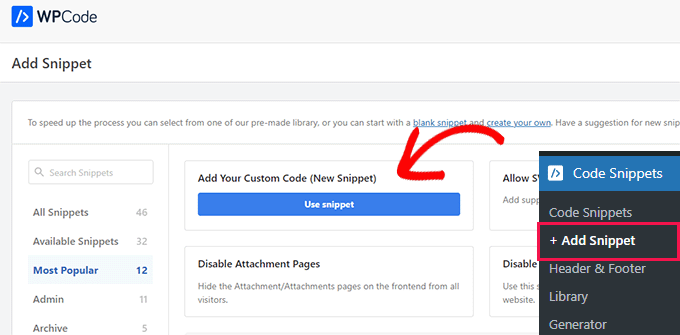
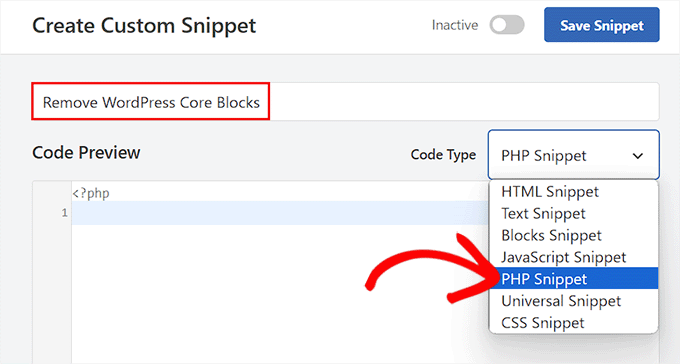
This will direct you to the ‘Create Custom Snippet’ page, where you must add a name for the code snippet that you are creating.
Then, choose ‘PHP Snippet’ as the Code Type from the dropdown menu on the right.
Step 3: Add the Allowlist Code
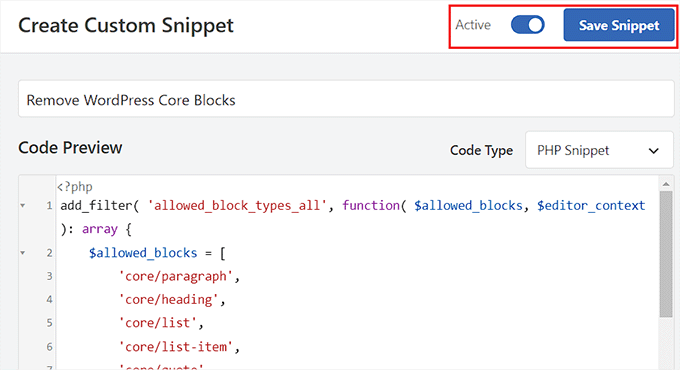
After that, you need to add the following custom code into the ‘Code Preview’ box:
add_filter( 'allowed_block_types_all', function( $allowed_blocks, $editor_context ): array {
    $allowed_blocks = [
        'core/paragraph',
        'core/heading',
        'core/list',
        'core/list-item',
        'core/quote',
        'core/preformatted',
        'core/pullquote',
        'core/table',
        'core/gallery',
        'core/image',
        'core/video',
        'core/spacer',
        'core/separator',
        'core/shortcode',
        'core/embed',
    ];
    return $allowed_blocks;
}, 100, 2 );
This code uses a WordPress filter called allowed_block_types_all. This filter tells WordPress exactly which blocks are permitted in the editor.
Step 4: Configure Allowed Blocks
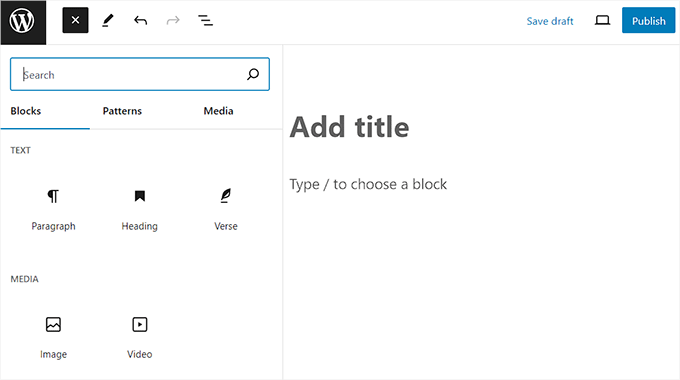
The code provides a specific list of core blocks that are allowed on your site. Any block not mentioned in this list, like the ‘Verse’ block, will automatically be removed from the block editor.
However, if you also want to remove one of the blocks that is mentioned in the code like the ‘Separator’ block, then you can just delete it from the code snippet.
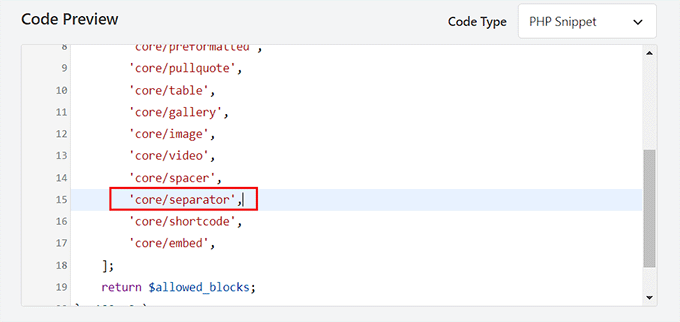
Similarly, if a block is not mentioned in the code snippet but you don’t want to remove it, then you can add its name to the list of blocks.
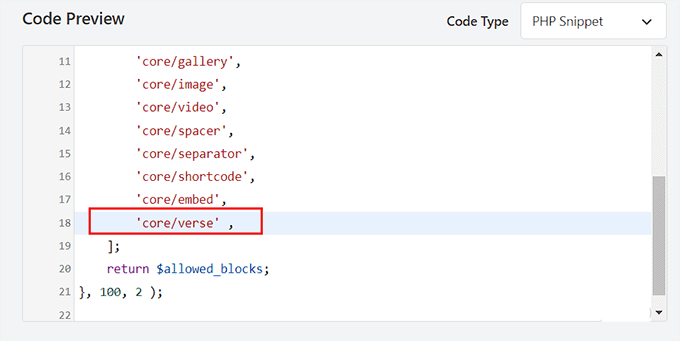
You can easily do that by typing ‘core/’ and then adding the block’s name to the list, ensuring proper syntax like this:
'core/verse',
Step 5: Set Insertion Mode to Auto Insert
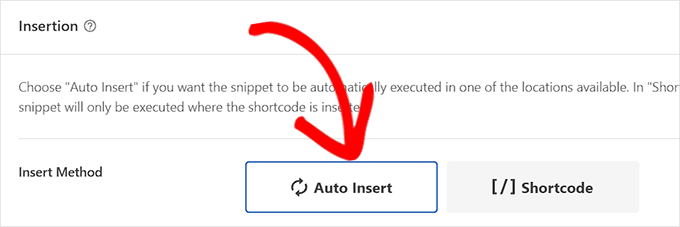
Next, scroll down to the ‘Insertion’ section and select the ‘Auto Insert’ mode.
Once you do that, the custom code will automatically be executed on your site upon activation.
Step 6: Activate and Save the Snippet
Then, scroll back to the top and toggle the ‘Inactive’ switch to ‘Active’.
Finally, click the ‘Save Snippet’ button to store your settings.
You can now visit the block editor to see the changes in action.
Here, you will notice that the classic, cover, separator, file, and many other blocks will be removed from the block menu because they were not part of your code snippet list.
Method 4: Remove a Plugin Block in WordPress
This method can be used when you want to remove a block that was introduced by a plugin.
Many WordPress plugins add blocks in the content editor. These blocks make it super easy to add the plugin’s functionality to your blog posts or page.
For instance, All in One SEO (AIOSEO) adds SEO-specific blocks to the editor, including breadcrumbs, tables of contents, and FAQ blocks.
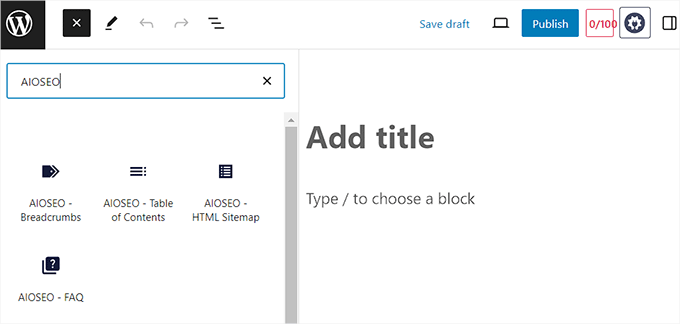
However, sometimes, you may not want to use one of the blocks offered by the plugin because you feel it is irrelevant to your content. In that case, you can remove the plugin’s block using custom code.
To do this, you will need WPCode, which is the best code snippets plugin and the safest way to add custom code to your website.
Step 1: Install and Activate WPCode Plugin
First, you need to install and activate the free WPCode plugin. For details, see our step-by-step guide on how to install a WordPress plugin.
Step 2: Create a New Custom PHP Snippet
Upon activation, visit the Code Snippets » + Add Snippet page from the WordPress dashboard. Here, click the ‘Use Snippet’ button under the ‘Add Your Custom Code (New Snippet)’ option.
Once on the ‘Create Custom Snippet’ page, you can start by adding a name for your code snippet for identification purposes.
Then, choose ‘PHP Snippet’ as the Code Type from the dropdown menu on the right.
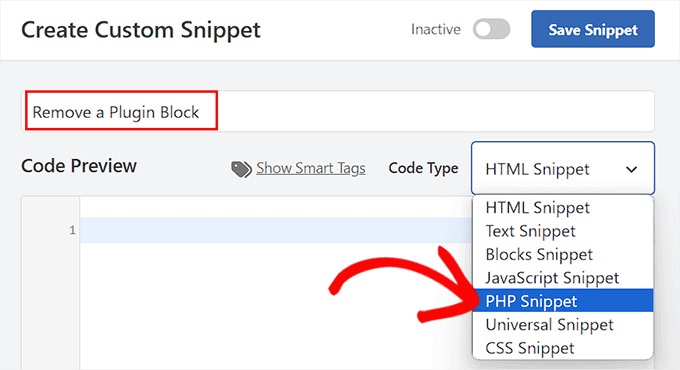
After that, add the following code snippet into the code preview box:
Just remember to replace the plugin block’s name with the block you want to remove.
add_action( 'init', function() {
    unregister_block_type( 'aioseo/breadcrumbs' );
}, PHP_INT_MAX );
Step 3: Get the Plugin Block’s Name
To get this name, you must open the Gutenberg editor and add the plugin block to the page/post.
Then, click the three-dot icon at the top right corner of the screen to open the dropdown menu. From here, switch to the code editor.
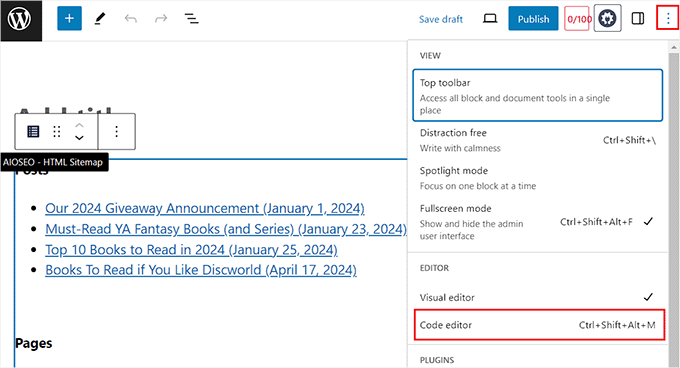
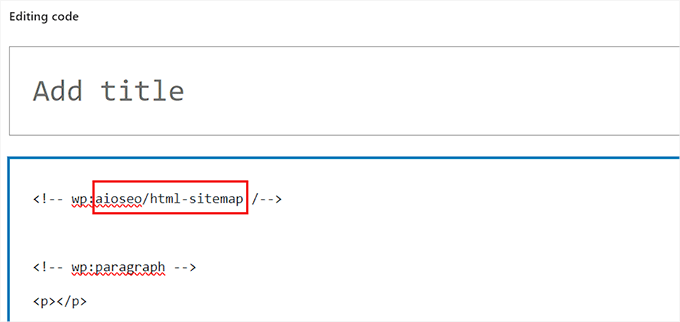
Once you switch, look for an HTML comment that starts with <!– wp:.
The full name of the block, like aioseo/breadcrumbs, will be right after that opening tag.
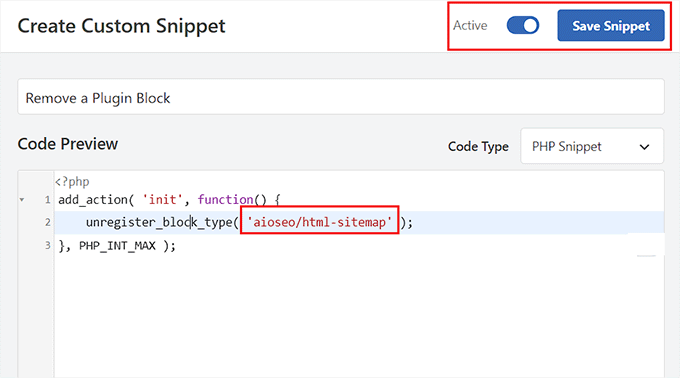
Go ahead and copy this name and head back to the ‘Create Custom Snippet’ page where you must paste it.
Step 4: Set Insertion Mode to Auto Insert
Then, scroll down to the ‘Insertion’ section and select the ‘Auto Insert’ mode.
This option will automatically execute the custom code snippet upon activation.
Step 5: Activate and Save the Snippet
After that, toggle the ‘Inactive’ switch to ‘Active’.
Next, click the ‘Save Snippet’ button at the top to store your settings.
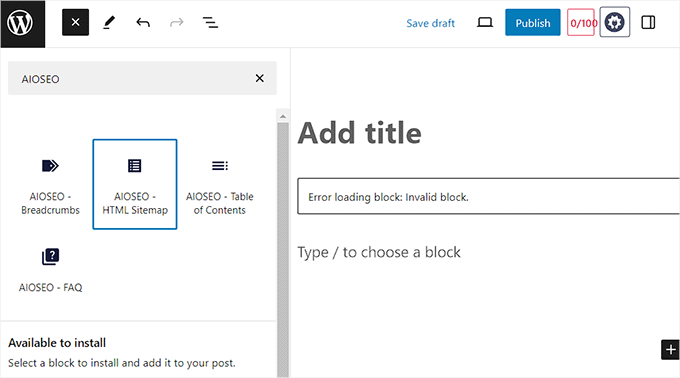
Now, open the block editor on your WordPress website and search for the block that you removed.
Here, you will see that the block you removed will no longer be displayed in the block inserter menu.
If you had previously used this block in a post or page, those existing blocks might now show an ‘invalid block’ error, indicating they can no longer be rendered.
Bonus: Create a Synced Pattern in WordPress
You can also save time by creating Synced Patterns. These were called ‘Reusable Blocks’ until WordPress 6.3.
This feature lets you save a block or a group of blocks that you can use on other posts and pages. When you update the synced pattern in one place, it automatically updates everywhere you’ve used it.
For example, you can create a synced pattern for CTA, feedback forms, affiliate products, and more. To do this, you must open the block editor and type the content that you want to convert into a synced pattern.
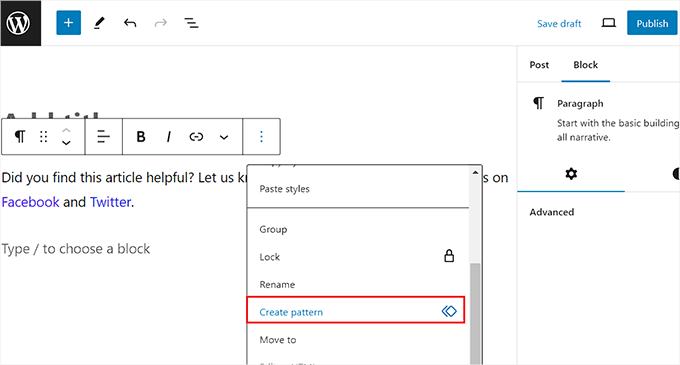
After that, click the three-dot icon in the block toolbar to open a dropdown menu. From here, select the ‘Create Pattern’ option.
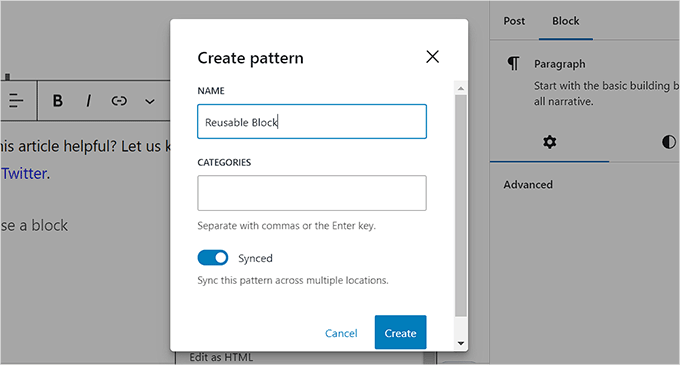
Then, just add a name for your pattern and click the ‘Create’ button to store your settings.
Now, the synced pattern will be saved in the WordPress database, and you can easily add it to your pages or posts using the block menu.
For more information, see our tutorial on how to create a synced pattern in WordPress.
Frequently Asked Questions
Here are some questions that our readers frequently ask about removing a block in WordPress:
What is the difference between deleting, hiding, and removing a block?
Deleting a block takes it off a specific post, but you can still find it in the editor menu. Hiding a block removes it from the menu so it does not clutter your workspace. You can always turn it back on later.
Removing a block with code disables it across your whole site. This is a technical change that stops the block from working anywhere on your website.
Is it possible to undo the removal of a block?
Yes, you can undo these changes. If you hid a block, then you can unhide it from the ‘Preferences’ menu.
If you used WPCode to remove a block, then you can just deactivate or delete that snippet. This will restore the block to your editor menu immediately.
Will hiding or removing blocks speed up my website?
Hiding or removing blocks mainly impacts the backend editor where you create content. It has a very minimal, if any, effect on your website’s frontend speed that your visitors experience.
The primary benefit is improving your own workflow. By creating a cleaner interface, you can find the blocks you need more quickly and write more efficiently.
We hope this article helped you learn how to easily remove blocks in WordPress. You may also want to see our beginner’s guide on how to use the WordPress block editor and our list of common block editor problems and how to fix them.
If you liked this article, then please subscribe to our YouTube Channel for WordPress video tutorials. You can also find us on Twitter and Facebook.




Suman Sourabh
Whenever I write and edit blog posts, I only use the first method to delete any blocks because it is quite easy and is present in the user interface without any need of code manipulation.
But I didn’t know about hiding the block! Thank you for that.
kzain
Gutenberg can be a powerful tool, but sometimes it feels overwhelming with all the available blocks. I don’t use them all either, and having them clutter up the editor can be confusing.
This code snippet to remove unused blocks is amazing. Just tried it on a test site, and it works perfectly! Now the Gutenberg editor feels much cleaner and easier to navigate. Thanks for the tip!
Jiří Vaněk
Sometimes I work with Gutenberg to learn with it. I found it very confusing at times, because I don’t use all the blocks personally. I tried the snippet now on one of the test sites and it works great. Thank you. Guteberg is immediately clearer.
kzain
I completely agree! Gutenberg can be great, but all those new blocks can definitely make it feel cluttered and hard to focus on. The idea of using a code snippet to remove them is brilliant.