


Watching your WordPress site load at a snail’s pace can be incredibly frustrating. After managing hundreds of websites here at WPBeginner, we’ve found that one of the biggest speed killers is something you might not even see: too many HTTP requests.
Each request for an image, script, or file adds a little more loading time, which can quickly add up and cause visitors to leave. The good news is that you don’t need to be a developer to make a huge difference in your site’s performance.
We’ve put together a list of the exact, beginner-friendly methods we use to cut down on these requests. Let’s walk through the simple steps to make your site noticeably faster.
Why Reduce HTTP Requests in WordPress?
Have you ever wondered why some websites take forever to load? Each WordPress page is like a puzzle made of various pieces, such as images, CSS files, JavaScript, video embeds, and more. All these components need to come together for a page to appear.
Imagine your browser as a busy waiter rushing to the kitchen back and forth to collect every ingredient separately. This can slow things down, especially if your site is rich with visuals and features. Each element adds to the loading time.
Plus, our websites don’t just rely on what’s stored on the server. They often pull from external sources, like Google Analytics or social media widgets. While these extras can make your site richer and more interactive, if they’re not optimized, they can slow down your site.
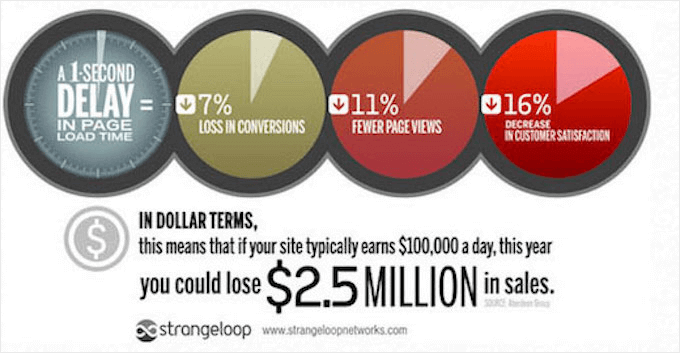
These unoptimized elements can turn into heavy baggage that frustrates visitors who expect fast loading. A slow website can lead to a one-second delay, costing you conversions, page views, and even customer satisfaction, as highlighted by a Strange Loop study.
That’s why reducing HTTP requests is important. As we’ve done here at WPBeginner, focusing on this can significantly enhance your site’s speed, improve user engagement, and ultimately boost your business. Speed is not just a technical win, it’s a strategic advantage.
How to Identify HTTP Requests
Before we show you how to reduce HTTP requests in WordPress, let’s go over how you can identify them.
You can easily view the HTTP requests made by your website using your browser’s developer tools. This will show you a list of the files that need to be loaded to view the web page.
In Google Chrome, for example, you can open the developer tools by going to View » Developer » Inspect. You can also right-click on the page and select ‘Inspect’ from the menu.
Then, navigate to the ‘Network’ tab. Reload the page, and you’ll see a list of all the resources loaded, including internal and external HTTP requests.
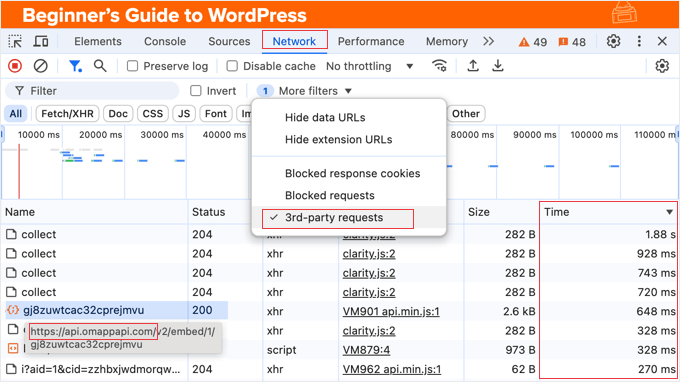
To easily see only external HTTP requests, look for the filter toolbar at the top of the Network panel and check the box labeled ‘3rd-party requests’. This will hide all the files loaded from your own domain.
If you just want to see certain types of files that may impact your loading times, such as JS (JavaScript) or CSS, then simply use the buttons along the top to filter the list.
Watch out for files that are slow to load. You can look at the ‘Time’ column to see how long it takes for each of these resources to be loaded. Then, you can click on this column heading to sort the list by time, and clicking it a second time will place the slowest-loading files at the top.
When you look at the fourth ‘Initiator’ column, you will sometimes see the name of the plugin or theme that loaded the file. Make a note of any plugins or themes that request slow-loading files.
You can use third-party tools like Pingdom to get a more detailed report. For more information, check out our guide on how to track third-party domain requests in WordPress.
Now that you know how to identify HTTP requests, let’s dive into the most effective ways to reduce them on your WordPress site.
1. Combine CSS and JavaScript Files
The best way to reduce the number of HTTP requests made to your website is to reduce the number of files that need to be accessed. You can combine multiple files to reduce HTTP requests without any loss of functionality.
For example, instead of having multiple CSS files for different parts of your website’s design, you can merge them into a single file. This single file will contain all the necessary styling code, and the browser will only need to make one request instead of many.
Similarly, you can combine multiple JavaScript files into one, reducing the number of requests needed to load the interactive elements of your website.
Heads up: While combining files is a great practice, it’s helpful to know that modern web protocols like HTTP/2 can load multiple small files very quickly, sometimes even faster than one large file.
However, for sites on older hosting or for maximum compatibility, combining and minifying files remains a solid strategy for cutting down on requests. Tools like WP Rocket handle this intelligently for you! 👍
Several WordPress plugins can automate this process for you. Popular options include WP Rocket (premium) and Autoptimize (free).
For detailed information on how to use these plugins, see our guide on how to fix render-blocking JavaScript and CSS in WordPress.
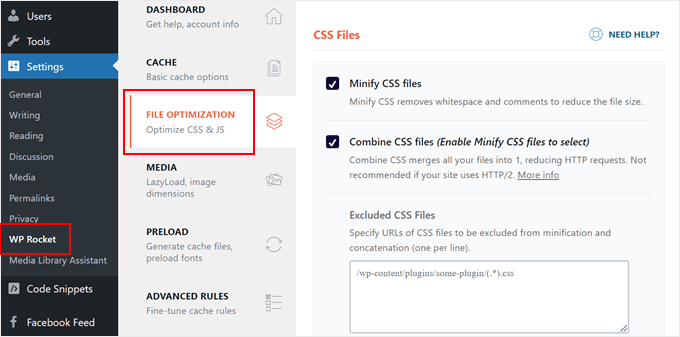
In addition to combining your files, these plugins will also minify them. This removes unnecessary characters, like whitespace and comments, from the code, making the files smaller without affecting their functionality.
This further improves loading speed by reducing the amount of data that needs to be downloaded.
2. Lazy Load Images and Videos
Lazy loading is another great way to improve your website’s performance, especially if your pages contain lots of images or videos.
It’s worth noting that WordPress automatically lazy loads images by default, which is a great start. However, plugins like WP Rocket give you more control and can also lazy load videos and iframes, which can make an even bigger difference.
Normally, WordPress loads all media files before displaying a webpage, even if those images or videos are further down the page and not immediately visible to the user. This can significantly increase initial page load time.
Lazy loading optimizes this process by delaying the loading of images and videos until they are about to scroll into the user’s view.
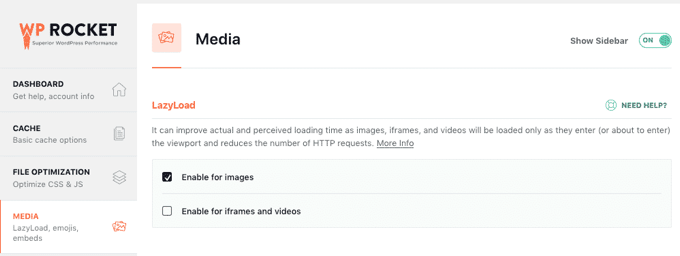
These helpful tutorials will help you learn how to set up lazy loading on your WordPress website:
- How to Easily Lazy Load Images in WordPress
- How to Easily Add Lazy Loading for Videos in WordPress
- How to Lazy Load Gravatars in WordPress Comments
3. Use a Content Delivery Network (CDN)
Using a Content Delivery Network (CDN) is another effective strategy to improve your WordPress website’s loading speed, especially for users located far from your web server.
Unlike the previous methods, a CDN doesn’t reduce the number of HTTP requests. Instead, it optimizes how those requests are handled.
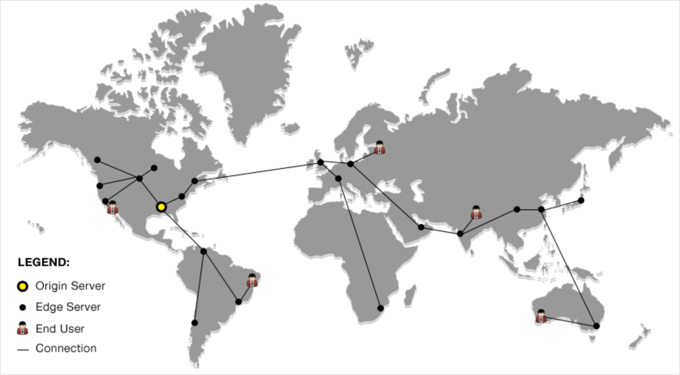
Normally, your website’s files are stored on a single web server, and users from all over the world have to request files from this one location.
A CDN stores copies of your website’s files on fast servers located around the world, and they are delivered to the user’s browser from the server closest to them.
You might like to see our expert comparison of the best WordPress CDN services to learn which option best suits your website.
At WPBeginner, we use Cloudflare to improve our page load speed, and you can follow our step-by-step tutorial on how to set up Cloudflare free CDN in WordPress.
4. Leverage Browser Caching
You can also leverage browser caching to reduce HTTP requests to your website, especially if you have recurring users who frequently visit your site.
When a user visits your website for the first time, their browser downloads all the necessary resources, such as images, stylesheets, and JavaScript files. Browser caching allows the browser to store copies of these files locally on the user’s computer.
The next time they visit your website, the browser checks its local cache before making HTTP requests to your server. If an unexpired copy of a file is found in the cache, then the browser uses the local file instead of downloading it again.
This significantly reduces the number of HTTP requests made to your server, resulting in faster loading times for returning visitors.
However, if your website content is updated frequently, then it is important to set appropriate expiration times for cached resources. This makes sure your users eventually receive the latest versions of your files.
You can control how long resources are cached by adding Expires headers in WordPress. These headers tell the browser when a cached file should be considered outdated and needs to be re-downloaded from your server.
5. Minimize the Use of External Resources
Lots of WordPress plugins and themes load resources like scripts, stylesheets, and images from external websites, such as Google Analytics, Facebook, and font providers.
These external HTTP requests can impact your website’s loading speed, as the browser needs to connect to multiple servers to fetch all the necessary components.
Even if these external resources are optimized for speed, using too many of them can slow down your website’s performance.
To reduce these external HTTP requests, you can start by deactivating and deleting plugins and themes you don’t actually need.
You should also consider finding alternatives for any plugins or themes that request slow-loading files. You may have noticed some when identifying HTTP requests earlier.
And when choosing WordPress plugins, be mindful of the external resources they load. You will want to opt for plugins that prioritize performance and avoid those that load excessive external scripts or styles.
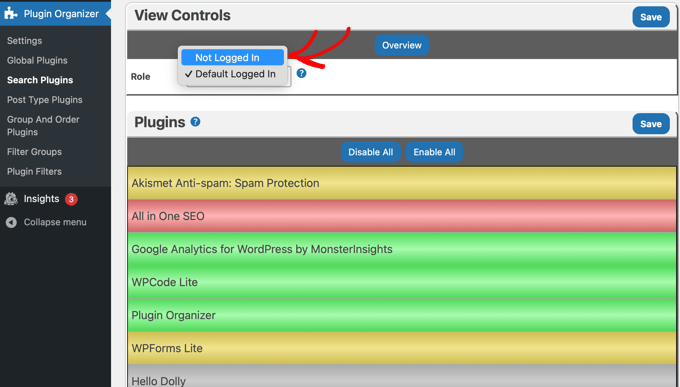
For more granular control over plugins, consider using a plugin management tool like Plugin Organizer. This allows you to selectively load plugins only on the pages where they are needed.
Finally, custom web fonts are often loaded from external providers, like Google Fonts, and can significantly contribute to HTTP requests. You should limit the number of font families and weights you use or explore using system fonts, which are already installed on users’ computers.
At WPBeginner, we switched to system fonts in 2021, improving our page load times, especially for users with slower internet connections. You can learn to do the same in our guide on how to disable Google Fonts on your WordPress website.
6. Bonus: Enable Gzip Compression
One final tip is to enable GZIP compression to reduce the size of the files on your web server.
While this doesn’t directly reduce the number of HTTP requests, it does speed up the process and makes transferring your website files faster.
Frequently Asked Questions About Reducing HTTP Requests
Below are some of the most common questions we get asked about optimizing HTTP requests and improving WordPress site speed.
1. What is an HTTP request?
An HTTP request is when a web browser asks a server for a piece of information needed to load a webpage. This can be an image, a stylesheet (CSS file), a script (JavaScript file), or any other part of your site. Each individual file requires a separate request.
2. How many HTTP requests are too many for a website?
There isn’t a single magic number, as it depends on your site’s complexity. However, a good goal for most small business websites is to stay under 50-60 requests per page. The fewer requests your site has to make, the faster it will typically load for your visitors.
3. What is the easiest way for a beginner to reduce HTTP requests?
For beginners, the easiest method is to use a caching and optimization plugin like WP Rocket. It can automatically combine CSS and JavaScript files with just a few clicks, which significantly cuts down on the number of requests without you needing to touch any code.
4. Does a CDN reduce the number of HTTP requests?
No, a Content Delivery Network (CDN) does not reduce the actual number of requests. Instead, it makes them much faster. A CDN stores copies of your files on servers around the world, so when a user’s browser requests a file, it’s delivered from the closest possible location, reducing loading time.
Additional Resources on WordPress Performance
We hope this tutorial helped you learn how to reduce HTTP requests in WordPress. You may also want to check out our other expert guides for improving site speed and performance.
Testing and Diagnosing Your Site Speed
- How to Properly Run a Website Speed Test
- How to Use GTmetrix to Improve Site Performance
- How to Stress Test a WordPress Website
Core Performance Improvements
Advanced Optimization Techniques
If you liked this article, then please subscribe to our YouTube Channel for WordPress video tutorials. You can also find us on Twitter and Facebook.





Have a question or suggestion? Please leave a comment to start the discussion.