


When we first started WPBeginner, a simple monthly archive list worked fine.
But as our content library grew, that list became an endless scroll that cluttered the sidebar. This looks unprofessional and makes it difficult for readers to find the content they actually want.
Cleaning this up helps your site look organized while keeping older posts accessible. It also frees up space for more important sidebar widgets.
In this guide, we will show you three methods to limit the number of archive months displayed in WordPress.
We’ll share three different methods and you can use the quick links below to jump straight to the method you prefer:
Method 1. Limit Number of Archive Months with Plugin
The simplest way to tidy up those WordPress archives is with a plugin. Honestly, for most of us, this is the way to go. It’s easier and in our opinion, the best choice for most users.
First things first, you’ll need to install and activate the Collapsing Archives plugin. For more details, see our step-by-step guide on how to install a WordPress plugin.
Once the plugin is active, head over to Appearance » Widgets in your WordPress dashboard.
If you are using a classic theme, simply find the ‘Collapsing Archives’ widget and drag it to your sidebar. If you are using the modern block widget editor, click the ‘+’ add block button and search for ‘Collapsing Archives’ to add it to your sidebar.
If you’re not sure how widgets work, don’t worry! We’ve got a guide on how to add and use widgets in WordPress. It walks you through the whole process.
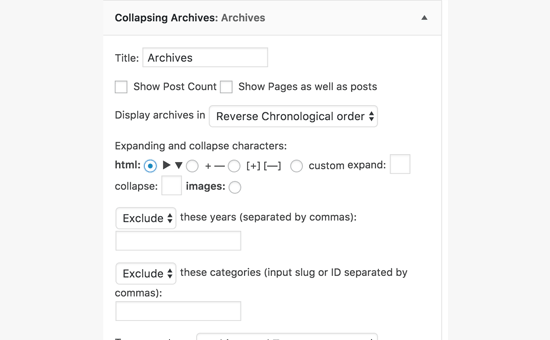
After you drag the widget into place, it will expand, showing you all its settings. This plugin uses a bit of clever code called JavaScript to make your archive links collapsible.
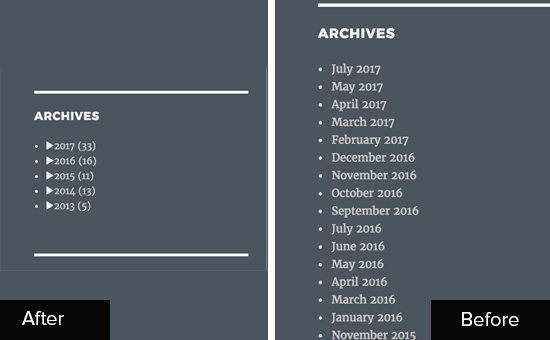
Basically, it groups your monthly archives under years. Visitors can click on a year to expand it and see the monthly archives underneath.
You can even go a step further and make the monthly archives collapsible too, so users can click to see the individual post titles within each month.
Take a look through the widget settings and customize them to your liking. Maybe you want to change the way the years are displayed or tweak the collapsing style.
Once you’re happy with everything, click the ‘Save’ button at the bottom of the widget settings. Don’t forget this step!
Now, go take a peek at your website. You should see your archives widget in action, all nicely collapsed and organized. Much cleaner, isn’t it?
Method 2. Replace Default Archives with Compact Archives
Want something a bit more visually streamlined? Then Compact Archives might be right up your alley. This method gives you a cleaner, more modern look compared to the standard archives widget. It displays your archives in a compact and beautiful way.
Just like before, the first step is to install and activate the plugin. For more details, see our step-by-step guide on how to install a WordPress plugin.
Once activated, navigate to Appearance » Widgets again. Find the ‘Compact Archives’ block (or widget) and add it to your sidebar or widget area.
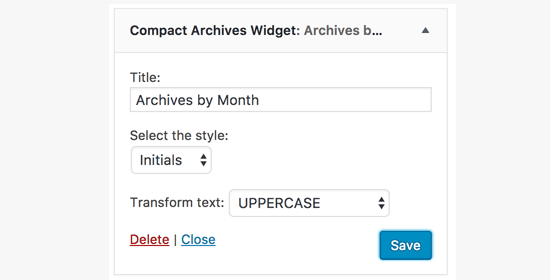
When you open the widget settings, you’ll see that Compact Archives offers a few different styles to choose from. You can pick ‘block’, ‘initials’, or ‘numeric’.
Each one gives a slightly different look to your compact archives. Play around with the styles to see which one you like best on your site. We found the ‘initials’ style particularly elegant on a minimalist blog.
Once you’ve chosen your style and are happy with how it looks in the preview, click that ‘Save’ button to save your widget settings.
Now, visit your live website and check out your new compact archives. See how much tidier they look?
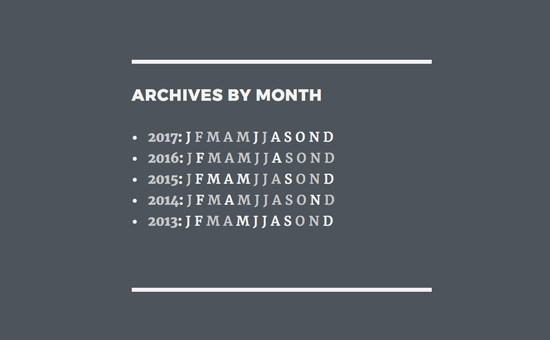
Bonus tip: The Compact Archives plugin isn’t just for sidebars! You can also use it to create a dedicated custom archives page on your site. This is great if you want to showcase all your archives in one place.
If you’re interested in doing that, we have a guide on how to create compact archives in WordPress that goes into more detail about setting up a separate archives page.
Method 3. Manually Limit Number of Archive Months in WordPress
This method requires adding code to your WordPress files. If you aren’t comfortable editing code, we recommend sticking with one of the plugin methods above.
If you do proceed, we strongly recommend using a code snippets plugin instead of editing your theme’s functions.php file directly, as it’s much safer.
Here at WPBeginner, we use WPCode for managing custom code. It’s the safest way to add snippets without editing theme files, preventing errors that could break your site. For more details, see our complete WPCode review.
First, you need to install and activate the free WPCode plugin. For detailed instructions, please see our guide on how to install a WordPress plugin.
Once activated, go to Code Snippets » + Add Snippet from your WordPress dashboard. Locate the option titled ‘Add Your Custom Code (New Snippet)’ and click the ‘Use snippet’ button underneath it.
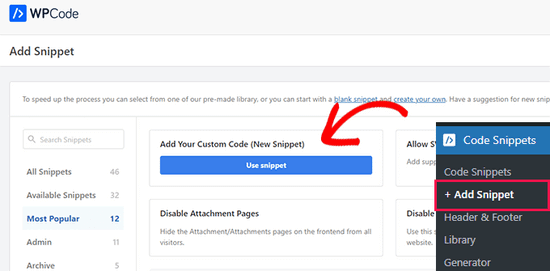
Next, add a title for your snippet. This is just for your reference. Then, copy the code below and paste it into the ‘Code Preview’ box.
// Function to get archives list with limited months
function wpb_limit_archives() {

$my_archives = wp_get_archives(array(
    'type'=>'monthly',
    'limit'=>6,
    'echo'=>0
));

return $my_archives;

}

// Create a shortcode
add_shortcode('wpb_custom_archives', 'wpb_limit_archives');

// Enable shortcode execution in text widget
add_filter('widget_text', 'do_shortcode');
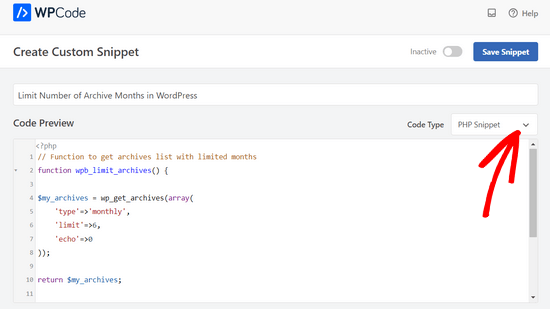
Now, be sure to select ‘PHP Snippet’ as the ‘Code Type’ from the dropdown menu.
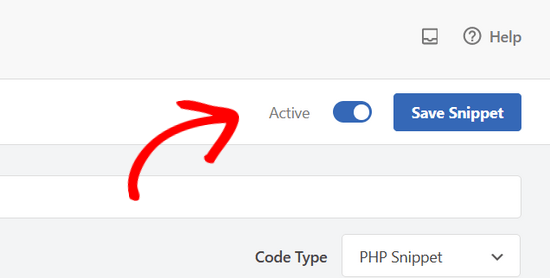
Finally, toggle the switch from ‘Inactive’ to ‘Active’ and click the ‘Save Snippet’ button.
This code creates a custom shortcode, [wpb_custom_archives], that you can now use. To display it, go to the Appearance » Widgets page and add a ‘Shortcode’ widget (or a ‘Text’ widget) to your sidebar.
Inside the widget, paste your shortcode. We recommend wrapping it in unordered list tags (<ul>) so that the bullet points display correctly in your sidebar, like this:
<ul>
[wpb_custom_archives]
</ul>
Don’t forget to click ‘Save’ to store your widget settings. You can now visit your website to see the new, shorter archives list in action.
Video Tutorial
If you prefer to follow along with a video tutorial, check out this WPBeginner video on how to limit archive months displayed in WordPress:
Frequently Asked Questions (FAQs)
Here are the answers to some of the most common questions we receive about managing and limiting archives in WordPress.
What is the best way to limit archive months for beginners?
For beginners, we highly recommend using a plugin like Collapsing Archives (Method 1). It is the easiest and safest way to organize your archives without needing to touch any code.
Will limiting the number of displayed archives hurt my SEO?
No, it should not hurt your SEO. These methods only change how the archives are displayed in your sidebar widget. All your monthly archive pages still exist and can be crawled by search engines.
Improving the user experience with a cleaner sidebar can even be a small positive signal to search engines.
In the code method, can I change the number of months displayed?
Yes, you can easily change the number. In the code snippet provided, simply find the line that says 'limit'=>6, and change the number 6 to your desired number of months.
Do I need to keep the plugins active for this to work?
Yes. If you use either the Collapsing Archives or Compact Archives plugin, it must remain installed and active on your site. If you deactivate the plugin, your archives will revert to the default WordPress display.
We hope this article helped you find the best way to limit the archive months displayed on your site.
Additional Resources & Guides
Now that your archives are organized, you may find these other guides helpful for managing your site’s content:
- How to Create a Custom Archives Page in WordPress – A great next step is to build a dedicated, user-friendly page for all your archives.
- How to Remove Archive Pages in WordPress – Learn how to disable certain archive pages if you don’t want them on your site.
- Best Internal Linking Plugins for WordPress – Discover top plugins to improve your site structure and help users find more content.
If you liked this article, then please subscribe to our YouTube Channel for WordPress video tutorials. You can also find us on Twitter and Facebook.




Dennis Muthomi
I have a client who has been blogging for years and have been overwhelmed with the archive list. I implemented this on her site and it’s made a big difference for users. One more tip: customize the widget’s CSS to match your theme for a smooth look. This has helped her WordPress site so much!
Jiří Vaněk
I have never used an archive on my site. Then I read one of your articles, where I read that it should be on the website. But that was a problem because it was too long. This snippet solved the whole problem brilliantly. Thanks
Jenny
I used this code and it worked perfectly.
But the problem is that whenever I select a month, it takes me to the homepage.
WPBeginner Support
It would depend on the method you are using. If you are using a plugin then you would want to reach out using the plugin’s support forum
Admin
kd
hello, I would like to know how to remove the bullet points from the archive list.
Gaz
Hi,
I would like to ask how can I show the amount of posts next to the month in the archive list in the footer?
Example:
May 2018 (5)
I put the above code on the site however I would like to show how many posts have been published each month as well.
Thanks
Gaz
Gaelyn
Seems rather stupid to have to add plugins to stop something I didn’t ask for in the first place. How about just on/off. No reason to load all the archives.
Salvatore
just add: ‘show_post_count’=>1 after ‘echo’=>0,
Stegemüller
Hi there,
I simply love your site! I have been using WP for 10 years, but finally I am beginning to learn how to go backend and manipulate. Great fun and very useful.
To day I followed your advise about limiting the number of archives, and I used “Method 3. Manually Limit Number of Archive Months in WordPress” – It works great.
I just have one question: Is it possible to make the first letter a capital letter? I.e.: January not january, February not february and so on.
WPBeginner Support
Hi Stegemüller,
By default, it should display month names starting with capital letter. If you are using WordPress in another language, then it is possible that localization files has month names in small letters. If you can confirm and report it, then translators would be able to fix that.
As a temporary fix you can use CSS. Wrap your shortcode around a div
<div class="capsfix">[wpb_custom_archives]</div>Then add this custom CSS:
.capsfix li {text-transform:capitalize;
}
Admin