


I remember uploading a high-resolution photo for a tutorial, only to see it look grainy on the live site. It turns out that WordPress was automatically compressing the file to save disk space.
While this feature helps your pages load faster, it can noticeably reduce image clarity for photographers and design portfolios. You shouldn’t have to choose between performance and crisp visuals.
We have managed image-heavy websites for over a decade and found a way to balance quality with speed. You can easily adjust these settings to suit your specific needs.
In this guide, we will show you how to change the JPEG image compression in WordPress.
Here is a quick look at what we will cover in this guide. You can use the links below to jump straight to the section you need.
Why Change WordPress JPEG Image Compression?
When you upload a JPEG image, WordPress creates several smaller versions (thumbnails) to use in different areas of your theme. By default, it compresses these generated images to 82% quality.
If you are a photographer, artist, or eCommerce store owner who needs to showcase high-fidelity images, then you can force WordPress to use higher quality settings.
How to Disable Image Compression in WordPress
The safest way to change image compression settings is by adding a small piece of code to WordPress. While you can add code directly to your theme’s functions.php file, we recommend using a code snippets plugin to avoid common errors.
Our go-to plugin for this is WPCode because it’s free, powerful, and easy for beginners to use. In fact, we use WPCode across all our Awesome Motive websites to manage custom code, which keeps everything organized and safe during theme updates.
First, you’ll need to install and activate the free WPCode plugin. If you need help, just follow our guide on how to install a WordPress plugin.
Upon activation, you need to navigate to Code Snippets » + Add Snippet in your WordPress dashboard. After that, you should hover your mouse over the ‘Add Custom Code’ template and then click the ‘Use Snippet’ button.
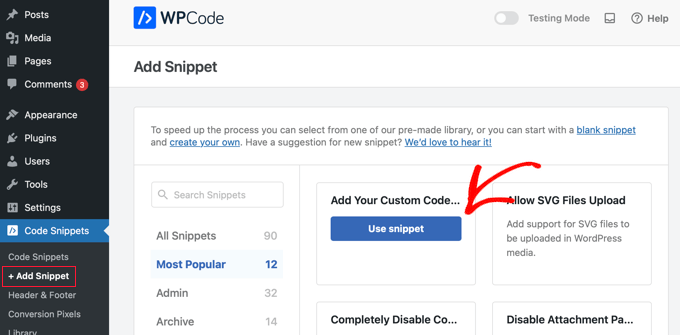
This will take you to a new screen where you can create your custom snippet. You need to add a title to the snippet, such as ‘Disable Image Compression in WordPress’.
After that, you should select ‘PHP Snippet’ from the Code Type drop-down menu, then paste the following code snippet in the ‘Code Preview’ pane.
add_filter('jpeg_quality', function($arg){return 100;});
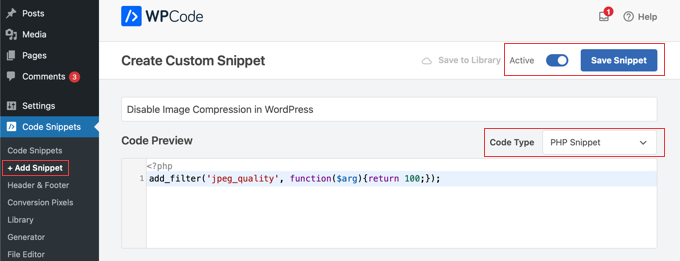
When you set the value to 100, WordPress will compress the image at its highest quality.
Finally, you need to click the toggle switch at the top of the screen from ‘Inactive’ to ‘Active’ and then click the ‘Save Snippet’ button.
Congratulations, you have set your WordPress image quality to 100%.
Important: Setting image quality to 100% will result in significantly larger file sizes, which can slow down your website. We only recommend this if image clarity is more important to you than page load speed.
Note that this change only affects images you upload after adding the code. If you want to apply this to older images, you will need to regenerate your thumbnails.
If you are not a photographer or an artist, then you would probably not see much of a difference in quality. But for those who work with high-quality images on a daily basis, the difference in quality is obvious.
How to Increase Image Compression in WordPress
There are definitely performance benefits to leaving the compression quality as is. But if you want to save disk space, you can set the compression number to 75 or something lower. This will compress your images more than the default WordPress setting.
Simply create a new WPCode snippet as you did in the previous method, and then paste the following code:
add_filter('jpeg_quality', function($arg){return 75;});
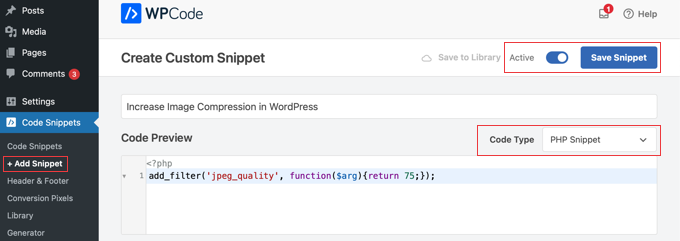
Once you make the snippet active and save it, your JPEG images will be compressed to smaller file sizes. The images will appear at a lower quality, but you will save space on your web server.
Tip: When you make these image quality changes, you also want to make sure that you regenerate your thumbnails.
Frequently Asked Questions About Image Compression
Here are answers to some of the most common questions we get about changing JPEG compression settings in WordPress.
What is the default JPEG compression level in WordPress?
By default, WordPress compresses JPEG images to 82% of their original quality. This setting was chosen to provide a good balance between image clarity and faster page load times for visitors.
Will changing the compression setting affect existing images?
No, this code only applies to new images you upload after adding it. It will not change any of the images that are already in your Media Library.
If you want to apply the new settings to your previously uploaded images, you’ll need to regenerate your thumbnails.
Is this method better than using an image optimization plugin?
This code snippet is a simple way to adjust the global quality setting (dumb compression). However, dedicated image compression plugins use smart algorithms to reduce file size without visibly affecting quality.
Plugins can compress images on external servers, convert them to modern formats like WebP, and add lazy loading. For most users, a full plugin provides a more complete solution for website speed.
What is a good compression level to use?
The default of 82% is a solid middle ground for most websites. If you are a photographer or artist, you might set it to 90% or even 100% to ensure your work is displayed with the highest possible detail.
If your main goal is maximum site speed, you could experiment with a value around 75%. We suggest testing a few options to see what looks best to you.
This code snippet is a simple way to adjust the global quality setting (dumb compression). However, dedicated image compression plugins use smart algorithms to reduce file size without visibly affecting quality.
Additional Resources for Image Optimization
Changing the default compression is just one part of managing images effectively. Here are some other guides that will help you further optimize your images for speed and SEO:
- Best WordPress Image Compression Plugins Compared – If you want more features than this simple code snippet provides, a dedicated plugin is the way to go. This guide compares the best options available.
- How to Save Images Optimized for Web – Learn how to properly prepare your images for the web before you even upload them to WordPress for the best results.
- Beginner’s Guide to Image SEO – Discover how to optimize your images for search engines to drive more traffic to your website from image searches.
- How to Easily Lazy Load Images in WordPress – Lazy loading is another technique that makes your website feel faster by only loading images when they are visible on the user’s screen.
If you liked this article, then please subscribe to our YouTube Channel for WordPress video tutorials. You can also find us on Twitter and Facebook.



Kelly
Is there any way to customise this so it only applies to banner/carousel images for instance?
I’m looking to keep other images on the site compressed but the images on the homepage carousel are the first thing visitors see so I want to keep them at 100% quality!
WPBeginner Support
We do not have a simple way for that, in this we would recommend optimizing images before uploading them and that would solve the issue in a different way
https://www.wpbeginner.com/beginners-guide/speed-wordpress-save-images-optimized-web/
Admin
Jiří Vaněk
I would like to ask whether WordPress applies this compression only to JPEG images or if this function is used for other formats as well. I am particularly interested in the WebP format and, to a lesser extent, the PNG format. The majority of my website’s images are in WebP format. I know that this format is already highly compressed, so I would not want to lose additional quality due to further compression by WordPress.
WPBeginner Support
The JPEG image compression only affects the JPEG file type.
Admin
Tom
I tried this so many times, and many different variations of this code but it never works. I don’t know what else to do. Every time I upload a photo, I can see that the quality is blurrier. Do you have any other tips?
WPBeginner Support
Please ensure you do not have any other plugins that compress/optimize your images as that is the most common reason the images would be compressed. The other common reason would be if your theme is resizing the images in which case we would recommend taking a look at our article below!
https://www.wpbeginner.com/beginners-guide/wordpress-image-sizes-beginners-guide/
Admin
Tom
Thanks for the reply. Just an update: It turns out it was my hosting company that was compressing my photos. They had a CDN feature that was automatically enabled that I didn’t know about. After I disabled it, my photos are fine now.
Purnendu Mukherjee
Hi,
If we use a image compression plugin like Smush, Optiomole or any other, will my images be compressed twice (once by WordPress and then by the plugin)??
WPBeginner Support
You would want to check with the support for the plugin you plan to use but most should have the ability to cancel the standard compression.
Admin
Rigsby
Hello, once the php is added, will that override any image compression plugin that is installed at a later date or does the plugin override the code? It will be hard to remember that your php was once added a long time ago, and therefore it may cause headaches wondering why the plugin isn’t working correctly.
Thanks : )
Tom
” If you want, you can change the number from 100 to 80 or something lower… then all you have to do is paste the following code:”
ADD THE CODE WHERE???
WPBeginner Support
As with the code above, you would place it in your theme’s functions.php or a site-specific plugin. To protect from theme updates we would normally recommend a site-specific plugin:
https://www.wpbeginner.com/beginners-guide/what-why-and-how-tos-of-creating-a-site-specific-wordpress-plugin/
Admin
rob
Hi – Do images need to be reuploaded for it to take effect?
Also, will this work for png images or do I need to change jpeg to png in the php code?
Thanks
WPBeginner Support
This would only apply to new images and not your current images and you do not have to worry about PNG compression.
Admin
Netgoondoo
Hi, is this code snippet valid in php 7?
WPBeginner Support
The snippet should still be working
Admin
puspa chaulagai
hey, I am from love and fun quotes I found your article while I searching for how to stop auto compressing images on WordPress. I try your code but it still not working. When I change the theme it’s work but in which theme I apply it doesn’t work. How to remove auto image compress by theme please help.
WPBeginner Support
You would want to reach out to the support for your specific theme for them to be able to assist with their specific compression.
Admin
Sukanya
I have not seen much of a difference even after regenerating. Am I missing something?
Heather Wilson
Hello,
I am working with wordpress.com – can you do this through the customizing CSS menu, and if so how? I am brand new to coding.
WPBeginner Support
Hi Heather,
No, you cannot. Please see our guide on the difference between self hosted WordPress.org vs free WordPress.com blog.
Admin
Karlo Gavric
Even I change compression to 100, my images looks so bad in quality, only if I use full sized (widht 1300+px) is OK, but if I use Large file which is 900px, it is horrible.
I added code to change compression in functions.php, contacted my theme supplier and hosting support, they don’t have any compressions turned on.
Any ideas?
WPBeginner Support
Hi Karlo,
Try deactivating all plugins and switching to a default theme, after that upload a large image and see if that fixes it.
Admin
Karlo Gavric
Hi,
I’ve tried it, but the problem still persists. Tried also just changing a theme with plugins enabled / disabled, no change (?! feeling confused really ?!)
nospampls
you need to set your large file size to a higher image size. wordpress will automatically crop your images…
Anne
what does this mean
Unable to communicate back with site to check for fatal errors, so the PHP change was reverted. You will need to upload your PHP file change by some other means, such as by using SFTP.
Thank you
Eoin
It means that you need to use an external editor to edit the files because the Wordpress editor is restricted.. There are plugins available for editing theme files through the wordpress admin which you can look up on the Add New Plugin page, otherwize, you need to download your theme files using a FTP software, update the functions.php file and upload it back to the theme folder on the server. If you are not sure about FTP, I would just look for an theme editor plugin so you can do it in the wordpress admin, but make sure to deactivate the plugin when you are finished to prevent any security issues.
Devi Chand
Hi,
My product images looked blurred because they are already optimised and wordpress was optimising them again (I believe). I used the above code and also regenerated the thumbnails. Initially, I could not find the changes. However, later the images started showing up the way I wanted (not blurred, perfect) for some time. But I check again and the images are all looking blurred again. Can you help?
Bjornen
Hi!
So, is there a solution to having WP not up-scaling the image size (kb/mb) when uploading via “Media” in WordPress?
Meaning; I want WP to scale the picture into thumb nail, medium and large and to keep the original as it does per default, but NOT to up-scale the thumb ail, medium or large file sizes?
Thanks!
Mike
I added this code exactly how you showed it and now it won’t let me upload photos an error message keeps coming up. please help! Thanks!
Yara
Hi
Do you know if is possible to improve the quality of the image in wordpress.com in free version?
Thanks
Yara
Or better, if is possible to do not reduce the quality of the image
WPBeginner Support
Hi Yara,
You are limited to how WordPress.com handles images. Please see our guide on the difference between self hosted WordPress.org vs free WordPress.com blog.
Admin
Yara
Hi
Now I have wordpress.org because I was frustated with my images quality. But now it is worst. I did what your video say, but I still have problems.
I thought that was just upload the image and was OK. My head image and when I upload in the post the quality is not good.
I really don’t know what to do :/
Mélanie
Hi, I use this code and regenerated all my images, but unfortunatly, the size of my image is the same. I use enfold theme and my WP version is 4.7.2. Did I miss a step?
Mélanie
I forgot to say, I compressed to 75.
Luke Cavanagh
Setting the level to 92 or 90 is fine, the default used to be 90 was was lowered down to 82.
Alessandro
Hi, I have added the code as showed in the video but, nothing, Wordpress keeps reducing the size of my images.
Any other option?
Thanks for your support
Alessandro
Lukas Priyambodo
Quality 100 doesn’t always mean highest quality, because of JPEG algorithm and what kind of content of the image. Using SSIM, I sometimes found that quality 95 has better score than quality 100 or at least quality 95 has better filesize trade off compare to quality 100.
Jaime
Hi there. Are you able to disable image compression if you have a free Wordpress account? If so, where do I find my function’s php file?
WPBeginner Support
Please see our guide on the difference between self hosted WordPress.org vs free WordPress.com blog.
Admin
M.Mairaj
Thanks for sharing such a fantastic post about image Compression in Wordpress. All the tips are really very very worthwhile.
Keep sharing
Regards
Mairaj
Peter
Don’t follow this advice! I added this line of code in my functions.php file and now I get this message when loading my website!
Parse error: syntax error, unexpected T_STRING in /home/sittin11/public_html/wp-content/themes/Divi/core/functions.php on line 44
WPBeginner Support
See our guide on how to fix syntax error in WordPress.
Admin
blogmann
Thanks
I’m using plugin Imsanity, it has more settings
karl
Let’s clear up some things.
1 – WP does not mess with your original uploaded file. The compression levels discussed are for WP generated images – the TN, Med, Large in your WP media settings.
2 – if you change the compression settings, WP does not reprocess all your current uploads. That’s why you run Regenerate Thumbnails.
3 – I will challenge any photographer to see the quality difference between 100 and 90 in a JPG. In rare cases, you may. But for 99% of images you’ll never tell.
4 – Depending on your theme and your media settings, yes, some smaller image sizes will be cropped from your orignal upload. It’s the nature of the beast. If your TN is square and you upload a horizontal phjoto, of course it will be cropped. Cropping your images BEFORE uploading – and using a proportion compatible with your theme layout – will net you fewer issues.
Santiago Gonzalez
Thanks Karl, your comment was very helpfull to clear things up.
Thanks
chang hong
hello, can you tellme why wp crop every image that i upload? how can i prevent it! thank you
Dave Porter
Thanks for the article, very useful to know.
I’m interested in the comment about ‘make sure you regenerate your thumbnails’
If an image is uploaded at say 82%, regenerating the thumbnails does what?
And I assume that after changing the percentage, this is only going to be for new images?
I would guess any existing images would remain at the same quality, or does WordPress keep a copy of the original uploaded?
TIA, Dave
WPBeginner Support
WordPress keeps a copy of the original file uploaded.
Admin
Michael
Is it possible to disable image compression in WordPress?
The article has a headline saying so, but then it describes it as “least compression”, that is not disabling compression…just wondering it is possible to disable compression for uploaded pictures…
karl
Setting compression to 100 IS disabling it.
Thomas
Great Tips, thank you.
I have one more question: If I upload images to WP that are already compressed (say to 90%) – will they be compressed again (82% of 90% = 74.8%)?
Stephen
Yes. The only exception is the image you upload is saved as is for future use.