


Password-protected posts are meant to stay hidden, but WordPress still shows their titles in blog lists, archives, and search results. When someone clicks one and suddenly runs into a password screen, it can be confusing.
This doesn’t leave the best impression, especially if the content is only for clients, members, or internal use. 😓
The good news is that you can completely hide these posts from the WordPress loop (the list of posts displayed on your homepage, archives, and search results). From our testing, WPCode turned out to be the simplest and most reliable way to get this done.
In this guide, we’ll walk you through a few easy ways to keep your private content truly private. We’ve tested different methods so you can remove password-protected posts without breaking your site or blocking access for the people who actually need it.
Why Hide Password-Protected Posts in WordPress?
WordPress still shows password-protected posts across your site with a “Protected” label, even though the content itself is locked. This is a problem if you want certain content to stay fully private.
Anyone without the password can still see the title, which may reveal more than you intend. It can also confuse visitors who click a post expecting content, only to see a password prompt.
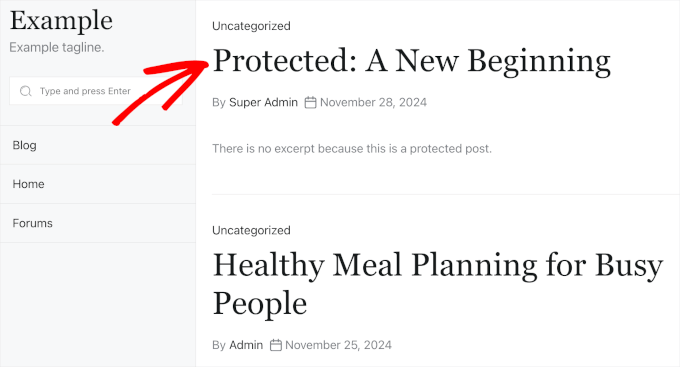
On top of that, these posts can attract unwanted attention. Since the titles are visible, someone could repeatedly try different passwords to gain access – especially if the content looks valuable or sensitive.
That’s why many site owners choose to hide password-protected posts from the WordPress loop entirely. When you do this, private posts won’t appear anywhere on the front end unless someone already has access.
With that in mind, we’ll show you how to hide your password-protected posts from the WordPress loop so that other users cannot see them. Here’s a quick look at all the steps you’ll take:
Let’s jump right in!
Step 1. Install a Code Snippet Plugin
To make specific changes to your site, some WordPress experts may tell you to add a custom code snippet to your theme’s functions.php file.
We don’t recommend this method because it’s not very beginner-friendly, and you risk breaking your website. Instead, you can use a code snippet plugin, like WPCode, to do the job.
WPCode is the best code snippet plugin on the market. Some of our partner brands use it to add and manage custom code snippets on their websites, and they’ve loved it.
You can find more information about the plugin in our complete WPCode review.
🧑💻 Expert Tip: This tutorial works perfectly with the free version of WPCode. If you regularly add or manage multiple custom code snippets, upgrading to WPCode Pro gives you helpful extras like code scheduling, full revision history, and more.
So, first, go ahead and install and activate the WPCode plugin.
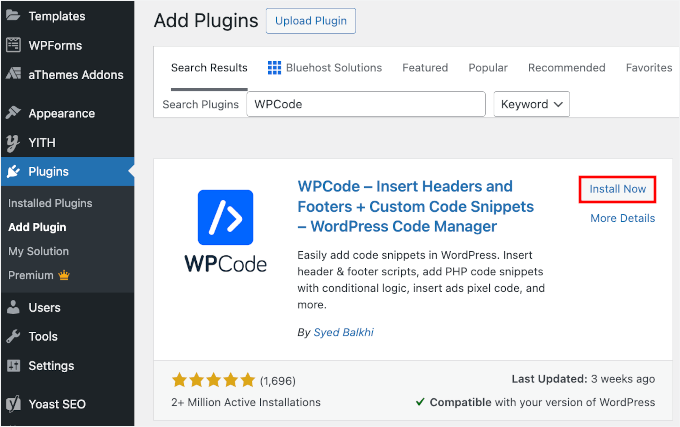
From your WordPress dashboard, head over to Plugins » Add New Plugin.

On the next screen, you can use the search bar to look for WPCode.
Once it appears in the results, click the ‘Install Now’ button and then ‘Activate’ to start using the plugin on your site.
If you’re new to WordPress, you can check out our guide on how to install a WordPress plugin.
Step 2. Hide Password-Protected Posts in WordPress
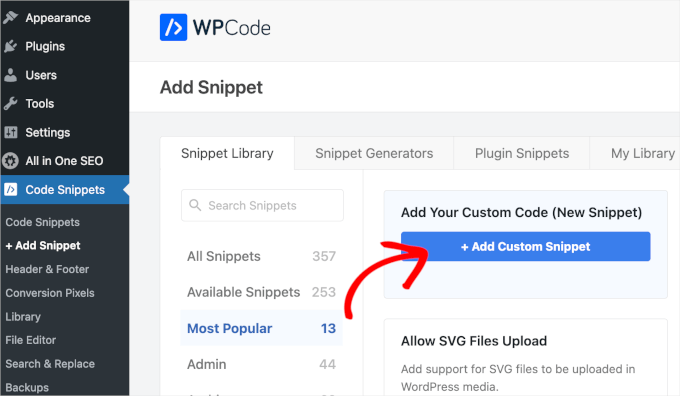
Once you’ve activated the plugin, navigate to Code Snippet » + Add Snippet from your WordPress admin area.
Then, simply click on the ‘Add Custom Snippet’ button within the ‘Add Your Custom Code (New Snippet)’ section.
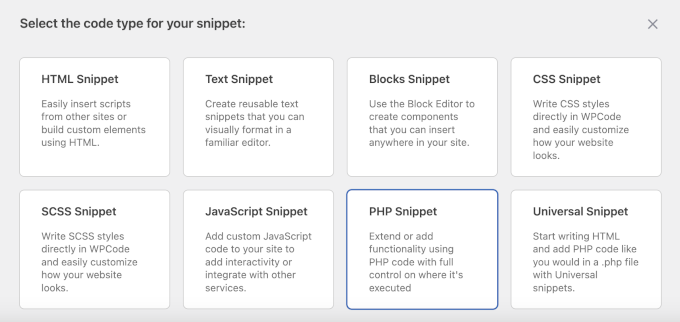
On the next screen, you’ll need to choose the code type for your custom snippet.
For this tutorial, we’ll need to use the ‘PHP Snippet’ option.
You’ll then be redirected to the custom code snippet editor.
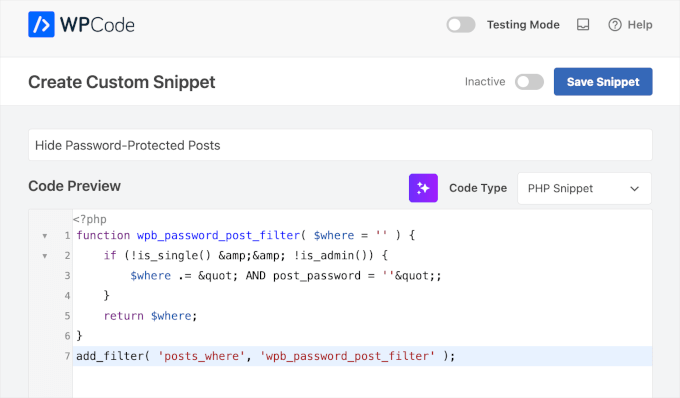
From here, you’ll want to name the custom snippet first. We recommend using a clear name, like ‘Hide Password-Protected Posts.’ This will make organizing your custom code snippets easier down the line.
Next, simply add the following code to the ‘Code Preview’ box:
function wpb_password_post_filter( $where = '' ) {
    if (!is_single() && !is_admin()) {
        $where .= " AND post_password = ''";
    }
    return $where;
}
add_filter( 'posts_where', 'wpb_password_post_filter' );
This code tells WordPress to look for any posts that have a password and excludes them from the query. This ensures they don’t show up in lists like your homepage or archives, but they will still be accessible via direct links.
Here’s what it looks like in the editor:
At this point, you’ll need to toggle the ‘Inactive’ switch to ‘Active.’
Then, go ahead and click ‘Save Snippet.’
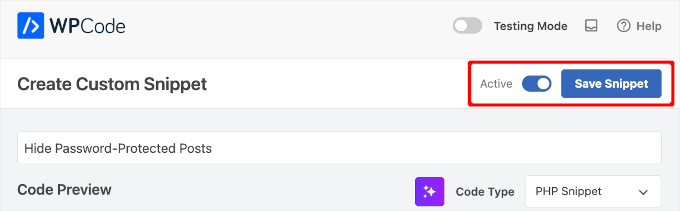
By default, WPCode will auto-apply the code snippet everywhere on your WordPress site.
Now, if you visit your website, you’ll see that password-protected posts are no longer visible on the homepage, archives, or in widgets like recent posts.
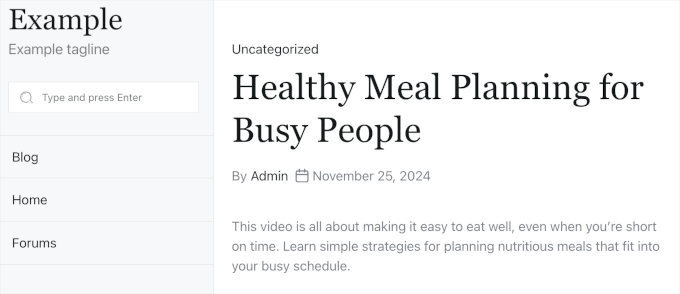
Keep in mind that you can still visit the post by accessing it through a direct URL.
Bonus Tip: Allowing Access to Protected Posts for Specific Users
The example above hides password-protected posts from all users. But what if you run a multi-author WordPress site and want protected posts to be viewable by users with the capability to edit private posts?
To do this, you need to edit the snippet you created in the previous step. Simply delete the code you added earlier and replace it with this new snippet:
function wpb_password_post_filter( $where = '' ) {
   if (!is_single() && !current_user_can('edit_private_posts') && !is_admin()) {
        $where .= " AND post_password = ''";
    }
    return $where;
}
add_filter( 'posts_where', 'wpb_password_post_filter' );
In this example, we check whether a user can’t edit private posts and only show the posts that don’t have passwords.
By doing so, all of the WordPress users with administrator and editor roles will see the password-protected posts on the front end of your site.
FAQs About Hiding Password-Protected Posts in WordPress
Wondering what happens when you hide password-protected posts? Here are some common questions we get from readers, along with clear answers to help you decide if this approach is right for your site.
Why would I want to hide password-protected posts in WordPress?
Hiding password-protected posts helps keep your site looking clean and professional. It also prevents unauthorized visitors from seeing that private content exists, reducing the risk of access attempts and keeping your site more secure.
Do I need to edit my theme files to hide password-protected posts?
No, you don’t need to edit theme files directly. You can use a custom code snippet, and a plugin like WPCode makes it safe and easy to add without breaking your site.
Will hiding these posts affect visibility for authorized users?
Not at all. Authorized users, such as logged-in members or users with specific roles, can still access the posts directly as long as they have the correct password or permissions.
Is WPCode the only plugin that can help with this?
WPCode is one of the easiest and most dependable options, which is why we recommend it. That said, there are other plugins available. Just be sure to choose one that’s well-maintained and compatible with your theme and other tools.
Will hiding password-protected posts affect my site’s SEO?
Hiding these posts from your homepage or archives won’t hurt your SEO. In fact, it can improve it by keeping your public-facing content more focused and relevant for search engines.
Other Helpful Guides for Managing a WordPress Membership Site
We hope this article helped you hide password-protected posts from the WordPress loop on your site.
You may also want to see our tutorials on:
- How to Show Different Menus to Logged-In Users in WordPress
- How to Change the Prefix of Private and Protected Posts in WordPress
- How to Show Excerpt of a Password-Protected Post in WordPress
- Full Post vs Summary (Excerpt) in WordPress Archive Pages
- Different Ways to Protect Content in WordPress
If you liked this article, then please subscribe to our YouTube Channel for WordPress video tutorials. You can also find us on Twitter and Facebook.





Abby Buzon
This worked great for the main feed; thank you! I’m having a similar issue as Mark (a few comments up), but with the Recent Posts widget. PW-Protected posts still show in the Recent Posts list.
WPBeginner Support
Do you have a plugin that modifies how the recent posts widget works?
Admin
Abby Buzon
No, why? Should that snippet also hide them from the Recent Posts widget?
WPBeginner Support
It should hide the password protected posts from your recent posts widget. If you have caching on your site, be sure that you clear it in case you are seeing the cached information for the widget. The other possibility is that something is modifying the query that the widget is using other than our code.
David Brown
Thank you for explaining how to *really* do it in code; I wasn’t expecting that from a site called “wpbeginner.com”! (Still works in 2024 and WP 6.5.2, by the way.)
So many sites pretend to offer solutions but really want you to use their plug-in that overcomplicates some simple thing and leaves your site exposed to any vulnerabilities they might introduce and never patch.
WPBeginner Support
It would depend on the site and plugin as plugins can be for simply adding the same code as code from an article without needing to know how to edit files which is why sites recommend them. Glad you found our site and guide helpful
Admin
Rahul Rana
This was very helpful. Thank you very much
WPBeginner Support
You’re welcome glad our guide was helpful!
Admin
Vincent Zhang
Thank you guys so much. This really helped me. I appreciate it. Please keep more of this type of posts coming that do not involve using a plugin.
WPBeginner Support
When a plugin-free solution is available we will be sure to try to include it.
Admin
Louis Burkhardt
Thanks. Works great.
Mark
I created a site specific plugin and followed these steps and it worked for hiding my post on the “Posts” page of my site. However, the post is still visible on a Related Posts widget for each individual post. (Very similar to the image you have above, however my Password protected post is still visible.)
Is there anything I can do to fix this?
Alex
I wanted to make my own code adjustment to show the posts if you could read_private_posts.
function remove_password_protected_posts( $where = ” ) {
if (!is_single() && !current_user_can(‘read_private_posts’) && !is_admin() ) {
$where .= ” AND post_password = ””;
}
return $where;
}
add_filter( ‘posts_where’, ‘remove_password_protected_posts’ );
Great post as usual. Thanks.
Harin
Hi guys
I made a site specific plugin with the following code:
If I try to attach a nextgen gallery to my post, the gallery doesn’t load, as soon as I disable the plugin, the nextgen gallery goes back to normal.
Regards
Brandon
Thanks for this snippet. So helpful!
Regarding hiding these posts from the rss feed, I ran across this snippet.
function rss_filter_protected($query) {

  if ($query->is_feed) {

    add_filter('posts_where', 'rss_filter_password_where');

  }

  return $query;

}

add_filter('pre_get_posts','rss_filter_protected');
Chris
Thanks for that great tip!
But are these posts hidden from the loop with your code snippet also hidden from the RSS feed?
Louis Burkhardt
Based on a single test, the pw protected post is hidden from the RSS feed.