


There’s nothing quite as frustrating as clicking on a post you know exists—only to land on a 404 error page. We’ve run into this issue more than once, and it can feel confusing when nothing seems obviously broken.
The good news? In most cases, you can fix it in under a minute. Just go to Settings » Permalinks and click ‘Save Changes’—that simple step resolves the issue for the majority of WordPress sites.
If that doesn’t work, don’t worry. We’ve put together a step-by-step guide covering every common cause… from plugin conflicts to .htaccess issues so you can get your posts back online fast.
Why Are My WordPress Posts Returning a 404 Error?
A 404 error means the server couldn’t find the page you requested—even though it may exist in your WordPress dashboard. This disconnect usually happens because something has broken the link between your post’s URL and its actual content.
Here are the most common reasons your posts might show a 404 “Page Not Found” error:
- Plugin or theme conflicts: Some plugins or themes can interfere with how WordPress handles permalinks. This can lead to broken links and 404 errors on posts that were working fine before.
- Custom code issues: If you’ve added custom code to your site, even a small error can affect permalinks or cause conflicts that result in 404 errors.
- Problems with your .htaccess file: The .htaccess file controls how WordPress structures URLs. If this file is corrupted, missing, or misconfigured, your posts and pages may return 404 errors.
How to Find All WordPress Posts With 404 Errors
Before jumping into fixes, it helps to know if this error affects just one post or many. Understanding the scope makes it easier to choose the right solution.
We recommend using Google Search Console. If you haven’t set it up yet, see our guide on how to add your WordPress site to Google Search Console.
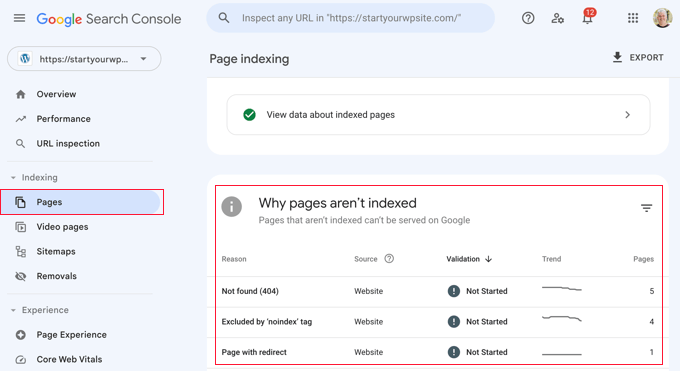
Once the Google bot has crawled your site, Search Console will show you detailed reports—including any 404 errors it finds.
To see which posts are returning errors, log in to your Search Console dashboard. Navigate to the ‘Pages’ report, and you’ll find a list of all flagged URLs.
For more help, check out our tips for using Google Search Console to grow website traffic, which includes advice on fixing 404 errors.
Now, let’s look at how to fix WordPress posts returning 404 errors. You can use the links below to jump to a specific method:
- Method 1: Check for Plugin or Theme Conflicts and Custom Code Issues
- Method 2: Fix Your Permalink Settings
- Method 3: Update the WordPress .htaccess File
- Method 4: Contact Your Hosting Provider
- Method 5: Enable mod-rewrite (Local WordPress Installation)
- Frequently Asked Questions About WordPress 404 Errors
- 🎁 Bonus: Additional Guide on Handing 404 Errors
Method 1: Check for Plugin or Theme Conflicts and Custom Code Issues
Plugins, themes, or custom code can sometimes interfere with permalinks and cause 404 errors. We’ve run into this ourselves when testing tools on our demo sites.
When we troubleshoot, we use a staging environment to safely deactivate plugins one by one. This helps us isolate the problem without affecting the live site.
To try this yourself, start by temporarily deactivating all your plugins. Then reactivate them one at a time, checking after each one to see if the 404 error returns.
If the error appears after activating a specific plugin, that’s likely the cause. You can search for solutions related to that plugin or contact the developer for support.
Your WordPress theme could also be the issue.
To check, temporarily switch to a default WordPress theme like Twenty Twenty-Three or Twenty Twenty-Four. Go to Appearance » Themes and click ‘Activate’ on a default theme.
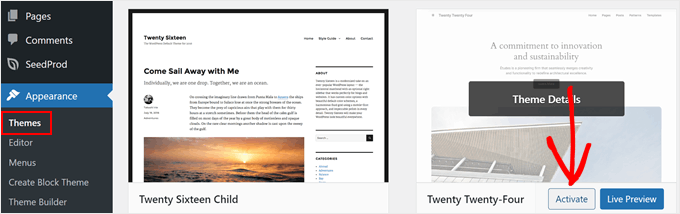
If the 404 error goes away with a default theme, your original theme is probably causing the conflict. You can troubleshoot it further or consider switching to a different theme.
For recommendations, check out our expert pick of the most popular WordPress themes.
If you’ve recently added code snippets to your website, review them carefully. Even small mistakes can cause 404 errors.
We recommend using the WPCode plugin for adding custom code. It lets you insert snippets without editing theme files directly, which reduces the risk of breaking your site.
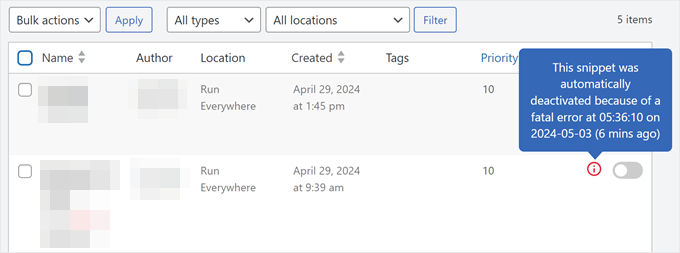
WPCode also detects errors automatically. If something goes wrong, it deactivates the snippet and alerts you. You can even use testing mode to check your code before pushing it live.
If none of these steps fix the issue, move on to the next method where we’ll troubleshoot your permalink settings.
Method 2: Fix Your Permalink Settings
WordPress posts often return 404 errors because of problems with rewrite rules in your .htaccess file. In most cases, you can fix this by simply resaving your permalink settings.
Go to Settings » Permalinks in your WordPress admin and click the ‘Save Changes’ button.
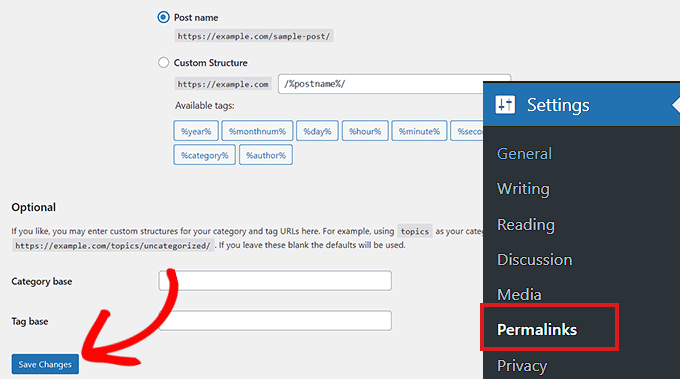
You don’t need to change anything. Just clicking ‘Save Changes’ flushes the rewrite rules (meaning WordPress regenerates the URL routing instructions that tell your server where each post lives).
This simple step fixes the 404 error for most WordPress sites. If it doesn’t work for you, you may need to update your .htaccess file manually.
Method 3: Update the WordPress .htaccess File
Before making any changes, we recommend backing up your WordPress site and your .htaccess file. If something goes wrong, you can easily restore the original.
You’ll need to connect to your server using an FTP client like FileZilla, or use the File Manager in your hosting control panel.
Next, find the .htaccess file (a hidden configuration file that controls how your server handles URLs) in your site’s root folder. This is the same directory that contains folders like /wp-content/ and /wp-includes/.
Right-click on the file and select ‘File permissions’ or ‘Change permissions’ from your FTP client.
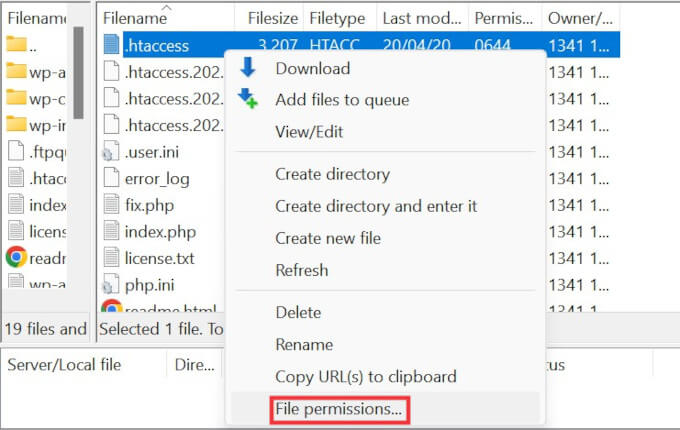
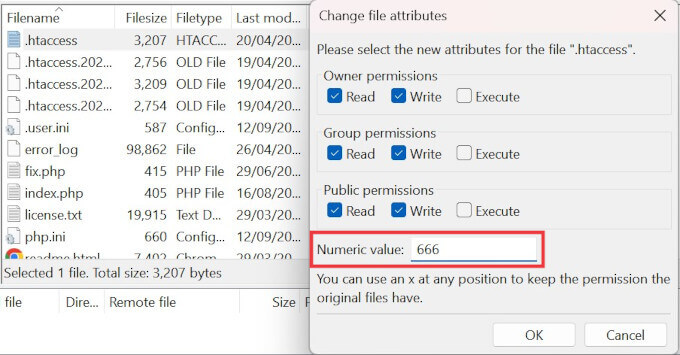
If WordPress couldn’t write to the file before, try changing the permissions temporarily to 666 to make it writable.
Important: Permission 666 means anyone can read and write to the file, which is a security risk. Only use this setting temporarily and change it back immediately after you’re done.
Now, return to your WordPress admin and resave your permalink settings (Settings » Permalinks » Save Changes). This lets WordPress regenerate a proper .htaccess file.
Once that’s done, go back to your FTP client and change the file permissions to 644. This setting allows WordPress to read the file while protecting it from unauthorized changes.
Alternatively, you can edit the .htaccess file manually.
Right-click on the .htaccess file and select the View/Edit option.
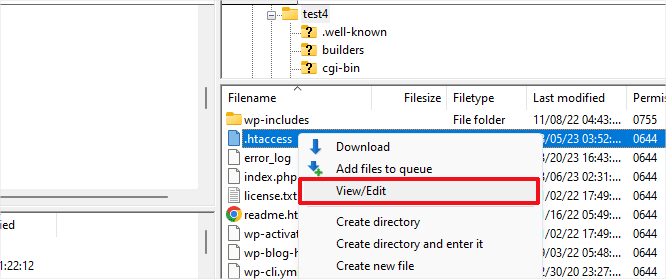
The file will open in a plain text editor like Notepad or TextEdit.
Add the following default WordPress rewrite rules:
# BEGIN WordPress
<IfModule mod_rewrite.c>
RewriteEngine On
RewriteBase /
RewriteRule ^index\.php$ - [L]
RewriteCond %{REQUEST_FILENAME} !-f
RewriteCond %{REQUEST_FILENAME} !-d
RewriteRule . /index.php [L]
</IfModule>
# END WordPress
Save the file and upload it back to your server. Then check if your posts are loading correctly.
Method 4: Contact Your Hosting Provider
If none of the solutions above have fixed the 404 error, we recommend contacting your WordPress hosting provider.
There may be a server-side issue on their end, or they can help you troubleshoot the problem further. In our experience, good hosting support teams can often spot configuration issues that are easy to miss.
For tips on getting help, see our guide on how to properly ask for WordPress support and get it.
Method 5: Enable mod-rewrite (Local WordPress Installation)
If you’re running WordPress on a local server for testing, you’ll need to enable mod_rewrite in your Apache configuration. This applies to MAMP, WAMP, or XAMPP setups.
Enabling mod_rewrite allows WordPress to generate clean URLs and prevents 404 errors on your local posts and pages.
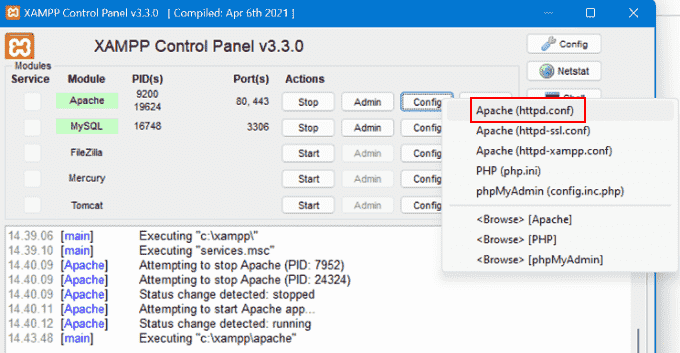
The steps vary by platform. If you’re using XAMPP, open the control panel and click the ‘Config’ button in the Actions column. Then select ‘Apache (httpd.conf)’.
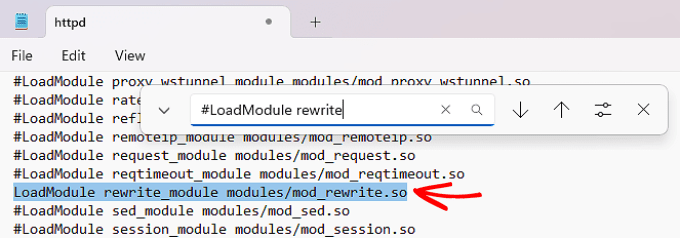
Find this line: #LoadModule rewrite_module modules/mod_rewrite.so
Remove the ‘#’ at the beginning to uncomment it. This enables the mod_rewrite module.
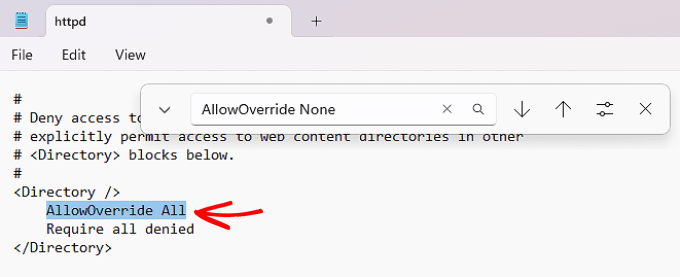
Next, look for lines that say AllowOverride None and change them to AllowOverride All. This tells Apache to allow .htaccess files to control URL routing.
You’ll typically find these inside <Directory> blocks, especially the one pointing to your site’s folder (like htdocs in XAMPP). For local testing, it’s usually safe to apply this change wherever you see it.
Save the httpd.conf file and close it. In the XAMPP control panel, click ‘Stop’ on the Apache module, then click ‘Start’ again to restart it.
Now go back to your WordPress admin dashboard and check if your permalinks are working.
Video Tutorial
If you prefer visual instructions, watch the video below.
Frequently Asked Questions About WordPress 404 Errors
Running into 404 errors on your WordPress site can be confusing. Here are answers to common questions that can help you troubleshoot more effectively.
Why am I getting a 404 error on my WordPress posts?
A 404 error on WordPress posts usually means the server can’t find the page at the requested URL. This can happen due to broken permalinks, a corrupted .htaccess file, deleted posts, or a plugin/theme conflict that changes how URLs are handled.
How do I fix a 404 error in WordPress?
The fastest way to fix a WordPress 404 error is to resave your permalink settings. Go to Settings » Permalinks and click ‘Save Changes’. If that doesn’t work, check your .htaccess file, disable plugins, or switch to a default theme to rule out conflicts.
How can I find all 404 errors on my WordPress site?
Google Search Console is the best way to find 404 errors on your WordPress site. It shows you a list of all 404 errors that Googlebot encounters. You can also use plugins like Broken Link Checker to spot broken links and missing pages.
What does the .htaccess file do in WordPress?
The .htaccess file in WordPress is a configuration file that controls how URLs are processed. WordPress uses it to manage permalink structure and route URLs to the correct content. If this file is missing or corrupted, your URLs may stop working correctly.
How do I safely edit the .htaccess file?
You can safely edit the .htaccess file using an FTP client or your hosting file manager. Always create a backup first. After editing, make sure the permissions are set to 644 so it stays readable and secure.
Why do my WordPress category or tag pages show 404 errors?
WordPress category or tag pages may show 404 errors if your theme doesn’t support archive templates or if permalink settings are misconfigured. Resaving permalinks and checking your theme’s archive support can usually fix this issue.
How do I fix 404 errors for custom post types?
To fix 404 errors for custom post types, go to Settings » Permalinks and click ‘Save Changes’ to refresh rewrite rules. Also check that your custom post type is registered with the correct rewrite settings and has archive support if needed.
Can I redirect 404 pages to my homepage or another page?
Yes, you can redirect WordPress 404 pages using plugins like Redirection. This lets you create 301 redirects from old or broken URLs to new ones. You can also create a custom 404 page to guide users back to useful content.
🎁 Bonus: Additional Guide on Handing 404 Errors
Here are more resources we’ve put together to help you manage 404 errors and other common WordPress issues:
- How to Improve Your 404 Page Template in WordPress (2 Ways)
- Best WordPress 404 Error Page Design Examples
- Best Free 404 Redirect Plugins for WordPress
- How to Get Email Alerts for 404 Errors in WordPress
We hope this article helped you fix WordPress posts returning 404 errors. You may also want to see our guide to the most common WordPress errors and how to fix them, along with our expert picks for the best WordPress plugins to grow your site.
If you liked this article, then please subscribe to our YouTube Channel for WordPress video tutorials. You can also find us on Twitter and Facebook.



Farid
Thank you very much for precious article that is useful to fixed my website problem.. i always prefer your web solution regarding in problem in wordpress cms.
Thank you..;.
WPBeginner Support
You’re welcome, glad our guides have been helpful
Admin
Ben
Just wanted to leave a thank you comment! Your guides on WordPress are second to none! I have learnt so much reading your blog and every time I Google a problem..I am looking for your website and that is where I will click! Great and simple instructions even on the most complicated WordPress issues…you are awesome! Thanks.
WPBeginner Support
You’re welcome, glad you like our content and hope our guides continue to be helpful
Admin
David Naugle
This totally worked! I just updated my PHP and dashboard and home pages was accessible but not any of my post pages.
Thx
WPBeginner Support
You’re welcome, glad our guide was helpful
Admin
Vivian S.
Thank You so much it saved my life! I had to move my WordPress website to a new server and it took me a whole day to fix everything. I wish WP had an easy way to do this.
WPBeginner Support
Glad our guide was helpful, for transferring your content you would want to take a look at our article below:
https://www.wpbeginner.com/wp-tutorials/how-to-move-wordpress-to-a-new-host-or-server-with-no-downtime/
Admin
Gustavo
Thank you guys, you’re AWESOME, ALLWAYS!
WPBeginner Support
You’re welcome
Admin
Don Current
I tried everything in the article with no success. What I ended up doing was choosing a different Permalink structure and saving it, and then going back to the structure I wanted and saving it. Then all was well.
WPBeginner Support
Thanks for sharing the method that worked for you
Admin
James
I accidentally deleted .htaccess file when doing 301 and got the 404 not found error. Your tutorial came to my rescue. Just by saving the permalinks and it worked. Thank you.
WPBeginner Support
You’re welcome, glad our guide could help
Admin
Ivan
Saved me! I am dealing with forces I cannot comprehend, and this explanation and tip was really helpful!
WPBeginner Support
Glad our guide was helpful
Admin
Uwemedimo Usa
Wow, I’m shocked at how fast this worked. I recently migrated my site from a subdomain to the root domain and none of my links were working. All I did was go to permalinks in settings and click “save changes.” That was all. Wow. And I was really scared I’d broken something. Thank you.
WPBeginner Support
You’re welcome, glad we were able to help
Admin
DNNY
What do you do if you cant even get into your WP
dashboard
WPBeginner Support
For that, you would want to take a look at our article below:
https://www.wpbeginner.com/beginners-guide/beginners-guide-to-troubleshooting-wordpress-errors-step-by-step/
Admin
Katie
Hi, thanks for the tips. I still can’t seem to fix the error. Have reset Permalinks, installed a redirect plugin (doesn’t help if wanting to redirect to the homepage). I can’t work out how to alter the .htaccess and not really confident to do it. Any other suggestions?
WPBeginner Support
If you are using a static page ensure it is published, for the htaccess you would need to use FTP or your host’s file manager, otherwise, you would want to follow our troubleshooting guide below:
https://www.wpbeginner.com/beginners-guide/beginners-guide-to-troubleshooting-wordpress-errors-step-by-step/
Admin
Fola
Thanks You saved me a lot of hassles
WPBeginner Support
You’re welcome
Admin
Jill
THANK YOU for this post! I had a primary domain that I let go and needed to move two sites on my hosting plan…. 1 to the primary domain position and 1 to an addon domain position which was formerly a subdomain position. I broke a lot of stuff. With some logical thought, I got most of it all back… EXCEPT all the pages on the primary domain site couldn’t be viewed on the live site once you clicked on them or the menu links. The home page loaded beautifully, but when you clicked a post or link… the errors popped up. This trick resolved those issues… so THANK YOU again! You saved the day!
WPBeginner Support
You’re welcome, glad our guide was helpful
Admin
umesh
I just change the permalink directly and it shows 404 error I couldn’t access my website it redirects me to another site which is not mine
WPBeginner Support
You would want to reach out to your hosting provider to ensure your domain is set up properly and there isn’t any malicious code on your site.
Admin
faheem
404 Not Found
nginx/1.10.3 (Ubuntu)
please give me solution for that
WPBeginner Support
For nginx, at the moment you would want to reach out to your hosting provider and they should be able to assist.
Admin
Carene
I’m busy building a website via wordpress & cpanel. I by accident deleted the url in my dashboard. Now I don’t get even access. Is their any way to fix it.
WPBeginner Support
You would need to edit your site via phpMyAdmin similar to the article below. Instead of the users table you would need to edit the options table where you can readd your site address and url.
https://www.wpbeginner.com/beginners-guide/how-to-reset-a-wordpress-password-from-phpmyadmin/
Admin
Long Nguyen-Vu
Just want to let you know that you’ve helped me save a lot of time searching.
Thanks so much.
WPBeginner Support
You’re welcome, glad our guide was able to help
Admin
Jim
OMG I LOVE YOU
updating the permalinks and all is gold
THANK YOU
WPBeginner Support
Glad our guide was able to help
Admin
Brandon G.
Updating permalinks fixed my 404 errors. Thanks!
WPBeginner Support
You’re welcome
Admin
Musthafa
Updating the permalink worked perfectly. Thanks guys!
WPBeginner Support
You’re welcome, glad our guide was helpful
Admin
ami
thanks its is working
WPBeginner Support
You’re welcome, glad our guide was helpful
Admin
Heather
Simply saving changes in my permalinks did the trick. Thank you!
WPBeginner Support
You’re welcome, glad our guide was helpful
Admin
Ekemini Robert
After saving changed for the permalink, it still returned the 404 error. Then I used the clear cache WP button at the top and the problem was solved.
WPBeginner Support
Glad you were able to resolve the issue
Admin
Didar
Thank you so much !
WPBeginner Support
You’re welcome
Admin
Ashish Agarwal
Thanks so much for this post. You are a lifesaver. Clicking ‘Save Changes’ on Permalinks under Settings did the job for me.
WPBeginner Support
Glad our recommendation was able to help
Admin
Alex
I have issues on 404 Page not found.
I tried updating the permalinks but still not working and I also checked the .htacess file in our server and it’s the same on the above sample. But still not working.
WPBeginner Support
You may want to reach out to your hosting provider to ensure there are no issues on their end that could be a part of the issue
Admin
Luiz Felipe
This simple solution saved me! thanks!!!!!!!
WPBeginner Support
You’re welcome
Admin
Steve Dzwonczyk
The 2nd method worked for me (FTP and edit of the .htaccess file). Thank you very much.
WPBeginner Support
You’re welcome, glad our recommendation was helpful
Admin
Pranesh
Thank you very much
WPBeginner Support
You’re welcome
Admin
Anas
Thank you so much for this helpful tip. Was really bugging me a lot
WPBeginner Support
You’re welcome, glad our guide was helpful
Admin
Michelle Kwok
thanks a lot.. it’s weird.. works at step one =)
WPBeginner Support
You’re welcome, glad our recommendation was able to help
Admin
Steph
This worked at step 1. Thank you!
WPBeginner Support
You’re welcome, glad our guide could be helpful
Admin
Ishmael
Many thanks, solved my problem.
WPBeginner Support
You’re welcome, glad our guide was helpful
Admin
Shiraz
This article helped me bring my website back on. Thank you.
WPBeginner Support
You’re welcome
Admin
mariam
Thanks for this post,it really solved my 404 error problems
WPBeginner Support
Glad our recommendations were able to help
Admin
Tim
Just a quick note to say thank you so much! I had just activated a CDN (learning as I go) and thought I had broken my site and went searching everywhere but here was the answer…phew!
WPBeginner Support
Glad our guide could help
Admin
Lou Sarmiento
Hi!
I’ve added the htaccess script, updated my wordpress but still I need to resave the permalinks. Any other solution?
Thanks!
WPBeginner Support
If these solutions are not working, you would likely need to ensure there isn’t an error on your host’s end or you could try the recommendations in our troubleshooting guide here:
https://www.wpbeginner.com/beginners-guide/beginners-guide-to-troubleshooting-wordpress-errors-step-by-step/
Admin
Ayesha
i have 404 error but cannot acces neither the site or the wordpress. how can you access wordpress admin to solve the problem??
WPBeginner Support
If you’re unable to access your admin area, you would want to go through our guide below or reach out to your hosting provider:
https://www.wpbeginner.com/beginners-guide/beginners-guide-to-troubleshooting-wordpress-errors-step-by-step/
Admin
Nera
Lifesaver! It worked! Flushing permalinks! Haleluja… THANKS!
WPBeginner Support
Glad our recommendation could help
Admin
wajid virk
on clicking save changes my problem Resolved, WP beginner is a part of my journey to learn WordPress more and more.
WPBeginner Support
Glad we can be here to help
Admin
Safa
You just saved me, Thanks
WPBeginner Support
You’re welcome
Admin
Nora
Thank you so much! This saved our corporate website
WPBeginner Support
Glad our article was helpful
Admin
Mary Ann
Will it work in 404 error of Wordpress Multisite once I visit the admin dashboard of the sub-sites?
WPBeginner Support
It would depend on the source of the error but this can certainly be one solution.
Admin
beginner
Thank you, it solved the issue straight away!
WPBeginner Support
Glad our article could help
Admin
Civali
.htaccess example worked for me, tks!
WPBeginner Support
Glad our recommendation could help
Admin
Vishwajeet
So I checked all solutions and comments. I have same issue with a twist. I can see the pages when I am changing it to use the Page ID but not when I am selecting the Post-Name? Any solution to this? I know its weird.
WPBeginner Support
You may want to delete the current htaccess file and if that does not fix the issue, reach out to your host to ensure there isn’t an underlying error causing the problem.
Admin
Mireille
Hello,
I just wanted to let you know that your website is of such great help ! I built my first Wordpress website and I managed to resolve many issues thanks to your articles. Thank you !
WPBeginner Support
Thank you, glad our articles have been helpful
Admin
Benson Kanyi
Hello Guys,
I have been facing this issue for the last three days after migrating a new site from my localhost to an online CPanel server. Having tried a million and one option from various forums, none of them could work at all. The only solution that seems to work is disabling Mod_Security in the CPanel. I just did it and it works like a champ. Thanks
WPBeginner Support
Thanks for sharing the solution that worked for you
Admin
hüseyin
I worked for days. It happened. cpanel mod security disable. solved the problem. Thanks BENSON
Christopher
Worked! Thanks!
WPBeginner Support
Glad our recommendation worked for you
Admin
Peter
you blog saved me from disaster thanks so much. im learning so much now
WPBeginner Support
Glad our recommendation could help
Admin