


Getting a “502 Bad Gateway” error message on your site can be a puzzling issue for most beginners. It’s a frustratingly vague error that can bring your entire online business to a standstill.
To fix the 502 bad gateway error, you can try reloading the page, clearing your browser cache, and disabling your CDN or firewall.
If those fail, the next steps are to troubleshoot your plugins and themes, restore a backup, or contact your hosting provider for help.
After troubleshooting this exact problem for thousands of our readers, we’ve learned that the fix is often simpler than you might think. In this guide, we will walk you through the step-by-step process to get your site back online quickly.
What Is a 502 Bad Gateway Error?
A 502 bad gateway error occurs when your WordPress hosting server receives an invalid or empty response from another server. When you visit a website, your browser sends a request to the hosting server, which then fetches the necessary data to display the page.
Sometimes, this request is passed through an intermediary server, often called a “gateway,” such as a CDN or a firewall service. If this gateway gets a bad response from the main hosting server, it triggers the 502 error you see in your browser.

The most common reason for this error is a delay in the server’s response. This delay can be caused by a temporary traffic surge, a poorly coded WordPress theme or plugin, or a server misconfiguration.
Other related error messages include 404 not found, 503 service unavailable, 403 forbidden error, and more.
Now, let’s take a look at how to easily fix the 502 bad gateway error in WordPress. Feel free to use these quick links to skip to a specific solution:
1. Reload Your Website
Sometimes, your server may take longer to respond due to increased traffic or low server resources. In that case, the problem could automatically disappear in a few minutes.
You should try reloading the web page you are viewing to see if this is the cause. If this fixes your problem, then you do not need to read any further.
However, if you see this error frequently, you will need to continue reading, as there may be something else that needs fixing.
2. Clear Browser Cache
Your browser may be showing you the error page from its cache. Even after the issue is fixed, you might still see the 502 error because the browser is loading an old copy of your website.
To fix this, check out our guide on how to clear your browser cache in all major browsers. You may also want to clear your WordPress cache.
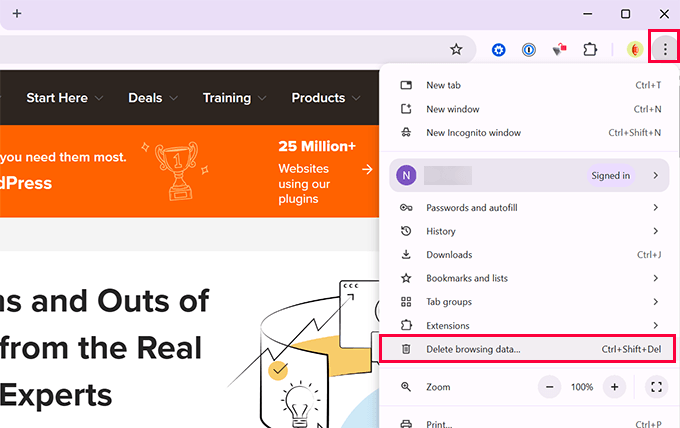
Additionally, try using a different browser to troubleshoot if the problem is happening because of the browser cache. If you still see the error, continue reading.
3. Disable the CDN or Firewall
If you use a CDN service or a WordPress firewall, their servers sit between your visitors and your website. If there’s a glitch with their service, a 502 error can appear.
Log in to your service’s dashboard and temporarily pause it. For example, in Cloudflare, you can enable ‘Development Mode’ to bypass its cache and firewall. Other services will have a similar option.
Our Experience: At WPBeginner, we use Cloudflare as our CDN and firewall. While it’s incredibly reliable, we have occasionally seen network issues on their end trigger 502 errors for our users. Temporarily pausing the service is the fastest way to confirm if it’s the source of the problem.
Now, reload your site. If the error disappears, the CDN or firewall was the culprit. Contact its support team for help before turning the service back on.
4. Update Your WordPress Themes and Plugins
Outdated or poorly coded themes and plugins can sometimes trigger the 502 Bad Gateway error. We’ve seen this happen often when a recent update conflicts with existing code or server settings.
To rule this out, deactivate all your WordPress plugins via FTP. You can do this by renaming the main plugins folder inside wp-content to something like plugins_old.
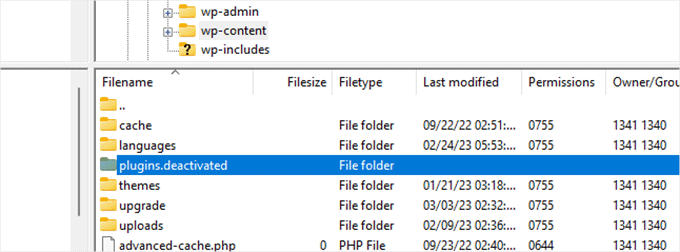
Then reload your website. If the error disappears, you’ve confirmed that one of your plugins is the cause. Now, restore the folder name and activate each plugin one by one until the error returns to find the problem plugin.
If plugins aren’t to blame, your theme might be. Try switching your theme to a default one like Twenty Twenty-Four and check your site again. If that fixes it, your theme was the issue.
5. Restore a WordPress Website Backup
In our experience, if a recent change to your site caused the 502 error, restoring a backup is often the fastest way to get your website working again. This will revert your site to a point before the error started.
For more details on this process, you can read our beginner’s guide on how to restore WordPress from backups. If this solution fails, then you may want to move on to the next step.
Expert Tip 💡: Backups are the best way to keep your website safe from unexpected errors. If you are looking for a backup plugin, we recommend Duplicator.
✅ Easy automatic backups
✅ Safely store backups on the cloud
✅ Restore your website with 1-click
We use Duplicator on all our websites, including WPBeginner. To learn more, see our full Duplicator review.
6. Check for PHP Timeouts
Sometimes, a script on your website takes too long to execute and exceeds the time limit set by your server. This can be due to complex calculations or slow database queries.
When this happens, the server stops the script from running, which in turn can trigger the 502 bad gateway error that you see in your browser. You can identify these sluggish scripts by checking your site’s error logs.
The easiest way to see these errors is to enable WordPress debug mode. Connect to your site via FTP and edit your `wp-config.php` file. Add the following lines of code just before the ‘That’s all, stop editing!’ line:
define( 'WP_DEBUG', true );
define( 'WP_DEBUG_LOG', true );
This will create a `debug.log` file in your `wp-content` folder, which may contain information about PHP timeouts. You can also read our guide on how to fix maximum execution time errors.
7. Contact Your Hosting Provider
If you’ve tried all of the steps above and the error persists, then the issue is likely on your hosting server’s end. The final solution is to contact your web host’s support team.
Make sure to let them know about the issue and mention all the troubleshooting steps you have taken. All good WordPress hosting companies can quickly fix the issue if it is caused by a server misconfiguration.
You can also check out our guide on how to properly ask for WordPress support and get it.
Frequently Asked Questions & Additional Resources
Below are answers to common questions about the 502 error, followed by additional guides to help you troubleshoot similar issues.
What is the main cause of a 502 bad gateway error?
The most frequent cause is a communication breakdown between servers. This usually happens because a server is overloaded with traffic, a script is taking too long to run (PHP timeout), or a firewall or CDN is misconfigured.
Can a WordPress plugin cause a 502 error?
Yes, absolutely. A poorly coded plugin or a conflict between two plugins is a very common reason for the 502 error. Following the troubleshooting steps to deactivate and reactivate plugins will help you identify the culprit.
Is a 502 error my fault or my host’s fault?
It can be either. Issues on your site, like a bad plugin or theme, are within your control. However, the error can also be caused by problems with your hosting server, in which case you will need to contact your provider for a fix.
How is a 502 error different from a 504 error?
Both errors are related to server communication, but they mean different things. A 502 Bad Gateway means one server got an invalid response from another. A 504 error means the server didn’t get any response at all from another upstream source within a specific time frame.
Additional Resources for Troubleshooting WordPress Errors
- How to Fix the WordPress 429 Too Many Requests Error
- How to Fix the 500 Internal Server Error in WordPress
- How to Fix the 401 Error in WordPress (7 Solutions)
- How to Fix 503 Service Unavailable Error in WordPress
- How to Fix the 504 Gateway Timeout Error in WordPress
We hope this article helped you learn how to fix the 502 bad gateway error in WordPress. You may also want to see our complete WordPress troubleshooting guide and our expert picks for the best email marketing services to grow your website.
If you liked this article, then please subscribe to our YouTube Channel for WordPress video tutorials. You can also find us on Twitter and Facebook.


Dennis Muthomi
YOu mentioned that high traffic as one potential cause of 502 errors. Could a DDOS attack also overload the server and show this error?
WPBeginner Support
It is possible but normally it is high traffic
Admin
Piper
Just a suggestion really. If the error is only when you try to go directly to wp-admin or anything on the admin area, it may be because the wordpress site cannot log you in. If you have security which limits your login attempts this may be the case. Try logging in as a user first and see if it warns you to ‘try again in 20 minutes’ or similar. Waiting should fix this issue.
WPBeginner Support
Thanks for your additional recommendation
Admin