


Have you ever seen that scary “Not Secure” warning in your browser and worried what it means for your website? It’s a common concern, and the technical terms like SSL and HTTPS can make finding a solution feel overwhelming.
We’ve guided thousands of users through this exact process, and the good news is that securing your site is easier than you think. It’s a simple change that builds visitor trust and even gives you a small boost in search rankings.
In this guide, we’ll walk you through moving your WordPress site from HTTP to HTTPS, step by step. We’ll explain everything in plain English, so you can get that secure padlock icon next to your domain name.
Quick Summary: How to Move WordPress to HTTPS in 4 Steps
- Get an SSL certificate.
- Install and activate an SSL plugin like Really Simple SSL.
- Update your site settings to use HTTPS.
- Set up redirects and fix any mixed content errors.
Here is a quick overview of the topics we will cover in this article:
- What Is HTTPS?
- Why Do You Need HTTPS and SSL?
- Requirements for Using HTTPS/SSL on a WordPress Site
- Setting Up WordPress to Use SSL and HTTPS
- Method 1: Set Up SSL/HTTPS in WordPress Using a Plugin
- Method 2: Set Up SSL/HTTPS in WordPress Manually
- Submit Your HTTPS Site to Google Search Console
- Frequently Asked Questions About Moving to HTTPS
- Additional Resources for WordPress Security
What Is HTTPS?
HTTPS (Hypertext Transfer Protocol Secure) is an encryption method that secures the connection between a user’s browser and your website’s server. This added security makes it much more difficult for hackers to intercept the data being transferred.
To create this secure connection, you need an SSL (Secure Sockets Layer) certificate. While “SSL” is the common term people use, the modern, more secure technology sites use today is called TLS (Transport Layer Security).
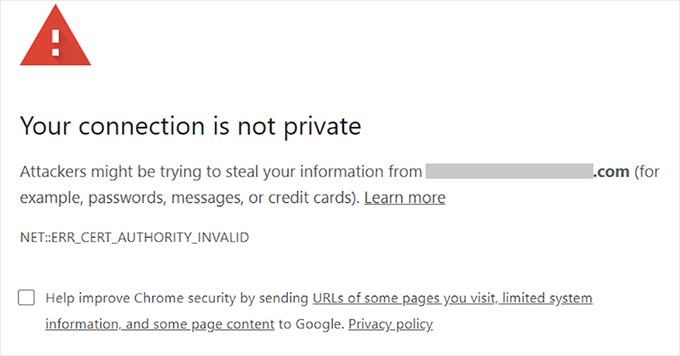
Each website receives a unique SSL certificate for identification. If a server tries to use HTTPS without a valid certificate or if the certificate doesn’t match, most modern browsers will alert users and advise them not to proceed.
Why Do You Need HTTPS and SSL?
Back in 2018, Google announced an initiative to boost web security by urging site owners to switch from HTTP to HTTPS. To support this move, their Chrome browser started marking all websites without an SSL certificate as “Not Secure.”
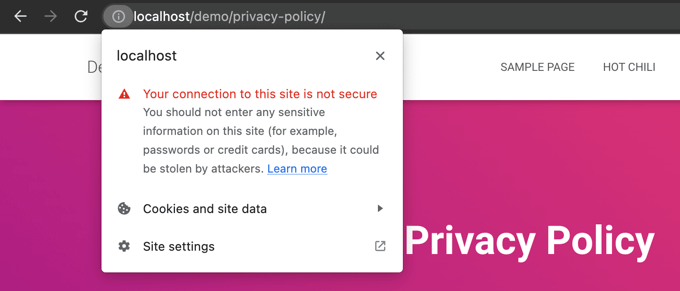
This “Not Secure” warning is especially prominent when someone tries to enter information, like filling out a contact form. Seeing this warning can leave a negative impression and damage trust in your business.
This is why all websites need to transition to HTTPS and install SSL. Here are the main benefits:
- Improved Security: It encrypts data exchanged between your visitors and your server, protecting sensitive information like login credentials and personal details.
- Better SEO Rankings: Google gives a slight ranking advantage to secure HTTPS websites.
- Builds User Trust: The secure padlock icon in the browser’s address bar instantly signals to visitors that your site is authentic and safe, which can improve conversion rates.
- Required for Online Payments: If you want to accept online payments on your eCommerce site, then SSL is required by payment providers like Stripe, PayPal Pro, and Authorize.net.
We ensure all our own sites use SSL, including WPBeginner and our partner companies.
Requirements for Using HTTPS/SSL on a WordPress Site
The requirements for using SSL in WordPress are not very high. All you need to do is purchase an SSL certificate, and you might already have it for free.
The best WordPress hosting companies are offering free SSL certificates for all their users:
For more details, see our guide on how to get a free SSL certificate for your WordPress website.
If your hosting company does not offer a free SSL certificate, you’ll need to purchase one.
We recommend Namecheap because it offers the best SSL deal for regular and wildcard SSL certificates.
Once you have purchased an SSL certificate, you’ll need to ask your hosting provider to install it for you.
Setting Up WordPress to Use SSL and HTTPS
After your host enables an SSL certificate for your domain name, you will need to set up WordPress to use the SSL and HTTPS protocols on your website.
We will show you two methods for doing that, and you can choose the one that best suits your needs.
Method 1: Set Up SSL/HTTPS in WordPress Using a Plugin
This method is easier and is recommended for beginners.
First, you need to install and activate the Really Simple SSL plugin. For more details, see our step-by-step guide on how to install a WordPress plugin.
Upon activation, you need to visit the Security page. The plugin will automatically detect your SSL certificate and show you the ‘Activate SSL’ option.

Once activated, the plugin will take care of everything, including the mixed content errors.
Here’s what the plugin does behind the scenes:
- Checks for a valid SSL certificate
- Sets WordPress to use https in all URLs
- Sets up redirects from HTTP to HTTPS
- Looks for URLs in your content that are still loading from insecure HTTP sources and attempts to fix them.
Note: The plugin attempts to fix mixed content errors by using an output buffering technique. This can have a negative performance impact because it replaces content on the site as the page is loaded. This impact is only seen on the first page load, and it should be minimal if you are using a caching plugin.
While the plugin says you can keep SSL and safely deactivate the plugin, it’s not 100% true. You will have to leave the plugin active at all times because deactivating the plugin will bring back mixed content errors. See our Really Simple SSL review for more details.
Method 2: Set Up SSL/HTTPS in WordPress Manually
This method requires you to troubleshoot issues manually and edit WordPress files. However, it is a permanent, performance-optimized solution, and it’s the method we’re using on WPBeginner.
If you find this method difficult, you should hire a WordPress developer or use the first method instead.
As part of this method, I may need to edit theme and code files. If you haven’t done this before, see our guide on copying and pasting code snippets in WordPress.
First, you should visit the Settings » General page. From here, update the WordPress Address and Site URL fields by replacing http with https.
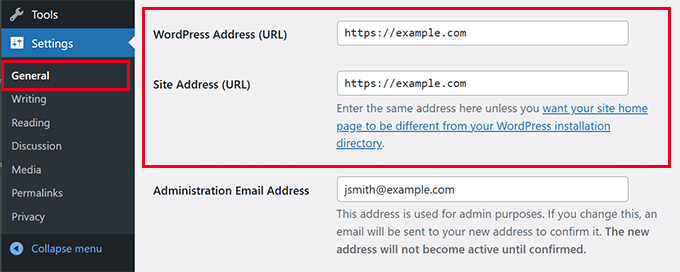
Then, click the ‘Save Changes’ button to store the new settings.
Once the settings are saved, WordPress will log you out, and you will be asked to re-login.
Next, set up WordPress redirects from HTTP to HTTPS by adding the following code to the .htaccess file. This code is for Apache servers:
If you’re on an NGINX server, then you’ll add the following code to redirect from HTTP to HTTPS in the configuration file:
Don’t forget to replace example.com with your domain name.
By following these steps, you will avoid the WordPress HTTPS not working error because WordPress will now load the entire website using HTTPS.
To force SSL and HTTPS on the WordPress admin area or login pages, you need to configure SSL in the wp-config.php file.
Add the following code above the “That’s all, stop editing!” line in the wp-config.php file:
define('FORCE_SSL_ADMIN', true);
This constant acts as a fail-safe. It ensures your WordPress login page and dashboard are always encrypted, adding an extra layer of security for the site administrator. It also works on WordPress multisite networks.
Once this is done, the website is fully set up to use SSL / HTTPS, but you might still encounter mixed content errors.
Fixing Mixed Content Errors
Mixed content errors are caused when some content (like images, scripts, or stylesheets) is still loading over the insecure HTTP protocol instead of HTTPS.
Think of it like having a secure, armored front door (HTTPS) but leaving a window unlocked (an HTTP resource). That single unlocked window makes the whole house vulnerable.
When this happens, you won’t see a secure padlock icon in your website’s address bar.
You can find out which content is served through an insecure protocol by using your browser’s Inspect tool.
The mixed content error will be displayed as a warning in the console, with details for each item.
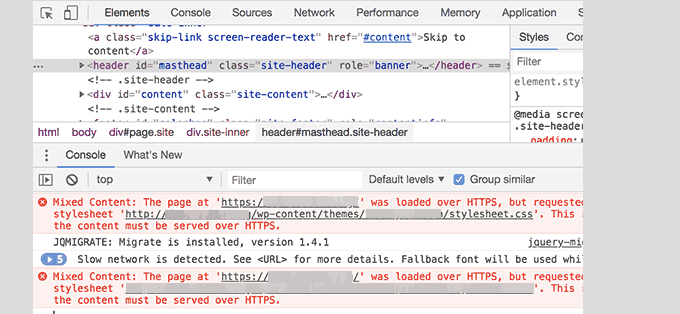
You will notice that most URLs are images, iframes, and image galleries, while some are scripts and stylesheets loaded by WordPress plugins and themes.
Fixing Mixed Content in WordPress Database
Most of the incorrect URLs will be for images, files, embeds, and other data stored in the WordPress database. Let’s fix them first.
You need to find all mentions of your old website URL in the database that start with HTTP and replace them with your new website URL that starts with HTTPS.
You can easily do this by installing and activating the Search & Replace Everything plugin.
Upon activation, visit the Tools » WP Search & Replace page. You need to add your website URL with http in the ‘Search’ field and your URL with https in the ‘Replace’ field.
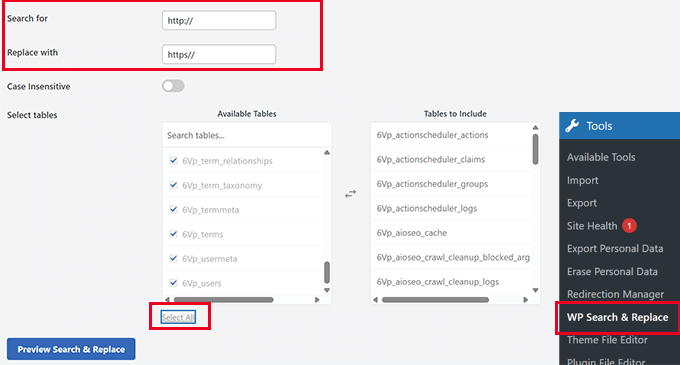
Then, select all database tables to run a thorough check and click the ‘Replace All’ button. The plugin will now update all old URLs in the database.
Fixing Mixed Content Errors Caused by WordPress Theme
Any decent WordPress theme following WordPress coding standards will not cause this issue. However, some may still hard-code insecure URLs.
First, you will need to use the browser’s Inspect tool to find the resources and where they are loading from. After that, you will need to find them in your WordPress theme and replace http with https.
This will be a little difficult for most beginners, as you may not be able to see which theme files contain these URLs.
Fixing Mixed Content Errors Caused by Plugins
Some mixed content resources will be loaded by WordPress plugins. Any WordPress plugin following WordPress coding standards will not cause mixed content errors.
I don’t recommend editing WordPress plugin files. Instead, I would contact the plugin author and let them know. If they do not respond or are unable to fix it, then I would find a suitable alternative.
Note: If, for some reason, you’re still encountering a mixed content error, we recommend temporarily using the Really Simple SSL plugin so your users are not impacted while you fix the issue on a staging website or hire a developer.
Submit Your HTTPS Site to Google Search Console
Search engines like Google treat https and http as two different websites. To avoid any SEO issues, you will need to let Google know that your website has moved.
To do that, you just need to go to your Google Search Console account and click on the ‘Add property’ button.
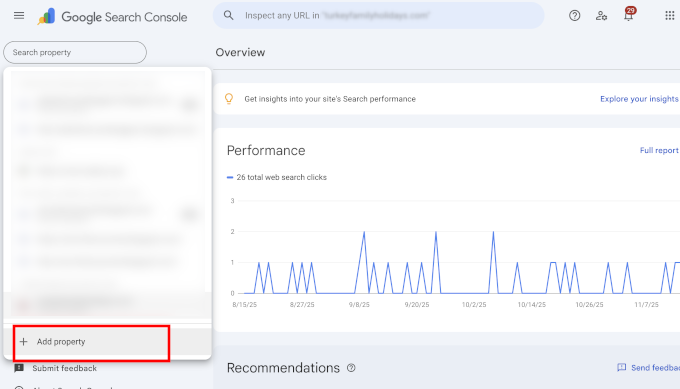
This will bring up a popup where you need to add your website’s new HTTPS address.
Google offers several ways to verify your site, but we recommend the URL prefix method because it is more flexible.
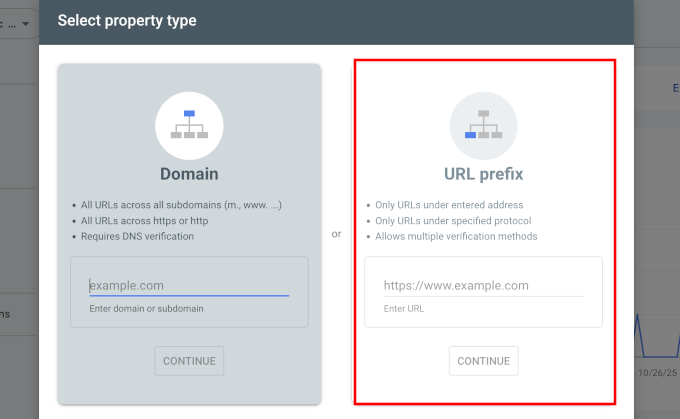
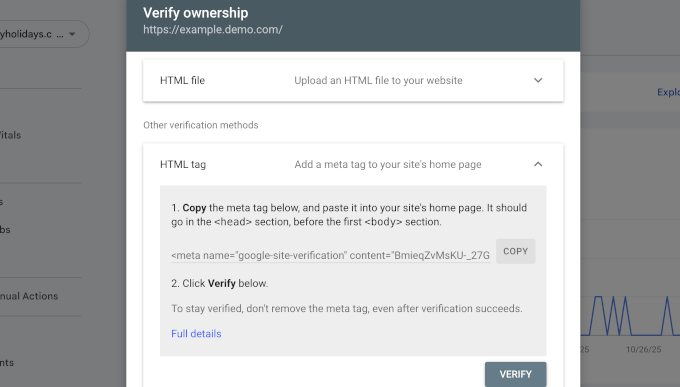
After that, Google will ask you to verify ownership of your website.
There are several ways to do this, but we recommend using the HTML tag method. You will get an HTML code snippet to add to your WordPress site.
Add Search Console Verification Code using All in One SEO
First, install and activate the All in One SEO for WordPress plugin. For more details, see our tutorial on how to install a WordPress plugin.
Expert Tip: At WPBeginner, we use All in One SEO on all our websites. The Webmaster Tools verification feature saves us a lot of time, as we can just paste the code and AIOSEO automatically adds it to the correct place in our site’s header.
Upon activation, go to the All in One SEO » General Settings page and click on the Webmaster Tools tab. From there, click on Google Search Console.
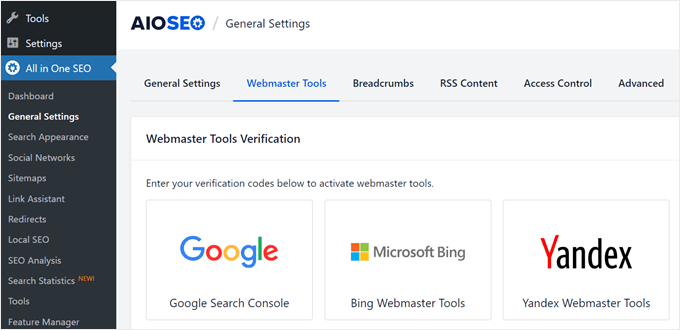
Here, you need to add the verification code you copied earlier from the Google Search Console website. Don’t forget to click on the ‘Save Changes’ button to store your settings.
Next, switch back to the Google Search Console tab and click the ‘Verify’ button. Once your site is verified, Google will start showing your Search Console reports.
You also need to ensure that both the https and http versions are added to your Search Console.
This tells Google that you want the https version of your website to be treated as the primary version. Combined with the 301 redirects you set up earlier, Google will transfer your search rankings to the https version of your website.
Frequently Asked Questions About Moving to HTTPS
How much does an SSL certificate cost?
An SSL certificate can be free. Most top WordPress hosting companies offer free SSL certificates to all their customers through Let’s Encrypt. If your host does not offer a free one, you can buy one from a provider like Namecheap for a low annual fee.
What is the difference between SSL and HTTPS?
SSL (Secure Sockets Layer) is the technology that encrypts the data. HTTPS (Hypertext Transfer Protocol Secure) is the result of using that SSL technology. When a website has a valid SSL certificate, its URL begins with https://, and a padlock icon appears in the browser, showing the connection is secure.
What happens if I don’t use HTTPS?
If you don’t use HTTPS, modern browsers like Google Chrome will display a “Not Secure” warning to your visitors. This can erode trust, hurt your brand reputation, and cause you to lose potential customers. Additionally, not having HTTPS can negatively impact your search engine rankings.
Additional Resources for WordPress Security
The following are a few additional resources that can help you fix common WordPress problems and learn more about website security:
- How to Fix Common SSL Issues in WordPress (Beginner’s Guide)
- Most Common WordPress Errors and How to Fix Them
- How to Fix Secure Connection Error in WordPress
We hope this article helped you add HTTPS and SSL in WordPress. You may also want to see our ultimate WordPress security guide with step-by-step instructions to keep your WordPress site secure or our guide on how to renew your SSL certificate.
If you liked this article, then please subscribe to our YouTube Channel for WordPress video tutorials. You can also find us on Twitter and Facebook.


Raul
Hi,
I’m in a predicament due to lack of knowledge and Google. My website is currently ranked # 2 in Google for a particular organic keyword. I ordered a SSL from my hosting company and I received confirmation that the SSL is ready to be used. I would like to use the SSL on every page in my site including the shopping cart but I don’t want to lose the #2 ranking in Google by not converting to SSL properly. Your advice will be appreciated.
Raul
Jonathon Fowler
Hi there,
Great article. One question, I read that using a wildcard redirect will have a negative impact on SEO – is this correct? The articel says ranking will drop using a wildcard redirect.
I have thousands if images on my site using http in the url…using yur redirect would direct all images to the new https?
Thanks !
WPBeginner Support
No, the whole purpose of redirects is to help with SEO and avoid negative impact of changed URLs. This is the method recommended by search engines themselves.
Admin
dylan
Hi,
I love your site – lots of good stuff here.
I’m wondering if you can recommend a wordpress security plug-in that you know for sure plays friendly (without too much hassle) with full site SSL / HTTPS.
My site is covered already (every page) but I’m worried about installing a plug-in that may interfere.
Any suggestions would be much appreciated.
Cheers
WPBeginner Support
We use Sucuri on WPBeginner and all other websites that we manage.
Admin
turan
Thank you very much everything solved by adding above code to .htaccess file
Joe
Will changing the Site URL in Wordpress to “HTTPS” auto redirect any HTTP requests?
We don’t need htaccess rewrites if the SITE URL is HTTPS?
Cristi Scutaru
Great post, it helped me switch my WordPress site to SSL in just a few minutes!
Great site as well, congrats for such a valuable content. I found myself often googling for some WordPress related answers for the past few days, and your pages came on top frequently, with clear and concise solutions.
WPBeginner Support
Thanks, glad you found it helpful.
Admin
Piet
When only switching the WP backend to SSL, the next challenge is how to show featured images in the backend? These are loaded via http instead of https and as such do not show in the WP backend anymore.
Is there a way to load them from https for the backend only or do I just have to accept the fact that I will not be able to see them (in the backend)?
Tushar
Good article. Why don’t you use https on WPBegineer?
WPBeginner Support
We don’t use it right now but may be in future.
Admin
Yuvraj Khavad
Hi Team wpbeginner,
Thanks for this post. You save my time.
Keep Good Work.
Thanks
Yuvraj R K.
Logan
Thanks for this great guide to setting up https. Was using the plugin your mentioned for a long time but it caused problems with my site so I only used it to secure my admin panel. Now I can cover my entire site.
Felix Figueroa
The .htaccess edit broke my site with the “ERR_TOO_MANY_REDIRECTS” message. Tried suggestions detailed in this post. After disabling all plugins i get a 500 Server Error. Thanks, my site is completely broken now.
Eivind F Skjellum
Thanks, very helpful. Got my ssl working thanks to you!
Eivind
beamkiller
Dear wpBeginner,
I have made the modifications in htaccess and Options too but I got error in Chrome:
ERR_TOO_MANY_REDIRECTS
So my page is not secured with SSL, on Checkout and My-Account it is working with WooCommerce. But I cannot get to work it on the whole WP installation.
MMPrint
Hope this helps:
Uncheck the WooCommerce “Un-force HTTPS when leaving the checkout” setting.
The htaccess if forcing https but then woocommerce forces http so they just go back and forth in a loop.
Chetan
Hi MMPrint
I can give thousand thumbs up to your answer. This has solved my issue which i was living with since the last 10 days. No matter what i tried in the .htaccess file the site wasnt showing up. I also played with deactivating the plugins etc etc. Finally it was woocommerce which was the culprit.
Thanks a lot man !
Cheers
Chetan
Kevin Verlinden
I like this site the information is very useful and comprehensive. It has helped me already a lot of times.
Austin
Hey – any reason SSL is not being used on Optinmonster etc like mentioned in the article?
WPBeginner Support
SSL is used on OptinMonster website when users login or signup.
Admin
Austin
“We already use SSL for our eCommerce sites like OptinMonster, Soliloquy, and Envira Gallery.”
I took this to mean all of the pages – wondering if that was the case and now for some reason it has been reverted to non-SSL?
Thanks!
Armando Landois
I followed this guide and now my domain is working at
George
I tried this plugin and it broke my site. Uninstalled in immediately. I still need what this plugin offered, which is https on some pages, but not the whole site. Is there any other plugin (other than this one, which hasn’t been updated in over two years) that can do this?
Patrick
The free version of iThemes Security will take care of this for you
Celeste
What do you mean, Patrick, that iThemes Security will take care of this. I just went to their website and it seems like a good plugin for enhanced security. But I didn’t see any reference to SSL or setting up specific pages to use SSL only.
Octavio Cestari
I did the installation of a plugin which forced all the site enter https, now I can no longer access the site or the wordpress dashboard, how do I reverse the process?
Drew
I just added the code using your .htaccess solution. Worked perfectly and exactly as described. A big thank you!
michael s
You say all you need to do is buy a certificate, but my hosting service requires a static IP address also which is WAY more expensive than a basic certificate. My service wants $4/month for static IP.
DJ
HELP!
I did this change and now I can’t access my site through WP-ADMIN
It is stating my site is down. I don;t have an .htaccess file in my files. I have set FileZilla to show hidden files and cannot find it. Can you help me get back into my site?
Thanks.
WPBeginner Support
First try to deactivate all your plugins this should resolve your issue, but if it doesn’t then see our guide
Admin
DJ
I cannot get in to deactivate any plugins.
DJ
What Guide?
DJ
OK, added the htaccess file and added the code you have above but I still cannot get in.
Any ideas? All I’m seeing is a message saying my site does not exist.
DJ
David Coombes
DJ
Not sure if you are still having an issue but if you google ‘a plugin broke my site’ or something similar then there’s some good answers – basically it involved removing the plugins folder which should get your site back then reactivating the plugins one by one.
Hope it helps – it’s frustrating when a site goes down.
Sasha
I used the .htaccess method and got this error:
“The page isn’t redirecting properly
Firefox has detected that the server is redirecting the request for this address in a way that will never complete.
This problem can sometimes be caused by disabling or refusing to accept cookies.”
Any one has an idea?
thanks
Mike S
I added the code into the .htaccess and I got the following issue:
The page isn’t redirecting properly
Firefox has detected that the server is redirecting the request for this address in a way that will never complete.
This problem can sometimes be caused by disabling or refusing to accept cookies.
Marych
PLEASE HELP
I didn t get a certificate but just went to settings > General and replaced http by https .
after updating I can t access to my wordpress url and the message ‘ Your connection is not private
Attackers might be trying to steal your information from etlco.com.sa (for example, passwords, messages, or credit cards). ‘ is displayed .
Any solution , please help me
Andron
You need to get a certificate in order for it to work. When you request a page over https, it starts a conversation between your browser and the server in which the server validates its identity as the correct site. That validation occurs by sending a trusted certificate to your browser. If a certificate doesn’t exist, your browser will give you that “connection is not private” warning. It’s done to protect you from sites that aren’t who they claim to be.
Namecheap offers basic SSL certificates for $9 a year, and there are plenty of other options. If you can wait, look into LetsEncrypt.org — they’ll be offering free ones starting this September, I think.
sewe herbert
Hi Marych, just had that same problem, but managed to fix it; here is how
use an FTP Program, alocate the wp-config.php
then put this just after (define(‘ABSPATH’, dirname(__FILE__) . ‘/’);)
define(‘WP_HOME’,’http://yoursite.com’);
define(‘WP_SITEURL’,’http://yoursite.com’);
then save and re-upload the wp-config.php file
Then all is well
Gary Morrison
We have did like you said .. and not we are locked out of the dashboard and any page we go to on front end will not display only home page works.
Thank you for your time ..
P.S. and now my images are not showing up…
WPBeginner Support
Please retry all the steps in the article again. If the problem persists contact your web hosting service provider.
Admin
Gary Morrison
There was a problem on Hosting side with the migration to SSL server..
All is good TY
Tom L
Thank you very much for your support. I was able to install the plugin and have my site with all pages https without any adjustments.
Perfect instructions.
Tecnologia Geek
nice..is working now..how i make this to show the green bar?
Tecnologia Geek
can i have some help here.. i dit all this step but..the site look diferent and i cant login to admin..
Maarten
It is worth mentioning this technique breaks WooCommerce downloads. It will end in a 403 access denied for forced download or x-sendfile downloadable products.
Matthew
Thanks for the excellent article.
I was under the impression that installing an SSL certificate was as simple as you have indicated… however, when I installed mine it appears to confused (and completely broken) my site. I am being told that some parts of my wordpress database have changed to https, but others haven’t.
Now I can’t get in to the wordpress admin area at all – but I can ftp to the hosting.
Any ideas how I can update my wordpress databases and themes to reflect https rather than http ?
I am tempted to uninstall the certificate, restore my entire site from a backup and wander off, shaking my head in frustration.
Thanks,
Matthew
Shane
Your article made no mention of verifying plugin compatibility with SSL before making the change. Is that because plugin code generally doesn’t go “offsite” and hence result in “insecure” content warnings, or are plugins something that we should be concerned about and carefully review before considering the switch?
Jim R
thank you for this- never used SSL or HTTPS before and suddenly needed a java donations page to be HTTPS. with your instructions I was able to get it working in a matter of minutes.
Jennifer Goddard
Don’t download this plug in. As of late 2014 there are multiple complaints of incompatibility!
GJ
Thanks for the tutorial.
I wanted to add a few more resources..
1) Change all the ur’s media/js etc through the Bluevelvet plugin from http to https
2) if you do not have the green https color you can look for insecure files at whynopadlock.com
3) Submit your https version to the webmaster tools as well
Kevin Donnigan (@anythinggraphic)
Very good additional tips. Appreciate it.
Amr
Ahh All what i needed bro you’re the man!
Ollie
Excellent tips as always.
I’d like to point out for anyone using the .htaccess redirect, to include that in their htacces file first at the top. I had the usual wordpress htaccess code at the top of the file and it wasn’t working until I pasted the new code before it.
Johny P
Really now a days ssl is moving to a new level . Awesome article.
Rael
hi guys,
I have an http link which cannot be changed using //www.url.com/ because the server it’s on doesn’t have SSL.
The issue comes when this link appears on a secure page on my site.
Is there a way to redirect it to http once off the https page?
WPBeginner Staff
Contact W3 Total Cache support.
Muhammad Umer
Hi Syed i really need your help in this, some plugin causing this i added this today more than 5 times after few time it remove automatically from htaccess file, i am using w3 total cache.
Muhammad Umer
Hi, Thank you for the guide i configured everything perfectly with your guide, but when i empty cache or use w3 total cach plugn they removed my .htaccess file and start their own.
is there any settings in the plugin?
currently want to use ssl on
Thanks,
WPBeginner Staff
Yes, we do.
Mark
Hi, the WordPress HTTPS plugin hasn’t been updated in a couple of years. Do you still recommend it?
WPBeginner Staff
Your site is making http requests to resources which are not secure. For example many WordPress themes fetch Google fonts using a non-https url. View your site’s source code to figure out which scripts, images, stylesheets are using non-https URLs.
Dustin
Very helpful. SSL works great on my sites now. The main issue I ran into was securing images. Easy to identify, but time-consuming to fix. It seems all I had to do was reload the same image and it fixed the problem. For sites that have hundreds or more images, is there a plugin or an easier way you’d recommend to fix insecure images? Thank you.
Gavin
Like Justin, the biggest issue I had was with images. I’m currently running SSL Insecure Content Fixer plugin with the ‘Content’ option checked to resolve this issue, but it’s unsatisfactory to have to have a plugin activated all the time instead of just being able to apply a change from http to https to images across the board (perhaps other media types too? – I haven’t check this). Is there a way to apply a universal permanent change? Thanks.
Travis Pflanz
One of the biggest culprits of elements not being loaded over HTTPS is a theme calling Google Fonts. Unfortunately, many theme developers call the Google font with http://, rather than just //
WPBeginner Staff
Seems like your website has some elements loaded from a non secure URL. Most probably a third party script or stylesheet.
Heri Saputra
Hi.. I have been installed comodo ssl to my site but ssl on my site is not green light, how I can fix it?
Heri Saputra
Hi,,, I have been installed ssl to my website but my ssl is not green light but like this, how I can fix it? Tx
WPBeginner Staff
We will be moving all our sites to SSL and HTTPs very soon.
Matthew Bochnak
Thanks for posting this! I had to go through this process and could not figure out the redirect from http to https.
Techno-Proo.com
why you don’t use SSL and HTTPS ?