


Running a fitness or health blog requires more than just good articles to keep visitors coming back. Adding interactive tools gives your audience a reason to stay and engage with your content.
A Body Mass Index (BMI) calculator provides immediate value to your readers by helping them track their health goals. It is also an excellent way to capture leads for your coaching services or newsletter.
In our experience, interactive forms significantly reduce bounce rates compared to static pages. Fortunately, you do not need complex code or math skills to build one.
In this article, we will show you how to easily add a BMI calculator in WordPress step-by-step.
Why Add a BMI Calculator to WordPress?
BMI stands for Body Mass Index. It’s a rough measure of a person’s body fat based on their height and weight using the following calculation:
BMI = kg/m2
In this formula, ‘kg’ is the person’s weight in kilograms, and ‘m2‘ is their height in meters squared.
If you prefer using imperial units, then you can use the formula below. Here, ‘lb’ is the weight in pounds, and ‘in2‘ is the height in inches squared:
BMI = lb/in2 ∗ 703
A BMI reading can help your visitors, patients, or clients figure out whether they are underweight, overweight, or a healthy weight for their height. However, asking people to do the calculation themselves isn’t a good user experience.
This is where a BMI calculator comes in.
If you have started a health or fitness blog, then a BMI calculator can help visitors plan the next steps in their health journey. For example, someone who decides to reduce their BMI may sign up for your fitness tracker.
A BMI calculator can also encourage people to spend more time on your site. This can increase pageviews and decrease your bounce rate.
The more time someone spends on your site, the more likely they will convert. For example, they might book a trial at your CrossFit gym or buy exercise equipment from your online store.
With that in mind, let’s see how you can easily add a BMI calculator in WordPress. In this tutorial, we will cover two methods, and you can use the links below to jump to the method of your choice:
Method 1: Create a BMI Calculator With WPForms (Easy)
You can easily create a BMI calculator in WordPress with WPForms. It is the best calculator plugin on the market that comes with a drag-and-drop builder, 2000+ premade templates, and complete spam protection.
The plugin also offers a Calculations addon that lets you add any calculator form you like, including a BMI calculator, mortgage calculator, and age calculator. To learn more, see our WPForms review.
First, you need to install and activate the WPForms plugin. For detailed instructions, see our step-by-step guide on how to install a WordPress plugin.
Note: WPForms has a free plan. However, you will need the pro plan of the plugin to unlock the Calculations addon.
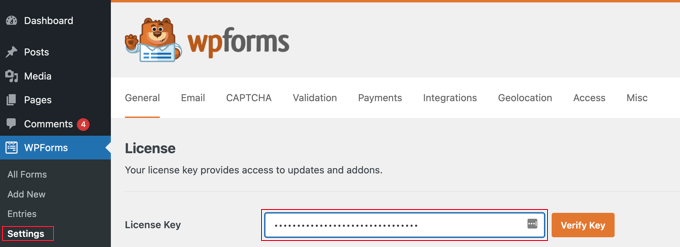
Upon activation, head over to the WPForms » Settings page from the WordPress dashboard to enter your license key. You can find this information in your account on the WPForms website.
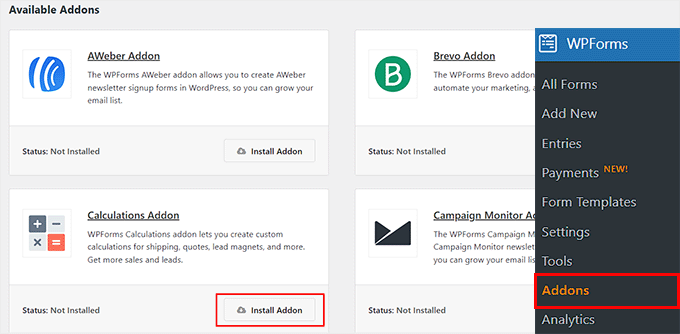
After that, visit the WPForms » Addons page and locate the ‘Calculations Addon.’
Then, just click the ‘Install Addon’ button to activate it on your site.
Next, you must head to the WPForms » Add New page from the WordPress admin sidebar.
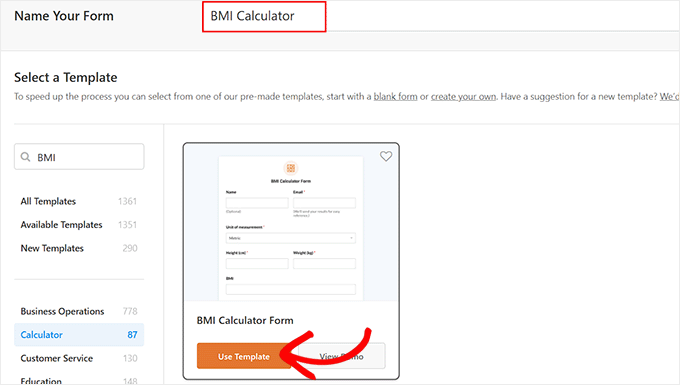
Here, you can start by typing a name for the calculator form that you are about to create.
After that, find the ‘BMI Calculator Form’ template and click the ‘Use Template’ button under it.
The WPForms form builder will now open on your screen, where you will notice a form preview on the right with form fields in the left column.
From here, you can add any field you like and drag and drop them to rearrange their order.
Next, click on the ‘Unit Of Measurement’ field in the left column to open its settings. The BMI calculator gives users a choice between the imperial and metric measurement systems.
However, if you only want to use a single measurement system in your calculator, then you can click on the (-) icon next to a system to remove it.
Remember that using both measurement systems in your BMI calculator will help you reach a wider audience.
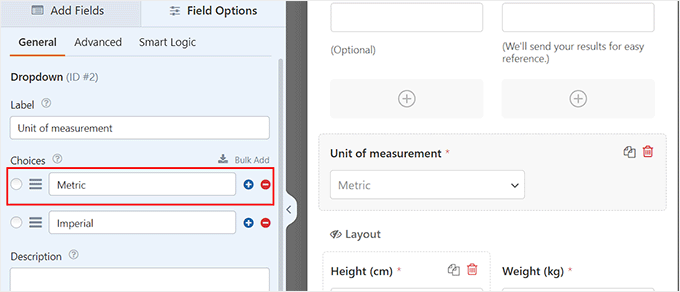
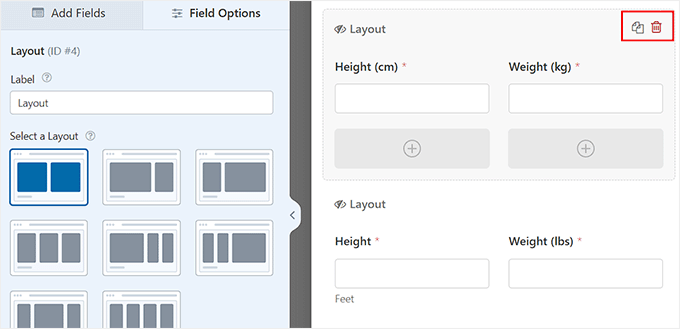
After that, you will notice two different unit fields that will be shown to users once they select one of the units of measurement from the dropdown menu.
However, if you are using a single measurement system, then one of the unit fields won’t be necessary, and you can delete it.
For example, if you only offer BMI in imperial units, then you can delete the metric fields for height (cm) and weight (kg).
Note: If you delete fields, we recommend checking the ‘BMI’ field settings at the bottom of the form to ensure the calculation formula is still valid.
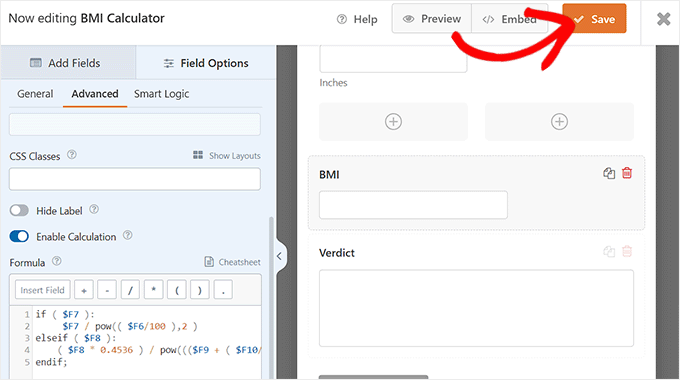
Next, scroll down to the ‘BMI’ and ‘Verdict’ fields. These fields will automatically calculate the users’ height and weight and show them their BMI results.
If you delete any of these fields, then the BMI calculator form won’t be able to perform any calculations for you.
Once you are satisfied with your form, simply click on the ‘Save’ button at the top to store your changes.
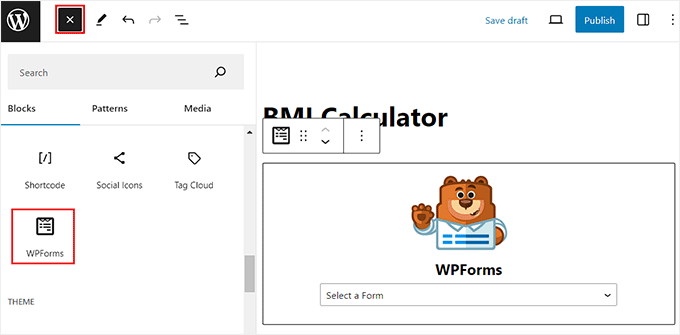
Next, open a page/post in the block editor where you want to add the BMI calculator.
From here, click the add block ‘+’ button to open the block menu and locate the WPForms block.
Once you do that, add the BMI calculator form from the dropdown menu within the block itself.
Finally, click the ‘Update’ or ‘Publish’ button to store your settings. Now, you can visit your WordPress website to view the BMI calculator in action.
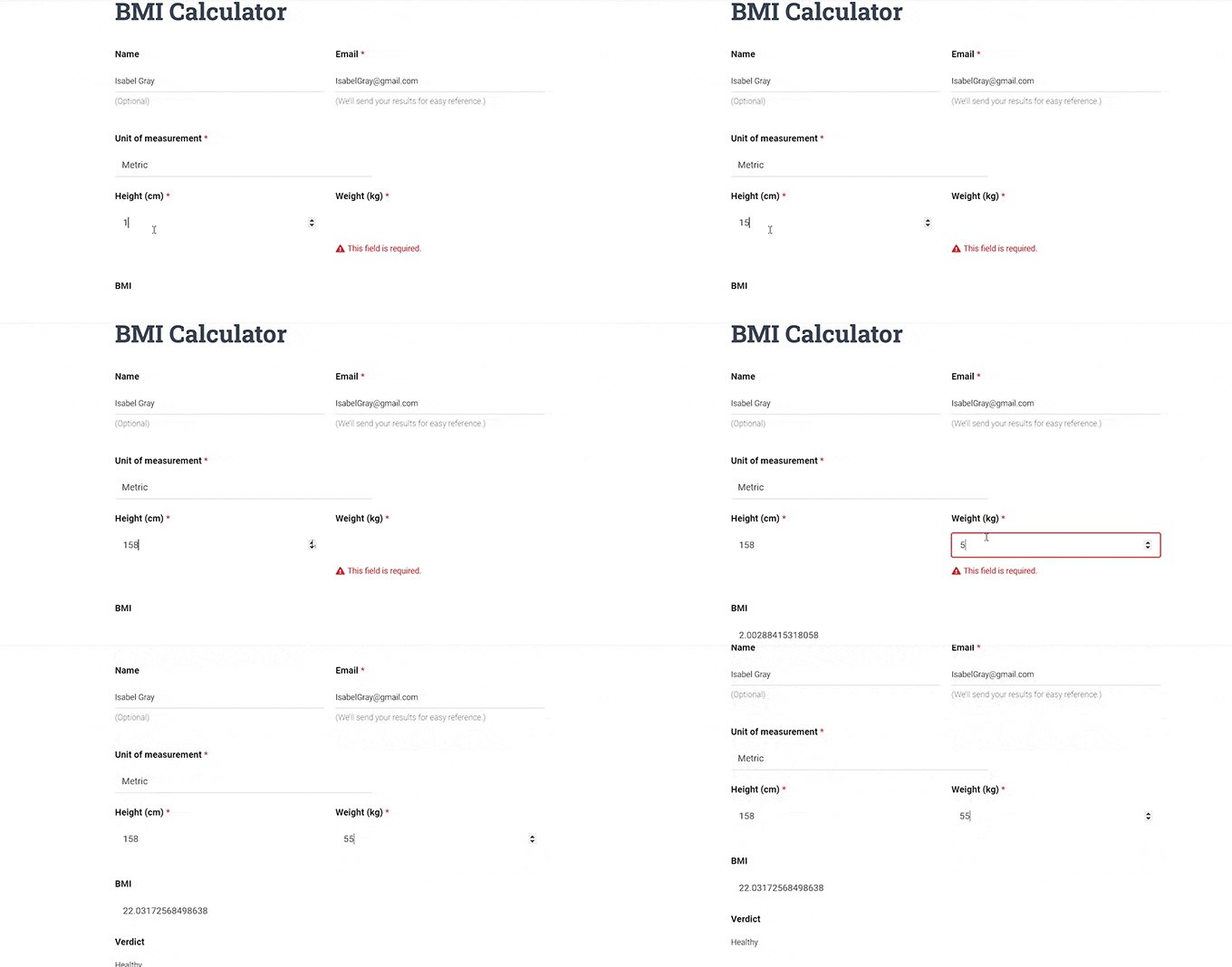
Here, visitors can simply type in their weight and height, and the calculator will show their BMI and say whether they are underweight, healthy, overweight, or obese.
Method 2: Create a BMI Calculator With Formidable Forms (Advanced)
If you want to show a BMI range within your calculator, then we recommend making a BMI calculator in WordPress with Formidable Forms instead.
It is an advanced form plugin with more calculation capabilities, including conditional calculations. We have thoroughly tested the tool and found great for more complex calculations. To learn more about our experience, see our Formidable Forms review.
First, you need to install and activate the Formidable Forms plugin. For detailed instructions, you can see our beginner’s guide on how to install a WordPress plugin.
Note: Keep in mind that the ‘Calculator’ templates are only available in the pro plan of the plugin. However, you will still need to install Formidable Forms Lite because it provides the core foundation for the premium plugin’s more advanced features.
Upon activation, visit the Formidable » Global Settings page from the WordPress dashboard and select the ‘Click to enter a license key manually’ option.
You can find the key in your account on the Formidable Forms website. Once you enter the information, simply click the ‘Save License’ button to store your settings.
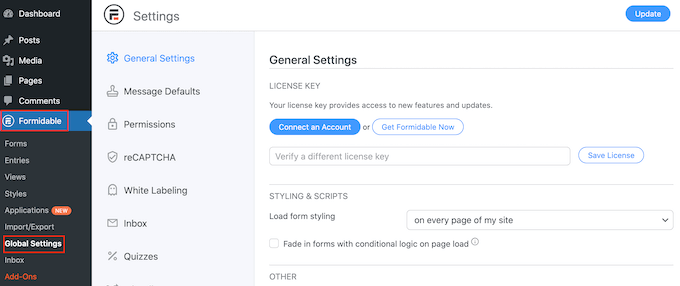
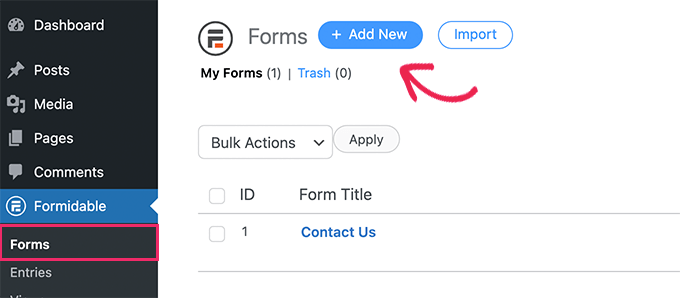
Next, you must visit the Formidable » Forms page from the WordPress dashboard.
Here, click the ‘+ Add New’ button to start building your calculator.
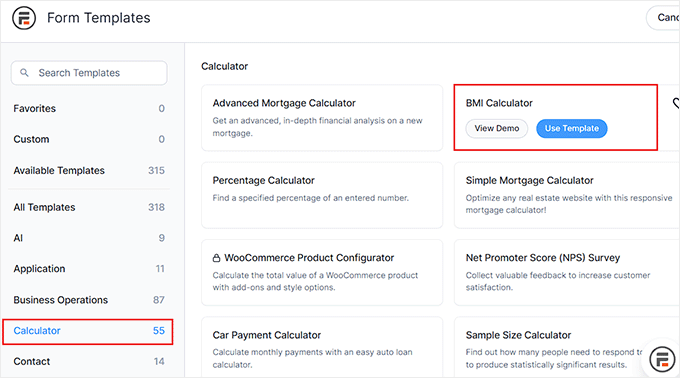
This will take you to the ‘Form Templates’ page. Here, you can click the ‘Calculator’ tab from the left column to view the 55+ calculator form templates, including an advanced mortgage calculator, percentage calculator, compound interest calculator, and more.
Go ahead and click the ‘Use Template’ button under the ‘BMI Calculator’ template.
This will open the form builder, where you will see a form preview on the right with form fields in the left column. You can now add any field to the form and drag and drop these fields to rearrange their order.
For example, the BMI calculator form template does not have a name field by default. However, you can add one from the left panel to collect more information about your users.
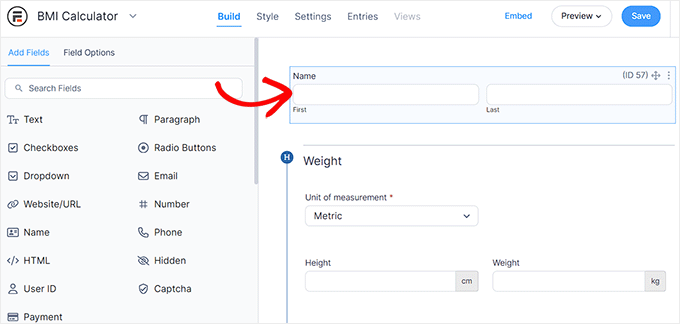
After that, you need to click on the ‘Unit of measurement’ field to open its settings in the left column.
From here, you can remove any of the two measurement systems (metric or imperial) by clicking on the (-) icon next to the systems.
However, if you want to keep both of them in the BMI calculator, then you can select one as the default measurement system.
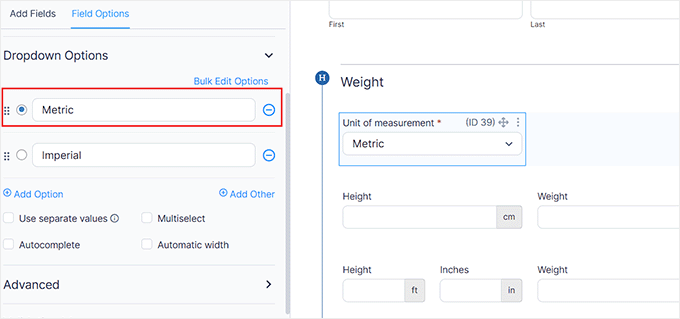
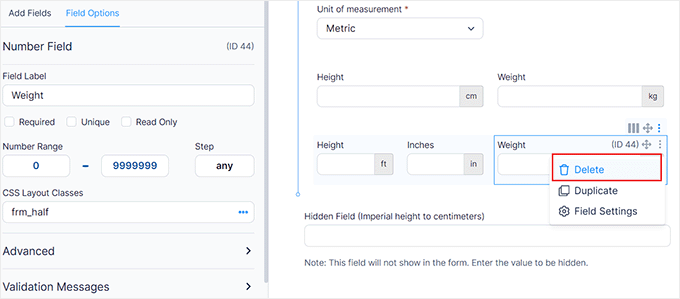
On the other hand, if you decide to use only one measurement system for the calculator, then you will have to delete the unit value fields for the other system.
For instance, if you only want to work with the metric system, then you must delete the height (feet and inches) and weight (lbs) fields from the form.
To do this, simply click the three-dot icon on top of the field and then select the ‘Delete’ option.
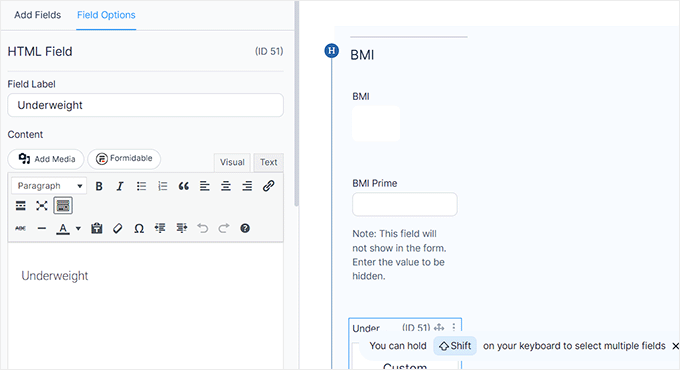
Next, scroll down to the ‘BMI’ field. This field will automatically calculate your users’ BMI and provide a verdict.
If you delete this field, then the BMI calculator won’t work. We recommend leaving it as is.
After that, click the ‘Save’ button at the top to store your settings.
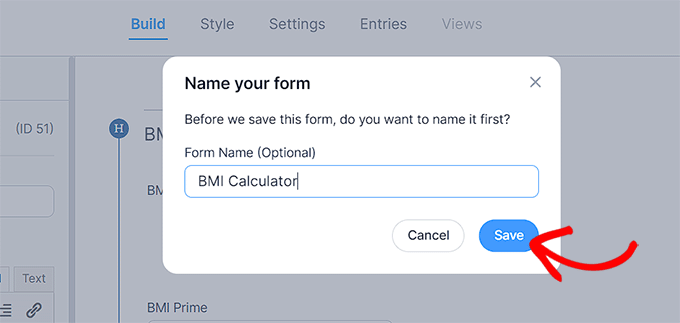
This will open a prompt on the screen. You must add a name for your form and click the ‘Save’ button.
Next, you must close the form editor and open the page/post where you want to add the BMI calculator in the block editor.
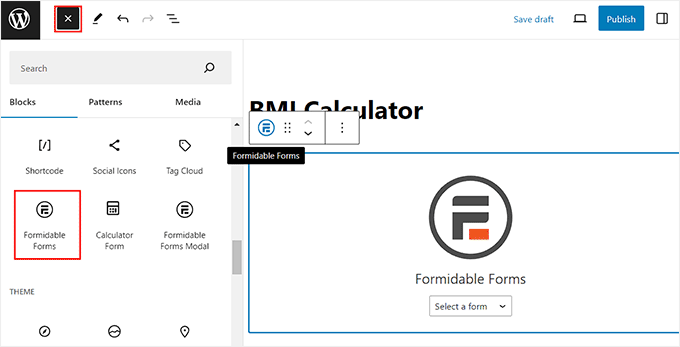
Once you are there, go ahead and click the add block ‘+’ button to open the block menu and add the Formidable Forms block.
After that, select the form you just created from the dropdown menu within the block itself.
Finally, click the ‘Update’ or ‘Publish’ button to store your settings.
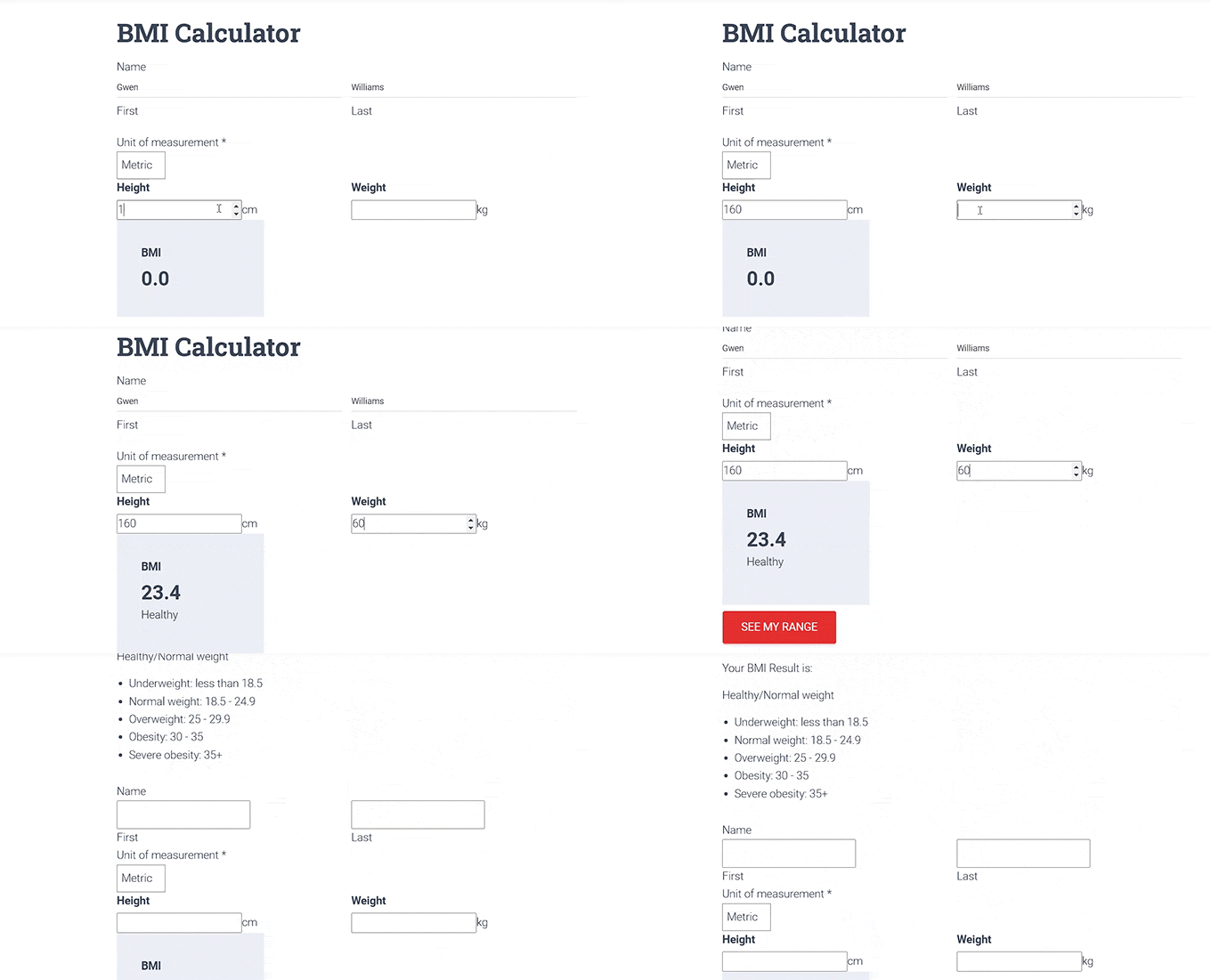
Now, you can visit your WordPress blog or website to view the BMI calculator. Here, the visitor can type their height and weight to view their BMI. If they want more information, then they can click on the ‘See My Range’ button.
The calculator will then show the ranges for all the different weight categories.
Bonus: Create a Fitness Tracker in WordPress
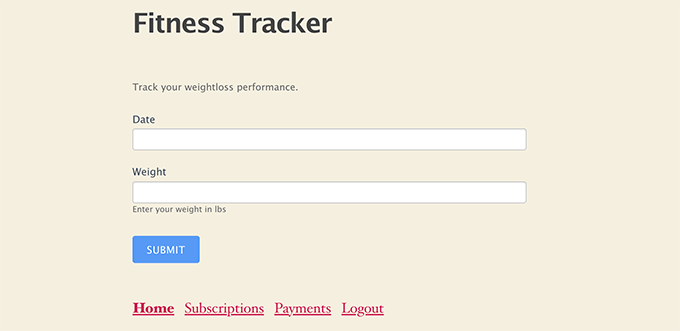
Apart from adding a BMI calculator, you can also add a fitness tracker to your WordPress site. This tracker can be a simple form that users fill out every month to track their weight loss journeys.
If you have a fitness blog, then adding this tracker can increase engagement on your site and encourage more users to sign up and be a part of your email list.
You can easily create a fitness tracker with Formidable Forms without needing to learn any code. Then, users will be able to track their weight loss progress over time.
For more details, just see our tutorial on how to create a fitness tracker in WordPress.
Frequently Asked Questions About WordPress BMI Calculators
Having helped many fitness bloggers set up interactive tools, we often receive questions about the best way to implement them. Here are some of the most common questions we get asked about adding BMI calculators to WordPress.
1. Do I need to know the math formula to build a BMI calculator?
No, you do not need to be a math expert. The plugins we shared in this guide (WPForms and Formidable Forms) come with pre-built templates.
These templates already have the correct mathematical formulas embedded in the fields. You simply need to drag and drop the fields into place.
2. Can I save the user’s BMI data?
Yes. Since you are using form builder plugins, every calculation can be saved as a form entry in your WordPress database. This allows you to track visitor progress over time.
Important: Health data is considered sensitive information. If you save this data, ensure your Privacy Policy is up to date and complies with regulations like GDPR.
3. Can I use the calculator to grow my email list?
Absolutely. You can connect both WPForms and Formidable Forms to popular email marketing services like Drip, Constant Contact, or Brevo. You can set the form up so that users must enter their email address to receive their detailed BMI results via email.
4. Is the BMI calculation 100% accurate?
The BMI formula is a standard health screening tool used globally. However, it is a general indicator and does not account for muscle mass or bone density.
We recommend adding a small disclaimer near your calculator stating that the results are for informational purposes only and not medical advice.
Additional Resources
Now that you have set up your BMI calculator, you may want to explore other ways to improve your fitness blog or website. Here are some related guides that can help:
- Best Calculator Plugins for Your WordPress Site
- Best WordPress Themes for Fitness Blogs (Expert Pick)
- How to Create a Fitness Tracker in WordPress (With Charts)
- How to Track User Engagement in WordPress
- How to Use Contact Forms to Grow Your Email List in WordPress
If you liked this article, then please subscribe to our YouTube Channel for WordPress video tutorials. You can also find us on Twitter and Facebook.





Kzain
I was reading the related guide here about how to create a custom calculator after reading that this makes it easy to go through and follow. Great thing to implement
Basit
Is it possible to insert BMI calculator form into wp site manually without using any plugin? If so can you refer a step by step guide? Actually I avoid installing too much plugins on my site and want to implement stuff manually.
WPBeginner Support
We do not have a beginner-friendly method for what you’re wanting to do but for your plugin concern, we would recommend taking a look at our article below:
https://www.wpbeginner.com/opinion/how-many-wordpress-plugins-should-you-install-on-your-site/
Admin
Ohue honesty
Nice and lovely.
WPBeginner Support
Glad you liked our article
Admin