


One of the most common mistakes we see business owners make is leaving their address off their WordPress site. Customers end up digging through search results or maps to find the location, and in many cases, they give up and move on to a competitor.
We’ve helped many different local businesses fix this problem, and the results are always the same. Once the address is clearly displayed on their site, trust goes up, visibility in local search improves, and more customers walk through the door.
In this guide, we’ll show you step by step how to properly add your business address in WordPress, along with tips for making it easy for customers to find you anywhere on your site.

💡Quick Answer: How to Add Your Business Address in WordPress
Here are the 2 easiest ways to add your business address in WordPress
- Method 1 – All in One SEO (Recommended): Best for adding a business address with full local SEO benefits. Lets you include business hours, maps, payment methods, and multiple locations in an SEO-friendly way. Ideal for businesses that want to improve local search rankings.
- Method 2 – Free Plugin (Five Star Business Profile): Perfect for a free, straightforward solution to display your address, contact info, and Google Maps. Ideal for small businesses or startups that just need basic contact details.
Why Add Your Business Address in WordPress?
Adding your business address in WordPress is the first step to making your business easy to find and improving your local search visibility.
- Boost Local SEO Rankings: Search engines use your address to display your business in local search results, Google Maps, and the local pack.
- Build Trust with Visitors: Displaying a clear physical location increases credibility with potential customers.
- Make Your Business Easy to Find: Visitors can quickly get directions, see contact information, and check your operating hours.
Having said that, let’s see how to add your business address in WordPress in an SEO-friendly way.
We have covered two methods in this article, and you can use the links below to jump to the one of your choice:
Method 1: Add Your Business Address With All in One SEO (Recommended)
If you are looking for an easy way to add your business address, then this method is for you.
All in One SEO for WordPress is the best SEO plugin on the market that comes with a local SEO feature. It lets you add your business information, including address, phone number, email, business hours, maps, and payment methods, to your website in an SEO-friendly way.
At WPBeginner, we have used this plugin to improve our search engine rankings and seen excellent results. To learn more, see our AIOSEO review.
Step 1: Install and Activate All in One SEO
First, you need to install and activate the All in One SEO plugin. For detailed instructions, see our tutorial on how to install a WordPress plugin.
Note: AIOSEO has a free plan. However, you will need the Plus plan to unlock the Local SEO feature.
Step 2: Activate Local SEO and Configure Business Information
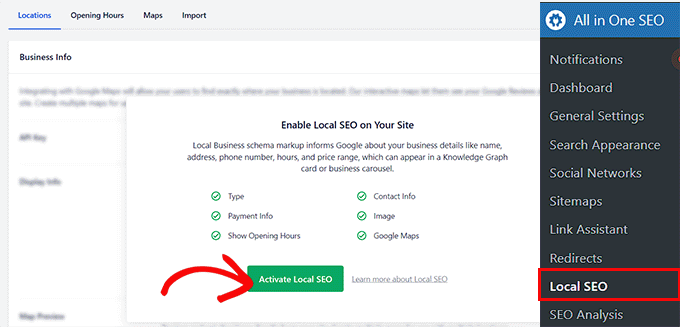
Upon activation, you must visit the AIOSEO » Local SEO page from the WordPress dashboard and click the ‘Activate Local SEO’ button.
Your page will now be reloaded, and you will be able to access all the settings.
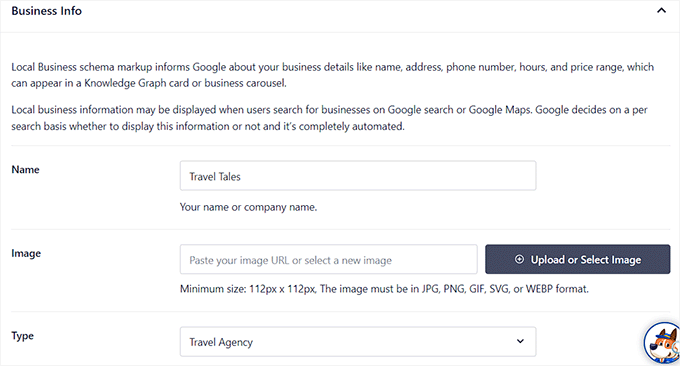
Here, scroll down to the ‘Business Info’ section, where you can start by adding a name and image for your business. After that, you can also select your business type from the dropdown menu.
For example, if you have a travel business, then you can select the ‘Travel Agency’ option.
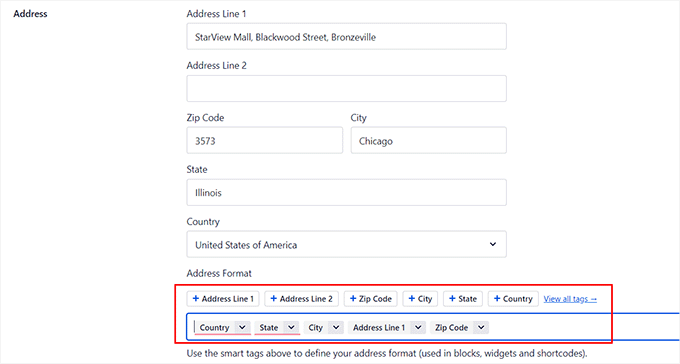
Next, you can add the address of your physical store, including the zip code, city, state, and country.
After adding your address, you can also adjust the display format using the placeholder tags shown in the box, like [city] and [country].
For example, you could move the country tag before the city tag if you like. However, the default setting works just fine for most users.
Note: When you add your address using AIOSEO, the plugin automatically adds structured data (schema markup) so that search engines understand your business details. This helps your listing appear accurately in local search results and Google Maps.
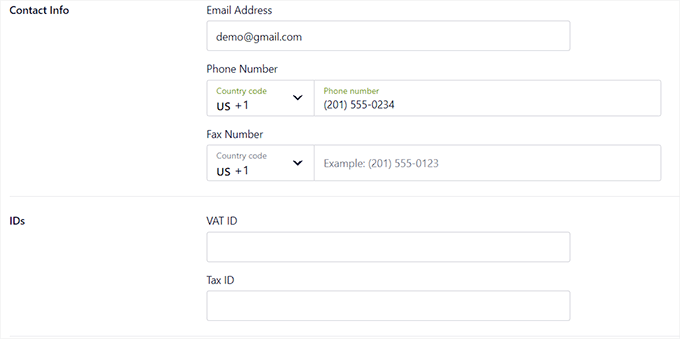
After that, you can scroll down to the ‘Contact Info’ section and add the email address and phone number for your business.
You can also type in other information, such as VAT and Tax IDs, currencies and accepted payment methods, and more. Once you are done, click the ‘Save Changes’ button to store your settings.
Step 3: Set Up Business Hours
Now, scroll back to the top and switch to the ‘Business Hours’ tab.
Here, you can start by adding labels to show customers when your store is closed or if it’s open 24 hours.
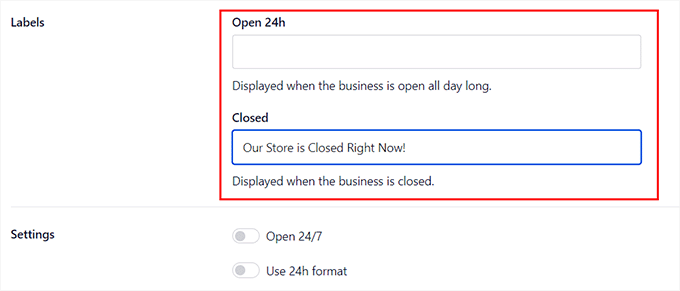
Next, you can add your physical store’s open times from Monday to Sunday.
If your store is closed on the weekends, then you must check the ‘Closed’ box next to these days. Once you are done, click the ‘Save Changes’ button to store your settings.
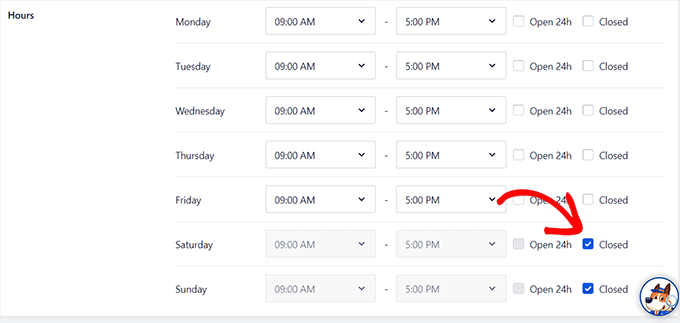
For more details, see our guide on how to add business hours in WordPress.
Step 4: Obtain and Add Google Maps API Key (Optional)
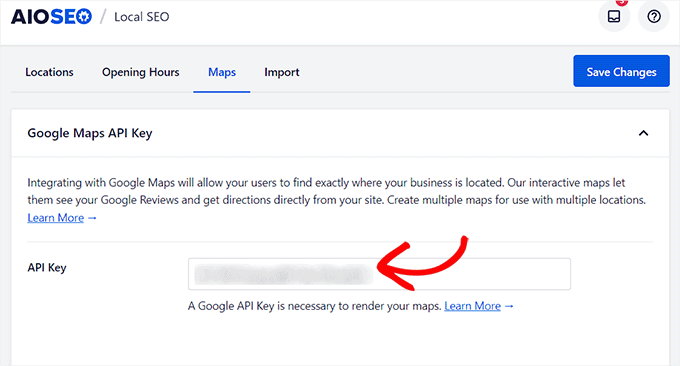
If you also want to add a map that can help visitors reach your store, then you have to switch to the ‘Maps’ tab. You will now need a Google API key to add this functionality.
Now, you might be worried about having to enter payment information. Don’t worry, Google requires this for verification purposes, but their Maps Platform has a generous free plan.
You won’t be charged unless your usage exceeds the generous free tier limits.
To get the key, visit the Google Maps Platform and click the ‘Get Started’ button.
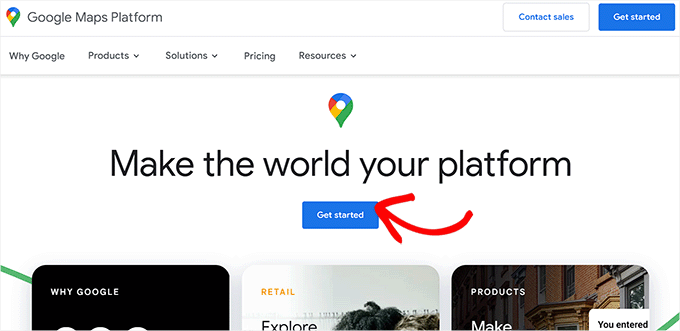
This will open a new tab, where you must add your country from the dropdown menu.
After that, click the ‘Agree and Continue’ button.
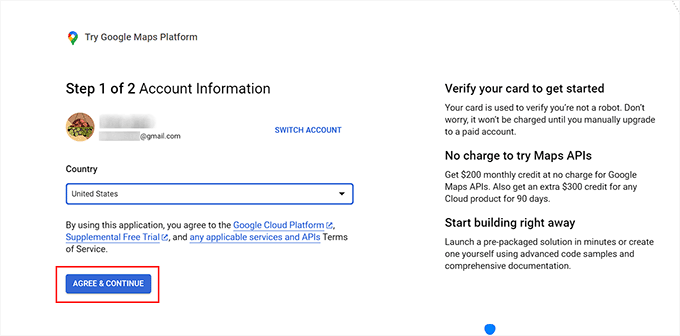
In the next step, you must add your payment information and profile. Your card won’t be charged unless your usage exceeds the free tier limits.
To add your information, click the ‘+’ button in the payment profile field.
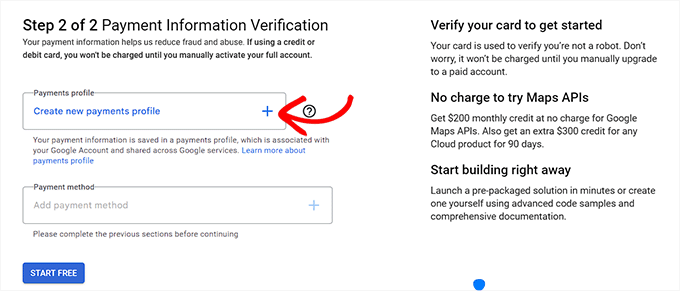
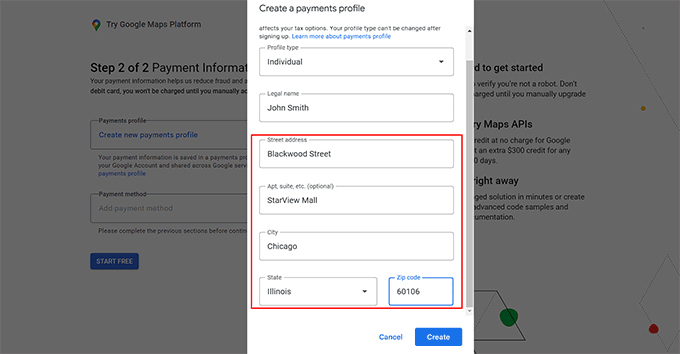
This will open a new prompt, where you must add your name and business address.
After that, click the ‘Create’ button.
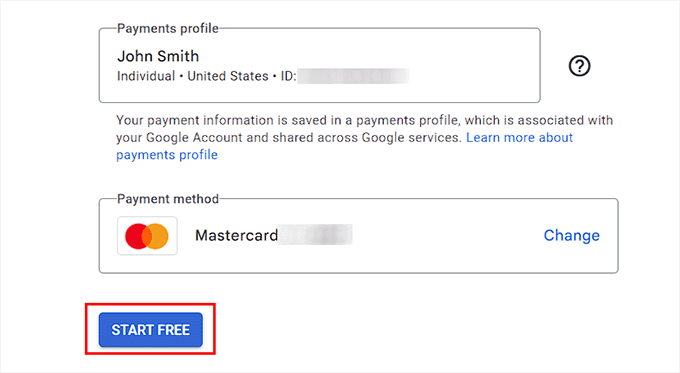
Next, click the ‘+’ button in the ‘Payment Method’ field to add your card details.
Once that is done, click the ‘Start Free’ button.
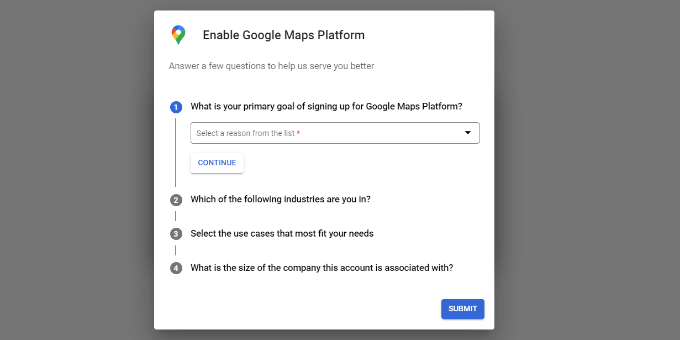
You will now see a popup on the screen asking you some questions about your organization, including your primary goal for using the platform, company size, and the industry you are in.
Simply answer these questions and click the ‘Submit’ button.
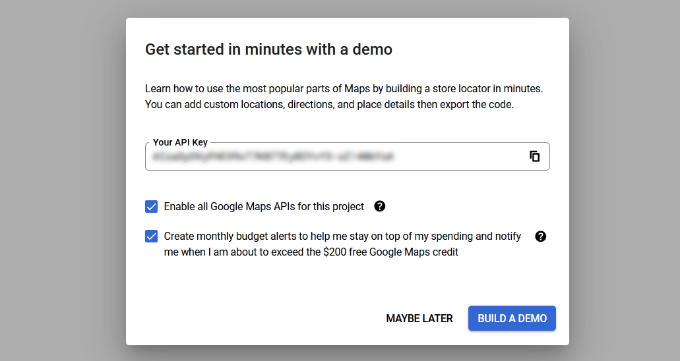
Your Google Maps API key will now be created and displayed on the page.
Go ahead and copy this key.
Now, visit your WordPress dashboard and paste the key next to the ‘API Key’ option.
After that, click the ‘Save Changes’ button. For more information, you can see our tutorial on how to add Google Maps in WordPress.
Step 5: Display Business Information Using AIOSEO Blocks
Now that you have added your business address along with other information, open the page where you want to display it in the block editor.
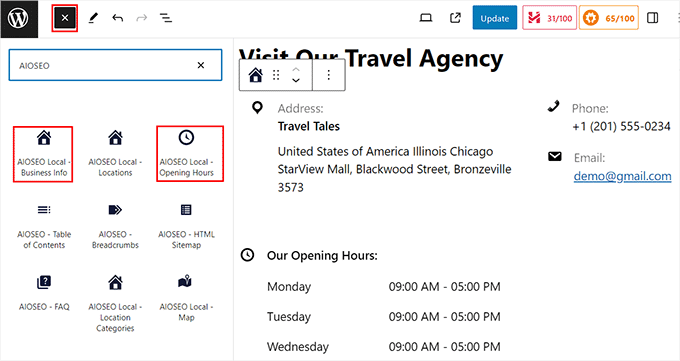
Here, you need to click the add block (+) button in the top left corner and drag and drop the AIOSEO Local – Business Info and AIOSEO Local – Business Hours blocks.
If you have added a map as well, then you can add the AIOSEO Local – Map block.
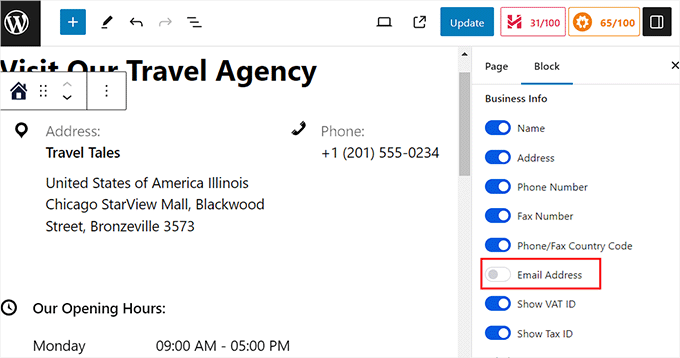
Once you do that, you can click on the blocks to configure their settings in the panel on the right.
For example, if you don’t want to display your business email address, then you can simply toggle the ‘Email Address’ switch to ‘OFF.’ You can do the same for the days in the business hours block.
Finally, click the ‘Update’ or ‘Publish’ button to store your settings.
You can now visit your WordPress site to see the business address displayed properly.
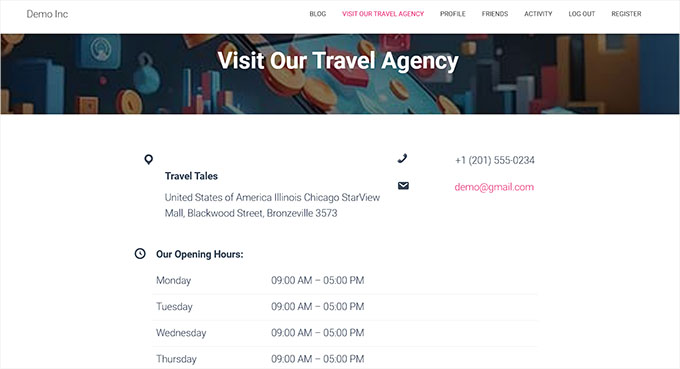
Method 2: Add a Business Address in WordPress With a Free Plugin
If you are looking for a free solution, then this method is for you.
Step 1: Install and Activate Five Star Business Profile Plugin
First, you need to install and activate the Five Star Business Profile plugin. For more details, see our step-by-step guide on how to install a WordPress plugin.
Upon activation, head over to the Business Profile » Settings page from the WordPress admin sidebar.
Step 2: Configure Business Details and Schema Settings
Here, you can start by selecting the schema type that best describes your business from the dropdown menu.
For instance, if you run an auto repair shop, then you can select that option. The plugin will then create a schema according to it. You can also add an image for your physical store and a URL if you allow online ordering on your site.
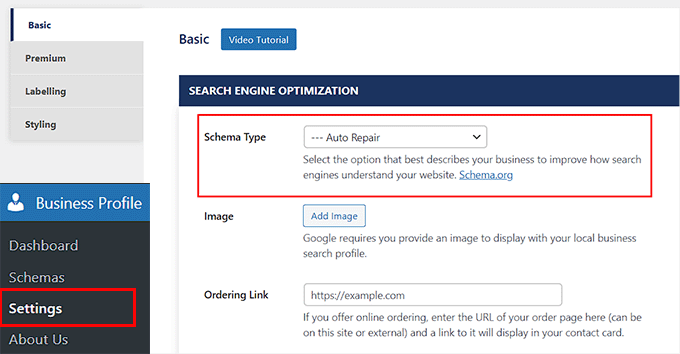
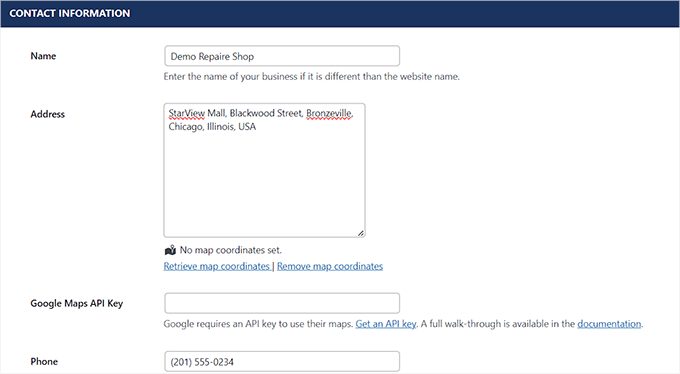
Next, scroll down and add a name, address, phone number, WhatsApp number, and email address into the different fields.
After that, you can also add the location using Google Maps.
Step 3: Add Google Maps API Key (Optional)
To get your Google Maps API key, you can follow the same steps we covered in Method 1.
Once you have the key, come back to this section and paste it into the ‘Google Maps API Key’ field.
Step 4: Set Up Business Operating Hours
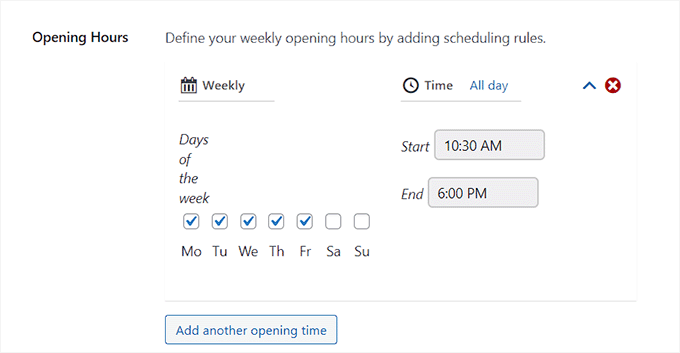
Now that this is done, scroll down to the ‘Schedule’ section.
Here, click the ‘Add another opening time’ button.
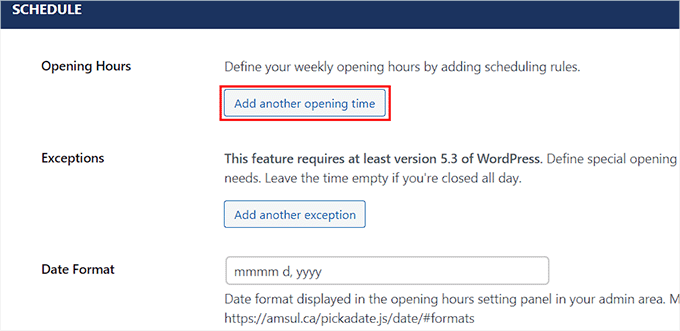
This will expand the tab, and you can check the boxes for all the days that your shop is open. After that, you must click the ‘Set a time slot?’ link.
This will expand the time settings, and you can add your business hours. Then, you can also change the date and time format according to your liking.
Once you are done, go ahead and click the ‘Save Changes’ button to store your settings.
Step 5: Display Contact Card Using the Plugin Block
Now, open the page or post where you want to add your business address.
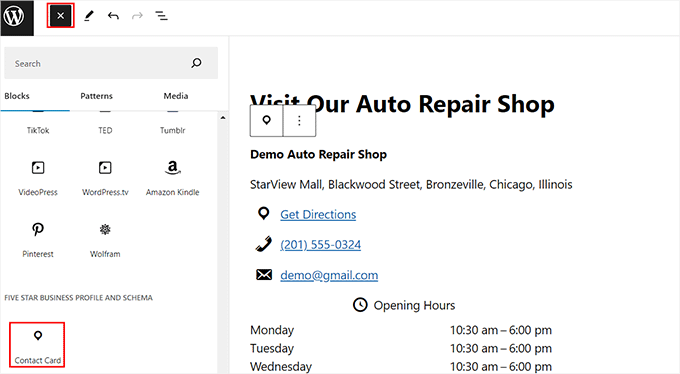
Once you are there, simply click the add block (+) button to open the block menu. From here, drag and drop the Contact Card block.
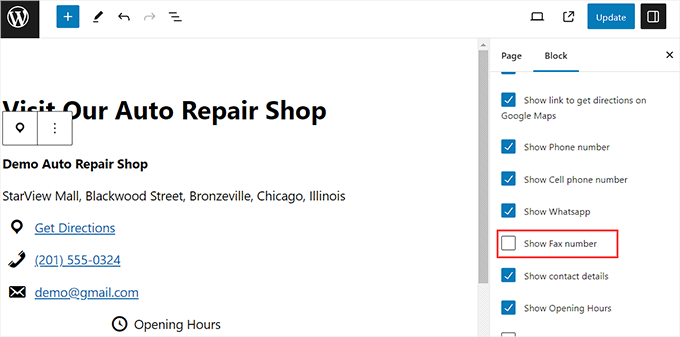
Next, open the block panel on the right. From here, you can uncheck the boxes for all the information that you do not want to display on your contact card.
For instance, if you want to hide your fax number, then you can simply uncheck that option.
Finally, click the ‘Update’ or ‘Publish’ button at the top to store your settings.
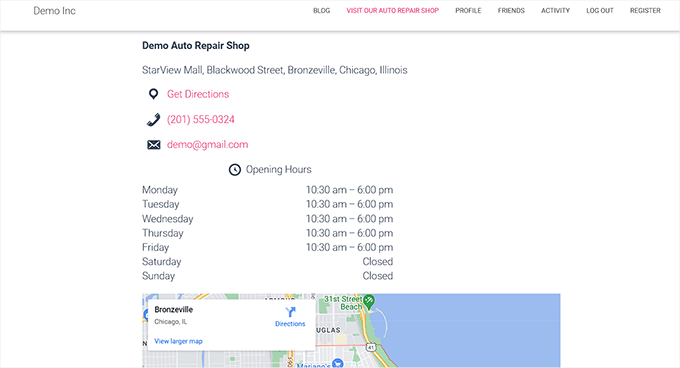
Now, just visit your WordPress website to view the business address and details.
Bonus: Add Multiple Locations Schema in WordPress
If you have multiple physical stores and branches, then you can add local business schema for multiple locations with All in One SEO.
To do this, you must enable the Local SEO feature by visiting the All in One SEO » Local SEO page from the WordPress admin sidebar.
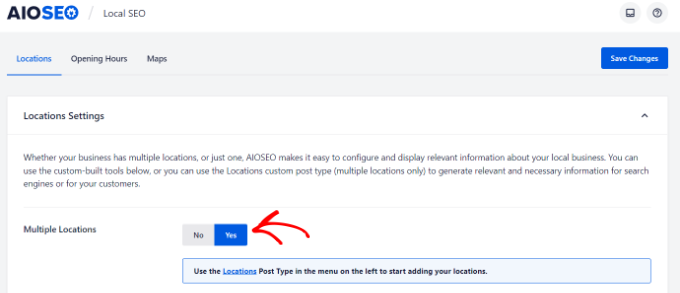
Then, switch to the ‘Locations’ tab and enable the ‘Multiple Locations’ toggle to ‘Yes’.
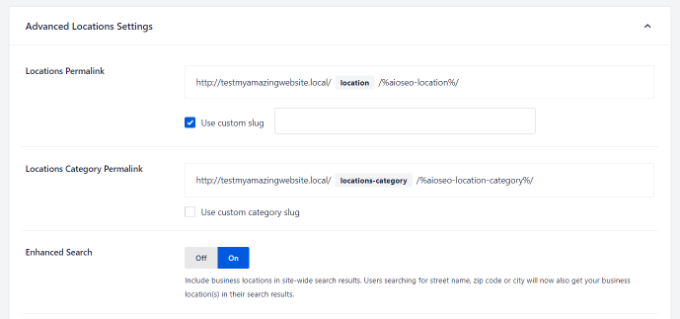
After that, scroll down to the ‘Advanced Settings’ section, where you can see the permalink AIOSEO will use to show your multiple business locations and location categories.
Next, switch the ‘Enhanced Search’ option to ‘On’ to include the locations in the WordPress search results.
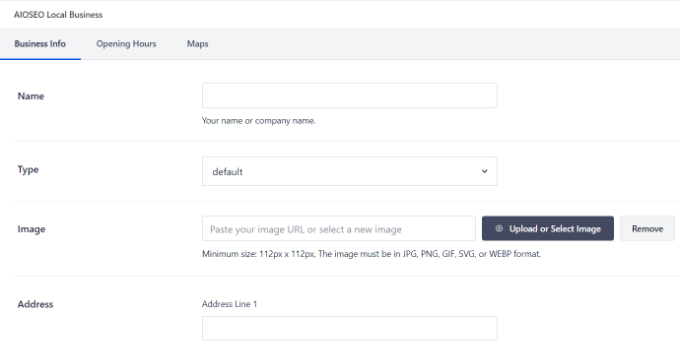
Once you have done that, visit the Locations » Add New page from the WordPress dashboard. This will open the content editor, where you can add a title and description.
Then, scroll down to the ‘AIOSEO’ meta box to add your business name, select a business type (industry), add an image, enter the address for your location, business phone, payment info, the area served, and more.
Finally, click the ‘Publish’ button to store your settings. Now, simply repeat this process to add other locations to your WordPress site.
For more information, you can see our tutorial on how to add multiple locations schema for local businesses in WordPress.
Frequently Asked Questions About Adding a Business Address in WordPress
Here is a list of some questions that our readers frequently ask about adding a business address to their website.
What is the best plugin to add a business address in WordPress?
We recommend All in One SEO as the best plugin for adding a business address. It not only displays your address but also adds the correct local business schema markup to help you rank higher in local search results.
For a free alternative, the Five Star Business Profile plugin is also a solid choice for displaying your contact card and location details.
Do I need a business address for an online store?
If your business is purely online, you don’t need to display a physical address, especially not your home address, for privacy reasons. However, having a registered business address, like a P.O. box or a virtual mailbox, can still help build trust with customers.
How can I add multiple business locations in WordPress?
The All in One SEO plugin makes it easy to add multiple locations. You can simply enable the ‘Multiple Locations’ feature in the Local SEO settings and then add each new address individually.
How do I add a Google Map with my business address?
To add a Google Map, you’ll need to get a Google Maps API key from the Google Maps Platform. The process involves setting up a billing profile (you won’t be charged for standard usage). Once you have the key, you can paste it into your chosen plugin’s settings to display a map on your site.
We hope this tutorial helped you learn how to properly add your business address in WordPress. You may also want to see our beginner’s guide on how to secure your WordPress store and our top picks for profitable eCommerce business ideas.
If you liked this article, then please subscribe to our YouTube Channel for WordPress video tutorials. You can also find us on Twitter and Facebook.





Dennis Muthomi
As a small business owner I implemented using All in One SEO this and saw an improvement in my local SEO rankings. One more tip: add schema markup for your business hours to your Google Knowledge Panel. This goes along with the address and adds even more value to people searching for your business online.
kzain
I struggled to find a clean way to display my business address on my website. The plugin recommendations are super helpful. I’ll definitely try one of them out. Thanks for sharing
WPBeginner Support
You’re welcome!
Admin
Arnaud
Thank you very much for this article.
How is it possible to add “price range”?
Thank you.
daniel
Hi, thanks for the guide.
Our week start here at Sunday, but in this widget, sunday is the last day.
How can i make is shown the first day of the week?
Thanks!
Waseem Safdar
What if our coordinates don’t show up? I’ve tried it and it won’t show the EXACT location/coordinates.
WPBeginner Support
You can get coordinates using Google Maps and then paste them in plugin settings.
Admin
Michael Zorko
Okay.. stupid question. Does this play nicely with Yoast?
WPBeginner Support
Yes, it would work well with Yoast.
Admin
lucky cabarlo
Can I put the business schema markup in footer? By doing this, it will reflect on all pages. Is there any negative effect on SEO in this kind of approach?