


At WPBeginner, we constantly test new ways to make our websites load faster. After trying dozens of methods, we found that link preloading delivers an instant speed boost.
We know how frustrating slow page loads can be for both you and your visitors. Even a short delay can hurt your website traffic and cost you sales.
Link preloading solves this by getting the next page ready before a user actually clicks the link. This makes your website feel incredibly fast and responsive.
In this guide, we will show you how to easily set up link preloading in WordPress.
What Is Link Preloading in WordPress?
Link preloading is when your web browser loads the link in the background before the user clicks it, making pages load faster when they visit.
It’s like the kitchen starting to cook your meal before you get to the restaurant!
In technical terms, link preloading tells a visitor’s web browser to quietly download the code (HTML) for the linked page in the background before they actually click on the link.
So, when they do click, the page appears to load instantly. It’s all about making your website feel super snappy and responsive.
Now, why bother with all this? Well, a faster website is a happier website, in our experience. For starters, Google and other search engines love fast websites. It’s a big deal for SEO. A faster site potentially brings more traffic to your blog.
Plus, and maybe even more importantly, it makes your visitors happier. Nobody likes waiting around for pages to load, right? A smooth, quick website just feels better to use.
You can do many things to improve your WordPress speed and performance. This includes using a performance plugin or a CDN.
For example, a powerful caching plugin like WP Rocket can make a huge difference. However, link preloading is a unique technique that stands out for its simplicity.
Expert Tip: We use WP Rocket on many of our websites to handle caching and other critical speed optimizations. WP Rocket actually has link preloading built right in. If you already use it, you don’t need a separate plugin. Just go to Settings » WP Rocket » Preload in your dashboard and check the ‘Enable Link Preloading’ box.
However, it is essential to configure preloading correctly to avoid server issues. Overly aggressive preloading of all internal links, for instance, could lead to server crashes.
That being said, let’s show you how to preload links in WordPress the right way, step by step.
How to Preload WordPress Links and Make Your Site Faster
The easiest way to preload links is by using the Flying Pages plugin. It simply adds intelligent preloading to make sure preloading won’t crash your site or even slow it down.
If it detects any issues like that, then the plugin will stop all preloading.
The first thing you need to do is install and activate the plugin. For more details, see our guide on how to install a WordPress plugin.
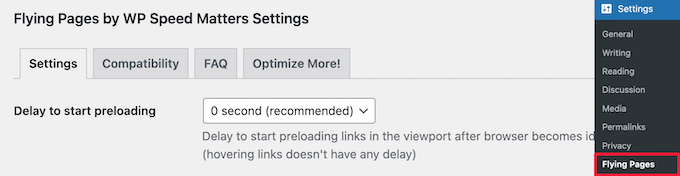
Upon activation, you need to navigate to Settings » Flying Pages in your WordPress admin panel to configure the plugin settings.
Then, you need to set the ‘Delay to start preloading’ time in the dropdown. This setting determines how long the plugin waits before it starts prefetching links.
It waits for a moment when the browser is idle (meaning it’s not busy loading your current page) to avoid slowing anything down. For most sites, the default ‘0 second’ setting, which starts prefetching as soon as the browser is free, works perfectly.
Next, you can change the ‘Max requests per second’. The lower you set this number, the less impact it will have on your server.
We’ll keep the default setting of ‘3 requests’, which should work for most WordPress hosting environments. If you are on a budget shared hosting plan and notice your server slowing down, you can lower this to 1 or 2. If you use powerful managed hosting, the default is fine.

After that, you can check the box to ‘Preload only on mouse hover.’ This will only preload links if a user hovers over them on a desktop computer.
For mobile users, the plugin smartly adapts by starting the preload the moment a user lightly touches the link, giving it a head start before the full tap registers.
This makes the next page seem to load instantly. On average, there is about a 400-millisecond (ms) delay between the moment a user hovers their mouse over a link and when they actually click it. This brief window gives the browser a head start on fetching the next page.
You can also set the ‘Mouse hover delay.’ This is the time that will pass after a user hovers over a link before preloading starts.

Below that, there’s a list of keywords that the plugin will ignore for preloading.
These are standard login pages and image files. You can leave the list as it is or add more keywords if you like.

If you are running an online store, you must add dynamic pages like /cart, /checkout, and /my-account to this list so they are not preloaded. You should also type ‘logout’ into the box to exclude logout links, preventing users from being accidentally logged out just by moving their mouse.
Similarly, if you are using an affiliate marketing plugin like ThirstyAffiliates or PrettyLinks, then it’s important to add your affiliate prefix like /refer/ or /go/ to this ignore keywords list. Otherwise, it can break affiliate link tracking.
The final option is to disable preloading for admins.
Overall, this will help to reduce your website server load. If you want to only preload for website visitors who aren’t logged-in admins, then simply check the box.

Once you are finished, click the ‘Save Changes’ button at the bottom of the page.
That’s it! You’ve successfully enabled link preloading on your website.
Want to see it in action? Open your website in Google Chrome, right-click anywhere, and select ‘Inspect’ to open the Developer Tools. Go to the ‘Network’ tab, and watch what happens when you hover over a link. You will see the page load in the background before you even click!
Note: If you are running a website speed test with a tool like PageSpeed Insights and you don’t see your score get better, then that’s completely normal. Preloading links only improves the speed of link clicking, and it doesn’t speed up the first time your site loads.
Frequently Asked Questions About Link Preloading
Here are some of the most common questions we get asked about preloading links in WordPress and how it affects website performance.
1. What is the main benefit of link preloading?
The main benefit is a much better user experience. When a visitor hovers over a link, the page begins loading in the background. This makes the next page appear to load almost instantly when they click, making your website feel faster and more responsive.
2. Will link preloading improve my Google PageSpeed score?
No, and this is an important point. Link preloading improves the perceived performance for actual users navigating your site. It does not affect the initial load time of a single page, which is what tools like PageSpeed Insights measure.
3. Can link preloading crash my server?
If done carelessly, aggressive prefetching can increase your server’s workload, especially on shared hosting. This is because every preload acts like a mini-visit to your server, and too many at once can overwhelm it.
However, the recommended Flying Pages plugin is designed to prevent this. It intelligently waits for the browser to be idle and only prefetches if your server isn’t busy, preventing crashes or slowdowns.
4. Are there any pages I should exclude from preloading?
Yes, you should always exclude dynamic pages. This includes cart, checkout, and account pages on an eCommerce site. It’s also important to exclude your affiliate links (like those with a /refer/ or /go/ prefix) to ensure your click tracking works correctly.
Additional Resources to Speed Up WordPress
We hope this article helped you learn how to preload links in WordPress for faster loading speeds. You may also want to see some other tutorials on making your WordPress website faster:
- Fastest WordPress Hosting (With Performance Tests)
- Best WordPress Caching Plugins to Speed Up Your Website
- How to Minify CSS / JavaScript Files in WordPress
- How to Optimize Core Web Vitals for WordPress (Ultimate Guide)
- How to Easily Lazy Load Images in WordPress
- How to Speed Up Your eCommerce Website
If you liked this article, then please subscribe to our YouTube Channel for WordPress video tutorials. You can also find us on Twitter and Facebook.


Olaf
Preload is a great feature. I’ve noticed that more cache plugins now include it compared to before. We tested WP Rocket, where a link should load as soon as the user hovers over it. WP Rocket immediately starts caching the page behind the link without the user needing to click on it. If they do click, the page is served directly from cache. We tested load times with and without this function, and I must say the difference was remarkable. If you have enough server performance, it’s an excellent feature that can significantly speed up the website.
Dennis Muthomi
Great article on link preloading!
I’ve implemented this technique on several client sites(but not all of them) and noticed significant improvements in perceived loading speeds.
I would like to add this: consider using the ‘Preload only on mouse hover’ option for content-heavy sites to balance performance and server load. It’s been a game-changer for my clients with large product catalogs.
Jiří Vaněk
I use the ‘preload links’ feature in the WP Rocket cache plugin, and I have to say it’s a great function that truly speeds up website loading. I can highly recommend it. So, specifically for speeding up a website, WP Rocket is probably the best option, as it natively includes this feature and significantly helps in accelerating the site. Among cache plugins, it’s the top choice.
WPBeginner Support
Thank you for sharing what you use for your site
Admin
Cassie
Thank you for sharing. I never knew this was a thing. It seems pretty straight forward and easy to implement. I am going to hang on to this information so I can give it a try. I love learning new things!
Thanks again!
Cassie
WPBeginner Support
You’re welcome, glad our article was helpful!
Admin
Mohamed
Does this affect the affiliate links on my website pages?
WPBeginner Support
It would if you do not exclude those from the plugin which is why we recommend excluding them in this article
Admin
Hosseoin
Hello
Isn’t this the same instant click option in some cache plugins?
WPBeginner Support
Yes, at the moment it is a similar tool to that depending on your choice of cache plugin.
Admin