


Visitors start filling out your contact form, then suddenly abandon it halfway through. It’s one of the most frustrating experiences for any website owner, especially when you know those leads could transform your business.
The truth is that lengthy forms intimidate users and cause visitors to leave without finishing the form.
After years of helping WordPress site owners optimize their forms, we’ve discovered that using dropdown fields can improve your form completion rates.
Plus, these simple elements not only save precious screen space but also guide users toward providing exactly the information you need to know about them.
In this tutorial, we’ll show you the easiest way to create WordPress forms with dropdown fields that visitors actually want to complete.
What Are Dropdown Fields and Why Use Them?
A dropdown field lets users choose one option from a set list of different variations. Users can simply click on the field to see all the dropdown choices.
As a website owner, you can use dropdown fields to create web forms, such as contact forms, event registration forms, email newsletter signups, or product order forms.
Dropdown fields can improve your form’s effectiveness. Here are a few advantages:
- 💡 Consistency. The set list of options keeps the collected data consistent and prevents invalid entries. This makes data analysis more accurate.
- 🎢 Dynamic fields. Dropdown fields make it easier to set conditional logic. The set list of options lets you show additional fields based on user selection without unnecessary hurdles.
- ✂️ Reduced form length. Combining multiple options into a compact dropdown menu makes your form look less intimidating. This can result in a better user experience.
Now, let’s take a look at how to create forms with dropdown fields in WordPress. Here is a quick overview of the steps we will cover in this tutorial:
- Step 1: Installing the WPForms Plugin
- Step 2: Creating a New Form Using WPForms
- Step 3: Adding the Dropdown Field to Your Form
- Step 4: Configuring Dropdowns with Options and Conditional Logic
- Step 5: Personalizing Your Form Notifications and Confirmations
- Step 6: Embedding Your Contact Form in a Page
- Step 7: Publishing the New Form on Your WordPress Site
- Bonus Tip: Creative Ways to Use Dropdown Fields
- FAQs: Using Dropdown Fields in WordPress Forms
- Additional Resources: Master Your WordPress Forms
Let’s get started!
Step 1: Installing the WPForms Plugin
WPForms is the best contact form plugin for WordPress. It has AI tools and more than 2,000 templates, which help you make forms in just a few clicks.
At WPBeginner, we use WPForms to create our contact forms, annual user surveys, and migration requests, and we couldn’t be more satisfied!
Feel free to learn about all of its features in our complete WPForms review.
📢 Notes: WPForms Lite allows you to create dropdown fields for free. However, if you want to use the Conditional Logic features we will cover in Step 4, you will need WPForms Pro.
The good news is WPBeginner readers get a special 50% off by using the WPForms coupon: SAVE50.
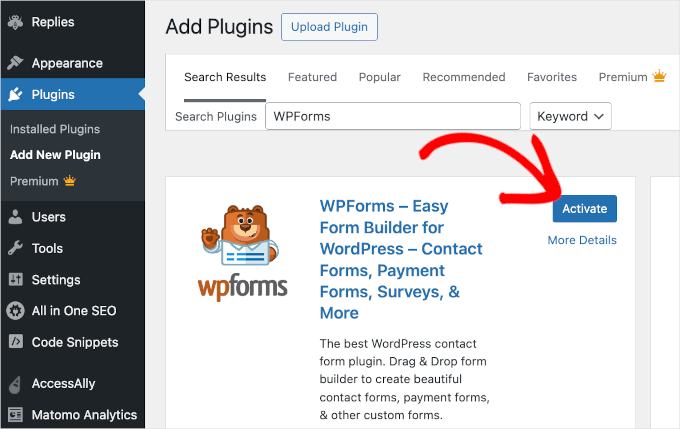
So, let’s install and activate the WPForms plugin.
You can head over to Plugins » Add Plugin from your WordPress dashboard.

On the next screen, you can use the search bar to find the WPForms plugin.
Once found, you can click ‘Install Plugin’ and then ‘Activate.’
For detailed instructions, you can read our guide on how to install a WordPress plugin.
Step 2: Creating a New Form Using WPForms
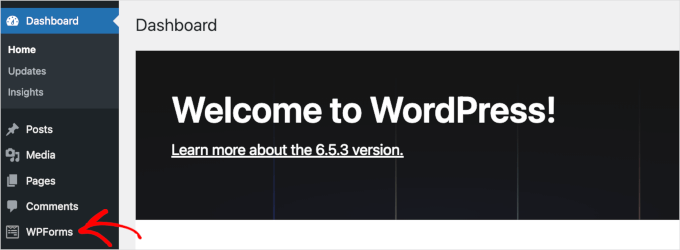
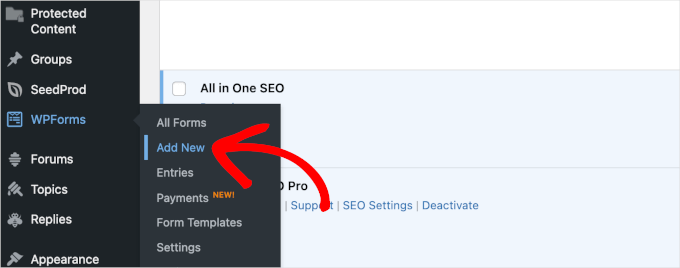
Upon activation, you should see a WPForms menu in your WordPress admin area like this:
Now, you’ll be able to access the WPForms builder interface and create forms with dropdown fields.
To start building a new form, you can go to WPForms » Add New.
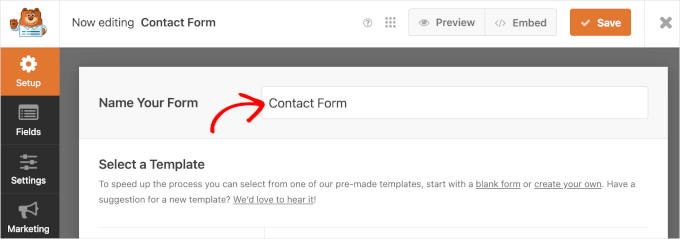
Now, you’ll see the ‘Setup’ panel within the WPForms form builder.
In this panel, the first thing you’ll need to do is name your form.
For example, you can type ‘Simple Contact Form’ or just ‘Contact Form’ into the ‘Name Your Form’ field.
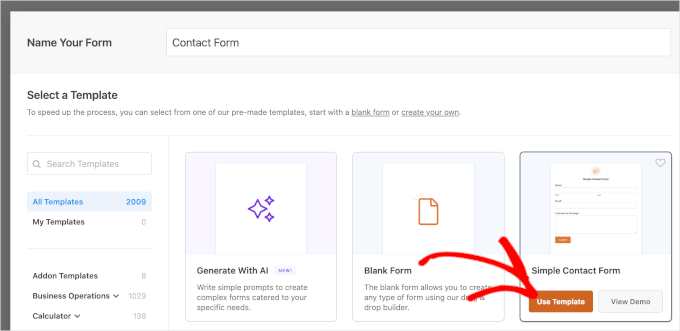
Once that’s done, it’s time to choose how you’ll build your WordPress form.
With WPForms, you can create from scratch, choose a pre-made template, or use the AI-powered form builder.
If you want to use the AI form builder, all you have to do is enter a simple prompt. The AI will then generate the form for you in a few seconds.

For this guide, though, we are going to use ‘Simple Contact Form’.
To use a form template, all you have to do is hover over the one you want and click ‘Use Template’.
For step-by-step instructions, see our detailed guide on how to create a contact form in WordPress.
Step 3: Adding the Dropdown Field to Your Form
After completing the setup process, you’ll be redirected to the form builder, where there is a list of fields on the left and a live preview on the right.
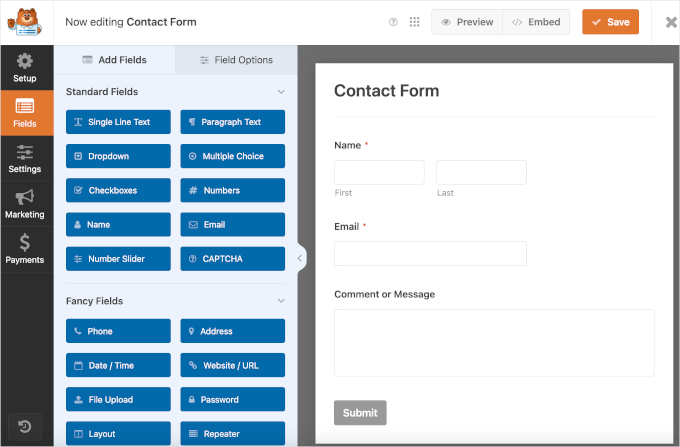
Now, we want to add a dropdown field to our contact form.
Simply drag ‘Dropdown’ and drop it onto the right side of the form (Pro Tip: if you only have 2-3 choices, consider using Radio Buttons instead for a better user experience).
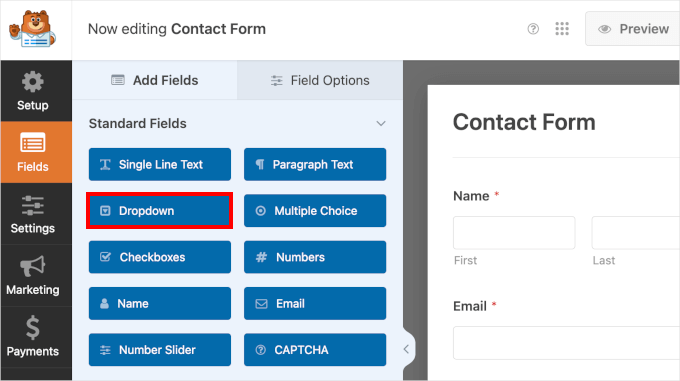
📢 Notes: All the fields in the ‘Standard Fields’ category are available on WPForms Lite. So, you can create forms with multiple-choice fields or add CAPTCHA in login and registration forms for free.
To the right of the panel, you’ll be able to see a dropdown field on your contact form. You can hover over the field to access its settings, which include:
To the right of the panel, you’ll be able to see a dropdown field on your contact form. When you click on the field, you can access its settings. You can also hover over it to see options like:
- A copy button
- A delete button
- A ‘Click to Edit’ instruction
- A ‘Drag to Reorder’ instruction
Here’s what it might look like on your screen:
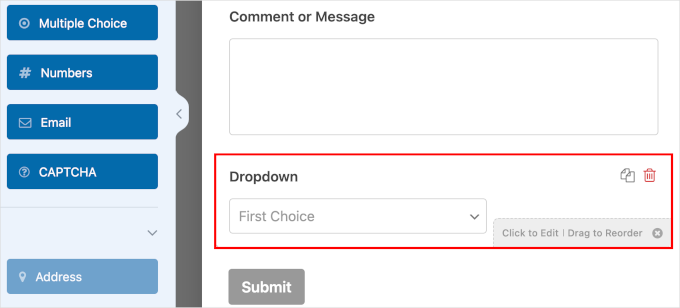
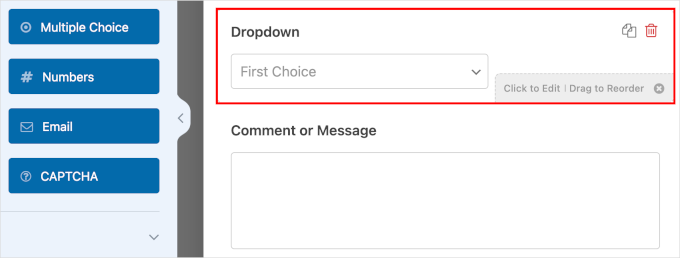
Using the drag-and-drop feature, let’s move the dropdown field above ‘Comment or Message’.
By having the ‘Comment or Message’ paragraph field right before the submit button, you offer a better flow for the form completion process. It also makes your dropdown field more visible, so users don’t overlook it.
Step 4: Configuring Dropdowns with Options and Conditional Logic
In this step, you’ll set your dropdown field’s label, options, and description. Your list of options should align with your form type. Since we’re creating a contact form, let’s offer a newsletter subscription option.
Simply click on the dropdown field in the preview panel. This will automatically open the ‘Field Options’ tab on the left.
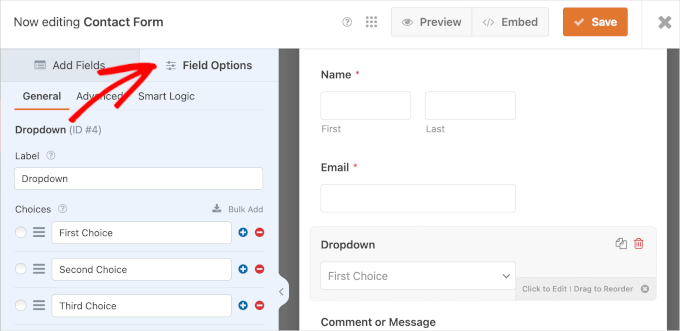
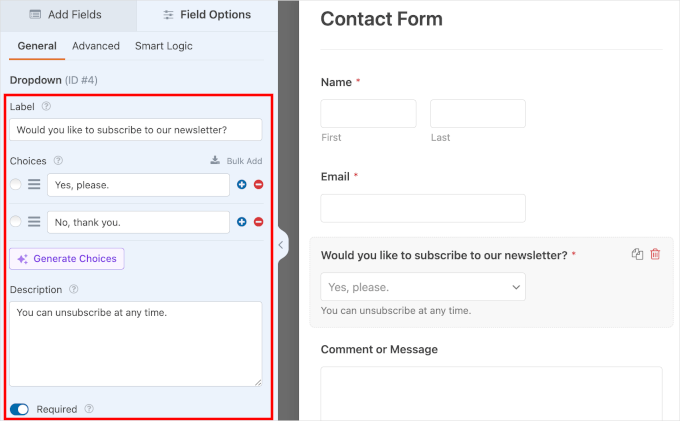
On the ‘General’ tab, fill out the necessary details:
- Label. For dropdowns, labels are usually questions like ‘Would you like to subscribe to our newsletter?’ We also recommend adding a placeholder text like ‘Select an option,’ to ensure users pick an answer rather than accidentally submitting the default choice.
- Choices. Let’s add ‘Yes, please.’ and ‘No, thank you.’
- Description. You can leave ‘You can unsubscribe at any time.’ in this field.
- Required. Toggle this option to require visitors to complete this field.
🧑💻 Pro Tip: AI Choices can save you time by instantly generating relevant options for dropdowns, multiple choice, or checkbox fields. Instead of typing each option manually, pick a pre-made prompt or enter your own, and let AI do the work for you.
Next, let’s set conditional logic.
Conditional logic allows you to show or hide fields based on a user’s previous answers. This keeps your forms short and tidy by only showing fields when they are relevant.
Setting up conditional logic makes forms easier to complete. By showing only relevant options based on previous selections, your form doesn’t overwhelm users with unnecessary choices.
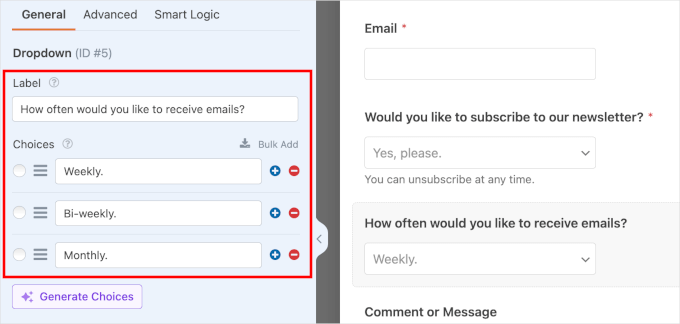
In this example, let’s display an additional field if users choose the ‘Yes, please’ option. We will allow the subscribers to choose how frequently they would like to receive promotional emails.
To make conditional logic work, we first need the field that will appear or disappear based on the user’s choice. Go back to the ‘Add Fields’ tab and click ‘Dropdown’ or any other field type. Then, complete the new field’s details.
Here’s an example:
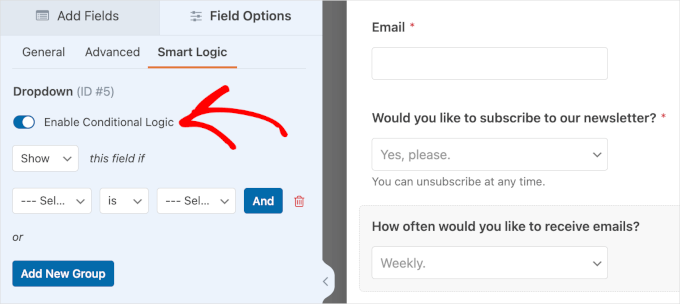
Now that the new field is ready, click on it and navigate to the ‘Smart Logic’ tab.
From here, you can activate conditional logic by toggling the ‘Enable Conditional Logic’ option.
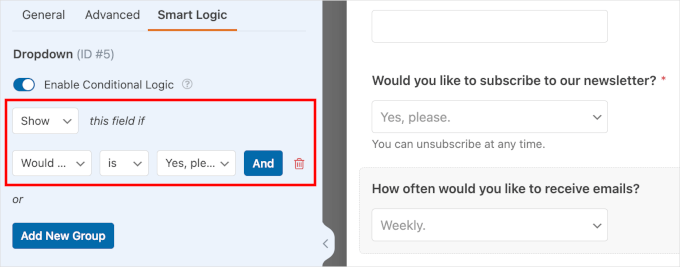
Once activated, you can configure conditional logic for your new field.
Start by choosing to ‘Show’ or ‘Hide’ the new field. Then, select an existing field and a user input.
Here’s our configuration for reference: ‘Show’ this field if ‘Would you like to subscribe to our newsletter’ is ‘Yes, please’.
🧑💻 Pro Tip: Want to add users directly to your email list? Just check out our tutorial on how to build an email list in WordPress.
Step 5: Personalizing Your Form Notifications and Confirmations
It’s time to personalize your new form.
You can start by setting up email notifications every time a new user submits a form. Head to Settings » Notifications and toggle the ‘Enable Notifications’ option.
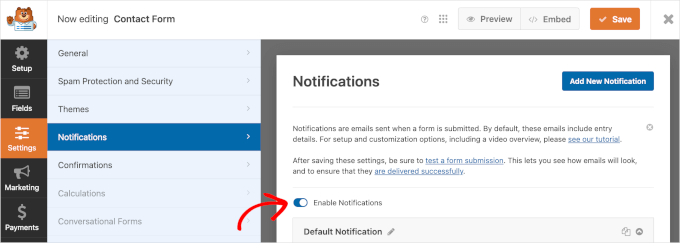
Then, go through your form’s default notification details below the toggle.
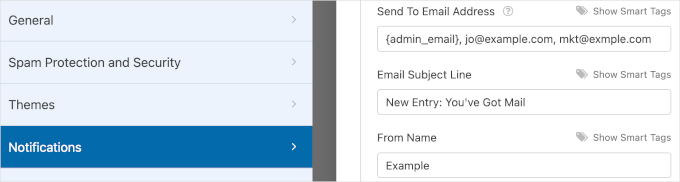
Some entries in the ‘Default Notification’ field have a ‘Smart Tag’, which automatically pulls information from your WordPress settings or the form fields themselves. That said, you can adjust the settings based on your needs.
For example, the ‘Sent To Email Address’ field has the {admin_email} ‘Smart Tag’. By default, this will be your WordPress site’s admin email address. So, any form submission notifications will go to the admin email’s inbox.
You can add more recipients, such as your email marketing specialist. Just be sure to separate each email with a comma.
If you want to learn how to send your form email to multiple people or different departments, read our guide on how to create a contact form with multiple recipients.
Next, the default copy for your ‘Email Subject Line’ is ‘New Entry: Your Form Name’. However, you can change the subject line to your liking as long as it’s easy to identify.
Users who submit a form should receive a notification in their emails. The ‘From Name’ field lets users know who sends the notification email.
The next field is ‘From Email’, and the ‘Smart Tag’ for this field is {admin_email}.
With this default setting, users will receive notification emails from your site’s admin email.
If you see a warning message here, it means your ‘From Email’ does not match your website’s domain (for example, using a @gmail.com address instead of @yourwebsite.com).
To prevent your notification emails from landing in the ‘Spam’ folder, you should make sure the ‘From Email’ matches your website’s domain.
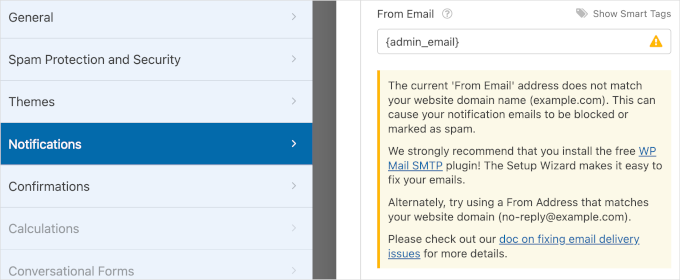
You can read our guide on setting up WP Mail SMTP to make sure that your emails end up in readers’ inboxes.
For each notification email sent, the recipient also has the option to reply to it.
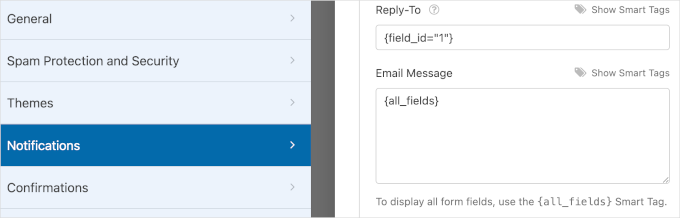
In the ‘Reply-To’ field, you can set where your reply will go if you respond to the notification email. You should usually set this to the visitor’s email address.
Simply click ‘Show Smart Tags’ and select the ‘Email’ field from your form.
Now, when you receive a submission and click “Reply” in your email inbox, your message will go directly to the visitor who filled out the form.
Lastly, the ‘Email Message’ field has the {all_fields} ‘Smart Tag’. So, your email message will contain your form fields along with user responses.
Once you’ve finished customizing your notifications, navigate to ‘Confirmations’. Notifications are email alerts sent after someone submits the form, whereas confirmations are the on-screen messages users see right away.
First, you can choose ‘Messages’, ‘Show Page’, or ‘Go to URL (Redirect)’ as your confirmation type.
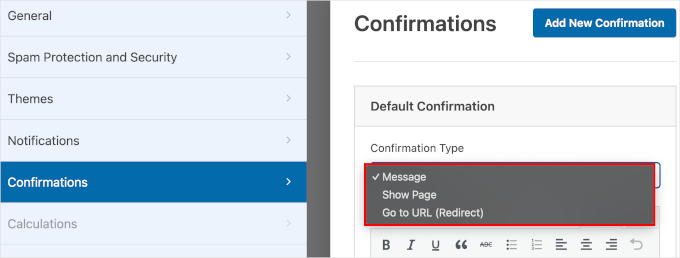
If you choose ‘Message’ as your confirmation type, you’ll display a confirmation message to let users know you’ve received their form submissions.
With this confirmation type, you can edit the default message to fit your brand. Go to the ‘Confirmation Message’ field and type your custom message into the text box.
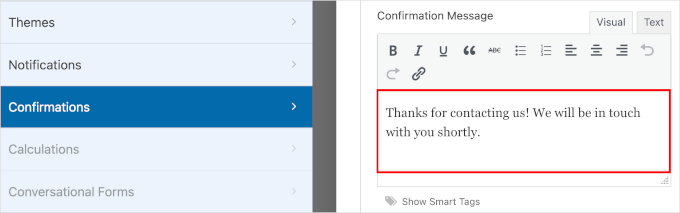
If you choose ‘Show Page’, you’ll need to select an existing page on your WordPress website. And if you opt for ‘Go to URL (Redirect)‘, you’ll insert a page URL.
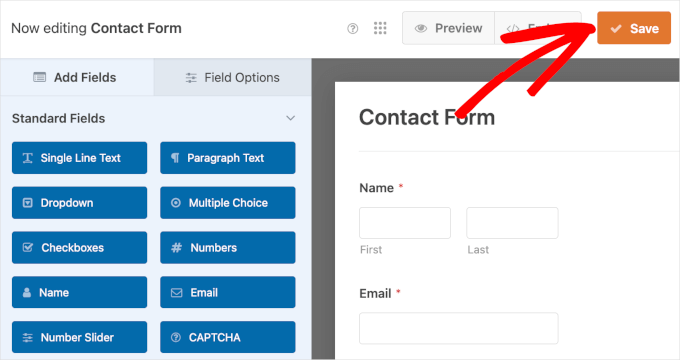
Before you move on to the next step, click ‘Save’ so you don’t lose your progress.
With that done, you are ready to display your new form on your WordPress site.
Step 6: Embedding Your Contact Form in a Page
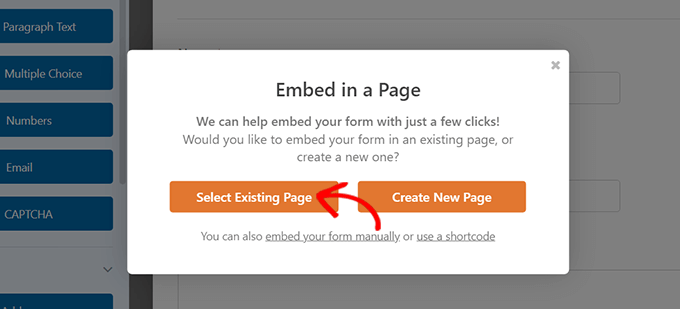
To display your new form on your WordPress site, you can use the ‘Embed’ wizard within the WPForms form builder.
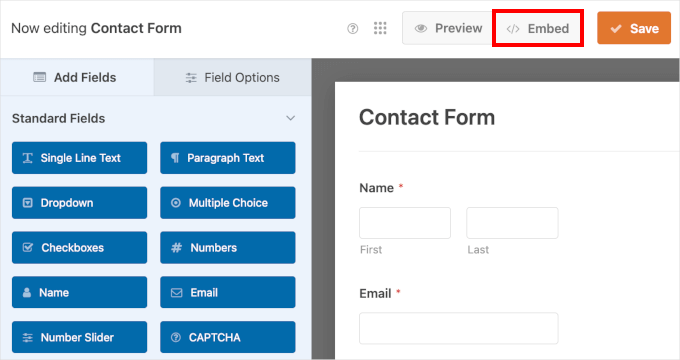
This will trigger the ‘Embed in a Page’ pop-up window. On it, you can choose ‘Select Existing Page’ or ‘Create New Page’, whichever is relevant to you.
In this example, let’s go with ‘Selecting Existing Page’.
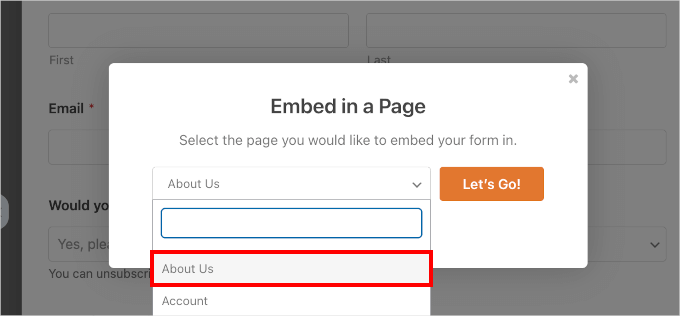
The next step is to choose the page where you want to display your new form.
Simply click the dropdown and choose an existing web page. Once you do that, click ‘Let’s Go!’.
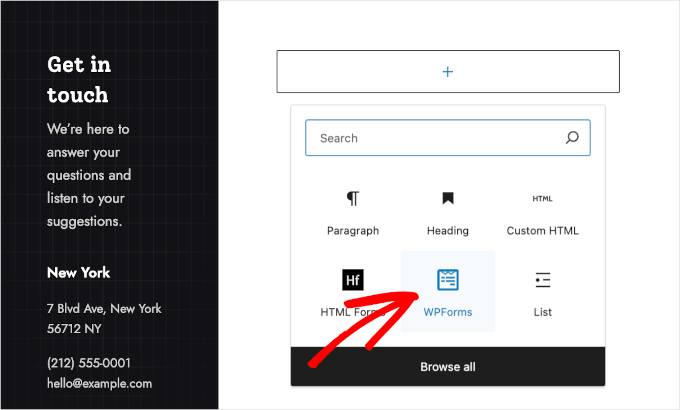
This will redirect you to the WordPress block editor.
From here, you need to click the ‘+’ button to add a WPForms block.
You can type ‘WPForms’ into the search bar, and you should see the WPForms block in the search results. Go ahead and click to add it.
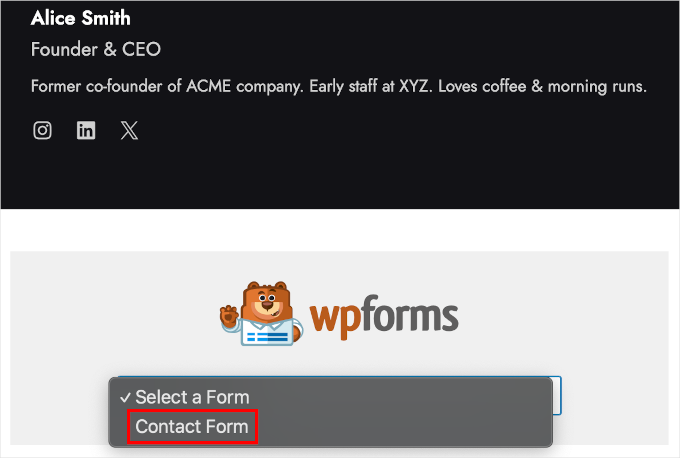
After adding the WPForms block, you’ll see a dropdown menu on your page.
Simply click on the dropdown and choose a form from the list. Let’s select ‘Contact Form’ since that’s the form we just made.
Step 7: Publishing the New Form on Your WordPress Site
In this final stage, let’s preview the form before publishing to make sure everything looks perfect. In the WordPress content editor, click View » Preview in new tab.
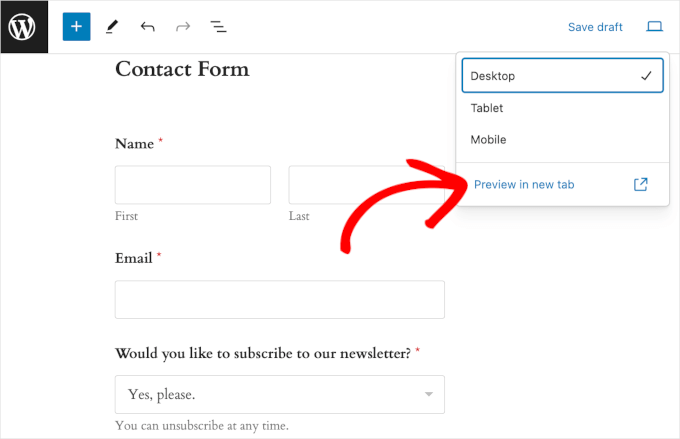
If you want, you can also preview how the form looks on tablets and mobile devices. All you have to do is click View » Tablet or Mobile » Preview in new tab.
Finally, if no further adjustments are needed, you can go ahead and hit ‘Update’.
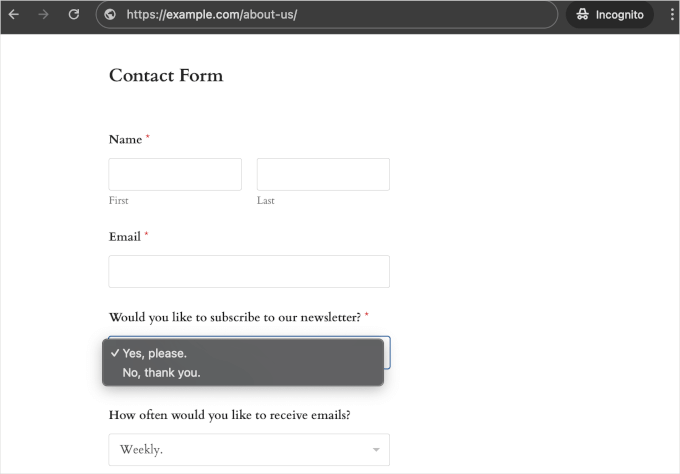
Congratulations! You’ve successfully added your new contact form with dropdown fields on your WordPress website.
Here’s how it looked on our demo website:
Bonus Tip: Creative Ways to Use Dropdown Fields
Dropdown fields are incredibly versatile and can be used for much more than just simple contact forms.
After years of building websites, we’ve discovered some really clever ways to use dropdowns that go beyond the usual contact forms. Here are some of our favorite creative use cases to get inspired by:
- 🛍️ Product Configurators – This lets users customize products, like ‘Choose your color,’ ‘Select size,’ or ‘Pick a finish.’ This is perfect for WooCommerce product pages or custom order forms.
- 📅 Appointment Scheduling – Small businesses or service websites can take advantage of cascading dropdowns for date and time slots. This is especially great for booking systems or consultation requests.
- 🗺️ Location-Based Services – You can add dropdowns for country, state, and city selection while embedding maps in your forms. This can be super useful for delivery services or local business directories.
- ✏️ Quiz Forms – Dropdowns are also perfect for multiple-choice questions. If you’re running an online course, then you can use these fields to keep everything neat and organized!
Above all, you can always customize and style your WordPress forms further, so they blend with your website design.
FAQs: Using Dropdown Fields in WordPress Forms
Here are answers to some of the most common questions about using dropdown fields in WordPress.
What is the best plugin for creating forms with dropdown fields?
We recommend WPForms as the best option. Its AI tools speed up the process, the drag-and-drop builder is super easy to use, and the dropdown field is included even in the free WPForms Lite version.
For advanced features like conditional logic, the WPForms Pro version is a great upgrade.
Can I add dropdown fields to my forms for free?
Yes! The free WPForms Lite plugin includes the standard dropdown field, letting you build organized and user-friendly forms without spending a dime.
Are dropdown fields mobile-friendly?
Definitely. When you use a quality plugin like WPForms, all form fields are fully responsive. That means dropdown menus automatically adjust to look great and work smoothly on desktops, tablets, and smartphones.
Additional Resources: Master Your WordPress Forms
We hope this guide has helped you learn how to create WordPress forms with dropdown fields. If you found this helpful, here are a few hand-picked guides to help you get more out of them:
- How to Customize and Style Your WordPress Forms
- How to Use a Contact Form to Grow Your Email List
- How to Block Contact Form Spam in WordPress
- How to Track and Reduce Form Abandonment in WordPress
- Ultimate Guide to Using WordPress Forms
If you liked this article, then please subscribe to our YouTube Channel for WordPress video tutorials. You can also find us on Twitter and Facebook.


kzain
I was struggling to create a WordPress form with dropdown fields, but this guide made it incredibly easy. I love how you’ve broken down the process into simple steps and recommended user-friendly plugins like WPForms. The screenshots and tips on customizing the form fields are super helpful. You’ve saved me so much time and frustration.
Moinuddin Waheed
I remember struggling to make the forms that can have these features.
Now I can easily use wpforms to make any form with dropdown feature.
It helps in using the conditional logic in the wpforms for better interaction with users.
it helps get best insights from users and helps understand the audience better.
I have been using wpforms quite long and making use of these features for better user interaction.
Jiří Vaněk
Dropdown fields in WPForms work really well. I had a few fields in my contact form where I wanted users to fill in their own words, but no one was using them because it was too time-consuming for everyone. It wasn’t until I realized the power of dropdown fields that things started to change. Instead of the traditional text fields, I offered dropdown options, and the completion and submission rate of the form increased by tens of percent. It’s incredible how such a simple change can improve form performance and make it easier for people to fill them out.
Mrteesurez
Creating forms with drop-down fields has been a game-changer for me, especially when dealing with complex forms that require conditional logic. I remember struggling with clunky form builders in the past, but WPForms made it incredibly easy to create intuitive, user-friendly forms. Dropdown fields are particularly useful for streamlining choices and ensuring users can quickly find the right option. The ability to customize and fine-tune these forms without needing any coding knowledge has saved me countless hours. This method is not just easy but also highly efficient, especially for anyone managing multiple forms on their sites.