


Are you tired of juggling appointments and missing out on bookings because you’re tied up with manual scheduling? I know how frustrating it is when managing bookings takes precious time away from serving your customers.
With the right WordPress plugin, you can easily create a booking form that’s completely customized for your specific business needs. I recommend WPForms and Sugar Calendar as top-tier options.
In this article, I’ll share how to create a booking form in WordPress that’s both efficient and user-friendly. 📅
📌 TL;DR: I recommend WPForms for creating a versatile, one-page booking form for events or simple appointments. Its drag-and-drop builder and huge template library make it incredibly easy to get started. For service-based businesses that need a dedicated, multi-step scheduling system with time slots and staff availability, Sugar Calendar Bookings is the better choice.
Why Create a Booking Form in WordPress?
Creating a booking form in WordPress lets your visitors schedule appointments, reserve spots, or buy tickets directly from your website.
Think about how often you book appointments online, whether it’s a doctor’s visit, reserving a table, or scheduling a callback. Your customers expect this same convenience. They want to easily book online without having to pick up the phone.
If your business accepts appointments, then it’s smart to create an online booking form. This is any form that lets visitors book an appointment, buy tickets to an event, or make a reservation online.
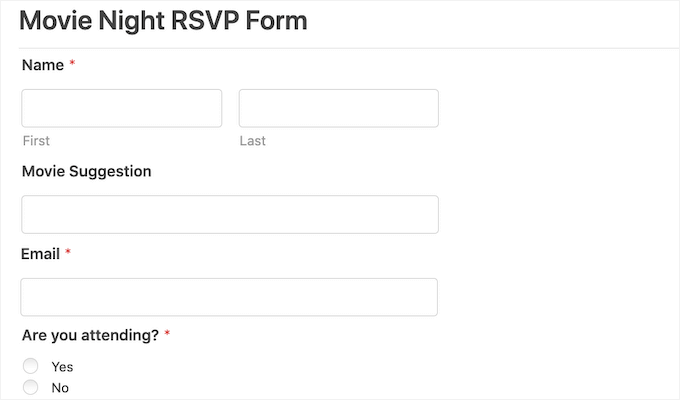
With a booking form, you’ll never lose another customer just because you weren’t around to answer the phone.
Booking forms can also automate a lot of the booking process. This includes collecting payments and sending your customers helpful reminder emails. This can improve the quality of the customer experience. It can also save you from lots of annoying admin work.
That said, let’s take a look at how you can create a booking form in WordPress.
I’ll show you two different ways to do this, so simply click the links below to jump to the method you prefer:
Expert Tip: Not sure which method to choose? Use WPForms if you need a flexible, all-in-one form for simple bookings, event RSVPs, or registrations on a single page. Choose Sugar Calendar if you need a dedicated appointment scheduling system with managed time slots and staff availability.
- Method 1. How to Create a Booking Form Using WPForms (One-Page)
- Method 2: Create a Booking System with Sugar Calendar Bookings (Multi-Step)
- FAQs About Creating a Booking Form in WordPress
- Video Tutorial on How to Create a Booking Form in WordPress
- More Guides for Managing Booking and Appointments in WordPress
Method 1. How to Create a Booking Form Using WPForms (One-Page)
WPForms is the best form builder for WordPress, used by over 6 million websites. It lets you quickly add a booking form to your website using AI tools and a simple drag-and-drop builder.
This form builder also comes with 2,000+ ready-made templates that can help you get started, including event planning templates. Plus, WPForms integrates with top email marketing providers, which makes it easy to send reminders to both customers and staff.
At WPBeginner, we actually use WPForms for a lot of forms, including our contact form and annual readers’ survey. For more information, see our complete WPForms review.
Step 1: Install and Activate the WPForms Plugin
First, you’ll need to create an account on the WPForms website. Just click the ‘Get WPForms Now’ button and follow the setup instructions.

💡 Note: For this post, we’ll be using the WPForms Pro version because it comes with a full template library, powerful addons, and multiple payment provider integrations.
If you’re looking for a free form builder plugin, there is also a WPForms Lite version. It lets you create simple forms and accept Stripe payments, it just doesn’t include all of the premium templates and integrations.
After signing up, go ahead and download the WPForms Pro plugin as a .zip file and copy your license key from your account dashboard.
Next, it’s time to install the plugin on your WordPress site.
From your WordPress admin dashboard, navigate to Plugins » Add Plugin.

Then, you can click the ‘Upload Plugin’ button at the top.
In the file uploader, click ‘Choose File’, select the .zip file you downloaded earlier, and hit ‘Install Now’.
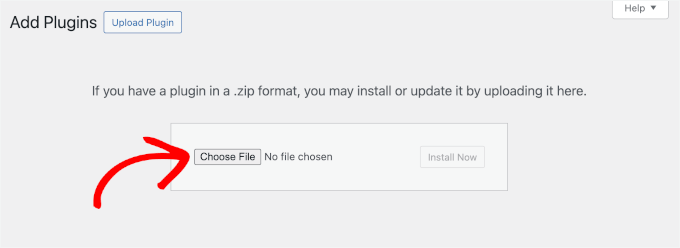
Once the installation is complete, click ‘Activate’ to start using the plugin. If you need help, then please see our guide on how to install a WordPress plugin.
After activating WPForms, head over to WPForms » Settings in your WordPress dashboard to activate your license key.
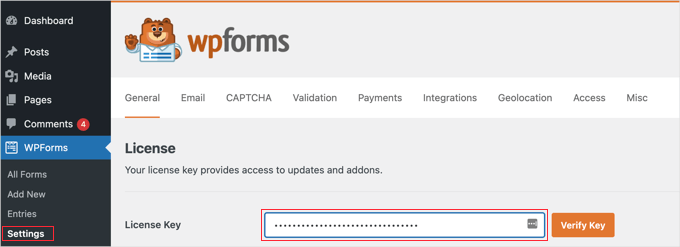
Just enter your key into the respective field and hit ‘Verify Key.’ You’ll find this key in your WPForms account.
Step 2: Create Your Booking Form in WPForms
Next, you need to go to WPForms » Add New.
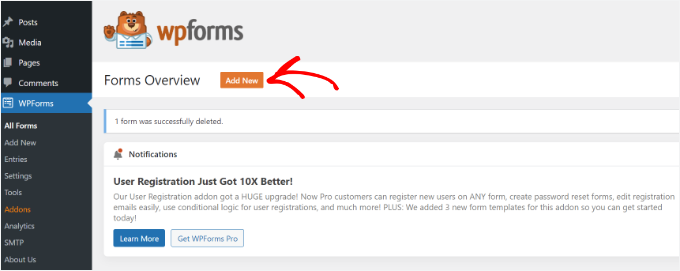
This will take you to the Setup page.
To start, give your booking form a name.
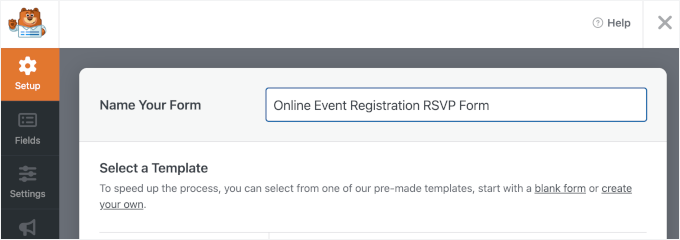
Next, you’ll choose how you’ll build your form.
If you have the Pro license, you can use the AI Form Builder. This allows you to generate all kinds of forms using a simple prompt.
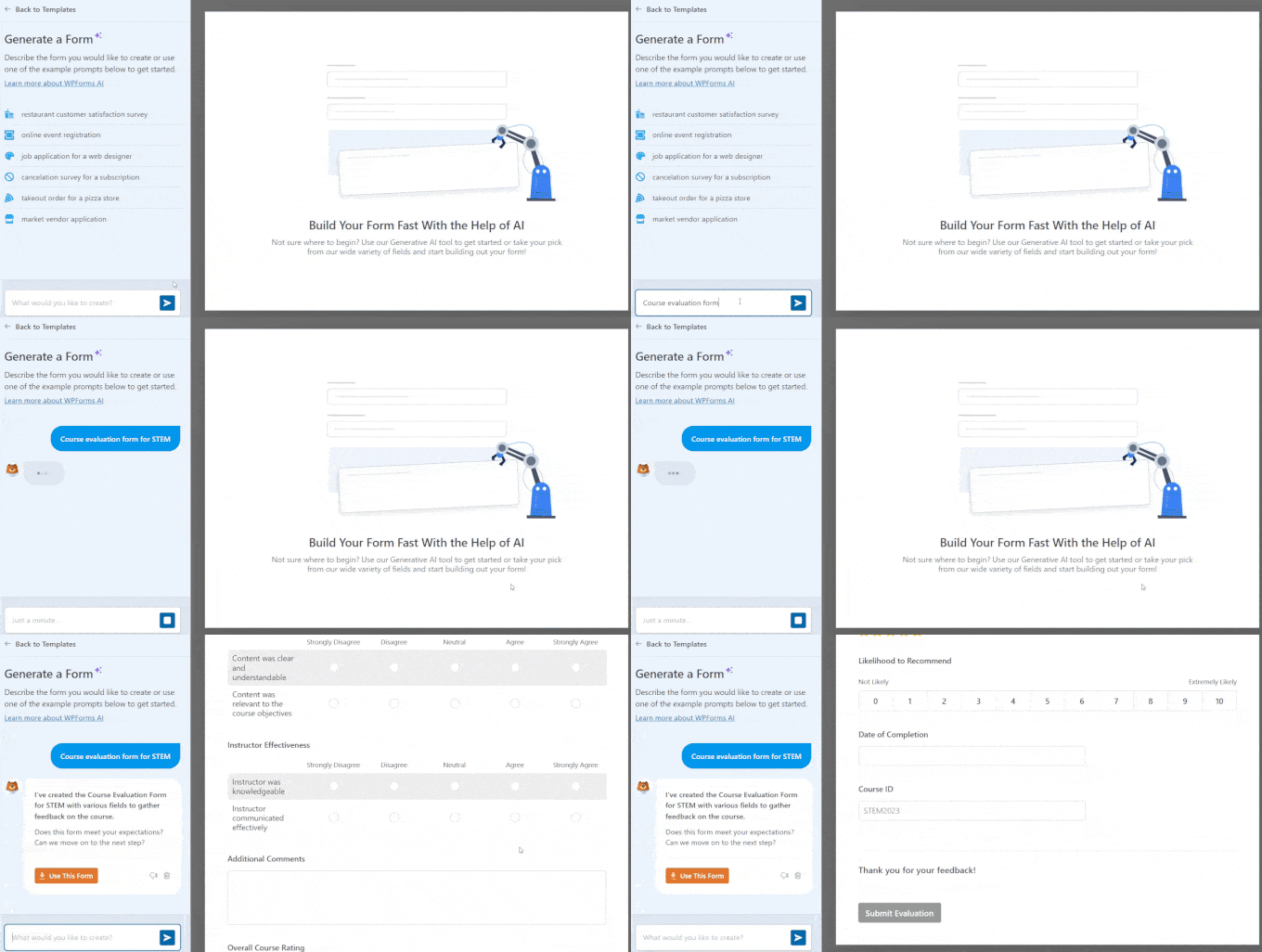
For example, you could type: ‘Create an appointment booking form for a dental clinic asking for the patient’s name, phone number, and preferred appointment time.’
That said, WPForms has lots of templates so you can quickly get started.
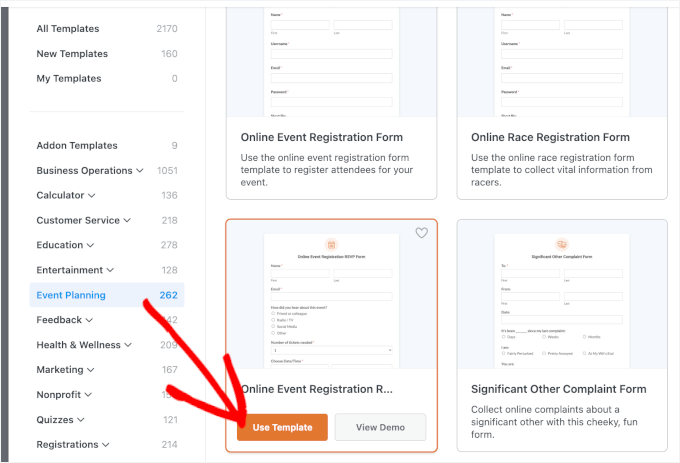
Since we’re creating a booking form, it makes sense to select the Event Planning category in the sidebar. Here, you’ll find templates for things like wedding invitations, school trip bookings, DJ hires, and more.
🧑💻 Pro Tip: WPForms allows you to preview a template before using it. Simply click on the template’s ‘View Demo’ button to preview the template in a new tab.
Also, keep in mind that templates are just a starting point. You can easily delete or rename fields to suit any business, like a training service or a consulting firm.
In this tutorial, we’re going to use the Online Event Registration RSVP form. When you find a design that you want to use, click on the ‘Use Template’ button.
This will take you to the WPForms drag-and-drop editor, where you’ll see customization options on the left and a live form preview on the right.
The default form includes fields for customer details like name and email address, along with a question about how they heard about your event. This can help you identify which marketing channels are bringing in the most bookings.
For details about conversion tracking, see our guide on conversion tracking in WordPress.
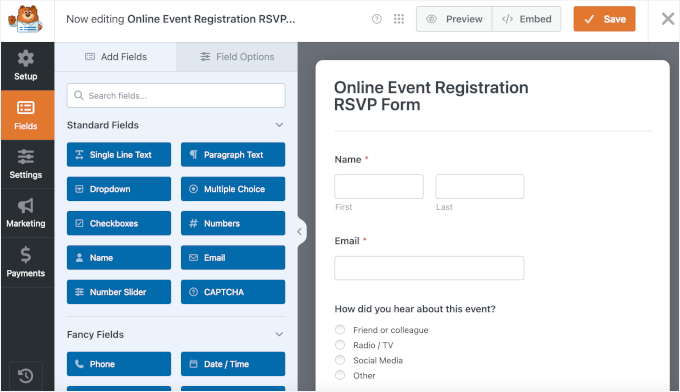
It also allows visitors to add multiple people to a single booking, which is ideal for group events like tours or shows. Plus, customers can use dropdown fields to choose their preferred date and time.
All of these fields are fully customizable. Simply click on any field to open its settings in the left-hand panel and make your changes.
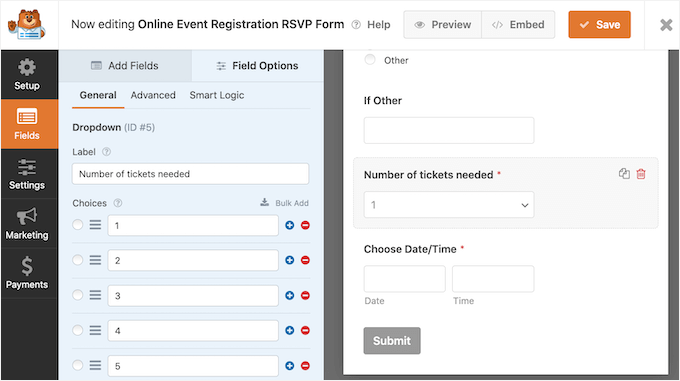
If needed, you can add more fields to your booking form. To do this, click the ‘Add Fields’ tab in the left-hand menu if it isn’t already selected.
Then, simply drag and drop your chosen field into place on your booking form. You also change the order these fields appear in your form using drag and drop.
Once you’re happy with your changes, click the ‘Save’ button.
Step 3: Set Up Form Notifications and Confirmations
Now that you’ve created your booking form, it’s important to set up some notifications.
Every time someone fills in the booking form, WPForms will send an email to your WordPress admin by default.
Sometimes, you may want to send these emails to a different address. You may even want to email multiple people.
This is easy to do using WPForms. To edit your email notifications, click on Settings in the left-hand menu. Then, select Notifications.
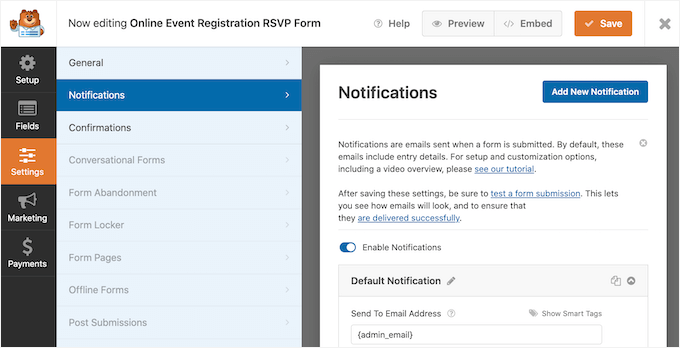
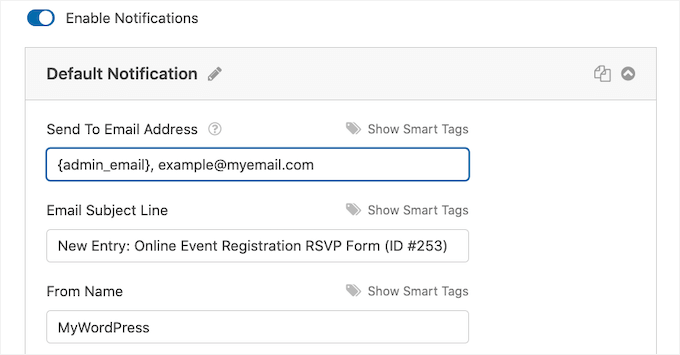
On this screen, find the ‘Send To Email Address’ field. By default, this is set to {admin_email}. This is a dynamic value that pulls the main site admin email address (the one listed under Settings » General in your WordPress dashboard).
You can delete this dynamic text and replace it with any other email address. For example, if you want booking requests to go directly to your receptionist instead of the site owner, simply type their email address directly into the ‘Send To Email Address’ field.
If you want to email multiple people, then just separate each address with a comma.
💡 Note: Make sure all of the emails sent from your website go to the recipient’s email inbox and not to the spam folder. The best way to do this is by using an SMTP service provider. For details, see our guide on how to fix WordPress not sending email issue.
Next, let’s switch to the Confirmations tab to choose what visitors see after submitting your form.
WPForms gives you three options:
- Message — Show a confirmation message on the same page
- Show Page — Send users to another page on your site, like a thank-you page
- Redirect (Go to URL) — Take visitors to any external or internal link
For most forms, a simple confirmation message works best since it’s instant and doesn’t require loading a new page.
To use this option, select ‘Message’ from the dropdown and enter your custom text. Instead of a generic thank-you, try setting clear expectations. For example: “Thanks for contacting us! We’ve received your message and will get back to you within 1–2 business days.”
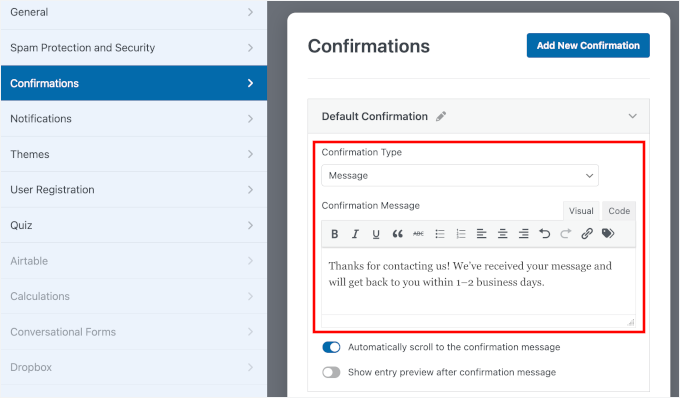
This lets users know their submission was successful and tells them what happens next.
That said, redirects can be useful if you want to guide visitors further.
For example, you might send them to a page with product recommendations, a special offer, or additional details about your services. It’s also a great option if you’re tracking conversions in analytics tools.
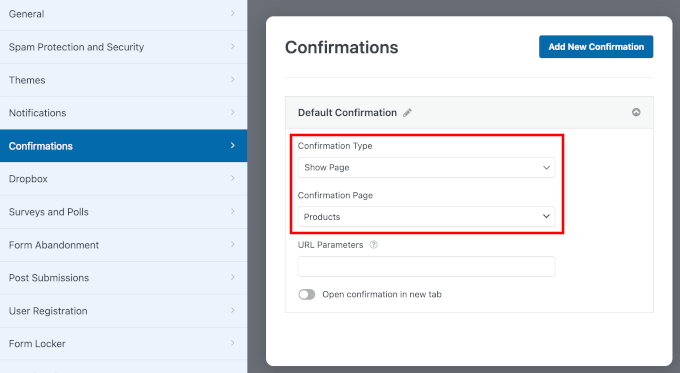
Once you’re happy with your confirmation settings, don’t forget to click the ‘Save’ button.
Step 4: Test and Publish Your Booking Form
Before going live, it’s a good idea to test your form to make sure everything works as expected.
In the WPForms builder, click the ‘Preview’ button at the top to see how your form will appear to visitors.
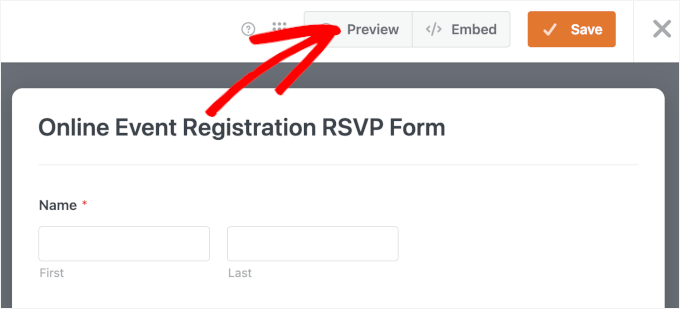
On the preview screen, start by checking that all fields are visible and easy to understand.
Next, fill out the form using test details. Try leaving a required field empty or entering an invalid email address to confirm that the validation messages work properly.
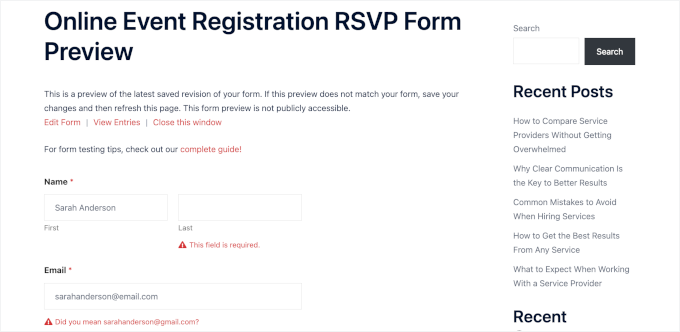
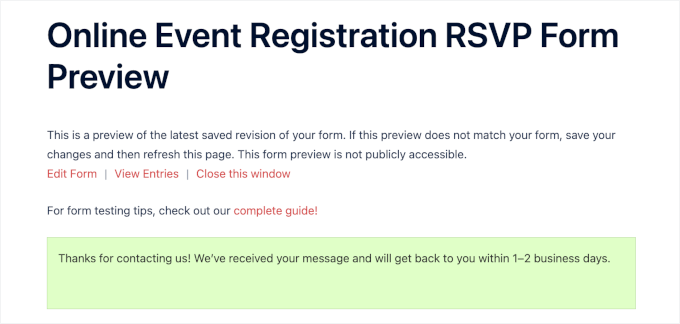
Once you’re satisfied, click ‘Submit’ to make sure your confirmation message or thank-you page displays correctly.
Here’s what it looks like on my demo site:
Once you’re happy with how everything looks and works, it’s time to save it and add it to your WordPress site.
With WPForms, you can easily embed your booking form using the built-in embed wizard. Just click the ‘Embed’ button at the top of the builder.
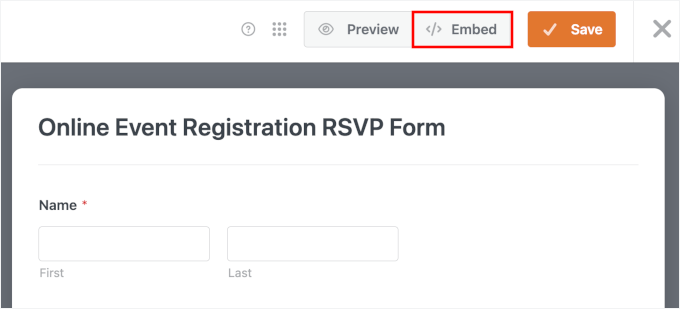
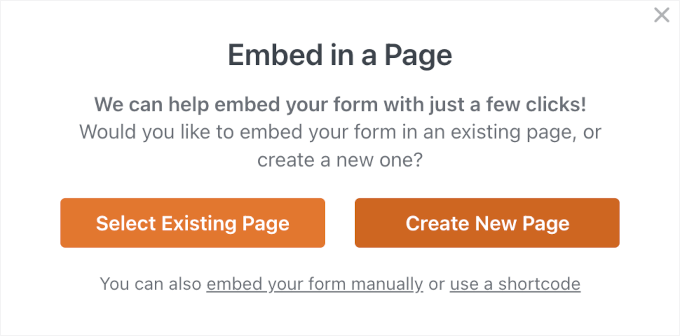
A popup will appear asking where you’d like to place the booking form.
If you select ‘Select Existing Page,’ WPForms will prompt you to choose where to add your form.
If you select ‘Create New Page’, WPForms will generate the new page for you and automatically add your booking form to it. This is often the better option since a dedicated page helps visitors focus without distractions.
For this tutorial, I’ll go with ‘Create New Page.’
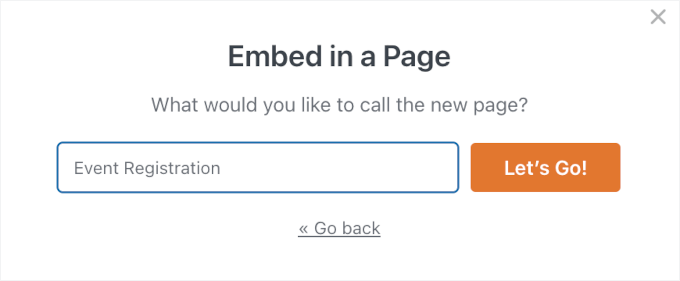
On the next popup, you can give your new page a name. Make sure it’s clear for easier organization.
After that, just click ‘Let’s Go!’
This will open the WordPress block editor with your form already embedded.
💡 Note: If you prefer using shortcodes, you can find your form’s shortcode under WPForms » All Forms. Simply paste it into any page, post, or widget area. That said, the WPForms block is usually the easiest way to embed your booking form.
From here, you can use the ‘Form Settings’ panel on the right to show or hide the form title and description.
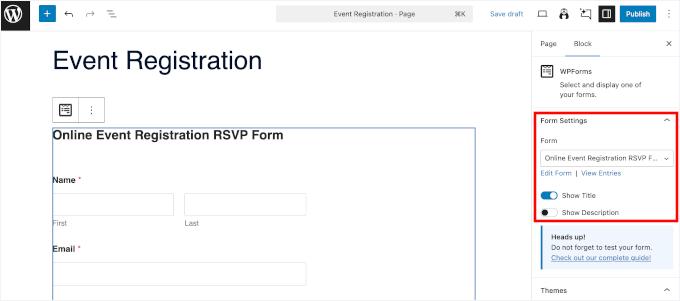
You can also scroll down to explore more styling options, such as applying a theme.
Additionally, there are border and color settings for your form fields. Feel free to play around with these settings to better match your site’s design.
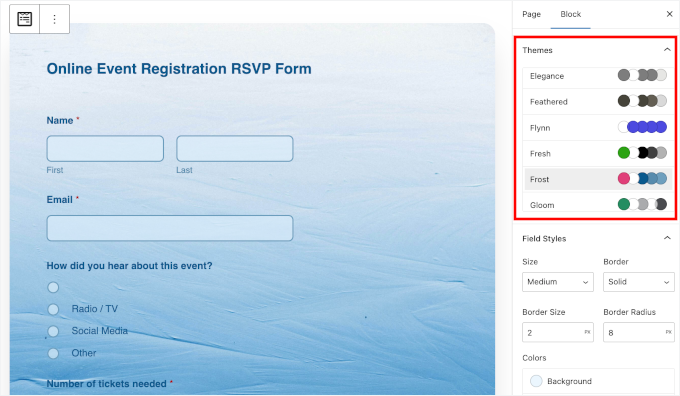
Once you’re done, it’s time to hit ‘Update’ or ‘Publish’ to launch your page with the booking form.
That’s it! Visit your website and you should now see your booking form in action.
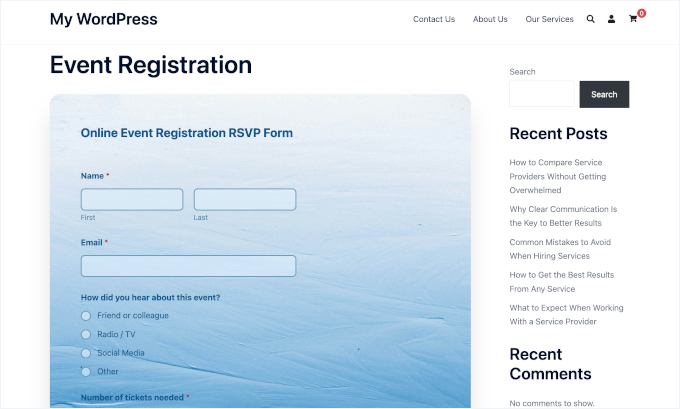
📚 Related: You can automatically send new bookings to your Google Calendar. So, you never miss an appointment and can manage your schedule more easily. See how to add Google Calendar Events from WordPress contact forms for details.
Method 2: Create a Booking System with Sugar Calendar Bookings (Multi-Step)
Sugar Calendar Bookings is the best WordPress booking plugin that makes it easy to set up services, accept appointments, and manage your schedule.
This method is a great choice if you want a complete booking system. In the steps below, I’ll walk you through everything from installing the plugin to displaying your first booking form.
Step 1: Install and Activate Sugar Calendar Bookings
To get started, you’ll need to create an account on the Sugar Calendar Bookings website. Simply click the ‘Get started now’ button and follow the checkout process.
💡 Note: Sugar Calendar and Sugar Calendar Bookings are two different plugins. Sugar Calendar handles events and scheduling, while Sugar Calendar Bookings specializes in appointment booking features like time slots, payments, and customer management.
Once you’ve signed up, download the Sugar Calendar plugin as a .zip file and copy your license key from your account dashboard.
Next, head over to your WordPress dashboard and navigate to Plugins » Add Plugin.
From there, click the ‘Upload Plugin’ button, choose the .zip file you just downloaded, and click ‘Install Now’.
After the installation is complete, go ahead and activate the plugin. If you need help, you can follow our guide on how to install a WordPress plugin.
After activation, you’ll need to verify your license key.
Simply go to Bookings » Settings and paste in your key to unlock all the features.
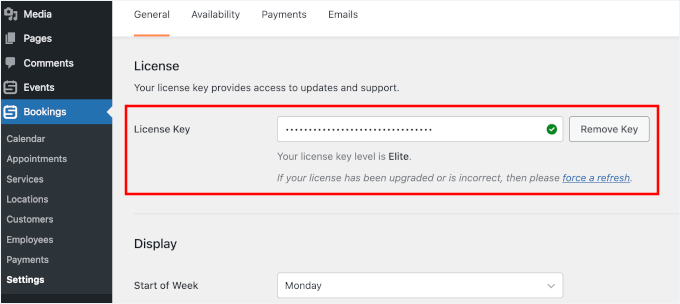
With that done, you can move on to setting up your booking system.
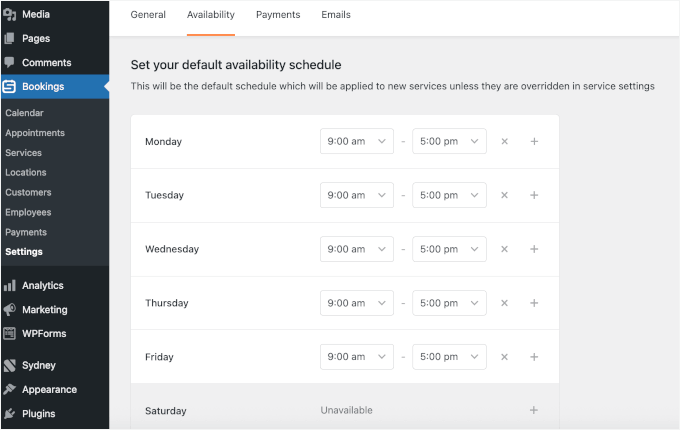
Start by configuring your business availability in the ‘Availability’ tab, where you can define your working hours and days.
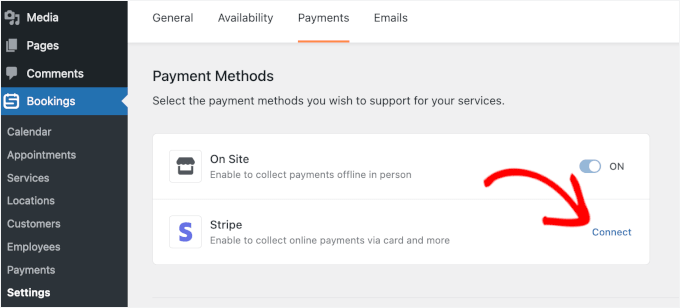
Then, switch to the ‘Payments’ tab to connect a payment method like Stripe, so you can start accepting payments for your bookings.
Don’t forget to click ‘Save Changes’ when you’re done.
Step 2: Complete Your Business Information
Now that Sugar Calendar is installed, you’ll first need to add your business information. This will come in handy when you set up your services for booking in the next step.
If you have a physical office, shop, or studio, adding your location can be helpful for your customers. That said, if you offer online consultation, then you can feel free to skip this step.
To add your location, go to Bookings » Locations from your WordPress admin area.
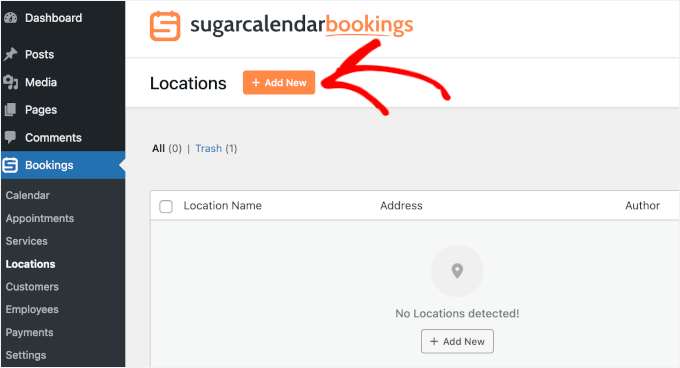
This will open a panel on the right side of the screen, where you can add the details for your physical location, such as location name, full address, phone number, and business website (if any).
Click ‘Add New’ to save your progress.
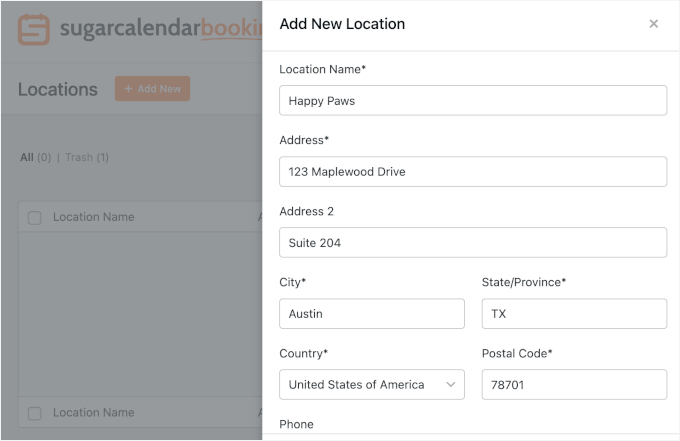
If you run multiple locations, you can go ahead and repeat the steps to add them all.
Next, you can add your employees.
To do this, go to Bookings » Employees in your admin area.
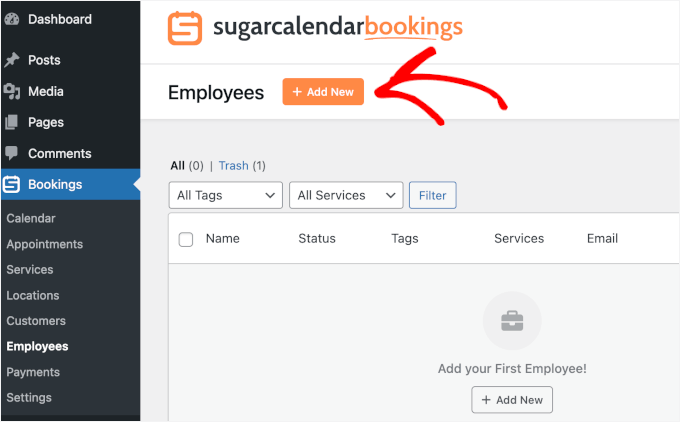
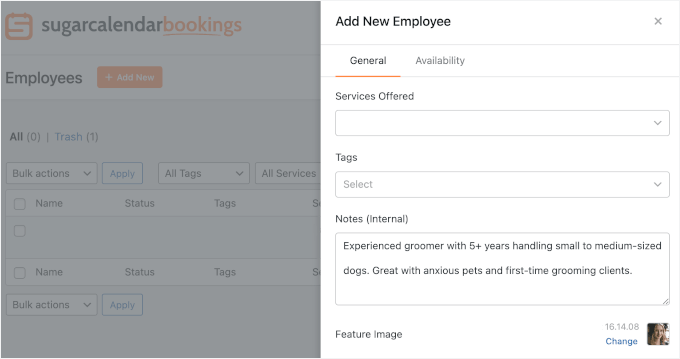
In the panel that appears on the right, simply add your employee’s details.
You can start with the name, email address, and phone number. Below those fields, you might notice the ‘Services Offered’ and ‘Tags’ fields. Feel free to leave them as is now, as they will automatically be added when you set up your services.
Instead, you can write a short description and upload a profile picture for your employee.
From here, let’s switch to the ‘Availability’ tab, where you can customize each employee’s schedule throughout the week.
First, toggle off the ‘Use Default Availability’ option.
Then, click the ‘X’ button next to any day to mark the employee as unavailable. You can also adjust the available hours for each day to match their working schedule.
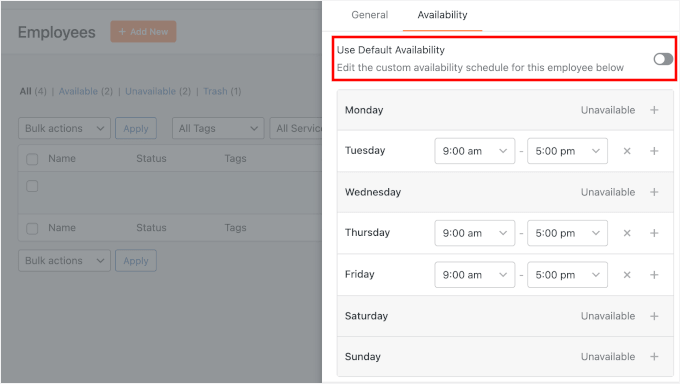
When you’re done, click the ‘Add New’ button at the bottom to save and repeat the process for all your employees.
Step 3: Setup Services for Booking
Now that you have your location and employee registered, it’s time to set up the services that your customers will be able to book.
Think of a “service” as anything you offer that requires an appointment — like a haircut, a coaching session, or a consultation call.
To get started, head over to Bookings » Services in your WordPress dashboard. Once you’re there, click the ‘Add New’ button to create your first service.
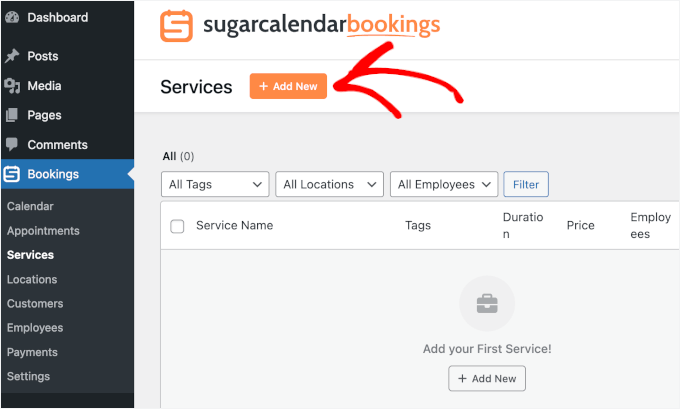
You’ll now see a form where you can fill in the details for your service.
You can start with the service name. As this will show on the front end, I recommend giving your service a clear, descriptive name that your customers will recognize, such as “Nail Trimming” or “Basic Grooming.”
Then, you can set how long the service takes in the ‘Duration’ field. This helps Sugar Calendar block out the right amount of time on your calendar for each booking.
🧑💻 Pro Tip: It helps to think carefully about your duration settings at this stage. Adding a buffer between appointments can prevent your schedule from getting overbooked.
For example, if nail trimming appointments usually take 15 minutes, you might set the ‘Duration’ to 30 minutes to give yourself time to clean up before the next client.
Next, go ahead and add where the service takes place, whether that’s a physical address, a phone call, or an online meeting link.
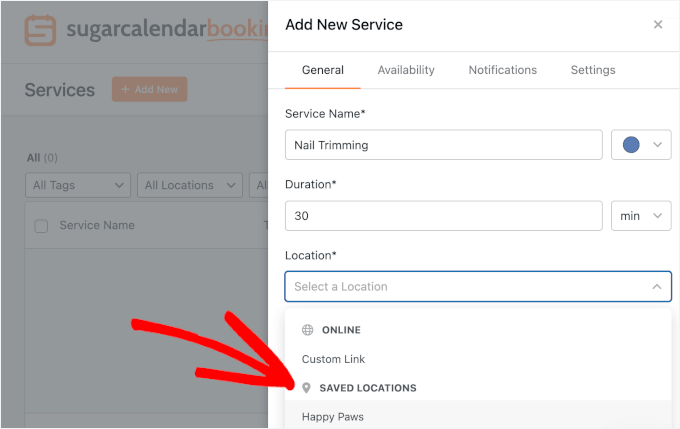
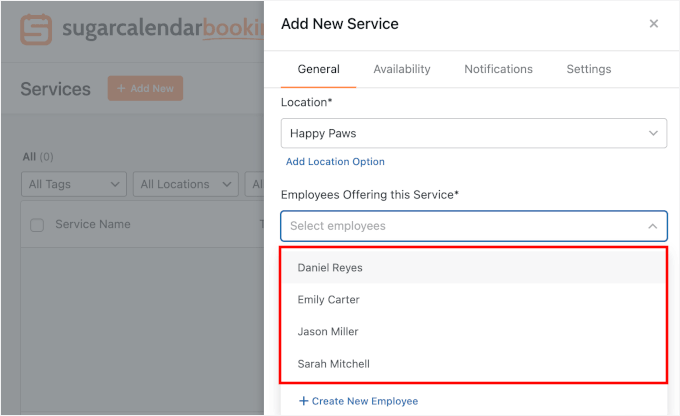
After that, you can choose the employee who will handle this service.
You can choose multiple employees for a popular service.
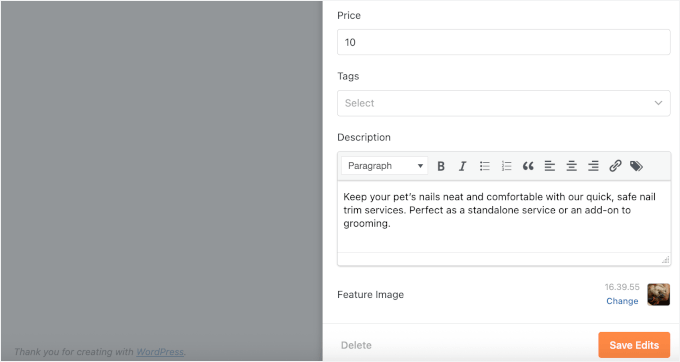
In the ‘Price’ field, enter the cost of the service for customers.
You can also add a description and featured image for your service.
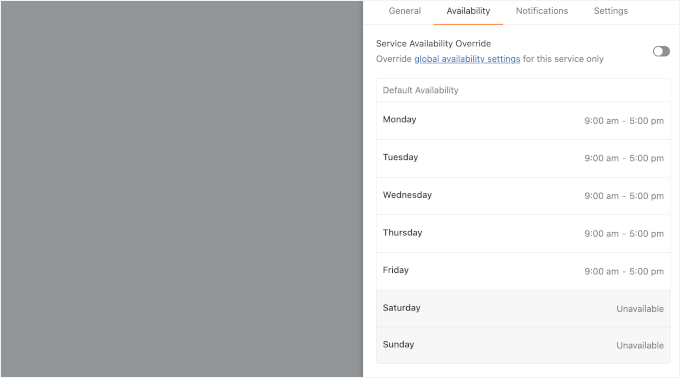
Next, you can head over to the ‘Availability’ tab.
Here, you can turn on and off specific days of the week, depending on your business hours and your employees’ availability.
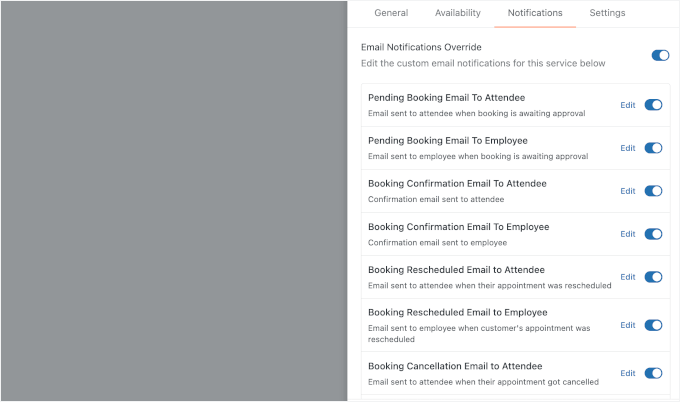
In the ‘Notifications’ tab, you’ll find that Sugar Calendar Bookings has set up default email templates for booking confirmations, rescheduling, and cancellations.
Feel free to customize these messages using the ‘Edit’ option. That said, I recommend keeping all notifications enabled so both you and your customers don’t miss important booking updates.
After that, you can move on to the ‘Settings’ tab.
Here, you can enable or disable the service and configure your payment method.

Once you’ve checked all the details, click ‘Save’ to store your service and move on to the next step, where we’ll add the booking form to your WordPress website.
You can always come back and edit these details later if anything changes.
Step 4: Display Frontend Booking Form
It’s time to make your booking form visible to your visitors.
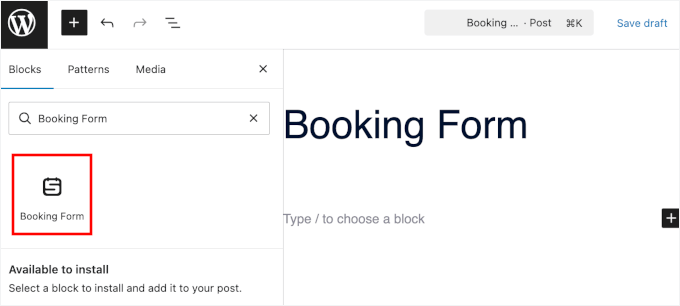
With Sugar Calendar, you can easily add a Booking Form block to any page or post on your site. Just create a new page or post, or open an existing one to edit it.
In the WordPress block editor, click the ‘+’ icon and select the ‘Booking Form’ block to add it to your page.
💡 Note: Sugar Calendar Bookings also lets you use a shortcode to add your booking forms to widget areas or page builders. You can find your form’s shortcode under Bookings » Services » Share.
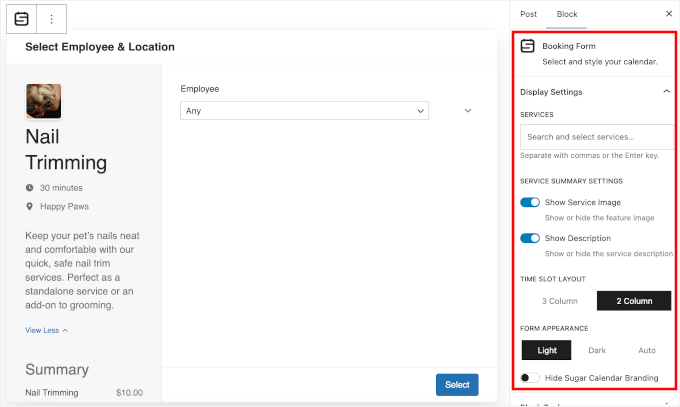
Once the Booking Form block is in place, you can configure its settings in the ‘Display Settings’ section on the right-hand panel.
If you have multiple services, you can choose the one you want to display by using the ‘Services’ search box.
Your booking form is now ready!
I recommend previewing your page before hitting publish, though, just to make sure the form is displaying correctly and showing the right service details.
When everything looks good, click ‘Publish’ to make your booking form available to your visitors.
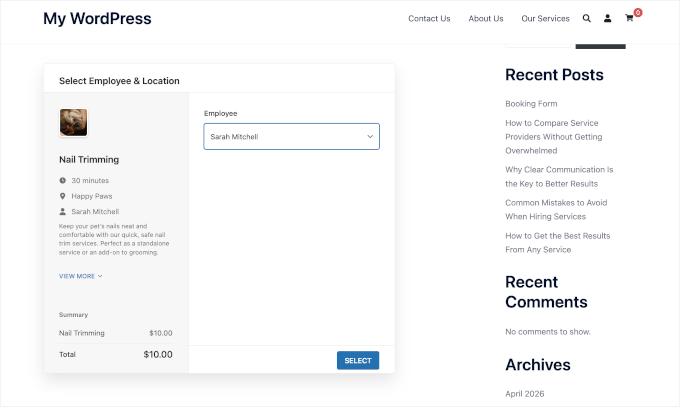
You can now share the page link with your customers, add the page to your navigation menu, or link to it from anywhere on your site.
FAQs About Creating a Booking Form in WordPress
Are you still unsure about the best way to handle bookings? Here are answers to some of the most common questions we get about WordPress booking forms.
What should I do if my form is not displaying correctly?
A good first step is to double-check that you’ve embedded the form correctly on the page. You should also:
- Make sure all your plugins are updated
- Temporarily deactivate plugins or switch to a default WordPress theme to check for compatibility issues
- Clear your WordPress cache, including plugins and CDN
If the issue still isn’t resolved, then reaching out to the plugin’s support team is usually the fastest way to fix it.
Is it possible to customize the appearance of the booking form?
Yes, you can customize how your booking form looks to better match your brand.
For example, WPForms lets you apply a theme directly in the WordPress block editor. Whereas Sugar Calendar Bookings includes built-in light and dark modes.
Can I accept payments through my booking form?
Yes, you can accept payments when users book an appointment.
Depending on your setup, you can integrate payment gateways like Stripe or PayPal to collect payments during the booking process. This is especially useful if you offer paid services like coaching sessions, online classes, or consultations.
Make sure to test the payment flow to ensure everything works smoothly before going live.
Will customers receive a confirmation after booking?
Yes, most booking plugins automatically send a confirmation email after a successful booking. You can usually customize these emails to include booking date, time, and service, your business contact information, and any next steps or instructions.
How do I prevent spam bookings?
Spam can be an issue with any online form, but there are easy ways to reduce it.
WPForms, for example, includes built-in anti-spam tokens and integrates seamlessly with Akismet to stop spam automatically. You can also enable CAPTCHA (like Google reCAPTCHA or hCaptcha) directly in the form settings for extra protection.
Video Tutorial on How to Create a Booking Form in WordPress
More Guides for Managing Booking and Appointments in WordPress
I hope this article helped you learn how to create a booking form in WordPress. Next, you may also want to learn:
- Best WordPress Appointment and Booking Plugins
- How to Create an RSVP Form in WordPress
- How to Sell Event Tickets Using WordPress
- How to Allow User Registration in WordPress
- Must-Have WordPress Plugins for Business Websites
If you liked this article, then please subscribe to our YouTube Channel for WordPress video tutorials. You can also find us on Twitter and Facebook.



Dennis Muthomi
Love this article on booking forms in WordPress!
I have clients who I manage their site and sometimes I brief them on a call on how their websites are doing. I was using Google Calendar but it’s too much for my clients. When I found out it can be done using WPForms I’m stoked because I already have this plugin. With this guide I’m sure I’ll get way better and more functional results than what I have now which is too complicated for me and the client.
Jiří Vaněk
I’m creating a website for my wife who specializes in a specific form of outdoor psychotherapy. I tried setting up a booking form based on Google Calendar, but it’s not working well at all. When I see that it can be done using WPForms, I’m thrilled because I already have this plugin. With the help of this guide, I firmly believe that I’ll finally achieve much better and more functional results than with my current solution, which is unnecessarily complicated for both sides.