


Whether you are a photographer, designer, or business owner, your portfolio is the most powerful tool you have to win new clients. But it can be frustrating for visitors if they have to sift through dozens of images or projects just to find what they are looking for.
I’ve seen how a disorganized portfolio can cause you to lose out on opportunities. If a potential client wants to see your ‘Logo Design’ case studies but gets lost in your ‘Web Development’ projects, then they might just move on.
That’s where a filterable portfolio comes in. It allows visitors to sort your work by category, tag, or project type with a single click, making it easy for them to find exactly what they need.
In this guide, I will show you how to easily create a filterable portfolio in WordPress, step by step.

I will cover two methods, so you can choose the one that best fits your needs:
- Method 1: Envira Gallery (Recommended for Photos) – Best if you want to display a gallery of images (like a wedding album or photography showcase).
- Method 2: WPFilters (Recommended for Projects) – Best if you want to filter case studies, blog posts, or WooCommerce products.
Why Create a Filterable Portfolio in WordPress?
Most photographers and designers create beautiful portfolios showing their best photographs. However, sometimes, people looking to hire you may want to see if you have done something similar before.
For example, someone looking for a fashion photographer might want to see your previous work in fashion.
Adding filters to your portfolio allows you to show your work under different tags. It also helps your users to easily sort items in your portfolio.
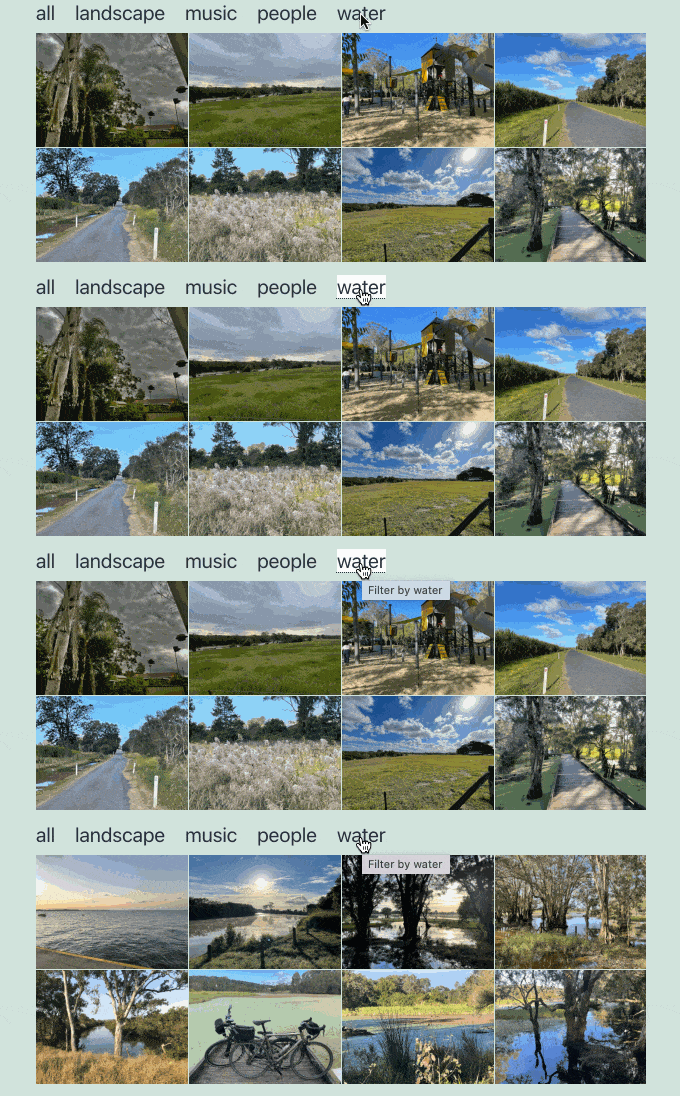
Let’s take a look at how to easily create a filterable portfolio in WordPress, no coding required.
Method 1: Creating a Filterable Portfolio Using Envira Gallery (Recommended for Photos)
Envira Gallery is the best photo gallery plugin for WordPress. It lets you create beautiful, filterable image portfolios that load quickly and look great on all devices.
We have thoroughly tested Envira Gallery to see how it compares to other solutions. To read more about our experience, see our complete Envira Gallery review.
First, you need to install and activate the plugin. For more details, see our step-by-step guide on how to install a WordPress plugin.
Note: While there is a free version of Envira Gallery, you will need the Plus plan or higher to access the Tags Addon required for this tutorial.
Upon activation, you need to visit the Envira Gallery » Settings page to enter your license key. You can get this information from your account on the Envira Gallery website.
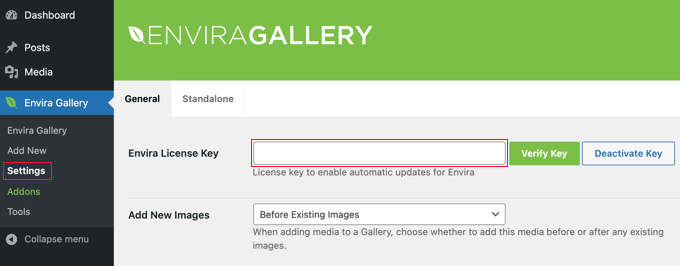
Once you have entered the key, you should click the ‘Verify Key’ button. You will see a message that the site is now receiving updates.
Next, you need to install the tags addon. To do that, head over to the Envira Gallery » Addons page and find the Tags Addon.
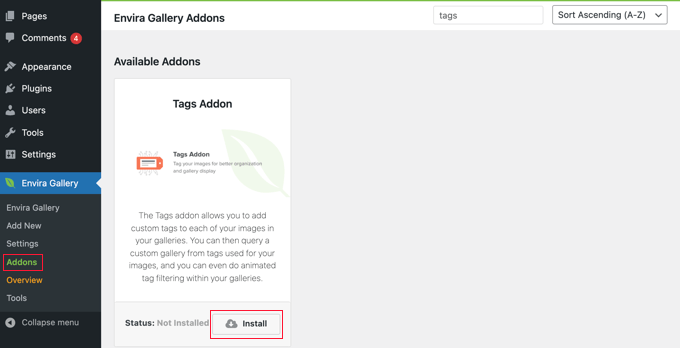
Once you find it, you need to click on the ‘Install’ button.
Envira Gallery will fetch and install the addon for you, and then you will need to click on the ‘Activate’ button to start using it.
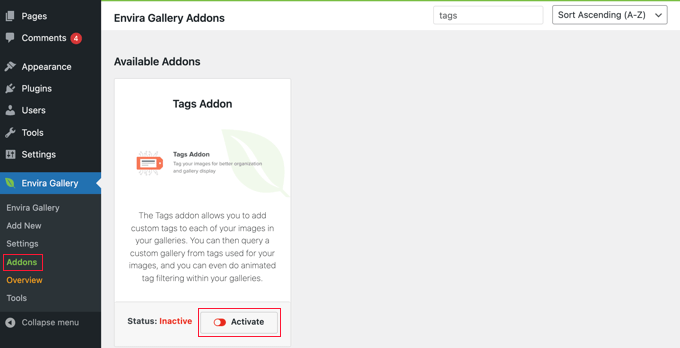
Now, you are ready to create your filterable portfolio.
Creating Your Portfolio and Organizing Images
Head over to the Envira Gallery » Add New page to create your first gallery and give it a name.
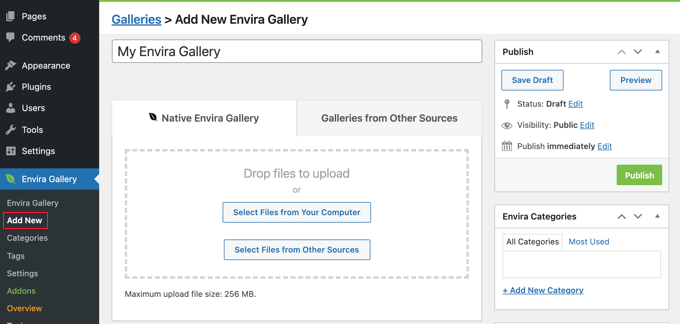
You can now add photos to your gallery. Click the ‘Select Files from Your Computer’ button to upload new images, or click ‘Select Files from Other Sources’ to choose pictures already in your WordPress media library.
If the photos are already in the WordPress media library, then you should click the ‘Select Files from Other Sources’ button.
Envira will now upload and insert those files into your gallery. Once it’s done, you can scroll down to see your images.
Expert Tip: High-resolution images can slow down your site performance. I recommend using a tool like EWWW Image Optimizer or Smush to compress your portfolio photos before uploading them to Envira.
For more details, see our guide on how to add image galleries in WordPress.
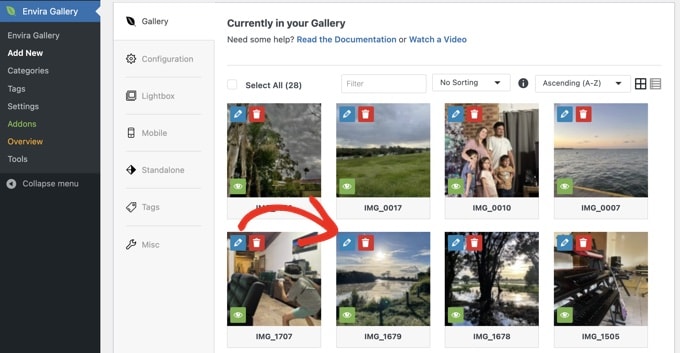
Next, click on the pencil icon to edit an image. This will bring up a popup where you can add the tags and other metadata to your photos.
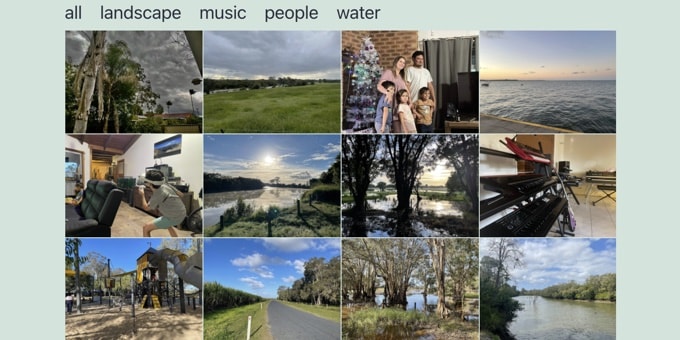
Think of tags as keywords or categories for your images. For example, you could use tags like ‘Weddings,’ ‘Portraits,’ ‘Landscapes,’ or ‘Black and White.’ These tags will become the clickable filters your visitors use to sort your portfolio.
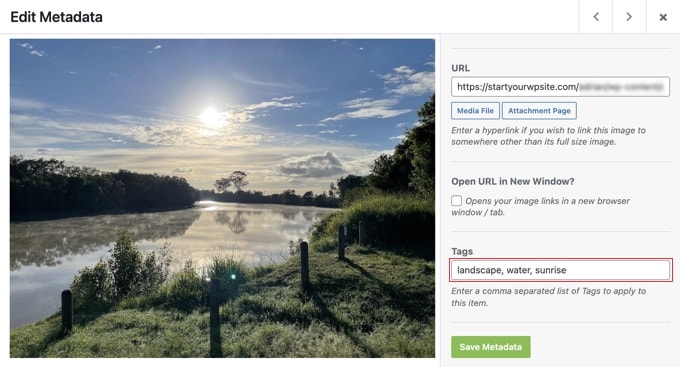
Enter the tags you want to assign to this photo. You can add multiple tags separated by a comma. Once done, click on the ‘Save Metadata’ button to store your tags.
Now, you need to repeat the process to add tags to all images in your gallery.
Pro Tip: Be consistent with your tags. For example, always use ‘Portraits’ instead of switching between ‘Portrait’ and ‘Portraits.’ This keeps your filters clean and easy for visitors to use.
Enabling the Filter Settings
After adding tags to your photos, click on the ‘Tags’ tab on the left of your gallery page. This is where you can enable or disable tag filtering for your gallery.
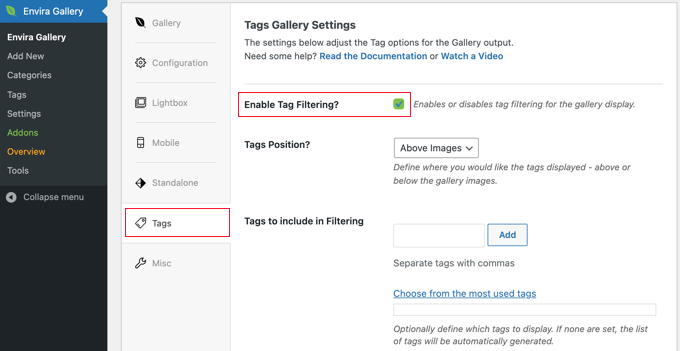
You need to check the ‘Enable Tag Filtering?’ box to enable tag filtering, and you will be able to see settings for this option.
You can choose the position of the tags (above or below the gallery), decide whether to display all tags or only specific ones, and configure other display settings.
Once you are done, simply click on the ‘Publish’ button to make your gallery live. Your portfolio gallery is now ready to be added to your site.
Adding the Filterable Portfolio to Your WordPress Website
You can now create the post or page where you want to display your filterable portfolio. If you are using the block editor, then simply add an Envira Gallery block to the article.
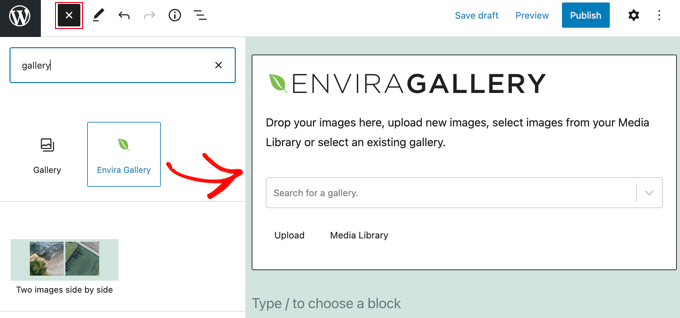
After that, you should click on the ‘Search for a gallery’ dropdown menu and select the gallery you published earlier.
If you are using the classic editor, then you should click the ‘Add Gallery’ button located above the post editor toolbar.
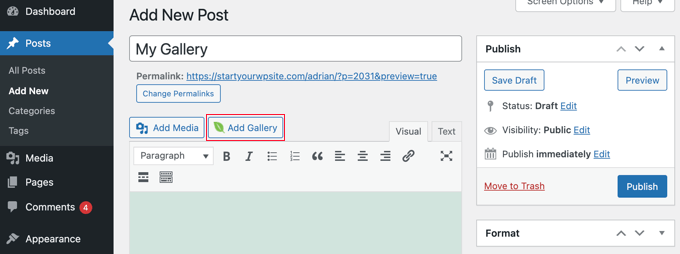
This will bring up a popup where you can select the gallery you just created and insert it into your WordPress post and page.
You can now update your post or page to save your changes and preview your website to see your filterable portfolio in action.
If you would like to learn more things that you can do with Envira Gallery, then just check out these tutorials:
- How to Create an Image Gallery in WordPress (Step by Step)
- How to Add a Gallery in WordPress with a Lightbox Effect
- How to Automatically Add Watermark to Images in WordPress
Method 2: Creating a Filterable Portfolio Using WPFilters (Recommended for Projects)
WPFilters is the best content filtering plugin for WordPress. It lets you add Amazon-style sorting to your site and works perfectly for project case studies and detailed project pages.
It allows your visitors to filter your work by category, tag, or custom fields without reloading the page. It also inherits your theme’s styling automatically through native blocks, so you don’t have to worry about manual CSS tweaks.
We have thoroughly tested WPFilters to see how it compares to other solutions. To read more about our experience, see our complete WPFilters review.
Configuring the Plugin Settings
First, you need to install and activate the WPFilters plugin. For more details, see our step-by-step guide on how to install a WordPress plugin.
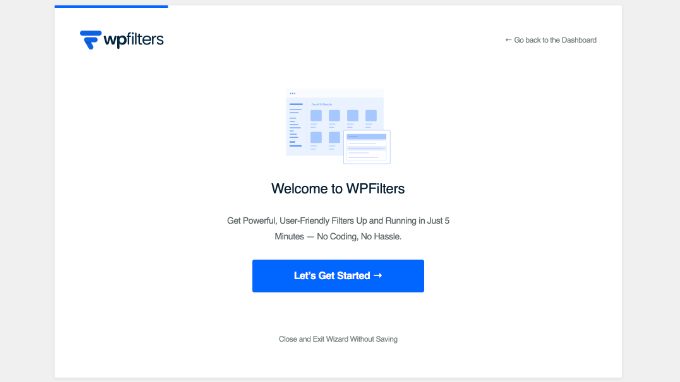
Upon activation, the setup wizard will launch automatically. Click the ‘Let’s Get Started’ button to begin.
I found that the onboarding wizard is incredibly efficient. I was able to go from installation to a fully functional filtering block in under 5 minutes.
Pro Tip: If you are a developer using Advanced Custom Fields (ACF), then you’ll love that WPFilters automatically detects your ACF data. This is a massive time-saver because you don’t have to manually map custom fields to your filters.
On the next screen, you will be asked, ‘Which Type of Data Does Your Website Use for Filtering?’ This tells the plugin what kind of content you have on your site.
For a standard portfolio, you should check the boxes for ‘WordPress Category’ and ‘WordPress Tag’.
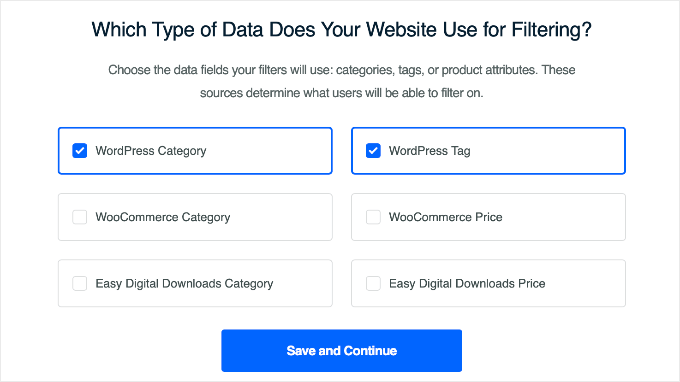
However, if you are building a product portfolio to sell your work, then make sure to check the ‘WooCommerce Category’ and ‘WooCommerce Price’ options.
If you have a very large portfolio with deep subcategories, I noticed that WPFilters handles hierarchical nesting beautifully by automatically indenting child categories. This prevents a long wall of text and makes it much easier for your clients to navigate complex project lists.
When you click the ‘Save and Continue’ button, you will be asked to enter your license key, which you can find in your account area on the WPFilters website.
On the final screen, you will see a success message. Simply click the ‘Save and Complete’ button to finish the setup.
Customizing Your Portfolio Filters
The setup wizard automatically creates filters for you based on your choices. However, you may want to customize how they look.
Simply go to WPFilters » Elements from your WordPress dashboard. Here, you will see the filters the setup wizard created for you, such as ‘WordPress Category’ and ‘WordPress Tag’. In this tutorial, we’ll filter our portfolio by category.
Let’s customize the category filter. You need to click the pencil icon next to the ‘WordPress Category’ element to edit it.
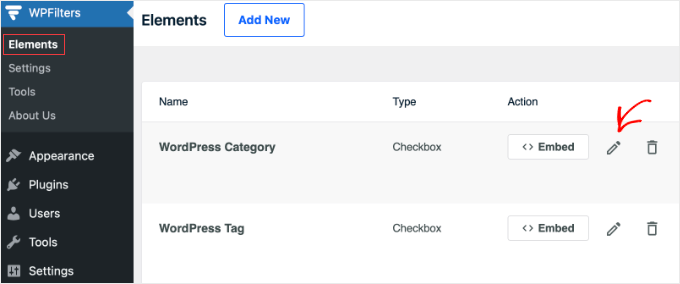
This will open the filter editor.
You can see that the Data Source is already set to ‘Categories’.
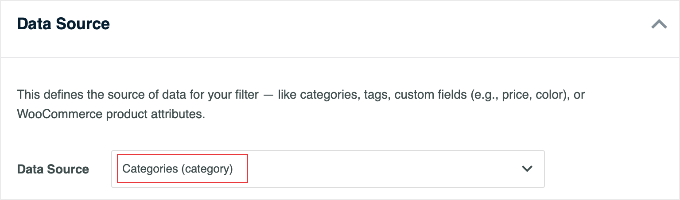
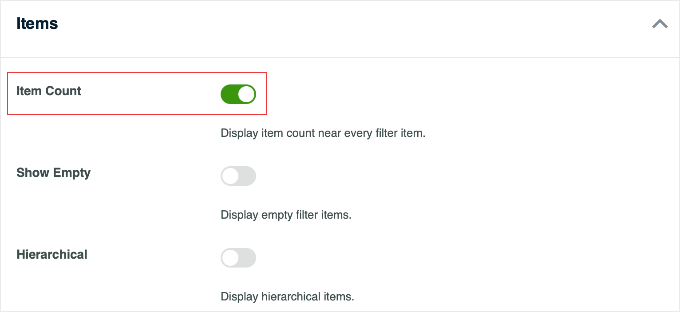
Spend a moment becoming familiar with the settings on this page. To make the filter more useful, I recommend enabling the ‘Item Count’ option under the Items section.
This displays the number of projects in each category next to the filter name (like ‘Web Design (12)’), which helps visitors see how much content you have.
Once you are happy with your settings, click the ‘Save’ button in the top right corner.
Displaying Your Filterable Portfolio
Now that you have customized your filter, you need to add it to your website. The best part about WPFilters is that it works easily with the native WordPress Query Loop block.
The Query Loop block is WordPress’s built-in solution for displaying dynamic content. It works perfectly with WPFilters to create filterable content displays.
Simply edit the page where you want your portfolio to appear.
First, add the ‘WPFilters Element’ block to the page. In the block settings on the right, make sure your ‘WordPress Category’ filter is selected.
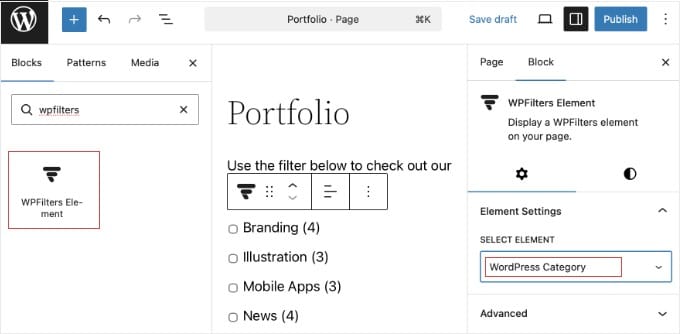
Next, immediately below the filter, add a Query Loop block.
You can choose a ‘Grid’ or ‘List’ pattern that suits your design.
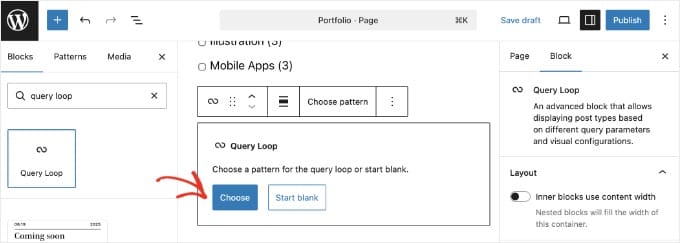
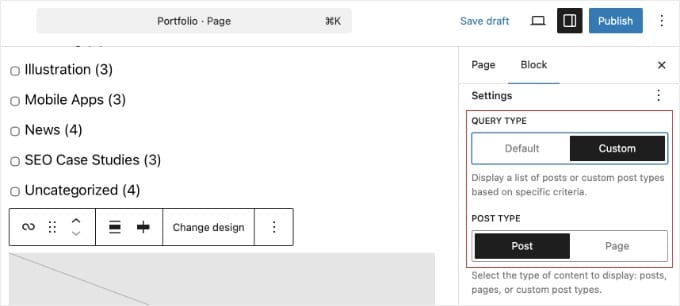
In the block settings on the right, find the ‘Settings’ section. Make sure to select ‘Custom’ query type and ‘Posts’ post type.
This will make sure the block displays your posts rather than the current page.
Expert Tip: While the Query Loop block is powerful, it can be tricky for beginners to configure correctly. If you don’t see your items, then double-check that you have selected the correct post type in the block settings.
That’s it! You can now preview your page.
When you select a category in the filter, the list of posts will instantly update to show the results.

Note: Filters can also be added to a sidebar as widgets or blocks. When used this way, they will automatically interact with other primary page queries such as WooCommerce Shop listings, Blog post archives, or any other content rendered using a WP_Query loop.
Video Tutorial
Frequently Asked Questions About Filterable Portfolios
Here are some of the most frequently asked questions our readers ask about creating filterable portfolios in WordPress.
1. What is the best WordPress plugin for a filterable portfolio?
The best plugin depends on your specific content. For image-based portfolios (like photography or graphic design), Envira Gallery is the best choice because it focuses on high-quality visual presentation.
However, for project-based portfolios (like case studies, blog posts, or real estate listings), WPFilters is superior because it allows you to filter existing WordPress content by category, tag, or custom field.
2. Can I create a filterable product portfolio for WooCommerce?
Yes. WPFilters is specifically designed to work seamlessly with WooCommerce. It allows you to create a product portfolio where customers can filter items by price, product attributes (like size or color), and categories, offering a shopping experience similar to Amazon.
3. Do users need to reload the page to see filtered results?
No. Both Envira Gallery and WPFilters use Ajax technology. When a visitor clicks a filter, the content updates instantly without reloading the page. This makes sure your visitors have a fast and smooth experience.
4. Can I add videos to my filterable portfolio?
Yes, if you choose Envira Gallery, then you can install the specific Videos Addon. This extension allows you to include YouTube, Vimeo, and locally hosted videos in your filterable portfolio alongside your images.
5. Will these portfolio plugins work with my WordPress theme?
Yes. Both Envira Gallery and WPFilters are designed to work with any properly coded WordPress theme. They also integrate easily with popular page builders like SeedProd, Divi, and Elementor, allowing you to place your portfolio anywhere on your site.
Additional Resources and Next Steps
Now that you know how to create a filterable portfolio, you might want to explore other ways to improve your site’s galleries and images. Check out these helpful guides:
- Best WordPress Photo Gallery Plugins – See our expert comparison of the top gallery plugins to make sure you’re using the best tool for the job.
- How to Add a Gallery with a Lightbox Effect – Make your portfolio images pop by allowing users to view them in a beautiful lightbox overlay.
- How to Automatically Add a Watermark to Images – Protect your hard work by automatically adding your logo or a watermark to every photo you upload.
- How to Create a WooCommerce Product Image Gallery – If you sell your photos or art online, then this guide will show you how to create stunning product galleries for your store.
- How to Create an Image Gallery in WordPress – A great refresher on the basics of creating beautiful and responsive image galleries.
If you liked this article, then please subscribe to our YouTube Channel for WordPress video tutorials. You can also find us on Twitter and Facebook.


Dennis Muthomi
Filterable galleries are a must-have for creatives.
A helpful tip I’ve learned is to create a standardized tagging system before setting up your Envira Gallery tags. I do this with all my photographer clients. I stick to consistent tags like “wedding,” “portrait,” and “commercial” across their work. It’s super helpful for two reasons:
– Makes portfolio maintenance way easier
– Creates a better filtering experience for visitors
BTW, the Tags Addon you mentioned has been perfect for implementing this system!
Haim
All the photo galleries I found so far that support Tags allow filtering one tag at a time. I’d like to implement gallery where I can filter based on multiple tags to get the photos having ALL the tags. For that the Tag selection should be in a checkbox form to allow checking more than one. Can anyone point me to such solution for WP? Thanks.
divp
nice one keep sharing
Lewis
Really awesome article, I loved this theme and soon I will be hiring a web developer to build me a theme like this. Thanks!