


Your website is your hard work, and a WordPress backup is your safety net. It saves all your posts, pages, images, and database in case anything goes wrong.
Hacks, accidental mistakes, or broken updates can happen at any time, and a backup lets you restore everything fast.
The problem is that most backup plugins are expensive or hide key features behind paid plans. If you’re a simple blogger or just starting out, then that can feel like overkill.
That’s why I love BackWPup. It’s a free and beginner-friendly plugin that does the job perfectly.
In this guide, I’ll show you how to create a complete WordPress backup for free, step by step, so your site is safe, even if you’re just getting started.
💡Quick Answer: Create a WordPress Backup With BackWPup
If you’re in a hurry, here are all the steps to back up your WordPress site using BackWPup:
- Install and activate BackWPup from your WordPress dashboard.
- Create a new backup job and include both files and the database.
- Set a schedule for automatic backups (weekly is usually enough for small blogs).
- Choose where to store your backup (website server or cloud storage like Dropbox).
- Run the backup and download the archive file for safekeeping.
What Is a WordPress Backup and Why Do You Need One?
A WordPress backup is a complete copy of your website, including all your posts, pages, images, themes, plugins, and the database. In simple terms, it’s a safety net that lets you restore your site if something goes wrong.
Creating regular backups protects your site in several ways:
- Protect Against Hacks and Malware: WordPress sites can be targeted by hackers. A backup ensures you can restore your site quickly if it’s compromised.
- Recover From Mistakes: Accidental deletions, broken updates, or plugin conflicts can break your site. With a backup, you can undo the damage easily.
- Save Time After Hosting Issues: Sometimes, WordPress hosting problems or server crashes can wipe your site. Backups let you restore everything without starting from scratch.
- Peace of Mind: Knowing your content is safe lets you experiment and update your site confidently.
Regular backups are one of the simplest ways to protect your website and avoid losing your hard work.
Why Use BackWPup for Your WordPress Backup?
BackWPup is a free WordPress plugin that helps you create complete backups of your website, including all your files, database, and settings. It’s beginner-friendly, easy to set up, and perfect for small blogs or sites just getting started.
I still recommend Duplicator for larger websites or businesses because it’s powerful, feature-rich, and reliable. You can read our complete Duplicator review for more details.
But for simple blogs, BackWPup is a great, budget-friendly option.
To get a clearer picture, you can take a look at the pros and cons of choosing BackWPup:
| ✅ Pros of BackWPup | ❌ Cons of BackWPup |
|---|---|
| Free to use | Some advanced features require a premium version |
| Beginner-friendly setup | Support is limited for the free version |
| Backup to cloud services like Dropbox, S3, or Google Drive | Fewer backup options than premium backup plugins |
| Schedule automatic backups |
In short, BackWPup gives you everything you need to keep your site safe without spending any money.
Now, let’s dive in and see exactly how to create a complete WordPress backup with BackWPup. Here is a summary of everything I will cover in this post:
- Step 1: Install and Activate BackWPup
- Step 2: Create a Backup Job in BackWPup
- Step 3: Schedule Your Backup in BackWPup
- Step 4: Choose Where to Store Your WordPress Backup
- Step 5: Download Your WordPress Backup
- Step 6: Restore Your Backup With BackWPup
- Step 7: Troubleshooting WordPress Backup Jobs in BackWPup
- Bonus: Tips for Keeping Your Backups Safe
- Frequently Asked Questions About WordPress Backups
- Additional Resources for WordPress Backups
Step 1: Install and Activate BackWPup
The first step is to install and activate the BackWPup plugin on your WordPress site.
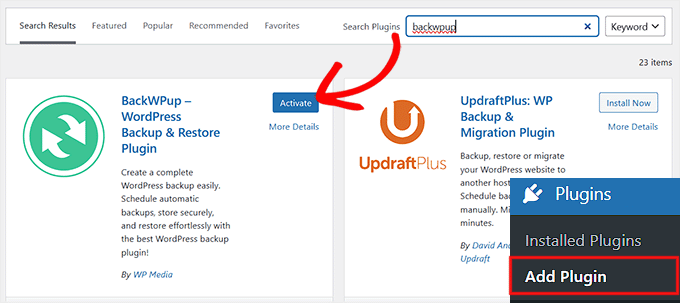
To do this, go to your WordPress dashboard, navigate to Plugins » Add Plugin, and search for ‘BackWPup.’ Then, click ‘Install Now’ and ‘Activate’ once the installation is complete.
If you’re new to WordPress, don’t worry—we have a complete guide on how to install WordPress plugins that walks you through all the steps.
Step 2: Create a Backup Job in BackWPup
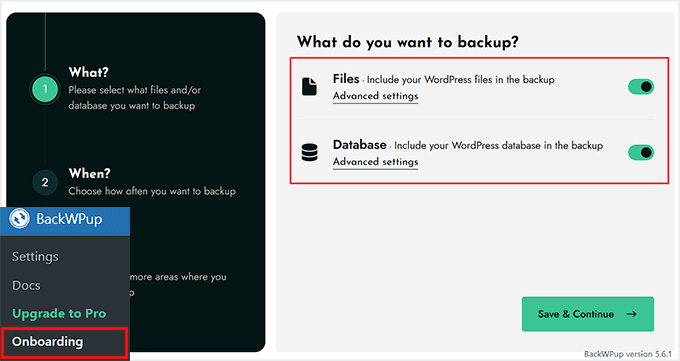
Now that BackWPup is activated, you’re ready to create a backup for your site. To do this, head over to the BackWPup » Onboarding page from your WordPress dashboard. Once you’re there, you’ll see options to choose what to include in your backup.
I recommend toggling both the ‘Files’ and ‘Database’ switches to ‘ON.’
This ensures that all your WordPress files, like themes, plugins, and uploads, as well as your WordPress database containing posts, pages, and settings, are backed up. This gives you full protection if anything goes wrong.
If you don’t want to back up every file, that’s okay. For example, you might have large log files or cache folders that aren’t necessary.
In that case, toggle the ‘Files’ switch to ‘ON’ and then click the ‘Advanced Settings’ link below it.
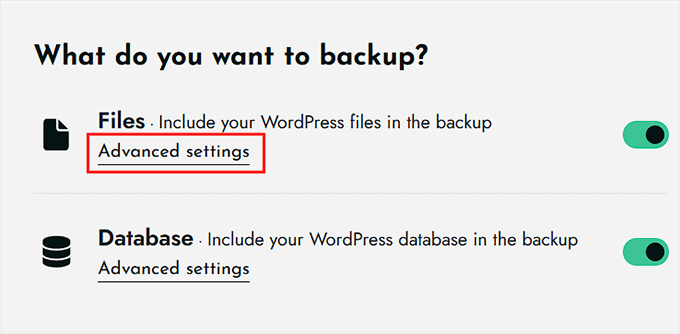
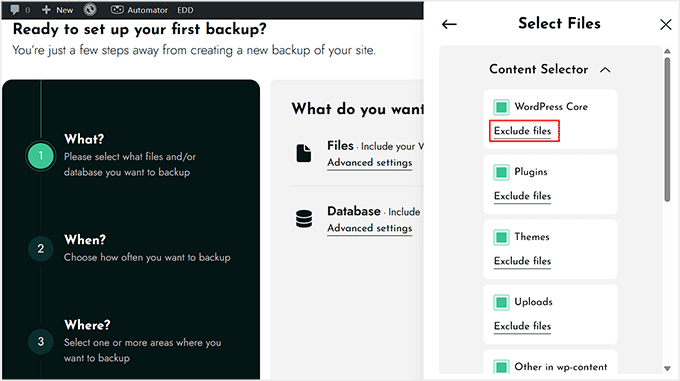
A sliding menu will appear on the right, showing all the files that BackWPup backs up by default, including WordPress core files, plugins, themes, and uploads.
To exclude any file, simply click the ‘Exclude files’ link under it.
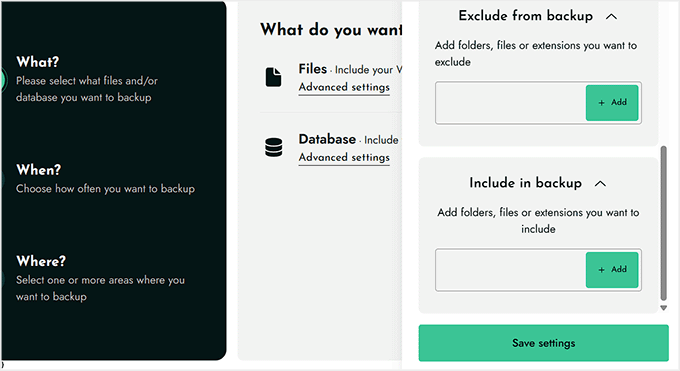
If you don’t see a particular file you want to exclude, scroll down to the ‘Exclude from backup’ section, type the file name, and click ‘Add.’
Similarly, you can include a file that isn’t listed by default by typing its name in the ‘Include in backup’ field and clicking the ‘Add’ button.
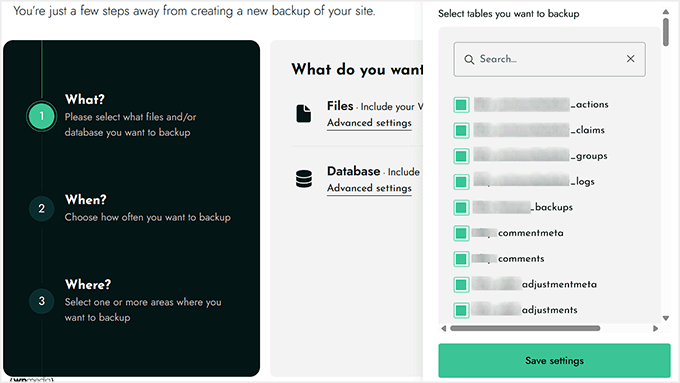
Once you’ve set up all the files, you can do the same for the database tables, including or excluding them as needed.
For more information, you can see our guide on which WordPress files you should back up.
After everything looks good, click ‘Save Settings,’ and then click ‘Save & Continue’ to move on to the next step.
Step 3: Schedule Your Backup in BackWPup
After setting up which files and database tables to include, the next step is to decide when your backups should run automatically.
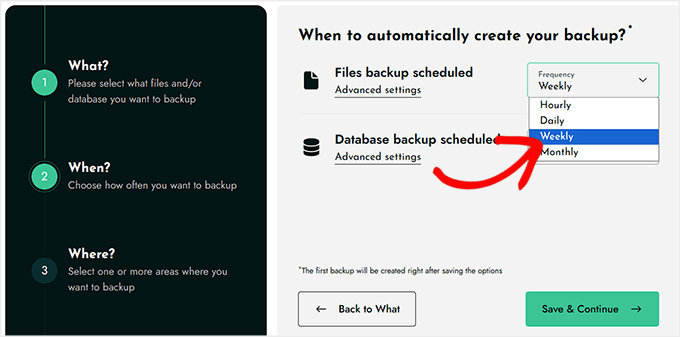
In BackWPup, you’ll see two options: Files backup scheduled and Database backup scheduled.
Here, you can configure the frequency for both your files and database backups. Simply click the ‘Frequency’ dropdown and choose how often you want the backups to run—hourly, daily, weekly, or monthly.
For most small blogs or new sites, I suggest weekly backups, which balance safety with server resources.
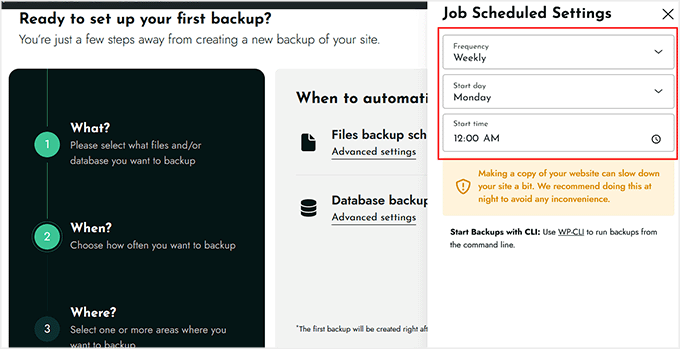
You can also fine-tune your backup schedule by clicking the ‘Advanced Settings’ link. This opens a sliding menu where you can adjust additional options, like the exact start day and time for your backups.
I recommend scheduling your weekly backup to run every Monday at 12:00 AM, so it happens automatically at the start of the week without affecting your site’s traffic. Then, click the ‘Save Settings’ button.
📍Note: If your site is new and doesn’t get much traffic yet, the backup might not run at exactly 12:00 AM. It will start the next time someone visits your site.
Once your schedule is set, just click the ‘Save & Continue’ button to store your settings.
Step 4: Choose Where to Store Your WordPress Backup
The final step is deciding where to store your backup. BackWPup lets you save it on your website server or a third-party cloud service like Dropbox, Amazon S3, or Microsoft Azure.
Server storage is convenient and usually fine for small blogs, but it does come with risks. If your server crashes, gets hacked, or experiences data loss, your backup could be lost along with your site.
Cloud services, on the other hand, provide offsite protection, though they can get expensive and require you to connect your accounts before BackWPup can store backups there.
To balance convenience and safety, I recommend using both: keep one copy on your server for quick access and another in the cloud for extra security.
For instance, if you want to store the backup on your server, simply select the ‘Website Server’ option.
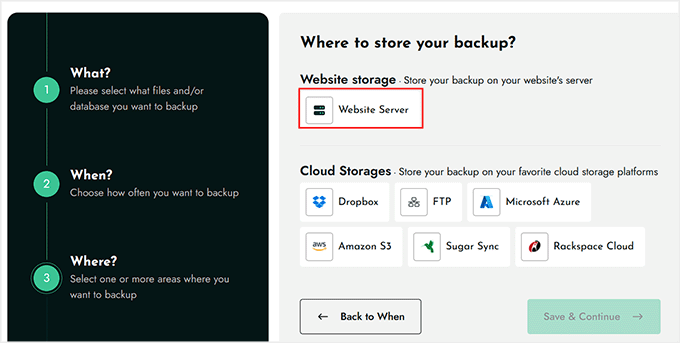
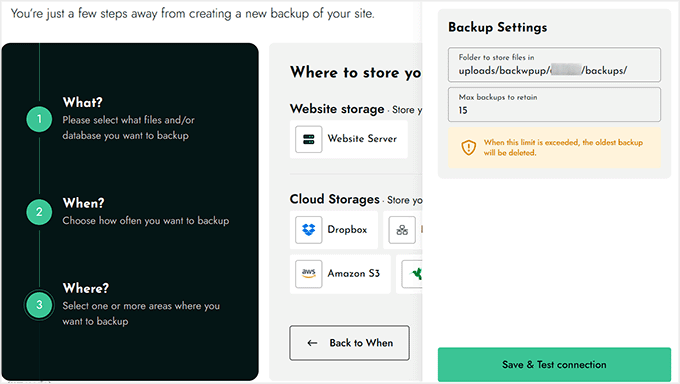
This will open a sliding menu where you can choose the folder where BackWPup will store your backup. You can also set a maximum number of backups to keep.
This means that once the limit is reached, older backups will be automatically deleted, keeping your server storage under control.
Once you’ve configured these settings, click the ‘Save & Test Connection’ button to make sure everything works. Then click ‘Save & Continue.’
BackWPup will now start creating a backup of your site. Depending on your site’s size, this can take a few minutes, so don’t worry if it doesn’t finish instantly.
Step 5: Download Your WordPress Backup
Once the backup is complete, you can verify the file by visiting the destination source (like Dropbox or the other storage option you chose earlier).
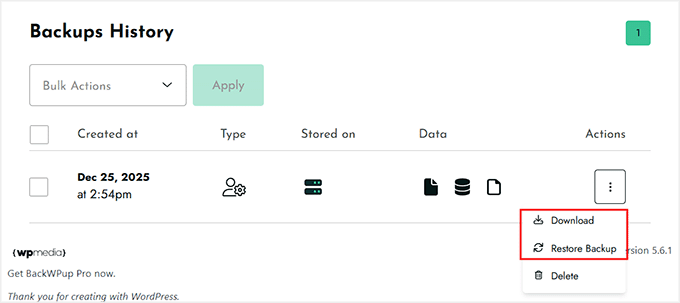
You can also download the backup directly to your computer. To do this, go to the BackWPup » Settings page and scroll down to the ‘Backups History’ section.
Here, you’ll see the backup you just created. Simply click the three-dot icon next to it to open a dropdown menu, and then select the ‘Download’ option. This gives you an extra copy on your computer for safekeeping.
Step 6: Restore Your Backup With BackWPup
If you ever need to restore your backup, BackWPup makes it simple. Restoring a backup means returning your website to the exact state it was in when the backup was created.
Click the ‘Restore from Backup’ option in the same ‘Backups History’ section.
Note that this will overwrite your current content. Any changes made since the last backup will be lost.
This will take you to a new screen, where you have to upload your backup file. You can either drag and drop a ZIP file into the box or click the ‘Select Archive’ button to choose the file from your computer.
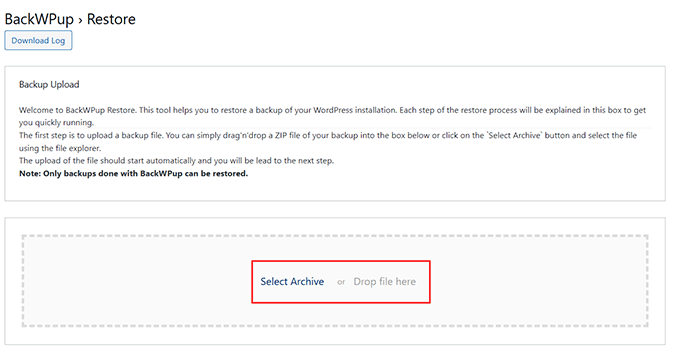
Once the file is uploaded, BackWPup will guide you through the next steps of the restore process.
Keep in mind that only backups created with BackWPup can be restored using this tool.
If you find the restoration process difficult, I highly recommend checking out Duplicator. It is another backup plugin that makes restoring your website even easier with a simple wizard.
Step 7: Troubleshooting WordPress Backup Jobs in BackWPup
If your backup doesn’t complete successfully or times out, don’t worry because this is actually pretty common, especially for larger sites. Backups put extra load on your hosting server, and sometimes the job just needs a little extra time or retries to finish properly.
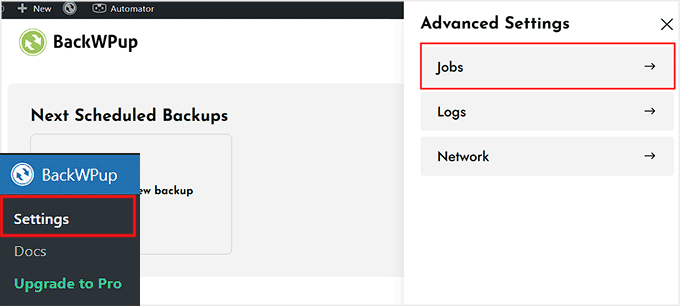
To prevent this, go to the BackWPup » Settings page from your WordPress dashboard and click the ‘Advanced Settings’ link in the top right corner.
Once the sliding menu opens, expand the ‘Jobs’ tab.
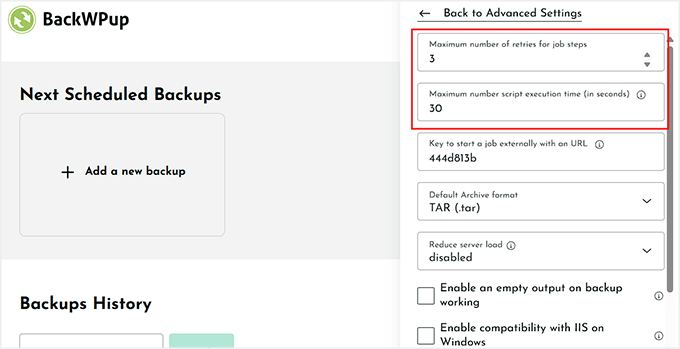
Here, you can adjust the ‘maximum number of retries for job steps’ and the ‘maximum script execution time.’ These settings give BackWPup enough attempts and time to complete the backup, even on servers with stricter limits.
Taking a few minutes to check these options can save you a lot of frustration later.
Once you’ve made your adjustments, click ‘Save Settings,’ and your backup job will be ready to run reliably—even if it didn’t work the first time.
Bonus: Tips for Keeping Your Backups Safe
Creating a backup is just the first step—keeping it safe is just as important. A backup is only useful if you can actually access it when something goes wrong.
Over the years, I’ve learned a few simple practices that make sure your WordPress site stays protected, and your backups are reliable.
Here are some of my top tips:
- Store Backups in Multiple Locations: Don’t rely on just your website server. Use cloud services like Dropbox, Google Drive, or Amazon S3 to keep an extra copy. This way, even if your server has issues, your backup is safe.
- Download a Local Copy: It’s always a good idea to download your backup to your computer. This gives you quick access if you ever need to restore your site and provides an extra layer of security.
- Keep Backups Organized: Label your backups with dates and details so you can quickly find the version you need. This saves time and avoids confusion if you have multiple backups.
- Consider Stronger Backup Solutions: While BackWPup is great for beginners, backup plugins like Duplicator offer advanced features, faster restores, and better options for larger websites. If your site grows or you want more reliability, Duplicator is a solution worth exploring.
Following these tips ensures that your backups are not just created but actually useful when you need them most.
Frequently Asked Questions About WordPress Backups
Even with a step-by-step guide, it’s normal to have a few questions about backing up your WordPress site.
In this section, I’ve answered some of the most common questions beginners ask about creating backups, storing them safely, and restoring them.
How do I backup my entire WordPress site?
You can backup your entire WordPress site using a plugin like BackWPup or Duplicator. Just create a backup job that includes both your files and database, choose a storage location, and run the backup.
To get started, see our ultimate guide on backing up your WordPress site.
Where do I find my WordPress backups?
You can find your backups in the BackWPup Backups History section in your WordPress dashboard or in the cloud service you chose, like Dropbox, Google Drive, or your server folder.
How long does a WordPress backup take?
It depends on your site’s size. Small blogs may take just a few minutes, while larger sites with lots of media files could take longer.
How do I open a WordPress backup?
Backups are usually stored in compressed formats like ZIP or TAR. You can open them on your computer using a standard archive tool, or restore them directly using a plugin like BackWPup or Duplicator.
How do I restore my WordPress site without a backup?
Unfortunately, if you do not have a backup file and your hosting provider does not have one, you generally cannot restore your website. This is why setting up a backup plugin like BackWPup right now is so critical.
Does WordPress do automatic backups?
By default, WordPress does not include automatic full backups. You need a plugin like BackWPup, UpdraftPlus, or Duplicator to schedule regular backups.
How do I recover my old website?
You can recover your old site by restoring a backup from BackWPup, Duplicator, or another plugin. Simply use the restore option in the backup plugin to return your site to a previous state.
Where is the WordPress backup located?
WordPress backups are located wherever you choose to store them—on your server, in the plugin’s folder, or in a connected cloud service like Dropbox or Google Drive.
What is the best WordPress backup plugin?
In my opinion, Duplicator is the best WordPress backup plugin. It is used by over 1.5 million website owners because it makes cloning, migrating, and restoring your site effortless.
For more guidance, you can take a look at our picks for the best WordPress backup plugins.
Additional Resources for WordPress Backups
Here are some additional backup-related guides that I highly recommend.
These resources can help you better manage your WordPress backups and keep your website safe:
- How to Make a WordPress Database Backup Manually (Step by Step)
- How to Restore WordPress Using Database Backup Only
- The Ultimate WordPress SEO Migration Checklist (For Beginners)
- How to Backup Your WordPress Site (5 Easy Ways)
- How to Backup WordPress Multisite (Plugin + Manual Methods)
- All in One WP Migration vs. Duplicator – Which One Is Better?
If you liked this article, then please subscribe to our YouTube Channel for WordPress video tutorials. You can also find us on Twitter and Facebook.


Eloise
BackWPUp just changed the way the plugin accesses / stores backup files in Dropbox. The info they have given is pretty rubbish! Please can you update this article to reflect those changes, and advise users on how best to re-connect BackWPUp with Dropbox? Cheers!
WPBeginner Support
We will certainly look into updating this article. If you reach out to BackWPUp they should be able to help and clarify on anything that is confusing in their documentation as well
Admin
Duncan McCormack
Hey guys, I’ve just had a look at this backup plugin on its page.
You have to BUY the pro version to do a RESTORE!!!
That right??? Sure reads that way to me.
WPBeginner Support
They created a method to restore the backup using the plugin rather than manually and that feature they are requiring pro, you can still restore your site manually without the pro version.
Admin
James
In the dropbox tab, for me today 2/10/19, next to the Authentication it said ” not Authenticated “, and said create an account. but i already have an account so it would not give me the allow the plugin option. However, I clicked on the dropbox Authentication button, it then brought up my dropbox and it displayed a code. Copy and pasted that code into the box and it then went to the allow BackWPup. Just in case anyone else comes across that problem. But thanks for the tutorial, one of many that I use..
WPBeginner Support
Thanks for sharing this solution should someone else run into this error
Admin
Monika
Can this create a WooCommerce backup as well or do I need a specific plugin for that one?
Chris
If you cant see the re-authenticate option in your drop box account then you need to just click on the button below this one in your backup plugin settings. It will then prompt you to allow access and grant a code.
I had the same issue and it worked for me.
Chris
Eloise
Hi,
The layout on BackWPup seems to have changed bit since this article was written – the Jobs tab now seems to be called Schedule, and when I go in there I can’t find an option to set the number of server re-tries..?
Every other site I’m using BackWPup on works fine. But one site that I manage is having a few problems; the site is quite large, lots of plugins, and I keep getting error messages that ZIP files are not closing properly during execution. Any thoughts/revisions that might be helpful please?
Many thanks!
WPBeginner Support
Hi Eloise,
We will update the article. Meanwahile, please contact plugin support and see if they can help you out.
Admin
john moses
Nice writeup. Ihave done backup before but I wasn’t able to restore my Media Library images. When you bakup with this plugin, and you restore, will the will the media library images be restored too?
WPBeginner Support
Hey John,
Yes they will be included. However, make sure that you create a complete WordPress backup and not just the Database backup.
Admin
Ravi Dixit
A very helpful post.
Can you tell me how to save backups files to the local disk of the computer with BackWPup plugin?
moumita
wpbeginner, you are my only destination whenever I face any wp issues. Really cant imagine using wordpress without your help
Olga
Very useful! Thanks a lot ;-))
Pierre BLAZER
Hi there ! I just installed BackWPup, and I can see there are several possibilities to archive the backup in the GENERAL tab: ZIP, TAR, TAR GZIP etc. Afterward, under the DATABASE tab for example, the choice to compress is only: GZIP or NOTHING, so I’m a bit confused. What should I do if I chose ZIP as an archive? Should I choose GZIP ?? Thanks.
WPBeginner Support
Hi Pierre,
Yes, you should choose Gzip. It is a compression format just like zip.
Admin
anders
Does this have support with Azure ARM Storage. I get this error:
400 Value: The value for one of the HTTP headers is not in the correct format.
Seems like there is a issue with the API this version is using. Anyone have managed to do this successfully with ARM Cold Storage account?
Don Saroos
Thanks but one thing missing i cant actually connect to dropbox any little help will be highly welcomed
Aakarshit Choudhary
hey bro!
I am a wordpress begineer!
Please tell me how I can use this backup on my website if my website crashes?
Jane Bonney
I found the instructions fairly clear and helpful, although sometimes the phrasing could be a little better to make the instructions better.
When I backed up I got the following error mesages:
ERROR: Dropbox API: (56) SSL read: error:00000000:lib(0):func(0):reason(0), errno 104
ERROR: Job has ended with errors in 5150 seconds. You must resolve the errors for correct execution.
So what do I do please?
JANE BONNEY
I discovered this was because my dropbox was full. So the solution was simply to delete some of the media I had uploaded and not used or increase dropbox space allowance.
Rachel
Hi! Thanks for this great post! When creating a job – I say to back up to Dropbox but it doesn’t say ‘Reauthenticate’….It just says Create account. I already have a Dropbox account, so when I click on Create Account it doesn’t request permission as shown in this post, it tells me how much available space I have and prompts me to get more. I’m stuck on what to do.
Chris
same here for me too. I tried everything but not sure if its because you need to have a paid account that supports API integration.
Francis
I use BackWPup on my site and it shows it has backed up correctly and the test mail has also arrived but I do not get the backups sent to my email. I tried different email accounts but it doesn’t send anything unless there is an error. How can I get the backups sent to email and how can I download them? Thanks very much.
WPBeginner Support
Please contact the plugin support.
Admin
Nikhil Ganotra
Earlier I was using backupWordPress and it was consuming too much bandwidth. This plugin is awesome!
Deja
Hi, I have the same error: “Not expected HTTP response body: 429 Too many requests body { padding-top: 60px; /* 60px to make the container go all the way to the bottom of the topbar */ } Error 429 Too many requests”
Does anyone know the solution for this? Many thanks in advance.
Gil Andrei
Hi, on your past article you said that restoring WordPress from BackWPUp is simple, how would you do that? Thanks!
Sacha
Thanks for the great post, BackWPup looks like a very good option for me. But how would you restore from a backup?
Tracey
Another great post. I really don’t know what I’d do without your website. its he first thing I turn to if I get stuck with something on my blog! Many, many thanks.
Obidigwe Kenechukwu
Thanks for this great article, I love what you people.
I just got one question: what is the role of wordpress default “Blog import and export” as regard backing up of site?
Please I need to know.
Thanks once again.
Karan
Hello,
Does it really create a full backup including all the settings, posts, media etc? Will this backup enough to restore a completely formatted site?
Thanks
Karan
Melinda
Thanks for the article! I tried using this plugin message, but I received an error message when backing up.
Not expected HTTP response body: 429 Too many requests body { padding-top: 60px; /* 60px to make the container go all the way to the bottom of the topbar */ } Error 429 Too many requests
I’m not very knowledgeable about coding, can you help!
Anna
I’m exploring this topic because I’m about to set up my first WP site. I’m wondering, however, if every site really needs so much attention paid to back-up? Our site will essentially be static, that is, it’s not a blog so there are no posts, nor are there comments: its content comprises text and photos which are ours and are backed-up elsewhere.
I will be using a purchased theme so those files, as well, are elsewhere. Of course the entire site once created will position the photos and text according to the theme and that will involve customization and work. That I can see the value of backing-up, but a one-time ought to do it, no?
I’d appreciate someone experienced helping me clarify this! Thanks.
Leonid
If you have a static site, you don’t need WordPress for it. Just build HTML/CSS site.
Aniket
Hey
Thanks for coming up with an important topic. I am already using backwpup on my site.
I am using the dropbox option. But, the dropbox comes with a limited space of 2GB.
What should I do after this?
Should I delete some of the previous files to generate space? If yes, which files should I delete?
WPBeginner Support
You can download older backups to your computer.
Admin
Hasnain Abid Khanzada
Hello Bro,I Have Done All The Things But I Am Getting The Error When Trying To Run The Backup..The Error Is ” The HTTP response test get an error “Failure when receiving data from the peer “…Hope That You Will Solve The Problem.
Thanks.
WPBeginner Support
Please contact the plugin support. They will be able to help you better.
Admin
Andy Lawrence
Hey, I’ve been trying this for a while but when I run the script to back up, it doesn’t ever finish. I’ve followed all the instructions but it’s not working.
Kenrick
hi great summary! To bad i am getting this errorwhen I try to back up
ERROR: Signal 15 is sent to script!
How to fix this?
Thanks.
Ayesha
Thanks, I just backed up my site using this method, before I was just using another free backup plugin and this works just as well
Michale
Did you ever try to restore a site from a backup made using BackWPup? Since BackWPup doesn’t have a “Restore backup” option, that would be an interesting post..
Ziacinzia
HI, thank you for this article. I have an issue though, my dropbox is almost full and as my site grows, it takes more and more space, so I wonder what i should do when I run out of space? Is there a similar alternative to dropbox to save the backup jobs? Many thanks
WPBeginner Staff
You can purchase more space. Alternately you can try saving your backups to Google Drive.
Ziacinzia
I read that Google Drive does not encrypt files and is not a safe option. May I please have your view on that? Thank you
WPBeginner Staff
1. The backups on your hosting service provider are sometimes not available. Also these backups could get compromised. Sometimes web hosting companies may even terminate your account without giving you enough time to get your files. In all these scenarios, and there are many others too, the user looses the access to their backup files.
2. Saving backups on the same server as your website actually defeats the purpose of backing up in the first place. For example, if the security of your server is compromised then your backup files could get affected too. This would make it immensely difficult for you to restore your website.
Michael Einstein
OK.. I understand and this makes sense.. So would the Wordpress Backup to Dropbox be a good option as an alternate place to store the backups, or perhaps to my google drive? Although I do worry a bit that these sites aren’t totally secure either. Only other option is if I can configure a backup to go to an external drive I have on my home computer that gets backed up everynight to a cloud-based backup.. That way I would have it on my home computer AND on the cloud. But this won’t work if my home computer is turned-off, although it is “usually on”.
Michael
Michael Einstein
A few Newbie questions here:
1) If I use Bluehost for a hosted Wordpress site, that comes with daily backups of my entire site. Why would I also need a seperate wordpress backup solution? Couldn’t I always just restore my site if anything ever happened through my cPANEL in Bluehost?
2) In this article, it says: “Whatever you do, DO NOT store the backups on your server.” Why? Isn’t this a good/secure place to store your backup since it also will get backed-up? Where else would I store it? Dropbox?? That actually sounds less safe and secure then in a dedicated directory somewhere on my hosting server.
Thanks for the help!
Regards,
Michael
Duncan McCormack
It’s redundancy surely.
I think it’s a good idea to either use another backup technology (plugins) as well as your hosted provider method.
I also think it’s a good idea to download your hosted provider backups and put ’em elswhere (on your work/home PC?) – but I’m happy to trust cloud technology providers, particularly Google and Microsoft. I reckon Dropbox are pretty trustworth too, eh? Surely.
WPBeginner Support
Correct, it is mainly for redundancy and so you have control over your backups
Admin
tealady46
I’ve followed the tutorial and am being told that it’s all backed up but when I’ve checked in my dropbox folder, I can’t see it. Any ideas??
Eloise
There will be a separate BackWPup folder in your Dropbox – it’s not immediately obvious, so have a look around. Took me a couple of mins to find it when I first started doing using BackWPup too!
Bala Chandar
I got an error like “The HTTP response test get an error “connect() timed out!”
Vitaliy Kolos
OK, I’ve backed up my files, database, list of plugins, but now I’m sort of stuck because I’m not sure what I’m supposed to do next. I mean I know I’m supposed to restore certain files, but I’m afraid that I’ll override something that I actually need. Do I just leave wp-config.php alone and update the rest or what am I supposed to do next?
harishchouhan
I have been using BackWPup since a while, but the “This APP will have access to your entire DropBox” scares me. With so many security issues being exploited every now and then, one wrong step, and I hope my DropBox data is not compromised.
Cypherinfo
I did another copy and this again only the home page was showed; the other pages are redirected to the xampp setting http://localhost/xampp/ I tried to delete the .htaccess and every web page different from the home one report 404 error object not found; any advice? I’ve posted in the wrong place sorry. My comment is for this: https://www.wpbeginner.com/wp-tutorials/how-to-move-live-wordpress-site-to-local-server/
AV
Dropbox is not active.. something is missing.. i installed this in local site.
WhyBother
Thank you for this very detailed tutorial.
Abhishek Jain
This is a real article to read about the v=backup of wordpress site… Thanks to author….
Alan Santana
Does this backup saves all options, configurations, seo, etc.?
Or is there anything lost?
Somesh
it stuck at
trying to create backup archive
WPBeginner Support
Somesh, make sure your web host meets the minimum requirements to run the plugin. You would need PHP 5.2.6 at least. Also check out plugin’s FAQs section.
Admin
Somesh
Does it backup all the database files and all the stuff
Carole
If you do a daily backups to Dropbox, do the files with changes replace the existing files or is a complete new backup added each day? My ecomm website seems to be 5GB so that could quickly blow through even 100GB of Dropbox storage.
Pali Madra
As usual a great tutorial.
I did want to point out that in the first tab, which is called General, under the job details section the option to optimize database tables is not there anymore. Is this the case with me only or is it the same for everyone?
Thanks.
Aditya Shirodkar
Thanks a lot for introducing me to this great plugin!… you guys are doing a great job!
E.D Gasçon
Hey Syed, Thanks for sharing this info. This is a great article. I’m using Updraftplus backup/restore. I have a question please. This may sound silly… sending daily backups to the cloud (Dropbox) as opposed to weekly backups, would that take more storage space? If earlier versions of files are deleted then why am I running out of space so quickly? I’m not really adding much content to my sites (I’m not a blogger). I’m such a newb! Thanks