


Do you want to allow blog users to moderate comments in WordPress?
If your site gets a lot of comments, then it can be difficult to moderate them all. One solution is creating a separate user role so that other people can manage the comments for you.
In this article, we will show you how to allow blog users to easily moderate comments on your WordPress blog.
Why Allow Blog Users to Moderate Comments in WordPress?
Comment moderation takes time and effort, especially if you get lots of messages or allow users to post anonymous comments. If you are slow to approve messages or delete spam, then visitors may stop interacting with you.
By giving blog users the power to moderate comments, you can combat spam and deliver a better experience for your visitors.
These users might be members of your customer support team, your community manager, or even an active and trusted commenter on your WordPress blog.
By default, you can’t create a WordPress user who only has permission to moderate comments. With that being said, let’s see how you can easily allow blog users to moderate comments using a WordPress plugin.
Simply use the quick links below to jump straight to the method you want to use:
Method 1: Allow Specific Users to Moderate Comments (2 Plugin Options)
In this first method, we will show you how to allow specific user roles to moderate comments using 2 different plugins. This is a great option if you want to let multiple people review your comments.
For example, you might create a comment moderation team or give your Contributors permission to moderate comments. This makes it easy for guest bloggers to interact with their readers.
The first plugin we’ll show you is Thrive Comments, which is an easy-to-use WordPress comment plugin.

Besides comment moderation, it can also make your comment section more engaging by adding a user ranking system, and allowing users to like and dislike comments.
The other plugin is Members, which is a free alternative to Thrive Comments. This membership plugin can also add a comment moderation capability to your WordPress website.
Using Thrive Comments (Recommended)
To start, you can get Thrive Comments as a standalone plugin or buy the complete Thrive Themes Suite.
After completing your payment, you will get a plugin zip file to install on your WordPress site. For more information, read our step-by-step guide on how to install and activate a WordPress plugin.
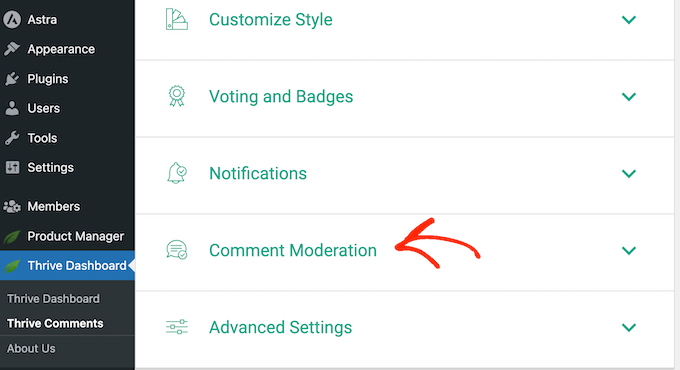
Once installed and activated, go to Thrive Dashboard » Thrive Comments on your WordPress dashboard. Here, click to expand the ‘Comment Moderation’ section.
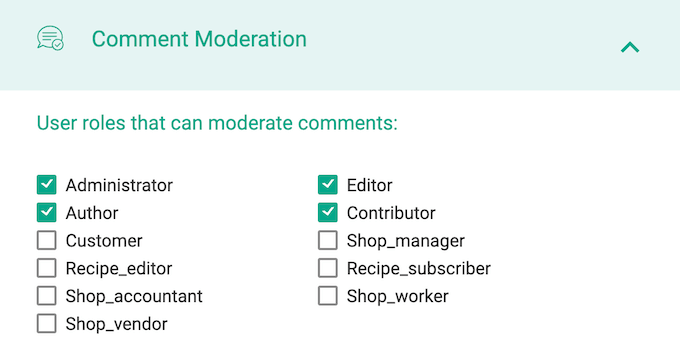
On this page, simply check the box for each user role that should be able to moderate comments.
And that’s all you need to do!
If you want, you can even add a new user role for comment moderation in WordPress and then configure their permissions in Thrive Comments. To do that, check out our guide on how to add new users and authors to your WordPress blog.
Just note that Thrive’s ‘Comment Moderation’ settings are the same as the ones on the native Settings » Discussion page. This means any changes you make will also affect the default WordPress comment settings.
To learn more, see our detailed Thrive Themes review.
Using Members (Free)
Another option is to use Members, which is a free user management plugin used by over 200,000 sites.
The first thing you need to do is install and activate Members. For more details, see our step-by-step guide on how to install a WordPress plugin.
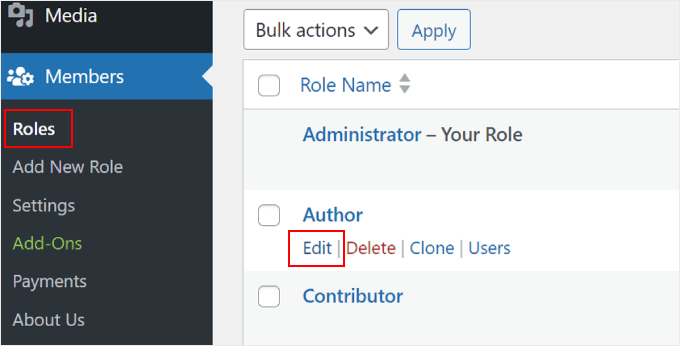
Upon activation, go to the Members » Roles page to see all the different user roles on your WordPress website.
Now, simply hover over the role that needs comment moderation permission and then click on the ‘Edit’ link when it appears.
To allow users to moderate comments, you need to select the ‘General’ tab in the left-hand menu.
Then, find ‘Moderate Comments’ and check its ‘Grant’ box.
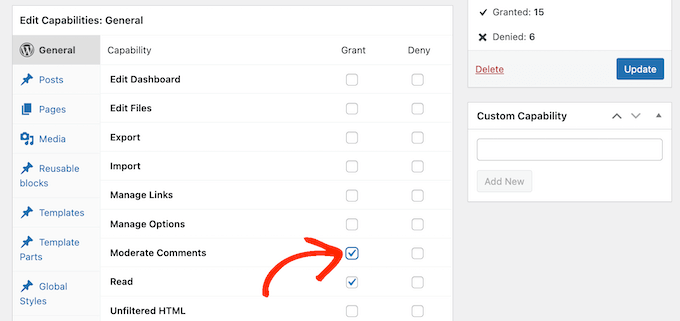
With that done, simply click on ‘Update’ to save your changes.
Method 2: Add a Comment Moderator Role in WordPress (Free)
The Comment Moderation Role plugin allows you to quickly and easily give a comment moderator role to specific users.
This plugin creates a new WPB Comment Moderator role that allows users to approve, decline, or edit comments on any post without giving them access to other parts of the WordPress dashboard. This leaves you free to focus on what really matters: getting more comments on your blog posts.
The first thing you need to do is install and activate the plugin. For more details, see our step-by-step guide on how to install a WordPress plugin.
Upon activation, you will have access to a new user role called ‘WPB Comment Moderator’.
To assign this role to an existing user, simply go to Users » All Users. Then, check the box next to that person’s username.
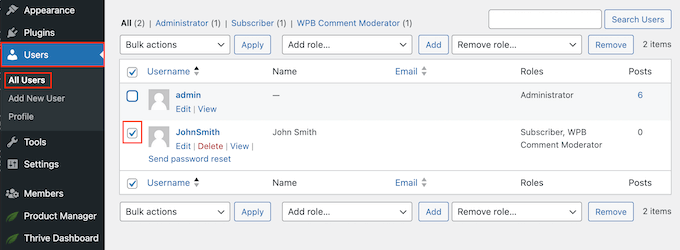
After that, simply open the ‘Add role…’ dropdown menu and select the ‘WPB Comment Moderator’ role.
You can then go ahead and click on ‘Add’.
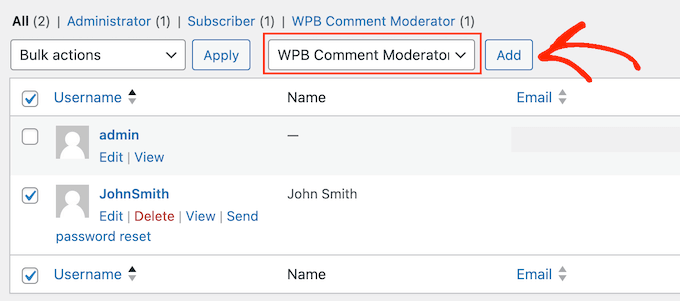
Now, this person will have access to the WordPress comment moderation panel.
You can also create a new user and assign them the comment moderator role. To do this, simply go to Users » Add New and enter that person’s information.
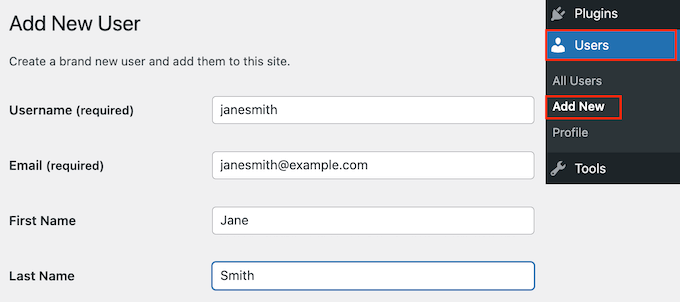
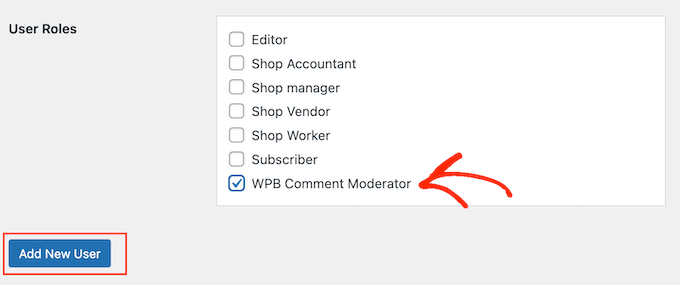
Next, scroll to the ‘User Roles’ section and check the box next to ‘WPB Comment Moderator’.
When you are happy with the information you have entered, just click on the ‘Add New User’ button.
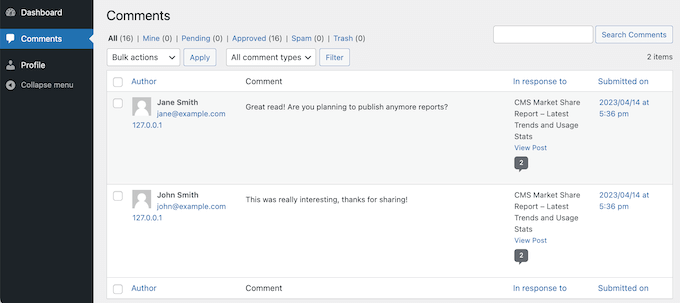
Now, this person can log in to their account and see a comment moderation dashboard, similar to the image below.
As you can see, this person can only moderate comments and edit their profile. All other WordPress admin dashboard features are hidden.
We hope this article helped you learn how to allow blog users to moderate comments in WordPress. You may also want to see our expert picks for the best plugins to improve WordPress comments, or check out our guide on how to allow users to edit their comments.
If you liked this article, then please subscribe to our YouTube Channel for WordPress video tutorials. You can also find us on Twitter and Facebook.


Mrteesurez
The guide is very useful to fight against spam comments when followed accurately and the plugin mentioned works fine.
In addition to these, First comment by a user should be previously accepted manually by the admin before accepting consequent ones automatically or otherwise. Also it is better to moderate comments by using some plugins to auto check comments before they land into moderation, this will make the moderation task easier and faster especially for a site having large user base with more comments.
Jiří Vaněk
Hi Mrteesurez,
very good idea with that first comment moderation. I have to confirm that it works great. I used to have comments set up without moderation, and even with honeypot-based antispam, some spam would still get through. Since I started moderating, just like you said, I approve the first comment to vet the user, and then let them post freely. It’s a very good practice, and I really have to confirm that your idea works.
Mrteesurez
You are welcome, Mr. Jiří Vaněk.
I’m glad to hear that my idea is working out so well!, moderating the first comment is crucial. In my experience, implementing this moderation strategy not only helps in filtering out spam but also fosters a more genuine community on your site. When users see that comments are moderated, they tend to put more thought into their contributions, leading to higher-quality discussions. Additionally, this practice has given me peace of mind, knowing that my site remains a positive space for engagement. The approach really does make a significant difference, and it’s a strategy I recommend to anyone looking to maintain a clean and active comment section. Thanks for sharing how it works out for you!
Jiří Vaněk
Perfect guide. I’m starting to use the MemberPress plugin to create a community website. Specifically, I’m trying to transform my existing site into a community site with the goal of eventually having moderators and additional administrators. Thanks to this article, I now know how to handle comments. If there will be many users on the site, I definitely wouldn’t be able to manage everything by myself. This is a great and efficient solution.
Dennis Muthomi
Well as a solo blogger, I don’t currently need to enable comment moderation by other users.
But you have provided a very helpful and clear instructions on how to allow users to moderate comments in WordPress.
I’m bookmaking this so when my blog grows, I’ll definetly know what to do
Dayo Olobayo
Managing comments on my small website is quite demanding. I can only imagine what it’s like for those whose websites receive many visitors daily. This educative guide has really helped simplify things for me. Thanks!
THANKGOD JONATHAN
Moderating Commental for solo bloggers like me is sometimes very challenging much especially when you have a lot of comments to moderate each day. However with this guide I can now make it easier to moderate comments in my blog. Thanks.
WPBeginner Support
You’re welcome!
Admin
Ralph
I think the best option to manage spam is not to let it appear in the first place.
I use an anti-spam plugin + I don’t allow links in comments + first comment from any new email has to be accepted by me.
It filters over 99% of spam. Of course, there are sometimes people who try to cheat me by writing a nice first comment or two, and then, when they know their comments will be accepted automatically, they try to put some spammy comments. But it happens maybe once a year, so it’s not a big deal.
I’m still too small blogger to think about it on my personal blog, as I get around 100 comments per month. But I will definitely look closer to it on my new website with book reviews, where I encourage visitors to leave their own opinions. Moderators can be crucial on such websites, so good to have guide just in case.
Fasal
However, is there any way to produce comment notification emails to the user email address too?
By default, WP only sends comment notification to the post author + administrator user. Is there any way to get this notification to this comment moderator user too?
Soumitra
Super easy & LITE plugin !
Irwan
What plugin that can make topics group and user group?