


When people first started talking to their phones to search for things, most of us probably thought it was weird or futuristic.
Now, voice search is everywhere, from smart speakers to smartphones, and people start to expect WordPress websites to support it, too.
That’s why adding voice search to WordPress sites can be a game-changer for user experience. It’s simple: speaking is much easier than typing, especially on mobile devices.
Plus, voice search is becoming more popular every day. We’ve also noticed that WordPress sites with voice search tend to have better engagement rates because visitors can find what they need faster.
In this article, we will show you how to add voice search capability to your WordPress site step-by-step. This will allow your visitors to simply speak their questions instead of typing them. 💬
💡 Quick Summary: Adding voice search to your site improves accessibility and user experience. We recommend using ‘Voice Search,’ as it’s simple to set up and highly effective for modern users who prefer the speed and convenience of voice over typing.
Why Add Voice Search Capability in WordPress?
Adding voice search to your WordPress website can take your user experience to the next level. It’s an invaluable feature, as it helps your visitors search for content without having to type anything.
Voice search capability is handy for visually impaired users with difficulty reading and typing. This user group might rely on voice commands to navigate the internet, as it allows them to find articles and products more easily.
Additionally, you can use voice search to speed up your work processes. This functionality lets you quickly discover the pages and posts you’re looking for instead of clicking different elements and typing commands.
Here are the steps for setting up voice search in WordPress. You can use the quick links below to jump to the section you prefer:
Let’s break it down.
Step 1: Making Sure Your Site Has a Search Widget
The plugin we’ll use in this tutorial works out of the box. But you’ll need to ensure that your site has a search widget enabled.
If you are using a classic theme, you can go to the Appearance » Widgets page in your admin area. From here, simply click the ‘+’ icon to add a block, search for ‘Search’, and add the standard WordPress ‘Search’ block to the area where you want it to appear.
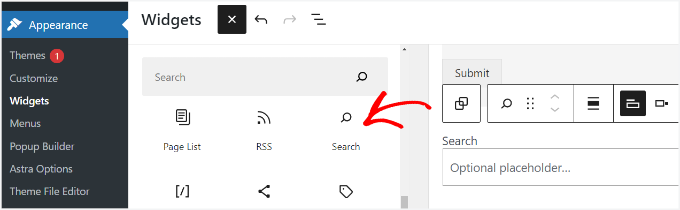
🧑💻 Expert tip: The plugin works within the default WordPress search. So, you can add the ‘Search’ block to any widget-ready area on your site, including posts and pages, not just sidebars.
When you’re done, you can click ‘Update’ to save your changes.
If you are using a modern block theme, you should use the Site Editor (Appearance » Editor) to add a Search block to your header or navigation area.
Step 2: Adding Voice Search Capability in WordPress
The easiest way to set up voice search in WordPress is by using the Voice Search plugin. It’s a free, user-friendly WordPress plugin that works out of the box. There are no special settings for you to configure.
Note: Your website must use an SSL certificate (HTTPS) for the microphone features to work, as modern browsers block microphone access on insecure HTTP sites.
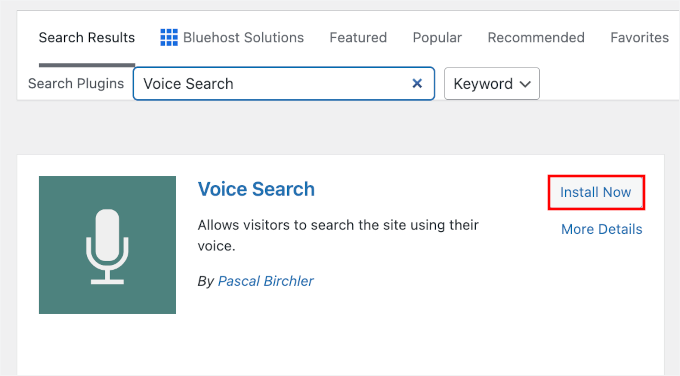
The first thing you need to do is install and activate the Voice Search plugin. You can navigate to Plugins » Add Plugin in your WordPress admin area.

Next, type the plugin’s name in the search box to quickly find it.
When it appears on the search results, click ‘Install Now’ and ‘Activate.’
If you need help, please see our guide on installing a WordPress plugin.
Upon activation, the plugin will automatically add the voice search option in the search bar. So, go ahead and visit your website.
If you’ve successfully added the voice search functionality, you should see a microphone icon in your WordPress search box.

Step 3: Testing Your New Voice Search Feature
Next, it’s a good idea to test if it functions properly.
Simply click on the microphone icon and speak to it. Your browser will ask for permission to use the microphone; make sure to click ‘Allow’ or the voice search will not work.
Then, you’ll want to see if the plugin catches what you said and proceeds to look for content with those search terms.
However, note that the Voice Search plugin relies on the Web Speech API. This works best on modern browsers like Google Chrome, Microsoft Edge, and Safari.
If your visitor is using a browser that does not support this feature, the microphone icon simply won’t appear. This ensures your site design remains clean and doesn’t show a broken feature to incompatible devices.
Also, if you use a custom search form or a custom template provided by solutions like Google Search for WordPress or SearchWP, this plugin may not work with your search box.
Please take a look at our guide on how to improve WordPress search for more details.
Bonus Tip 💡: Adding the Text-to-Speech Feature
While Voice Search helps users input information, Text-to-Speech helps them consume it. Next, you might want to further improve your site’s accessibility by enabling text-to-speech.
Adding it to your WordPress blog lets users listen to your blog posts on the go.
Plus, it’s great for making your content more accessible to people with visual impairments or reading difficulties. We believe this can help grow your blog audience.
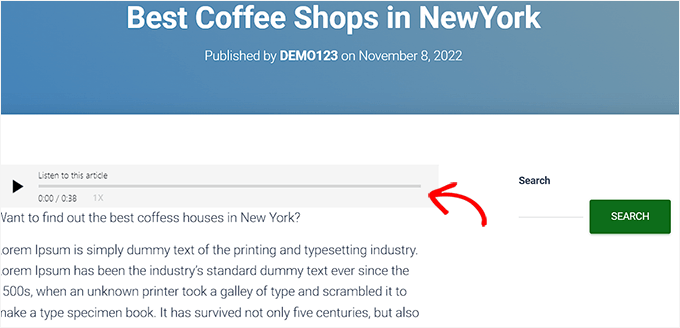
BeyondWords is one tool that makes adding this feature easy. This AI-powered platform offers a WordPress plugin that lets you add text-to-speech to your site.
For details, you can check out our guide on how to add the text-to-speech feature.
FAQ About Adding Voice Search Capability in WordPress
You might still have a few questions about adding voice search to your WordPress site. Here are answers to some of the most common questions we hear:
Will the Voice Search plugin work with all WordPress themes?
The Voice Search plugin is designed to work with the default WordPress search form. This means it works with most WordPress themes right out of the box. However, if your theme uses a custom-coded search bar, the microphone icon might not appear automatically.
Can I use the Voice Search plugin with other search plugins?
The plugin is compatible with the default WordPress search form. If you are using a custom search solution like SearchWP, the plugin might not work out of the box.
What if voice search doesn’t work on my site?
Ensure you are using a compatible browser like Google Chrome on desktop or mobile. Also, check that your microphone settings are correctly configured.
Does the Voice Search plugin support multiple languages?
The Voice Search plugin typically uses the visitor’s browser settings to determine the input language. While it works very well with English, it can often recognize other languages supported by Google’s speech-to-text API, depending on the user’s device.
Or, you can consider looking for plugins specifically offering multilingual search capabilities.
Next Steps to Improve Your WordPress Search
We hope this article helped you add voice search to your WordPress site.
Next, you may also want to check out our other guides on:
- Best Plugins to Improve WordPress Comments
- How to Make Blog Post Comments Searchable in WordPress
- How to See Search Analytics in WordPress (Easy Ways)
- How to Add a Search Toggle Effect in WordPress
- How to Improve WordPress Search with SearchWP
If you liked this article, then please subscribe to our YouTube Channel for WordPress video tutorials. You can also find us on Twitter and Facebook.


Dennis Muthomi
Combining that Voice search plugin and SearchWP will immensely help with the User Experience on my website. Thanks for this.
Slot
I need to make a short video with voice acting for my WordPress site. your article helped me a lot, thanks!
WPBeginner Support
Glad our guide could assist!
Admin
Muhammad Yousuf
This plugin last updated 5 years ago. Can you please update this article?
WPBeginner Support
We will be sure to keep an eye out for alternative plugins
Admin
Harpreet singh
Hi,
When I add this plugin to my WordPress website nothing happen. I watch your tutorial on youtube. please help me,
Have a great day to you.
Thanks & Regards
Harpreet singh
Pascal Birchler
Hey there
Thanks for writing about the Voice Search plugin!
Support for Google custom search and SearchWP definitely sounds interesting and I’m sure I can implement that in the next version.
WPBeginner Support
Thanks for writing and sharing this useful plugin with the community.
Admin
Danish
Hi there! the plugin is not working anymore