


You just snapped the perfect photo on your iPhone, ready to upload it to your WordPress site. But then you see the file format is HEIC, and a moment of panic sets in.
Will this even work online?
It is a common worry. For a long time, it was a challenge because most web browsers could not display HEIC images.
We have managed a massive media library here at WPBeginner for over 16 years. We know how frustrating it is when your images do not work immediately.
The good news is that WordPress now automatically converts these files for you. You no longer need special software or plugins to get the job done.
In this guide, we will show you exactly how this built-in conversion works and what to do if you run into any trouble.
Why Use HEIC Images in WordPress?
One of the easiest ways to make the content on your WordPress blog more interesting is to add images. They can boost user engagement and increase pageviews on your site.
We normally recommend using the PNG format for screenshots, the JPG format for photos, and GIF for animations. You should also optimize your images so they don’t slow down your website.
However, Apple and other companies have started using a new image format called HEIC (High-Efficiency Image Container). There is also a HEIF format for photos and a HEVC format for videos.
This file format uses better compression to produce smaller file sizes without losing image quality and is used by iPhone cameras and some Android devices when saving photos.
Starting in WordPress 6.7, native support for HEIC was introduced to the core platform. You can now upload HEIC images directly to your WordPress Media Library, just like JPGs and PNGs. You no longer need to convert them to a different format beforehand or use a plugin to convert them.
Tip: HEIC support requires WordPress 6.7 or higher. If you are using an older version, we strongly recommend you see our guide on how to safely update WordPress to make sure your site is secure and compatible.
However, not all browsers support HEIC, so WordPress will automatically convert the image to the JPG format so that it can be displayed in any web browser.
WordPress handles this conversion using your web server’s image processing tools (specifically, a module called ImageMagick). This means your hosting provider needs to have this tool enabled on your server.
For more details, just see the troubleshooting section at the end of this article.
How WordPress Automatically Converts HEIC to JPG
You can upload HEIC images to WordPress in the same way as you upload other images, such as PNG, JPG, and GIF files. Typically, you will do this by visiting the WordPress Media Library and dragging the image onto the page.
Once the file is uploaded, WordPress automatically converts it to the JPG format so that you can use it on your WordPress website. Note that this conversion happens on the fly, so it might take a second or two longer for the thumbnail to appear compared to a standard image.
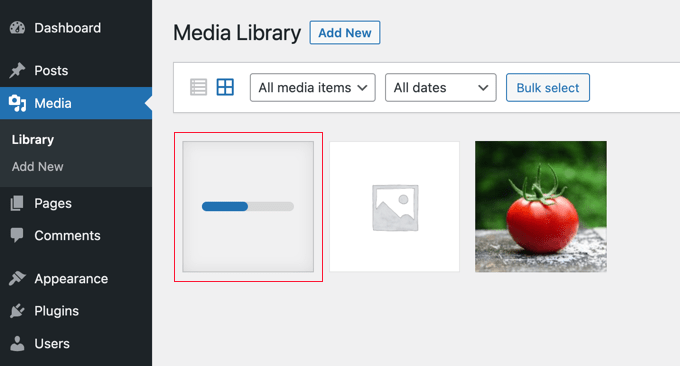
After testing several HEIC images, we found that the converted images were of the same quality as the originals. This is great for users who want to share high-quality photos.
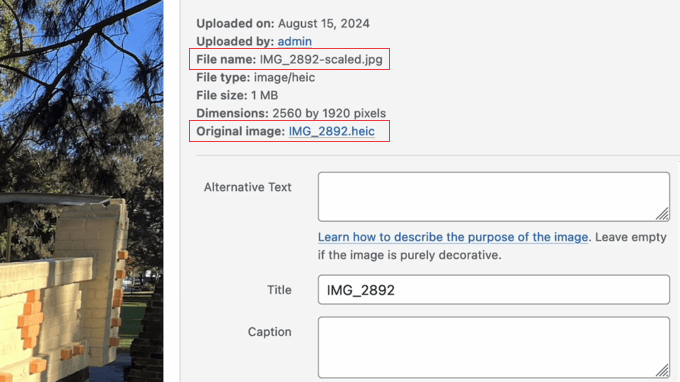
When you click on the image to view its attachment page (see the screenshot below), you can see that the image is now a JPG file.
While WordPress will display the JPG version on your website, the original HEIC image is retained. This is great because it preserves your original, high-quality photo for future use or download, while still ensuring a compatible version is shown to all your visitors.
It can be downloaded from the image attachment page using the ‘Original image’ link.
Important: When using these images in your posts, always use the WordPress Block Editor to insert them. If you manually copy the ‘File URL’ from the Media Library, you might accidentally copy the link to the original HEIC file, which will not display correctly in some browsers or email clients.
If you need any help with uploading images to the Media Library, then you can see our guide on how to properly add images in WordPress.
Troubleshooting HEIC to JPG Conversion in WordPress
For the conversion to work, your WordPress hosting server needs the right tools. Specifically, WordPress uses a PHP extension called Imagick, which relies on the ImageMagick software library. To handle HEIC files, your server generally needs ImageMagick version 7.0.8-26 or any newer version.
Top-tier hosting providers like Hostinger typically have a recent version of ImageMagick pre-installed, making sure your HEIC images are automatically converted without any extra work.
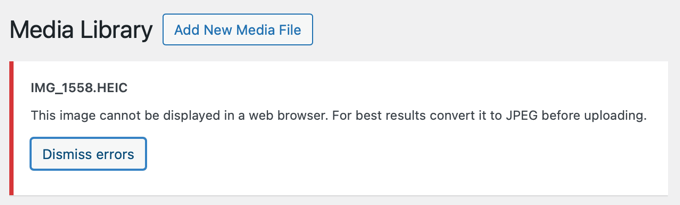
However, that’s not the case for every hosting provider. If ImageMagick isn’t installed on your web server, or if the installed version is outdated, WordPress cannot convert your HEIC files. Instead, you will see an error message like the one below.
Let’s take a look at how you can check which ImageMagick version is installed on your server.
Checking Your ImageMagick Version
Using the Site Health feature on your WordPress dashboard, you can see whether your website has a version of ImageMagick that supports HEIC.
You can find this page by navigating to Tools » Site Health. Once there, you need to click the ‘Info’ tab and then click ‘Media Handling’.
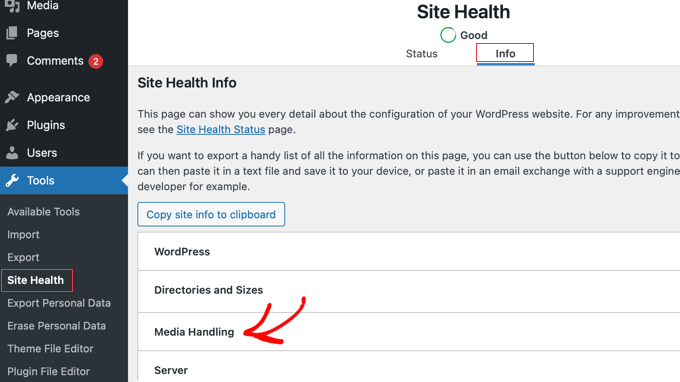
Now, you can scroll down to the ImageMagick section to see the version number that is installed on your server and the supported file formats.
If you have the right version of ImageMagick, then you will see ‘HEIC’ listed.
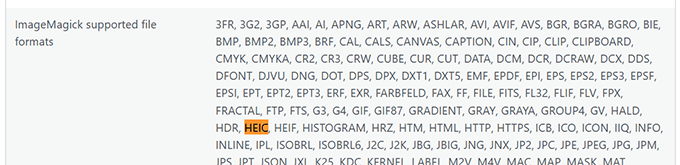
However, if you have an older version of ImageMagick or ImageMagick is not installed on your server, then ‘HEIC’ will not be listed as a supported file format.
In the screenshot below, you can see that ImageMagick 6.9.10-68 is installed on the server. This is an old version that does not support the HEIC image format.
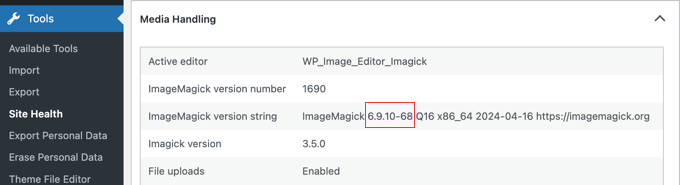
For WordPress to be able to convert HEIC files to JPG, your hosting provider will need to update ImageMagick to a later version. Alternatively, you can convert the images to JPG before you upload them to WordPress.
Let’s take a look at each of these options.
Tip: To learn the difference between Imagick and ImageMagick, see our guide on how to enable Imagick on your WordPress site.
Asking Your Hosting Provider to Install a Recent Version of ImageMagick
To update ImageMagick, you can contact your hosting provider and ask them to install and enable ImageMagick 7.0.8-26 or later.
You might like to see our guide on how to properly ask for WordPress support and get it.
If they are unable to update your version of ImageMagick, then you can move your WordPress website over to Hostinger or another host that supports a later version of ImageMagick.
Alternatively, you can simply convert your HEIC files to JPG before you upload them.
Converting Your HEIC Files to JPG Before Uploading Them
If you can’t upgrade to a recent version of ImageMagick on your web host, then you can also simply convert your HEIC images to the JPG format before you upload them.
If you use a Mac, converting images is often straightforward. For example, when you drag a photo from the Photos app to your desktop or share it via email, macOS automatically converts it into the more widely supported JPG format.
Alternatively, you can use image conversion software. The Windows Photo app has a ‘Save a Copy’ feature that can convert HEIC files, and the Mac Preview app can convert HEIC files.
If you prefer an online tool, then you can use the heictojpg tool to convert your HEIC images to JPG. Then, simply upload the JPG files to your WordPress website.
Frequently Asked Questions About HEIC to JPG Conversion
Here are the answers to some of the most common questions we receive about handling HEIC image files in WordPress.
Why does WordPress automatically convert HEIC images to JPG?
WordPress converts HEIC files to the JPG format to make sure your images work on all web browsers. While HEIC is efficient, its browser support is limited, so converting it to JPG guarantees every visitor can see your pictures.
Is HEIC better than JPG?
HEIC files provide similar image quality to JPGs but at a much smaller file size. This is great for saving space on your phone, but JPG remains the standard for the web due to its universal compatibility.
Do I lose image quality when converting from HEIC to JPG?
The conversion from HEIC to JPG is optimized for the web. While technically there is always a slight difference when converting formats, the visual quality will look identical to your visitors.
HEIC to JPG is optimized for the web. While technically there is always a slight difference when converting formats, the visual quality will look identical to your visitors.
Can I upload HEIC files if I have an old version of WordPress?
Support for HEIC files was added in WordPress 6.7. If you are using an older version, you will need to convert the images to JPG yourself before uploading them.
Expert Guides for Using Images in WordPress
Now that you know how to convert your HEIC photos, you may want to see some other guides on how to properly manage images in WordPress:
- How to Optimize Images for Web Performance Without Losing Quality
- How to Resize and Make Images Larger Without Losing Quality
- How to Fix Common Image Issues in WordPress
- How to Create an Image Gallery in WordPress (Step by Step)
- Best WordPress Plugins for Photographers
- How to Use WebP Images in WordPress
- WebP vs. PNG vs. JPEG: The Best Image Format for WordPress
We hope this tutorial helped you learn how to convert HEIC to JPG in WordPress. You may also want to see our guide on how to create a custom Instagram photo feed or our expert pick of the best WordPress image compression plugins.
If you liked this article, then please subscribe to our YouTube Channel for WordPress video tutorials. You can also find us on Twitter and Facebook.


Jiří Vaněk
Thanks for the advice. Personally, I am an android user, so I have never dealt with these issues on my website. However, then the first person came with this format and it was necessary to solve this. I used to use online converters to convert images to another format but it’s really a very tedious process that no one wanted to do. Thanks for showing how to do it better and more efficiently.
Ralph
I hate that my wife iphone does that. I’m android user and never have problem with anything, but whenever we have to do something with this iphone it’s a real pain…
Good to know there is such a solution. Canthis plugin convert those images from heic to webp? Or should i convert heic -> jpg -> webp?
WPBeginner Support
For the moment the plugin only converts to jpg, if you wanted webp you would need a second plugin or tool for the moment to convert the images.
Admin
Ralph
Thanks for letting me know. I will just use additional plugin then.