


Have you ever lost a customer because your WordPress form was too long or frustrating to fill out? It happens all the time. A shopper is ready to buy, but then they get stuck typing a long address, especially on a mobile device.
One small typo can mean a failed delivery, and in many cases, the customer just gives up before finishing.
That’s why address autocomplete is so helpful. It suggests the correct address as soon as users start typing, making the process faster, easier, and less likely to cause errors. The result is happier customers and fewer lost sales.
Plus, it’s easy to set up. In this guide, I’ll show you how to add address autocomplete to your WordPress forms step by step using WPForms and its Geolocation addon.
Why Add Autocomplete Address Fields in WordPress?
Adding address autocomplete to your WordPress site is an easy way to improve your website’s user experience. In an eCommerce store, for example, it helps customers enter their address faster and avoid typos.
Here’s how it works: As shoppers type, address suggestions, pulled from Google Places/Maps, appear. This allows them to simply pick the right one, and the form fills in automatically.

That reduces errors and speeds up checkout. And faster, more accurate checkouts boost sales and make buyers more likely to return.
Beyond online stores, address autocomplete helps reduce errors in registrations and booking forms. Plus, it makes filling out any kind of form, especially on mobile, much easier.
Now that you understand the benefits of adding autocomplete address fields in WordPress, I’ll show you how to do it, step by step.
Here’s a quick overview of all the steps I’ll cover in this article:
- Step 1: Generate a Google Places API Key
- Step 2: Install the WPForms Plugin and the Geolocation Addon
- Step 3: Enable Address Autocomplete in Your WordPress Forms
- Step 4: Create a Form with an Address Autocomplete
- Step 5: Embed Your WordPress Form with Address Autocomplete
- Bonus Tip: Track and Reduce Form Abandonment in WordPress
- FAQs About Autocomplete for Address Fields in WordPress Forms
- More Guides for Using WordPress Forms
Ready? Let’s start.
Step 1: Generate a Google Places API Key
To connect WPForms with Google Maps and enable the autocomplete address feature, you’ll need a Google Places API key. Let’s walk through the process.
🚨 Heads up: Google now requires you to set up a billing account to use their mapping services. The good news is they provide a generous free credit each month, so most small websites won’t have to pay anything to use this feature.
To get your key, you’ll need to head over to the Google Maps Platform, which is managed inside the Google Cloud Console. The console can look a bit complex, but don’t worry – I’ll walk you through the exact steps you need.
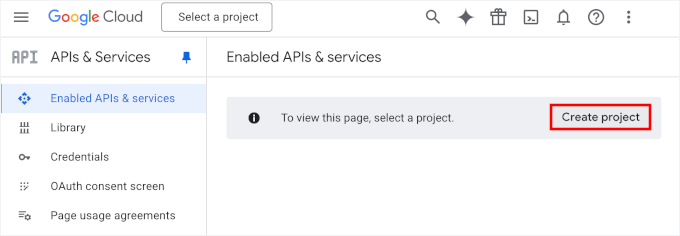
First, let’s click ‘Create Project.’
On the next screen, you’ll need to name your new project. I recommend using a name that will help you easily identify it later.
Then, if you have an organization you want to connect to, you can click the ‘Browse’ link to view a dropdown of options. Alternatively, you can select ‘No organization.’
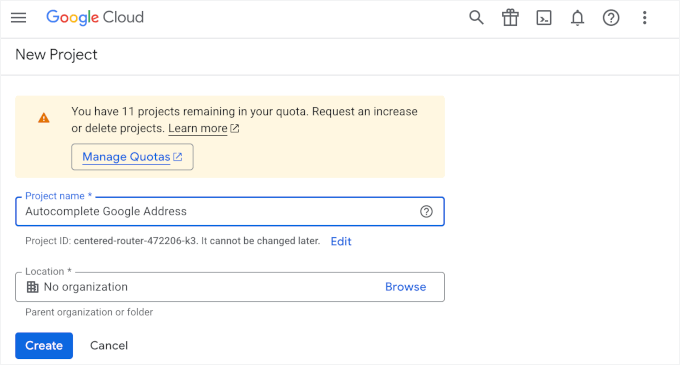
Once everything looks good, you can hit the ‘Create’ button.
On the next screen, go ahead and open the ‘Library’ tab.
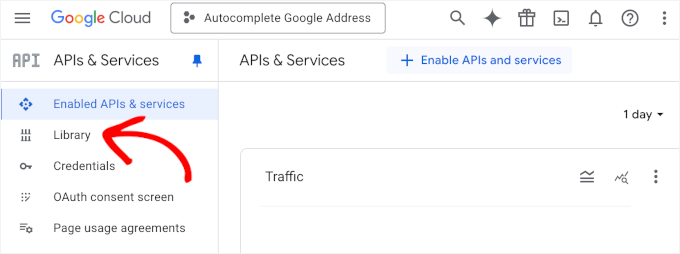
From there, you’ll need to activate three specific APIs. Think of them as a team that works together:
- Places API: This is the star player that provides the address autocomplete suggestions as you type.
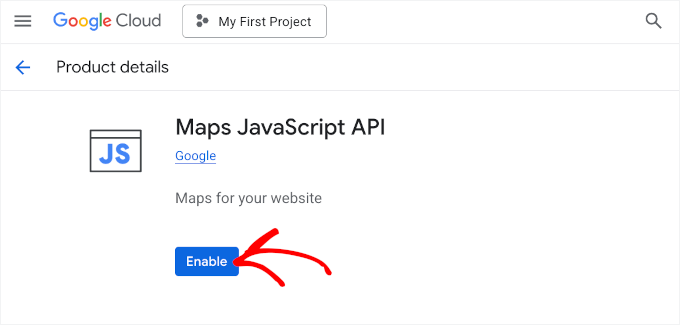
- Maps JavaScript API: This allows you to display a map view of the selected address right on your form (which is a cool, optional feature).
- Geocoding API: This works behind the scenes to convert addresses into map coordinates.
The easiest way to find them is by using the search bar – just search, select the API, and click ‘Enable.’ Repeat this until all three APIs are active.
When that’s done, you’ll generate a unique key that your site will use to talk to Google’s APIs.
So, even though you’ve enabled three different APIs, you don’t need three separate keys. A single API key can give your site access to all of them, as long as you set the right restrictions.
To do this, you can move to the ‘Credentials’ tab. Then, you can click Create Credentials » API key.
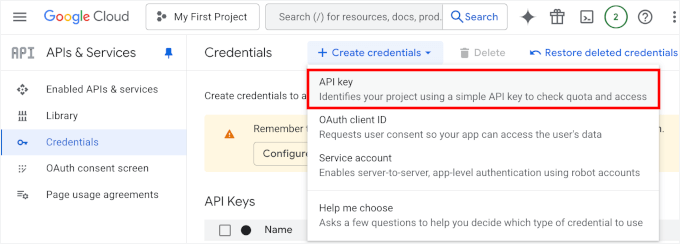
This will open a panel for configuring the API key.
Under ‘Application restrictions,’ select ‘Websites’ so that the key only works on your website.

This will open the ‘Website restrictions’ configuration option.
Here, you can simply enter your domain name and click ‘Done.’

After that, you can continue to the ‘API restrictions’ section.
Let’s first enable the ‘Restrict key’ option.
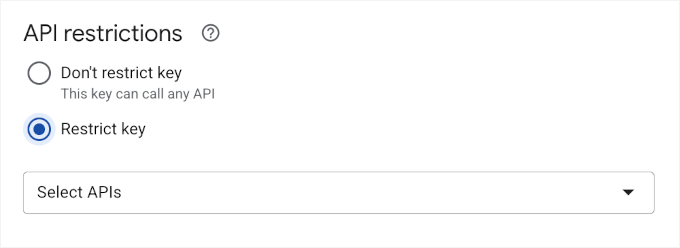
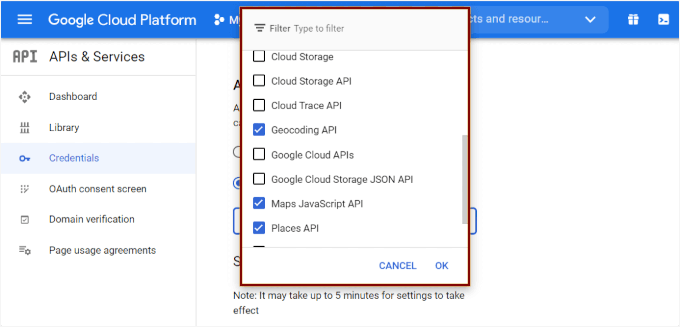
Then, in the ‘Select APIs’ dropdown menu, you’ll want to select the three APIs you just enabled and click ‘Ok.’
This will limit the key’s access to those APIs only.
💡 Pro Tip: Restricting your API key is a super important security step. It prevents anyone else from finding your key and using it on their website. This could lead to unexpected charges to your account.
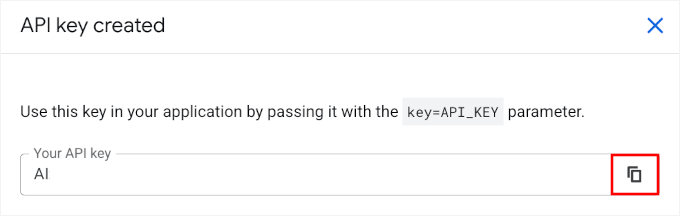
After saving your changes, you’ll see your unique API key.
Go ahead and copy it – you’ll need it in the next step when connecting it to WPForms.
Step 2: Install the WPForms Plugin and the Geolocation Addon
For this tutorial, we will be using WPForms, which is the best contact form builder for WordPress. It comes with a powerful Geolocation addon that makes adding address autocomplete incredibly simple.
At WPBeginner, we use WPForms to display our contact form and run our annual reader surveys. See our complete WPForms review for more insights into the plugin.
The first thing to do is sign up for a WPForms account. On their website, just click on ‘Get WPForms Now’ to get started.

You can then select a plan and proceed with the checkout process.
💡 Note: You will need the WPForms Pro plan or higher to access the Geolocation addon. But there’s a WPForms free version if you want to test it out first.
Once you’ve signed up, you’ll need to install and activate the WPForms plugin.
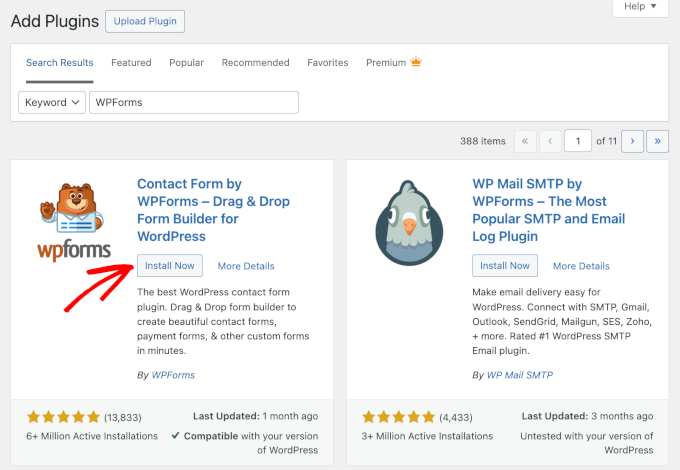
From your WordPress admin area, simply navigate to Plugins » Add New Plugin.

After that, you can use the search feature to find the WPForms plugin.
On the search results, click ‘Install Now’ and then click the ‘Activate’ button when it appears.
If you need help, you can follow our guide on how to install a WordPress plugin.
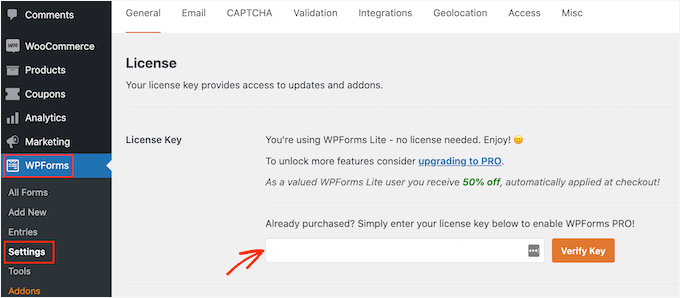
Upon activation, you’ll need to verify your license key.
To get started, go to WPForms » Settings, enter your license key in the field provided, and click the ‘Verify Key’ button. You can find your license key in your WPForms account.
With that done, you can go to WPForms » Addons from the WordPress admin panel to install the Geolocation addon.
On the next screen, browse through the options (or use the search bar) and click ‘Install Addon’ for the Geolocation addon.
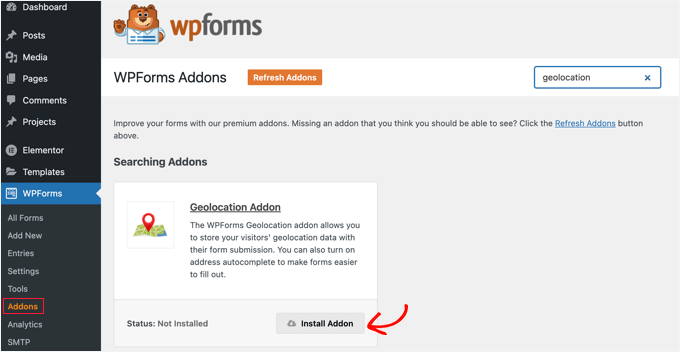
WPForms will automatically install and activate the addon within a few moments.
Step 3: Enable Address Autocomplete in Your WordPress Forms
Now that you have your unique API key and Geolocation addon, it’s time to enable address autocomplete in your WordPress form.
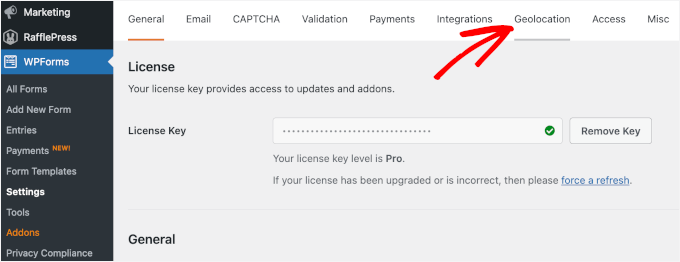
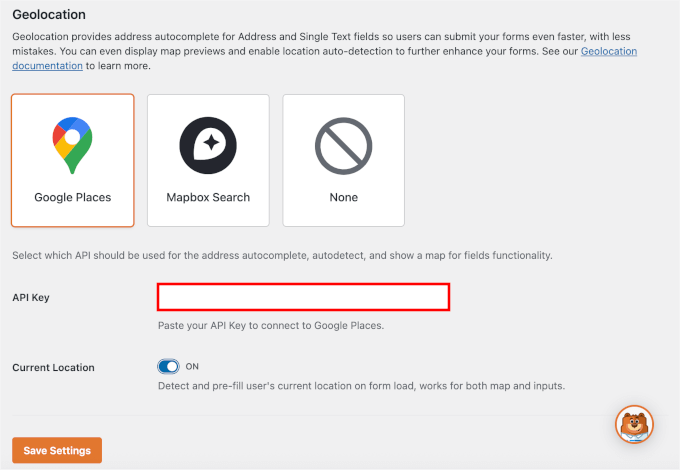
Head over to WPForms » Settings from your WordPress dashboard. Then, switch to the ‘Geolocation’ tab at the top.
Here, you’ll find a few options you can adjust:
- Places Provider – For this guide, we’ll select ‘Google Places.’
- API Key – Go ahead and paste the unique API key you generated in Step 1. This will enable autocomplete addresses and display Google Maps inside your forms.
- Current Location – Turn this on to automatically populate users’ locations in your forms.
Don’t forget to click ‘Save Settings’ at the bottom of this panel.
Next, you just need to enable autocomplete on the form where you want to use it. You can either edit an existing form or create a new one.
Step 4: Create a Form with an Address Autocomplete
By now, you’ve connected WPForms with Google Maps. In this step, we’ll create a form with an Address field.
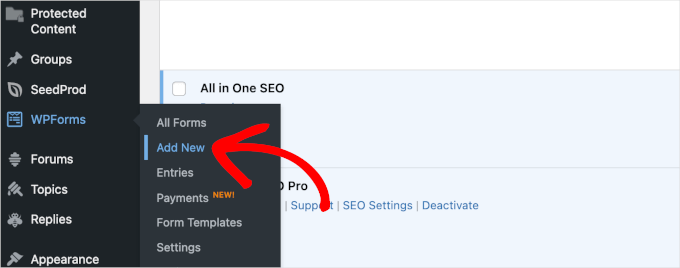
To start, go to WPForms » Add New from your WordPress admin area.
On the next screen, you can go ahead and give your form a name.
You’ll want to use a clear, descriptive name so it’s easier to organize as you create more forms.

After that, you’ll choose how you want to build your form: using a blank canvas, a pre-made template, or an AI form builder.
If you want to use the AI-powered form builder, then all you have to do is enter a simple prompt. WPForms AI will then generate the form for you in a few seconds.

For this tutorial, though, I’ll use a ready-made template.
WPForms comes with over 2,000 form templates, making it easy to find one that’s nearly perfect for your goal.
Once you have found a good template to use as a base, just hover over it and click the ‘Use Template’ button. Here, I’ll use the Simple Contact Form template.

This will open the drag-and-drop form builder.
Next, drag the ‘Address’ field from the left panel and drop it into your form (if it’s not already there).
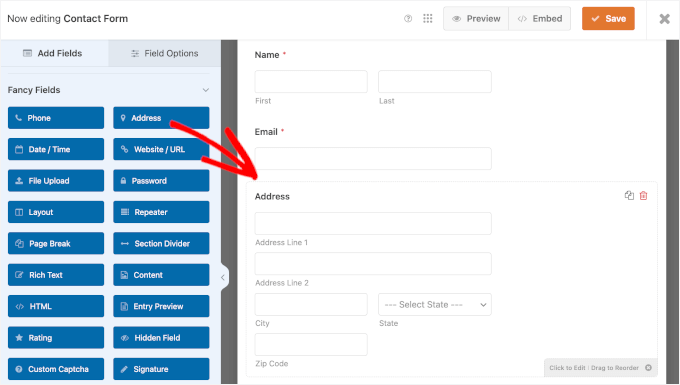
Once the ‘Address’ field is in place, you can click on it to open the ‘Field Options’ panel.
Here, you can adjust the field’s label, add a field description, or choose a different address schema – US or international.
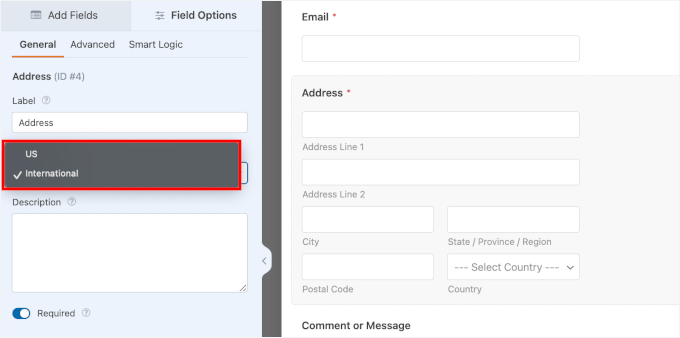
Once you have customized the general settings, you can switch to the ‘Advanced’ tab.
Then, scroll down the panel until you find the ‘Enable Address Autocomplete’ option. Go ahead and toggle it on.
This will let users quickly autofill their full address, including city, state, and postal code, directly in your WordPress form.
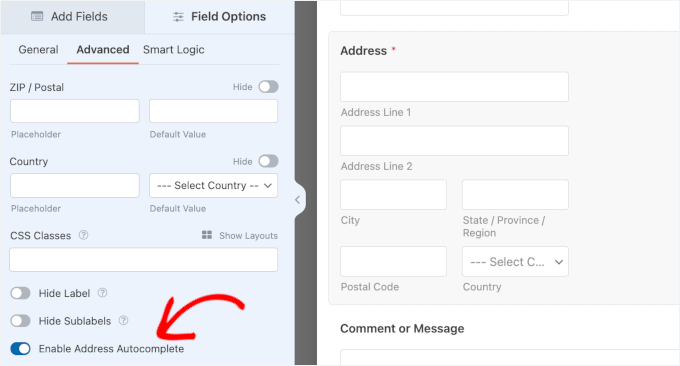
Enabling this feature will open the ‘Display Map’ options. Simply toggle it on to add the map to your ‘Address’ field.
Then, you can choose to show the map above or below the field in your form.
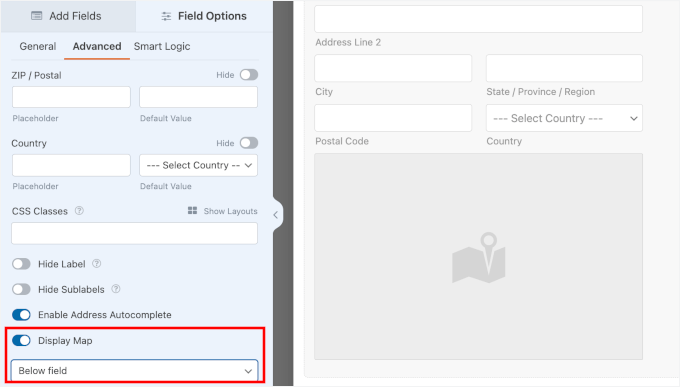
Once you’re done, don’t forget to hit the ‘Save’ button at the top to apply your changes.
From here, you can customize your notifications and confirmations. For more details, see our guide on how to create a contact form.
Step 5: Embed Your WordPress Form with Address Autocomplete
Now, you’re ready to add your form to your WordPress site.
To start, click the ‘Embed’ button at the top of the form builder.
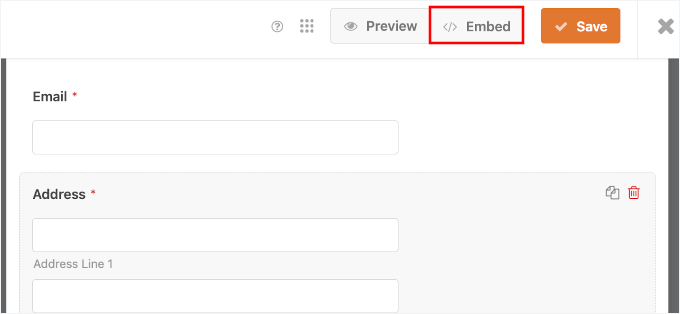
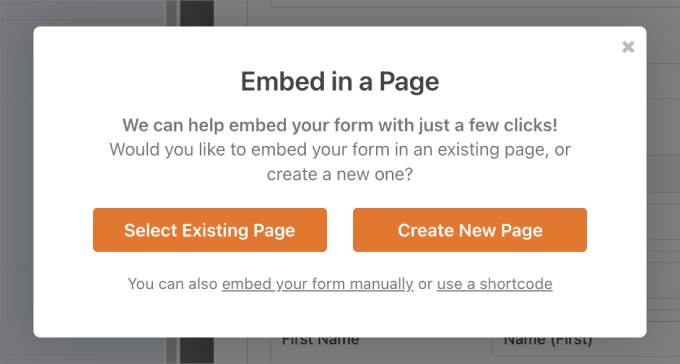
A popup will appear where you can either add the form to an existing page or create a new page.
For this tutorial, I’ll choose ‘Select Existing Page.’
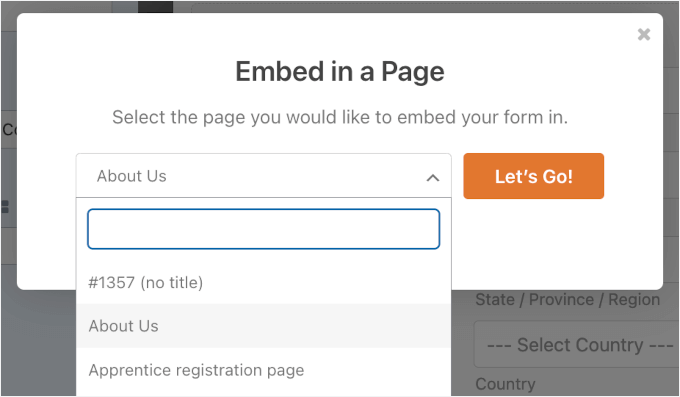
In the next popup, you can go ahead and choose a page from the dropdown.
Then, click ‘Let’s Go!’ to continue.
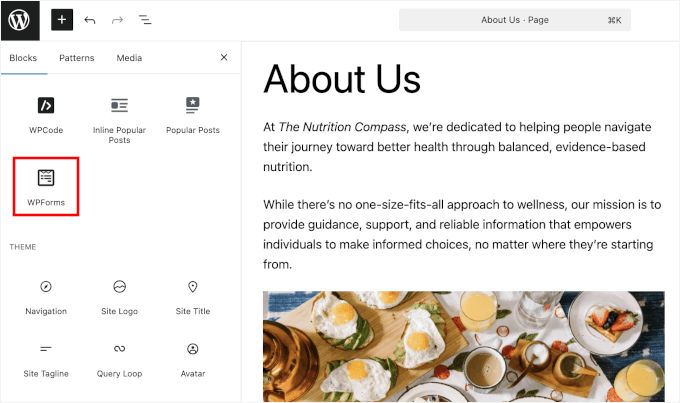
WPForms will redirect you to the WordPress block editor.
Here, click the ‘+’ icon and add the WPForms block.
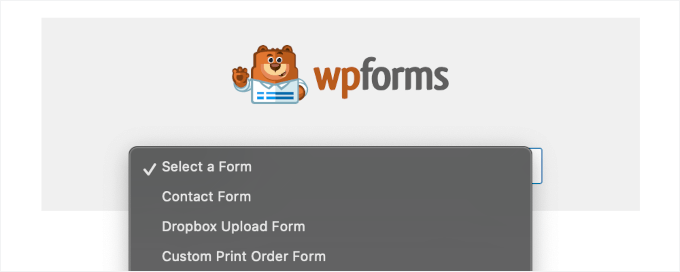
Then, select your form from the dropdown menu.
WPForms will automatically load it into the content editor.
On the right-hand panel, you can adjust the ‘Form Settings.’
For example, you may want to display the form title or description to provide visitors with more context.
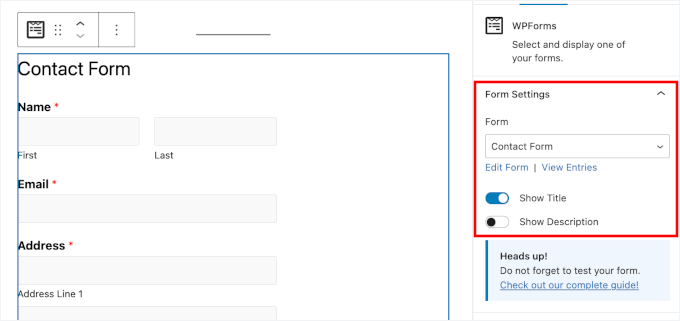
You can also style your form to better match your site’s theme. And once you’re happy with the design, just hit the ‘Save’ button.
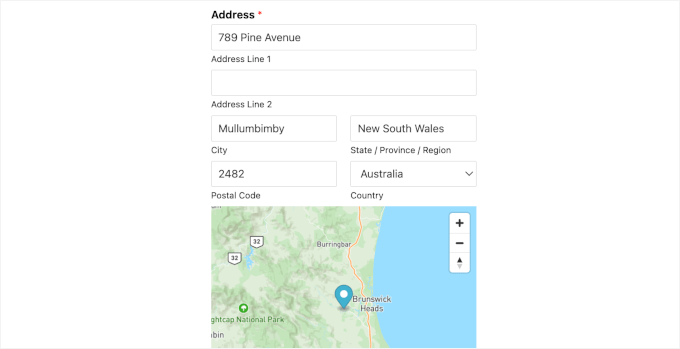
That’s it! You can now visit your form page and try typing in an address.
The address field will automatically show suggestions from Google Maps, allowing users to fill out their address with a single click.
You’ve successfully added the Google address autocomplete feature to your forms.
Users will be able to autofill your form, whether they are checking out from your WooCommerce store or completing a user registration signup.
Here’s what it might look like once users select an autocomplete address suggestion:
Bonus Tip: Track and Reduce Form Abandonment in WordPress
Form abandonment happens when people leave a form without submitting it, which is often due to a poor user experience.
Reducing form abandonment is important because it can hurt the growth of your email list, your eCommerce sales, and overall business success.
Studies show that over 77% of online shoppers don’t finish their checkout forms, which means losing a lot of money from incomplete sales.
By tracking and improving the forms that people often abandon, you can reduce these revenue losses.
While auto-completion can help, there are still other factors that can contribute to form abandonment:
- Optional Fields Turned Mandatory: Making people fill out non-essential information can be really annoying.
- Unclear Instructions: Confusing or vague form fields can make people give up.
- Mobile Unfriendliness: Forms that are hard to use on mobile devices can be a big turn-off.
- Technical Issues: Problems like the form not working well or slow load times can stop people from completing it.
For more details, you can read our guide on how to track and reduce form abandonment in WordPress.
FAQs About Autocomplete for Address Fields in WordPress Forms
How does address autocomplete work?
Your form connects to a location service like Google Places or Mapbox. As users type, it shows matching address suggestions. When they pick one, the fields (street, city, postal code, etc.) fill in automatically.
Will it work with my WordPress theme?
Usually, yes. Autocomplete works with most modern WordPress themes, but sometimes, custom scripts or heavily modified themes can cause conflicts.
Which WordPress plugins support address autocomplete?
Several form plugins offer this, usually through add-ons or integrations. WPForms with the Geolocation Addon is one of the best options.
What if the suggestions don’t show up?
A few common causes include a missing or incorrect API key, JavaScript errors or theme conflicts, and API restrictions (such as incorrect domain settings).
More Guides for Using WordPress Forms
I hope this article helped you learn how to add autocomplete for address fields in WordPress.
If you found this helpful, you may also want to see our other helpful guides on:
- How to Create WordPress Forms with Dropdown Fields
- How to Create Multilingual Forms in WordPress
- How to Track User Journey on WordPress Lead Forms
- Expert Tips to Create More Interactive Forms and Increase Conversions
- Ways to Use Conditional Logic in WordPress Forms (Top Use Cases)
- How to Create a Custom Airtable Form in WordPress
- Ultimate Guide to Using WordPress Forms
If you liked this article, then please subscribe to our YouTube Channel for WordPress video tutorials. You can also find us on Twitter and Facebook.


M K Soleman Ahmed
It is not working now.
WPBeginner Support
Thank you for letting us know, we’ll be sure to take a look and find an alternative.
Admin
Vinod
autocomplete is coming in the first filed but not in zip and state fields, please advice.
WPBeginner Support
Hi Vinod,
Sadly, for that customization, you would need to reach out to the plugin’s support for if they currently support multiple fields
Admin
Mooki
It works thanks, I had searched of websites and plugins and nothing worked until I got to this helpful site
WPBeginner Support
Glad our site could help you
Admin
Fabiano Hirtz
I have a travel site, tours and transfers, I would like to install this tool, when the client selected the place of visit and the arrival was not transferred, or tour, but it is not a contact form, but rather a search form, does it work? I put the class, did everything correctly, it still does not work. Can someone help me?
Jay Kuntal
Hey, I tried a lot with getting API. It works fine when i use custom code from google on code pen. But when i put the same API on this plugin, it doesn’t work.
I have enabled two APIs – Places Web and Maps JS with credentials on Places Web.
What am i missing here
Thanks
ahmer
Hi jay,
did you get it working? i’m stuck, can’t seem to get it working.
Tess
Curious to know how to set a default country to appear first (instead of the default US addresses). Do you have any idea if there is a shortcode or some way to do this with this plugin?
BTW, I got the plugin working by just adding into the “Name” field. It works fine for me apart from wanting it to show AU addresses first.
asima
How to populate the ‘current location’ in ‘area/neighborhood ‘ select dropdown as the first select option (rest of the options coming from the database) ?
steve hajjaj
Hi there thanks for the article. I have followed the process you described but I still cannot get autocomplete to work at all. Is there something wrong with my google developers account ? as I can see the 2 APIs are enabled but cannot see any requests. Thanks
WPBeginner Support
Hi Steve,
Make sure that you are targeting the correct CSS class or ID used by your form’s address field.
Admin
Luke
I found a bug. When you type in the name of the business, the auto-completed address does NOT include the street number, only the street name (Main St, not 123 Main St). Big problem!!!
Luke
Also, the zip code is always missing!
Luke
Also, the only thing that comes through on form submission is the keys a user started typing. The address the user selects is what is shown, but not what is submitted with the form
WPBeginner Support
Hey Luke,
If you think you have found a bug, then please report it to plugin authors. They may be aware of a fix or can then work on it.
Admin
Sarah
If there is one thing we are mindful; it’s the ‘mission creep’ of Google into websites and related app areas.
Where able, we try not to engage google into our sites so as to remain ‘in control’ in what we do.
But thanks for the insight …
Camilo
Can it be possible to have the autocomplete fill out the zipcode, state and country as well? I just followed everything here and the address populates automatically but the user still has to manually input their zip code, state, and city
WPBeginner Support
Hi Camilo,
Currently it is only possible if you use the single field for complete address.
Admin
Zafar Rathore
Excellent article for autocomplete. I was looking for such a easy to go method and you guys made it.
Autocomplete really saves a lot of time for end users which ultimately contributes to user friendly environment.
Keep it up guys.
Thank you
Nicholas Johnson
I’m planned to create WP form with autocomplete, but I don’t know how to do that. After reading this post, I have an idea to create auto-complete forms.