


Accepting Google Pay on your WordPress site can improve your customers’ overall shopping experience.
From our own experience running online stores, we know how important it is to offer multiple payment options to cater to the different preferences of your customer base.
By providing Google Pay, you can build trust with your customers, reduce checkout friction, and ultimately boost sales on your website.
Plus, adding Google Pay shows that you’re staying current with payment trends and meeting your customers’ diverse needs, which can lead to increased customer loyalty and satisfaction.
In this article, we’ll guide you through the steps to accept Google Pay in WordPress, ensuring a smooth payment process for your customers.
This lets them check out much faster by securely using the payment and shipping information already stored in their Google Account, so they don’t have to type it all in manually.

💡Quick Answer: How to Accept Google Pay in WordPress
The easiest way to accept Google Pay in WordPress is by using the WP Simple Pay plugin. It connects directly to your Stripe account, allowing you to enable Google Pay with just a few clicks without setting up a complex eCommerce cart.
Why Accept Google Pay in WordPress?
If you’re selling products or services on your WordPress website or asking for donations, then it’s important to let your visitors pay using their preferred method.
Often, they will want to pay by credit card or PayPal, but newer methods like Google Pay and Apple Pay are becoming more popular.
Google Pay is available in dozens of countries around the world and makes online payments simple. One of the best parts is that Google Pay is available to your customers on most modern web browsers like Chrome, Safari, and Firefox, on both desktop and mobile.
As long as a user has a payment method saved to their Google Account, they will be able to use this option.
That being said, let’s take a look at how to accept Google Pay in your online store.
☝ Note: We’ll cover how to add a Google Pay option in WordPress without adding a full eCommerce cart, but we will leave other helpful resources at the end of this article for those looking for full eCommerce solutions.
Step 1: Install and Activate WP Simple Pay
The first thing you need to do is install and activate the WP Simple Pay plugin.
WP Simple Pay is a simple, yet powerful WordPress invoicing and payments plugin. The best part is that it doesn’t charge additional transaction fees. You can set it up easily without the complexity of a cart system.
With WP Simple Pay, you can accept Apple Pay, Google Pay, credit card, and ACH bank payments. It allows you to offer users multiple payment options, which helps improve conversion.
During testing, we found that it offers numerous premade templates and even lets you design a payment page, which we really appreciate. For more details about its features, you can see our complete WP Simple Pay review.
Keep in mind that while the plugin has a free version, you need the Pro plan to accept Google Pay, create on-site payment forms, and more.
If you need help installing it, feel free to see our step-by-step guide on how to install a WordPress plugin.
Step 2: Configure the Setup Wizard
Upon activation, the WP Simple Pay setup wizard will start automatically. To continue, simply click the ‘Let’s Get Started’ button.

On the first page, you’ll be asked to enter your license key. You can find this information in your account on the WP Simple Pay website.
After that, you need to click the ‘Activate and Continue’ button to move to the next step.

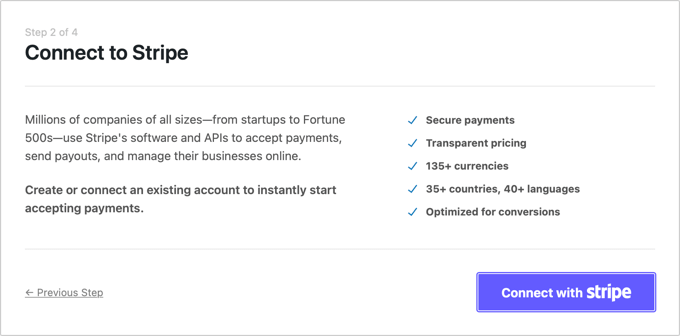
On the next page, you’ll need to connect WP Simple Pay to Stripe.
Stripe is a popular payment gateway, and connecting WP Simple Pay to it is the easiest way to add Google Pay to your website. It also supports all top credit and debit cards, Apple Pay, ACH payments, and more.
Simply click the ‘Connect with Stripe’ button, and from there, you can log in to your Stripe account or create a new one. Anyone with a legitimate business can create a Stripe account and accept payments online.
☝ Note: Stripe requires your site to use SSL/HTTPS encryption. If you don’t already have an SSL certificate for your website, then please see our step-by-step guide on how to add SSL to WordPress.
Once you’ve connected to Stripe, you’ll be asked to configure your WP Simple Pay emails.
By default, WP Simple Pay has already enabled the options for payment and invoice emails to your customers.

In this step, you just need to enter the email address where the notifications should be sent.
After entering the email address, go ahead and click the ‘Save and Continue’ button to complete your WP Simple Pay setup.
Note that Google Pay will be enabled by default when using the Stripe checkout form. It will also be automatically offered to Android users in participating countries.
If you decide to disable Google Pay in the future, all you have to do is change the payment method settings from the Stripe Dashboard.
Step 3: Create a Payment Form
Now, it’s time to create a payment form.
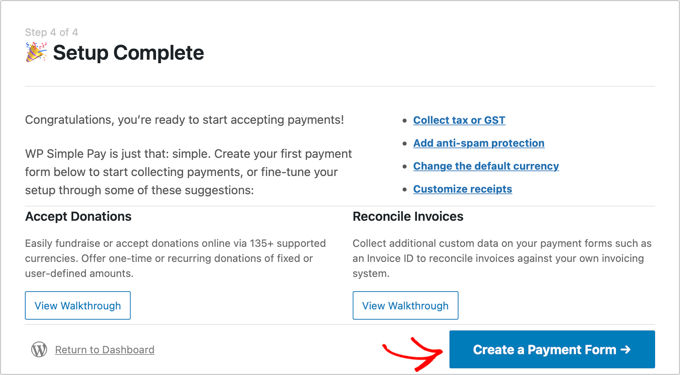
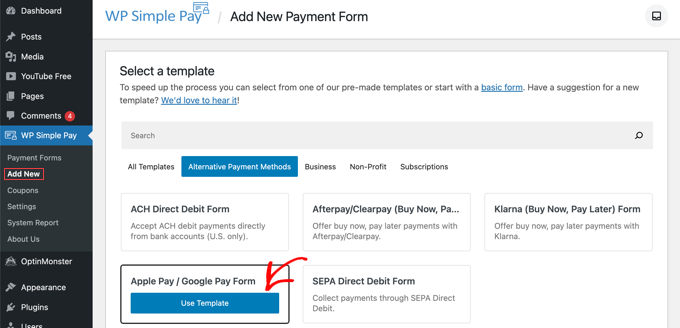
To get started, you can click the ‘Create a Payment Form’ button on the last page of the setup wizard. This will automatically take you to the WP Simple Pay » Add New page.
On this page, you’ll see a list of payment form templates. Let’s scroll down to locate the ‘Apple Pay / Google Pay’ template.
Once you’ve found it, simply hover over the template and click the ‘Use Template’ button when it appears.
This will take you to the payment form editor.
From here, go to the ‘Type’ dropdown and select the ‘Off-site Stripe Checkout form’ option.
We recommend this option because it is simple to set up and offers the best security, since payment details are handled on Stripe’s secure page. It also ensures the payment form is fully mobile-responsive, which is important for Google Pay users.
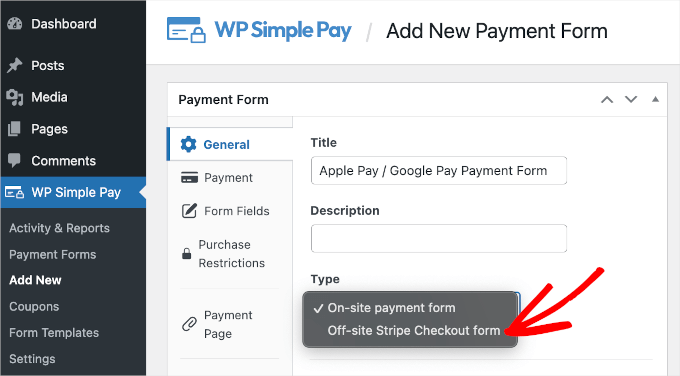
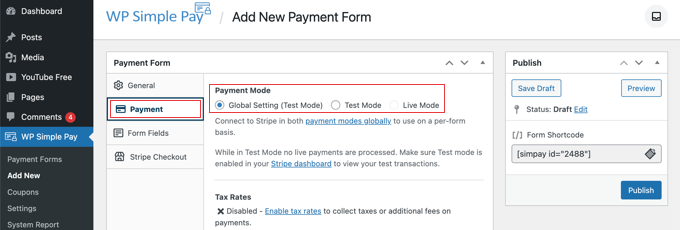
After you’ve done that, we’ll move on to the ‘Payment’ tab.
Here, you can set the payment mode to either live or testing. The testing mode will let you make payments that are not actually charged.
This helps you make sure your form is working properly and emails are being sent. When testing, you must use Stripe’s test card numbers (like 4242 4242…) to complete the transaction successfully.
Don’t forget to change this to ‘Live’ when you’ve finished testing and are ready to start receiving customer payments.
You can also add the products or services you offer, their prices, and whether they are a one-time payment or a subscription.
Simply click the ‘Add Price’ button until you have added as many prices as you need.
After that, you’ll need to add a label and price for each item. You can also choose other options, like setting up recurring payments or allowing the user to decide the price, such as for a donation.
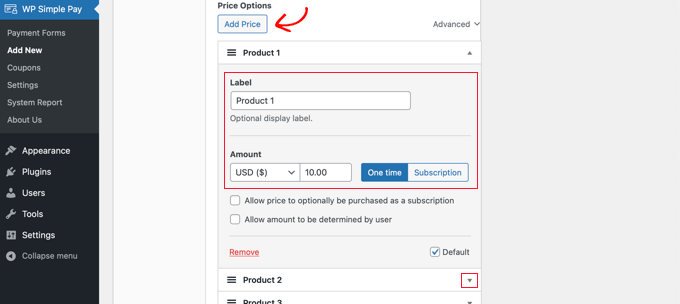
You can show or hide a price by clicking the small arrow on the right.
Step 4: Add Form Fields
Next, we’ll move on to the ‘Form Fields’ tab. Notice that the essential fields have already been added to the form, including an ‘Apple Pay / Google Pay’ button, credit card details, and a checkout button.
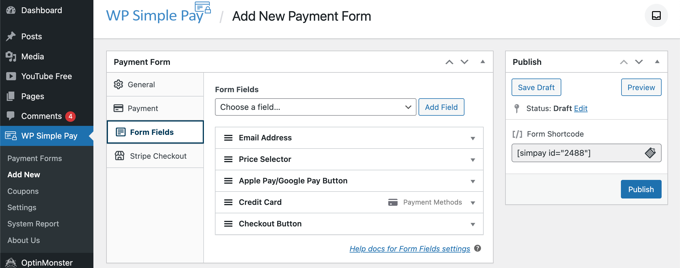
Using the ‘Form Fields’ dropdown, you can add more fields by clicking the ‘Add Field’ button. Options include name, phone number, address, and much more.
Finally, the ‘Stripe Checkout’ tab allows you to select additional payment methods and tweak the checkout form that is displayed after the user clicks the ‘Pay’ button.
For this tutorial, we’ll leave those settings as they are.
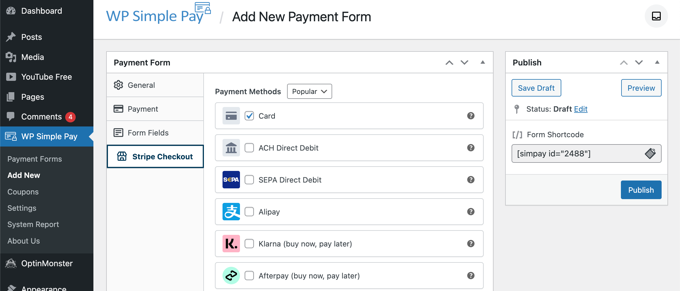
When you are happy with your payment form, click the ‘Publish’ button to store your settings and make it live.
Now, we can add the form to a post or page on your website.
Step 5: Add the Payment Form to Your Website
WP Simple Pay makes adding forms anywhere on your website super easy.
Simply create a new post or page, or edit an existing one. Then, click the plus (+) sign at the top and add a WP Simple Pay block in the WordPress block editor.
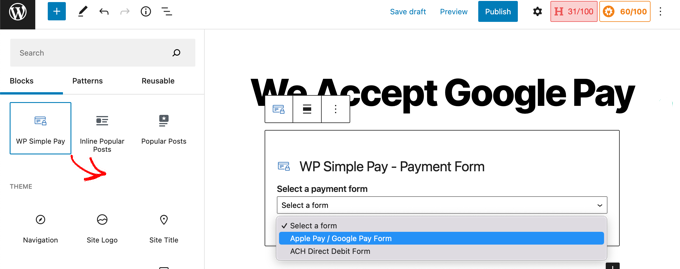
After that, select your order form from the WP Simple Pay block dropdown menu.
Once you’re finished, you can update or publish the post or page. Then, you’ll want to click on the preview button to see your form in action.
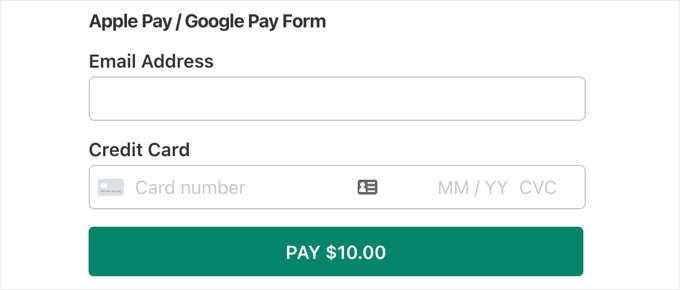
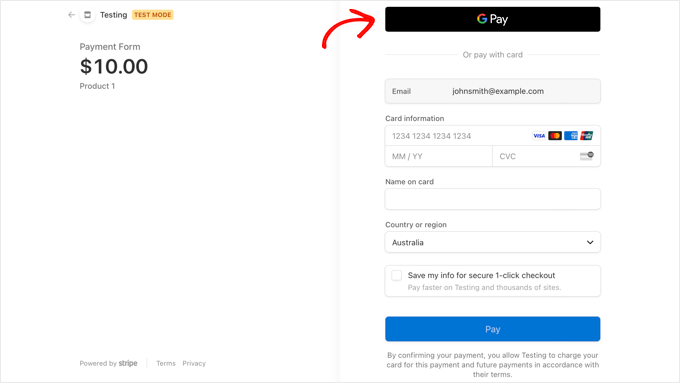
When your users click the Pay button, the Stripe checkout form will be displayed.
The Google Pay option will automatically appear for any customer who is using a compatible browser and has a payment method saved to their Google Account, no matter what device they are on. Other users will simply see the standard credit card fields.
If you’re looking for other ways to add Google Pay in WordPress, then you can use full eCommerce solutions like Easy Digital Downloads or WooCommerce. Both of them support Apple Pay and Google Pay options.
For WooCommerce stores, the Stripe Payment Gateway plugin by FunnelKit is an excellent free option.
It is a great choice because it adds express checkout buttons, allowing customers to pay with one click using Apple or Google Pay directly on your product and cart pages. This can help boost conversions.
Frequently Asked Questions About Google Pay in WordPress
Here are some common questions that our readers frequently ask about adding Google Pay in WordPress:
What are the transaction fees for Google Pay?
Google Pay itself does not add any extra fees to your transactions. You will only pay the standard processing fees from your connected payment gateway, such as Stripe.
Do I need WooCommerce to accept Google Pay?
No, you are not required to install a full eCommerce plugin like WooCommerce.
This tutorial shows you how to accept Google Pay with a simple and lightweight plugin like WP Simple Pay.
Is accepting Google Pay on my website secure?
Yes, it is very secure for both you and your customers. The payment is handled by Stripe, which uses tokenization to protect sensitive financial data so it never touches your website’s server.
Can customers use Google Pay on an iPhone?
Google Pay works in the Chrome browser on any device. However, if an iPhone user is on Safari, they will see the Apple Pay option instead because it is the native default for that device.
More Guides on Accepting Payments in WordPress
Now that you can accept Google Pay in WordPress, you may want to learn how to accept other types of payments:
- How to Collect Cash App Payments in WordPress (Step by Step)
- How to Add Bancontact Payments in WordPress
- How to Set Up GrabPay Payments in WordPress (Easy Ways)
- How to Accept iDEAL Payments in WordPress
- How to Accept ACH Payments in WordPress (Recurring or One-Time)
- How to Easily Accept Bitcoin Payments in WordPress
We hope this tutorial helped you learn how to accept Google Pay in WordPress. You may also want to learn how to create a WordPress form with payment options, or how to add PayPal payment forms in WordPress.


Jiří Vaněk
I personally prefer shops that accept Google Pay because, as an Android user who relies on Google services, I’m used to this payment method. Given Google’s massive user base through Android, it definitely makes sense to integrate Google Pay into a store. The WP Simple Pay plugin seems like a very good and straightforward method to achieve this. Thanks for the detailed guide!
Mrteesurez
Thanks. It’s definitely make much sense to integrate the popular payment gateway like Google Pay and Apple Pay as their parent companies already have established users base. Last year Google anounced the support of it’s Google pay in our country so I am eager to integrate it into WordPress especially woocomerce.
Thanks for this insightful article.