


When your WordPress contact form stops working, it’s like having your front door locked while customers are knocking.
You might not even realize the problem until weeks later. And by then, you’ve already missed out on valuable opportunities and left visitors frustrated. 🤦
At WPBeginner, we know how essential forms are to business success. Over the years, we’ve run into plenty of form issues ourselves, and we’ve learned the fastest ways to fix them.
The good news is that most WordPress form problems are caused by a few common issues – and they’re usually easier to fix than you might expect.
In this guide, we’ll walk you through 7 proven solutions for fixing WordPress forms that don’t work. With these tips, you’ll be back to connecting with your visitors in no time.
📚 Summary: The fastest way to fix a broken WordPress form is to check for plugin conflicts, clear caches, and ensure form notifications are set up correctly. If emails aren’t arriving, an SMTP plugin like WP Mail SMTP is often the most reliable solution.
An Overview of WordPress Form Errors
Using WordPress forms enables you to build an email list, create secure user registrations, collect user feedback, and more.
When your form stops working, you can lose your potential leads and hurt site engagement.
Before we dive into the troubleshooting tips, understanding common WordPress form errors can save you time and frustration. Here are some of the most common ones:
- ❌ Form not submitting correctly. This can be due to several reasons, such as plugin conflicts, incorrect form configuration, or server-side problems (like outdated PHP or limited server resources).
- 📫 Form not sending notification emails. This is usually due to incorrect form plugin settings or SMTP settings.
- 🛠️ Validation errors. They happen when users fill out forms but receive messages saying required fields are missing or incorrect. For example, a form might reject a submission if the email address field is empty or if a phone number is entered in the wrong format.
- 🗯️ Spam submissions. Even with anti-spam measures like CAPTCHA, some forms still receive fake or spam submissions. Aside from cluttering your inbox, they can slow down your website if left unchecked.
What to Do When a WordPress Form Does Not Work
In the following sections, we will share 7 troubleshooting tips to help you fix WordPress form issues.
Here is a quick overview of all the tips we will cover in this guide. If you’re interested in a particular tip, you can click the link to skip ahead in the article:
Let’s get started.
Tip 1. Update WordPress, Themes, and Plugins
Outdated software is one of the leading causes of website problems, including form errors.
Software developers continuously work on improving their products. With each update launch, developers fix software bugs, patch security vulnerabilities, and improve functionality.
By keeping everything up to date, you make sure that your WordPress site, including its forms, runs smoothly and securely.
To update your WordPress site, the first thing you need to do is go to Dashboard » Updates.
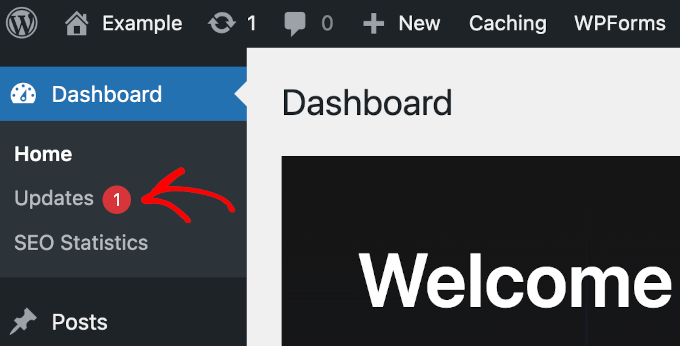
In the ‘Updates’ section, you can see if there are any available updates for the WordPress core, plugins, and themes.
If a WordPress core update is available, you should prioritize that one first.
To update your WordPress safely, you might want to check our ultimate guide for how to update WordPress for beginners.
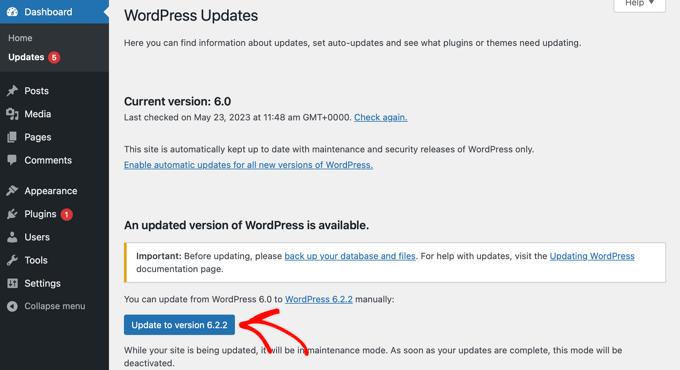
Once done, go ahead and scroll down the page to start updating your plugins and themes.
We recommend performing updates one at a time to avoid any potential issues.
To do this, simply check the box to the left of the plugin or theme name and click ‘Update Plugins’ or ‘Update Themes‘.
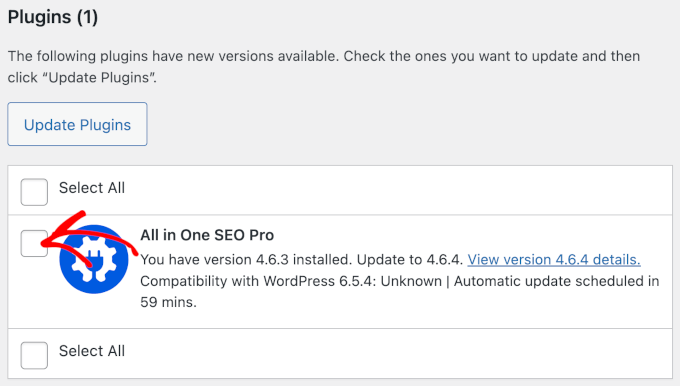
After updating your WordPress core, plugins, and themes, you can return to your form and test it to see if the problem has been fixed.
Tip 2. Check for Plugin Conflicts
WordPress plugins are fantastic for extending your site functionality, but sometimes they don’t play well together. And conflicts between plugins can lead to issues with your forms.
Before we start, it’s always safest to test for plugin conflicts on a staging site. This is a private copy of your website where you can troubleshoot without affecting your live visitors.
If you don’t have a staging site, don’t worry. You can still follow these steps, but we recommend doing it when your site has the least amount of traffic.
To see if a plugin conflict is causing your form issues, the first thing you’ll need to do is navigate to Plugins » Installed Plugins from your WordPress dashboard.
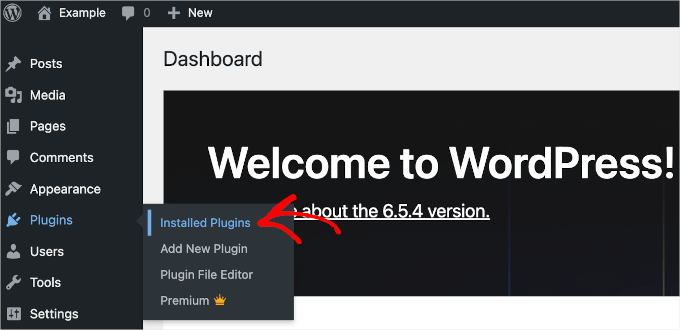
From here, you can click the ‘Active’ tab to access the list of all the currently active plugins on your site.
Now, you’ll need to deactivate all plugins except for the WordPress form plugin you are using. You can do this by clicking the ‘Deactivate’ button under each plugin name.
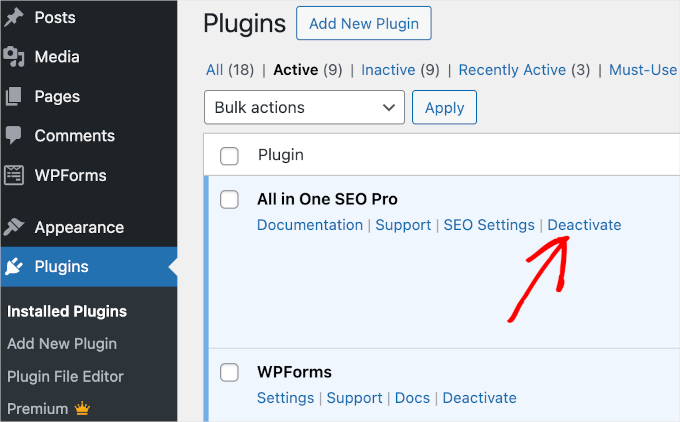
Alternatively, you can bulk-deactivate all of your plugins by clicking on the boxes to the left of the plugin names.
Then, choose ‘Deactivate’ from the ‘Bulk actions’ dropdown menu, followed by the ‘Apply’ button.
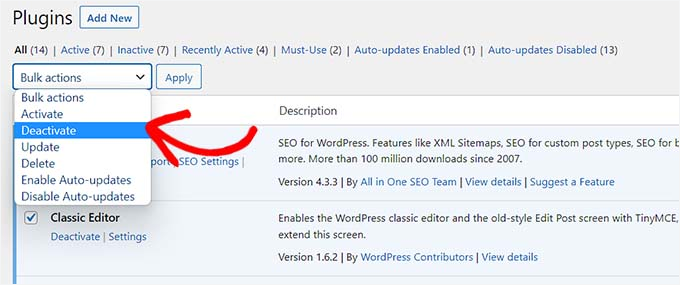
With only the form plugin active, you can now test your form to see if the issue persists. If the form works correctly, then one of the deactivated plugins was likely causing the conflict.
Now, let’s find which plugin is causing your form issues.
To do this, simply navigate to the ‘All’ tab and try reactivating your plugins one by one by clicking ‘Activate’. Then, you can test the form each time to find the conflicting plugin.
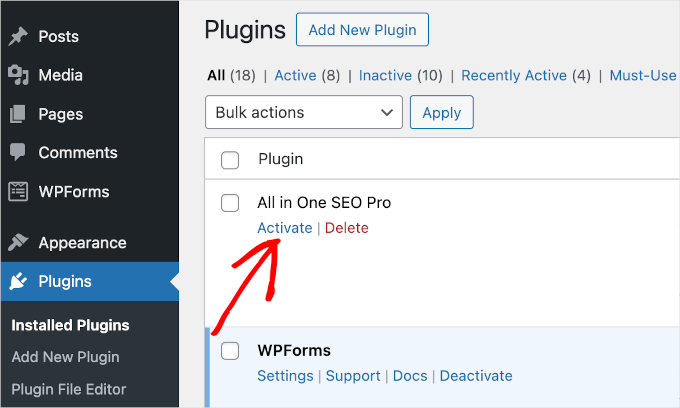
If your form stops working after you reactivate a plugin, then you’ve found the culprit. So, you might want to look for plugin alternatives to fix your form issues.
To help you out, you can check our guide on how to choose the best WordPress plugin.
Tip 3. Clear Browser and Website Caches
Caching is a fantastic way to speed up your WordPress site. But sometimes, it can serve outdated versions of your pages, which may cause your forms to malfunction.
With this in mind, you’ll want to regularly clean your cache.
You can start with your browser’s cache, as this simple step makes sure you’re loading the most current version of your site directly from the server.
Next, you can clear your website’s cache. If you’re using a caching plugin like WP Rocket, which we also use on our own sites, this is usually just a one-click process from your WordPress admin bar.
For detailed steps on clearing the cache for your specific browser and popular plugins, check out our complete guide on how to clear your cache in WordPress.
Keep in mind that many WordPress hosting companies also have their own caching systems. If clearing your plugin cache doesn’t solve the problem, log in to your hosting account dashboard and look for an option to ‘Clear’ or ‘Purge’ the server-level cache.
Once you’ve cleared your caches, you can test your form again to see if the issue is resolved.
Tip 4. Review the Form Settings
Incorrect form plugin settings can also lead to form issues. So, reviewing and adjusting these settings might help resolve your form issues.
In this section, we will show you how to review the WPForms plugin settings. If you are using a different WordPress form plugin, then you will want to read their documentation.
Ever wondered what tool we use for our contact form? It’s all thanks to WPForms, the best WordPress form builder. Check out our complete WPForms review to see how it works.
To get started, you can click ‘WPForms’ from the WordPress dashboard. This will redirect you to the builder’s ‘Forms Overview’ panel.
Then, simply hover over the form that does not work from the list of all forms, and click ‘Edit’. Once you’ve done that, you’ll arrive at the WPForms builder interface.

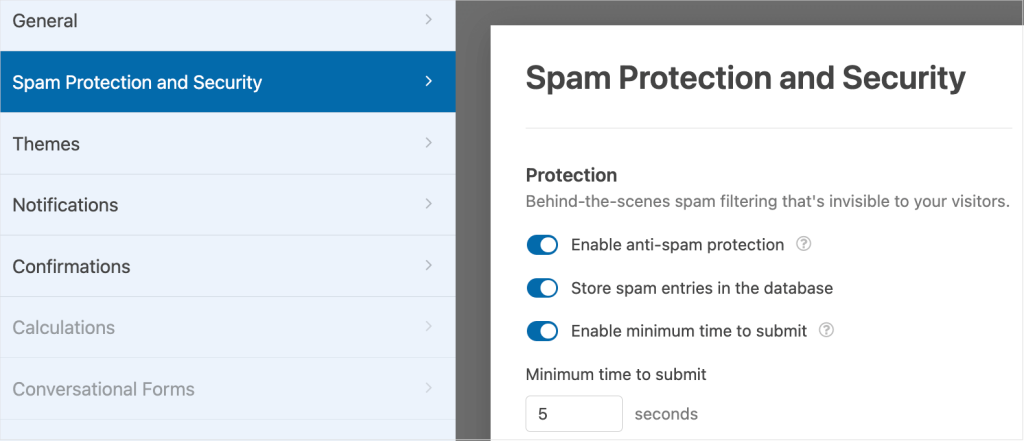
Spam protection makes sure that your form doesn’t receive fake form submissions. So, if you have spam submission issues, it’s a good idea to verify your spam protection configuration.
For this, you’ll need to go to Settings » Spam Protection and Security. Then, you can check if your spam protection measures are turned on.
Next, let’s verify your notification configurations.
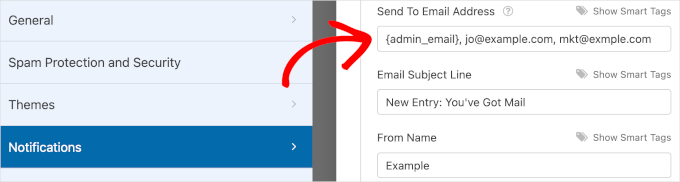
In the ‘Notifications’ section, you’ll want to look for any typos in the email addresses in the ‘Send To Email Address’ field.
If you set multiple recipients, then you should check if you use a comma to separate each.
If you are not sure whether you’ve set up multiple email recipients correctly, we recommend learning more about it in our guide for how to create a contact form with multiple recipients.
The next step is to check what happens when a user submits a form. This will help you ensure that redirects, thank you messages, and any other follow-up actions are properly configured.
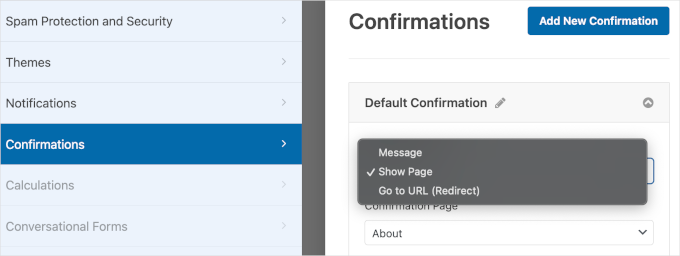
You can head to the ‘Confirmations’ section to start checking.
If you set your confirmation type as ‘Show Page’, you’ll need to make sure the page is live on your WordPress website. And if you choose ‘Go to URL (Redirect)’, you might want to double-check the attached link to make sure it works.
While you’re checking your form, it’s also a good idea to review any conditional logic you’ve set up.
Sometimes, a rule might accidentally hide a required field or the submit button. For example, a field may only appear when a specific option is selected. If that condition isn’t met, users won’t see the field, but still won’t be able to submit the form.
Tip 5. Test Email Deliverability
You may also be having issues with your WordPress form not sending notification emails to you or your users.
Sometimes, WordPress emails can even end up in the spam folder. This is because WordPress sends emails using the PHP mail() function by default, and many hosting servers don’t configure it properly.
Luckily, an SMTP plugin like WP Mail SMTP can help fix this problem.
WP Mail SMTP is a powerful plugin that can improve email deliverability. It has all the features you need to solve issues like emails getting lost or being marked as spam.
The WP Mail SMTP plugin has been helping us make sure our emails get to users’ inboxes – not the spam folders. Get more information about it in our WP Mail SMTP review.
First, you will need to install and activate the WP Mail SMTP plugin. Then, you can follow the steps in our guide on how to fix the WordPress not sending emails issue.
We also recommend reading our guide on how to send a test email from WordPress.
Tip 6. Check Web Server Configuration
Outdated server software can cause compatibility issues with WordPress and your form plugin. To ensure smooth operation, you will want to make sure that your server meets WordPress’s minimum requirements.
WPForms lets you check what server software your site uses, along with the versions of PHP and MySQL.
To access these details, you can navigate to WPForms » Tools » System Info from your WordPress dashboard.
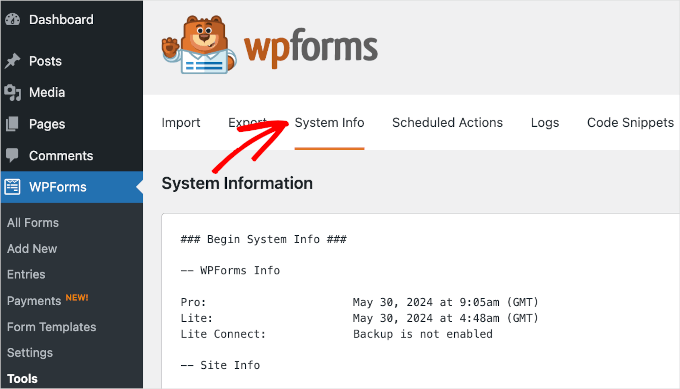
Then, scroll through ‘System Information’ to locate the ‘Webserver Configuration’ section.
Once you’ve found it, all you have to do is compare the PHP and MySQL versions with the minimum requirements for WordPress. If your versions are older than the required ones, some plugins or features may not work properly.
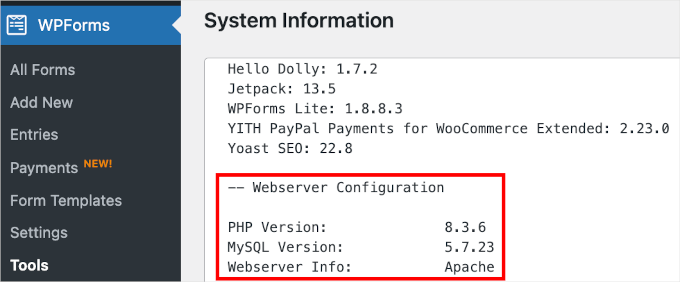
As of the latest WordPress version (6.6 or later), the recommended server requirements are:
- PHP: Version 7.4 or greater
- MySQL: Version 5.7 or greater (or MariaDB: Version 10.4 or greater)
If your server is running older versions, some plugins or features may not work properly. Using the recommended versions ensures better performance, compatibility, and security.
If your server is not running a supported PHP, MySQL, or MariaDB version, contact your WordPress hosting provider. Most hosts will help you upgrade your server’s software to meet these recommended requirements.
You can also see our guide on how to update your PHP version in WordPress.
Tip 7. Contact Plugin Support
Sometimes, despite your best efforts, your WordPress form will still not work, and you will need hands-on help.
If you’ve tried all the previous WordPress troubleshooting tips and your form still isn’t working correctly, then it’s time to contact the plugin’s support team. Most reputable plugins offer support through their official websites, forums, or dedicated support portals.
With WPForms, you can submit an email ticket for support. To reach their support team, simply log in to your WPForms account and select the ‘Support’ tab.
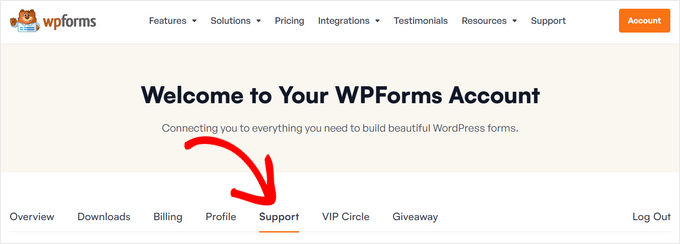
When filling out the support form, be as detailed as possible in the ‘Issue/Message’ section. To help the support team solve your problem quickly, we recommend including the following information:
- A link to the page where your WordPress form is located.
- A clear description of the problem. For example, “The form shows a success message after submission, but I don’t receive the email notification.”
- The troubleshooting steps you’ve already taken from this guide (e.g., “I have already checked for plugin conflicts and cleared all caches.”)
Once done, you can click the ‘Submit’ button. And you should immediately receive an email to confirm your ticket submission.
FAQs: Troubleshoot WordPress Form Errors
Here are some frequently asked questions about troubleshooting WordPress form errors.
Why aren’t my WordPress forms sending emails?
This is one of the most common issues. It usually happens because WordPress uses a basic PHP mail function that many web hosts don’t set up correctly.
The easiest fix is to use an SMTP plugin like WP Mail SMTP. It sends your emails through a proper email provider, which makes them much more reliable.
How can I prevent spam submissions on my forms?
Dealing with spam can be frustrating, but you have several good options. Most popular form builders, like WPForms, include built-in anti-spam tools such as a honeypot field (invisible to users but catches bots).
You can also add a CAPTCHA or reCAPTCHA field to your form. These features will require a quick action to confirm the visitor is human, which filters out most spam.
What’s the best contact form plugin for WordPress?
After testing dozens of plugins, our top pick is WPForms. It’s beginner-friendly, flexible, and has all the features (including AI tools) you need to build any type of form.
We even use it on WPBeginner for our own contact and survey forms. And you can learn more about it in our complete WPForms review.
Keep Learning: More Guides on Using WordPress Forms
We hope this guide has helped you learn what to do when your WordPress form is not working. Now that your forms are working correctly, you might find these other guides helpful:
- How to Customize and Style Your WordPress Forms
- How to Create WordPress Forms with Dropdown Fields
- Ways to Use Conditional Logic in WordPress Forms
- Tips to Create More Interactive Forms in WordPress
- How to Track Form Submissions in Google Analytics
If you liked this article, then please subscribe to our YouTube Channel for WordPress video tutorials. You can also find us on Twitter and Facebook.


Samuel
Many a time I have had issue with email deliverability and sometime it is with contact form that has to alert me that someone has filled it. WP Mail SMTP has rescue me many time. I will like to say that, as already mentioned in the article that php configuration is highly recomemded, because it the php running on the server does not meet wordpress requirement then there is bound to be issued. Very useful article, Thanks so much.
Jiří Vaněk
A lot of issues arise from PHP functions without people even realizing it. Often, the problem is related to DNS settings for a domain where the SPF record for the web server, which sends emails via PHP, is missing. This is the first thing to check when dealing with email deliverability issues. Adding an SPF record helped me a lot, but I ultimately switched to WP SMTP Mail because of its undeniable advantages. Since I started using this plugin, the majority of my form-related problems have been resolved. Plus, the ability to monitor and log forms is a huge advantage in my opinion. This is an excellent tutorial to keep handy because forms can be a real headache for website owners, and finding the root cause can be quite challenging.